
Bulk Follow Up lets you chase every unpaid invoice you have already emailed in one action, so overdue accounts get a reminder without you opening them one at a time.
Overview
Sending an invoice is only half the job - getting it paid is the other half. The Follow Up tab on the Bulk Email Invoices screen gathers the invoices you have already sent that are still open, so you can filter down to the overdue ones and resend them as a batch.
-
Lists invoices that have been emailed or marked as sent and are still Completed (that is, not yet paid).
-
Filter by branch, customer, payment terms and a Due Before date to isolate overdue accounts.
-
Resend the whole selection in one step, either to each customer's billing contact or to an internal Latner user.
-
Resends use your Resend Customer Invoice Email templates, so the reminder can read differently from the original - and can quote each invoice's due date with the
{{due_date}}placeholder. -
Every batch is tracked on the Sending/Sent tab with a per-invoice status and the generated PDF.
Before You Begin
A few things need to be in place before you can follow up invoices.
|
Requirement |
Where to Find It |
|---|---|
|
Bulk Email Invoices screen permission |
Security › Configuration › permission group, under Customer › Screen |
|
Email Customer Invoice permission |
Security › Configuration › permission group, under Customer › Options |
|
Customer Invoice Email templates configured (at least From Email, Subject and Body) |
Security › Settings › Email |
|
Invoices already emailed or marked as sent, and still unpaid |
Customers › Bulk Email Invoices › Unsent / Sending-Sent tabs |
|
A billing contact with an email address on the customer |
Customers › Customer Contacts |
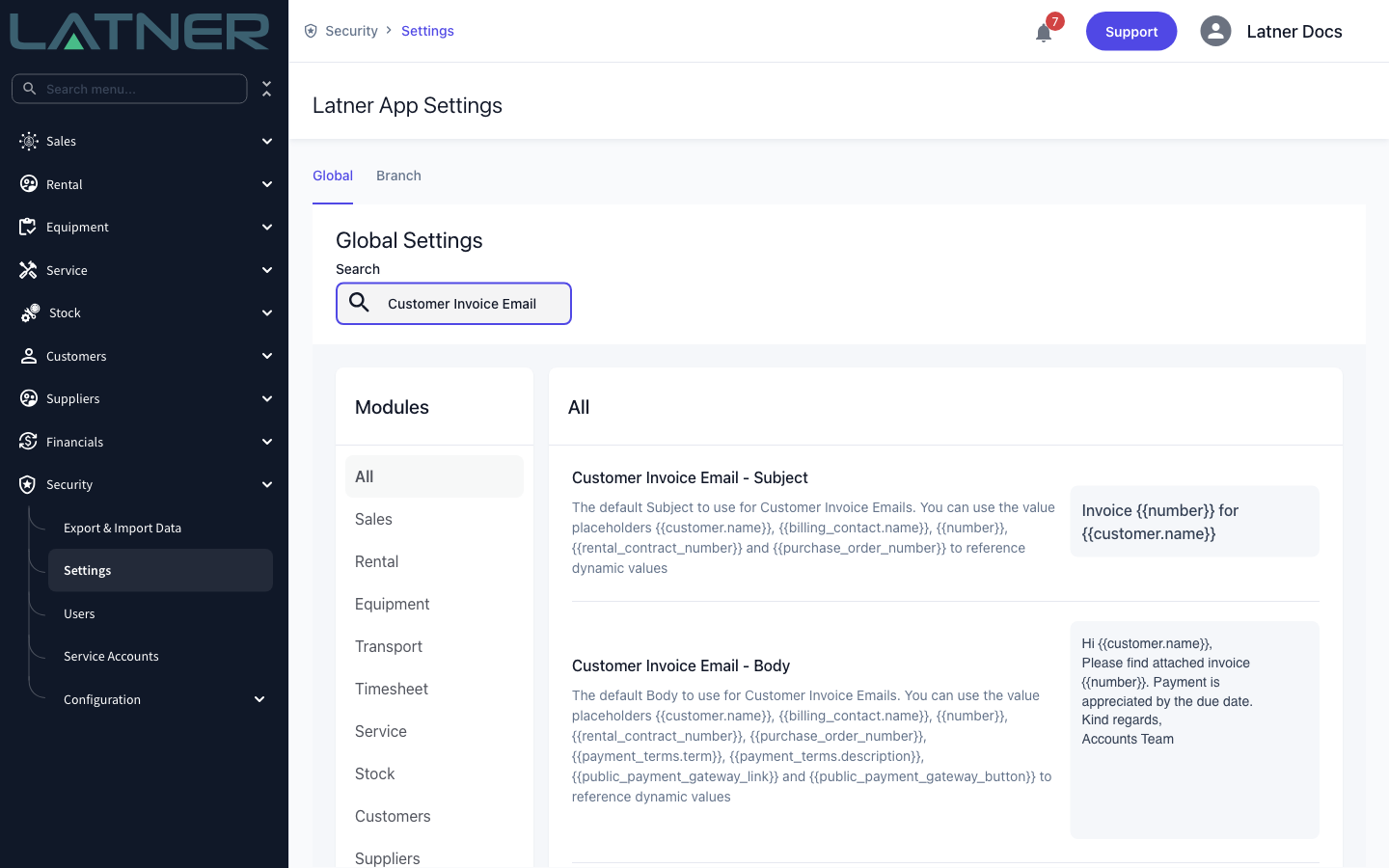
If those email settings are missing, the resend stops with a message such as 'The "Customer Invoice Email - From Email" setting has not been configured yet'. Set them once under Security › Settings › Email and every future batch will work. The reminders themselves use the separate Resend Customer Invoice Email settings, so they can have their own wording. A resend doesn't fall back to the standard invoice email wording, so keep a subject and body in the resend settings as well.
Placeholders You Can Use
The subject and body of your invoice emails are templates. Wherever you type a placeholder (also called a merge field), Latner swaps in that invoice's own value as each email is sent, so one template works for every invoice in the batch. The same placeholders work in both sets of settings under Security › Settings › Email:
-
Resend Customer Invoice Email - Subject and - Body - used by Resend Invoices on the Follow Up tab, so this is where your overdue reminder wording goes.
-
Customer Invoice Email - Subject and - Body - used when an invoice is first emailed.
In the subject or the body:
-
{{customer.name}}- the customer's name -
{{billing_contact.name}}- the name of the invoice's billing contact -
{{number}}- the invoice number -
{{rental_contract_number}}- the rental contract the invoice was raised from -
{{purchase_order_number}}- the customer's purchase order number on the invoice -
{{due_date}}- the invoice's due date, for example 14/10/2026 (when you email a single invoice from the invoice itself, it reads 14 Oct 2026) -
{{payment_terms.term}}and{{payment_terms.description}}- the invoice's payment terms
In the body only:
-
{{public_payment_gateway_link}}- the web address where the customer can pay the invoice online -
{{public_payment_gateway_button}}- a Pay Now link to the same payment page
For example, an overdue reminder in the Resend Customer Invoice Email - Body could open with:
Invoice {{number}} was due on {{due_date}} and is now overdue.
Each invoice in the run is filled in with its own number and due date, so a batch of twenty overdue invoices sends twenty correctly worded reminders.
Type placeholders exactly as shown, double curly braces included - they are case sensitive. The setting descriptions on the Settings screen don't list every placeholder: {{due_date}} works even though it isn't mentioned there. The payment link placeholders only produce a link when an online payment gateway (such as eWay) is set up and the invoice has a payment link. If an invoice has no value for a placeholder - no purchase order number, say - it comes out blank or as a filler such as N/A, so word the sentence so it still reads well either way.
Following Up Invoices
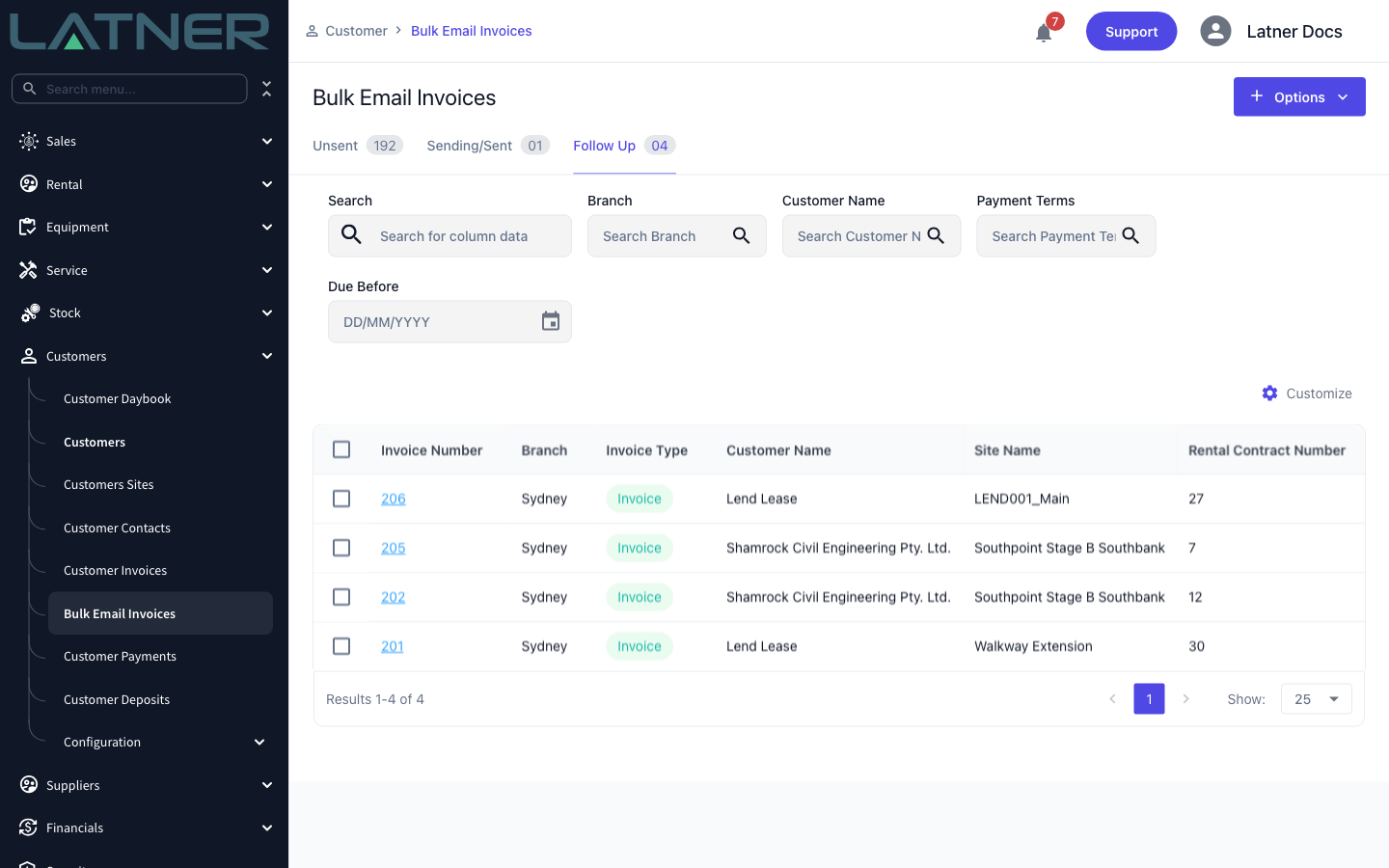
Step 1 - Open the Follow Up tab
Go to Customers › Bulk Email Invoices and select the Follow Up tab. It lists invoices you have already sent that remain unpaid. Use the Due Before filter (together with Branch, Customer Name and Payment Terms) to narrow the list to the accounts you want to chase.
Step 2 - Select the invoices and choose Resend Invoices
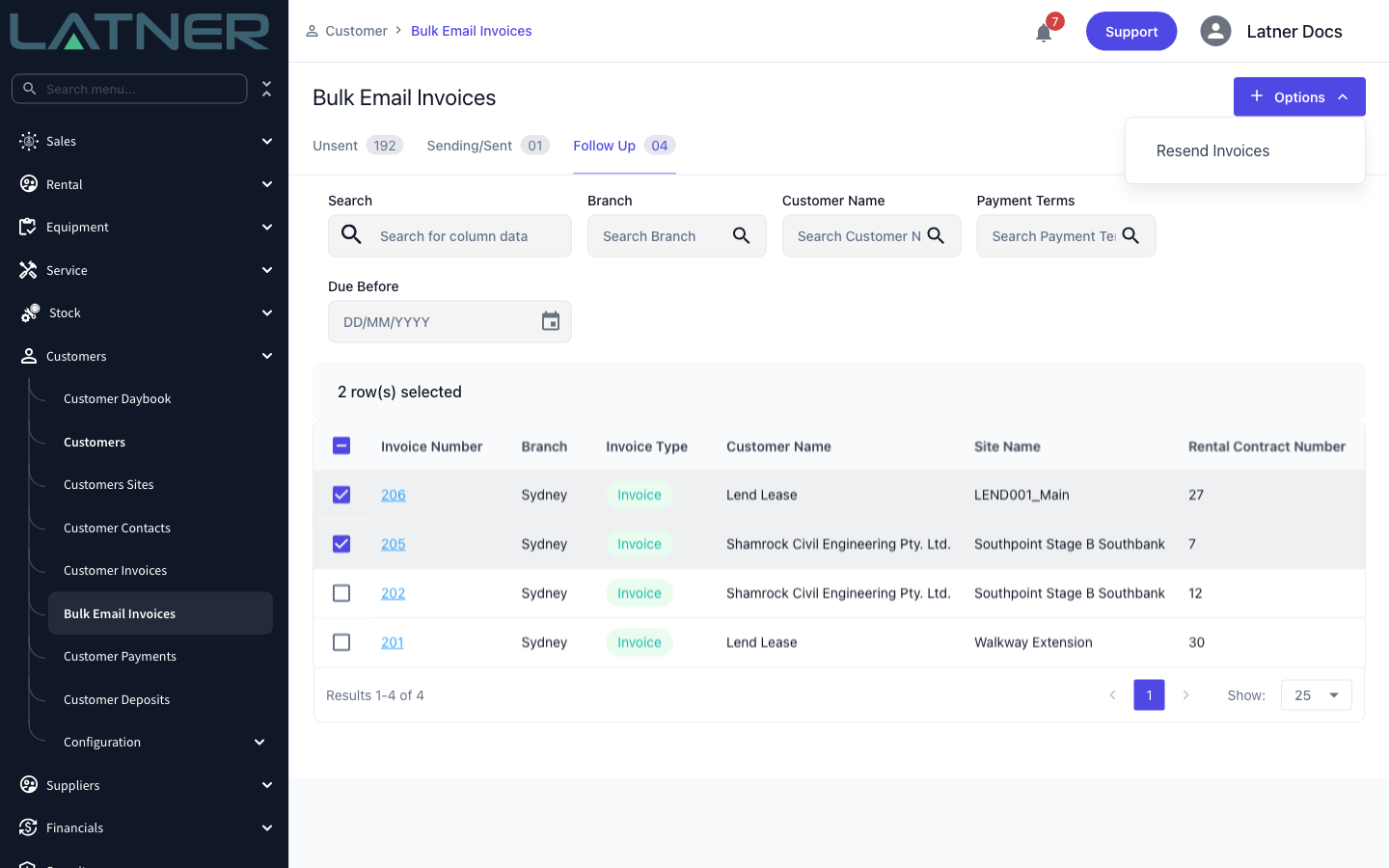
Tick the invoices you want to follow up, or use the header checkbox to select every invoice matching your current filter. Then open the Options menu (top right) and choose Resend Invoices.
-
Selecting individual rows resends just those invoices.
-
Selecting all resends every invoice that matches the filters currently applied, not only the ones visible on the page.
Step 3 - Choose who receives the reminder
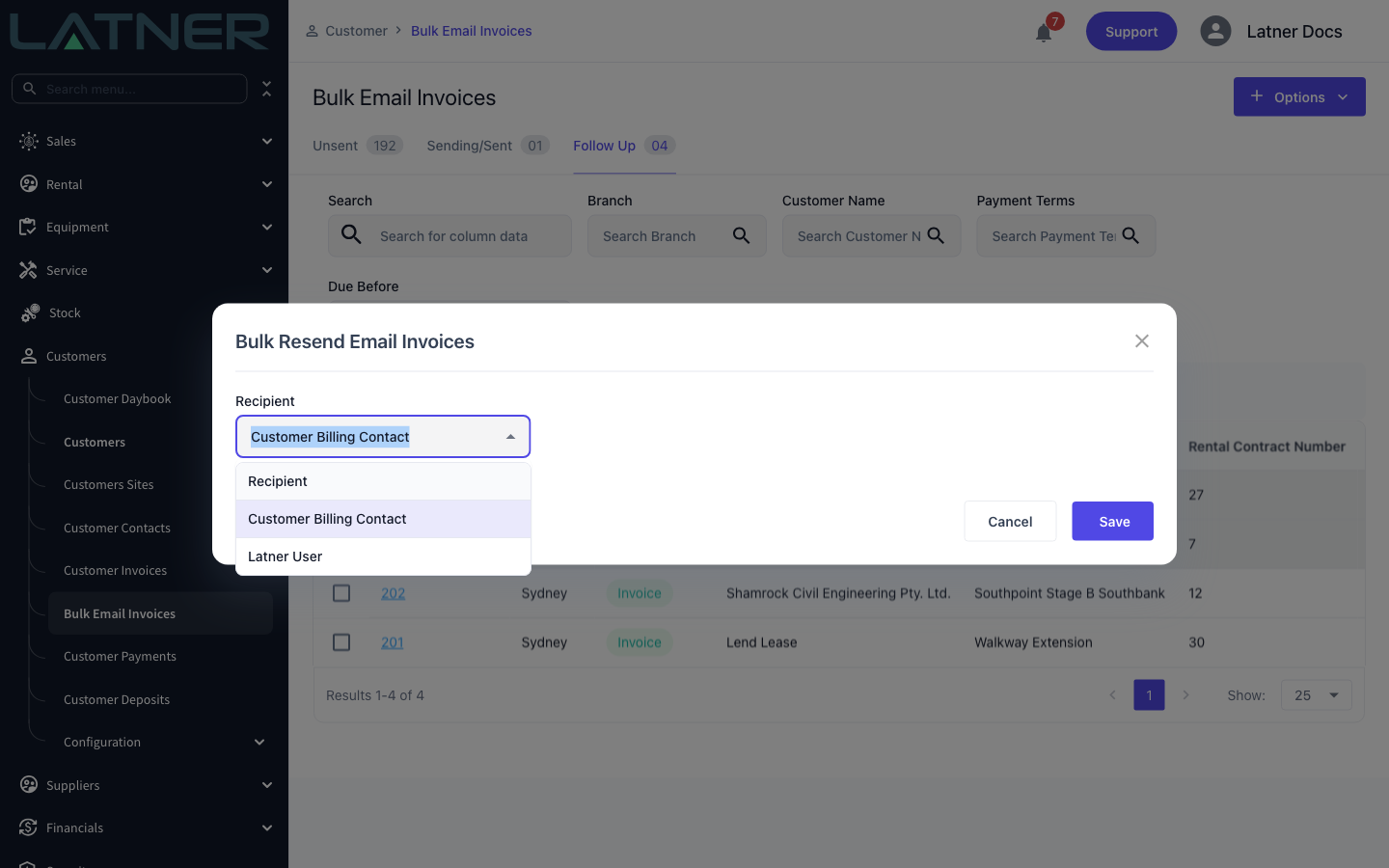
The Bulk Resend Email Invoices dialog opens with a single required field, Recipient. It defaults to Customer Billing Contact, which sends each invoice to the email on that customer's billing contact.
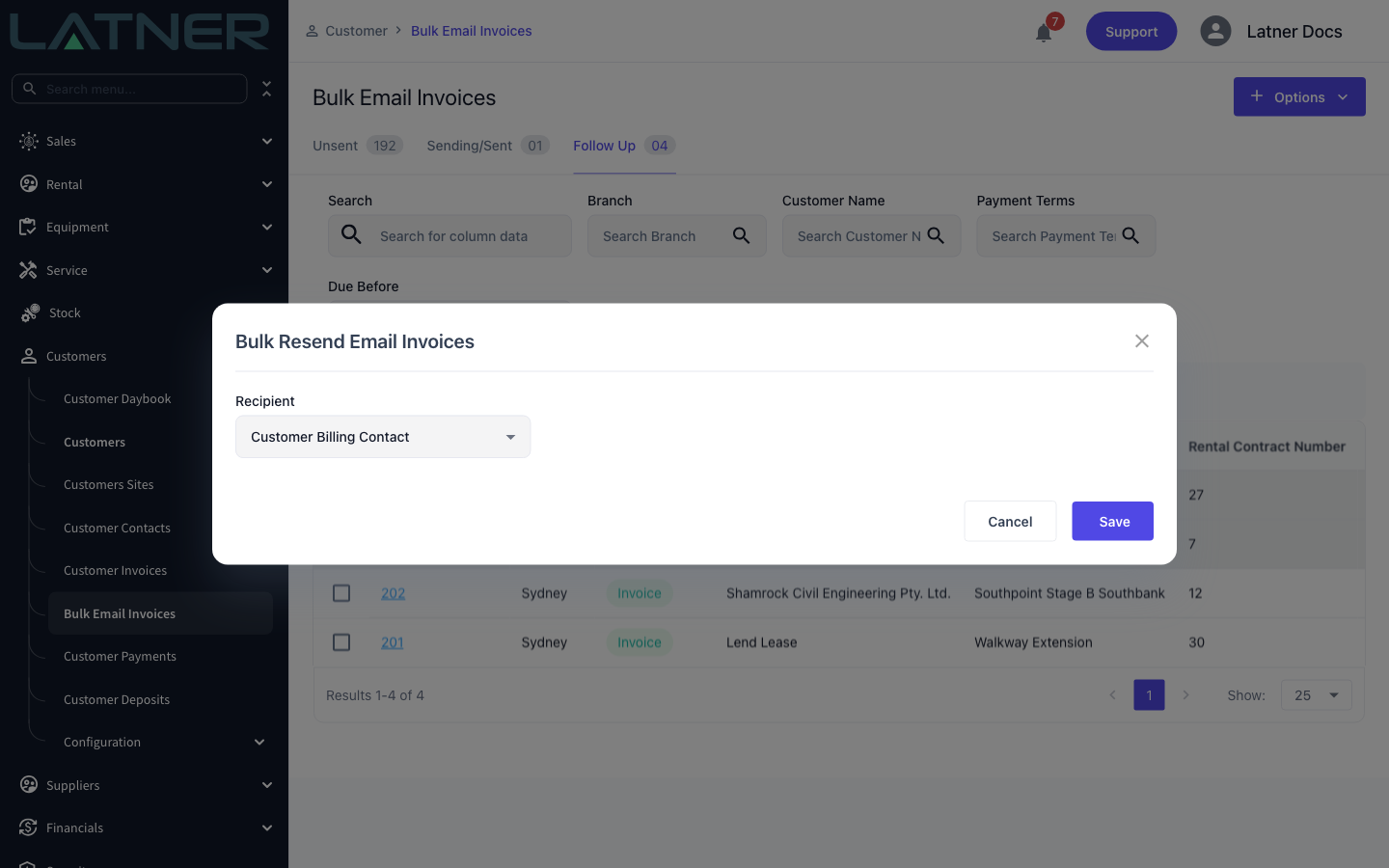
The two recipient options are:
-
Customer Billing Contact - sends each invoice to its customer's billing contact email.
-
Latner User - redirects the whole batch to a chosen internal user instead of the customers. Handy for previewing the run or routing reminders to a collections team member.
Step 4 - Pick a user (only for Latner User)
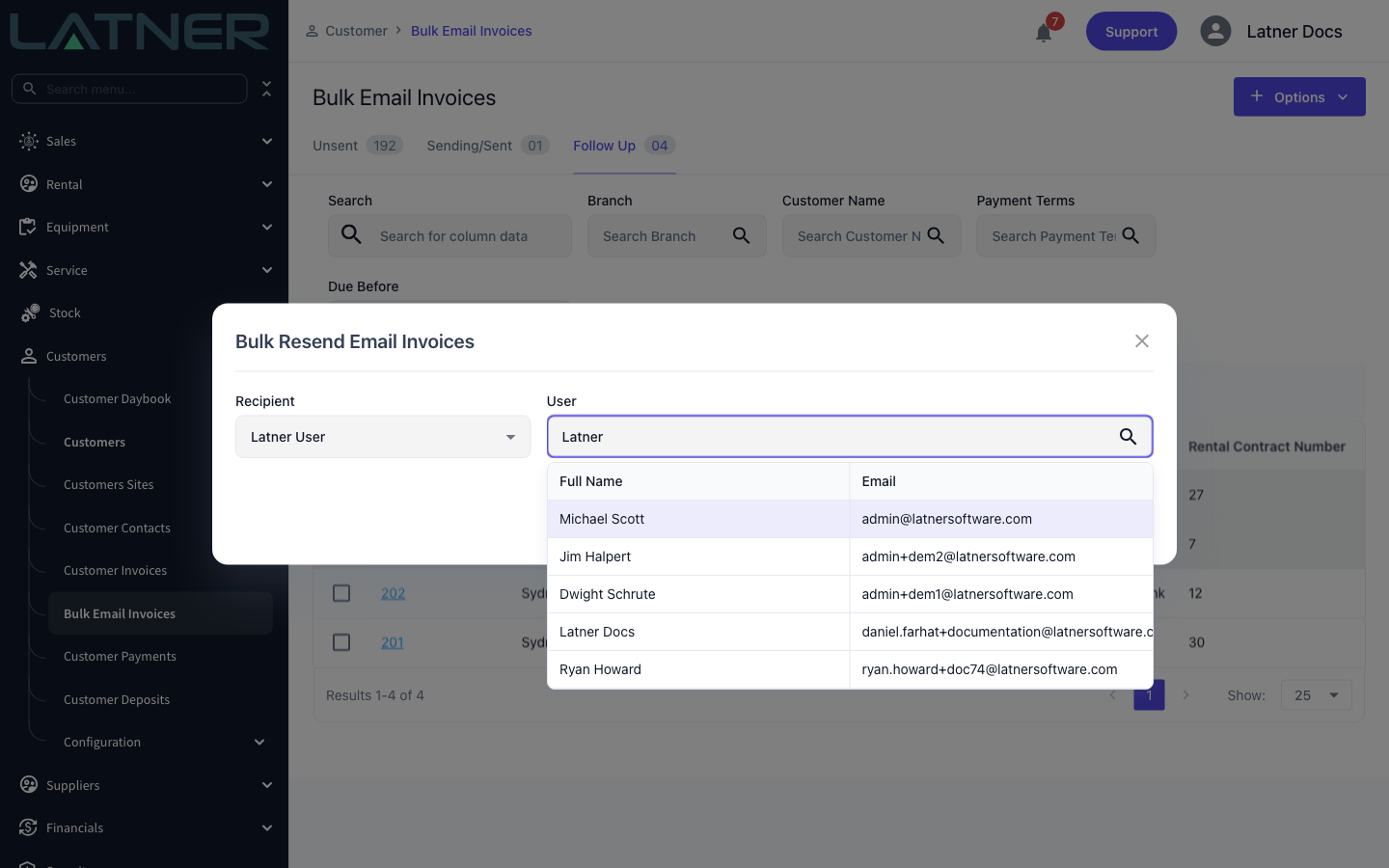
If you choose Latner User, a required User field appears. Search by name or email and pick the person who should receive every invoice in the batch. Leave this on Customer Billing Contact if you want the reminders to reach your customers.
Step 5 - Save
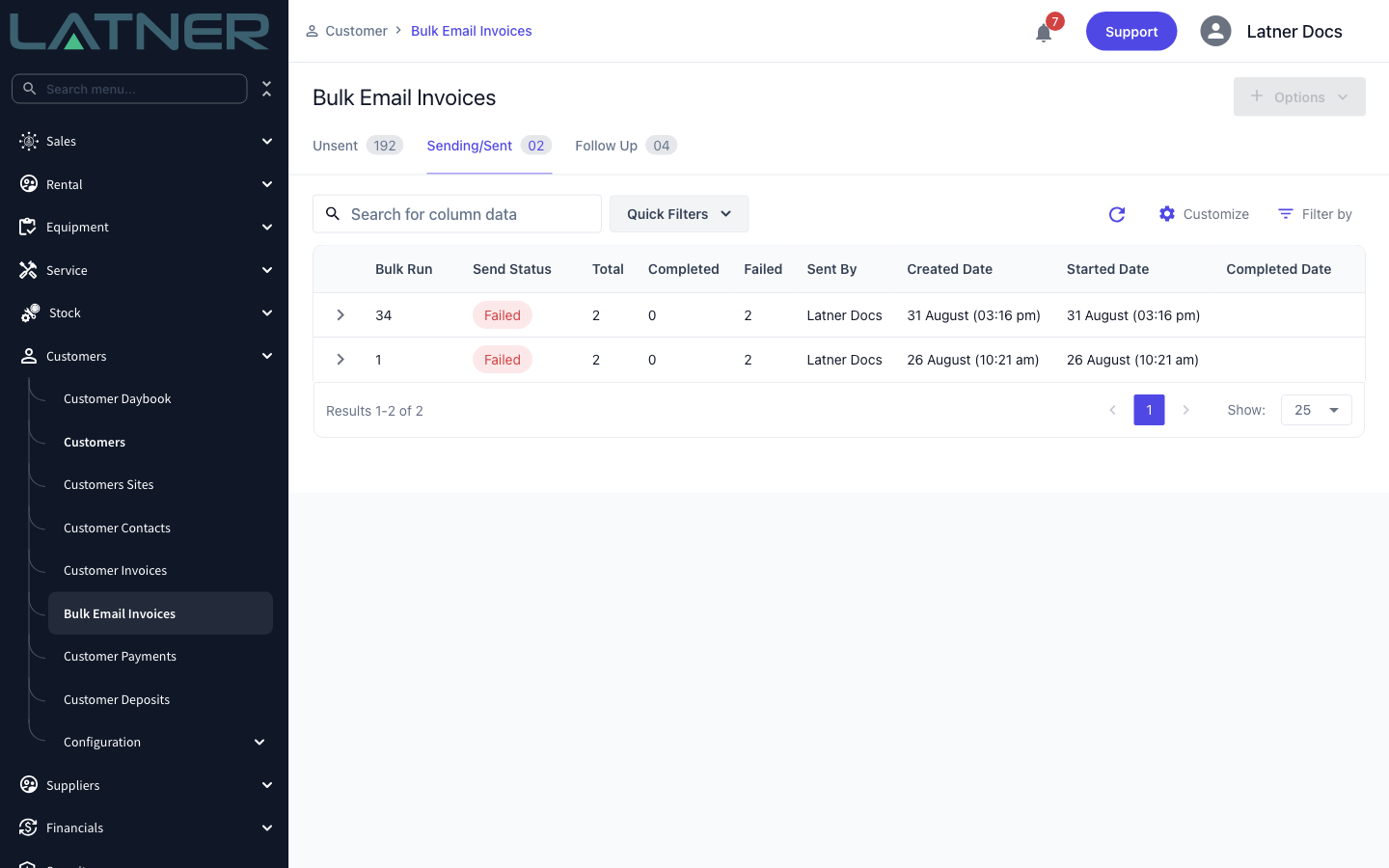
Click Save. Latner confirms with a Sending Emails message, queues the batch as a background run and switches you to the Sending/Sent tab to watch it process.
After Sending
-
A new bulk run appears on the Sending/Sent tab, showing Total, Completed and Failed counts, who sent it and when.
-
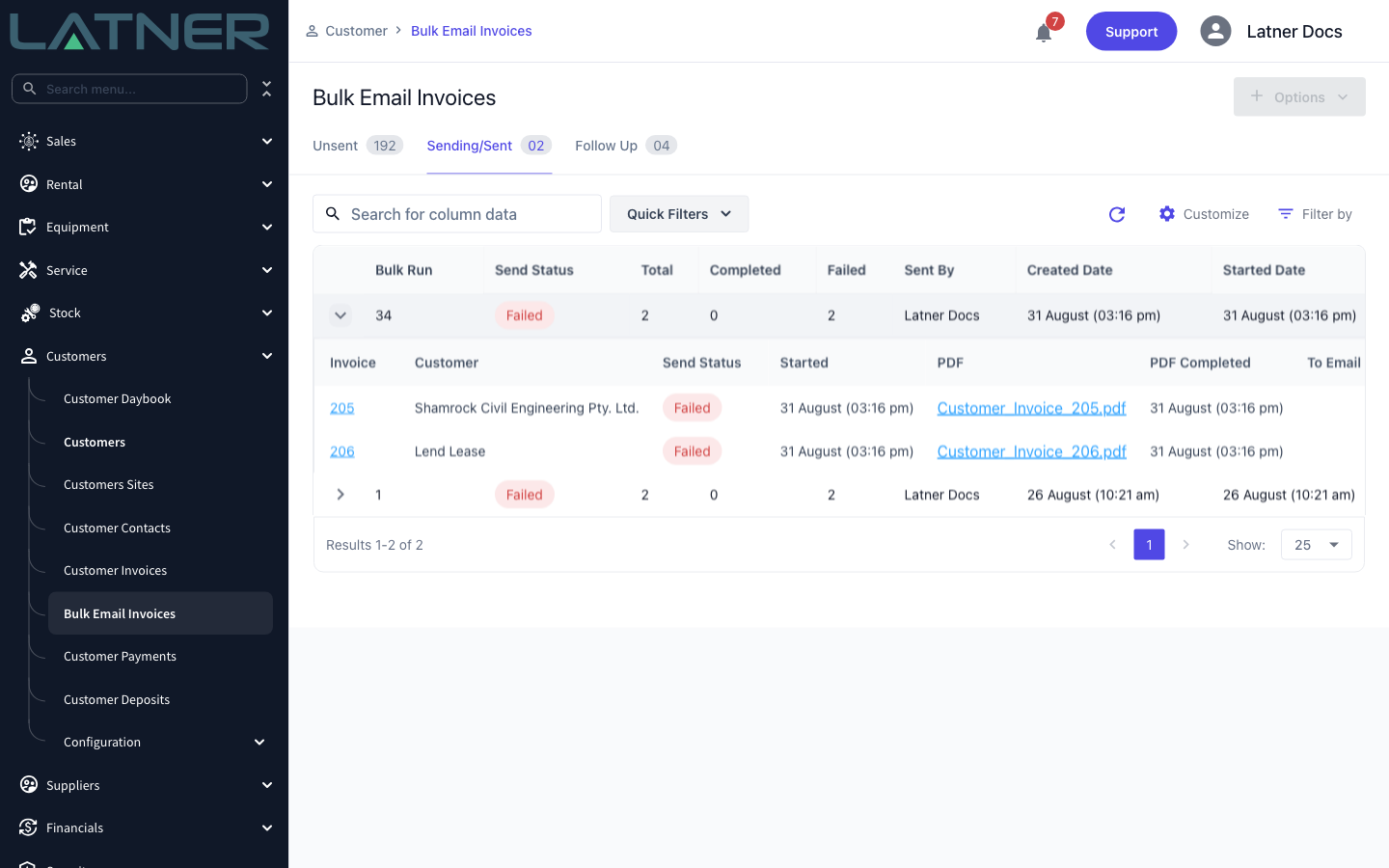
Expand a run to see each invoice's send status, the generated invoice PDF and the destination email address.
-
Each invoice keeps a PDF snapshot of exactly what was sent, so you have a record of the reminder.
-
Resending does not change the invoice status or remove it from the Follow Up list - an invoice stays on Follow Up until it is paid, so you can chase it again later.
The reminder goes out immediately once the run starts - there is no draft or approval step. Use the Due Before and customer filters to be sure you are only chasing the invoices you mean to, and consider the Latner User recipient to preview a batch before it reaches customers.
FAQs
Watch the Demo
Prefer to watch it? Step through the same flow here.