
Refunding through a credit note lets you hand money back to a customer against credit you have already raised, so the refund, the credit note and the payment it came from all stay linked to each other in Latner.
Overview
Crediting an invoice fixes the paperwork, but it doesn't fix the customer's bank balance. When they have already paid you and the credit is genuinely money owed back rather than something to set against their next invoice, you refund it from the credit note itself.
-
A refund is raised from a Completed credit note using Options › Refund Payment, and it always points at a specific customer payment.
-
You choose how much to refund, up to the smaller of the credit note's Remaining Credit and the selected payment's Refundable Balance.
-
Latner records the refund as a Customer Payment of type Refund, in status Completed, sitting against the credit note.
-
The refund reduces the credit note's Remaining Credit. It does not reopen the invoice the customer originally paid.
-
Refunding part of a credit note is fine. Once the whole credit note has been refunded or allocated, the credit note moves to Paid.
-
If the money came in through CBA Simplify or Eway, picking that method sends the refund back out through the gateway rather than just recording it in Latner.
Before You Begin
You'll need the right permissions, and a credit note and a payment that can actually be matched to each other.
|
Requirement |
Where to Find It |
|---|---|
|
Refund Customer Payment permission |
Security › Configuration › Permission Groups, under Customers. Without it the Refund Payment option is hidden. |
|
Create Customer Payment permission |
Security › Configuration › Permission Groups, under Customers. This is what lets the refund actually save. |
|
Customer Payments permission |
Security › Configuration › Permission Groups, under Customers. Needed to open the refund record afterwards. |
|
A credit note in status Completed with Remaining Credit left on it |
Customers › Customer Invoices, filtered to Type = Credit Note. |
|
A completed payment from the same customer that still has a refundable balance |
Customers › Customer Payments. |
|
Allowed Payment Methods and Default Payment Method (both optional) |
Security › Settings › Global › Financials. |
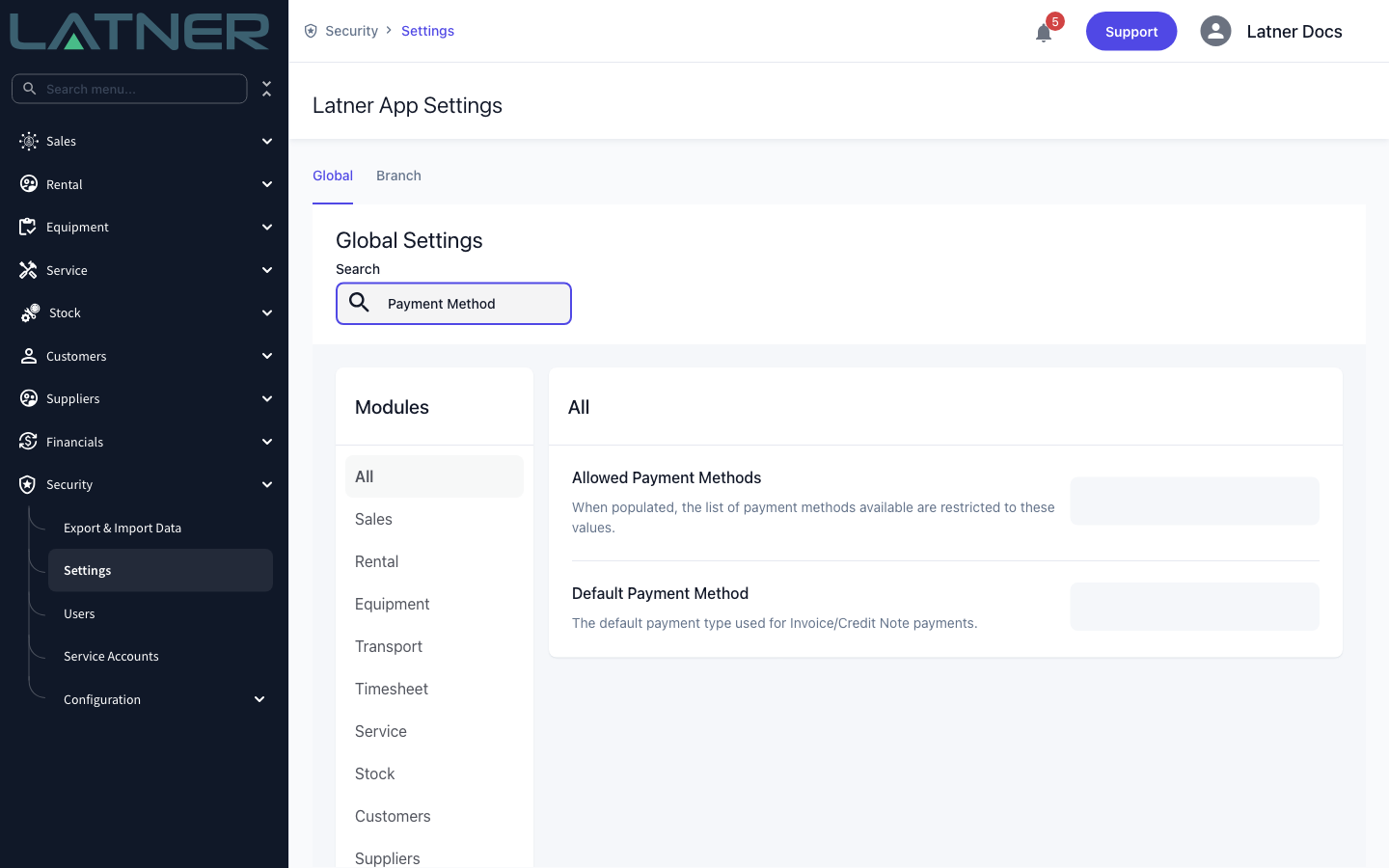
Leave Allowed Payment Methods blank and every internal method is offered; populate it and the Method dropdown is cut down to just those values. A few methods never appear on this dialog whatever you set: Xero, MYOB and Sage are only ever created by the accounting system, Drawdown is not a way to send money back out, and CBA Simplify and Eway only show when a matching Payment Gateway Integration exists for the credit note's company.
Refunding the Payment
Step 1 - Find the credit note
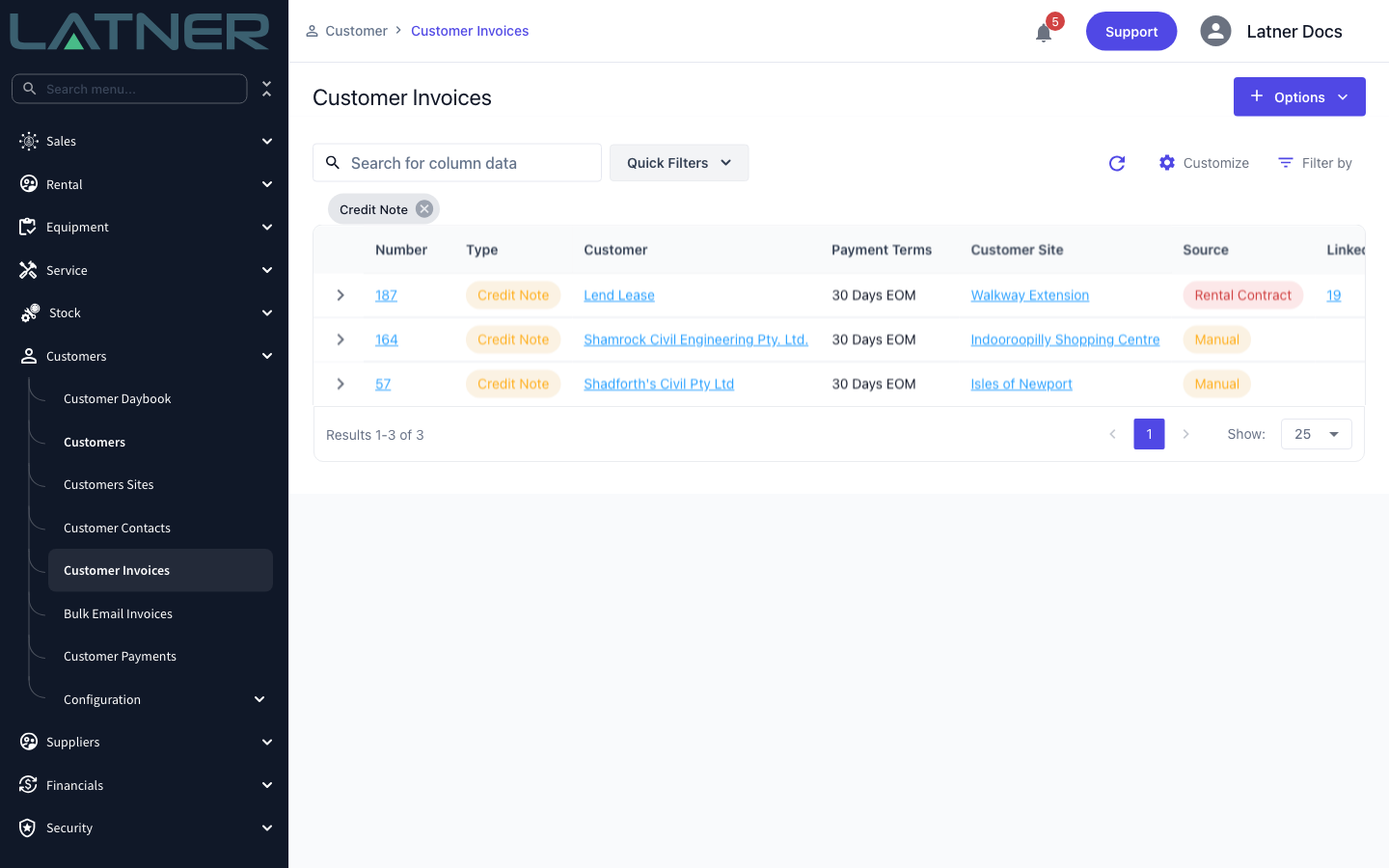
Go to Customers › Customer Invoices. Credit notes live in the same list as invoices, so open Filter by, expand Type, tick Credit Note and choose Apply Filters. Click the credit note number to open it.
Step 2 - Check the credit note is ready to refund
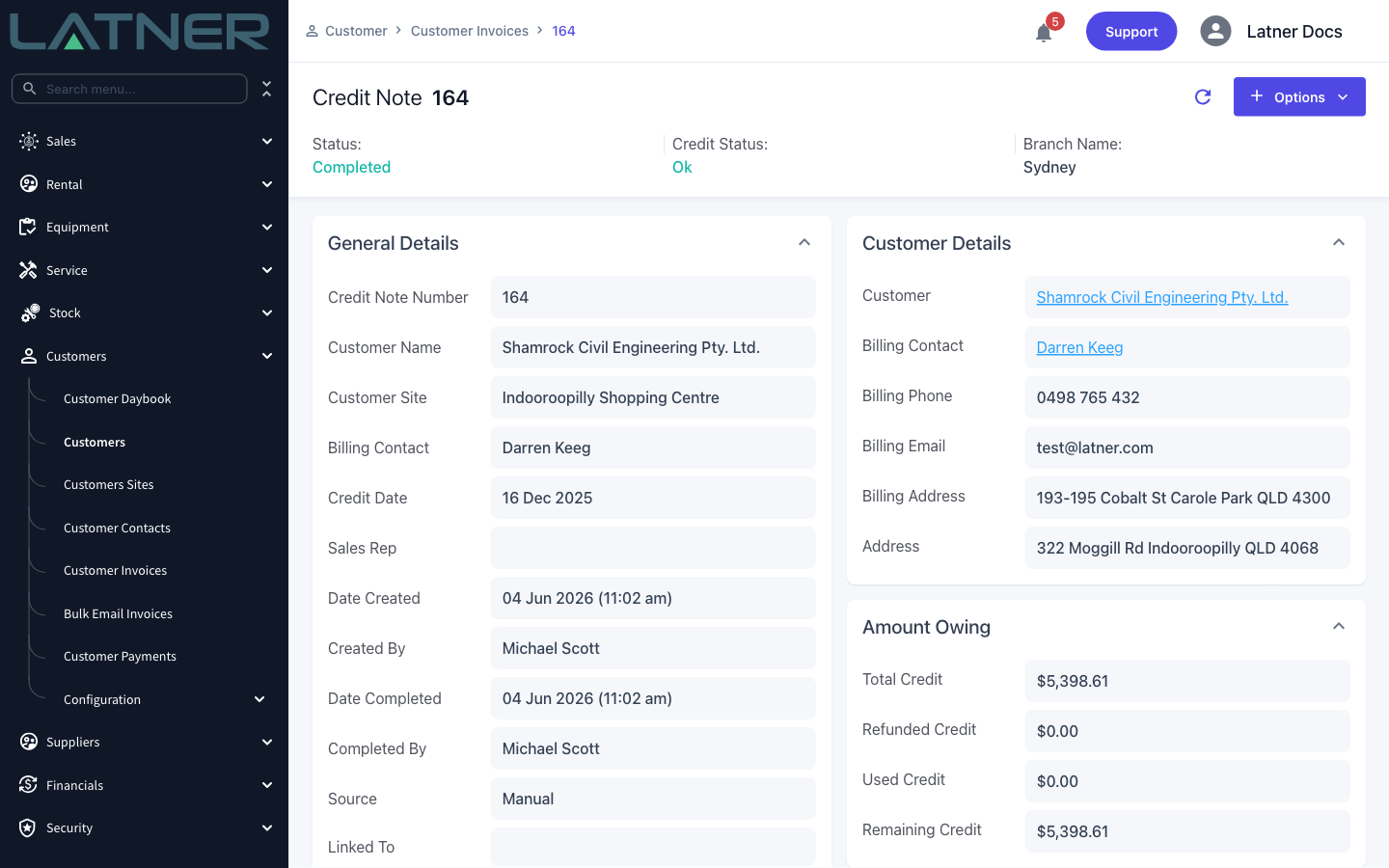
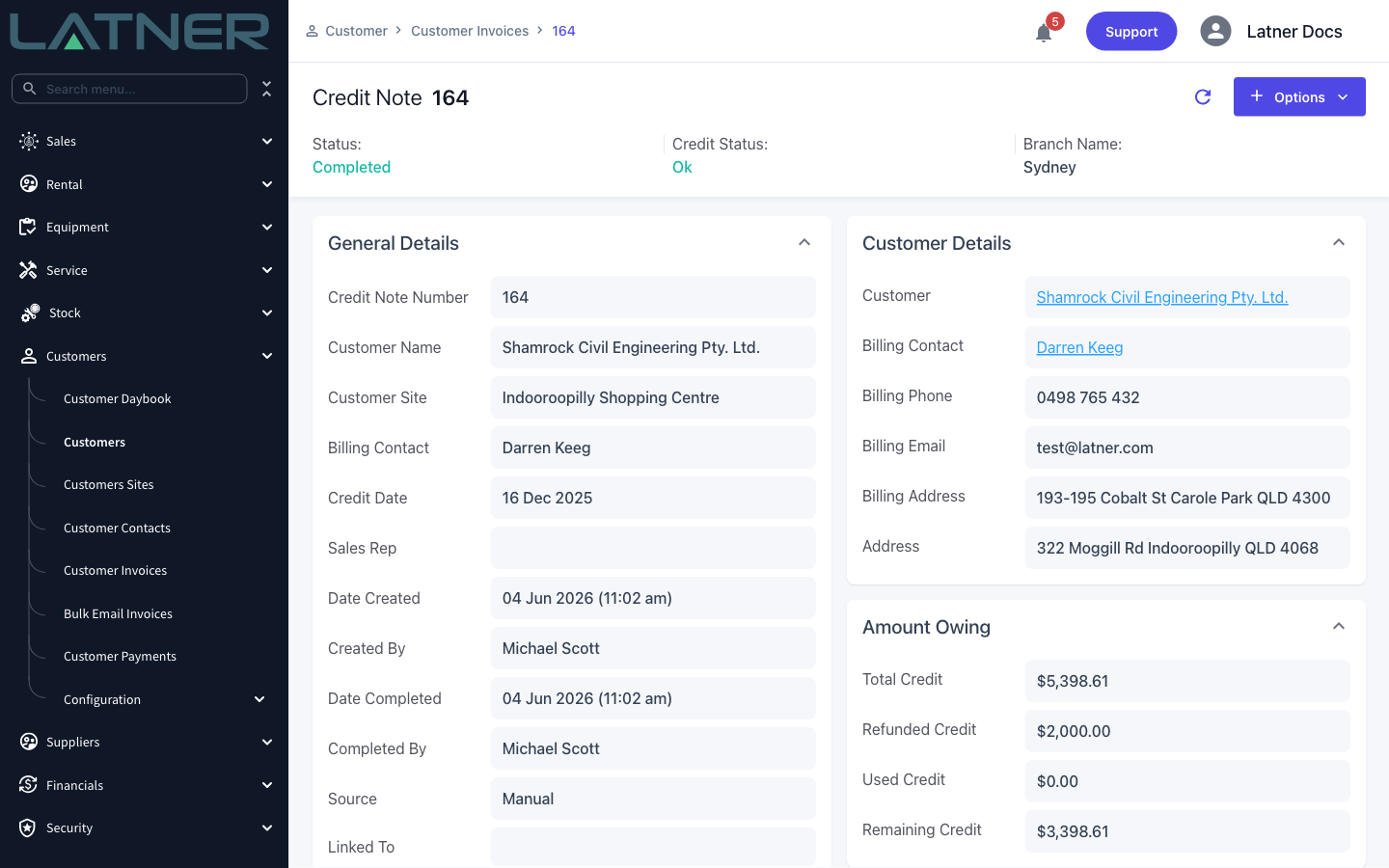
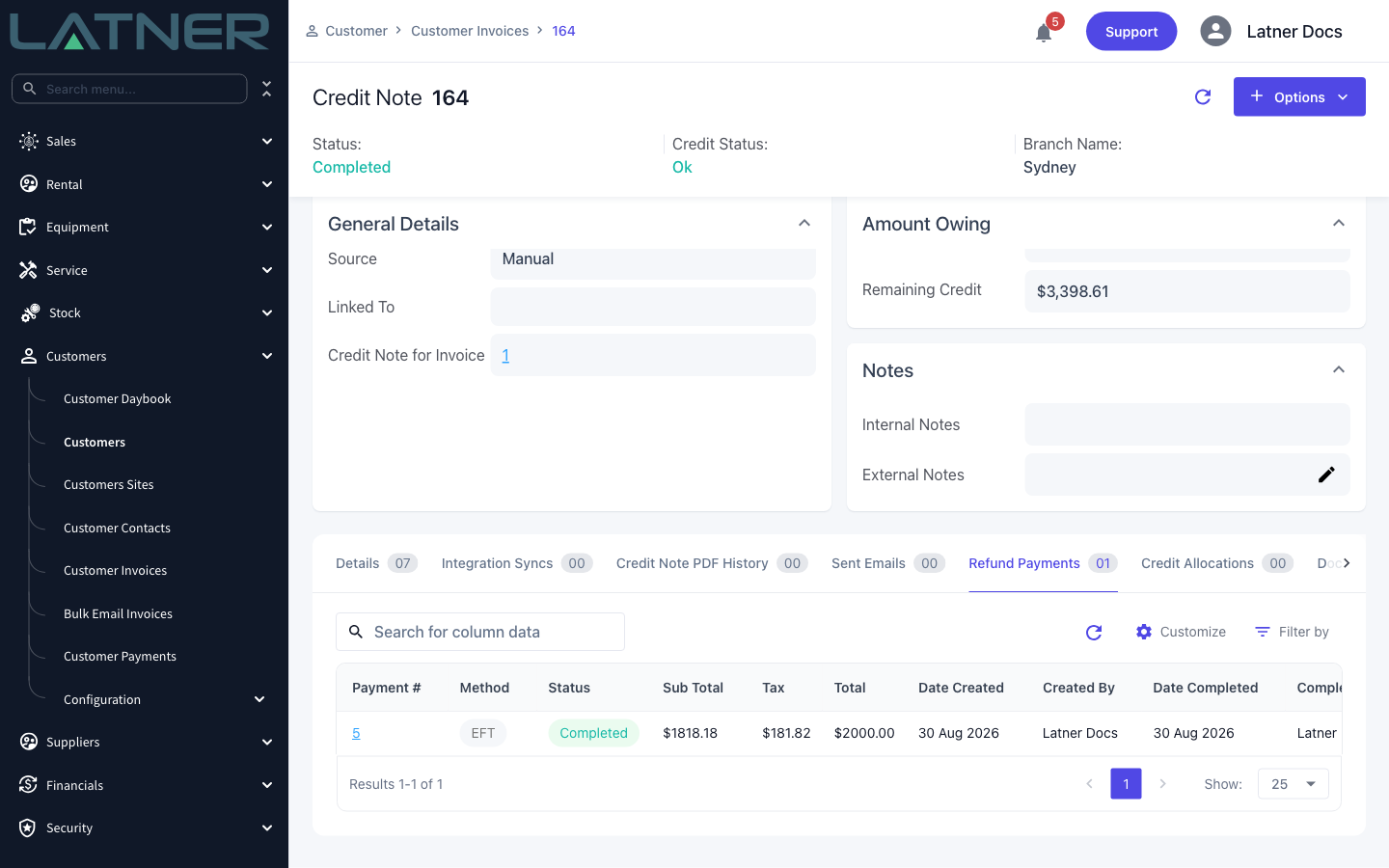
Two things have to be true before Latner will let you refund. The Status at the top must be Completed, and the Amount Owing panel must still show some Remaining Credit.
-
Total Credit - the full value of the credit note.
-
Refunded Credit - how much has already been paid back to the customer.
-
Used Credit - how much has been allocated to other invoices.
-
Remaining Credit - what is left, and the most you can refund today.
Step 3 - Open Options › Refund Payment
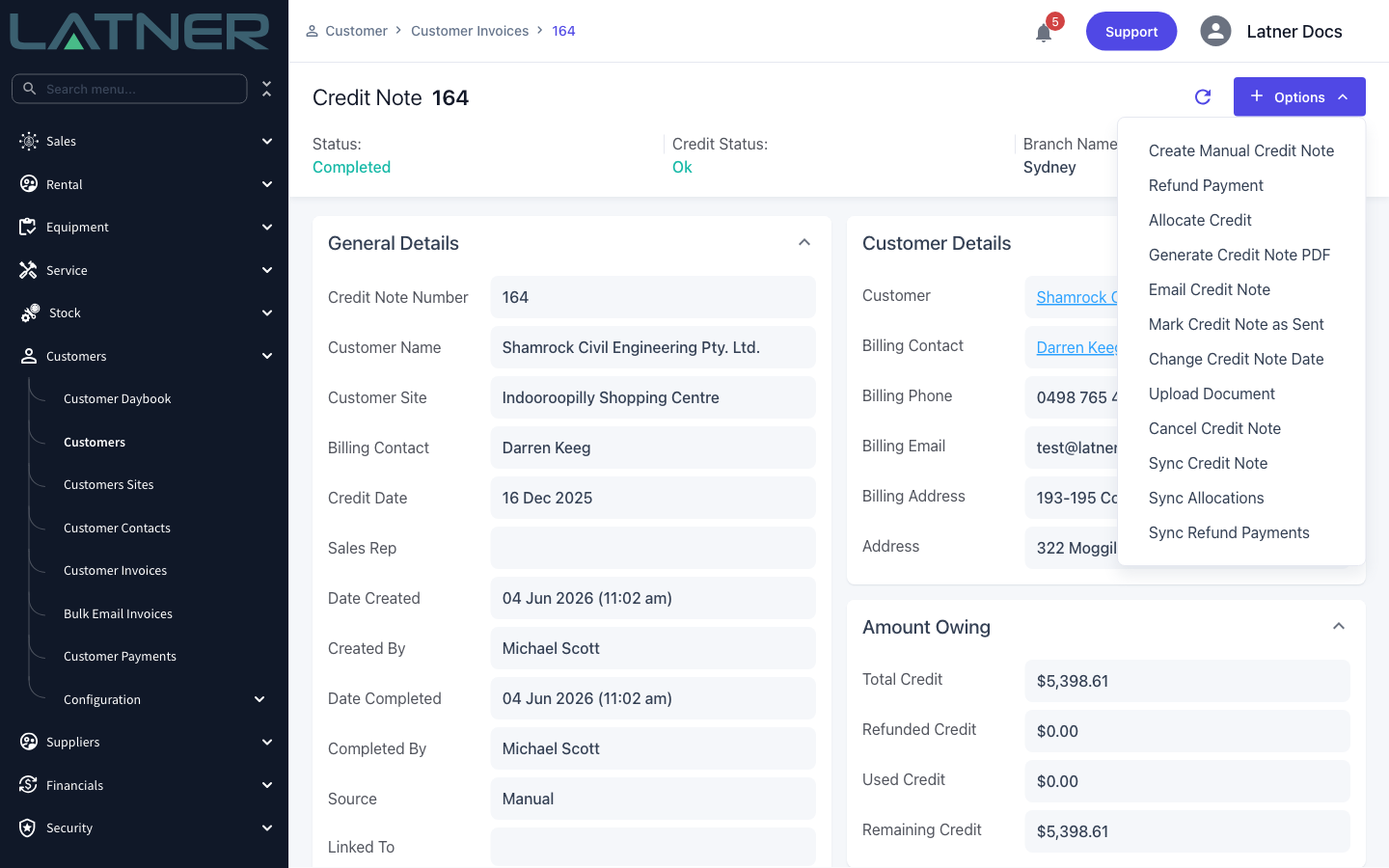
Choose Options in the top right, then Refund Payment. If the option is greyed out, hover it: the tooltip reads "A Payment can only be created for Completed Credit Notes".
Step 4 - Check the fields Latner has filled in
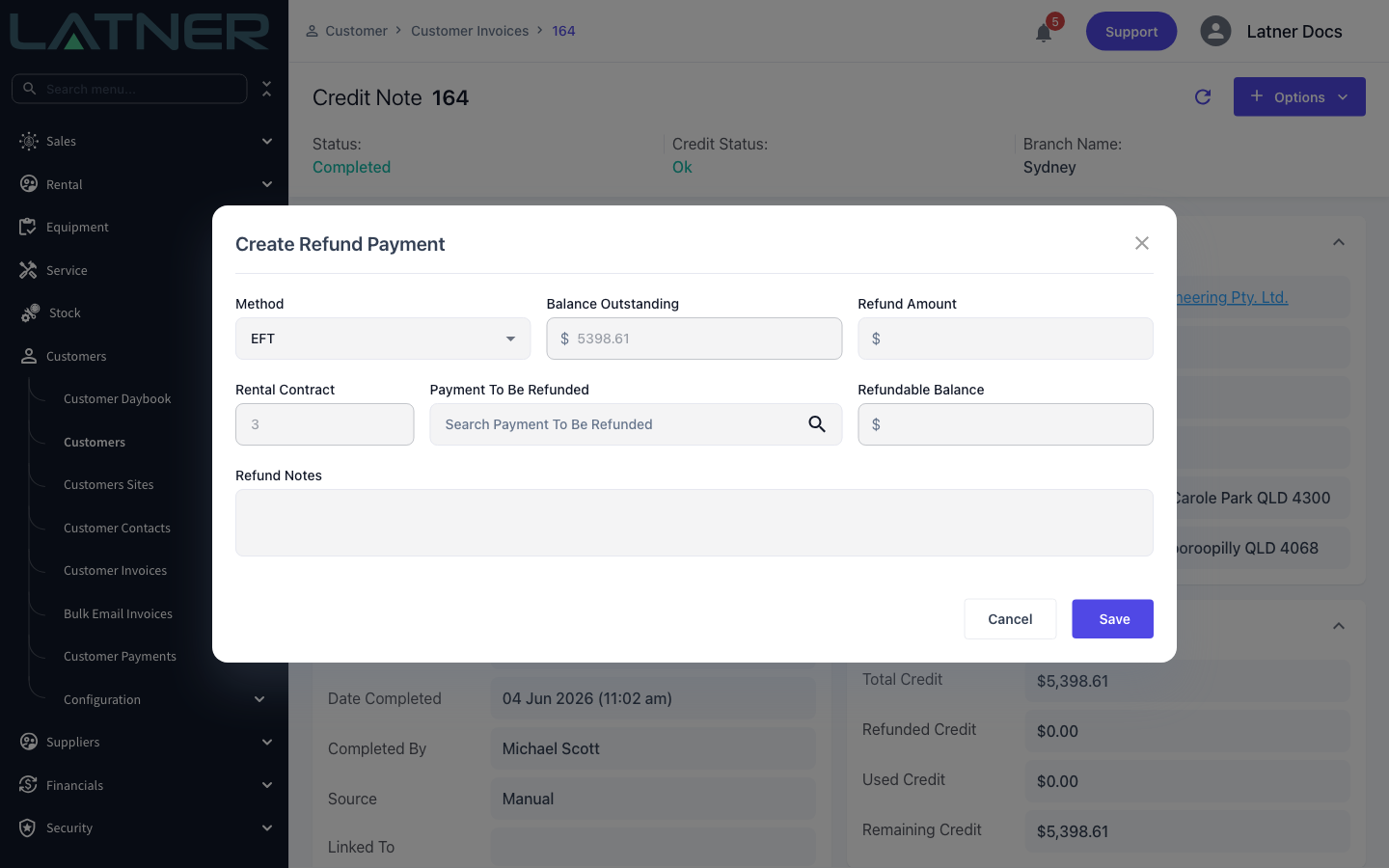
The Create Refund Payment dialog opens with most of its context already worked out for you.
-
Method - required. How you are sending the money back. It defaults to your Default Payment Method setting, or to EFT if that isn't set, and it doesn't have to match how the customer originally paid.
-
Balance Outstanding - read-only. The credit note's remaining credit.
-
Refund Amount - required, and yours to type. This is the difference between refunding from a credit note and refunding from a payment: here you can refund part of the amount.
-
Rental Contract - filled in and locked when the credit note came from a rental contract. It narrows the payment search in the next step to payments made against that contract.
-
Refundable Balance - read-only, and blank until you pick a payment.
Step 5 - Choose the payment being refunded
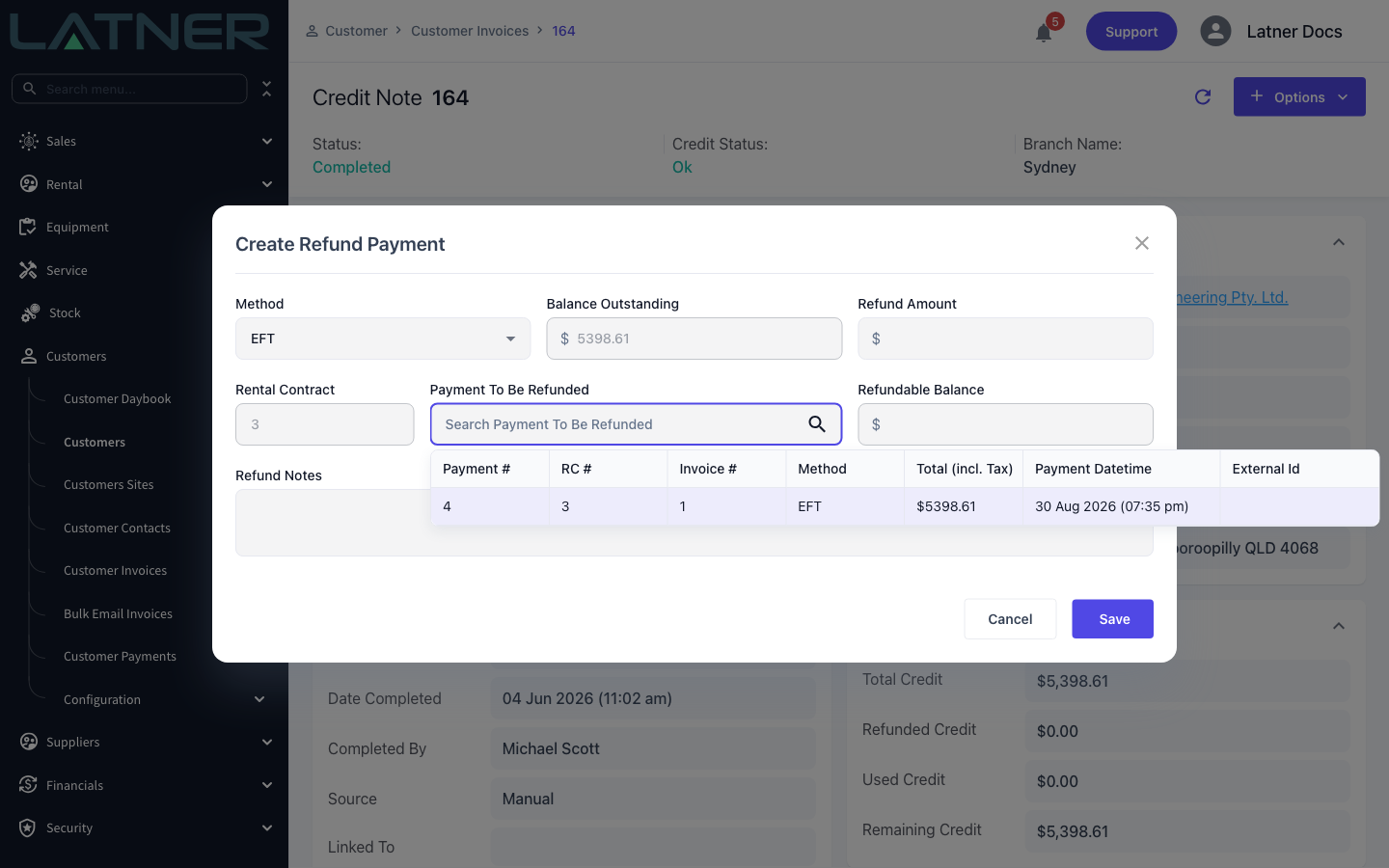
Click Payment To Be Refunded and pick the payment the money originally came in on. This field is required - a refund in Latner is always tied to a real payment, never floating on its own.
The search lists the customer's payments with Payment #, RC #, Invoice #, Method, Total (incl. Tax), Payment Datetime and External Id, so you can tell two similar payments apart by date or by the gateway's reference. Selecting one fills in Refundable Balance.
Step 6 - Enter the amount and a note
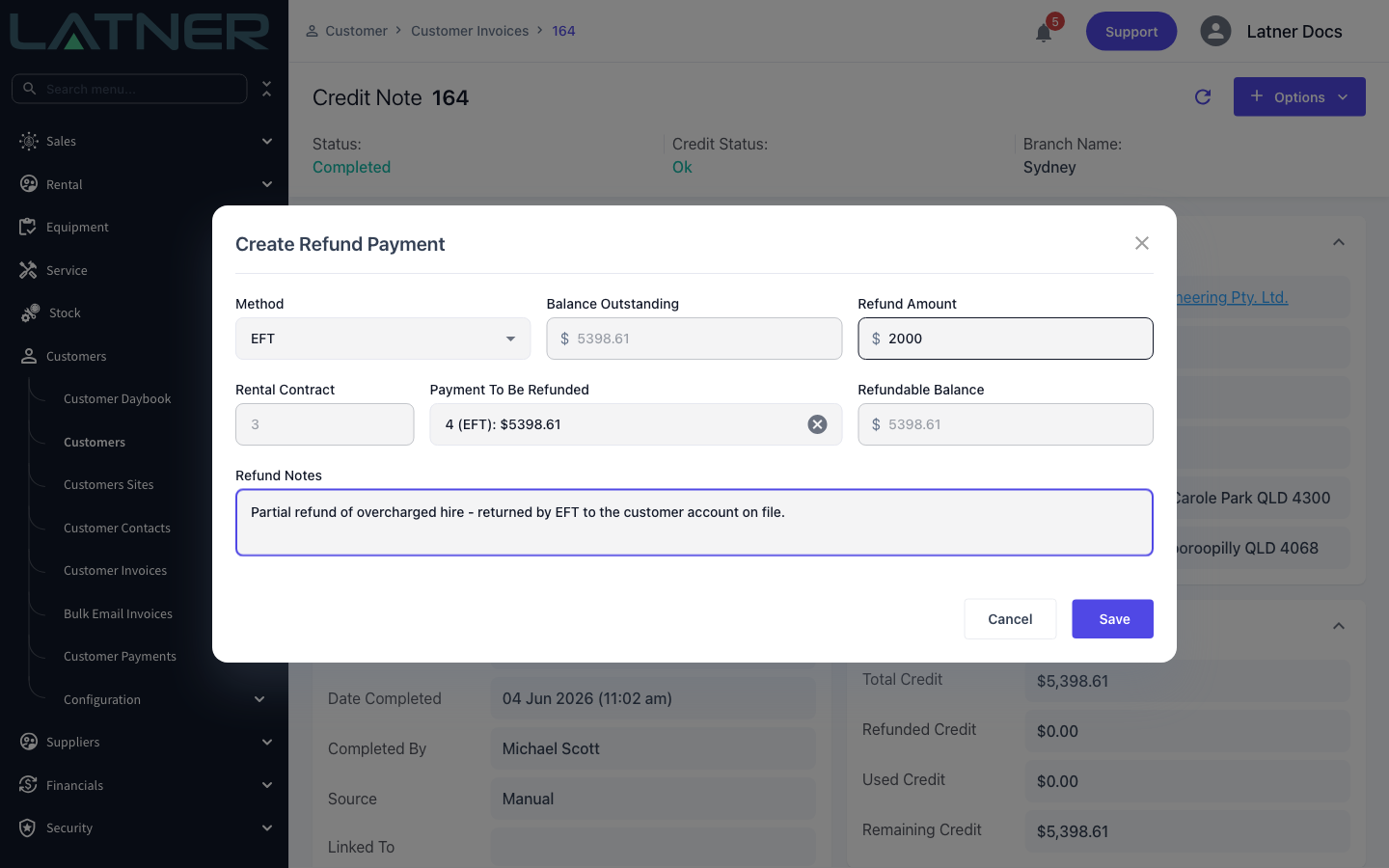
Type the Refund Amount. It has to clear two ceilings: the credit note's Balance Outstanding and the payment's Refundable Balance. Go over either one and Latner blocks the save with "Please enter value lower than or equal to the balance outstanding" or "Please enter value lower than or equal to the refundable balance".
Refund Notes is optional, but it is the only free-text field on the record, so it is worth using to say why the money went back.
Step 7 - Save
Choose Save. Latner confirms with a toast that links straight to the new refund payment, and the credit note's Amount Owing panel updates behind it: Refunded Credit goes up and Remaining Credit comes down by the amount you refunded.
After the Refund
-
The refund appears on the credit note's Refund Payments tab, with its own payment number, method, status and tax split.
-
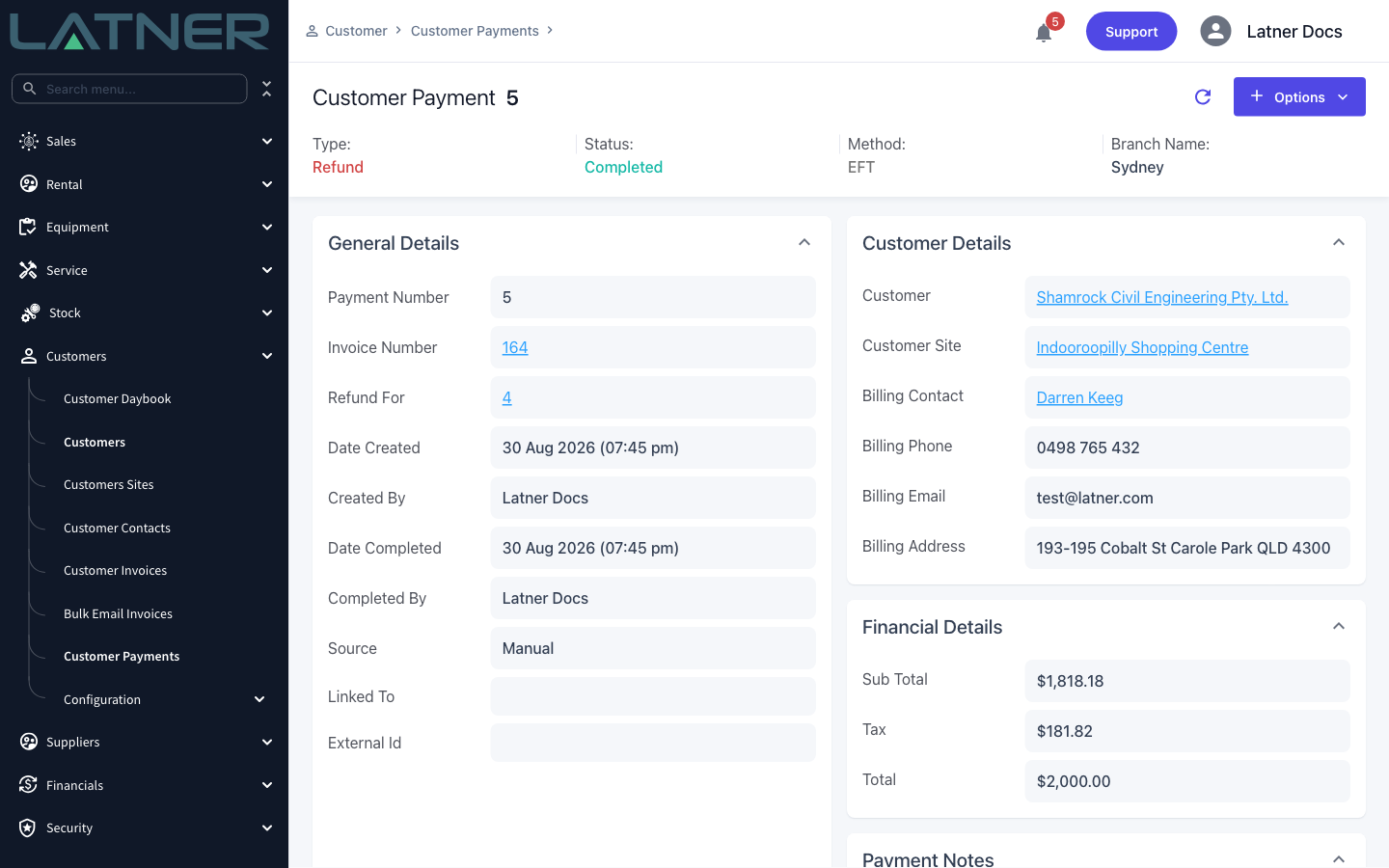
It is also a Customer Payment in its own right, reachable from Customers › Customer Payments, with Type of Refund, Invoice Number pointing at the credit note and Refund For pointing at the original payment.
-
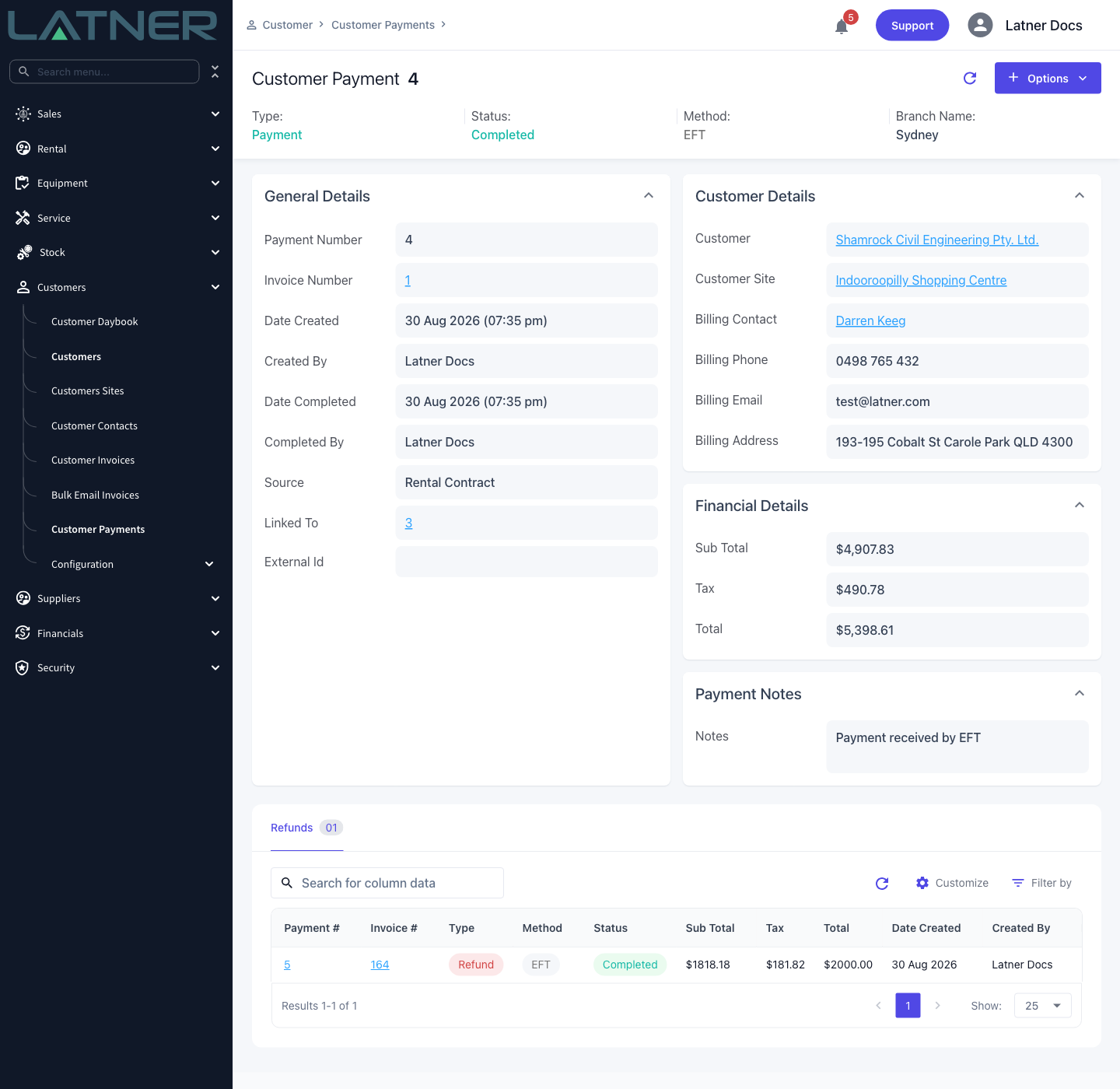
The original payment picks up a Refunds tab entry, and its refundable balance drops by the amount you refunded - so you can see at a glance how much of that payment is still yours to give back.
-
Once Remaining Credit reaches zero, whether through refunds, credit allocations or a mix of both, the credit note moves from Completed to Paid.
-
Latner tries to push the refund to your accounting integration as soon as it saves. If it doesn't land, Options › Sync Refund Payments retries it - the tooltip is honest that "Only Xero Payment Syncs at the moment."
A refund payment cannot be deleted or reversed from within Latner, and it locks the credit note down: once any amount has been refunded, both Cancel Credit Note and Change Credit Note Date will fail. Check the amount and the payment you have selected before you save.
FAQs
Watch the Demo
Prefer to watch it? Step through the same flow here.