
Credit Card Payments integrate with the Eway payment gateway, allowing credit cards to be securely stored against customer records for future use. Users can take credit card payments directly against invoices, making it ideal for cash customers and immediate payment scenarios. This simplifies payment collection, improves cash flow, and reduces manual follow-up.
Overview
Cash customers don't want to wait for an invoice to work its way through your accounts team, and neither do you. Once Eway is connected, taking a card payment is part of the invoice itself: open the invoice, pick the saved card, and the money is on its way before the customer leaves the counter.
-
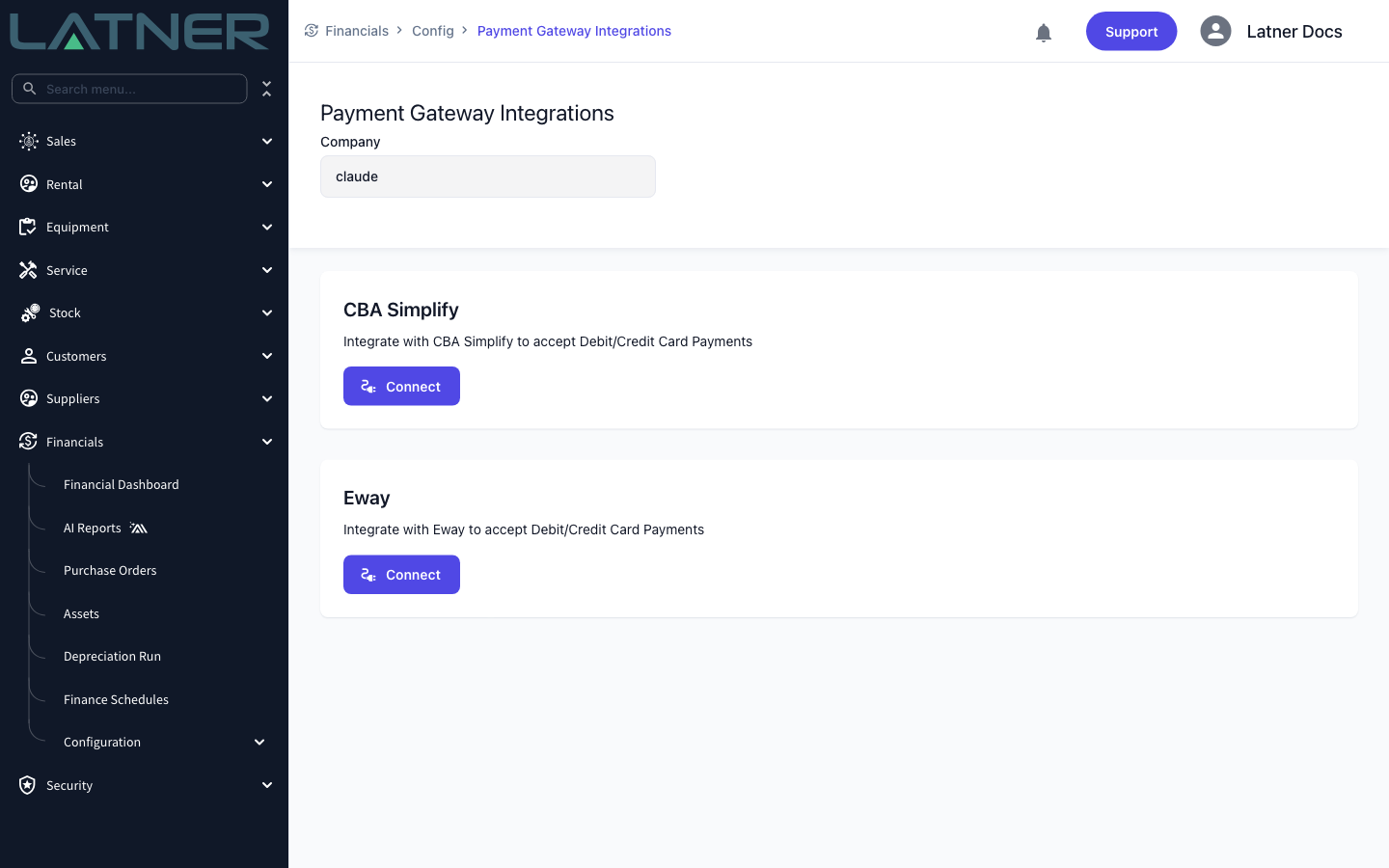
Eway is connected once per company, under Financials › Config › Payment Gateway Integrations. Latner supports one Eway connection per company.
-
Card numbers are never stored in Latner. Eway holds the card and returns a token; Latner keeps only the cardholder name, card type, masked number, last four digits and expiry.
-
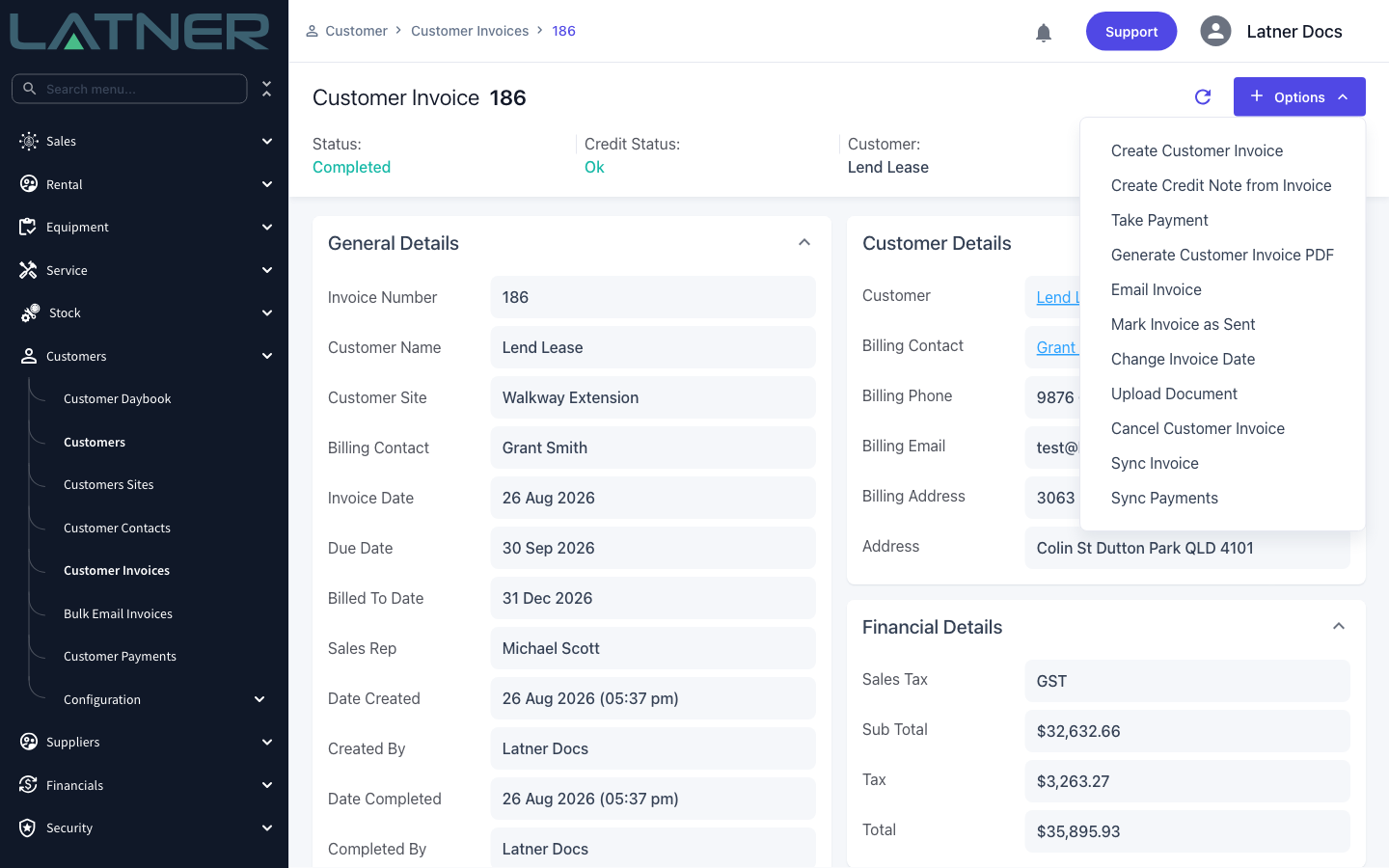
Payments are taken against a Completed customer invoice through Options › Take Payment.
-
A saved card can be held against the customer, or locked to a single rental contract so it can't be used anywhere else.
-
On a rental invoice you can charge a rental deposit at the same time as the payment, as two separate card transactions.
-
Latner does not add a card surcharge. The amount charged is exactly the amount you enter.
Before You Begin
You'll need the following in place before an Eway payment can be taken.
|
Requirement |
Where to Find It |
|---|---|
|
Payment Gateway Integration permission |
Security › Configuration › Permission Groups › Financial › Configuration. Needed to connect Eway. This allows users to connect and configure Latner Software with third party payment gateways. |
|
Create Customer Payment permission |
Security › Configuration › Permission Groups › Customers › Options. Needed to take the payment itself. |
|
Create Customer Deposit permission |
Security › Configuration › Permission Groups › Customers › Options. Only needed if you also charge a rental deposit on the same card. |
|
An Eway merchant account |
Your MYeWAY account. You'll need the Pay Now Button Public API Key, the Rapid API Private Key and the Rapid API Password. |
|
Allowed Payment Methods setting |
Security › Settings › Global › Financials. Leave it empty to offer every method, or make sure Eway is one of the selected values. |
|
Default Payment Method setting |
Security › Settings › Global › Financials. Optional. Set it to Eway if most of your payments are taken on card. |
|
A Completed customer invoice |
Customers › Customer Invoices. Payments can't be taken against a draft invoice. |
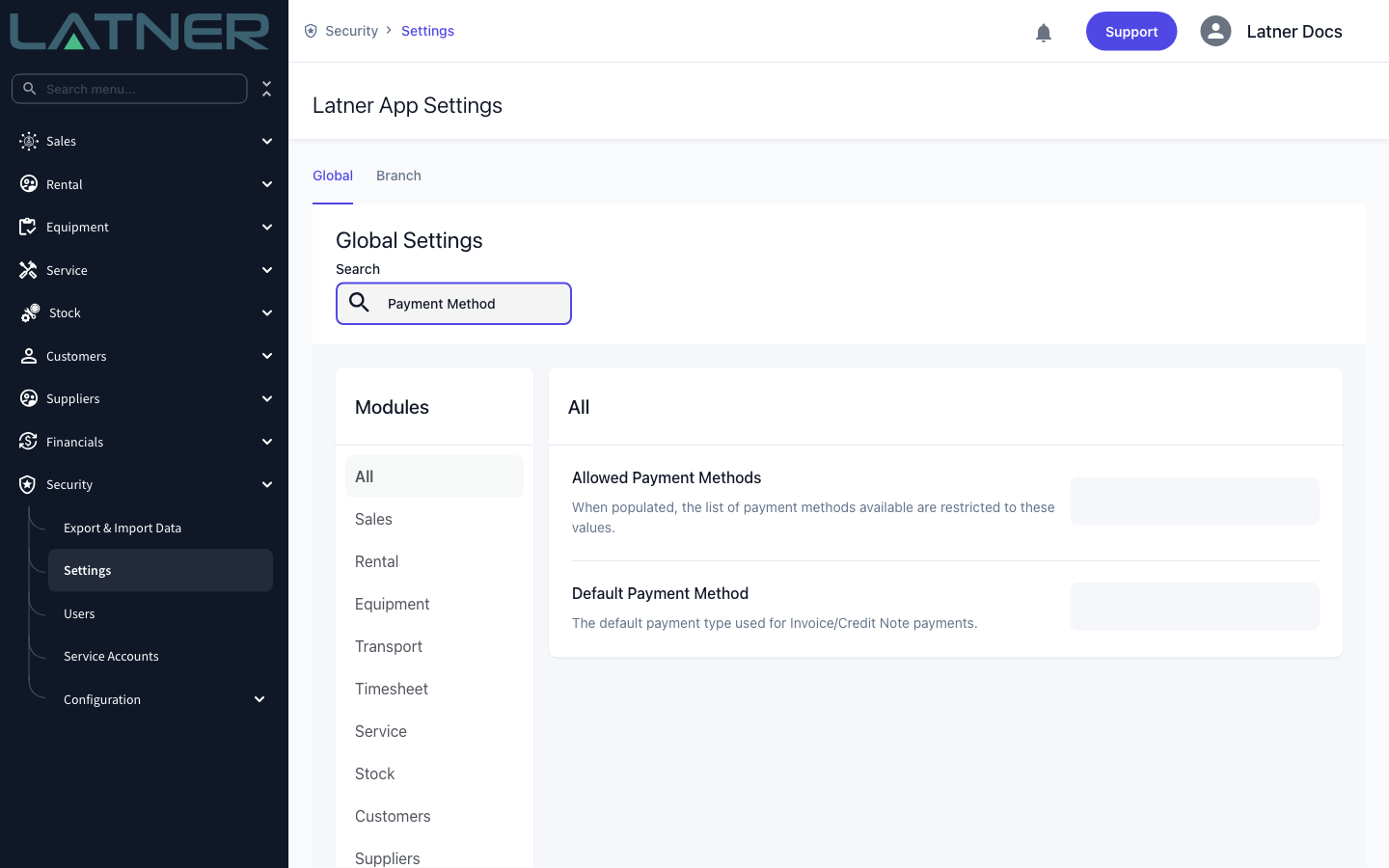
Allowed Payment Methods is a hard filter. If it's populated and Eway isn't one of the values, the method won't appear on the payment form even though Eway is connected and cards are saved.
Connecting Latner to Eway
This is a one-off setup task per company, normally done by a system administrator.
Step 1 - Open the Payment Gateway Integrations screen
Go to Financials › Config › Payment Gateway Integrations and choose the Company you're connecting. Each supported gateway is listed as its own card. Find the Eway card and select Connect.
Step 2 - Enter your Eway API credentials
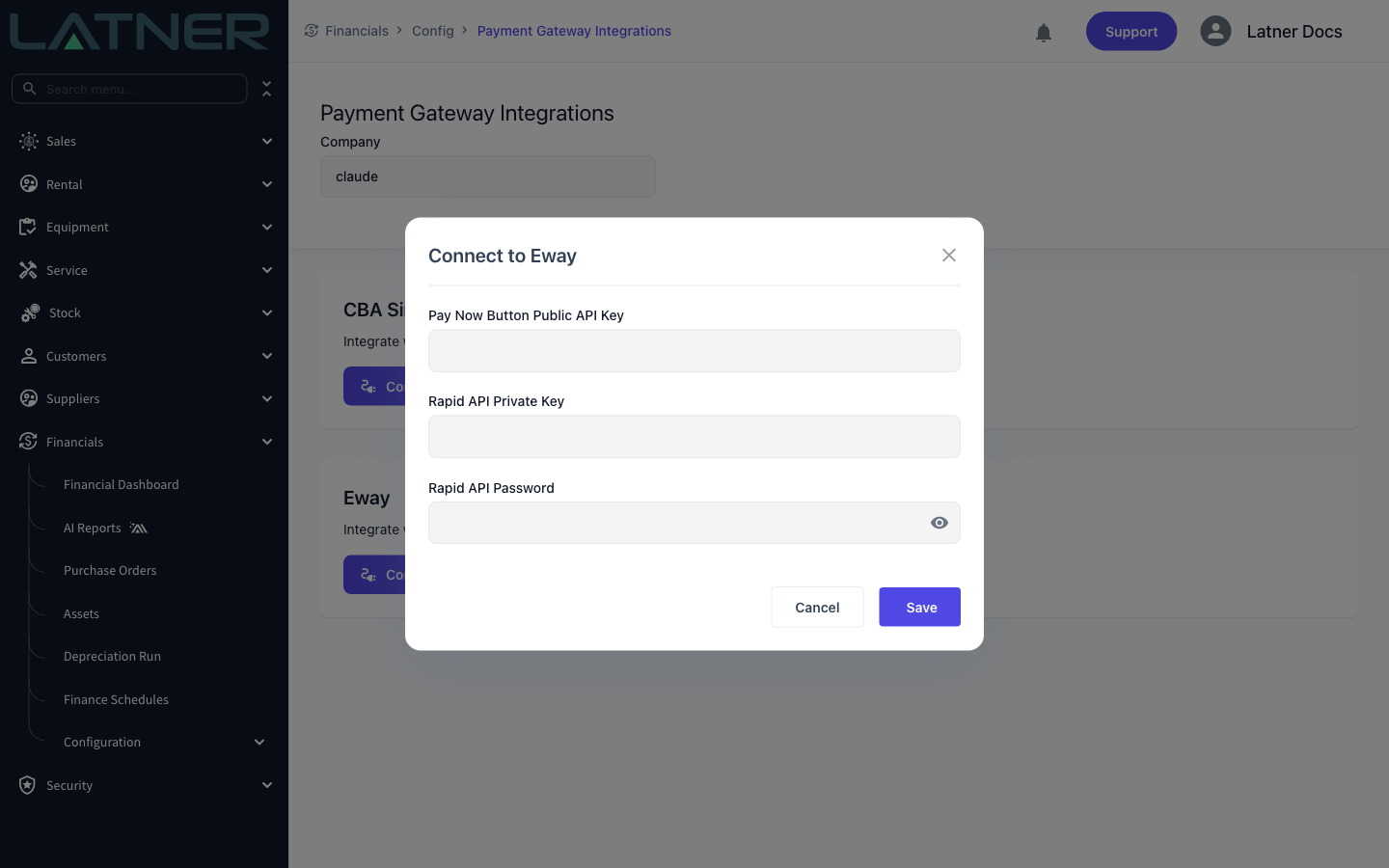
Complete the Connect to Eway dialog. All three fields are required:
-
Pay Now Button Public API Key - the public key Latner uses to open Eway's secure card entry window.
-
Rapid API Private Key - the private key Latner uses to charge cards server to server.
-
Rapid API Password - the password paired with the private key.
Select Save. Latner tests the credentials against Eway before saving them, so an incorrect key is rejected on the spot rather than at the first payment. Once connected, the Connect button changes to Reconnect and a Remove Connection button appears.
Credentials are stored encrypted and are never shown back to you in full. Only the Pay Now Button Public API Key is displayed on the integration card, so you can confirm which Eway account is connected without exposing the private key.
Taking the Payment
Step 1 - Open the invoice and choose Take Payment
Go to Customers › Customer Invoices and open the invoice. Select Options › Take Payment.
Take Payment is only enabled once the invoice status is Completed. On a draft invoice it's greyed out with the tooltip A Payment can only be created for Completed Invoices.
Step 2 - Set the method to Eway and enter the amount
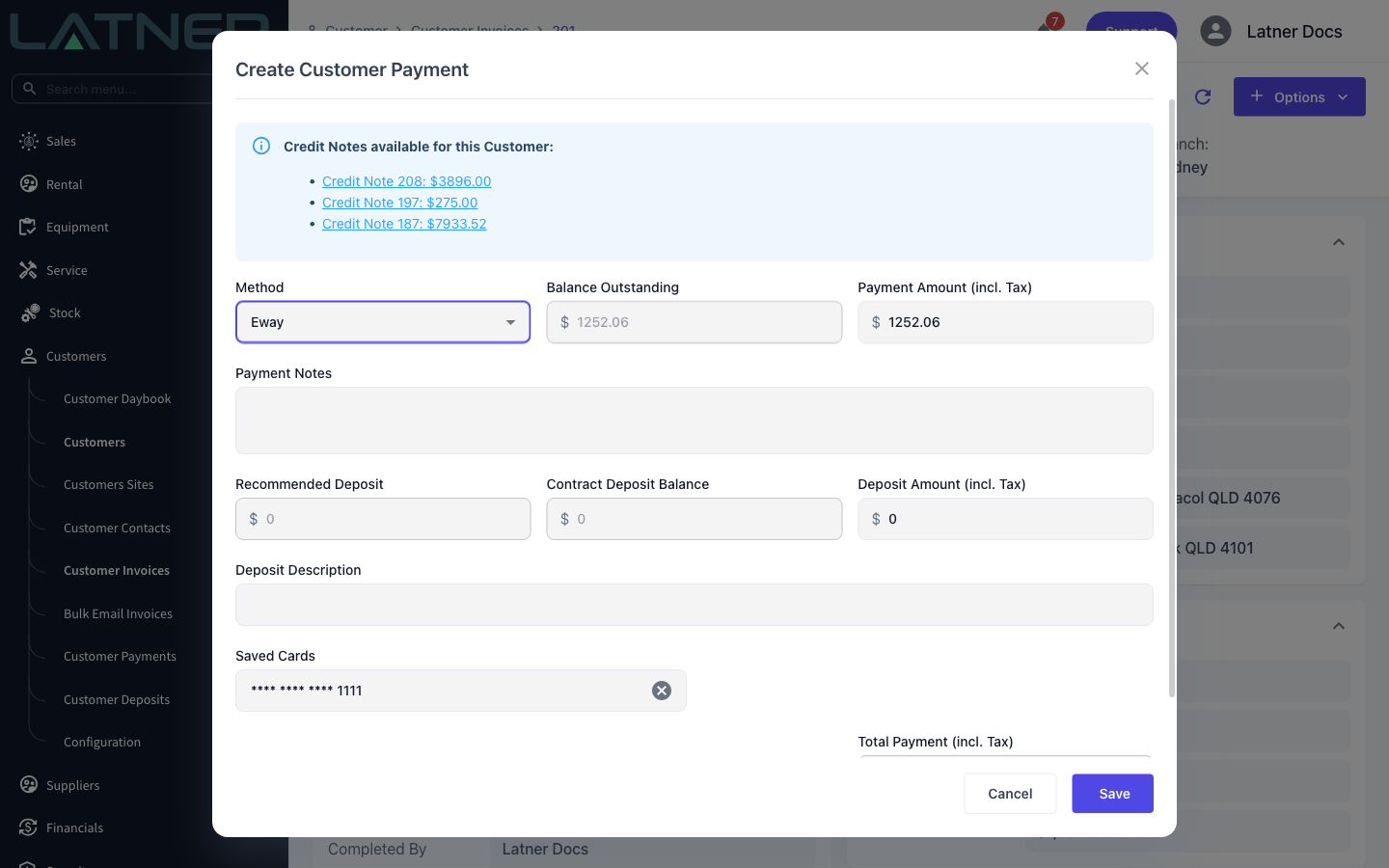
The Create Customer Payment form opens. Complete the following:
-
Method - select Eway. This option only appears when Eway is connected for the invoice's company.
-
Balance Outstanding - read only, shown for reference.
-
Payment Amount (incl. Tax) - defaults to the full balance outstanding. You can reduce it for a part payment, but you can't enter more than the balance outstanding.
-
Payment Notes - optional free text stored on the payment record.
-
Saved Cards - required. Choose the card to charge, or add a new one (see Step 3).
On a rental invoice, and when Allow Users to take a Rental Deposit against a Customer is enabled, you'll also see Recommended Deposit, Contract Deposit Balance, Deposit Amount (incl. Tax) and Deposit Description. Leave Deposit Amount at zero if you're only taking the invoice payment. Total Payment (incl. Tax) is read only and always shows the payment plus the deposit.
Step 3 - Add the customer's card if it isn't saved yet
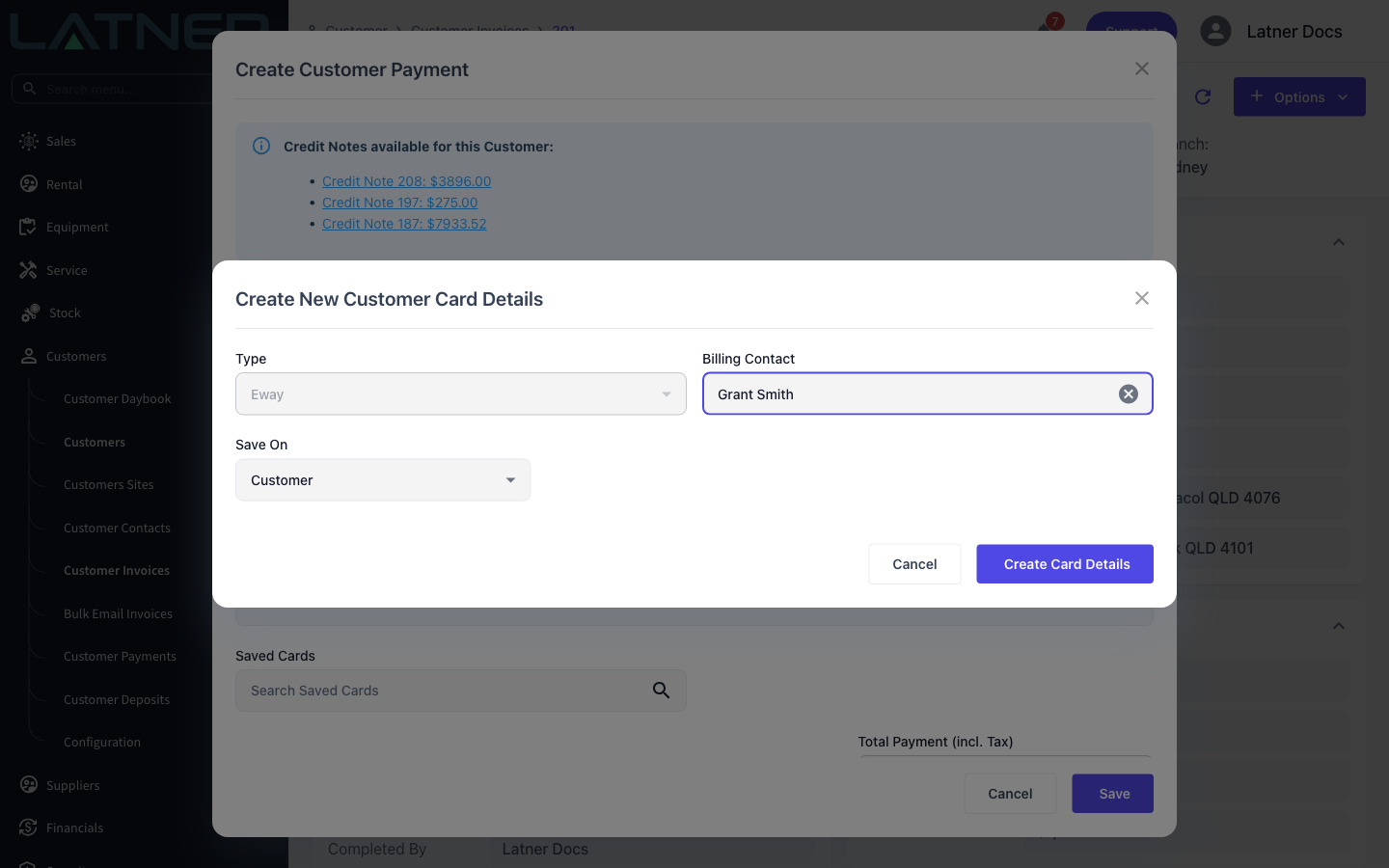
If the customer has no card on file, use the create option on the Saved Cards field to open Create New Customer Card Details:
-
Type - the gateway the card is saved against. This is fixed to Eway when you've already chosen Eway as the payment method.
-
Billing Contact - required. The customer contact the card belongs to. You can create a new contact from here if they aren't listed.
-
Save On - Customer makes the card available on any of that customer's invoices. Rental Contract locks the card to the current contract only, and is only offered when the payment is against a rental invoice.
Select Create Card Details.
Step 4 - Enter the card in Eway's secure window
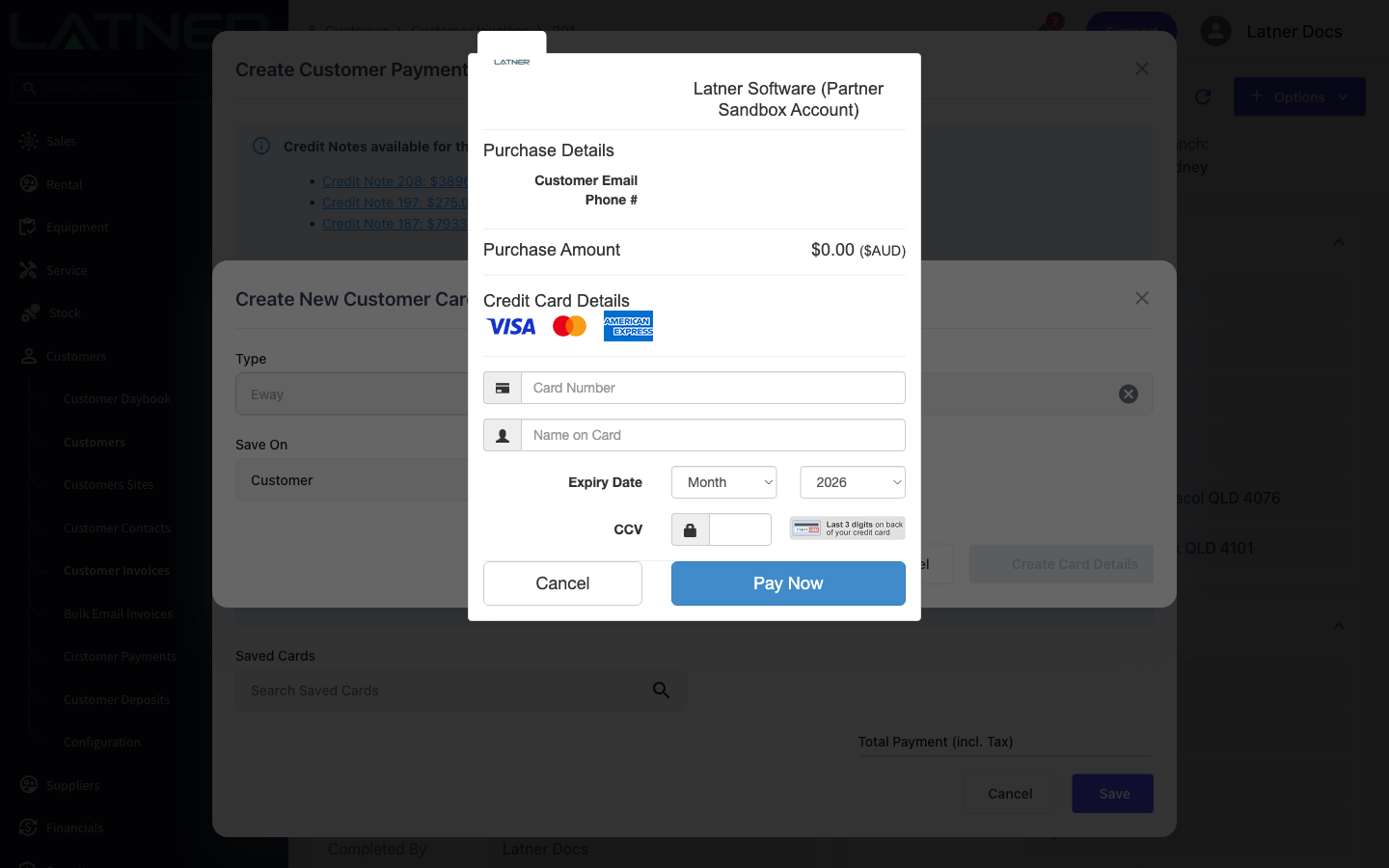
Latner hands over to Eway's secure card entry window. Enter the card number, expiry and security code there and complete the form. The card details go straight to Eway and never pass through Latner.
When Eway confirms, Latner retrieves the token and the new card appears in the Saved Cards list, showing the masked number and expiry. Cancelling or closing that window leaves the payment form untouched, so you can try again.
Step 5 - Confirm and charge the card
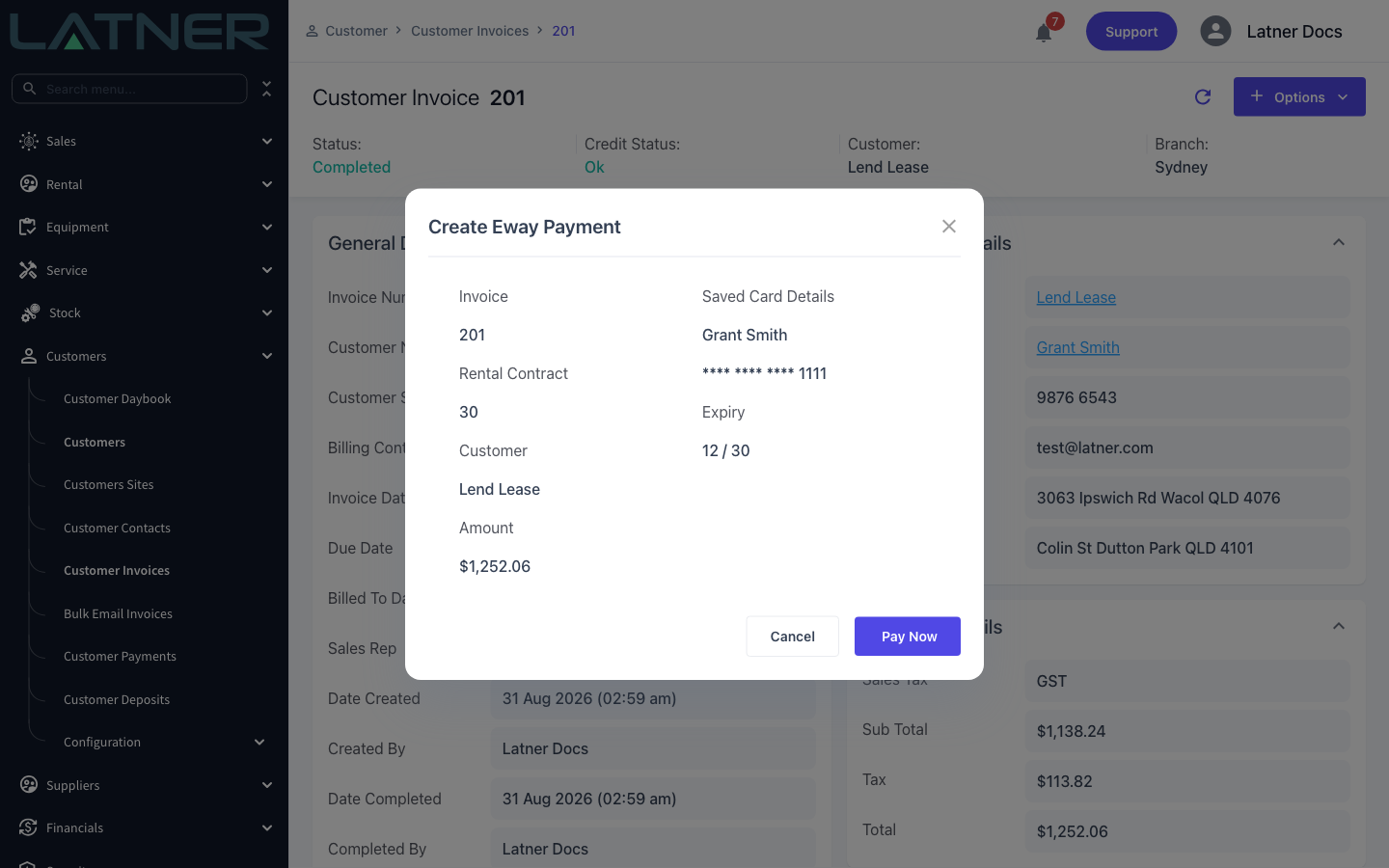
Select Save on the payment form. A confirmation dialog opens showing the invoice, rental contract, customer, the amount to be charged, and the card you selected. Check them, then select Pay Now.
Latner charges the saved card through Eway and records the payment. If you also entered a Deposit Amount, the deposit is charged as a second, separate transaction once the invoice payment succeeds.
After the Payment
-
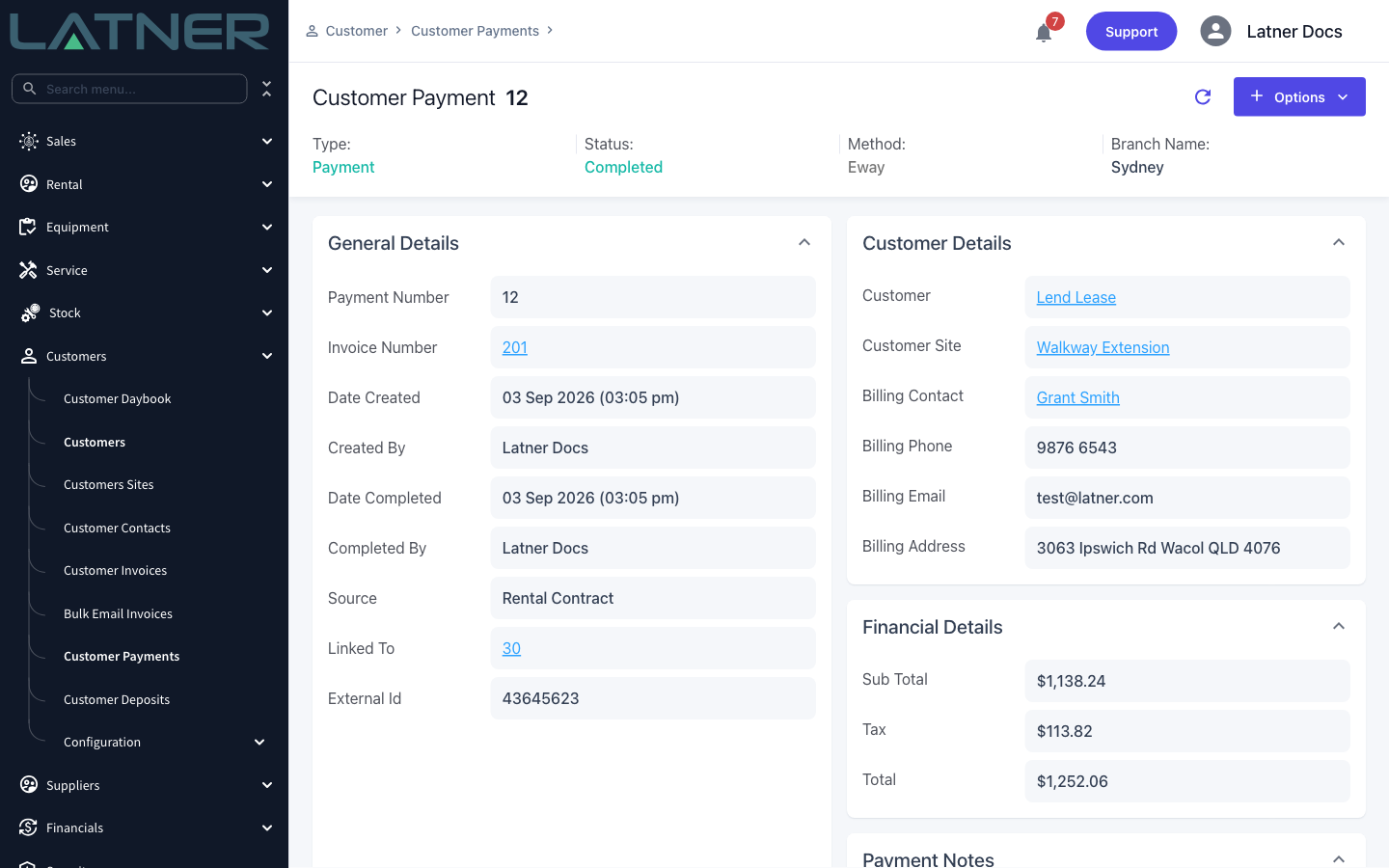
A customer payment is created with the method Eway and a status of Completed, and the Eway transaction ID is stored against it as the External Id.
-
The payment appears under Customers › Customer Payments and on the invoice's Customer Payments tab.
-
When the payment clears the whole balance, the invoice status moves from Completed to Paid. A part payment leaves the invoice Completed with a reduced balance outstanding.
-
The payment is queued to sync to your accounting integration.
-
The card stays on the customer for next time, listed on the customer's Saved Cards tab.
An Eway payment is a real charge on the customer's card the moment you select Pay Now. It can't be undone by deleting the payment record. If you've charged the wrong amount, open the payment and use Options › Refund Payment so the refund goes back through Eway as well.
FAQs
Watch the Demo
Prefer to watch it? Step through the same flow here.