
Taking a deposit lets you hold money against a rental contract before or during the hire, so you have security over the equipment and a credit you can put towards the customer's invoices later.
Overview
Not every hire should go out on account. A deposit (or pre payment) is money you collect up front and hold against the customer, ready to be applied to an invoice when one is raised, or handed back when the job is done.
-
Deposits are taken from a rental contract using Options › Take Deposit, and can also be taken alongside a payment from a rental invoice.
-
Each deposit is a record in its own right, with a number, a status of Taken or Returned, and a running balance.
-
The money is held against the customer, not locked to the contract, so a deposit taken on one contract can be applied to any of that customer's rental invoices.
-
Applying a deposit to an invoice is a payment with the Drawdown method. It reduces the deposit balance and the invoice's balance outstanding at the same time.
-
Anything left over is handed back with Return Deposit, and every movement is recorded as a transaction on the deposit.
-
Deposits are only available on rental contracts and rental invoices. They do not appear on sales orders, work orders or transport invoices.
-
If you use Xero, deposits sync across as prepayments - see How to Sync Deposits to Xero.
Before You Begin
Deposits are switched off by default. Check the following before you start.
|
Requirement |
Where to Find It |
|---|---|
|
Allow Users to take a Rental Deposit against a Customer must be enabled |
Security › Settings › Global › Financials |
|
Create Customer Deposit permission |
Security › Configuration › Permission Groups › Customers › Option |
|
Customer Deposits permission, to open the deposit records themselves |
Security › Configuration › Permission Groups › Customers › Screen |
|
Create Customer Payment permission, to apply a deposit to an invoice |
Security › Configuration › Permission Groups › Customers › Option |
|
The rental contract must be open (not Completed, Cancelled or Lost) |
Contract Status on the rental contract header |
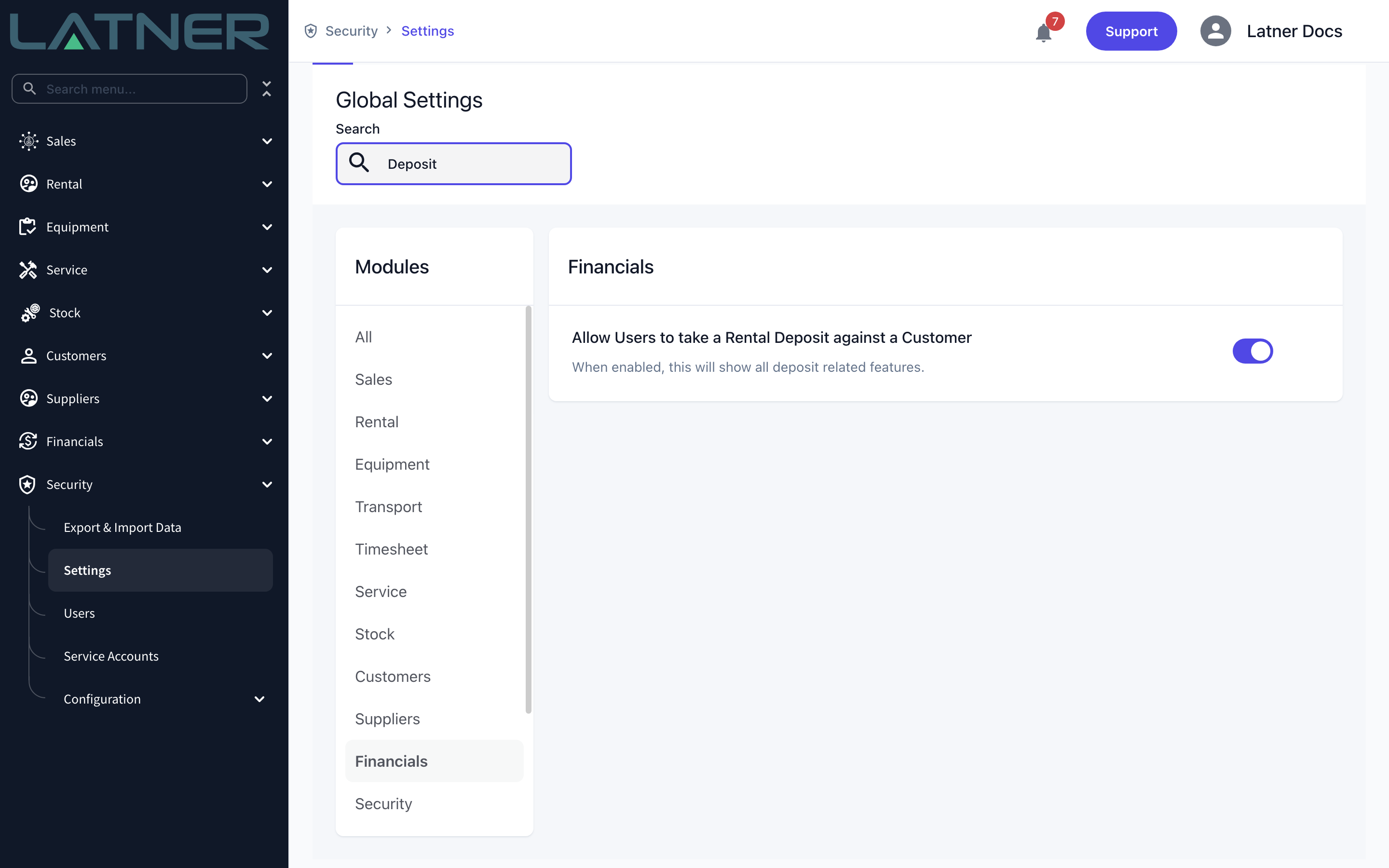
The setting does more than reveal the Take Deposit option. It also adds the Customer Deposit Current Balance and Contract Deposit Current Balance fields to rental contracts, the Deposits tab to contracts and invoices, the Customer Deposits screen under Customers, and the Recommended Deposit field on rental rates. Turn it back off and all of those disappear from view, but any deposits you have already taken are kept and still hold their balances.
Taking the Deposit
Step 1 - Open the rental contract and choose Take Deposit
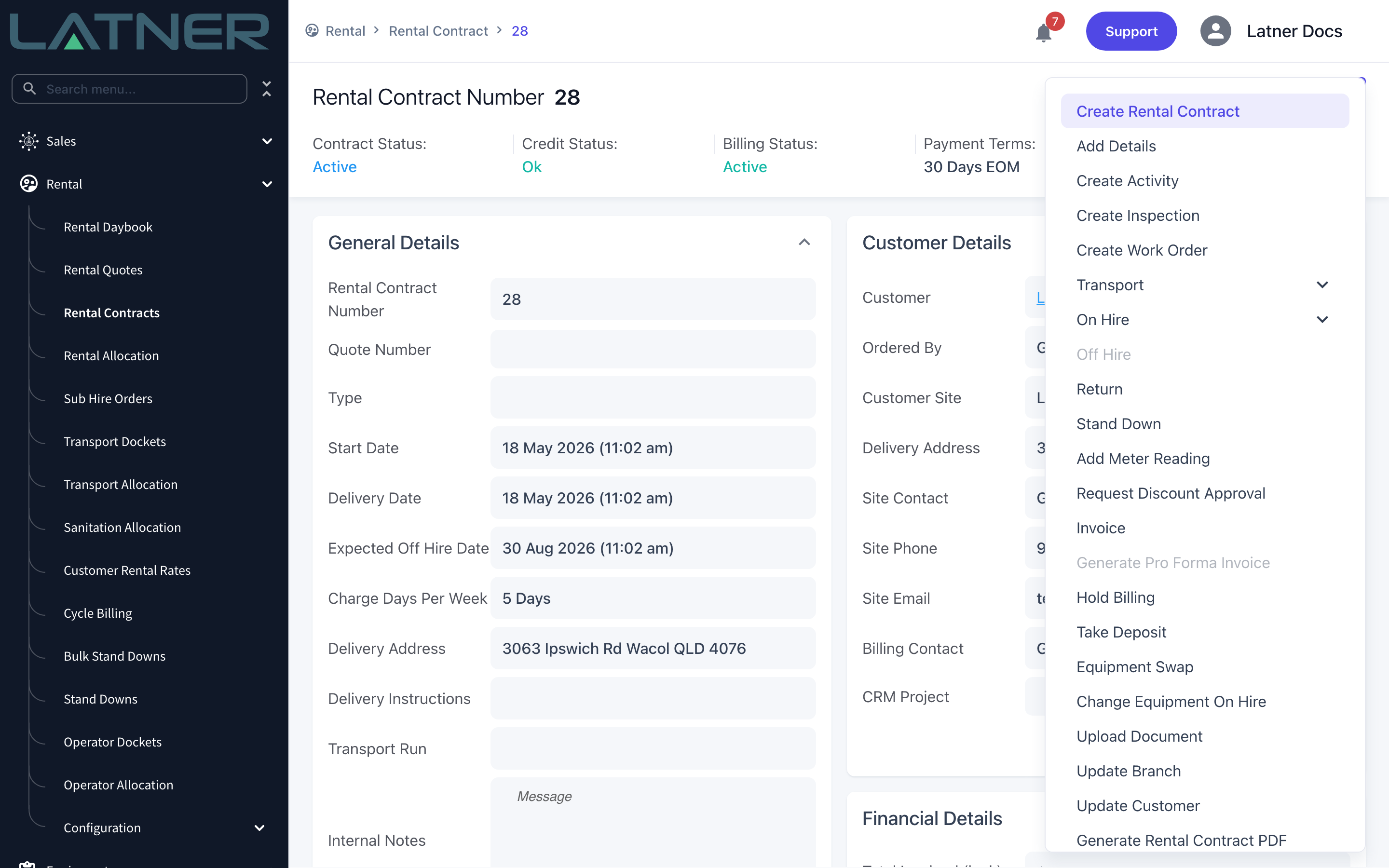
Go to Rental › Rental Contracts, open the contract, then choose Options › Take Deposit. The option is hidden if the deposit setting is off, and greyed out once the contract is Completed, Cancelled or Lost.
Step 2 - Review the deposit form
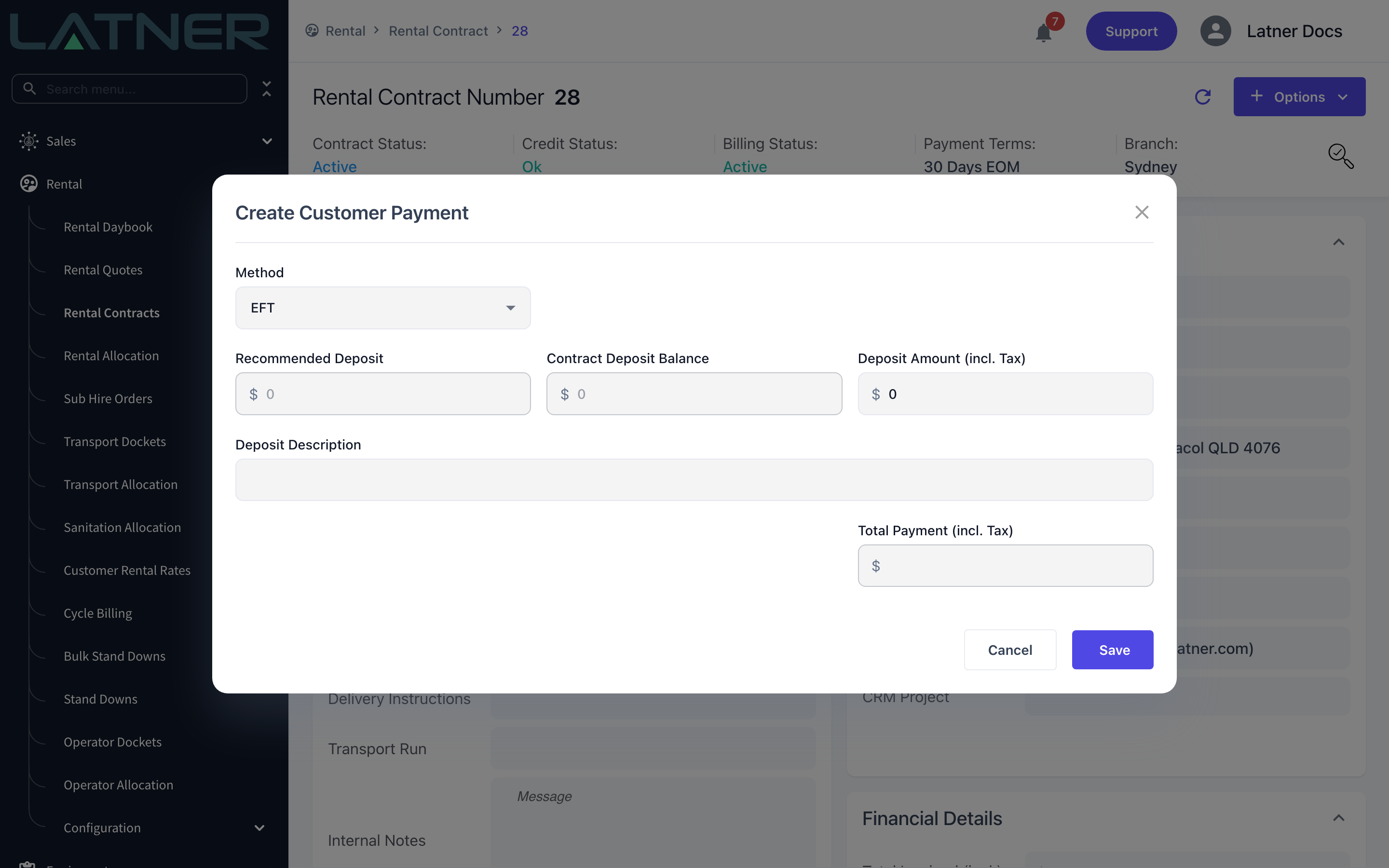
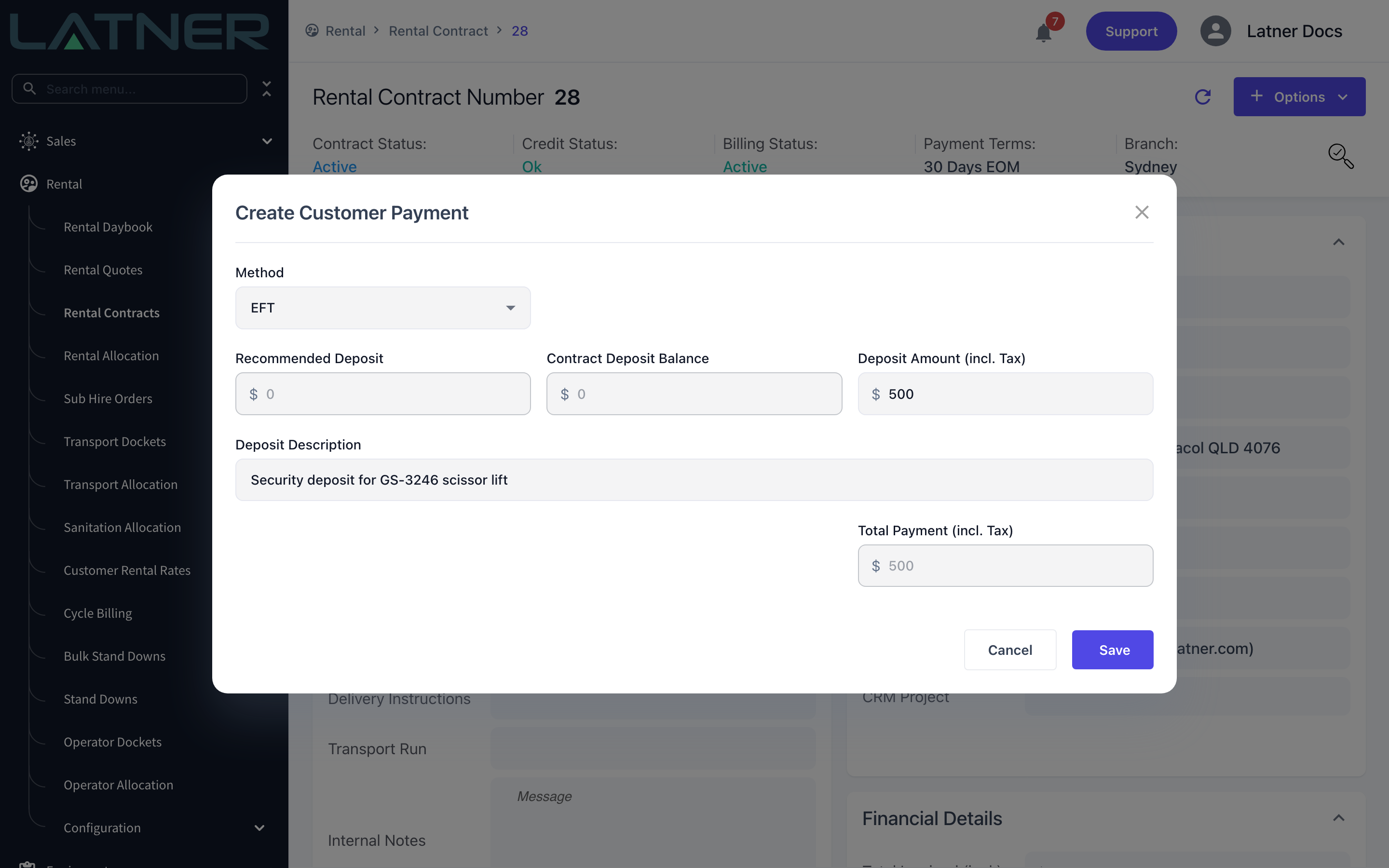
The dialog is titled Create Customer Payment because deposits and payments share the same form. Opened from a rental contract it shows the deposit fields only - there is nothing to pay yet.
-
Method - how the money is being taken. Required.
-
Recommended Deposit - read only. This is filled from the invoice being paid, so it stays at $0.00 when you open the form from a contract.
-
Contract Deposit Balance - read only. What is already held against this contract.
-
Deposit Amount (incl. Tax) - the amount you are taking, including tax. Required, and must be more than zero.
-
Deposit Description - free text. Optional, but it is the column your team will scan on the Customer Deposits list, so it is worth filling in.
-
Total Payment (incl. Tax) - read only. It adds up as you type.
Step 3 - Choose the method
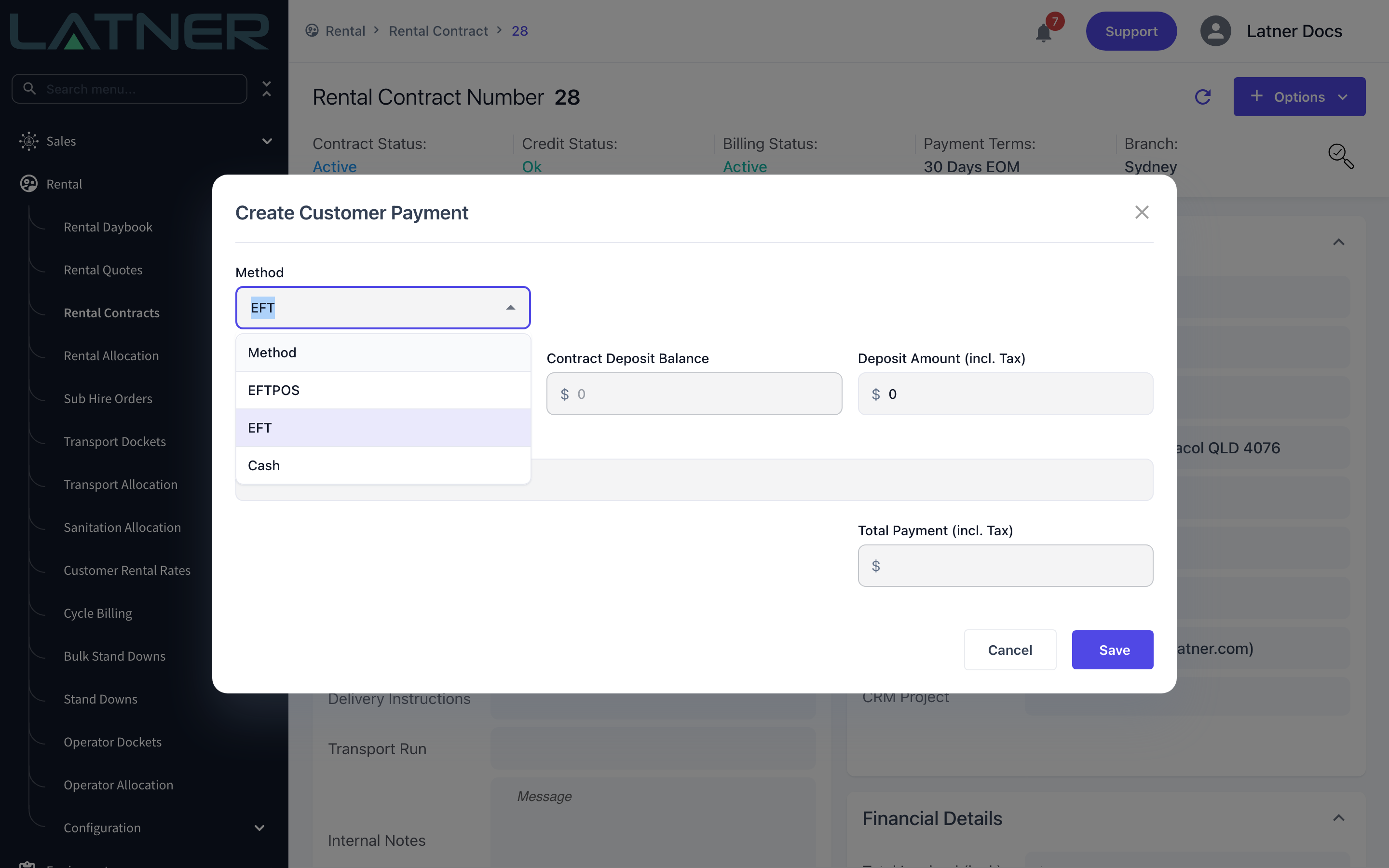
The Method list holds the standard payment methods - EFTPOS, EFT and Cash and Eway if the branch's company has that payment gateway configured. If your Allowed Payment Methods setting is populated, the list is cut down to those methods. Drawdown is not offered here, because you cannot fund a new deposit from an existing one on this screen.
Step 4 - Enter the amount and description
Type the amount into Deposit Amount (incl. Tax) - two decimal places at most - and describe what the deposit covers. Total Payment (incl. Tax) updates to match.
Step 5 - Save
Select Save. Latner creates the deposit, records an opening Deposit transaction against it, and shows a confirmation you can click through to the new record.
After the Deposit Is Taken
-
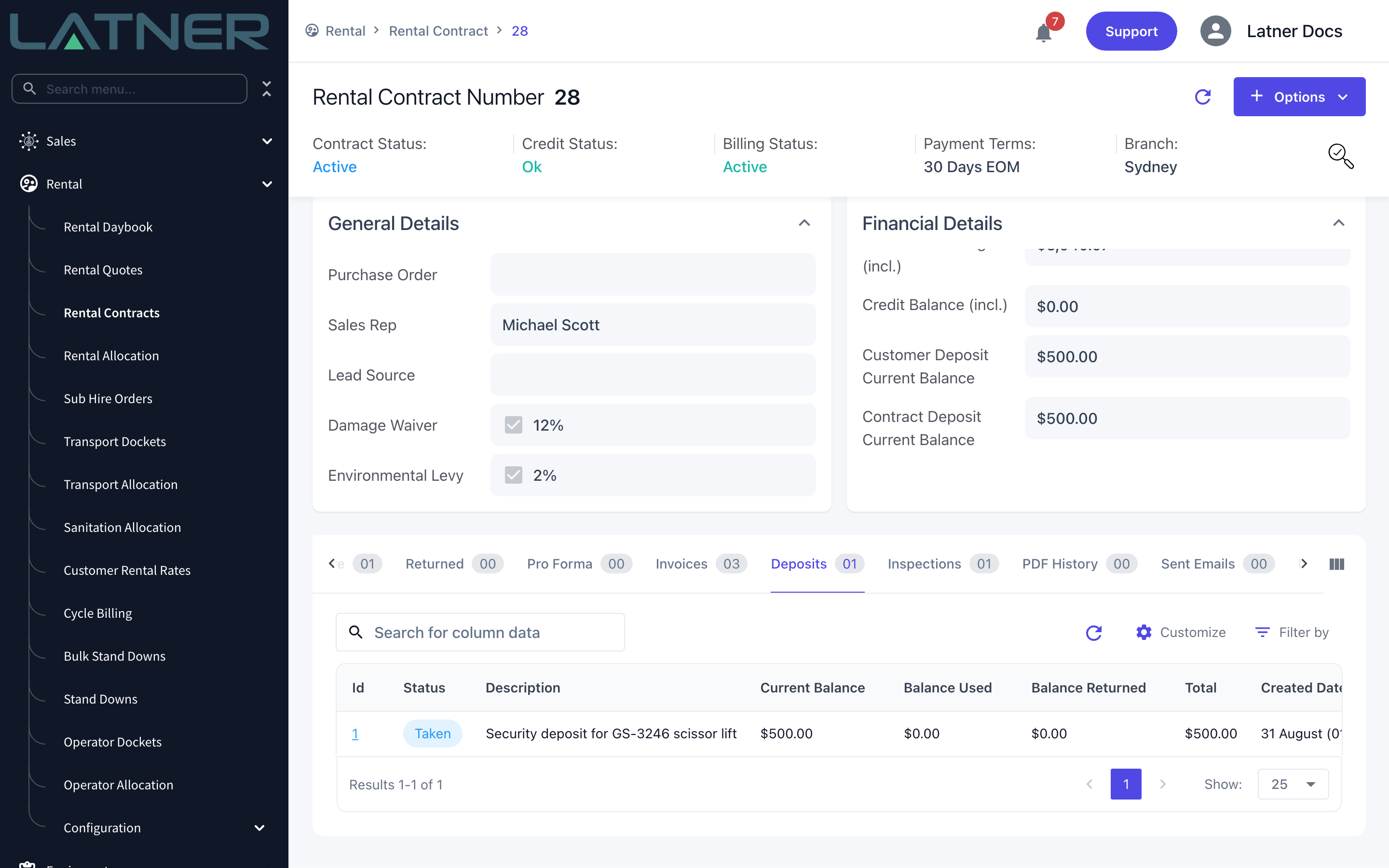
The deposit is created with a status of Taken, a Total equal to the amount entered and a Current Balance that starts at the same figure.
-
The rental contract's Financial Details now show a Contract Deposit Current Balance (everything held against this contract) and a Customer Deposit Current Balance (everything held against the customer across all their contracts).
-
The contract's Deposits tab lists the deposit with its balance used and balance returned.
-
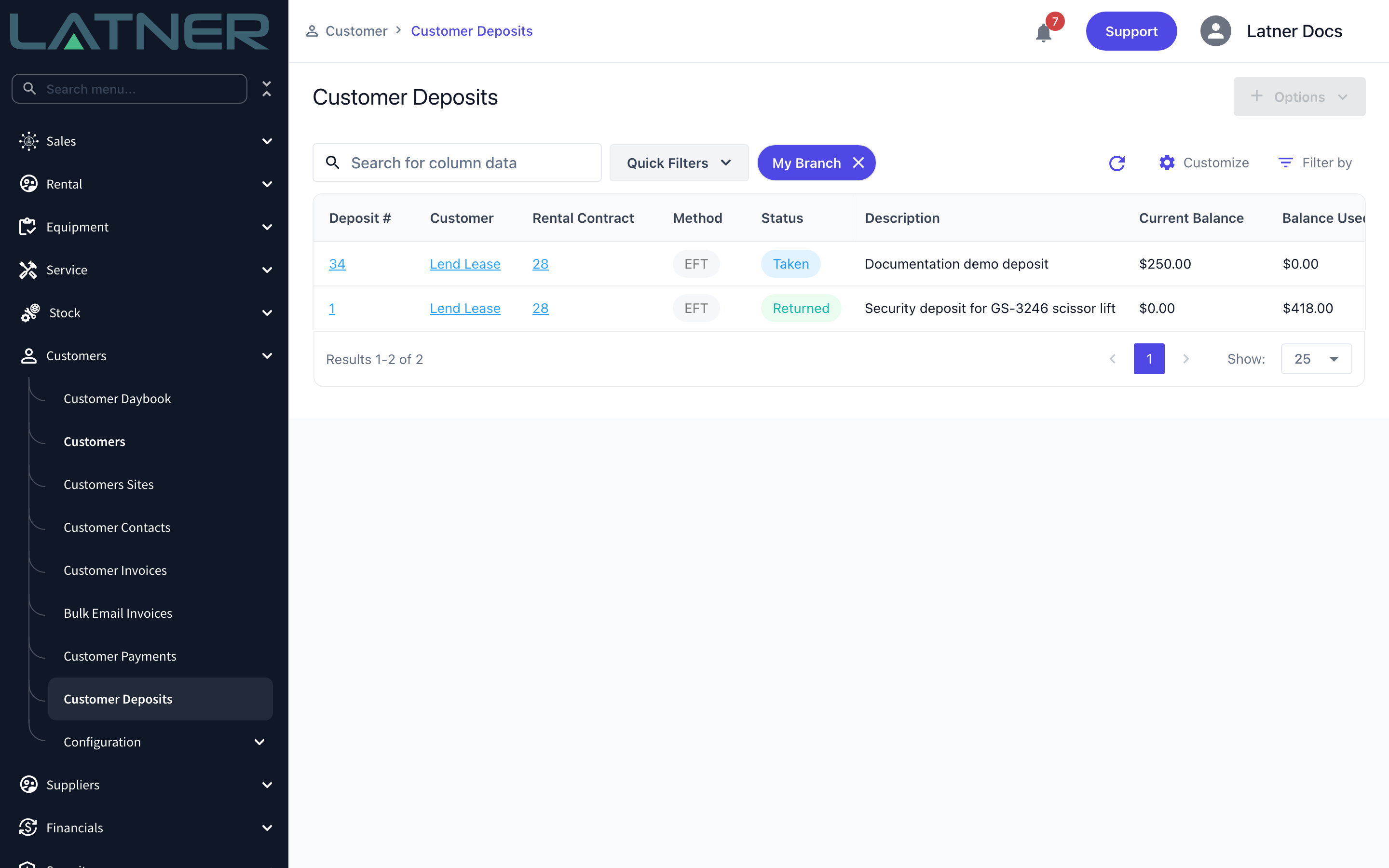
The deposit also appears under Customers › Customer Deposits, where you can search across every customer.
-
Taking a deposit does not create an invoice and does not change what the customer is billed. It is money held, not revenue recognised.
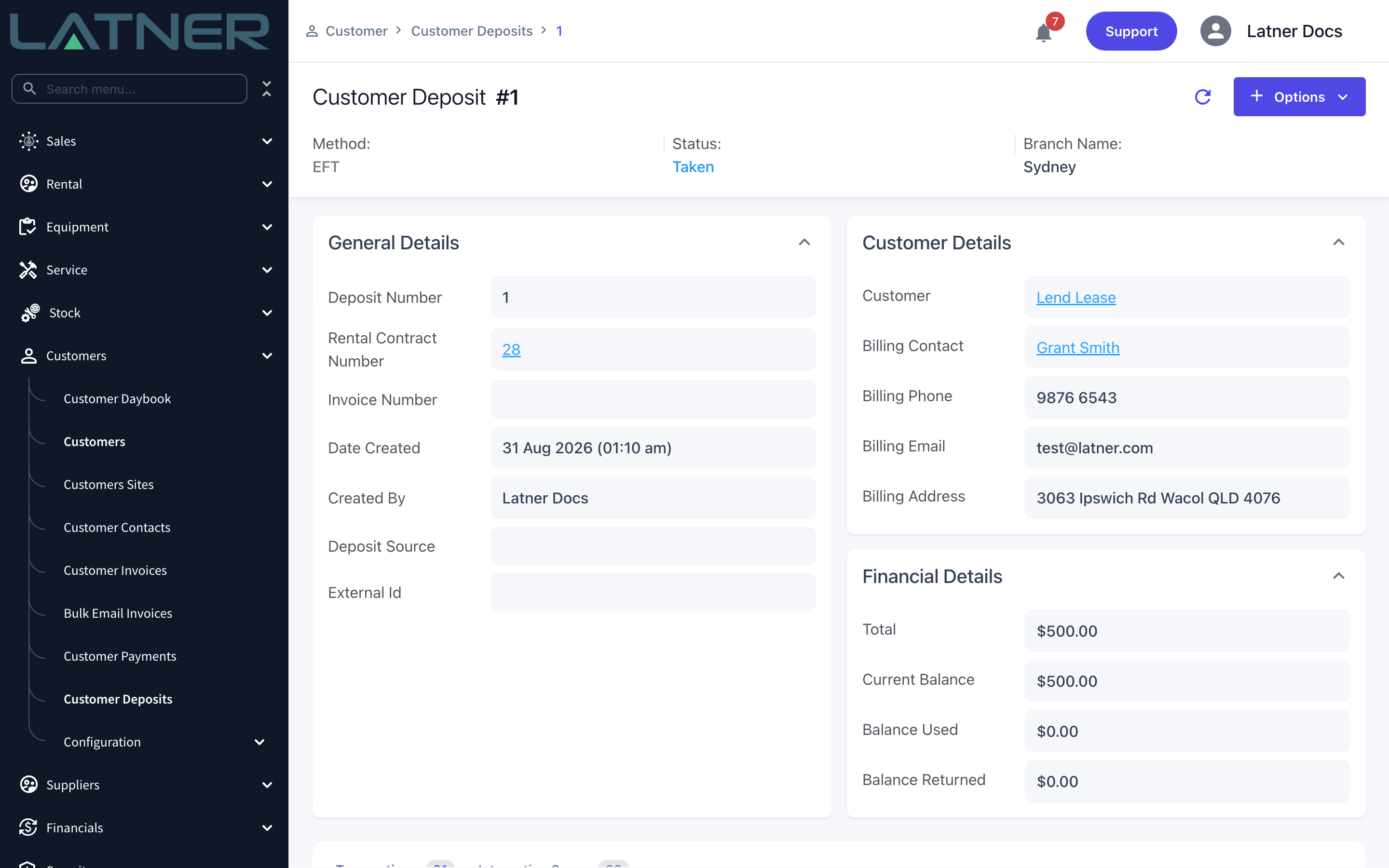
Opening the deposit gives you the full record: who it belongs to, which contract it was taken against, and its running balances. The Transactions tab is the audit trail - every deposit, drawdown and return lands here.
A deposit cannot be deleted or reversed once it is saved, and the amount cannot be re-typed. If you take one in error or for the wrong amount, use Return Deposit to hand the money back, then take a new deposit for the right figure. Completing a rental contract that still holds a deposit is allowed, but Latner will warn you first with "There is a deposit remaining on this Rental Contract. Do you still want to complete?" - so clear the balance before you close the job.
Applying the Deposit to an Invoice
A deposit is put to work by paying an invoice with the Drawdown method.
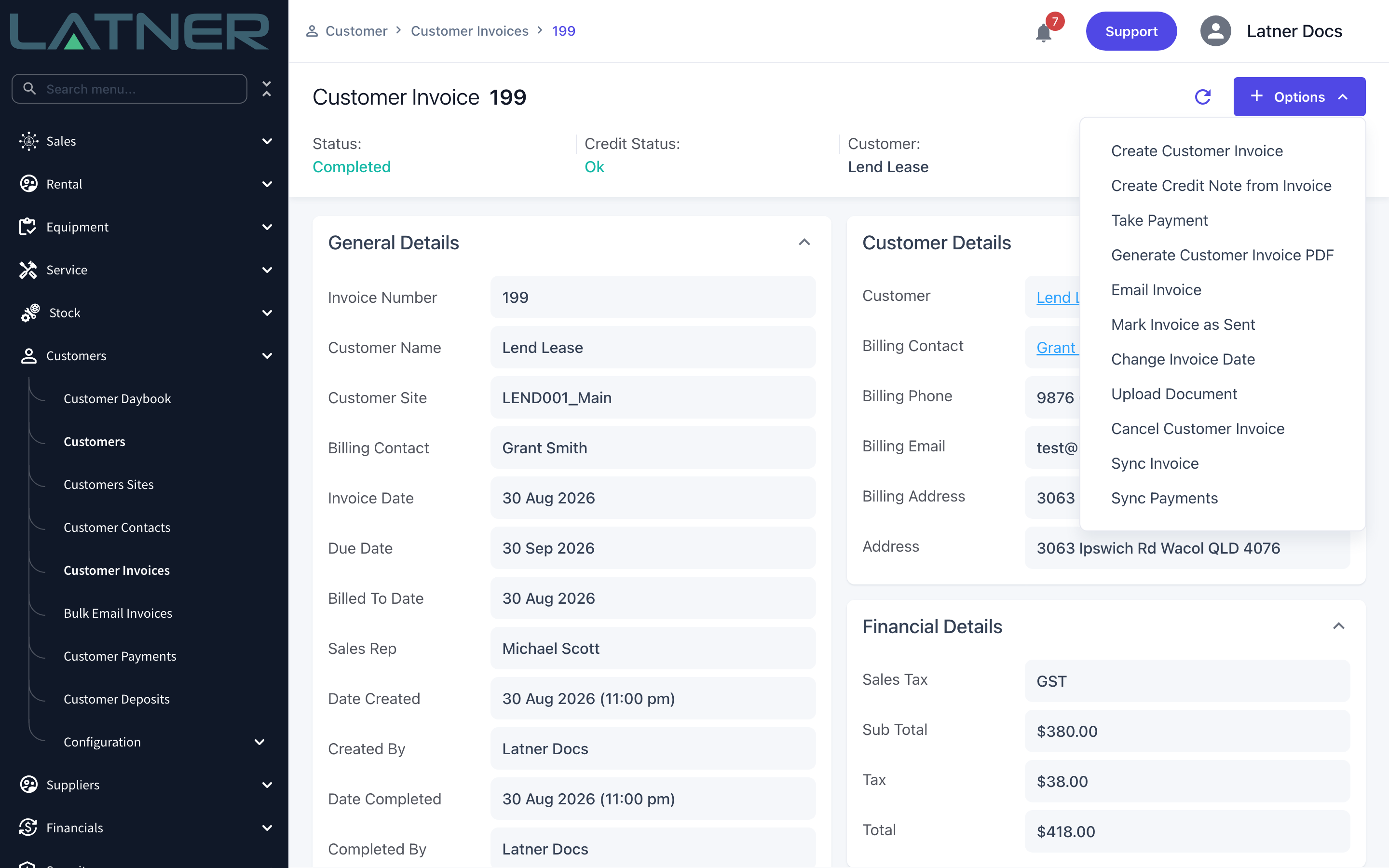
Step 1 - Open the invoice and choose Take Payment
Go to Customers › Customer Invoices and open the invoice. The option is only enabled once the invoice is Completed - you cannot pay an Open invoice.
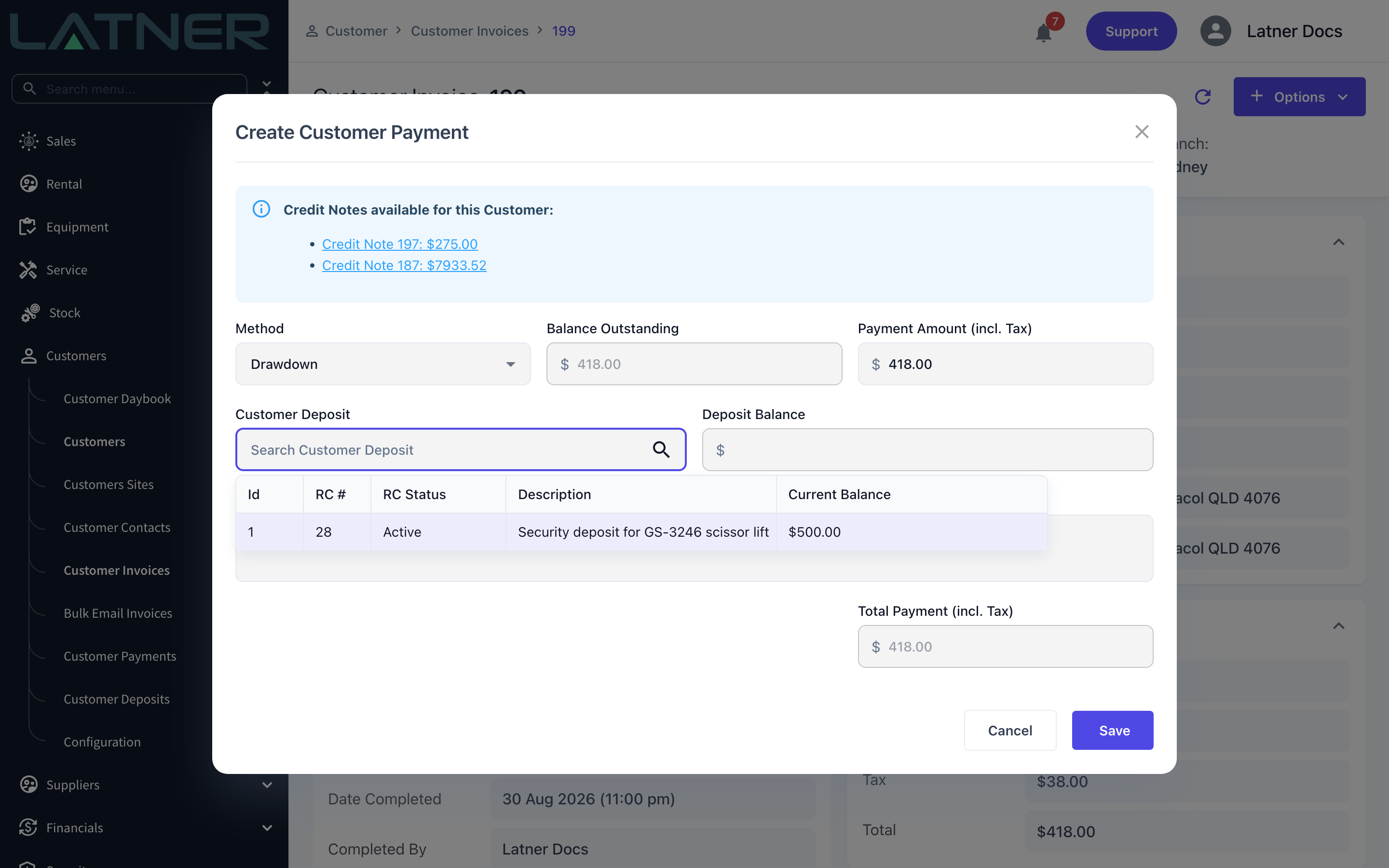
Step 2 - Set the method to Drawdown and pick the deposit
Choose Drawdown as the Method. The form swaps its deposit fields for a Customer Deposit lookup. Search it and pick the deposit you want to draw from - the list shows every deposit for this customer that is still in Taken status, with the contract it came from, that contract's status and the balance remaining.
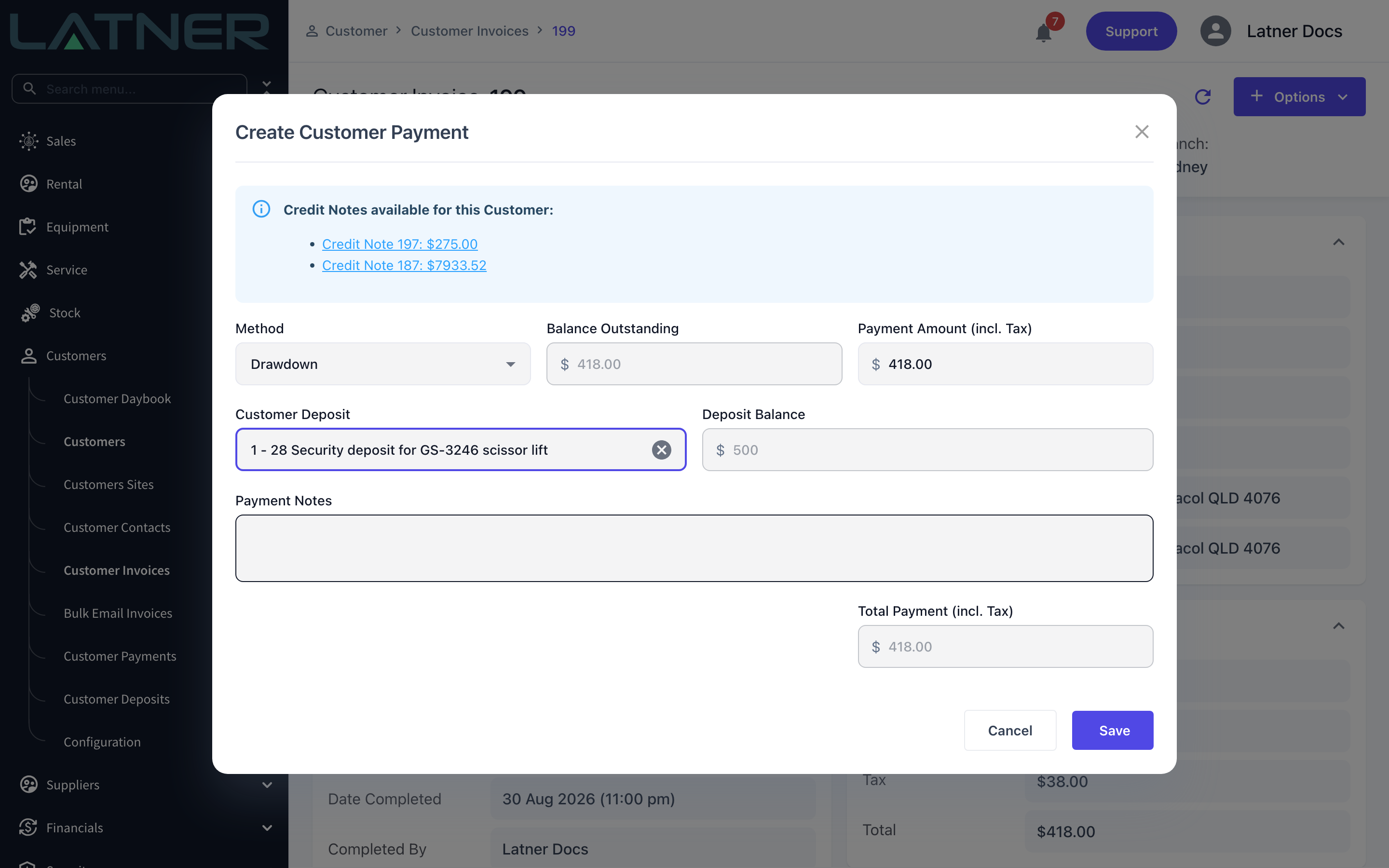
Step 3 - Confirm the amount
Payment Amount (incl. Tax) defaults to the invoice's balance outstanding and cannot exceed it. Deposit Balance fills in from the deposit you chose, and the payment cannot be more than that balance either. Adjust the amount if you are only applying part of the deposit.
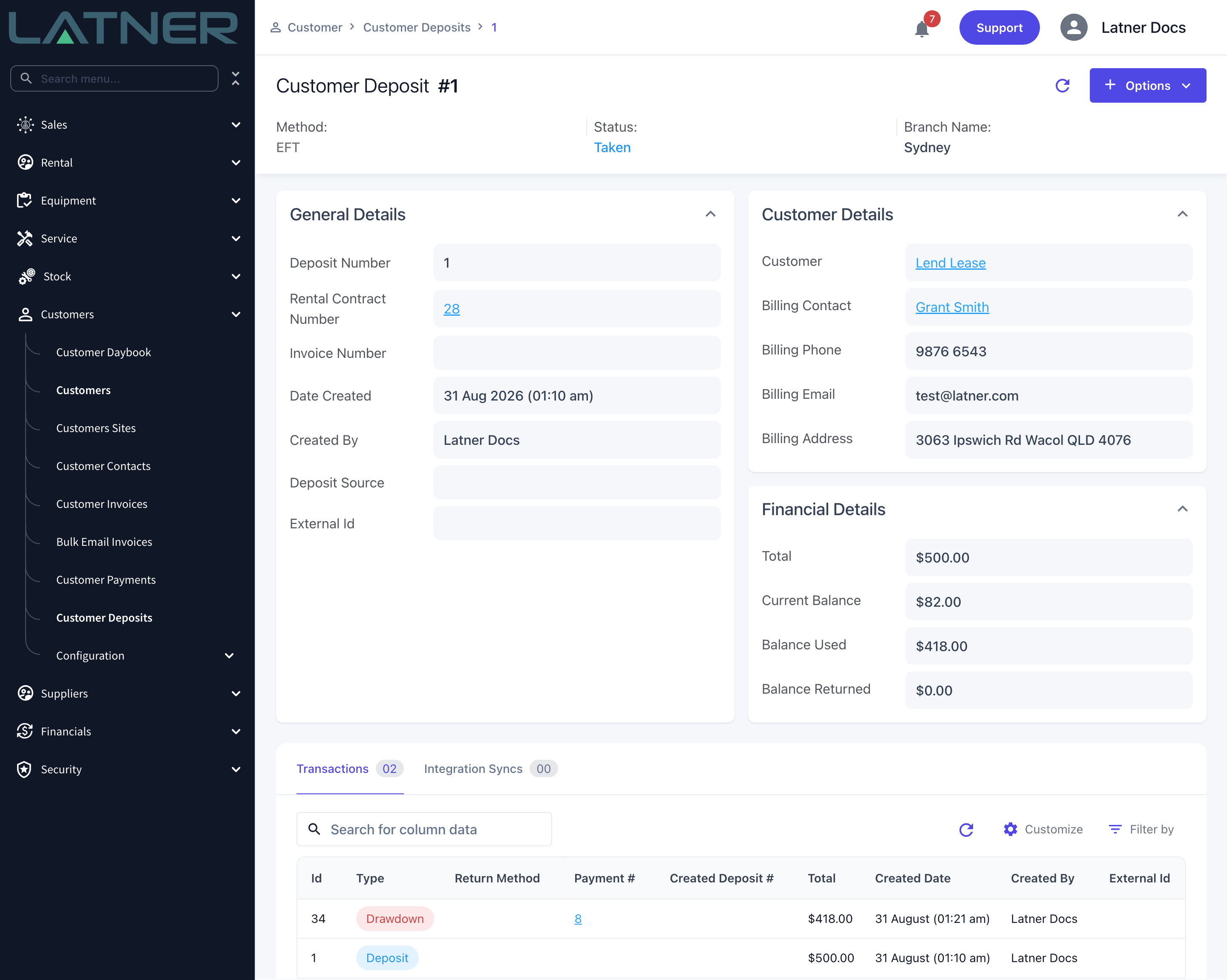
Step 4 - Save
Select Save. Latner creates a customer payment against the invoice and a matching Drawdown transaction on the deposit. The deposit's Balance Used goes up, its Current Balance comes down, and the invoice moves to Paid if nothing is left outstanding.
Returning a Deposit
When the hire is finished and there is money left over, hand it back from the deposit record.
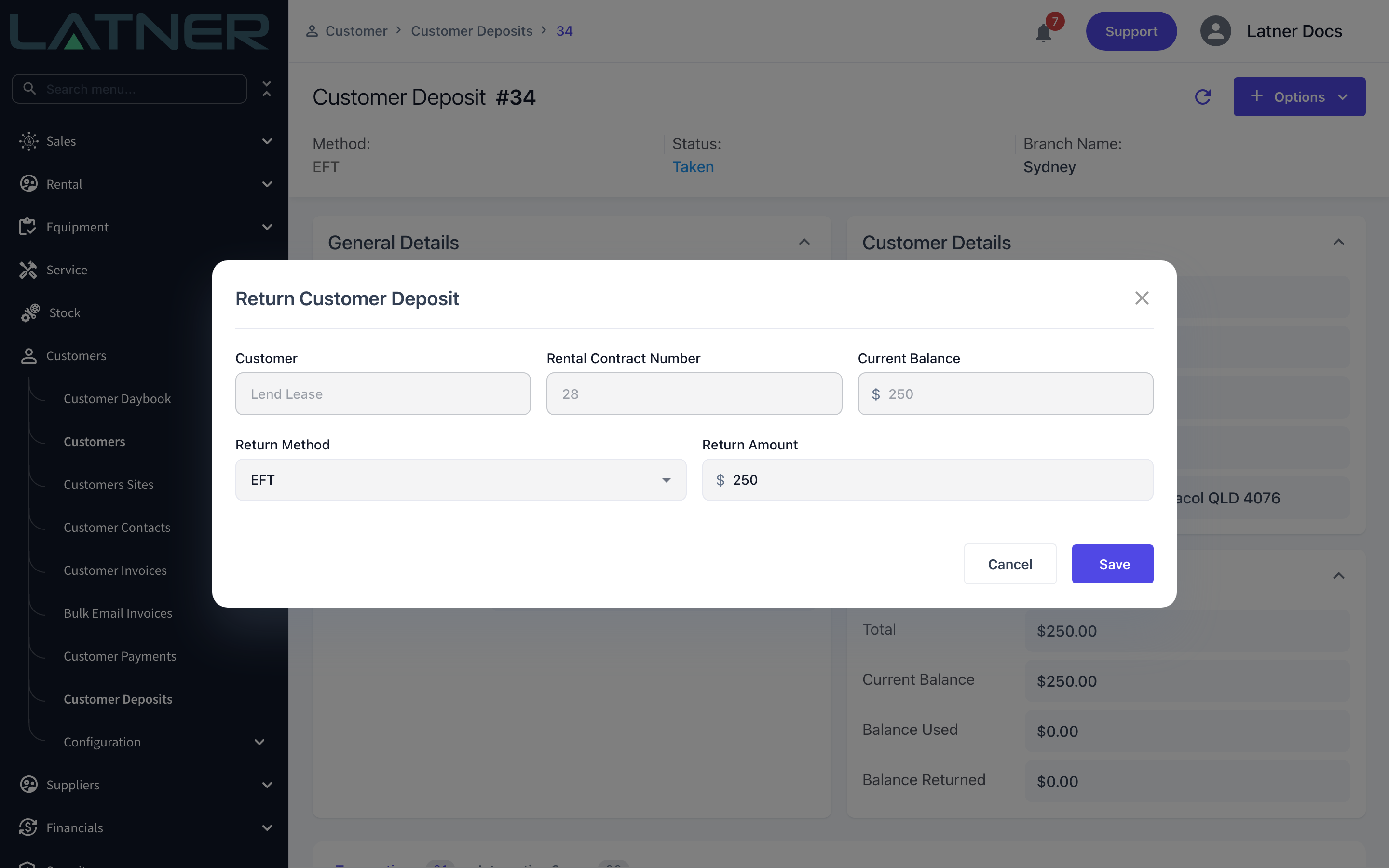
Step 1 - Open the deposit and choose Return Deposit
Go to Customers › Customer Deposits, open the deposit, then choose Options › Return Deposit. The option is greyed out once a deposit is fully returned.
Step 2 - Enter the return method and amount
Return Method defaults to the method the deposit was taken with, and both it and Return Amount are required. The amount cannot be more than the Current Balance. Partial returns are fine - return part now and the rest later.
Step 3 - Save
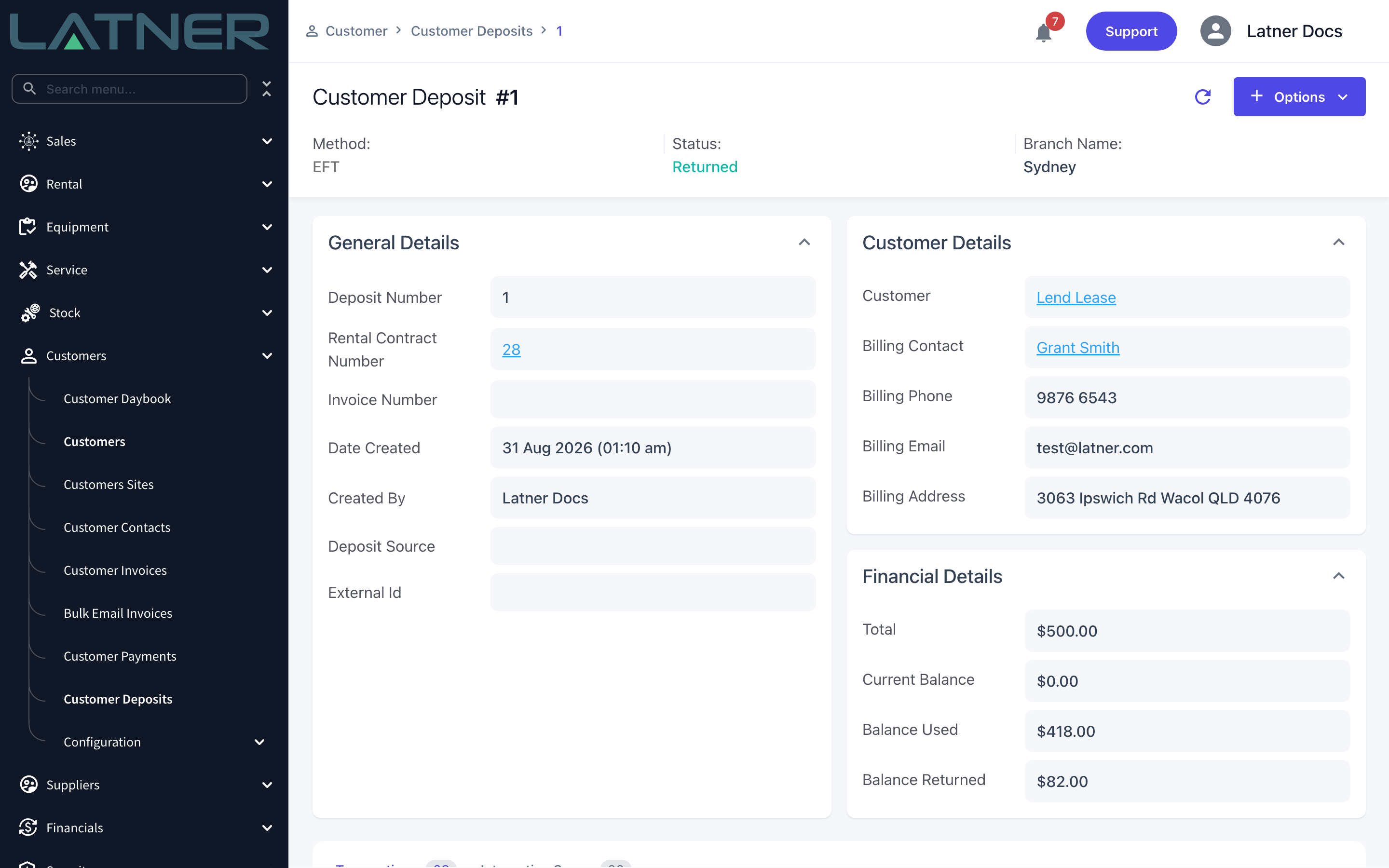
Latner records a Return transaction, moves the amount into Balance Returned and reduces the Current Balance. Once the balance reaches zero the deposit's status changes to Returned on its own.
FAQs
Watch the Demo
Prefer to watch it? Step through the same flow here.