
A Progress Invoice bills a rental contract for everything that has fallen due since the last invoice, so you can charge a long hire in stages instead of waiting for the equipment to come back.
Overview
Most hires outlast a billing cycle. A machine that goes out in July and comes back in November shouldn't sit uninvoiced for four months, and the Progress Invoice is how you keep that money moving without touching the contract itself.
-
Bills each equipment line from its Last Billed To Date up to the Bill To date you choose, then moves the Last Billed To Date forward so the next invoice carries on from there.
-
Picks up everything else that is waiting for the next invoice: transport charges, fuel, sanitation dockets, labour, damage, admin charges and any outstanding manual billing lines.
-
Skips lines whose Invoicing Stage is set to Return Invoice - those charges are held back until you raise a Return or Final Invoice.
-
Leaves the hire running. The contract stays Active, the equipment stays on rent, and you can raise the next Progress Invoice whenever the customer's cycle falls due.
-
Always shows you a preview before it commits, so you can see exactly what will be charged and untick anything you aren't ready to bill.
Before You Begin
You need one permission and a contract with something left to bill.
|
Requirement |
Where to Find It |
|---|---|
|
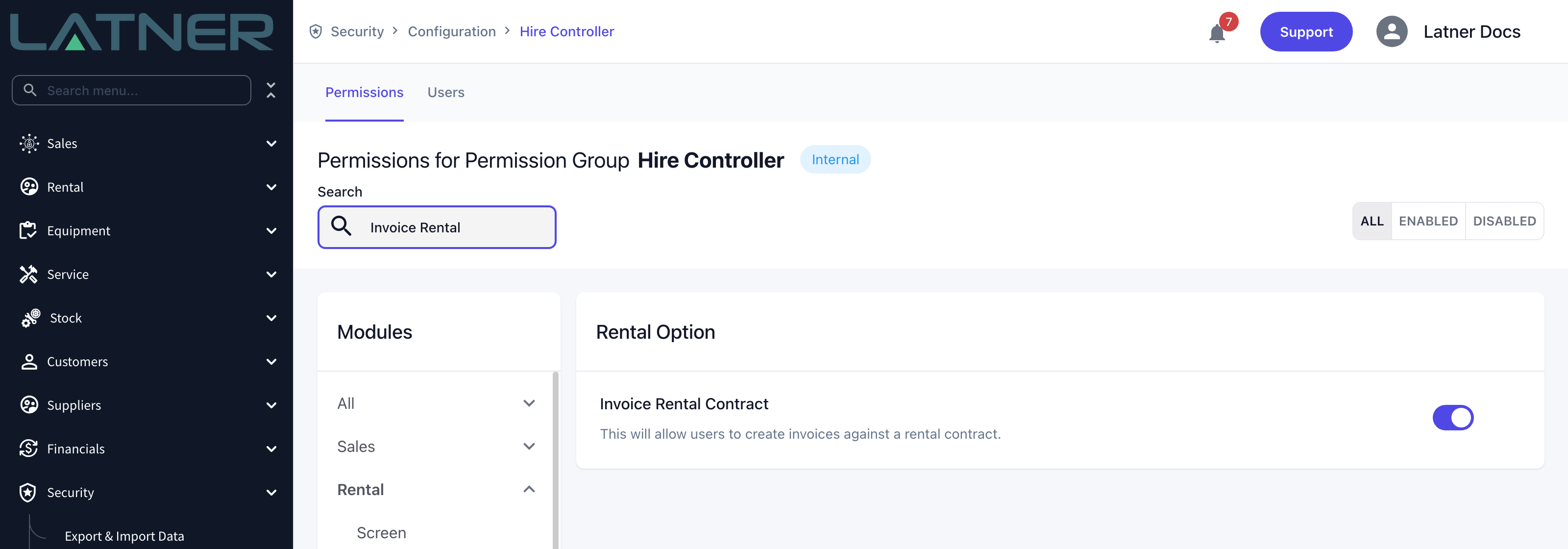
Invoice Rental Contract permission |
Security › Configuration › Permission Groups › your group › Rental › Option |
|
A rental contract that is Active or Reserved |
Rental › Rental Contracts - check the Contract Status at the top of the contract |
|
At least one line with time or charges left to bill |
The contract's Details tab - check Last Billed To Date |
|
Credit Card Surcharge Percentage setting (only if you tick Credit Card Surcharge?) |
Security › Settings › Financials |
The Invoice option is greyed out once a contract is Completed, Cancelled or Lost. A billing hold does not block it - Hold Billing only takes the contract out of Cycle Billing, so you can still invoice a held contract on its own from the contract itself.
Creating the Progress Invoice
Step 1 - Check what is outstanding
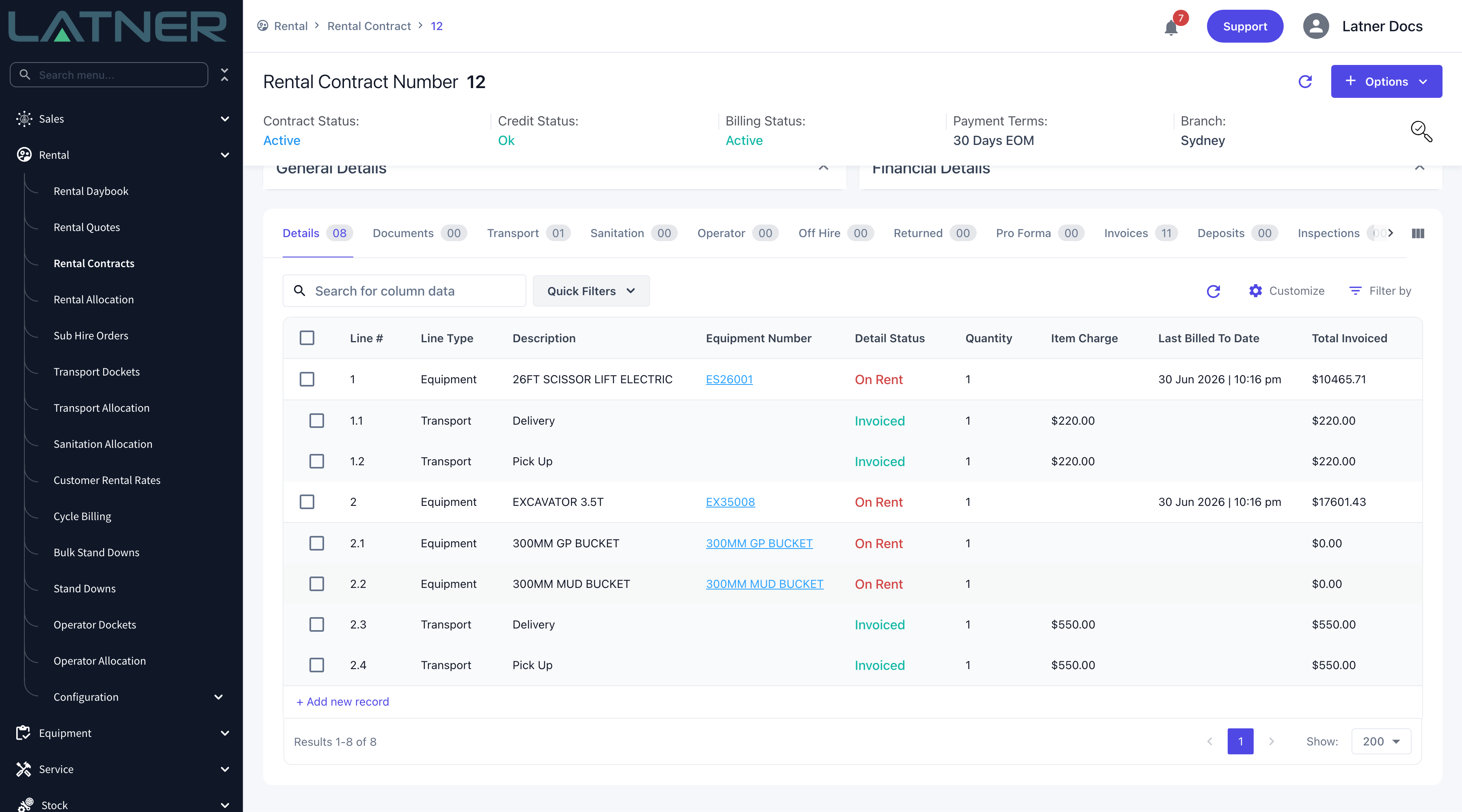
Open the contract from Rental › Rental Contracts and look at the Details tab. The Last Billed To Date column tells you where each equipment line stopped last time; anything after that date is still to charge. If the column isn't showing, add it from Customize.
Step 2 - Open the invoice dialog
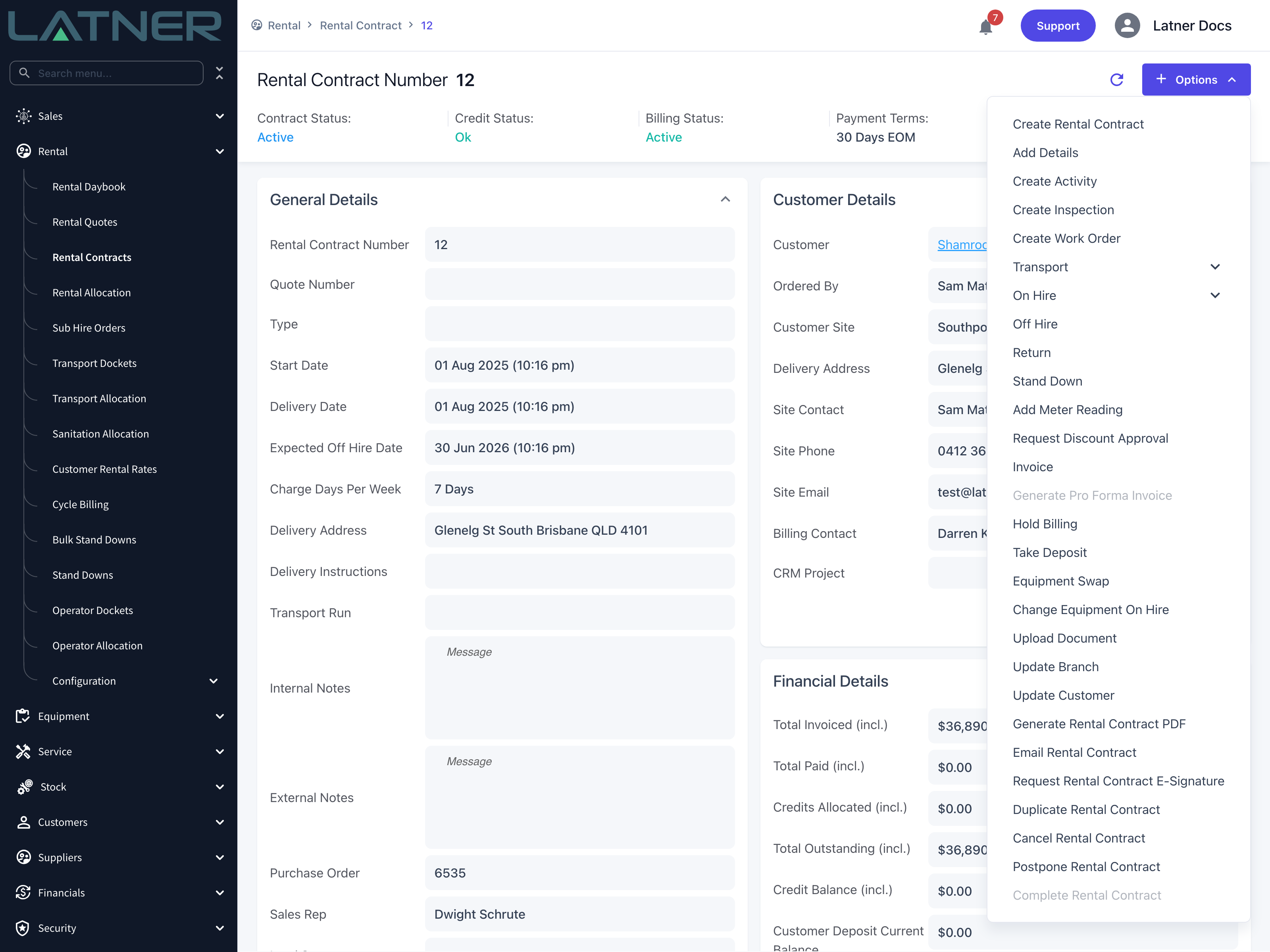
Choose Options › Invoice. The Invoice Rental Contract dialog opens with the contract, customer, site and branch already filled in and read only.
Step 3 - Set the dates
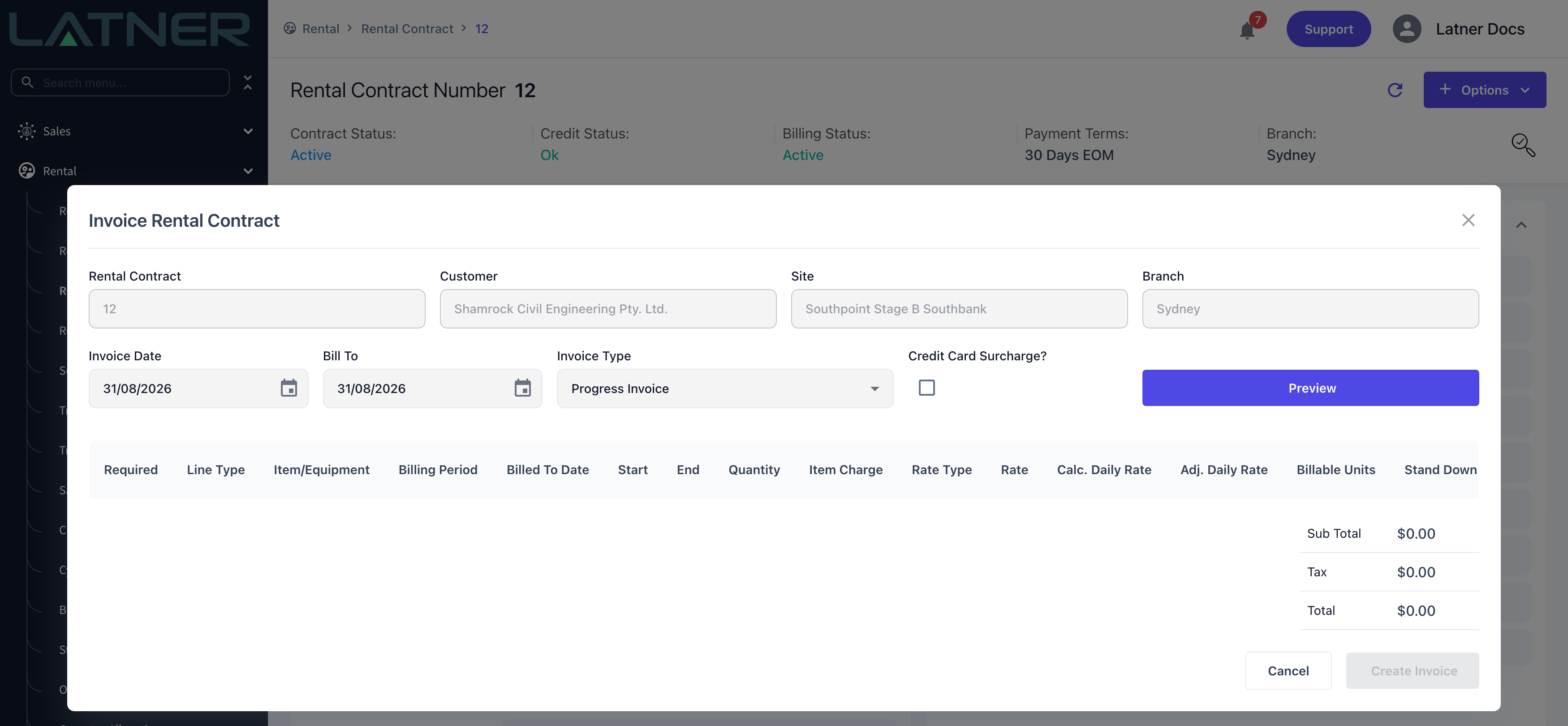
Two dates drive the invoice, and they do different jobs.
-
Invoice Date - required. The date shown on the invoice and the date the due date is calculated from. Defaults to today.
-
Bill To - required. The date to bill the rental contract up until. This is the one that decides how much hire time goes on the invoice. Defaults to today, except for cash on delivery customers, where it defaults to the contract's expected off hire date when that date is still in the future.
-
Credit Card Surcharge? - optional. Adds a credit card surcharge line to the invoice. It is ticked automatically for cash on delivery customers when the Credit Card Surcharge Percentage setting has a value. (Credit card surcharge ban comes into effect on the 1st October 2026)
Step 4 - Choose the invoice type
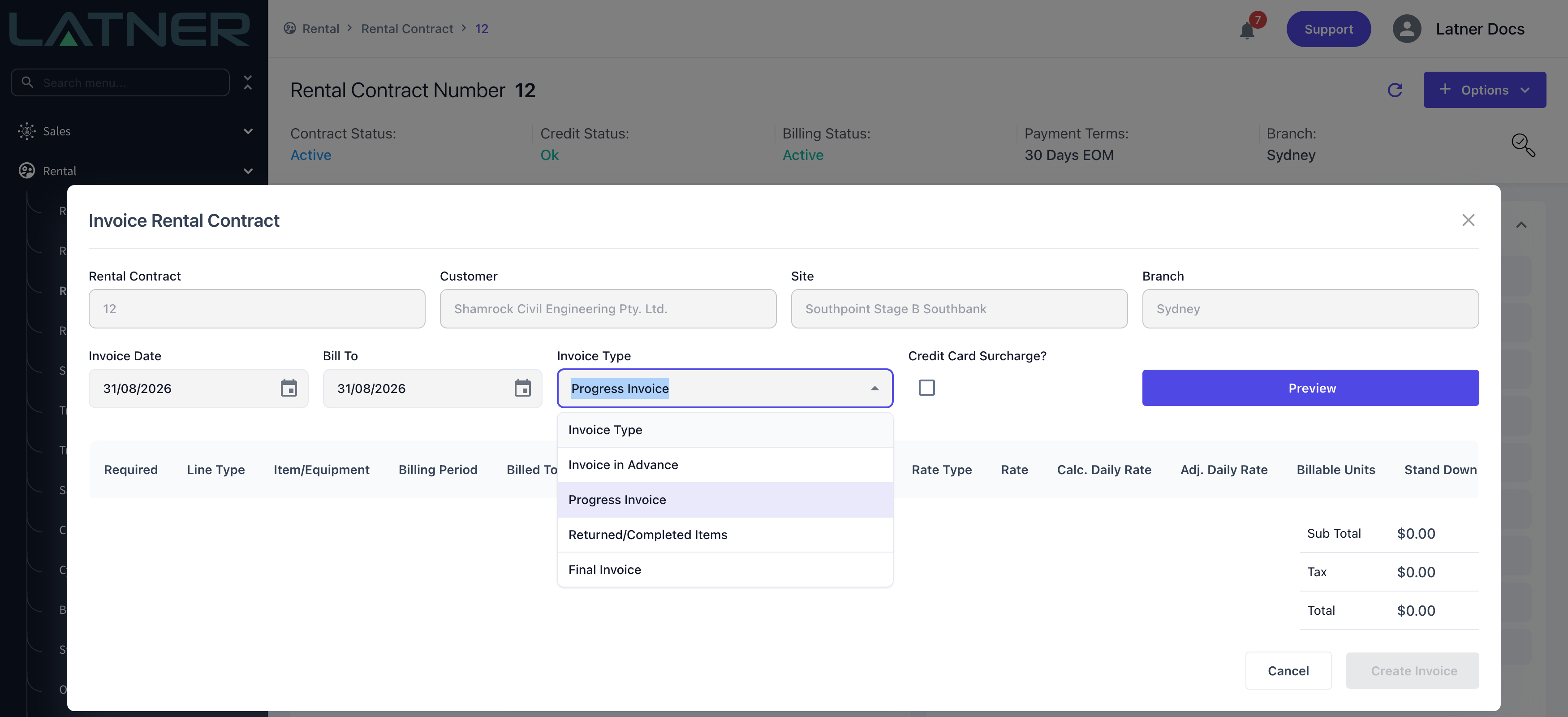
Invoice Type already defaults to Progress Invoice, so most of the time you can leave it alone. The four choices decide which lines are eligible.
-
Invoice in Advance - bills every line up front, whether or not it has gone out yet.
-
Progress Invoice - bills what has fallen due since the last invoice on lines that are already on hire.
-
Returned/Completed Items - bills only lines whose equipment has come back.
-
Final Invoice - bills everything that is left, including the charges held back for the end of the hire.
Step 5 - Preview what will be billed
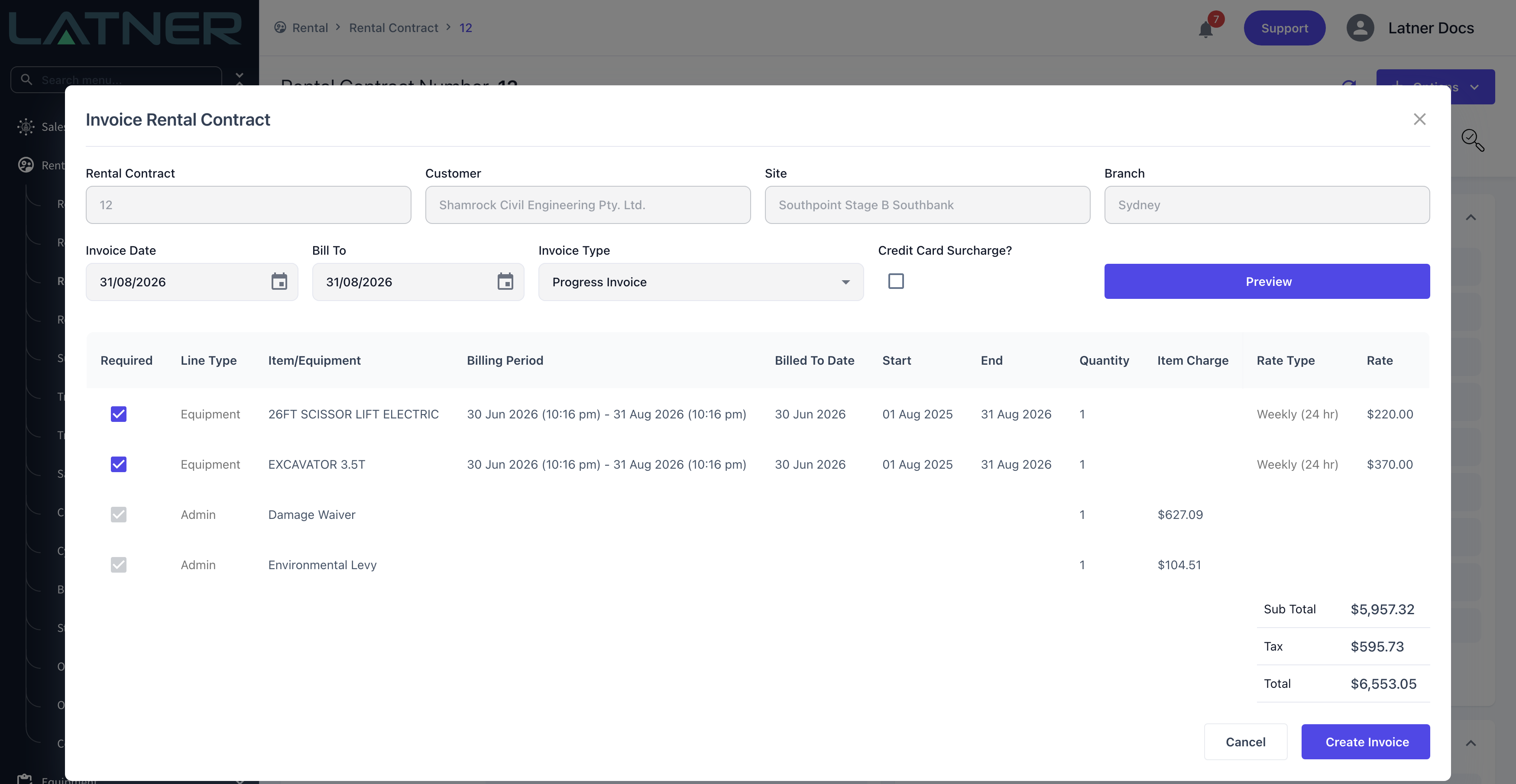
Click Preview. Latner works out the charges and lists one row per line it intends to invoice, with the running Sub Total, Tax and Total underneath.
-
Billing Period - the exact window being charged on that line, from where the last invoice finished up to your Bill To date.
-
Billed To Date - where the line was billed to before this invoice. Blank means the line has never been billed.
-
Rate Type, Rate, Calc. Daily Rate, Adj. Daily Rate and Billable Units - how the charge was worked out, so you can see why a line came to what it did.
-
Required - untick a line to leave it off this invoice. The totals recalculate straight away, and the line stays on the contract for a later invoice.
Some rows can't be unticked. Damage waiver and levy style charges are derived from the lines you are billing rather than being contract lines of their own, so they carry the tooltip "Cannot deselect related lines"; operator docket lines carry "Cannot deselect operator docket lines".
If the preview comes back empty you'll see a Nothing to Invoice message. That means nothing on the contract has fallen due as at your Bill To date - it is not an error. Try a later Bill To date, or check whether the charges you are expecting are set to invoice at the end of the hire.
Step 6 - Create the invoice
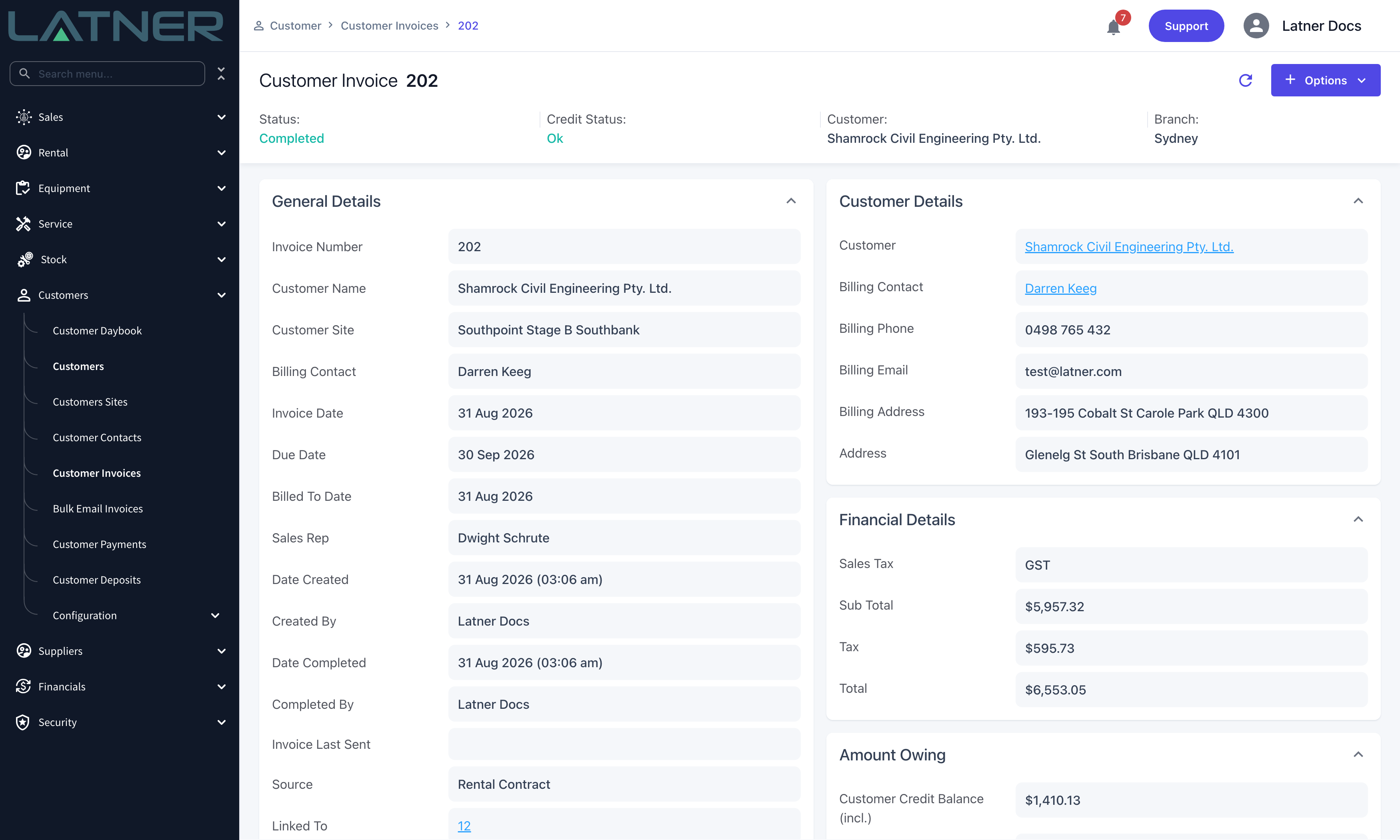
Click Create Invoice. Latner creates the customer invoice and shows a confirmation with a link straight to it. If the lines happen to net to a negative total the button reads Create Credit Note instead, and you'll get a credit note rather than an invoice.
After Creation
-
Last Billed To Date moves to your Bill To date on every equipment line that was billed, so the next Progress Invoice starts from there.
-
Transport, admin and other one-off lines that were Pending or Applied change to Invoiced.
-
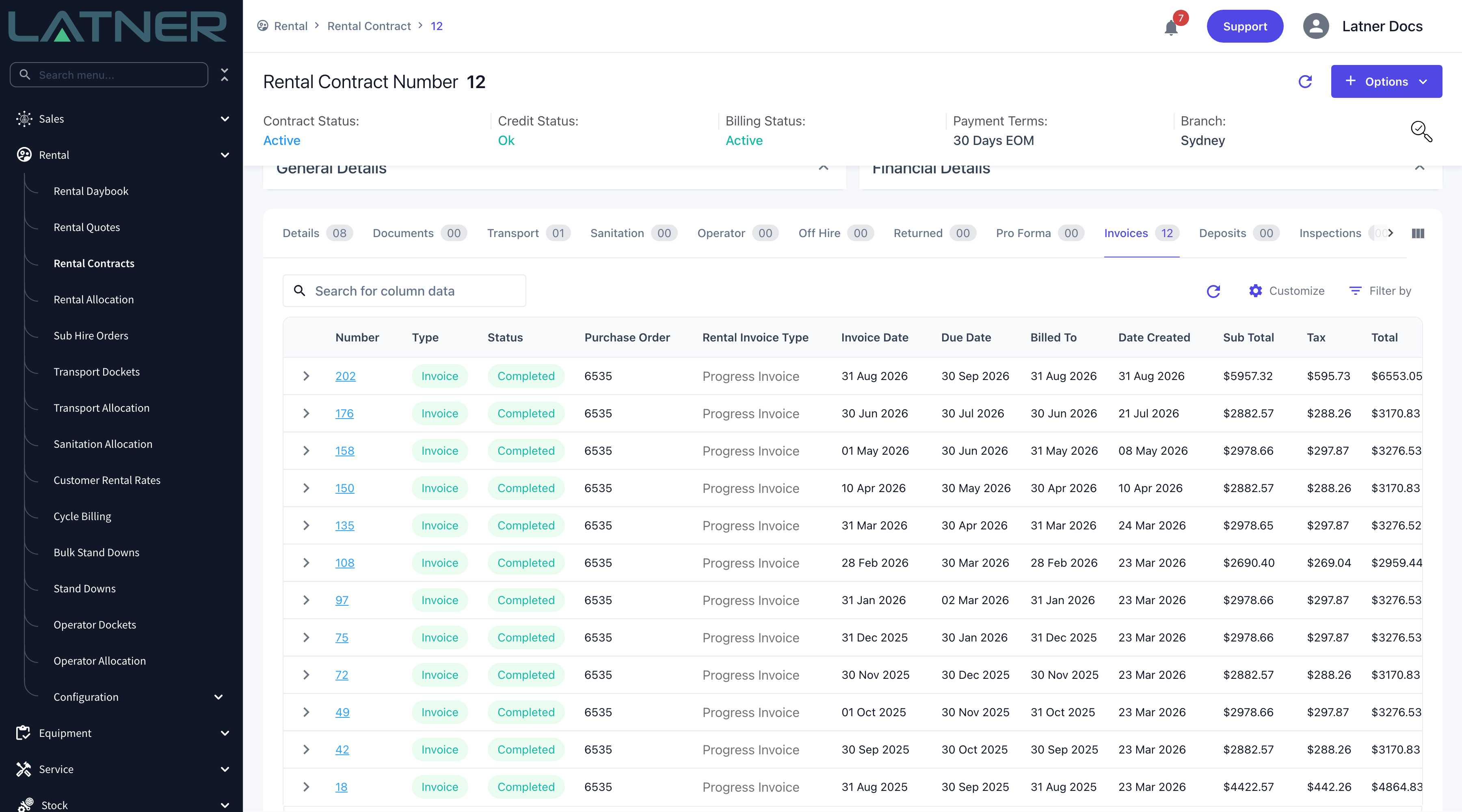
The invoice appears on the contract's Invoices tab and under Customers › Customer Invoices, with Rental Invoice Type set to Progress Invoice.
-
The due date comes from the customer's payment terms, or from the Default Payment Term setting when the customer has none.
-
The invoice is created Open, unless Default Rental Contract Customer Invoices to Completed is switched on under Security › Settings › Customers, in which case it is created Completed.
-
If Auto Update Expected Off Hire Datetime based on Rental Billing is on under Security › Settings › Rental, the contract's expected off hire date is pushed out to your Bill To date whenever you bill past it.
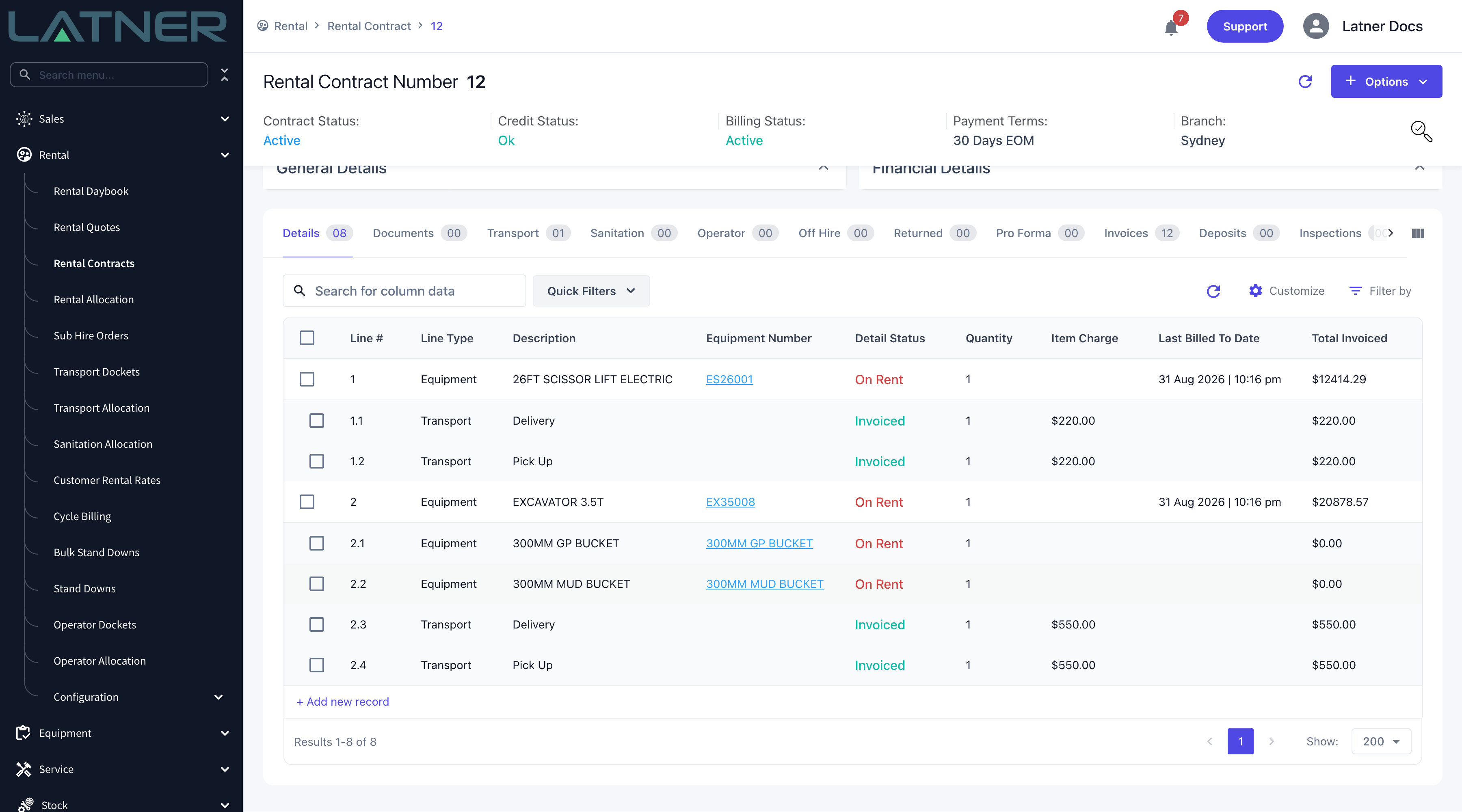
Creating a Progress Invoice moves the contract's billing forward, so you can't simply delete it if the dates were wrong. Use Options › Cancel Customer Invoice on the invoice instead - it rolls the Last Billed To Date back to where it was, returns the invoiced lines to their pre-invoice status, and asks you for a note explaining the cancellation. A Paid invoice can't be cancelled at all; raise a credit note against it.
FAQs
Watch the Demo
Prefer to watch it? Step through the same flow here.