
Every charge line on a rental contract carries an Invoicing Stage that decides whether it goes out on the next invoice or waits until the rental is over, and you can change it on any line you haven't invoiced yet.
Overview
Not every charge belongs on the next invoice. A pick up fee for equipment that's still on hire, a damage charge you can't price until the machine is back, a clean-up cost that depends on how it comes home - these all read better to a customer when they arrive at the end, alongside the rest of the return paperwork. Latner handles that with a per-line Invoicing Stage.
-
Every chargeable line on a rental contract is either Next Invoice or Return Invoice.
-
Next Invoice lines are picked up by the next Progress Invoice. Return Invoice lines are held back from it.
-
The stage a new line starts at comes from your Rental settings for Delivery, Pick Up, Site Move, Equipment, Stock, Fuel and Damage lines, and from the Admin Charge, Labour Type or Sanitation Type record for those line types.
-
You can change the stage on any line while the contract is open, even once other lines on the contract have been invoiced.
-
Linked To decides which piece of equipment a Return Invoice charge follows out the door.
A charge sitting at Return Invoice is billed at the first of these that happens:
-
The charge is a transport charge on a transport docket that has been completed. It's then picked up by the next Returned/Completed Items invoice.
-
The charge is linked to an equipment line and that equipment has been returned. It goes out with that item's return invoice.
-
Neither of the above. It waits for the Final Invoice.
Linking the charge to the equipment line it belongs to is the outcome worth aiming for. Charges then follow the item they relate to, each returned machine on a multi-item contract brings its own charges out with it, and nothing sits stranded until someone finalises the contract.
Before You Begin
You'll need the following before you can change a charge.
|
Requirement |
Where to Find It |
|---|---|
|
Edit Rental Contract Details permission |
Security › Configuration › Permission Groups › Rental › Option |
|
A rental contract that is still open |
The Contract Status at the top of the rental contract. Completed, Cancelled and Lost contracts are read-only. |
|
A charge that hasn't been invoiced yet |
The Total Invoiced column on the Details tab. Once it's above $0.00 the charge, quantity and start date are locked. |
|
Default invoice stages (optional) |
Security › Settings › Rental |
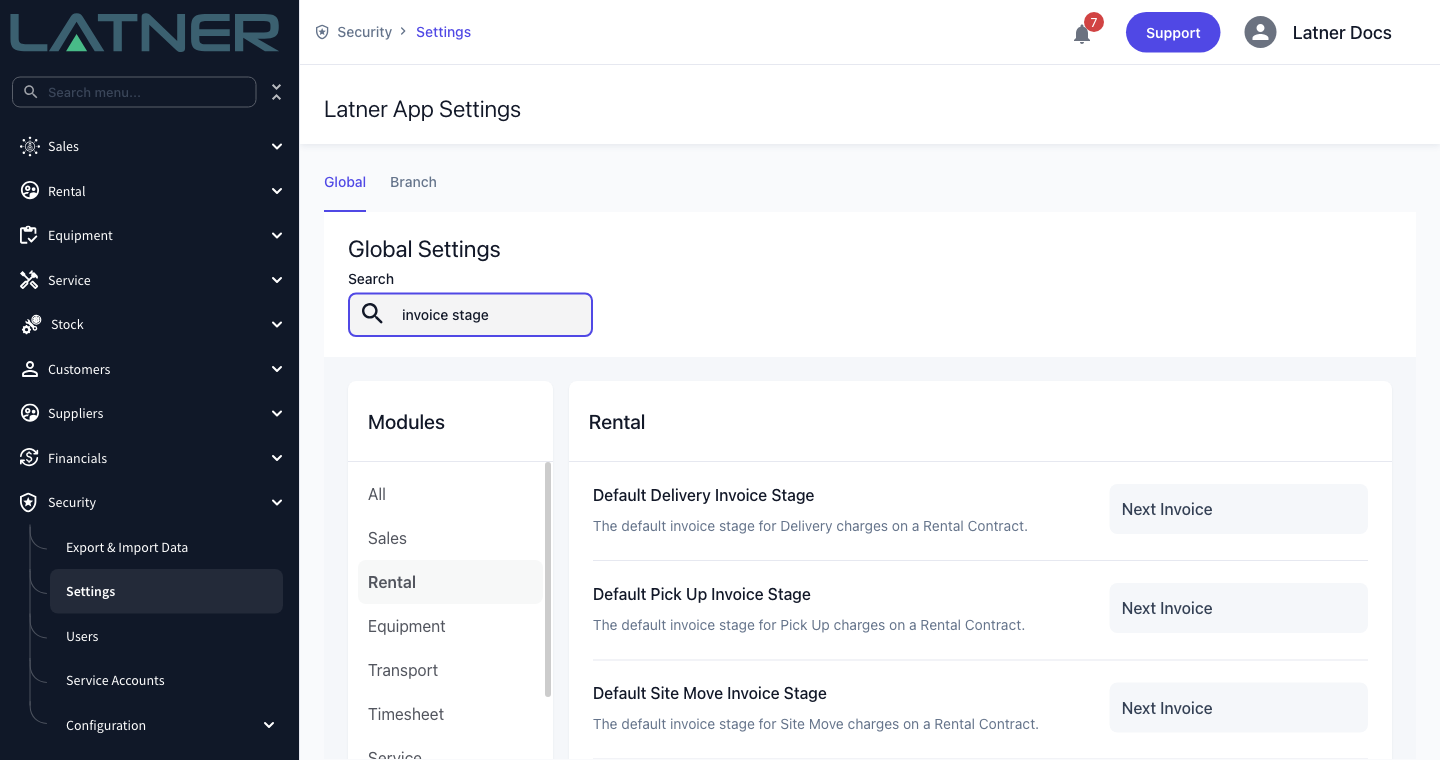
These settings only decide the stage a new charge starts at. Switching Default Pick Up Invoice Stage to Return Invoice won't restage the pick up charges already sitting on your open contracts - those still have to be changed line by line, which is exactly what the rest of this article covers.
Changing a Charge to Invoice at the End of the Rental
Step 1 - Open the contract's Details tab
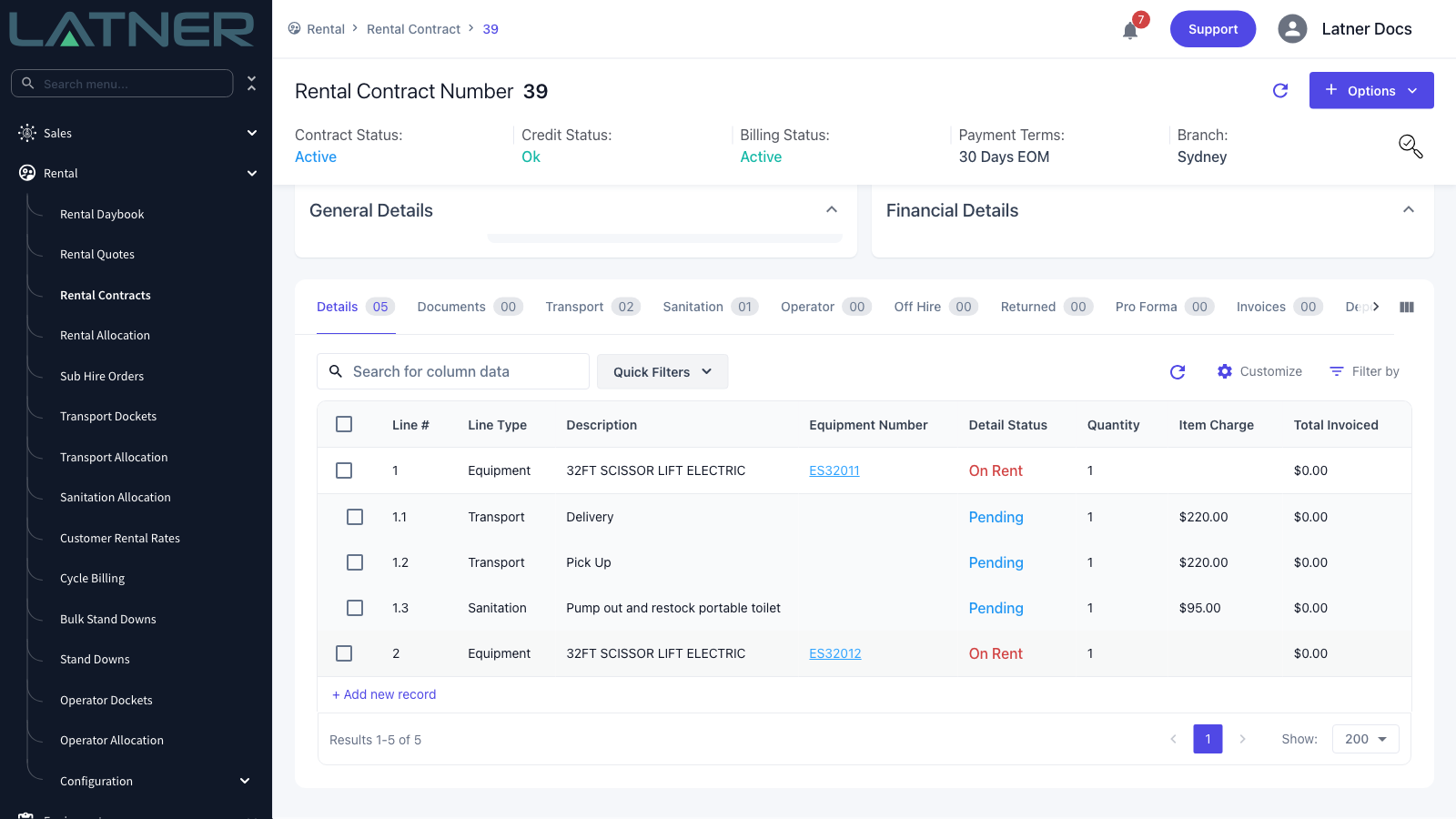
Go to Rental › Rental Contracts, open the contract, and scroll down to the Details tab. Every equipment line and every charge line on the contract is listed here.
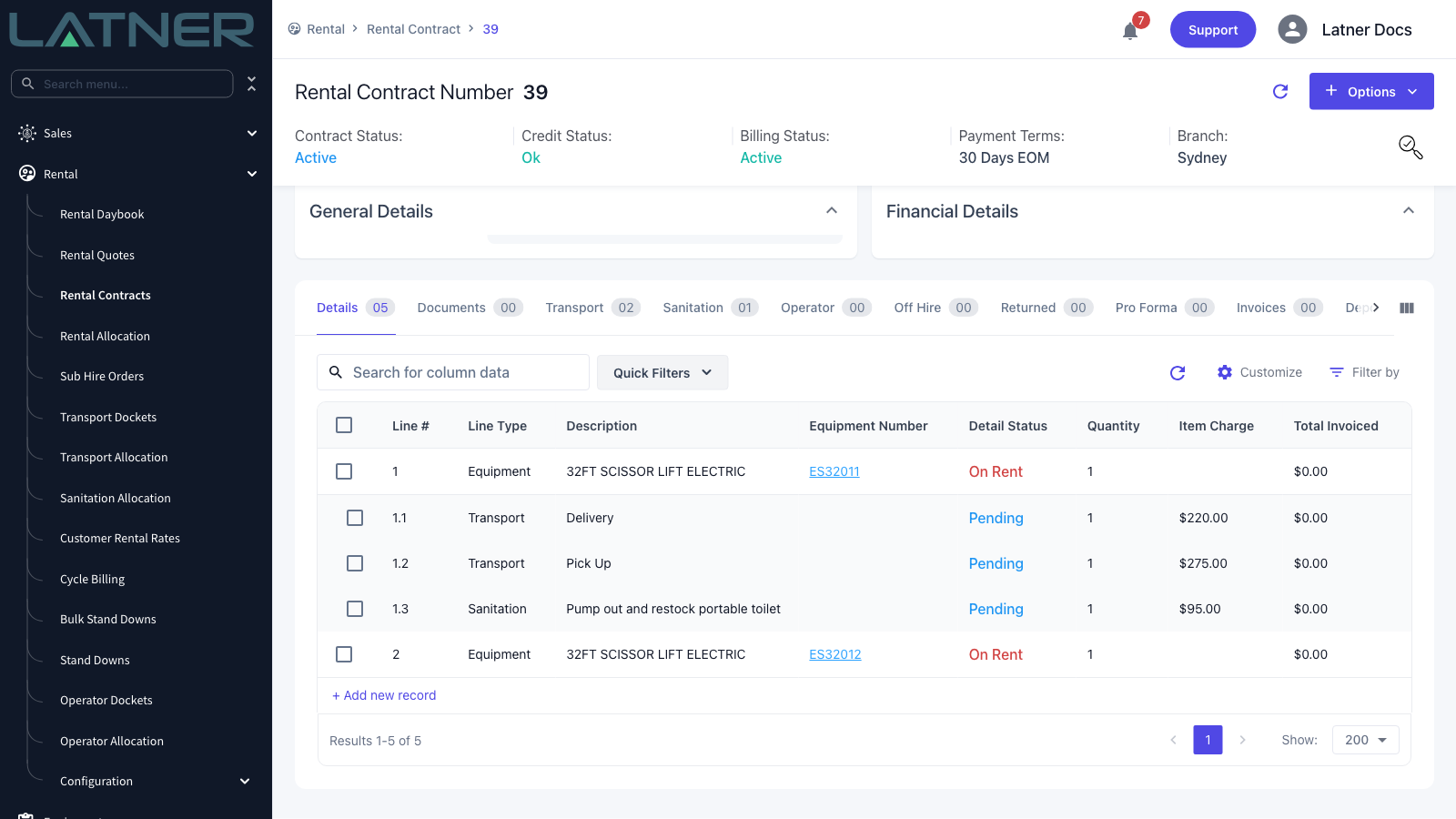
The Invoicing Stage isn't one of the columns, so you can't tell from this grid which charges are set to invoice at the end. What the grid does tell you is whether a charge is still editable: Total Invoiced stays at $0.00 until the line has gone out on an invoice.
Step 2 - Select the charge line
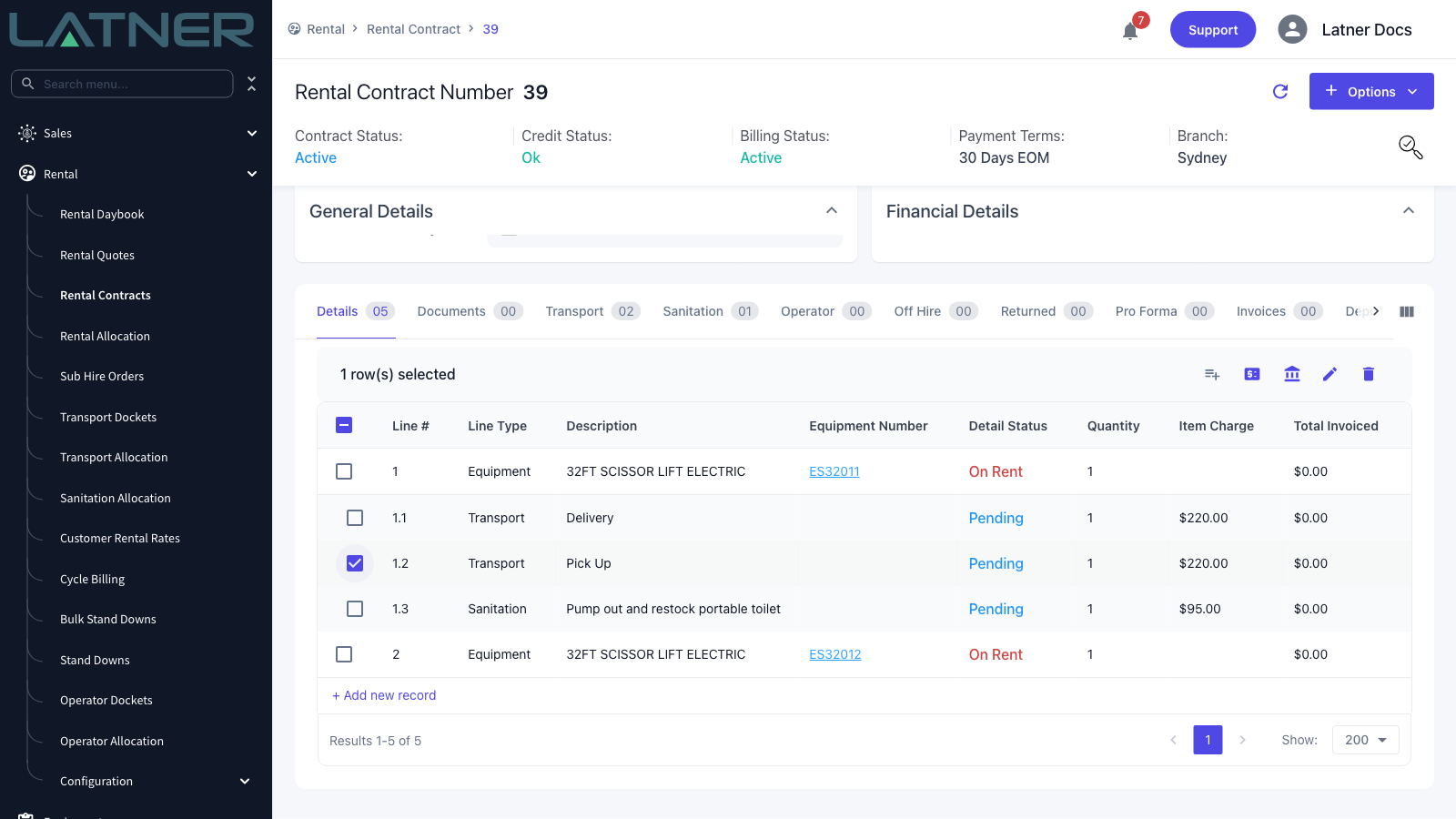
Tick the checkbox next to the charge you want to change. A row toolbar appears above the grid - the pencil icon opens the line for editing. Double-clicking anywhere on the row does the same thing.
Step 3 - Check what the charge is linked to
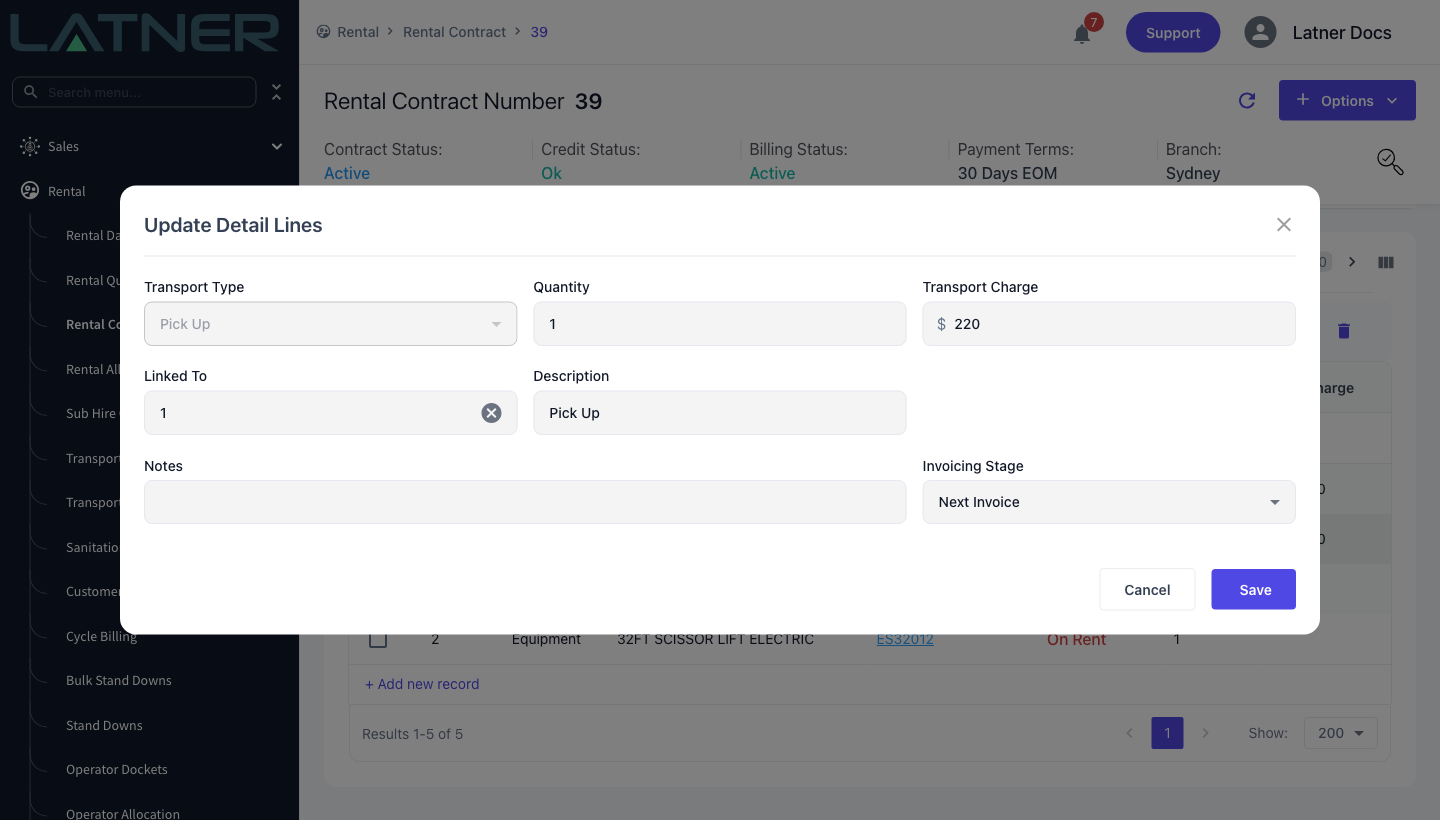
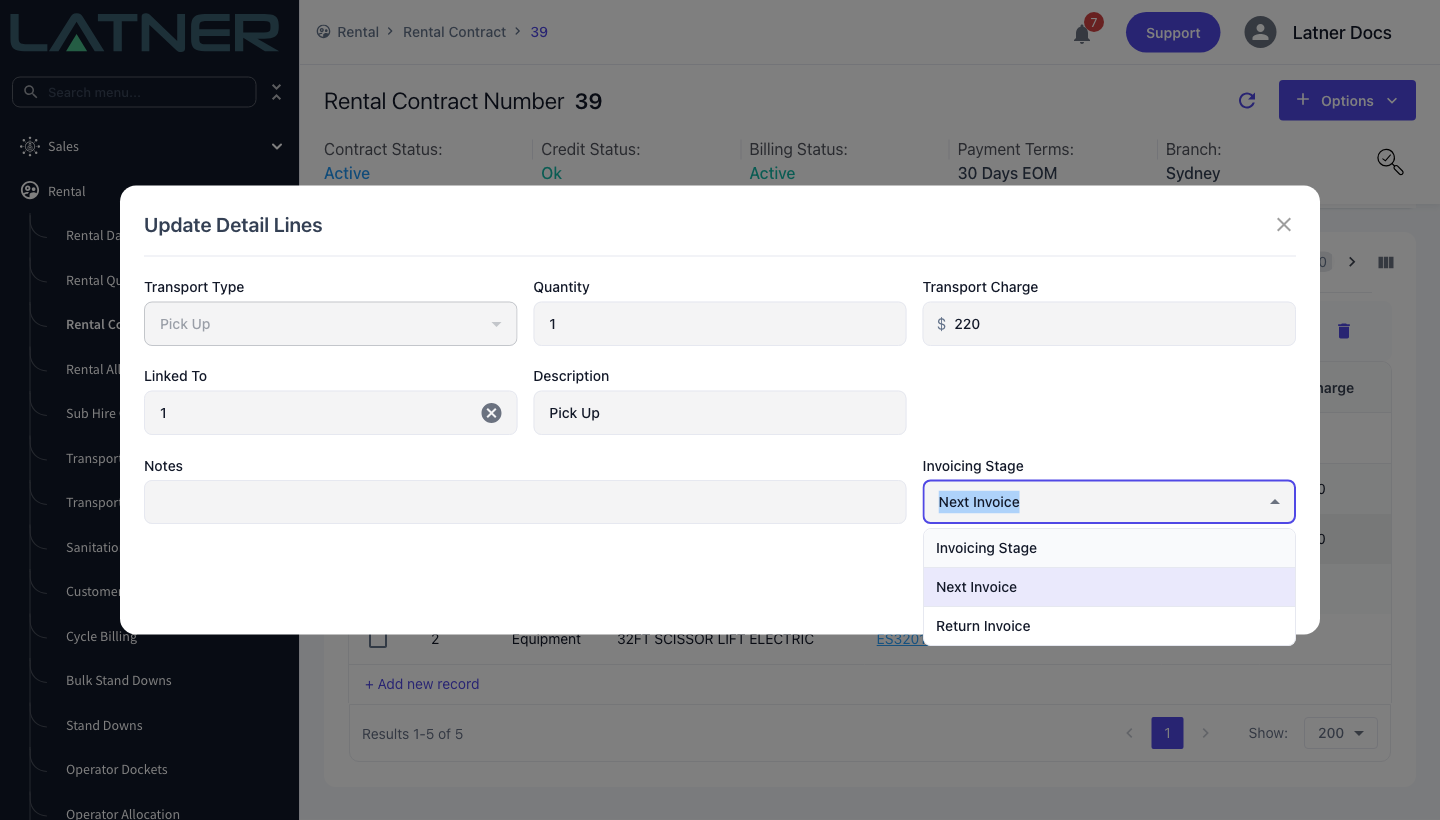
The Update Detail Lines form opens. Which fields you see depends on the line type, but these are the ones that matter here.
-
Linked To - the line number of the equipment this charge belongs to. Only equipment and sub hire equipment lines can be chosen. If this is blank, a Return Invoice charge will wait for the Final Invoice rather than going out when a machine comes back.
-
Description - what the customer reads on the invoice line.
-
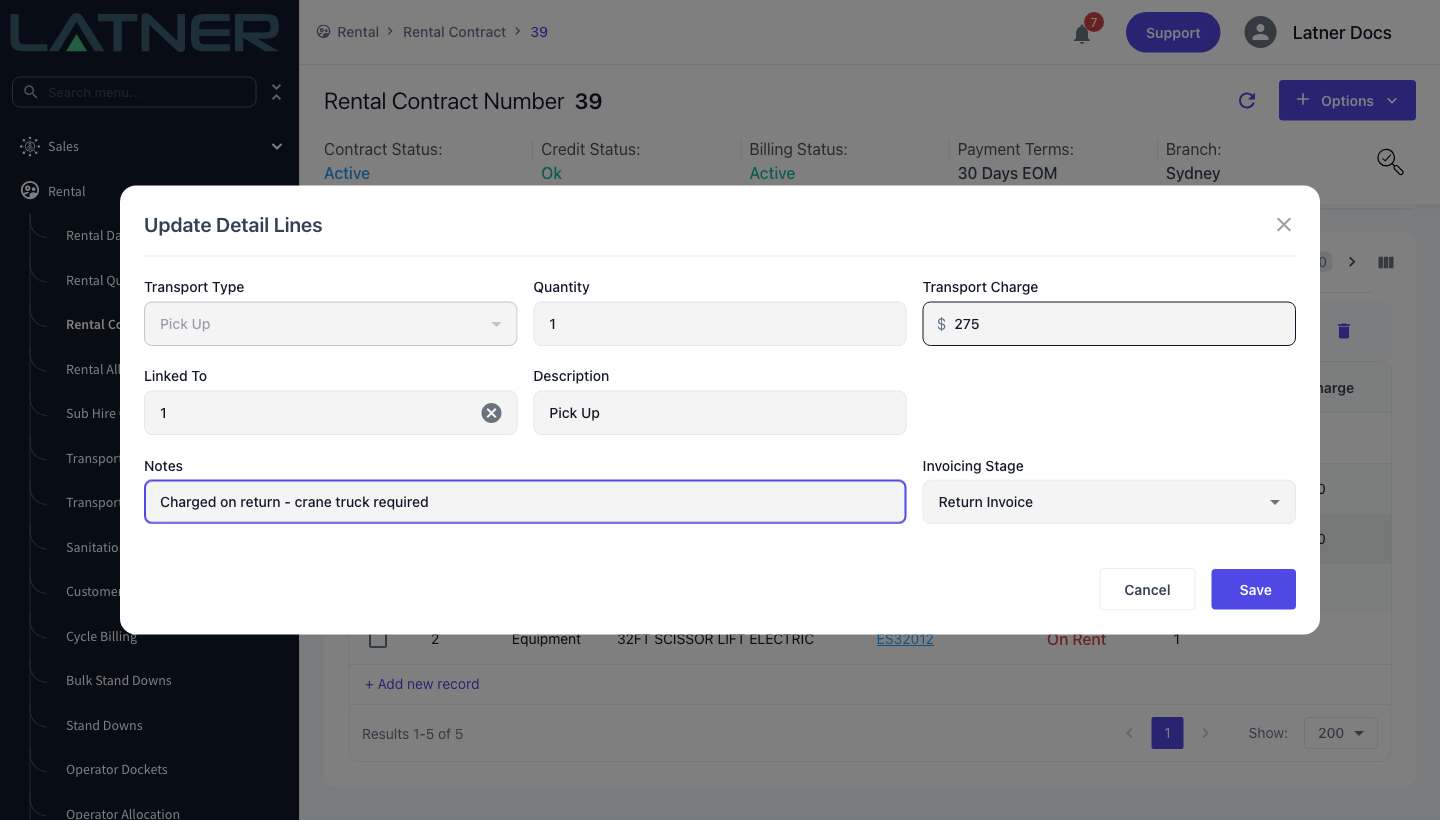
Notes - internal only. Worth using to record why the charge was moved to the end of the rental, since the stage itself isn't visible on the grid.
-
The charge field - named after the line type, so it reads Transport Charge on a transport line, and Admin Charge, Fuel Charge, Damage Charge, Labour Charge or simply Charge on the others.
Step 4 - Set the Invoicing Stage to Return Invoice
Open the Invoicing Stage list and choose Return Invoice. There are only ever two choices, and the change takes effect the moment you save - there's no approval step and nothing to re-run.
Step 5 - Adjust the charge and save
While you're in the form, set the charge to what you actually intend to bill. A pick up that needs a crane truck, a clean that turned out to be a big one - the amount you agree at the end is usually not the amount the line was created with, and this is the last chance to change it before the line is invoiced.
Click Save. Latner confirms with a Detail Line Updated message and the grid refreshes with the new amount.
After the Change
-
The charge stays on the contract at its Pending status with Total Invoiced at $0.00, exactly as before. Nothing about the grid tells you the stage has changed.
-
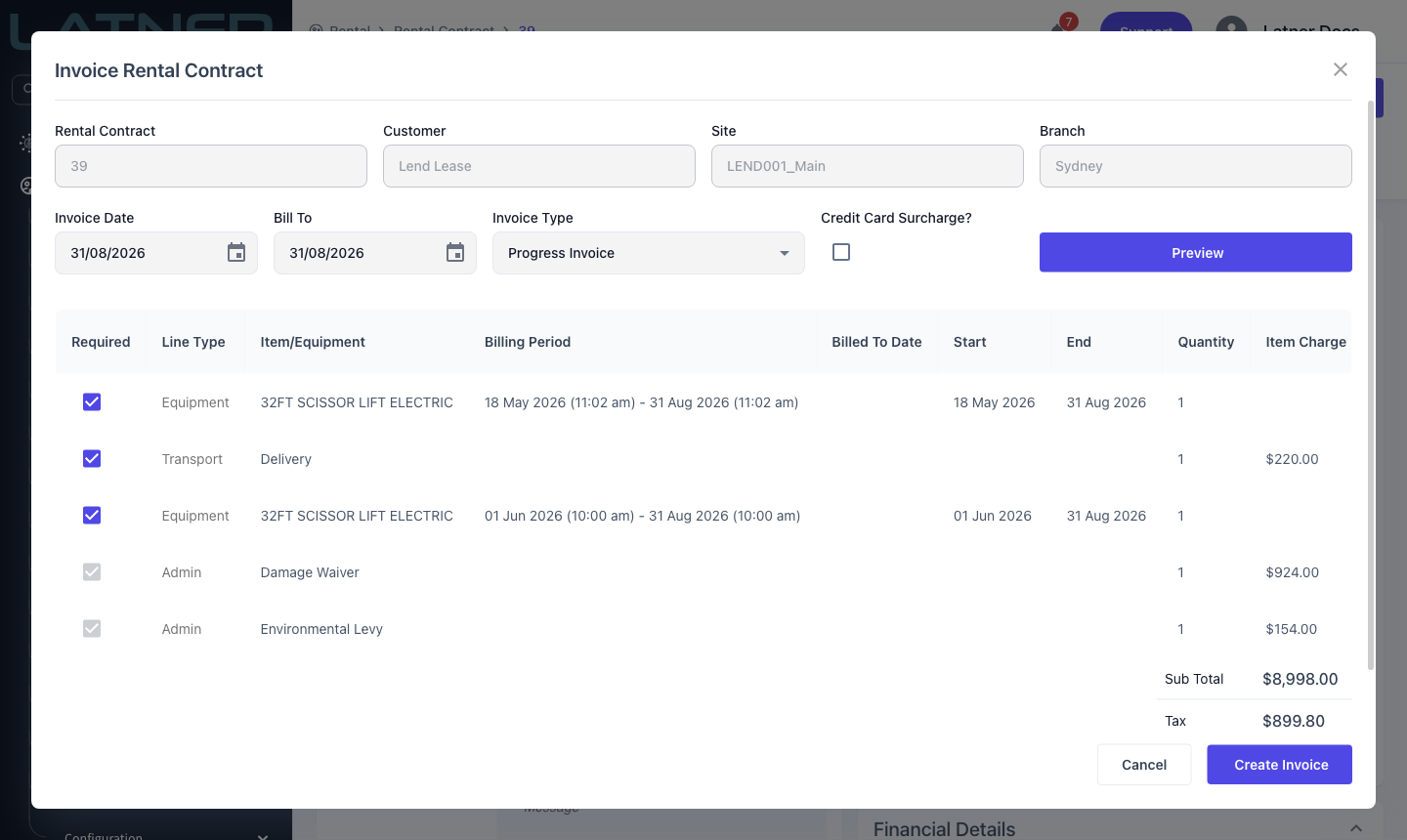
The next Progress Invoice skips the line. Run Options › Invoice and click Preview to confirm it before you commit to anything - the charge you moved should be missing from the list and the sub total should have dropped by its value.
-
Invoice in Advance and pro forma invoices are unaffected. They include every line regardless of stage, because their whole job is to show the customer the full commitment up front.
-
The charge reappears on the first Returned/Completed Items invoice raised after the transport docket is completed or the linked equipment is returned, and on a Final Invoice in any case.
Setting an equipment line to Return Invoice, rather than a charge line, holds back the rental itself. Nothing on that machine bills until it's returned, however long it stays on site, and a long hire can build up a very large single invoice. If what you wanted was to defer a fee rather than the hire, change the charge line instead and leave the equipment line at Next Invoice.
FAQs
Watch the Demo
Prefer to watch it? Step through the same flow here.