
A Final Invoice bills out everything left on a rental contract in one go, so you can close a finished hire knowing nothing is still sitting unbilled against it.
Overview
Every hire ends the same way. The last machine comes off the truck, someone signs it back in, and then a handful of odds and ends are left scattered down the contract - the rental up to the day it went off hire, the pick up that hasn't been charged yet, the fuel, the damage the return inspection turned up. The Final Invoice is the one that sweeps the lot into a single invoice and leaves the contract ready to close.
-
Bills each returned equipment line up to its actual off hire date and time. Equipment that is still on hire is left out entirely, exactly as it is on a Returned/Completed Items invoice.
-
Sweeps up every other charge still sitting on the contract - transport, fuel, sanitation, damage, labour, stock and admin lines - as long as it hasn't already been invoiced.
-
Ignores the Invoicing Stage on those charges. A line set to Return Invoice comes through on a Final Invoice even when it isn't attached to a machine that has come back, which is the main thing that separates the two invoice types.
-
Credits back rather than charging when a line has already been billed past its off hire date, so an early return still balances out.
-
Shows you a preview before it commits anything, and lets you untick lines you aren't ready to bill.
-
Clears the way to close the hire. Once every line is billed and every machine is back, Complete Rental Contract goes through.
Before You Begin
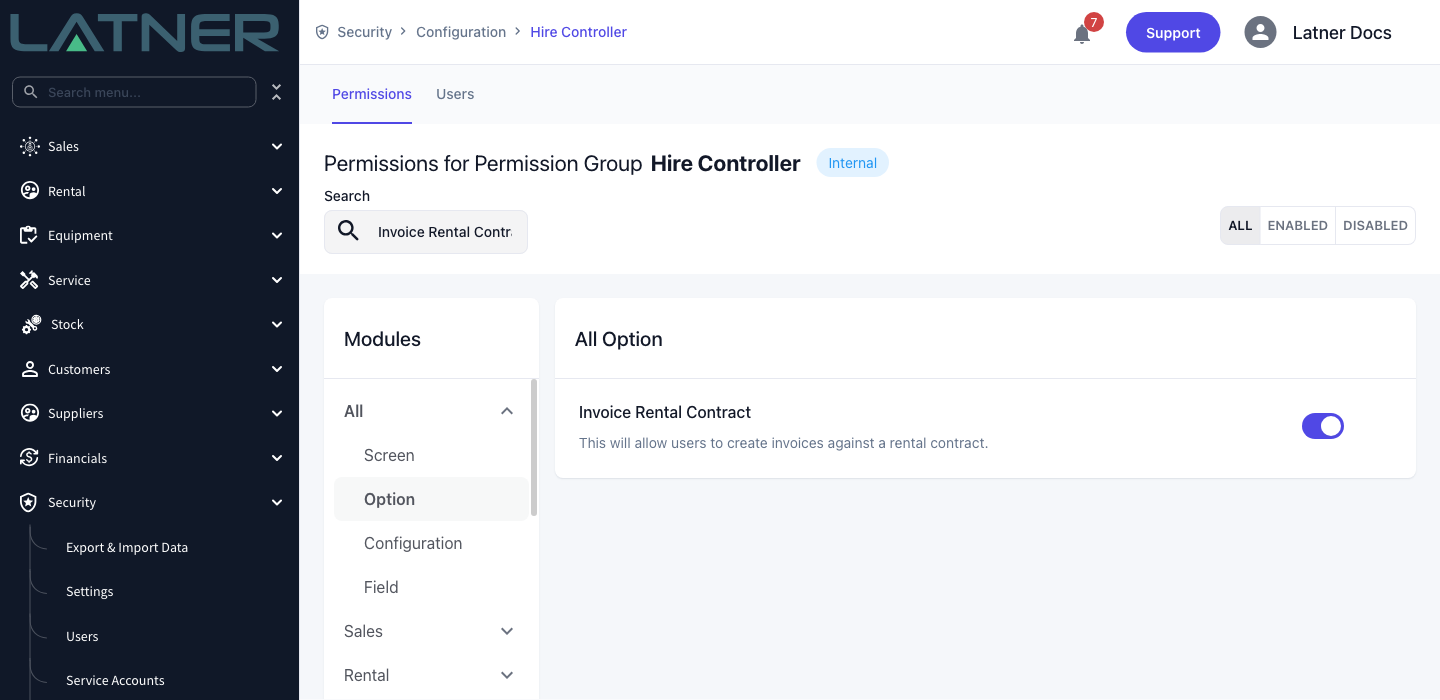
You need one permission, an open contract, and the gear back in the yard.
|
Requirement |
Where to Find It |
|---|---|
|
Invoice Rental Contract permission |
Security › Configuration › Permission Groups › your group › Rental › Option |
|
A rental contract that is Active or Reserved |
Rental › Rental Contracts - check Contract Status at the top of the contract |
|
Every equipment line Returned, if you want to close the hire afterwards |
The contract's Details tab - check the Detail Status column. Anything still out needs Options › Return first |
|
No open inspections, when Block Completing Rental Contract with Open Inspection is enabled |
Security › Settings › Rental - the contract's Inspections tab shows what is still open |
|
Enables Crediting of a Rental Contract setting, but only when the invoice has to credit an over billed line |
Security › Settings › Rental |
You can raise a Final Invoice while equipment is still on hire, and Latner won't stop you. It just won't bill that equipment, and the contract will stay Active afterwards. If the hire really is finished, return everything first so the whole thing goes out on one invoice.
Creating the Final Invoice
Step 1 - Check what is left on the contract
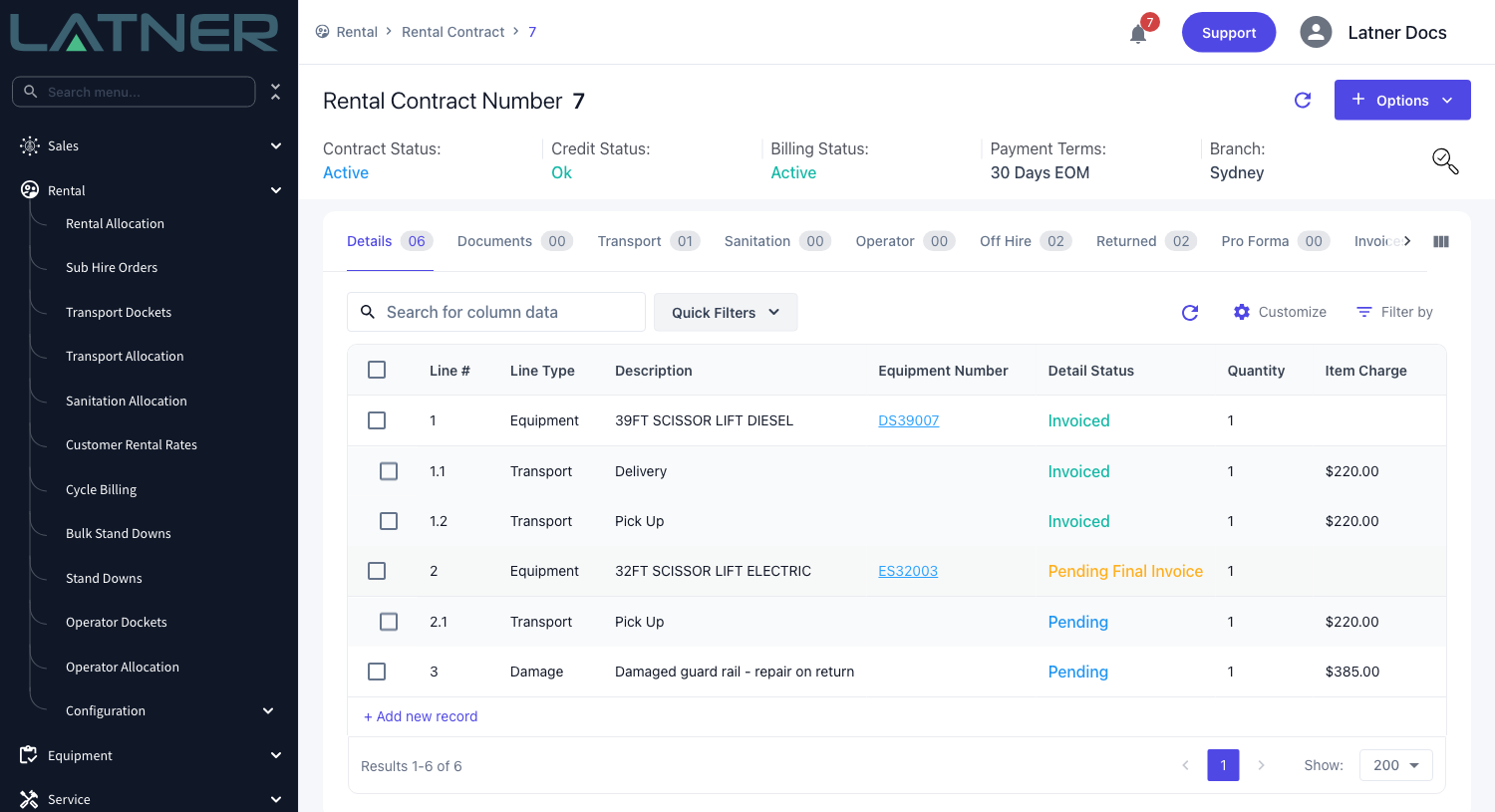
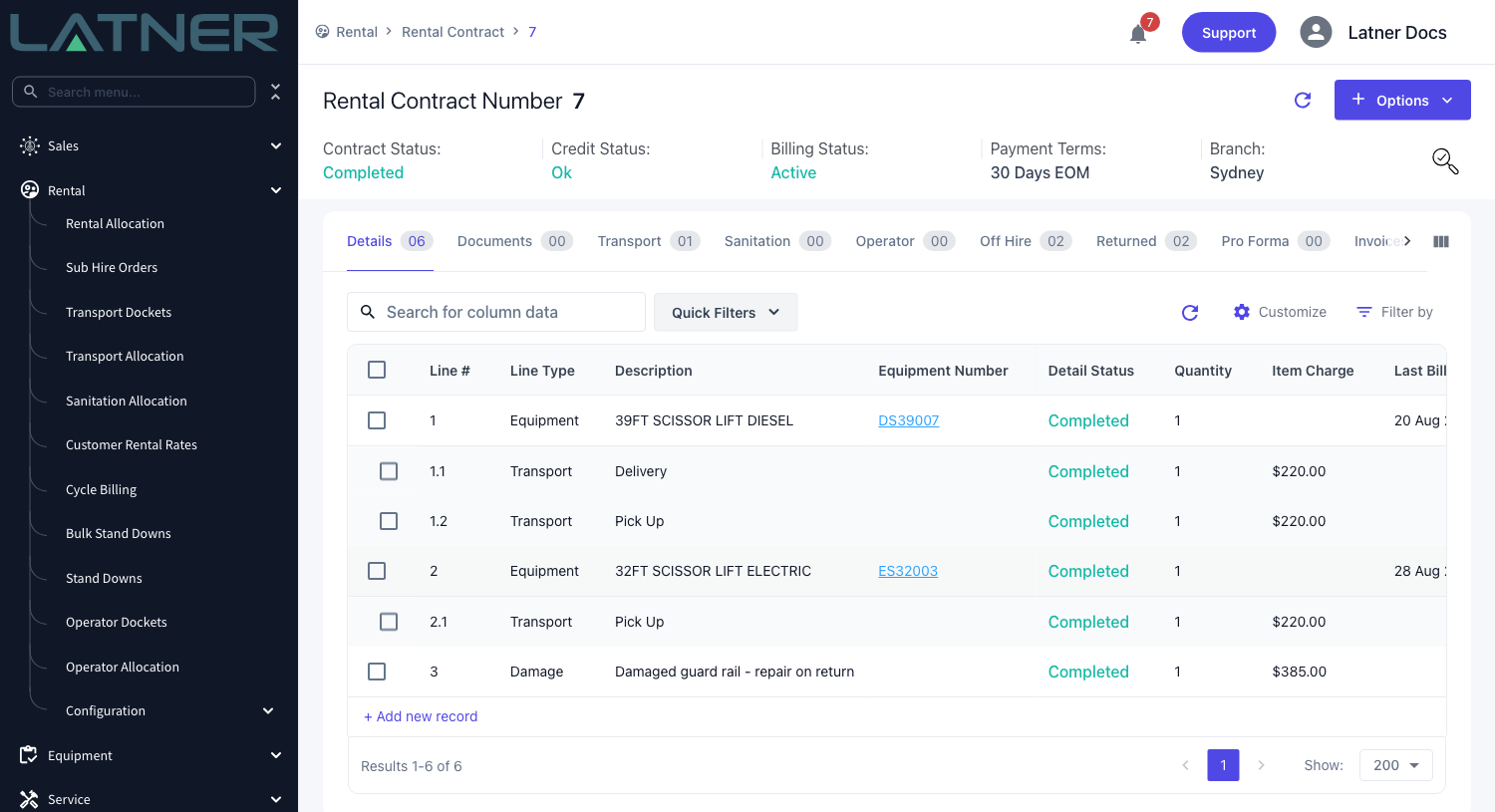
Open the rental contract and look at the Details tab. You are checking two things: that every Equipment line reads Returned in the Detail Status column, and what else is still unbilled. Lines already charged show as Invoiced; anything reading Pending is a charge that hasn't been billed yet and will land on this invoice.
A returned equipment line that still has rental to charge shows the sub status Pending Final Invoice - that is Latner telling you the machine went off hire after the date it was last billed to.
Step 2 - Open the invoice dialog
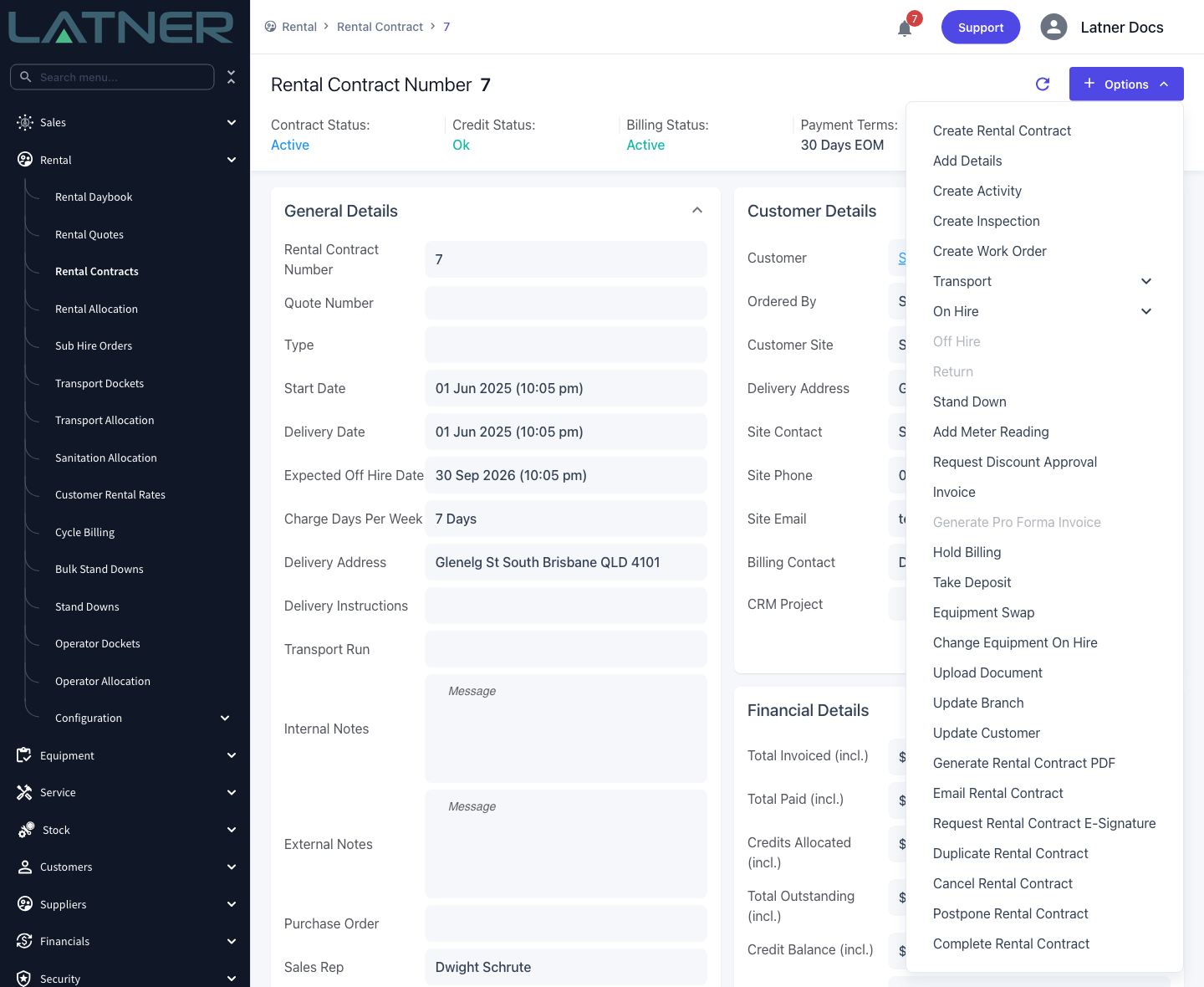
Choose Options › Invoice. It is the same dialog used for every rental invoice type - the invoice type is a field inside it, not a separate menu item.
Step 3 - Set the dates and choose Final Invoice
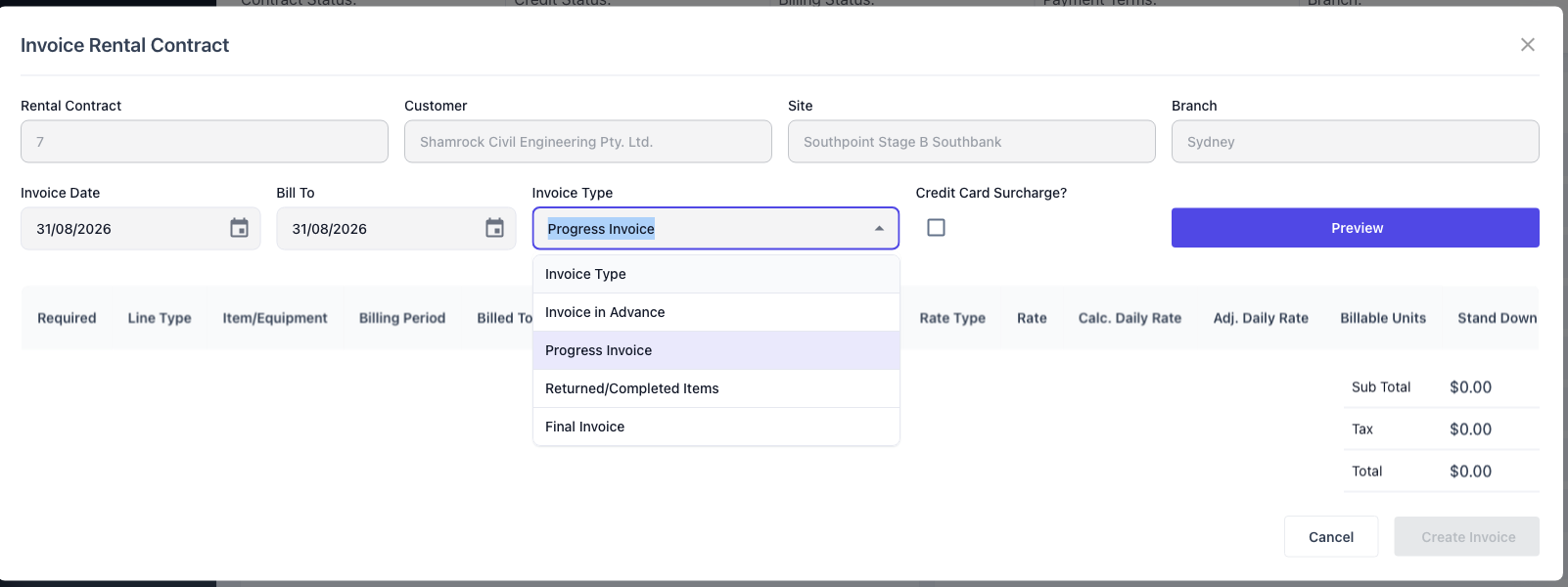
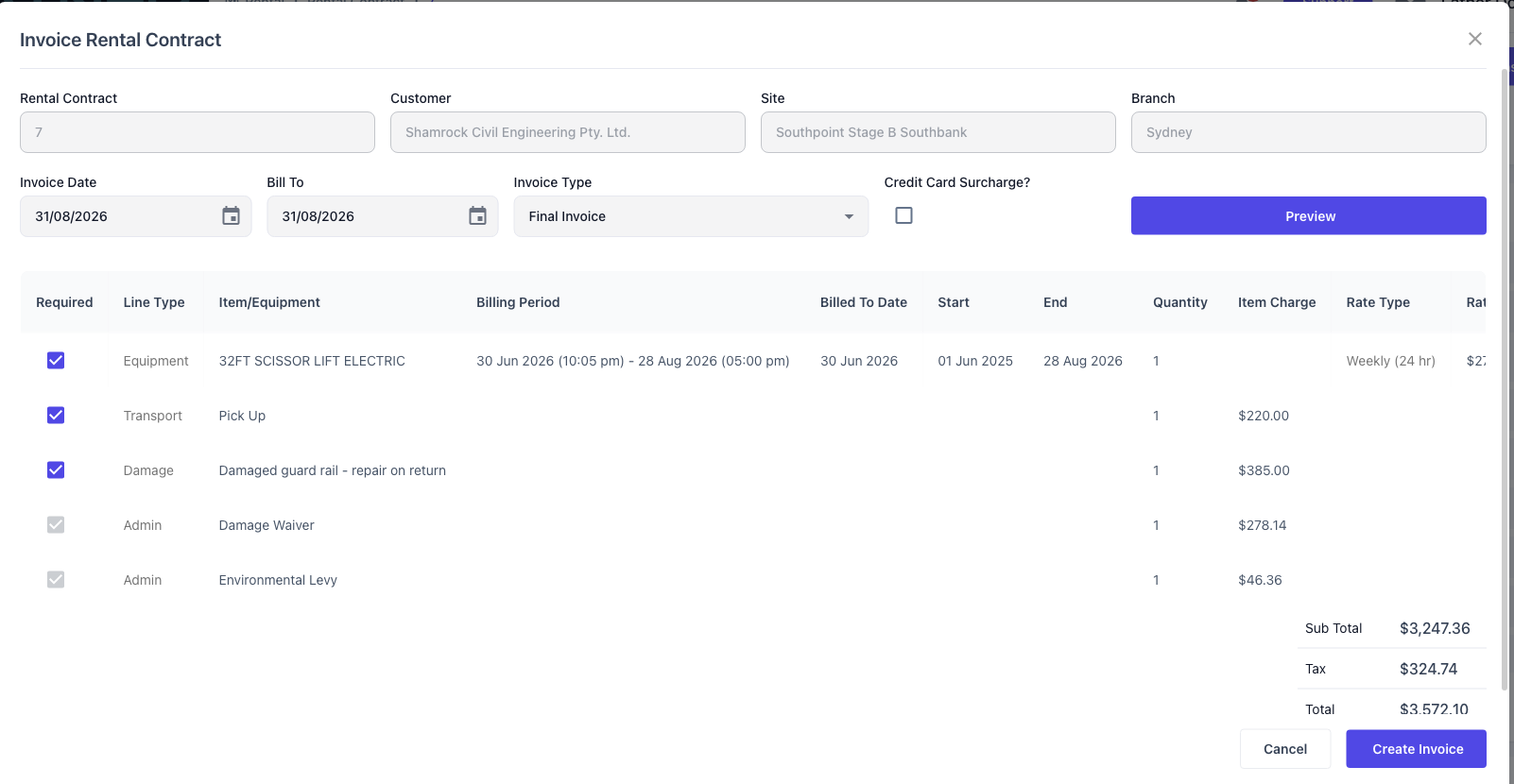
Four fields matter at the top of the dialog. The customer, site and branch are filled in from the contract and can't be changed here.
-
Invoice Date - the date printed on the invoice, and the date the due date is calculated from. Defaults to today.
-
Bill To - the date to bill the contract up until. Defaults to today. Returned equipment is capped at its own off hire date regardless of what you put here, so this mostly matters when something is still on hire.
-
Invoice Type - change this from Progress Invoice to Final Invoice. This is the field that does the work; leave it on the default and you get an ordinary progress invoice.
-
Credit Card Surcharge? - tick this only if the customer is paying by card and your organisation adds a surcharge. It is pre-ticked for cash on delivery customers.
Step 4 - Preview what will be billed
Click Preview. Nothing is committed by this - it works out the invoice and shows you every line it intends to charge, with the billing period, the rate and the totals. Read it before you go any further, because this is your only chance to change what goes on the invoice.
Untick the Required box on any line you don't want to bill yet. Two kinds of line can't be unticked: operator docket lines, and related lines that aren't tied to a contract detail of their own - the Damage Waiver and Environmental Levy lines are calculated from everything else on the invoice, so they come along whether you like it or not.
If the equipment line stops at an earlier date than your Bill To, that is correct. It is billed to the day the machine actually went off hire.
Step 5 - Create the invoice
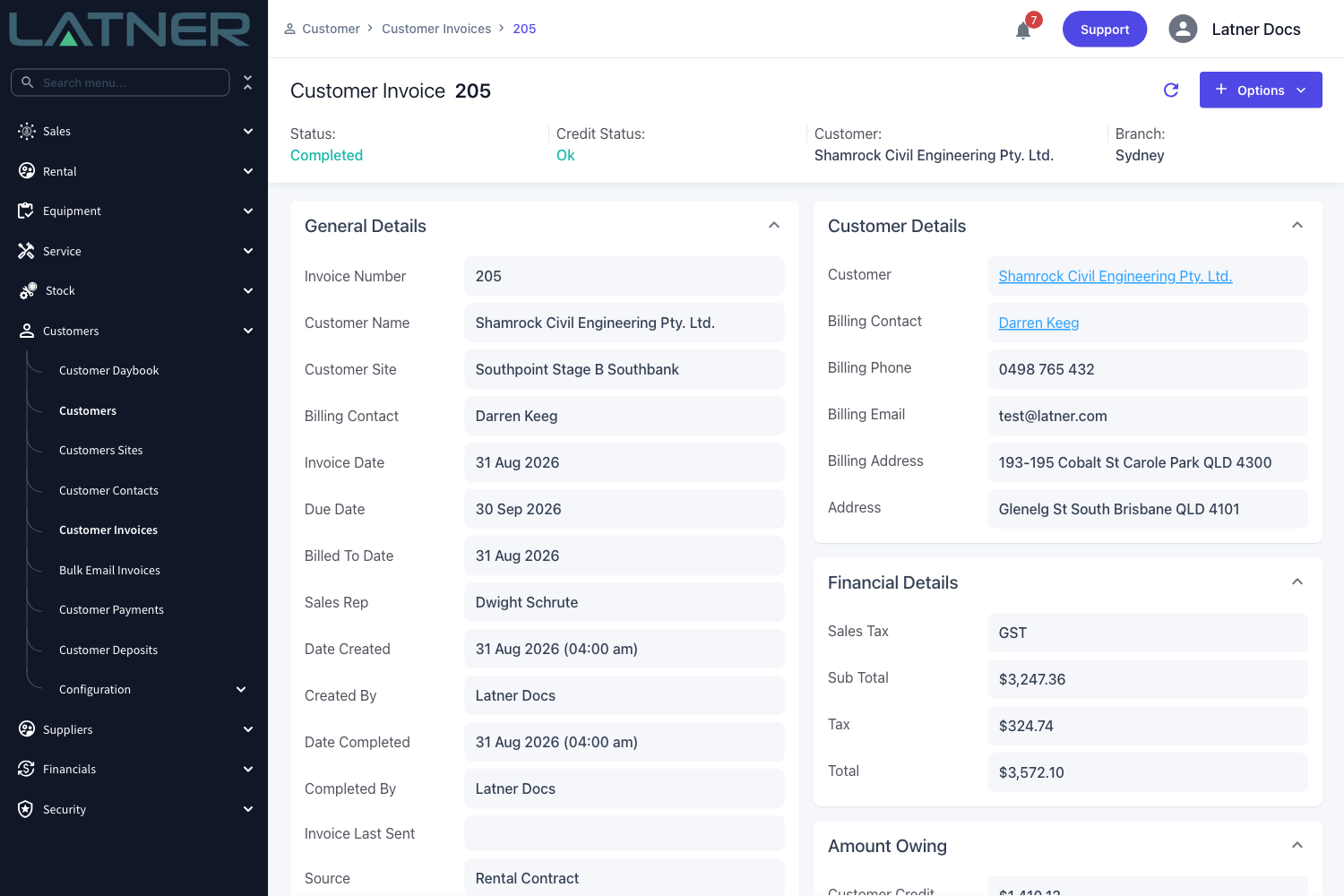
Click Create Invoice. Latner creates the customer invoice, links it to the rental contract, and takes you to it from the confirmation message. If your organisation has Default Rental Contract Customer Invoices to Completed enabled, it arrives already Completed; otherwise it arrives Open for someone to check first.
When every machine on the contract has been returned, Latner then asks A Final Invoice has been created. Do you want to complete this Rental Contract? Answer Yes and it completes the contract for you. Answer No and the contract stays open - you can always close it later with Options › Complete Rental Contract.
After Creation
-
Every line that was billed moves to Invoiced, and each equipment line's Last Billed To Date moves to its off hire date.
-
The invoice appears on the contract's Invoices tab and under Customers › Customer Invoices, with Source set to Rental Contract.
-
Completing the contract moves it to Completed and every detail line to Completed. The equipment is released and the contract drops off Cycle Billing and the rental daybook.
-
If your organisation syncs to an accounting package, the invoice is queued for its next push.
Completing a contract is the end of the road for it, and an invoice attached to a Completed contract can no longer be cancelled. If you are not certain the billing is right, answer No to the prompt, check the invoice, and come back to Options › Complete Rental Contract once you are happy. A contract closed too early can be brought back with Options › Reopen Rental Contract.
FAQs
Can I raise Final Invoices for a lot of contracts at once?
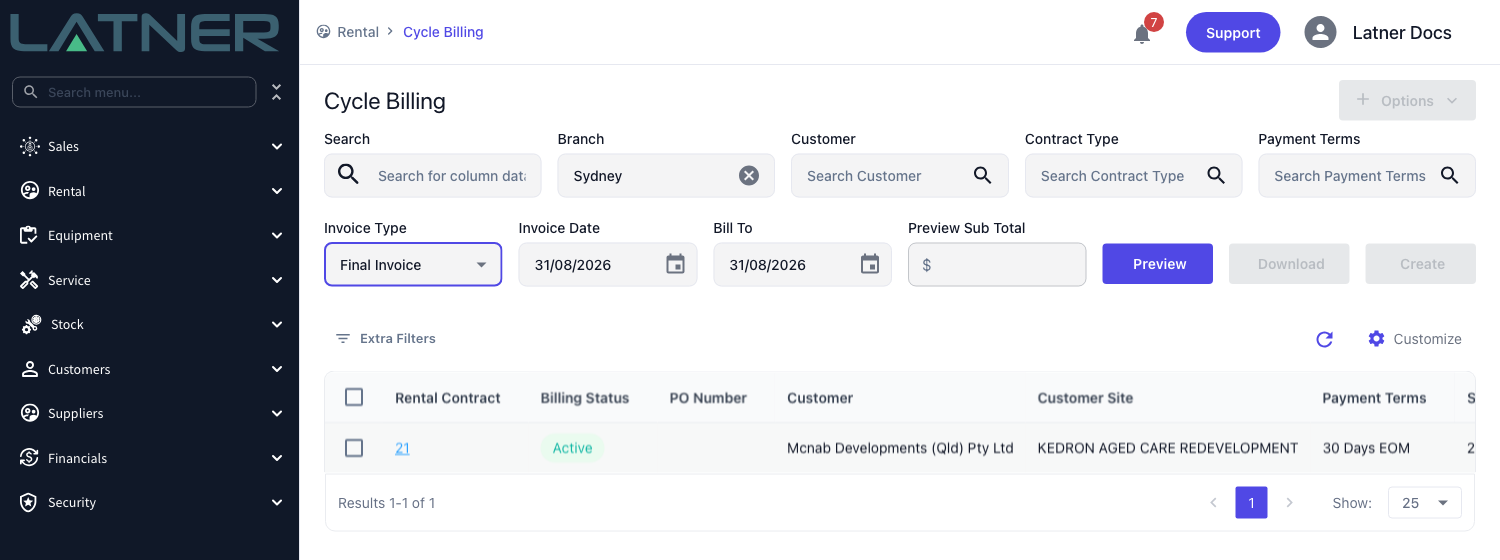
Yes. Go to Rental › Cycle Billing and set Invoice Type to Final Invoice. Doing that filters the list down to contracts where every piece of equipment has been returned, which is a quick way to find the hires that are ready to close. Select the contracts, use Preview to check the run, then Create. Cycle Billing goes one step further than the single-contract route: it completes each contract for you where it can, without asking. Contracts on billing hold are skipped.
Watch the Demo
Prefer to watch it? Step through the same flow here.