
Combined invoices let you bill several of a customer's Rental Contracts on a single invoice, so a customer running five jobs off one account gets one document to pay instead of five.
Overview
Big customers rarely have just one contract open. When they've got gear on three sites and a new contract every time a machine goes out, a month-end run can land a pile of separate invoices on the same accounts payable desk. Combining them turns that pile into one invoice per customer, without losing sight of which contract each charge came from.
-
Combining is switched on per customer, in the customer's Billing Settings - it is not a global setting, so you can combine for the customers who ask for it and leave everyone else alone.
-
Combined invoices are only produced by Cycle Billing. Invoicing a single contract from Options › Invoice always produces its own invoice.
-
Contracts are grouped by customer, branch and site. Two more settings let you widen the grouping across sites, or narrow it to contracts sharing a Purchase Order Number.
-
Every line on the invoice keeps a link to the Rental Contract it came from, so charges stay traceable and each contract's invoiced and paid totals stay accurate.
-
You can see how many invoices a run will produce before you commit - the Cycle Billing confirmation tells you the count once the contracts have been grouped.
Before You Begin
You'll need the following in place.
|
Requirement |
Where to Find It |
|---|---|
|
Edit Customer permission |
Security › Configuration › Permission Groups, Customers module - needed to change a customer's Billing Settings |
|
Cycle Billing permission |
Security › Configuration › Permission Groups, Rental module - opens the Cycle Billing screen |
|
Preview Cycle Billing and Create Cycle Billing permissions |
Security › Configuration › Permission Groups, Rental module - the Preview and Create buttons |
|
At least two Rental Contracts for the same customer, on the same branch and site, both Active or Reserved with a Billing Status of Active |
Rental › Rental Contracts |
|
Combined Rental Invoice PDF Template ID (optional) |
Security › Settings › PDF Templates |
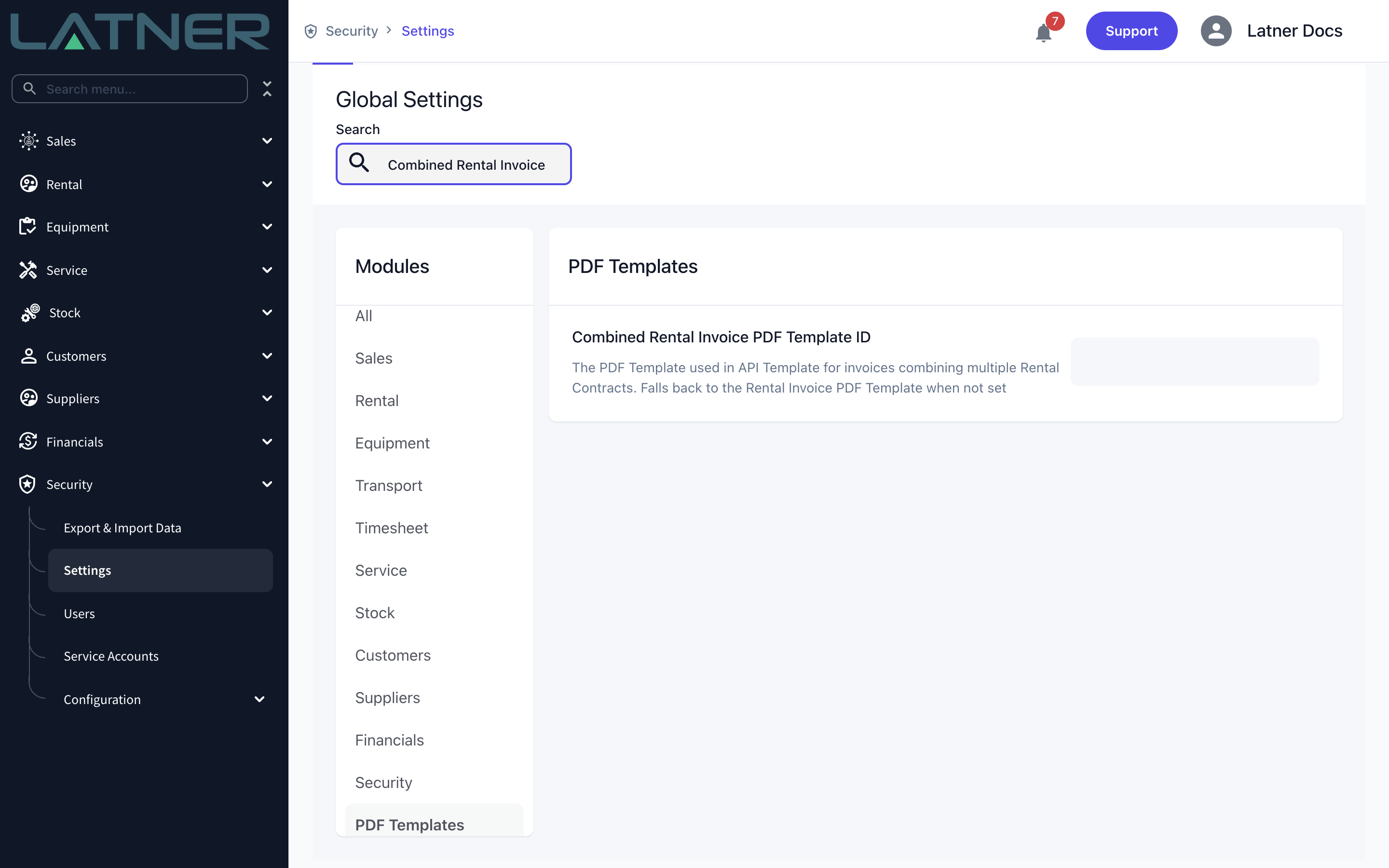
A combined invoice shows several contracts on one document, so it's worth giving it its own PDF template that groups the lines by contract. If you don't set Combined Rental Invoice PDF Template ID, Latner falls back to the Rental Invoice PDF Template and the invoice still prints - it just won't be laid out for multiple contracts.
Creating a Combined Invoice
Step 1 - Open the customer's Billing Settings
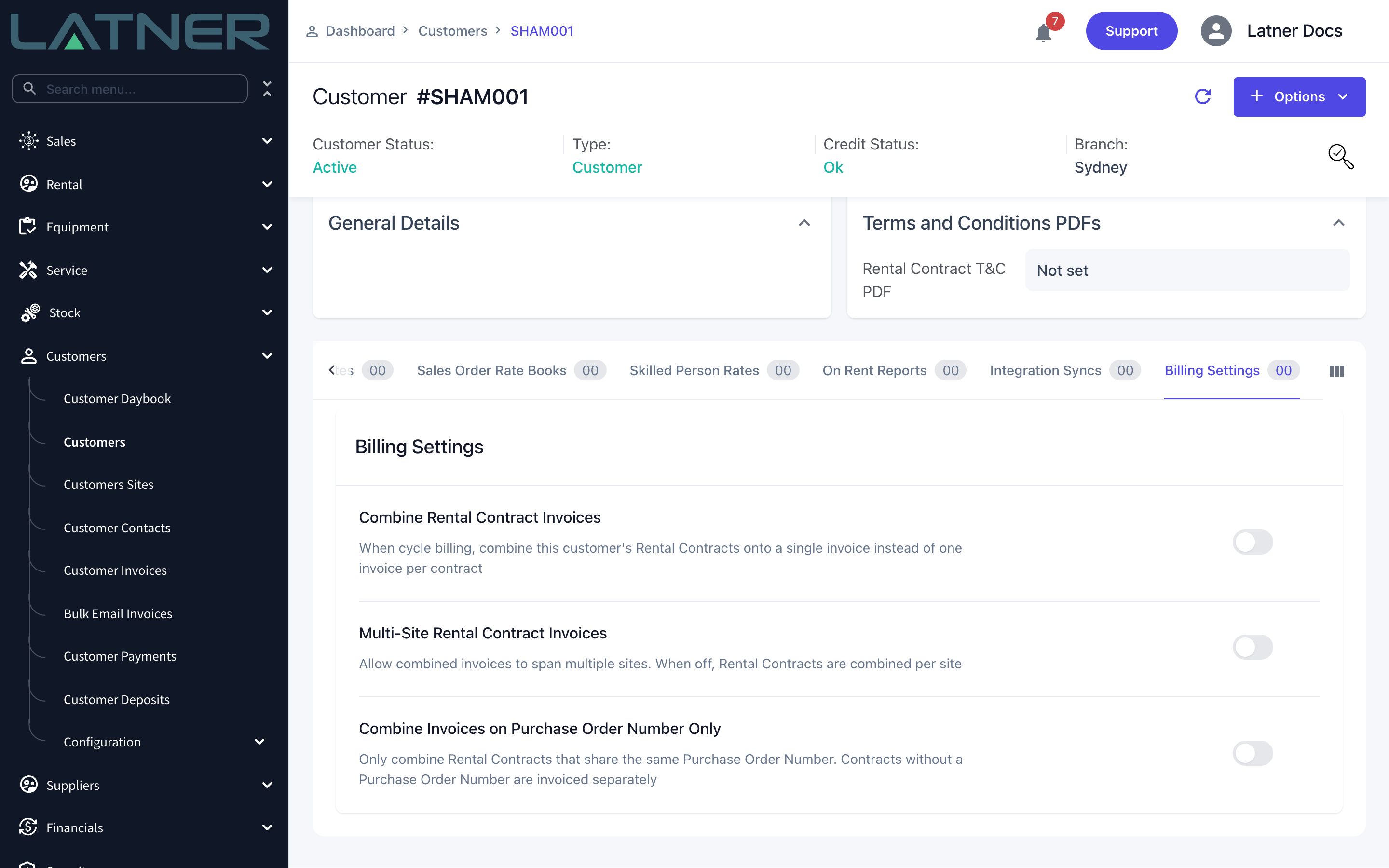
Go to Customers › Customers, open the customer, and select the Billing Settings tab at the bottom of the page. The tab holds the three settings that control how this customer's Rental Contracts are combined.
Step 2 - Turn on Combine Rental Contract Invoices
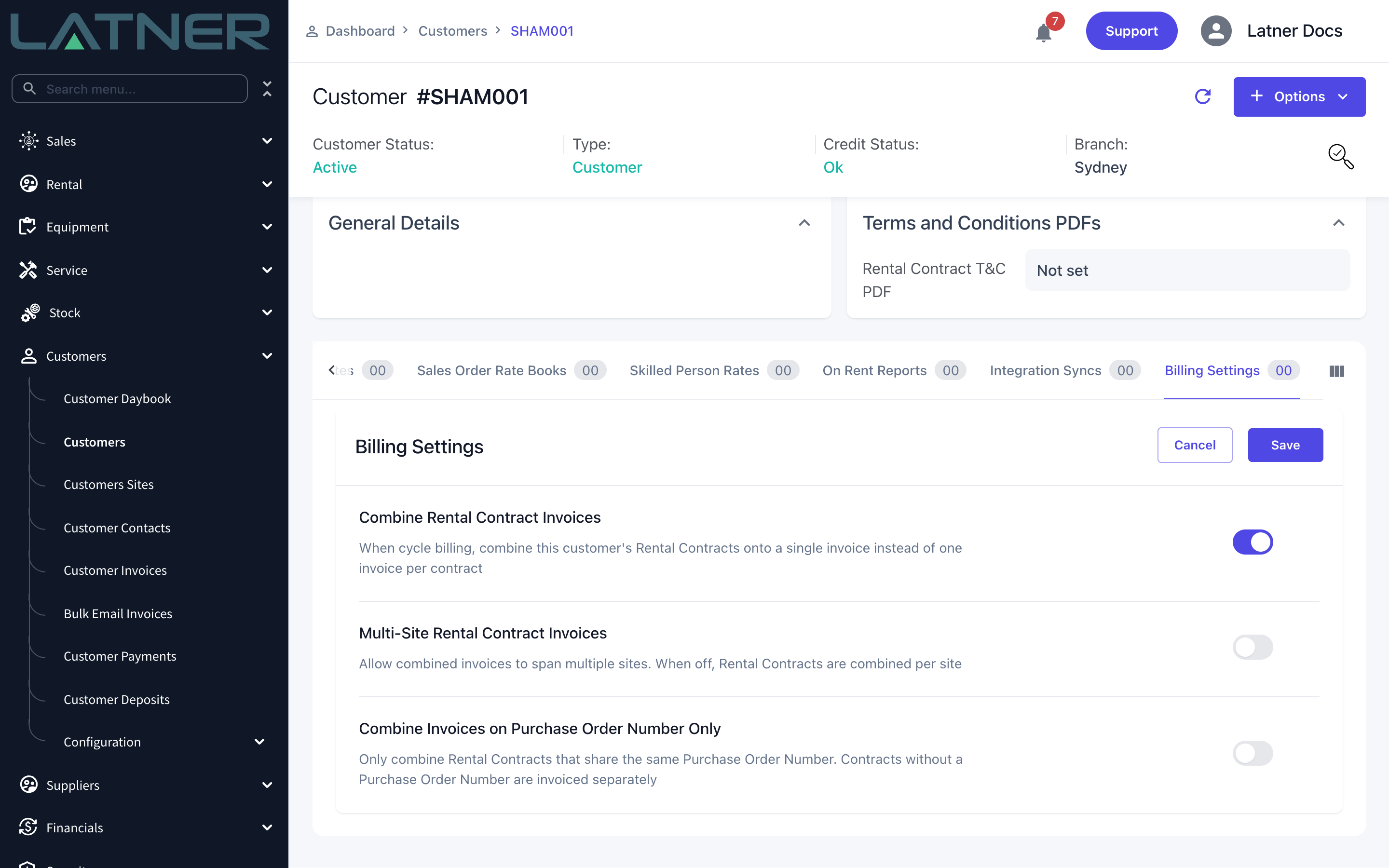
Switch Combine Rental Contract Invoices on and click Save. From now on, when this customer's contracts are invoiced through Cycle Billing they'll be gathered onto a single invoice instead of one invoice per contract.
Step 3 - Choose how the contracts are grouped
The other two settings on the tab narrow or widen the grouping. Leave them off and contracts combine per customer, per branch and per site.
-
Multi-Site Rental Contract Invoices - turn this on to let one invoice span several of the customer's sites. With it off, a customer with contracts on two sites gets two invoices.
-
Combine Invoices on Purchase Order Number Only - turn this on when the customer raises a Purchase Order per job and wants one invoice per PO. Only contracts carrying the same Purchase Order Number combine, and any contract without a Purchase Order Number is invoiced on its own.
Contracts never combine across branches, whatever these settings say.
Step 4 - Select the Rental Contracts in Cycle Billing
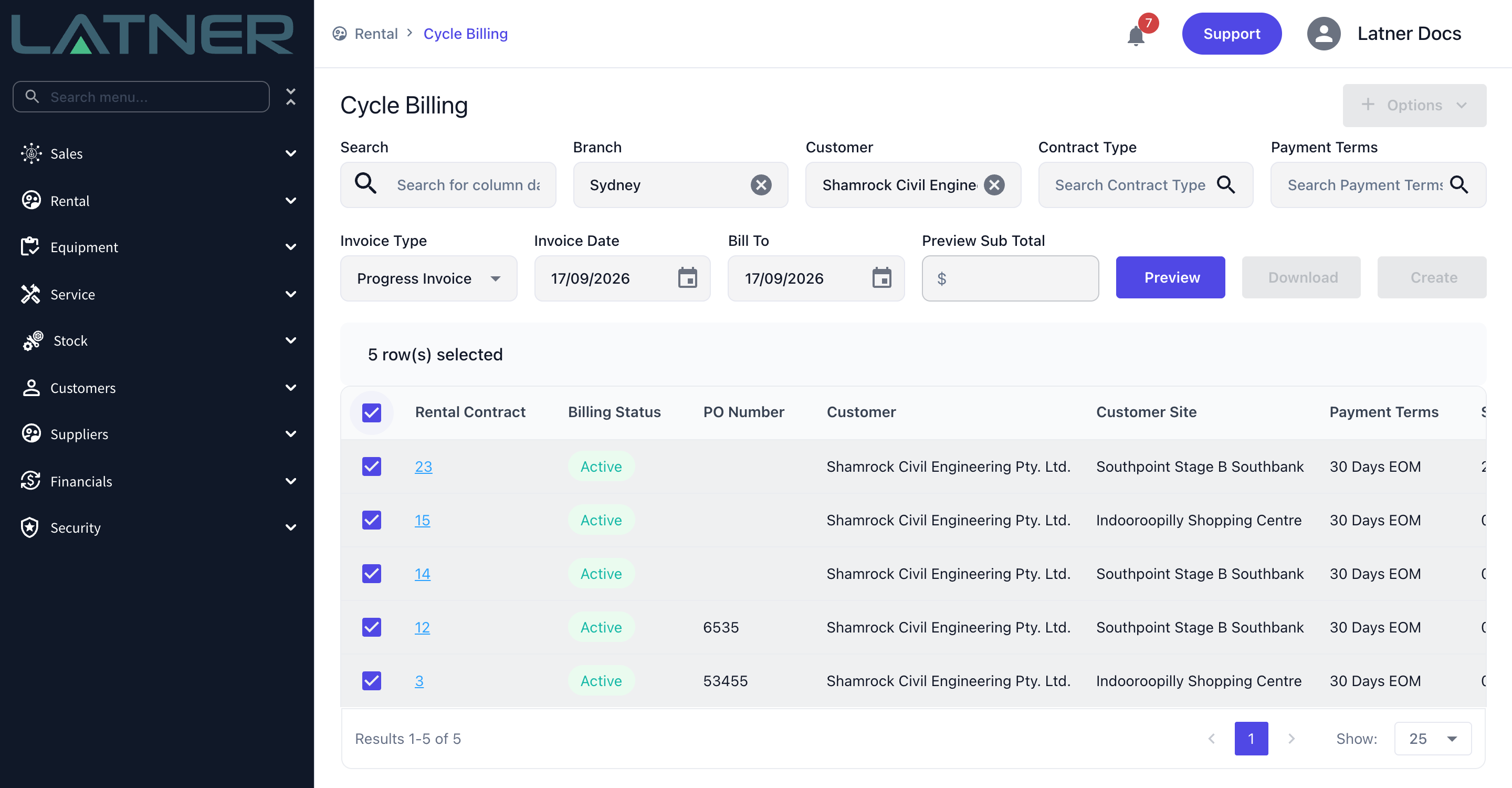
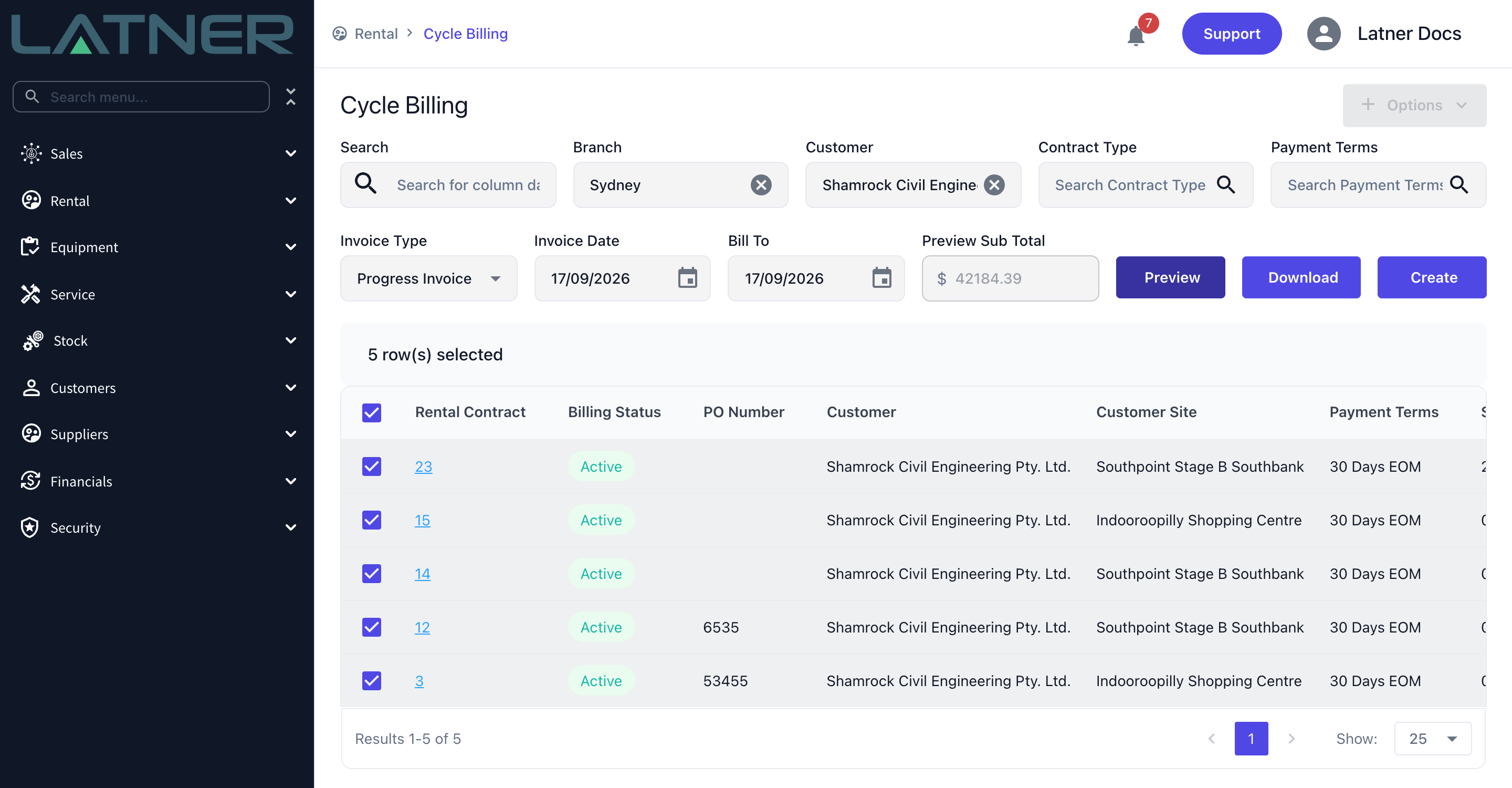
Go to Rental › Cycle Billing. Set the Branch, Invoice Type, Invoice Date and Bill To date for the run, filter down to the customer you want, and tick the contracts to invoice. You can tick the header checkbox to take everything the filters returned.
-
Invoice Type - Progress, Return or Final. A Final invoice also completes each contract it covers, provided nothing is left to bill.
-
Bill To - the date charges are calculated up to.
Step 5 - Preview the run
Click Preview. Latner calculates the charges without writing anything, fills in the Preview Sub Total for the run and a Preview Invoice Amount against each contract, and enables the Download and Create buttons. Use Download if you want the numbers as a PDF or CSV to check before you bill.
Step 6 - Create the invoices
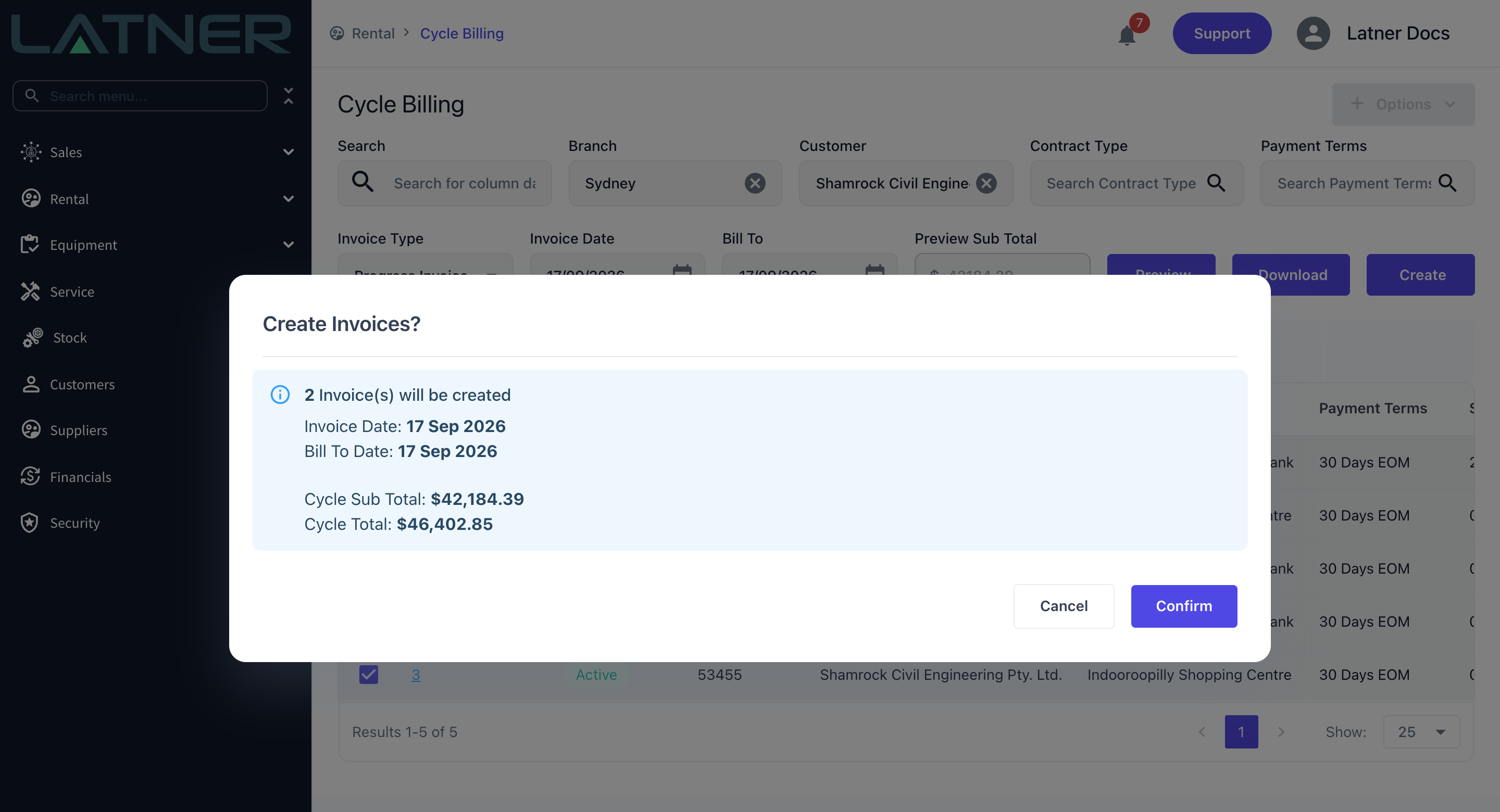
Click Create. The confirmation tells you exactly how many invoices will be produced once the customer's combine settings have grouped the contracts - five contracts across two sites becomes two invoices here, not five. Check the count, the dates and the totals, then click Confirm.
Step 7 - Check the combined invoice
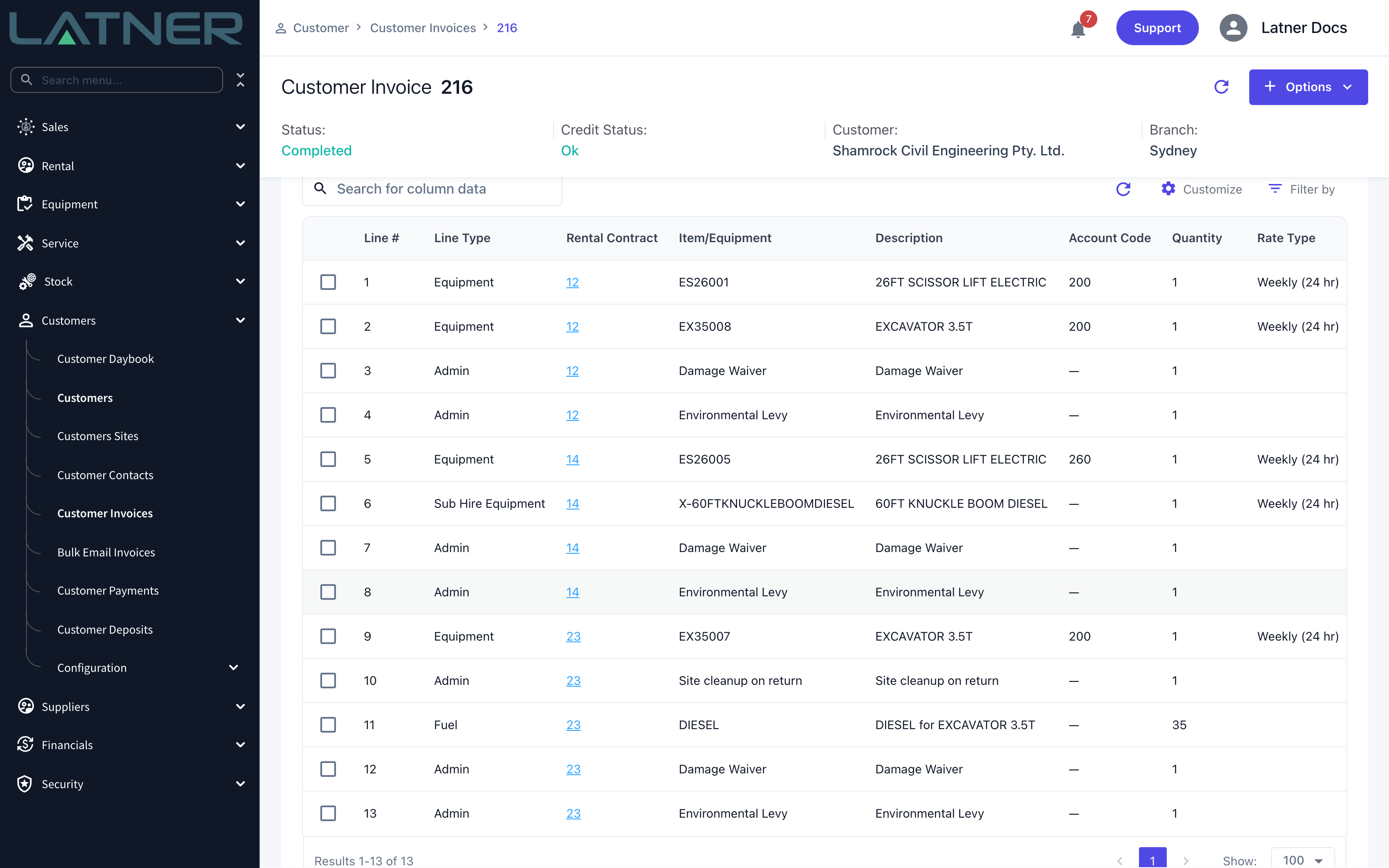
Open the invoice from Customers › Customer Invoices. On a combined invoice the Details tab shows an extra Rental Contract column, so you can see which contract every charge belongs to - equipment, fuel, damage waiver and environmental levy lines are all stamped with their own contract.
After Creation
-
The invoice is created in Completed status when Default Rental Contract Customer Invoices to Completed is on (Security › Settings › Customers), and in Open status when it isn't. Completed invoices from a cycle billing run are pushed to your accounting integration in one batch at the end of the run.
-
The invoice appears on the Invoices tab of every Rental Contract it covers, not just one of them.
-
Each contract is credited with its own lines. Total Invoiced (incl.) and Total Paid (incl.) on the contract reflect that contract's share of the combined invoice, and a payment against the invoice is attributed to each contract pro-rata by its share of the lines.
-
The invoice header takes the Purchase Order Numbers of the contracts it covers, separated by commas. The site is the lowest-numbered contract's site when the group spans several.
-
The sales rep on the header is the rep every contract in the group shares. If the contracts have different reps the header is left blank, but each line still carries its own contract's rep for reporting.
-
Contracts that had nothing to bill for the period, or whose charges net to a credit, are simply left off the invoice.
A combined invoice can only be cancelled while it is still the latest invoice for every contract it covers. Once any one of those contracts has been invoiced again, cancelling is refused with You can only cancel the latest invoice related to a Rental Contract. If you need to correct it after that point, raise a credit note against the combined invoice instead.