
A pro forma invoice is a priced preview of a rental contract that you can hand a customer before any real invoice is raised, so they can approve the spend or arrange payment before the gear leaves the yard.
Overview
Some customers won't move until they've seen the numbers on paper. Latner generates a pro forma straight off the rental contract, so the figure the customer approves is the figure the contract is actually priced at.
-
Generated from a rental contract in one click - there is no form to fill in and nothing to choose.
-
It prices the whole hire: every line on the contract, charged through to the contract's Expected Off Hire Date.
-
It produces a PDF and nothing else. No invoice is created, nothing goes to your accounting system, and the contract's billing dates don't move.
-
Where an invoice number would normally sit, the document reads Pro Forma, so it can't be mistaken for a tax invoice.
-
Every generation is kept on the contract's Pro Forma tab, so you always have the version the customer was sent.
-
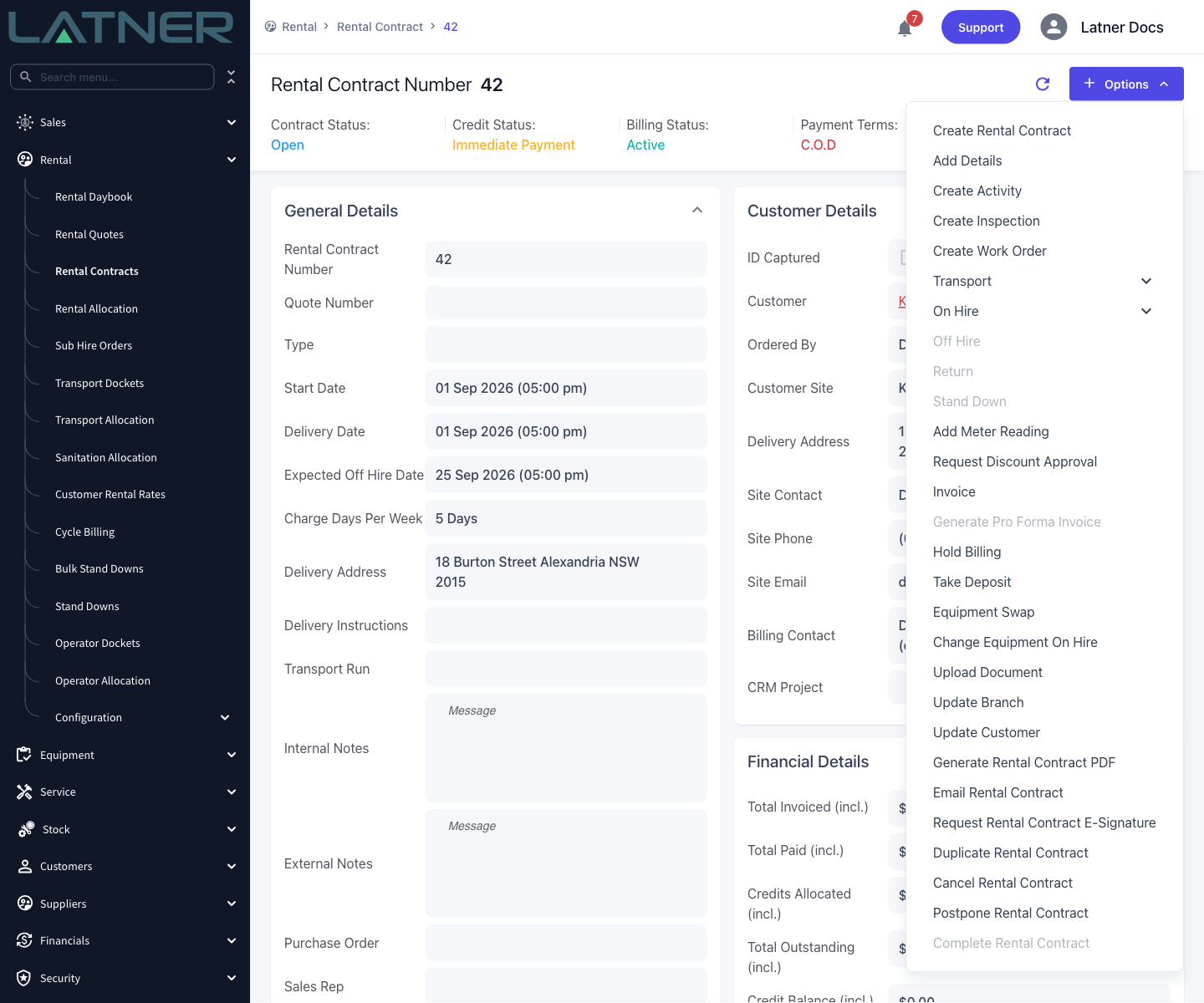
It's available until the contract has been invoiced, and until the contract is Completed, Cancelled or Lost.
Before You Begin
Generating a pro forma uses the same permission as invoicing the contract.
|
Requirement |
Where to Find It |
|---|---|
|
Invoice Rental Contract permission |
Security › Configuration › Permission Groups › Rental › Options |
|
Rental Contracts permission, to open the contract and read its Pro Forma tab |
Security › Configuration › Permission Groups › Rental › Screens |
|
Access to the branch the contract belongs to |
Set on your user record under Security › Users |
|
Pro Forma Invoice PDF Template ID - optional, only if you use your own branded layout |
Security › Settings › PDF Templates |
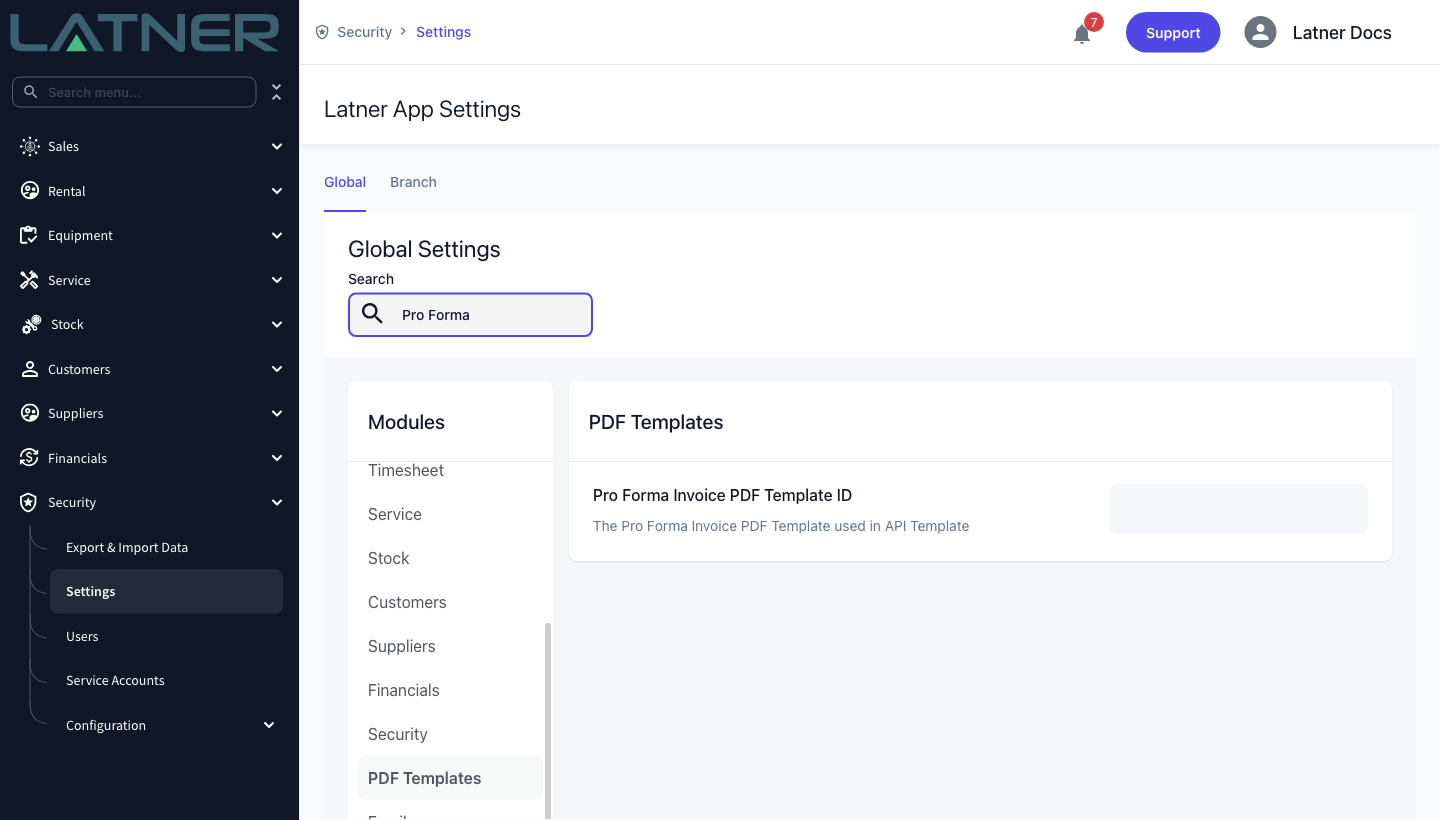
You don't have to set the Pro Forma Invoice PDF Template ID. Leave it blank and Latner falls back to its standard pro forma layout, so the feature works out of the box. Fill it in only when you have your own template registered with Latner's PDF service.
Generating the Pro Forma Invoice
Step 1 - Open the rental contract
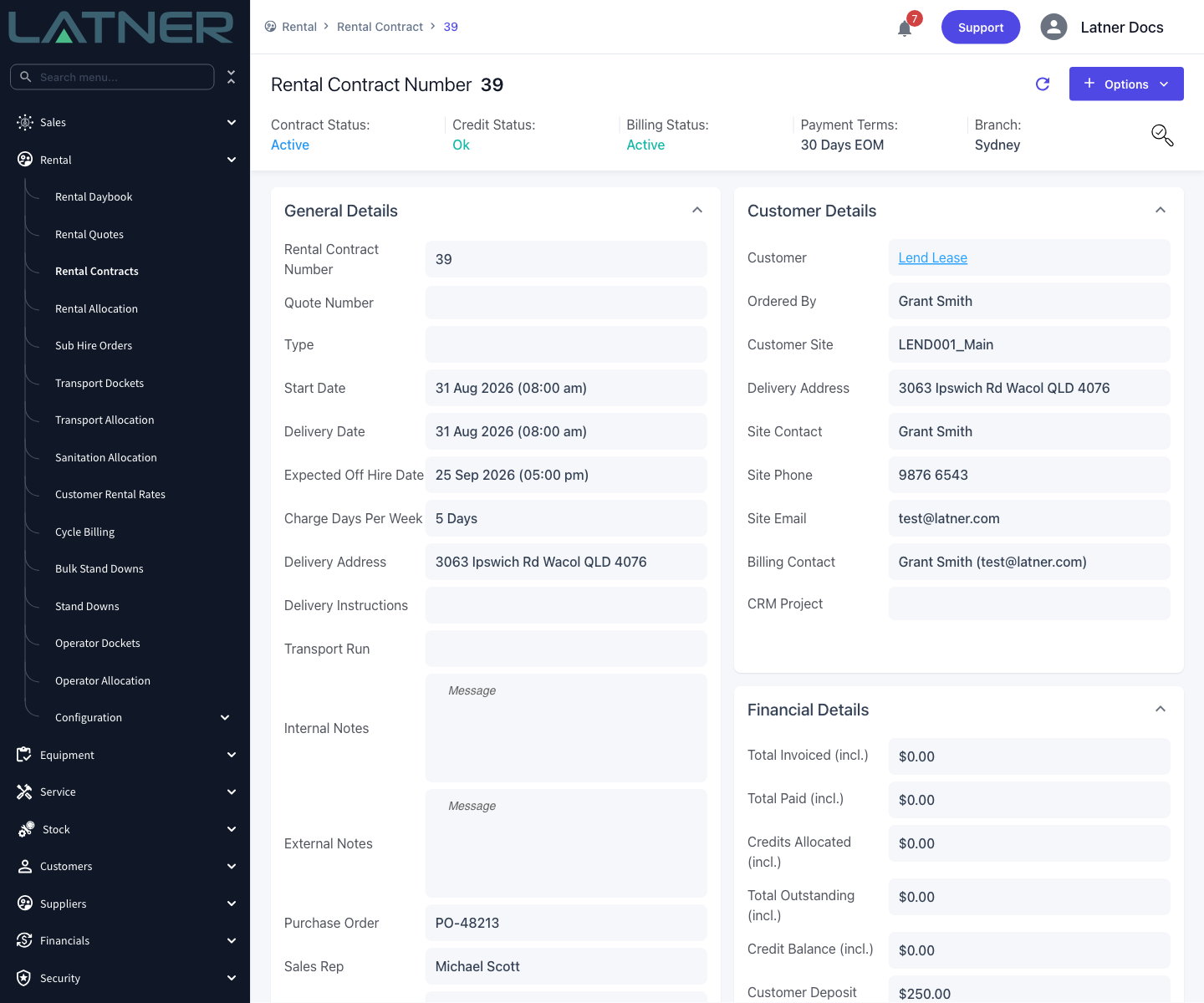
Go to Rental › Rental Contracts and open the contract you want to price. You can do this at any point before the contract is invoiced - while it's still Reserved and nothing has gone out, or once it's Active and on hire.
Check the Expected Off Hire Date before you go any further. That date is what the pro forma prices up to, so if it's wrong the total will be too.
Step 2 - Choose Generate Pro Forma Invoice
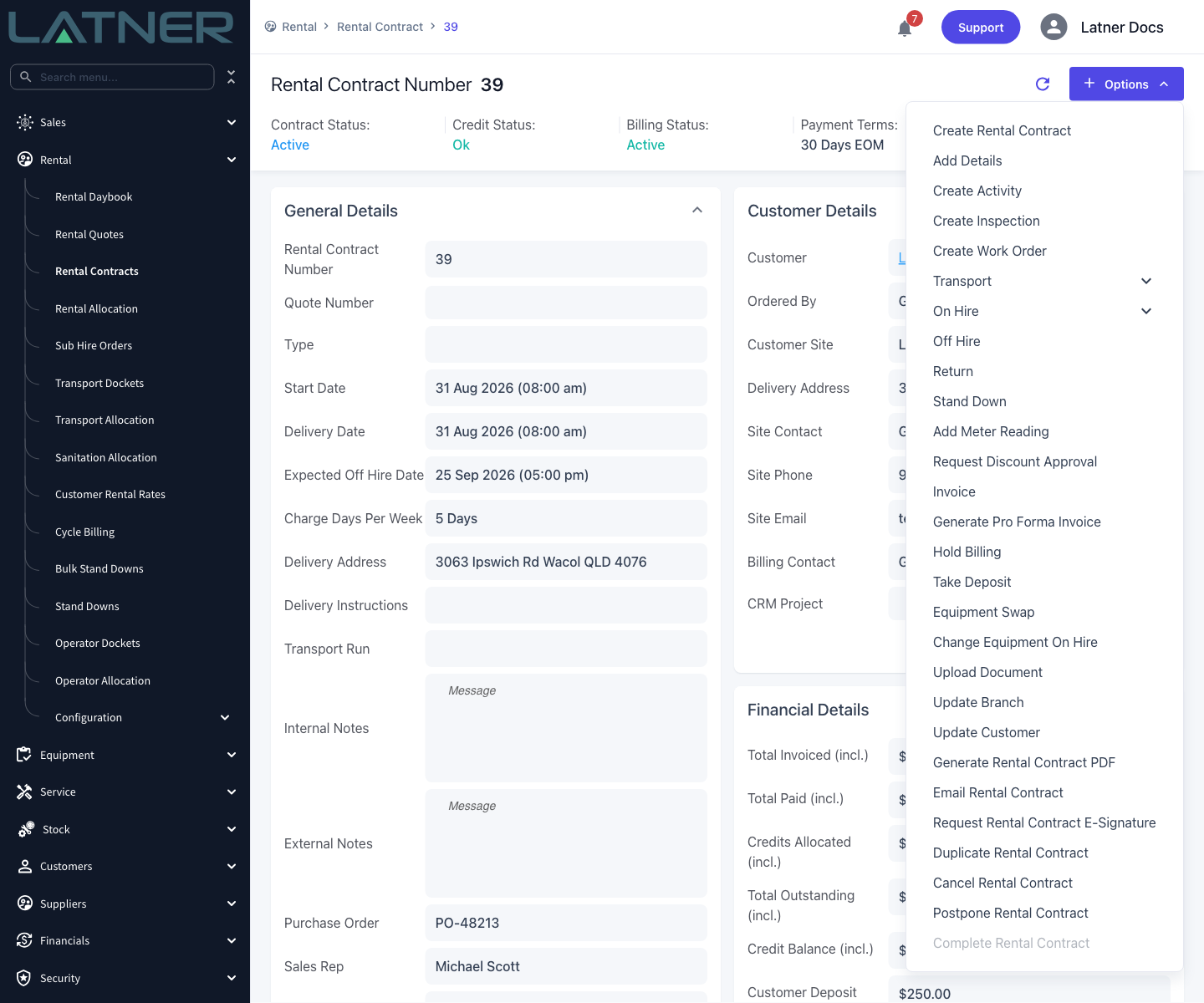
Click Options and choose Generate Pro Forma Invoice. There's no dialog and nothing to fill in - the customer, site, delivery address, purchase order number, external notes and tax rate all come straight off the contract.
On a contract that has already been invoiced, or one that is Completed, Cancelled or Lost, the option is greyed out.
Step 3 - Wait for the PDF
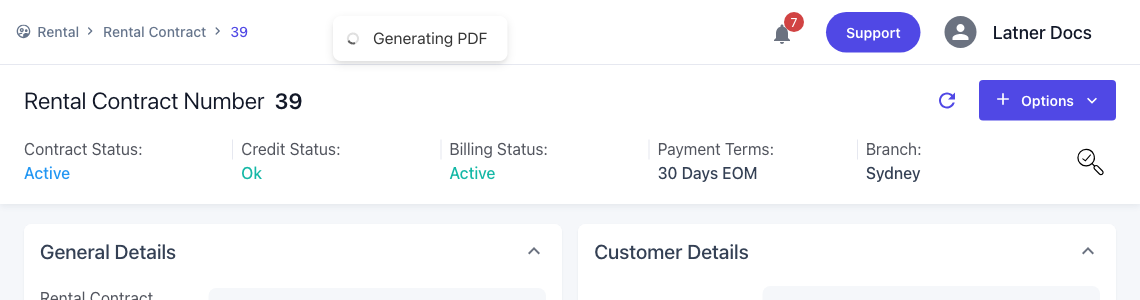
A Generating PDF message appears while Latner prices the contract and renders the document. The work happens in the background, so you can keep using the screen. When it finishes the message changes to File Generated and the PDF opens in a new browser tab - or downloads instead, if you've ticked Auto-download files under your name › User Settings › File Settings.
Step 4 - Find it again on the Pro Forma tab
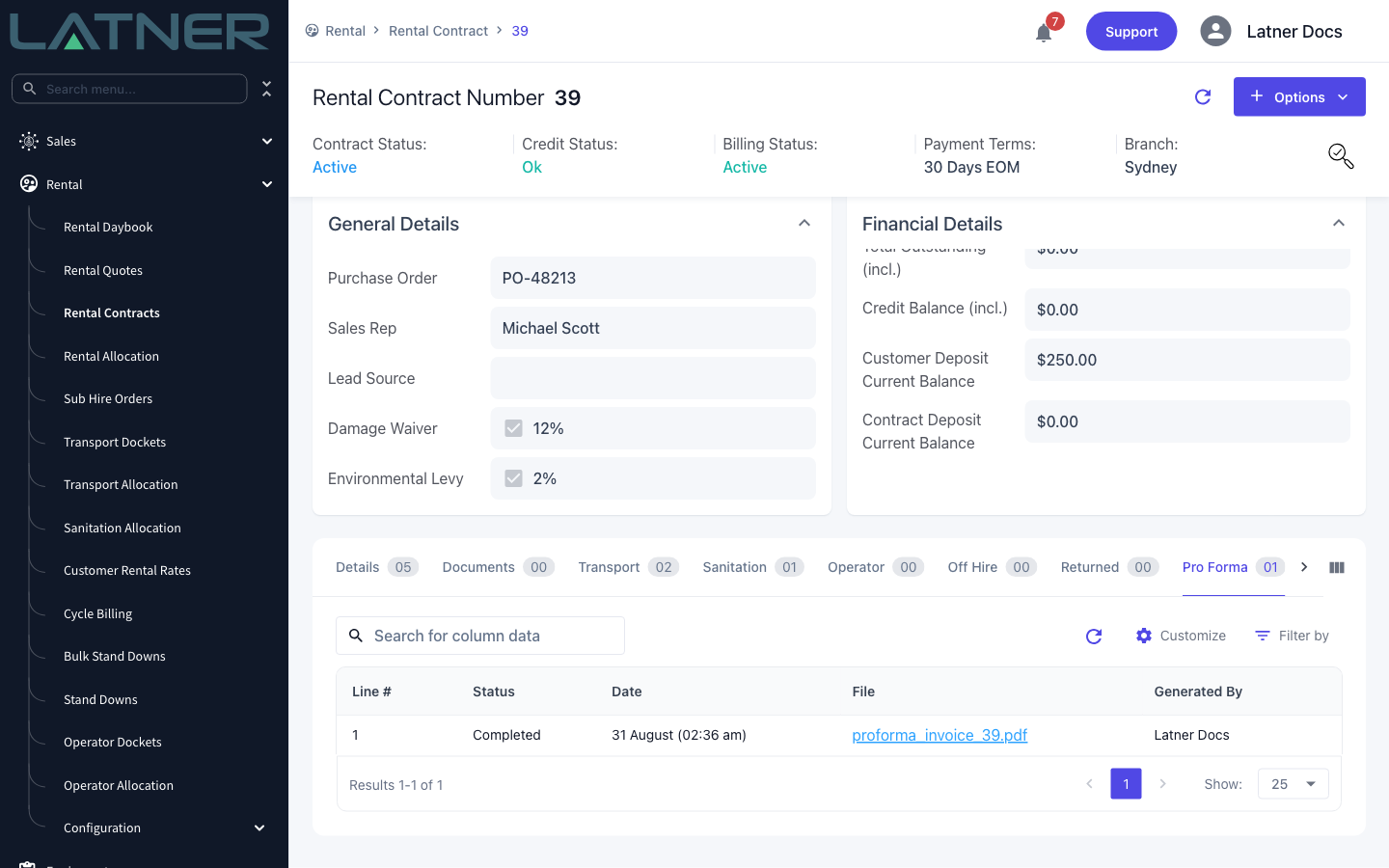
Every pro forma you generate is listed on the contract's Pro Forma tab, showing its line number, status, the date it was generated, the file and who generated it. Click the file name to open it again.
Status runs Pending, then Running, then Completed. A row that reads Failed means the document wasn't produced - generate it again.
What the Pro Forma Shows
-
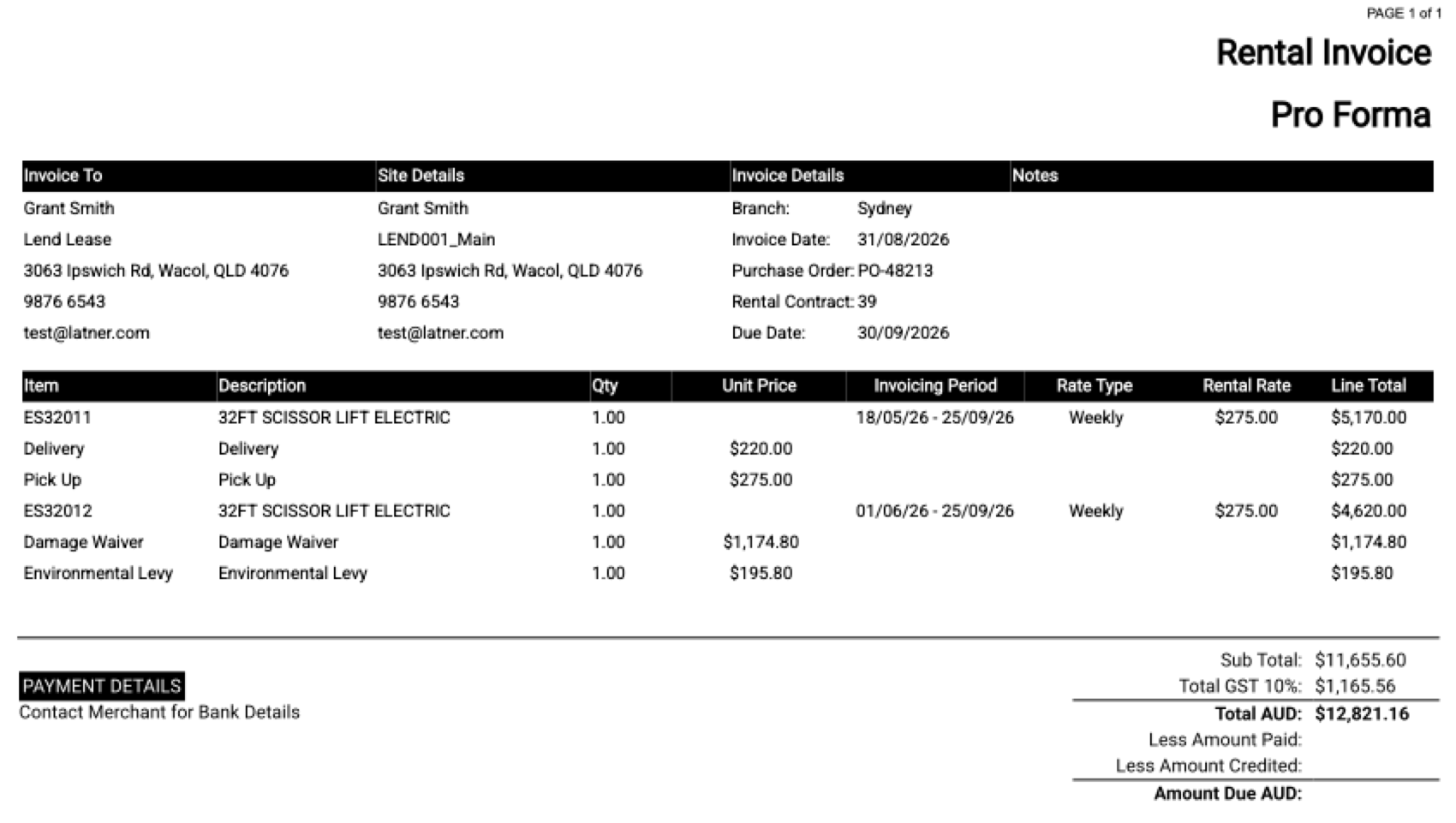
The document is priced through to the contract's Expected Off Hire Date, not to today. It answers "what will this hire cost if it runs to plan?", not "what do I owe so far?".
-
Every line on the contract is included - equipment, transport, sanitation, sale and additional items - along with damage waiver and environmental levy where they apply. Equipment is priced whether or not it has gone on hire yet.
-
Minimum charges are applied, the same way they are on a rental quote.
-
Operator time on wet hire lines isn't priced here. Operator hours are billed from approved operator dockets when you raise a real invoice.
-
Credits never appear. A line that would price as a credit is shown as zero instead.
-
The invoice date is today's date in the contract's branch timezone, and the invoice number reads Pro Forma.
-
Generate it again and you get a fresh version rather than a replacement. The second and later files carry a version suffix -
proforma_invoice_39_(v2).pdf- and the earlier ones stay on the tab.
A pro forma invoice is not a tax invoice. Generating one creates no invoice in Latner, allocates no invoice number, sends nothing to your accounting system and doesn't move the contract's billing dates - the contract still shows no invoices and will bill exactly as it would have. When you're ready to actually charge the customer, use Options › Invoice.
FAQs
Watch the Demo
Prefer to watch it? Step through the same flow here.