
Raising a Purchase Order from a Sales Order lets you buy in the stock you have already sold but do not have on hand, with every purchase line linked back to the sale it came from.
Overview
Selling something you do not have on the shelf is normal - the customer wants it, so you order it in. Rather than keying a Purchase Order from scratch and hoping the two documents stay in step, Latner reads the unfulfilled quantities straight off the Sales Order and builds the Purchase Order for you.
-
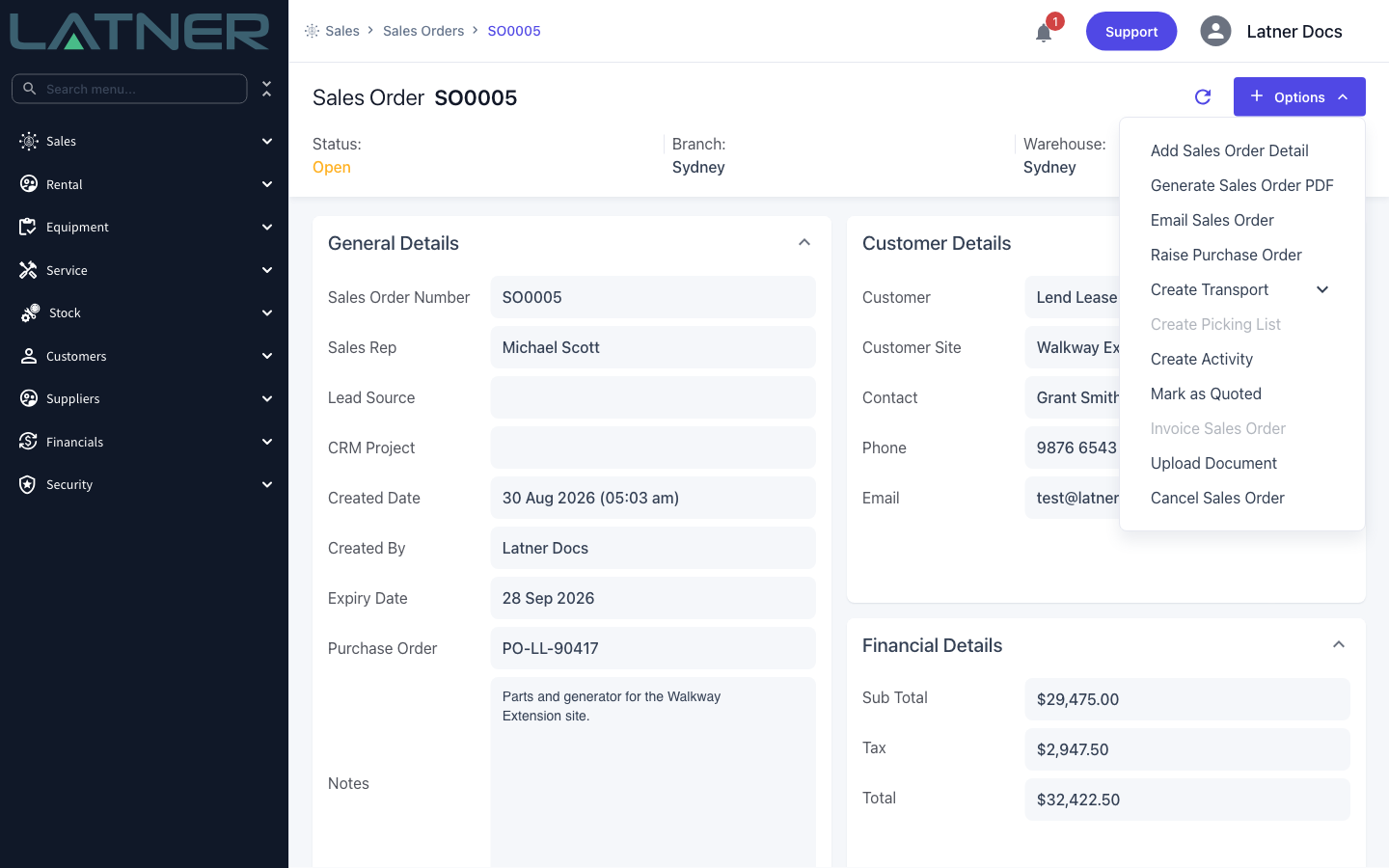
The option lives on the Sales Order itself, at Options › Raise Purchase Order.
-
It is available while the Sales Order is Open, Quoted or Partially Invoiced.
-
Only Stock and Serialized Stock lines that still have an unfulfilled quantity can be ordered. Admin, Labour, Transport and Asset lines are never listed.
-
Each run creates one Purchase Order for one supplier. If the lines come from different suppliers, run it once per supplier.
-
Every Purchase Order line stays linked to the Sales Order line it came from, so receipting the goods fulfils the sale automatically.
-
The new Purchase Order is created with status Open. Confirming and receipting it are the normal Purchase Order steps and are not part of this flow.
Before You Begin
You need a couple of permissions and a Sales Order in the right shape.
|
Requirement |
Where to Find It |
|---|---|
|
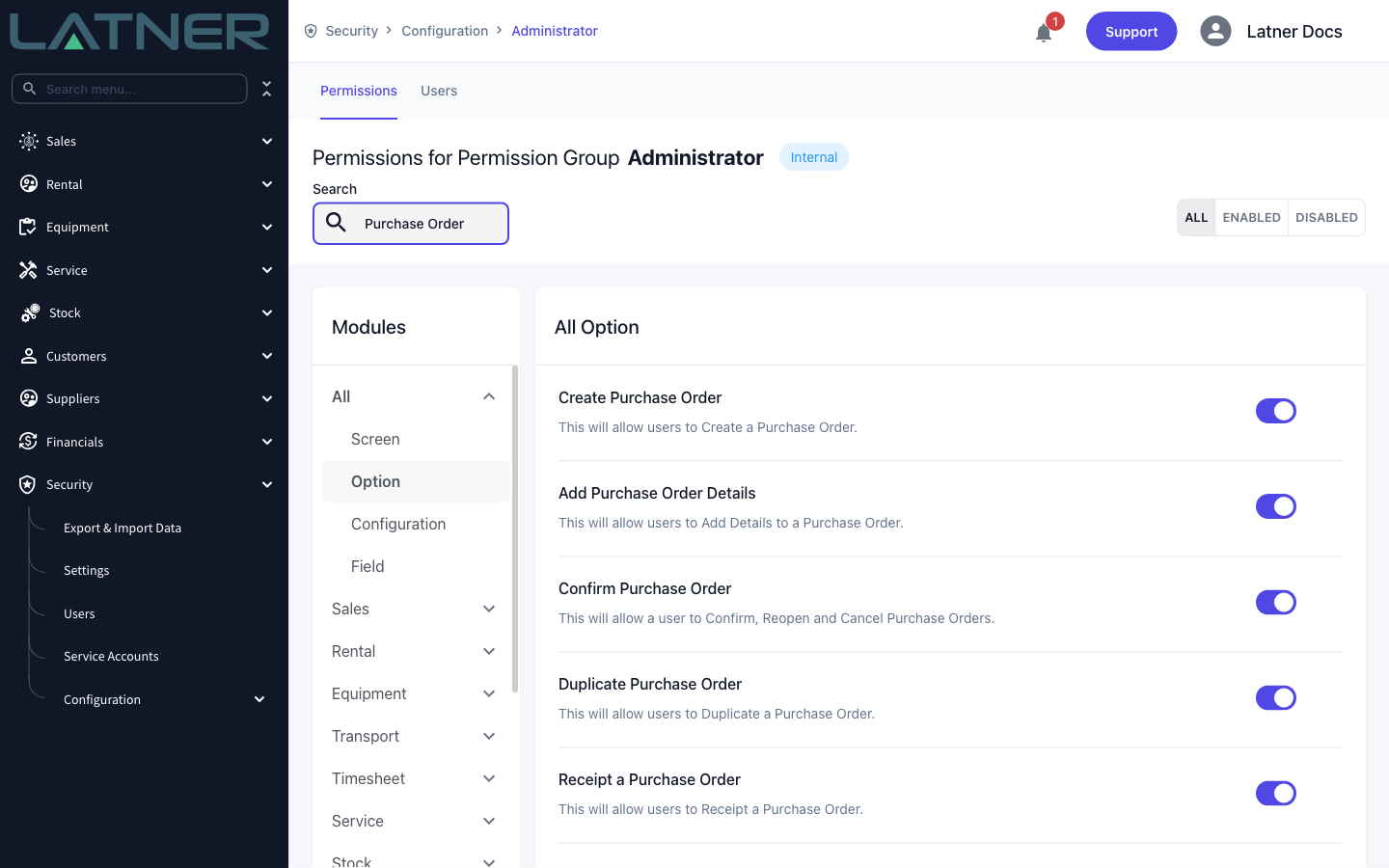
Edit Sales Order permission |
Security › Configuration › Permission Groups, under Option |
|
Create Purchase Order permission |
Security › Configuration › Permission Groups, under Option |
|
A Sales Order that is Open, Quoted or Partially Invoiced, with at least one detail line |
Sales › Sales Orders |
|
A Stock or Serialized Stock line with quantity still unfulfilled |
The Details tab on the Sales Order |
|
An active supplier with a supplier site, and a purchase tax set on that site |
Suppliers › Suppliers |
You do not need a setting turned on for this. If Raise Purchase Order is greyed out, it is because the Sales Order has no detail lines yet, or because its status has moved past Partially Invoiced - an Invoiced, Cancelled, Lost or Sold without Invoice order can no longer raise one.
Raising the Purchase Order
Step 1 - Check what is still unfulfilled
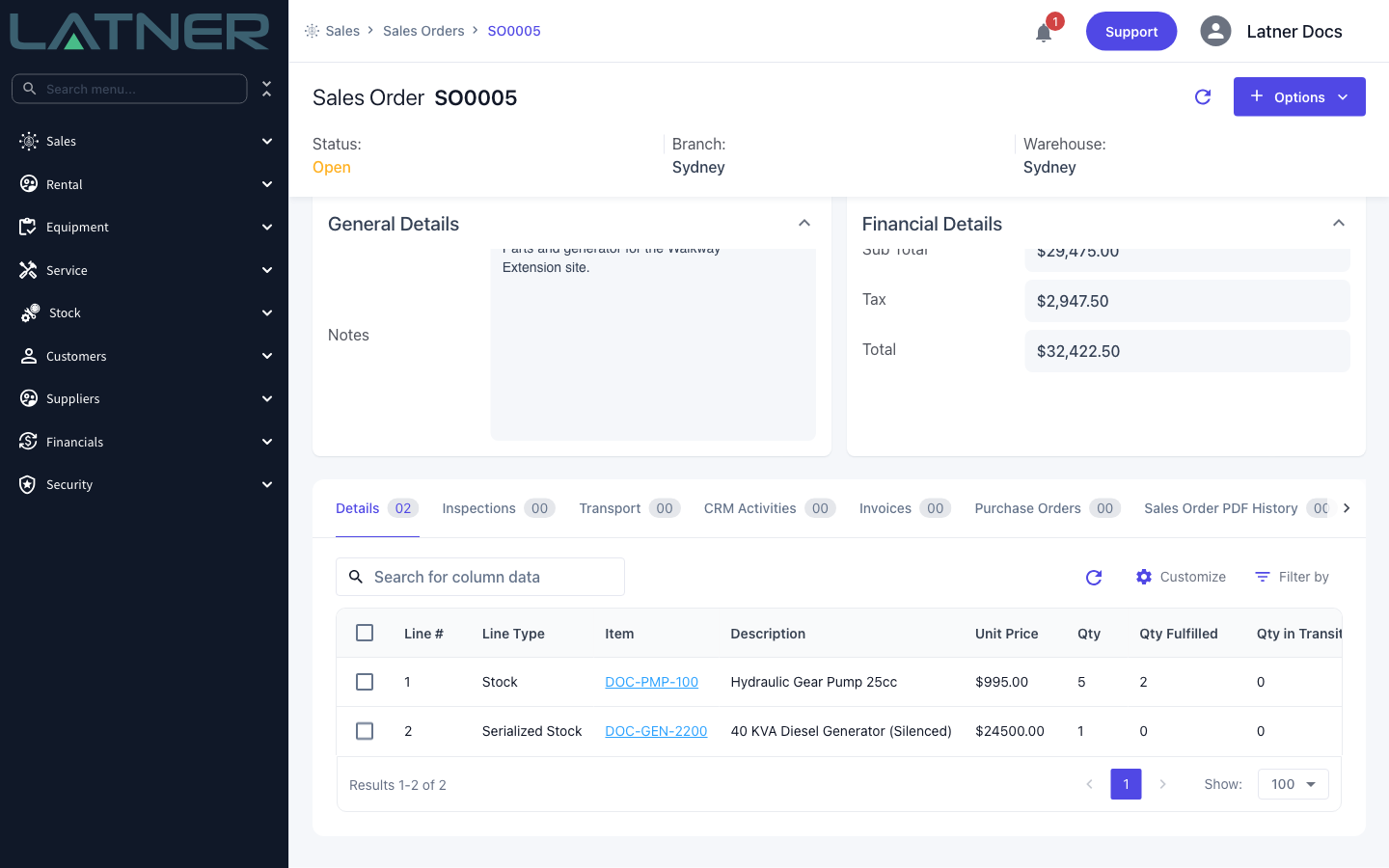
Open Sales › Sales Orders and select the order. On the Details tab, compare Qty with Qty Fulfilled on each line - the difference is what you can order. A line that is fully fulfilled has nothing left to buy in and will not appear in the dialog.
Step 2 - Open Raise Purchase Order
Choose Options › Raise Purchase Order.
Step 3 - Choose the supplier
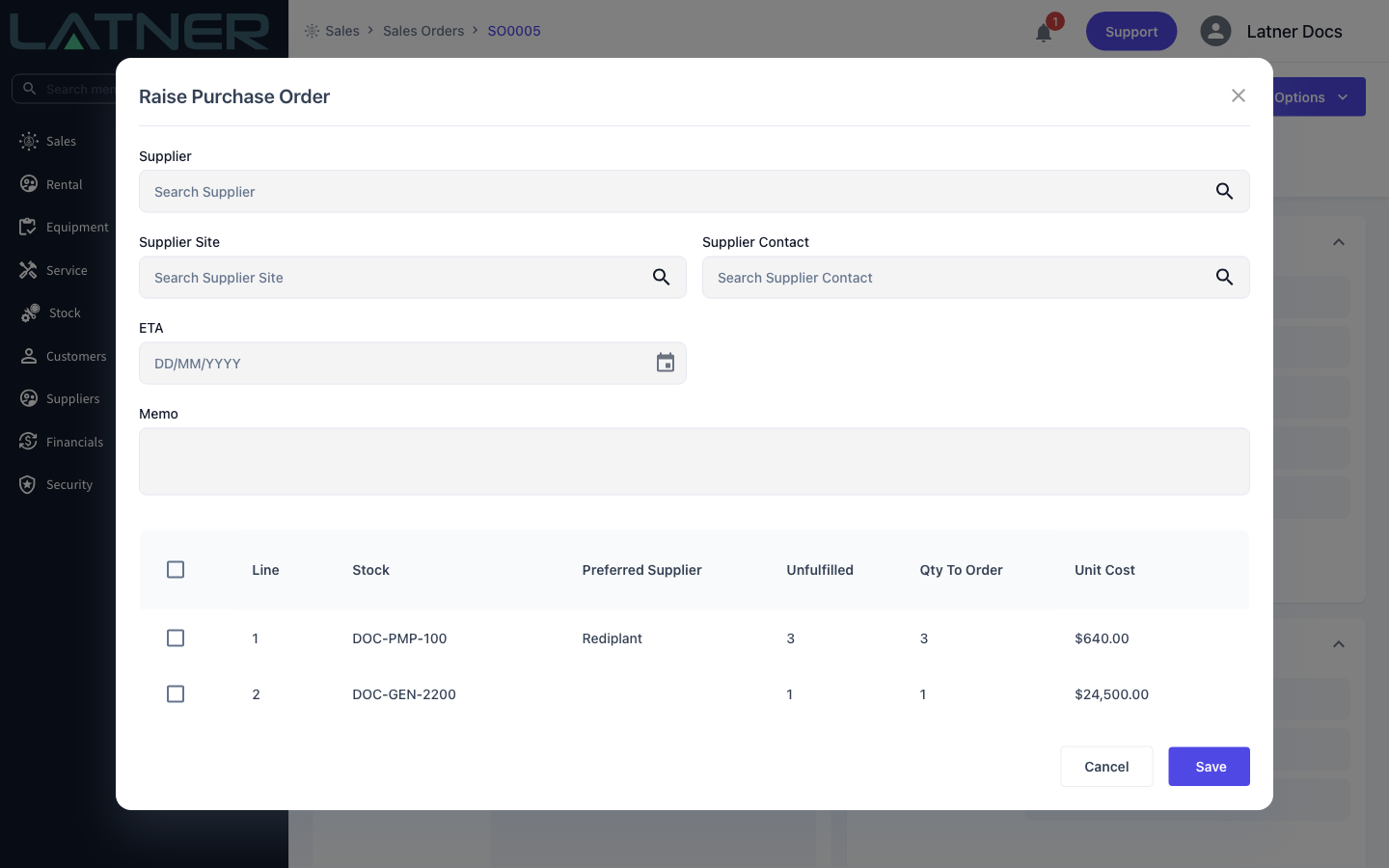
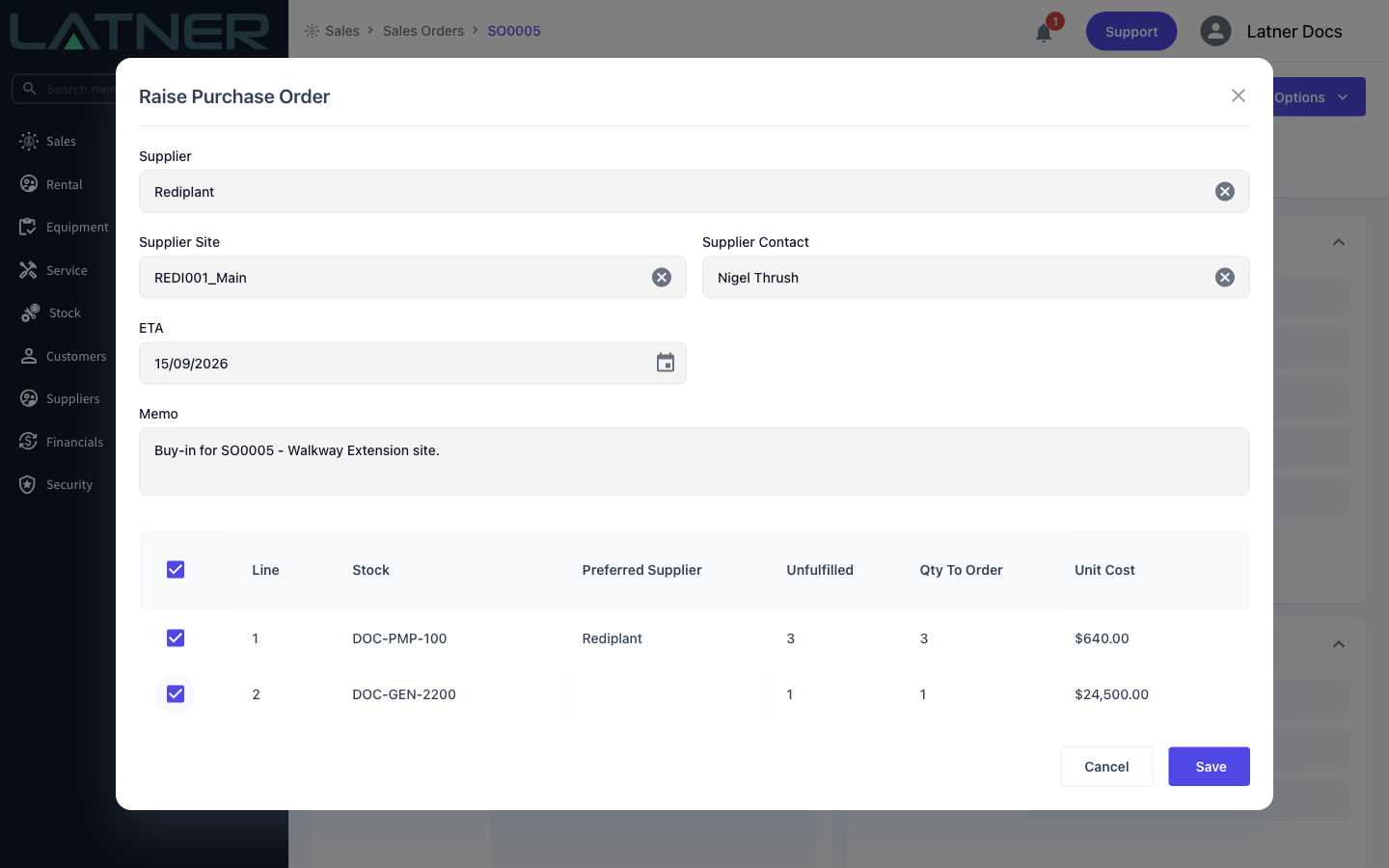
The dialog opens with the supplier fields blank and every eligible line already listed underneath. Fill in the header first, because the supplier site decides the tax on every line.
-
Supplier - required. Changing it clears the Supplier Site and re-defaults the contact. If the supplier has a pop-up note, it appears as soon as you pick them.
-
Supplier Site - required. The list is filtered to the chosen supplier, and choosing a site first will back-fill the supplier for you. The Purchase Tax configured on this site is applied to every line on the Purchase Order.
-
Supplier Contact - required. Defaults to the supplier's billing contact.
-
ETA - optional. Copied onto the Purchase Order header and onto every line.
-
Memo - optional. Left blank, it is filled in for you as "Raised from Sales Order #" followed by the Sales Order number.
Step 4 - Select the lines to order
Tick the box at the start of each line you want on this Purchase Order. The box in the header row selects them all. Qty To Order and Unit Cost only become editable once the line is ticked.
-
Line - the Sales Order line number. Accessory sub-lines show as 2.1, 2.2 and so on.
-
Stock - the stock or serialized stock number. Hover it to see the full description.
-
Preferred Supplier - the preferred supplier recorded against the stock item, shown so you can sanity-check who you are ordering from. It is blank for serialized stock lines.
-
Unfulfilled - quantity ordered less quantity fulfilled. This is the most you can order on this line.
-
Qty To Order - defaults to the unfulfilled quantity. You can lower it, but going above the unfulfilled quantity is rejected when you save.
-
Unit Cost - defaults to the stock item's last cost price. For a Serialized Stock line it defaults to the item's recommended retail price, so check it before you save.
The Unit Cost on a Serialized Stock line is seeded from the recommended retail price, which is what you sell the machine for, not what you pay for it. Overwrite it with the supplier's price, otherwise the Purchase Order value and the cost carried onto the received item will both be wrong.
Step 5 - Save
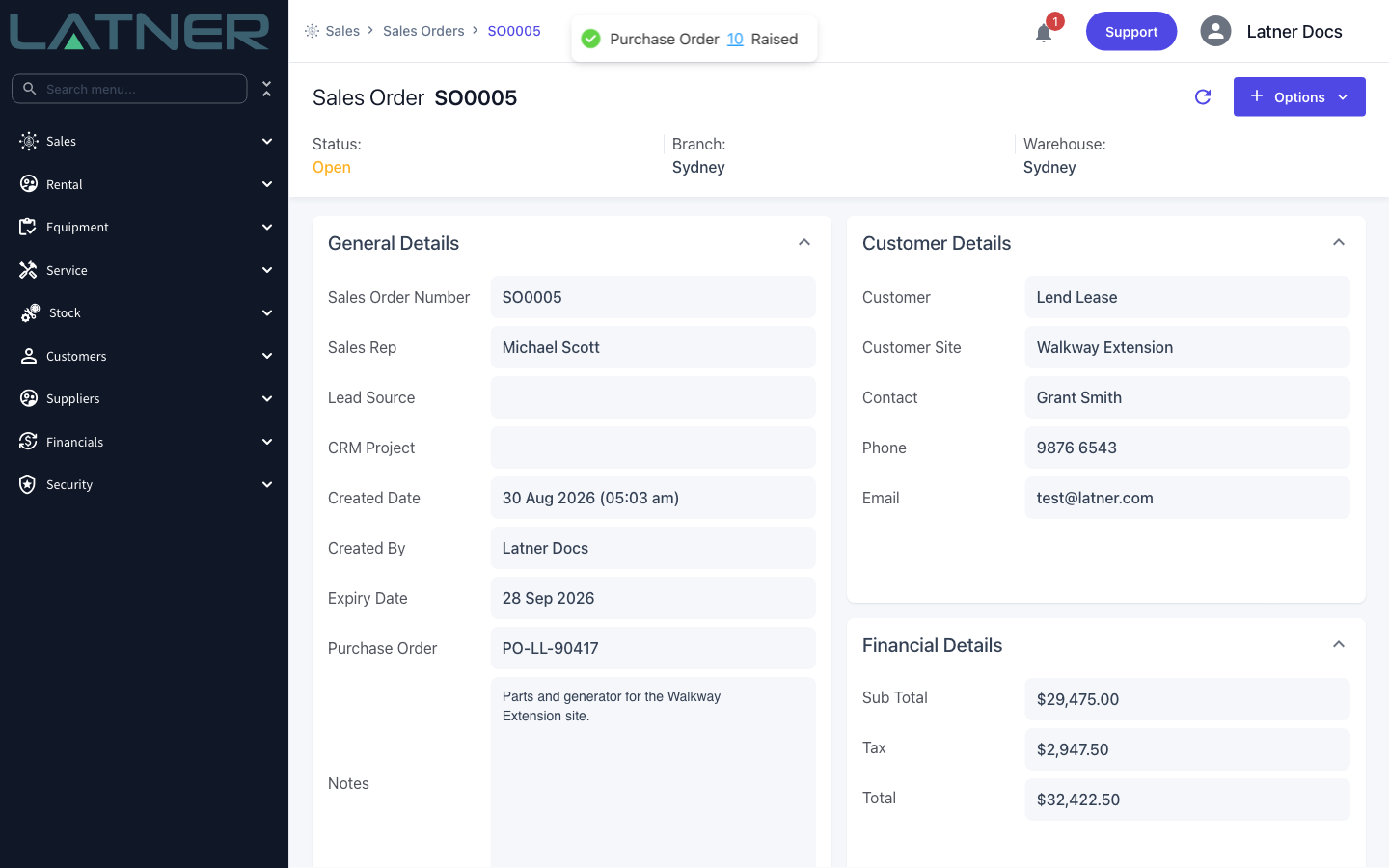
Select Save. Latner creates the Purchase Order and confirms it with a message carrying a link straight to the new order. At least one line has to be ticked - saving with nothing selected returns "Select at least one line to order".
After the Purchase Order Is Raised
-
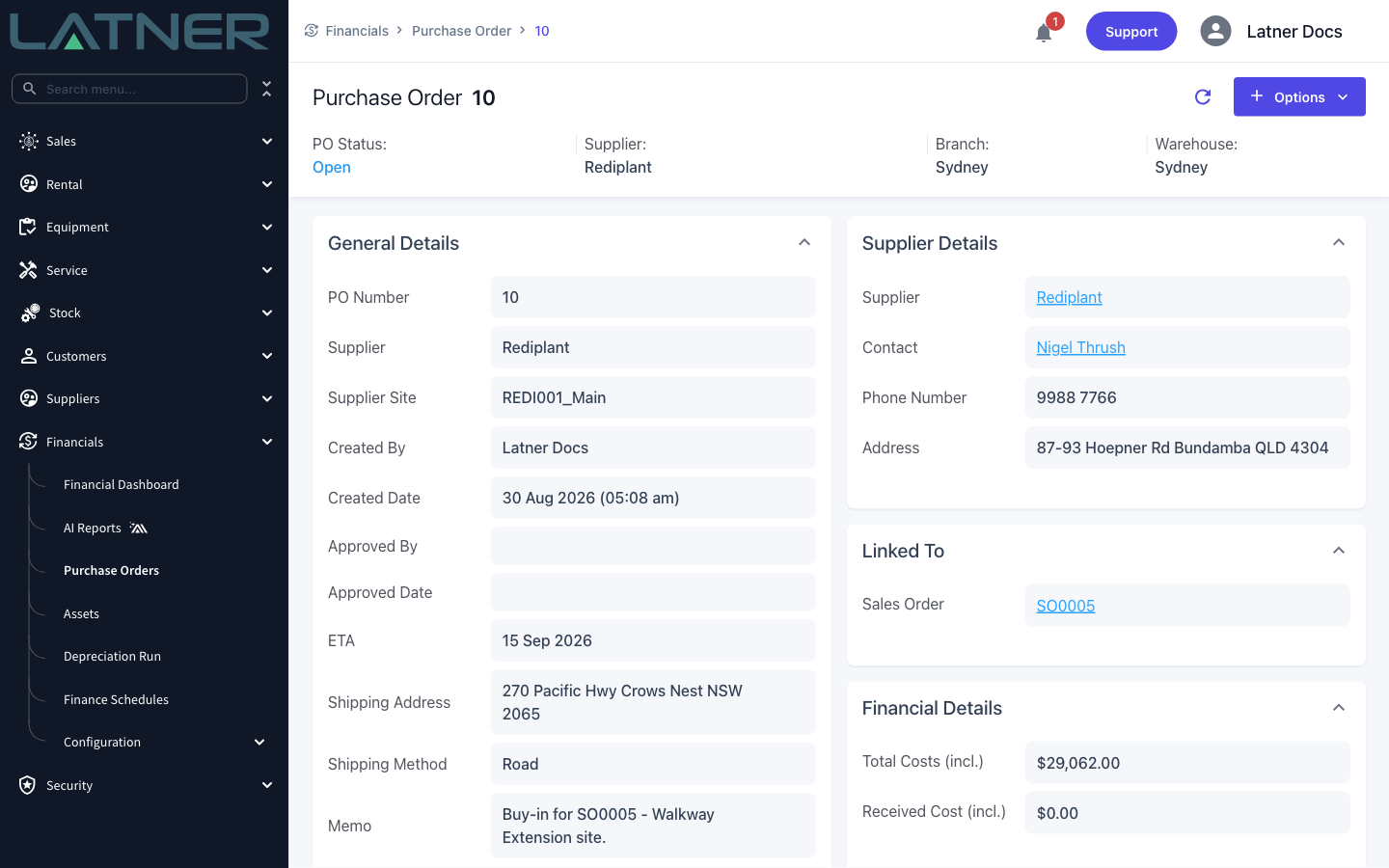
The new Purchase Order has Source of Sales Order and Status of Open, and takes the branch and warehouse of the Sales Order.
-
Its Linked To panel shows the Sales Order it came from, and the Sales Order's Purchase Orders tab lists it in return.
-
Each Purchase Order line carries the description from the Sales Order line, the ETA you entered and the supplier site's purchase tax. Stock lines become Stock lines and serialized lines become Serialized Stock lines.
-
If you included both an accessory sub-line and its parent line in the same run, the Purchase Order keeps that parent and sub-line structure.
-
Nothing on the Sales Order changes yet. Quantities are fulfilled when the Purchase Order is receipted, not when it is raised.
-
Confirming the Purchase Order backorders the stock quantity in the warehouse, and creates an Ordered serialized stock item for each serialized line - with a temporary serial number if you have not recorded a real one.
-
Receipting the Purchase Order fulfils the Sales Order lines: the fulfilled quantity on a stock line goes up and the stock is allocated to the sale, and a received serial number is assigned to a serialized line that does not already have one.
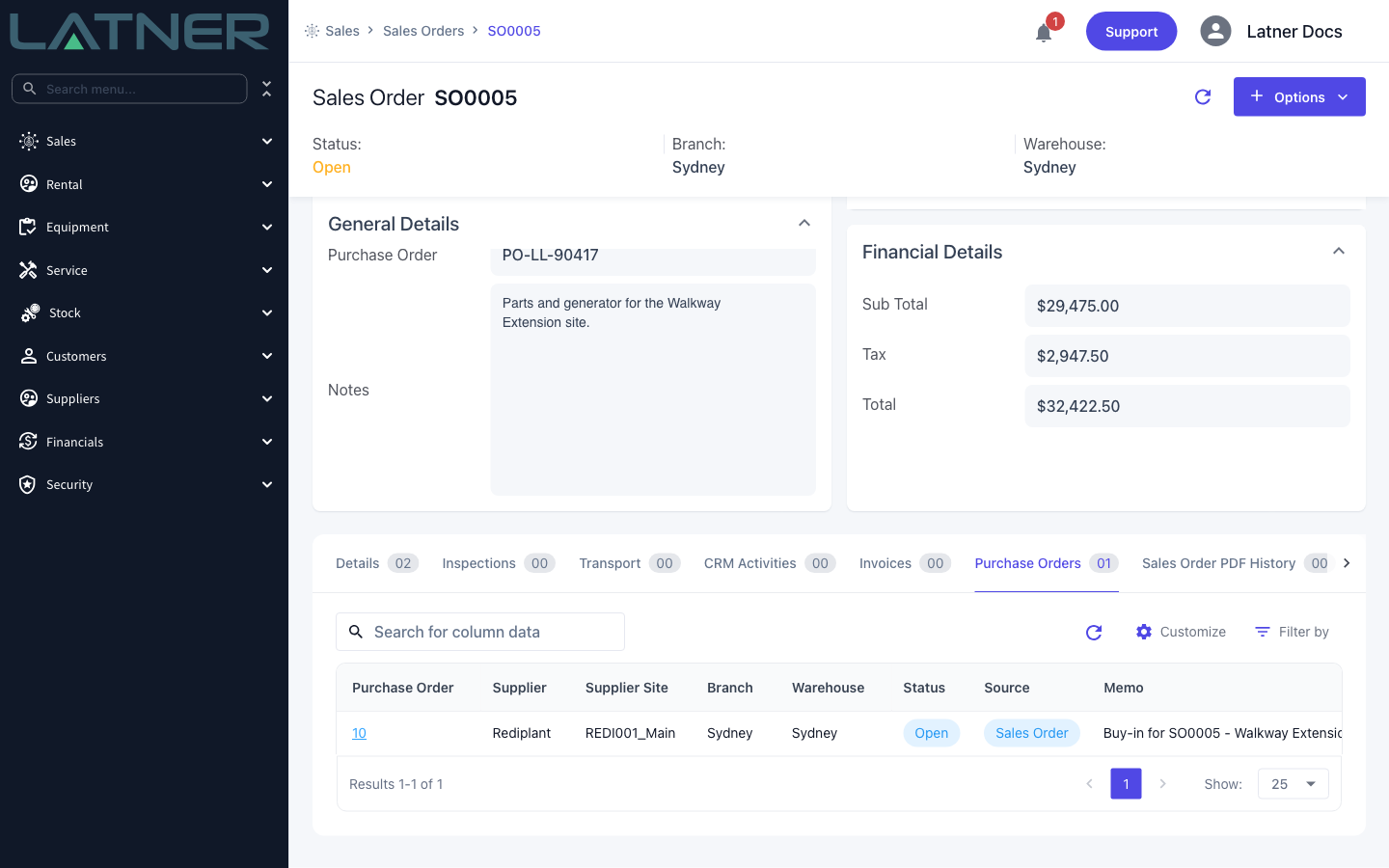
Raising a Purchase Order does not reserve the Sales Order line. The Unfulfilled figure only comes down when the goods are receipted, so the same line can be ordered twice over if you run the dialog again. Check the Purchase Orders tab before raising a second one.
FAQs
Watch the Demo
Prefer to watch it? Step through the same flow here.