
Invoicing a Sales Order turns the quantities you have actually fulfilled into a customer invoice, so a sale reaches your accounts without anyone re-keying the lines.
Overview
A sales order is a promise; an invoice is the bill. Latner keeps the two apart on purpose, because parts turn up in dribs and drabs and you rarely want to hold the whole order hostage to the one item still on back order. Invoice Sales Order lets you bill what you have, when you have it, and come back for the rest later.
-
Invoicing runs from the sales order's Options menu, and only once the order is Quoted or Partially Invoiced.
-
Only fulfilled quantities can be invoiced. A line with nothing fulfilled does not appear in the dialog at all.
-
You choose which lines to invoice and how much of each, so one sales order can produce several invoices over time.
-
The order moves to Partially Invoiced while anything is still outstanding, and to Invoiced once every line is fully invoiced.
-
The new invoice is linked back to the sales order and appears on the order's Invoices tab.
-
Delivery is not a prerequisite. You do not need a transport docket, a picking list or an inspection to invoice.
Before You Begin
Invoicing is permission gated, and one setting decides what status the resulting invoice starts in.
|
Requirement |
Where to Find It |
|---|---|
|
Convert Sales Order permission |
Security › Permission Groups › Sales › Option › Convert Sales Order |
|
Sales Order screen permission |
Security › Permission Groups › Sales › Screen › Sales Order |
|
Customer Invoices screen permission, to open the invoice afterwards |
Security › Permission Groups › Customers › Screen › Customer Invoices |
|
Default Sales Order Customer Invoices to Completed (optional) |
Security › Settings › Customers |
|
A sales order at Quoted or Partially Invoiced, with at least one fulfilled quantity |
Sales › Sales Orders |
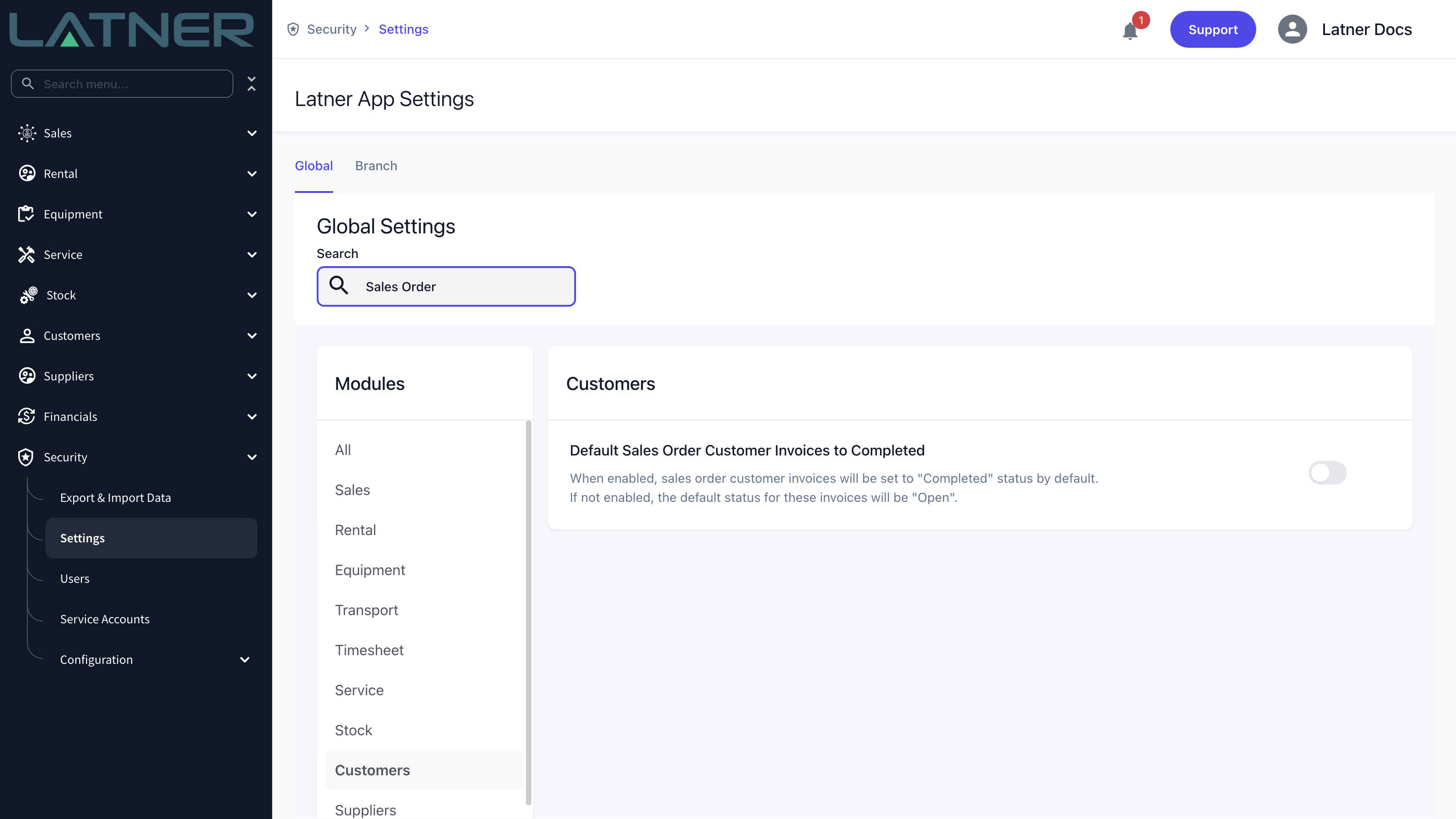
That setting decides the starting status of the invoice, and the starting status decides when stock actually leaves the warehouse. With the setting off, the invoice is created Open and someone has to run Complete Invoice before Stock and Serialized Stock lines are marked as sold. Equipment on an Asset/Equipment line is different: it is sold the moment the invoice is created, whatever the invoice's status.
Invoicing the Sales Order
Step 1 - Check what has been fulfilled
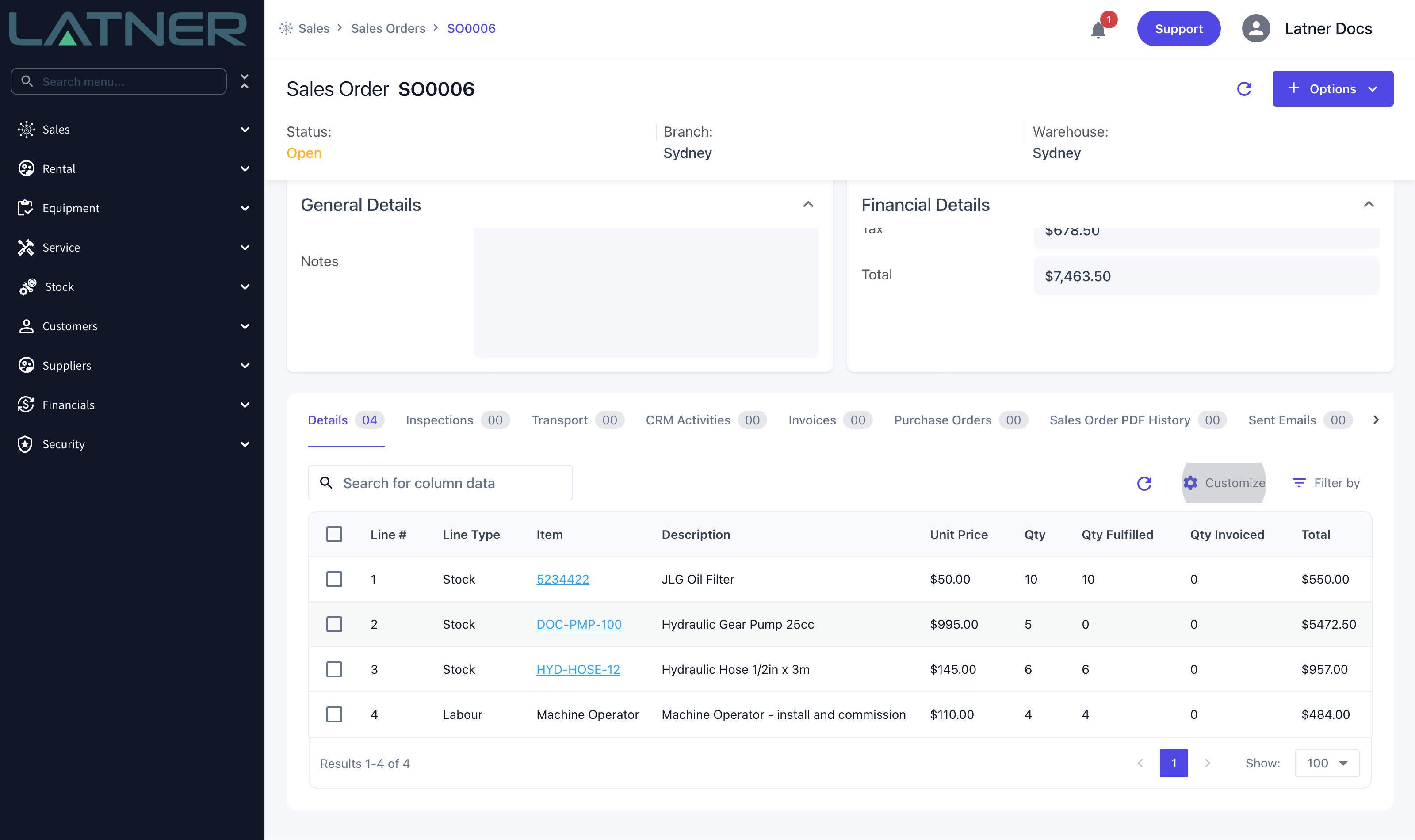
Open the sales order from Sales › Sales Orders and look at the Details tab. The Qty Fulfilled column is what invoicing works from, and Qty Invoiced shows how much of each line has already been billed. If you cannot see those columns, add them from Customize above the grid.
How a line becomes fulfilled depends on what kind of line it is:
-
Admin, Transport and Labour - fulfilled as soon as the line is added, because there is nothing physical to track.
-
Stock - fulfilled by the quantity allocated out of the warehouse, so a line ordering more than you hold is only part fulfilled.
-
Serialized Stock - fulfilled once a serial number has been assigned to the line.
-
Asset/Equipment - fulfilled once an equipment number has been chosen, which also reserves that machine for sale.
Step 2 - Mark the sales order as Quoted
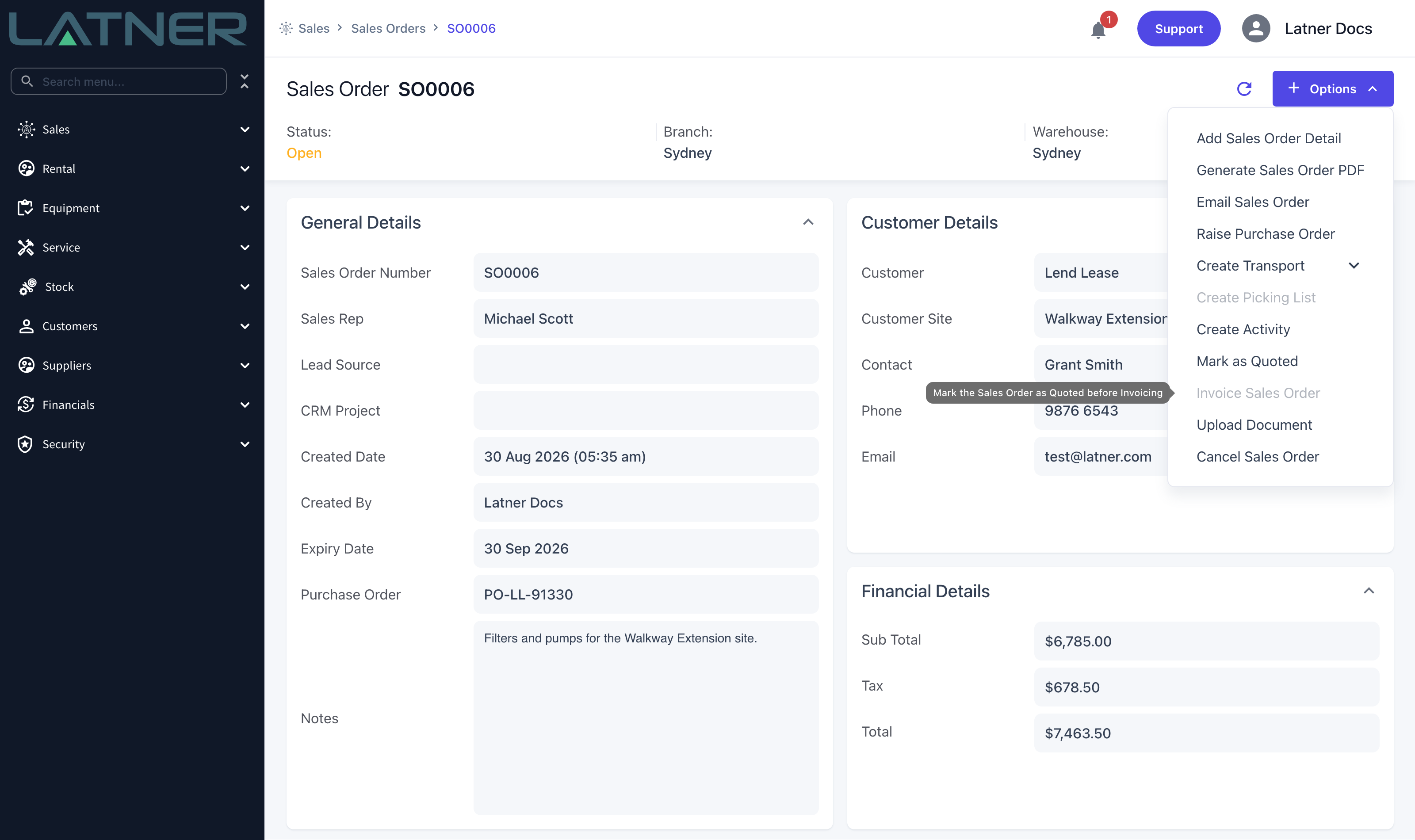
An Open sales order cannot be invoiced. While the order is Open, Invoice Sales Order stays greyed out in the Options menu with the tooltip "Mark the Sales Order as Quoted before Invoicing".
Choose Options › Mark as Quoted to move it on. Options › Email Sales Order does the same thing as a side effect, so an order you have already emailed to the customer is usually Quoted already.
Step 3 - Open Invoice Sales Order
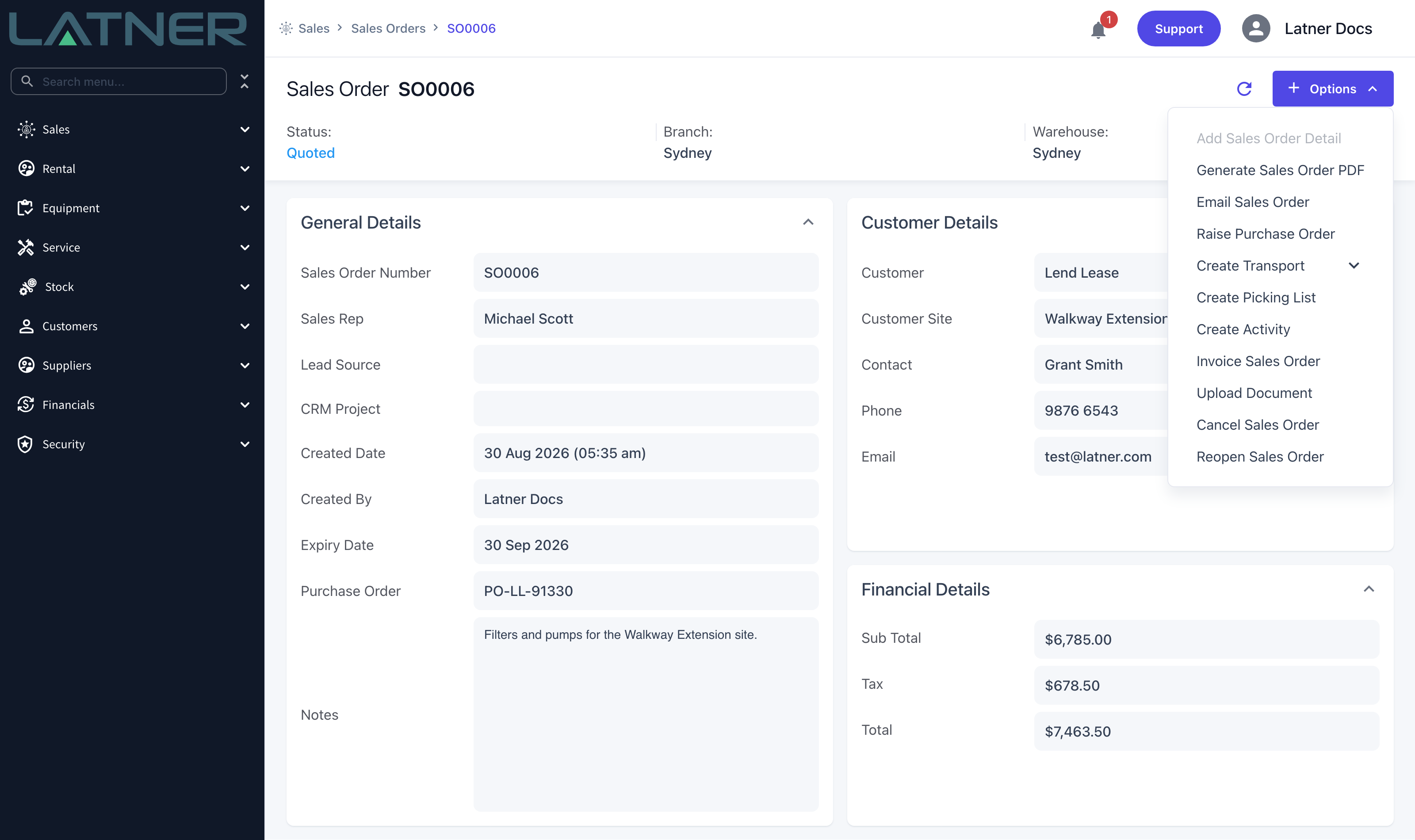
With the order at Quoted, choose Options › Invoice Sales Order. Notice that Add Sales Order Detail switches off at the same time, and Reopen Sales Order appears in case you need to go back and change the lines.
Step 4 - Check the invoice header
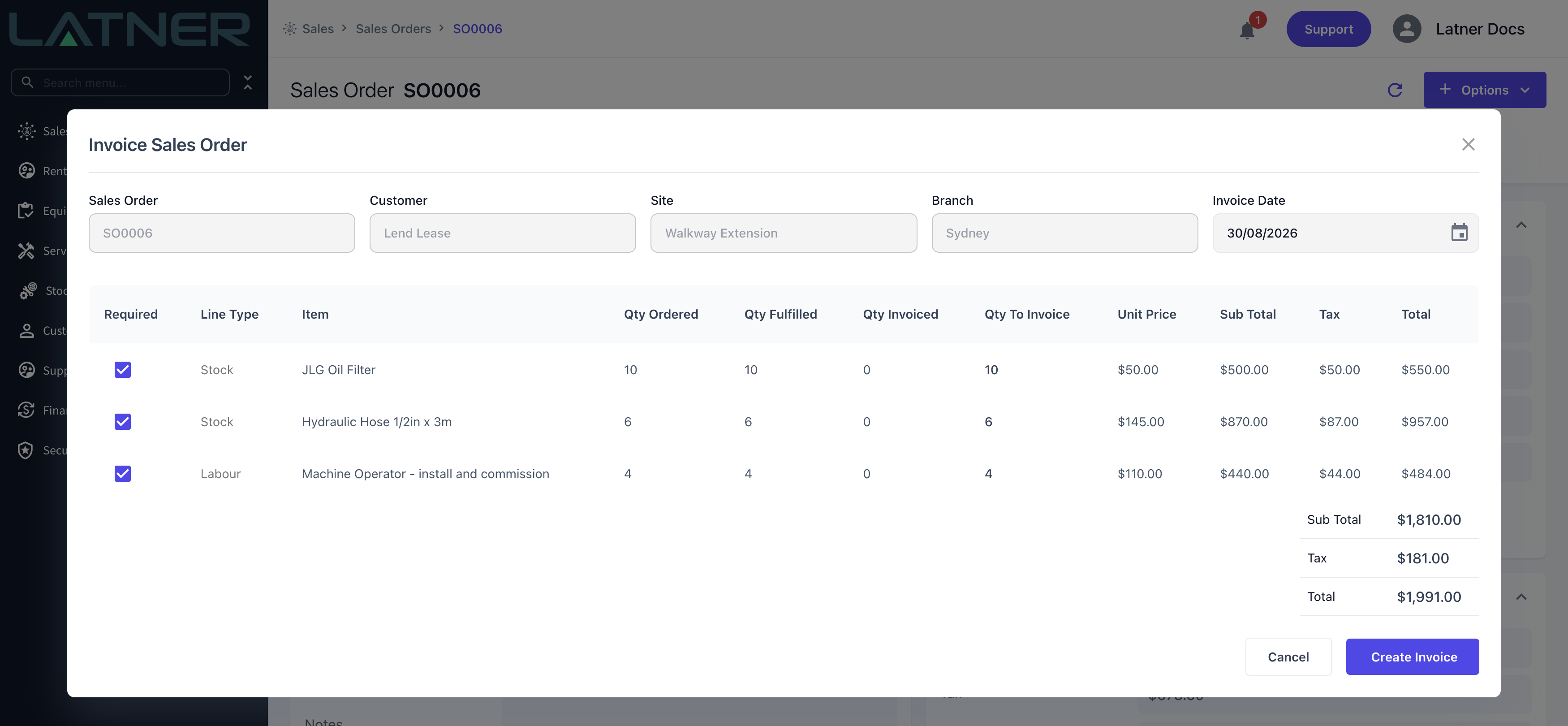
The dialog opens with the order's own details across the top. Only one of them can be changed:
-
Sales Order, Customer, Site, Branch - read only, carried straight from the sales order.
-
Invoice Date - required, and defaults to today. It is the date shown on the invoice and the date the due date is calculated from, using the customer's payment terms.
Under that, every line with something left to invoice is listed with its Qty Ordered, Qty Fulfilled, Qty Invoiced and a proposed Qty To Invoice, and the running Sub Total, Tax and Total sit under the table.
Step 5 - Choose what to invoice
Latner proposes everything you are entitled to bill: each line's Qty To Invoice starts at Qty Fulfilled minus Qty Invoiced. Trim it from there:
-
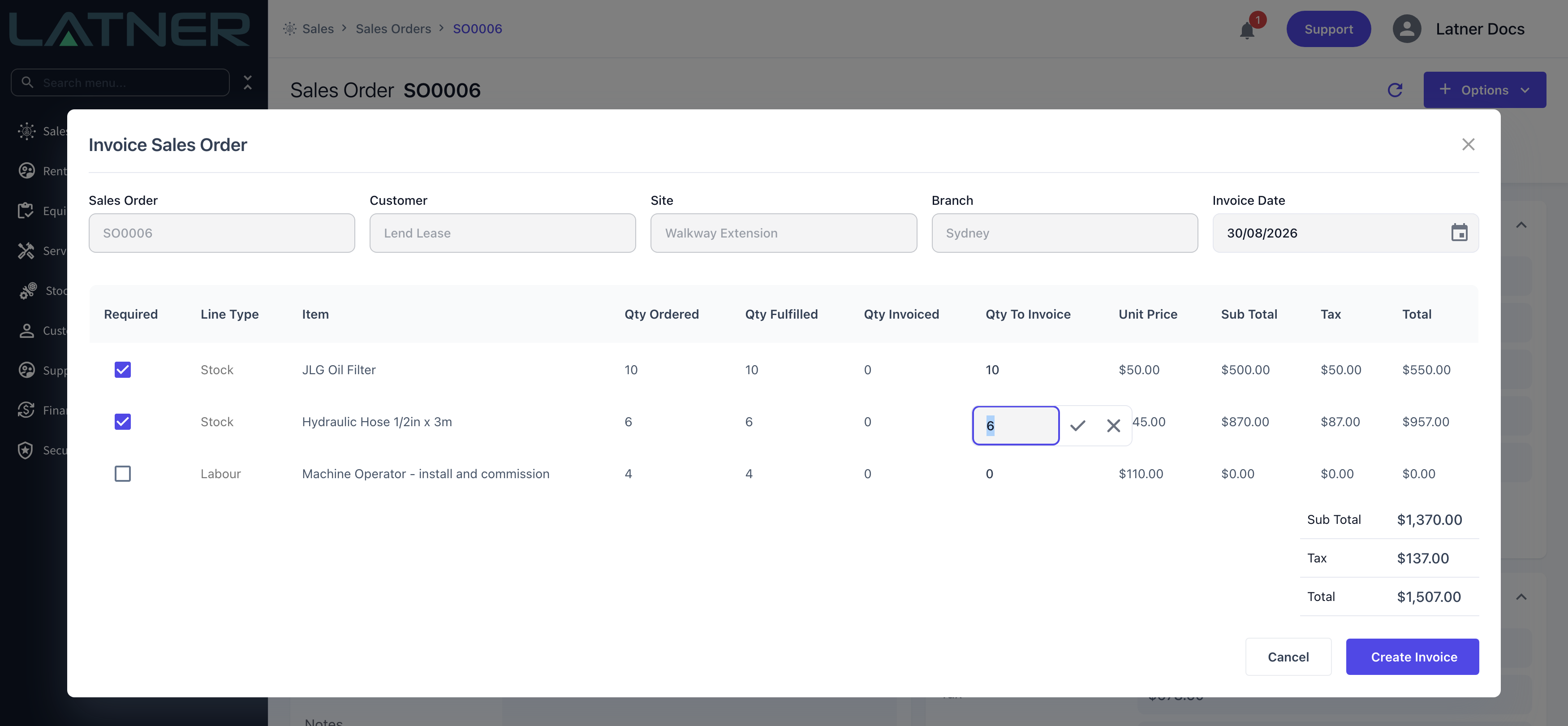
Required - untick a line to leave it off this invoice entirely. Its quantity drops to 0 and the totals fall away with it.
-
Qty To Invoice - click the cell to type a smaller number, then confirm with the tick. You cannot go above the fulfilled-but-not-yet-invoiced quantity, and no more than two decimal places are accepted.
The totals at the foot of the table update as you go, so the figure you see there is the invoice you are about to raise.
Step 6 - Create the invoice
Click Create Invoice. Latner raises the invoice and shows a confirmation with a link straight to it. If you have unticked everything, or zeroed every quantity, nothing is created and you will see "Please select details to create invoice" instead.
After Invoicing
-
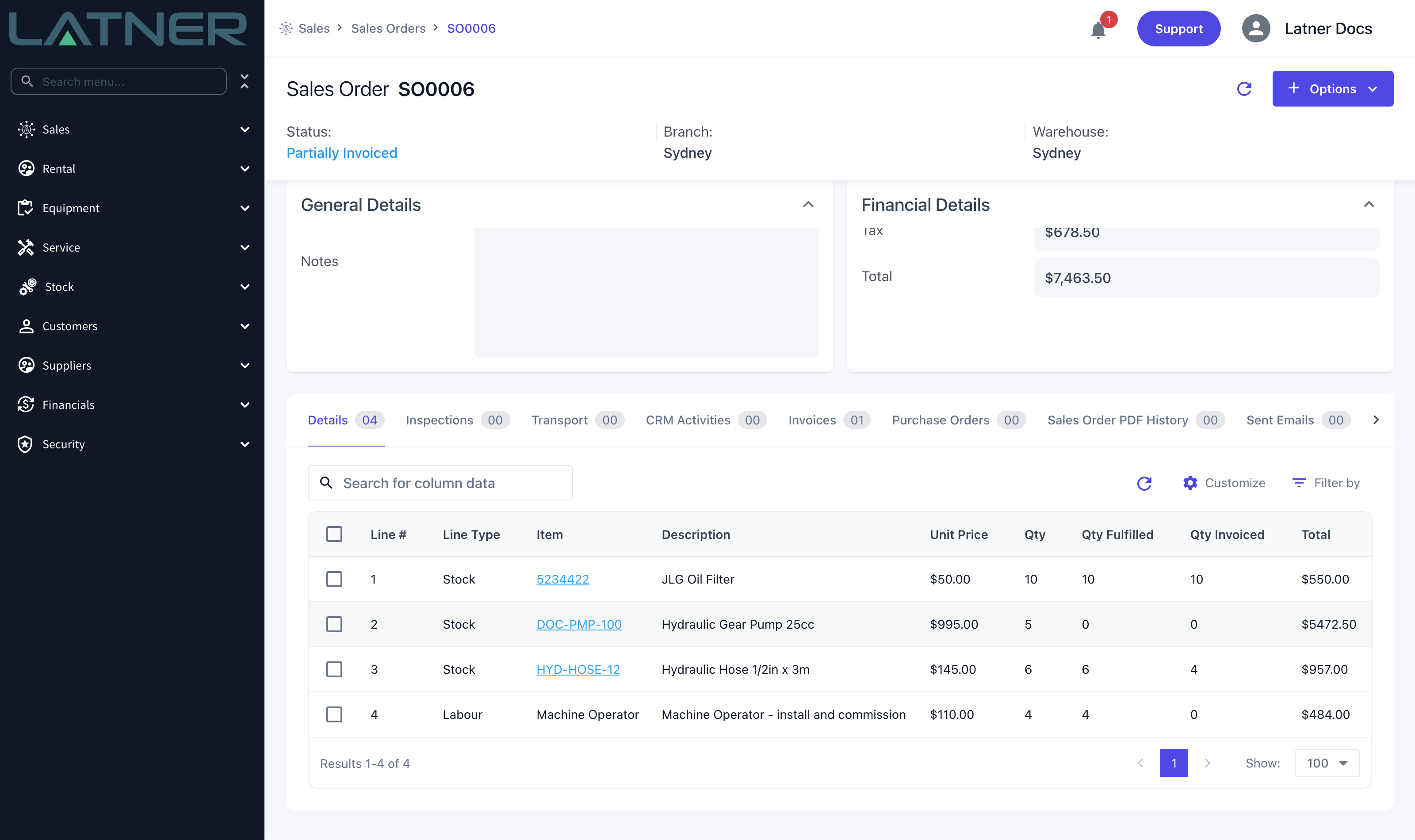
Qty Invoiced on each billed line goes up by the amount you invoiced.
-
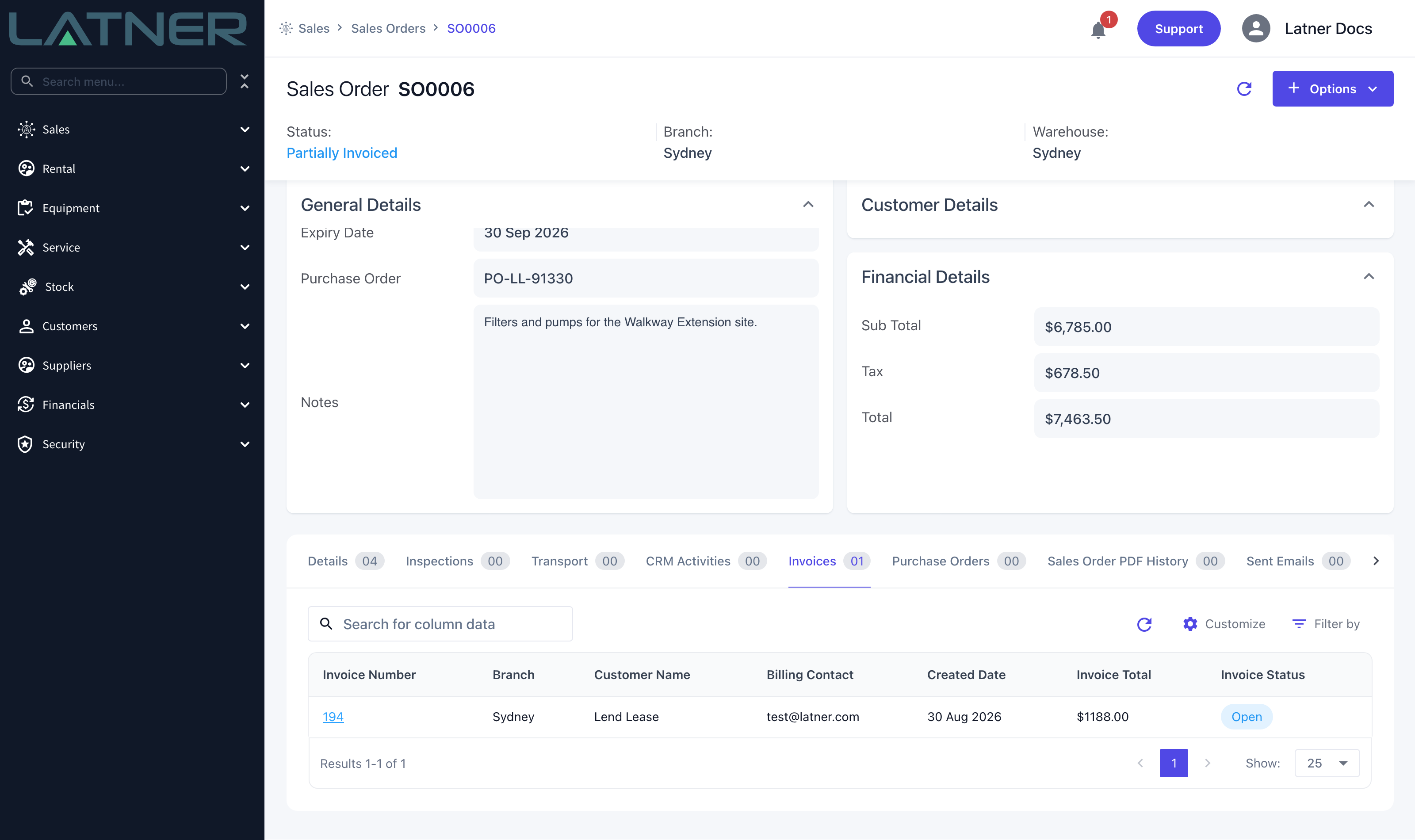
The sales order's status becomes Partially Invoiced if any line still has quantity left to bill, or Invoiced once every line is fully invoiced.
-
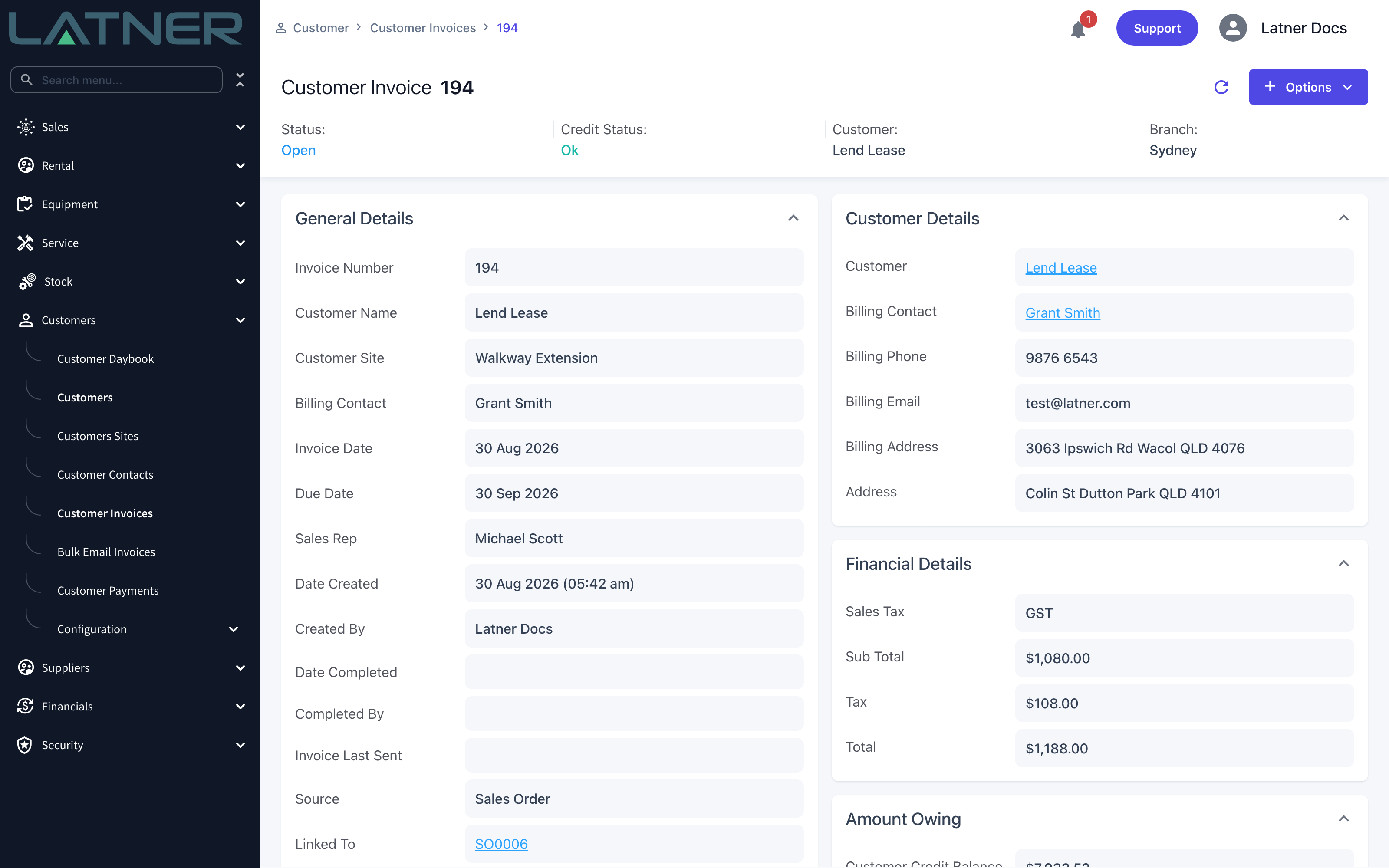
The invoice appears on the order's Invoices tab, and in the full list under Customers › Customer Invoices.
-
On the invoice, Source reads Sales Order and Linked To points back at the order. The order's purchase order number and sales rep are copied across, and the due date comes from the customer's payment terms.
-
Equipment on an Asset/Equipment line is sold immediately, with a Sold movement recorded against it. If the line had Convert to Customer Owned ticked, a serialised machine becomes customer owned rather than simply sold, so you can keep servicing it.
-
Stock and Serialized Stock only leave the warehouse when the invoice reaches Completed, either because the setting defaults it there or because someone runs Options › Complete Invoice on the invoice.
Once every line is fully invoiced the order locks down: you cannot add or delete lines, reopen it or cancel it, and you cannot swap the stock, serial number or equipment on an invoiced line. If something was billed wrongly, run Options › Cancel Customer Invoice on the invoice rather than crediting it. Cancelling gives the quantities back, reverses the equipment sale and returns the order to Quoted or Partially Invoiced; a credit note only adjusts the money and leaves the order looking invoiced.
FAQs
Watch the Demo
Prefer to watch it? Step through the same flow here.