
Pre Sale Inspections let you check a serialized machine against a checklist before it leaves the yard, so nothing goes out to a buyer without a documented condition and function check.
Overview
Selling a machine is not the same as hiring one out. There is no return inspection to catch a missing manual or a leaking hose, so the check has to happen before the unit ships. Latner can raise that check for you automatically, off the back of the sales order.
-
Pre Sale Inspections are raised against a Serialized Stock line on a Sales Order, not against an equipment number.
-
They are switched on in two places: a global setting, and a tick box on each Serialized Stock record.
-
Latner creates the inspection when the Sales Order leaves Open status - normally when you use Mark as Quoted or Email Sales Order.
-
The checklist that gets attached is the Pre Sale Checklist named on the Serialized Stock record. There is no class or model fallback for this inspection type.
-
Only one Pre Sale Inspection is ever raised per sales order line.
-
The inspection cannot be completed until a Serialized Stock Item (a serial number) is on it.
Before You Begin
Three things need to be in place before Latner will raise a Pre Sale Inspection.
|
Requirement |
Where to Find It |
|---|---|
|
Create Pre Sale Inspection after adding Serialized Stock to Sales Order switched on |
Security › Settings › Global › Equipment |
|
A checklist template of type Pre Sale |
Equipment › Configuration › Checklist Templates |
|
Serialized Stock and Edit Serialized Stock permissions |
Security › Configuration › Permission Groups › Stock |
|
Inspection and Complete Inspection permissions |
Security › Configuration › Permission Groups › Equipment |
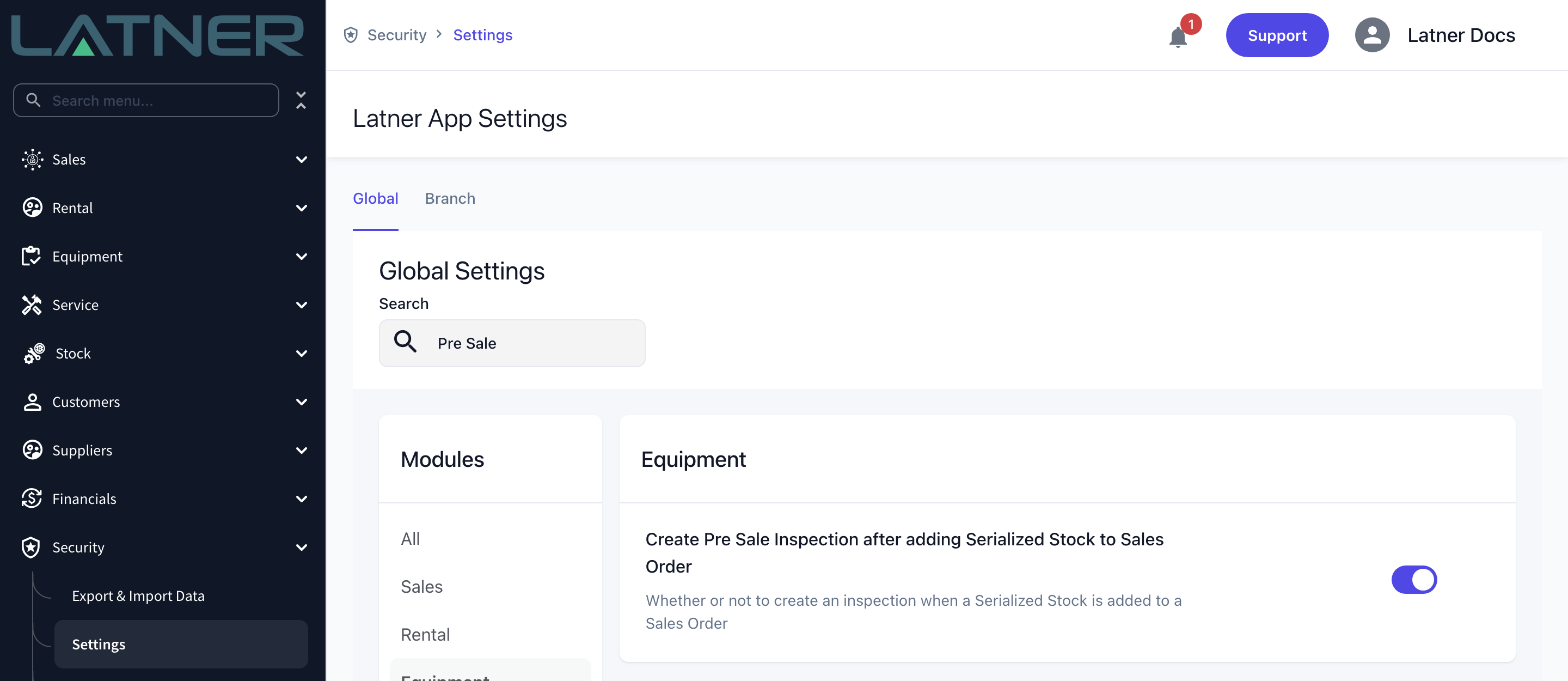
If you turn the setting off later, inspections that already exist are left alone - Latner simply stops raising new ones. Existing Open inspections still have to be completed or cancelled.
Setting Up the Serialized Stock
The global setting decides whether the feature is available. Each Serialized Stock record decides whether it applies to that product.
Step 1 - Open the Serialized Stock record
Go to Stock › Serialized Stock and open the stock number you sell as a machine, for example a generator or a compressor.
Step 2 - Tick Pre Sale Inspections and choose a checklist
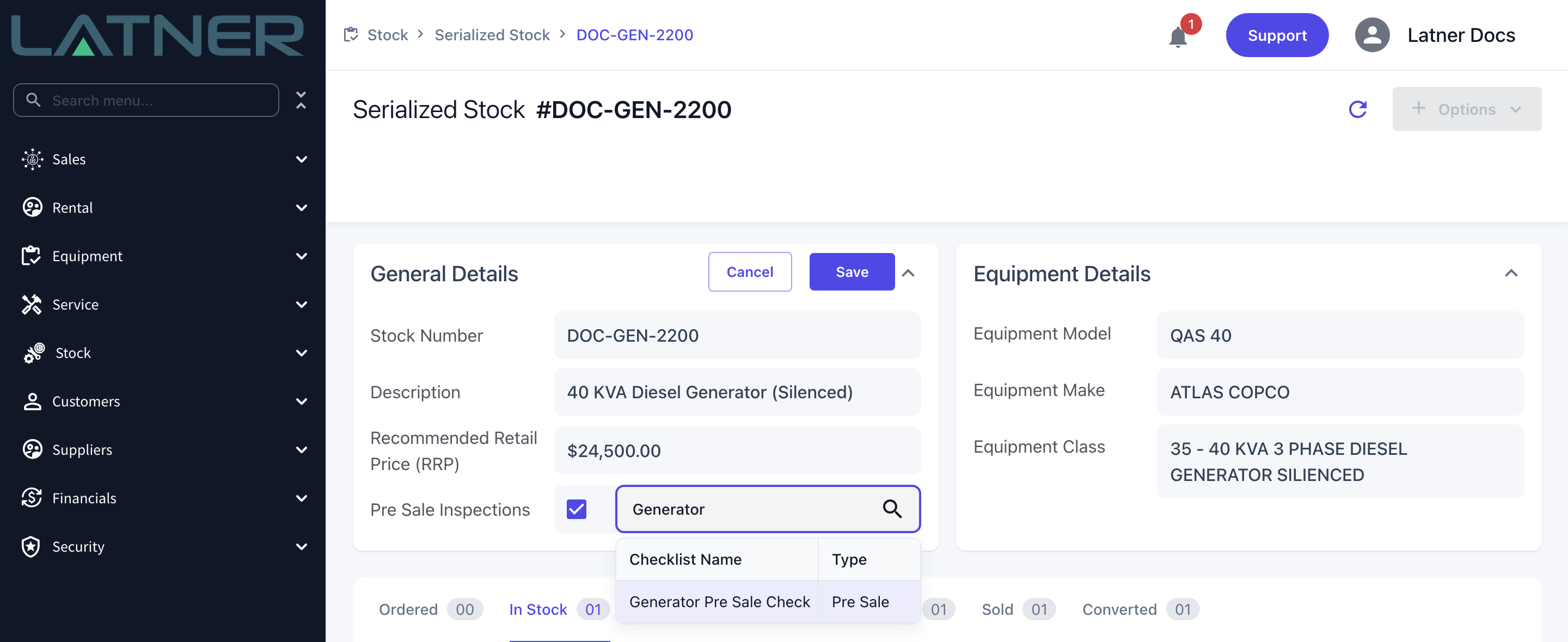
In the General Details card, click the Pre Sale Inspections row to put it into edit mode, tick the box, then search the Pre Sale Checklist field for the checklist you want to use.
-
Pre Sale Inspections - the switch. With this unticked, no inspection is raised for this stock number no matter what the sales order does.
-
Pre Sale Checklist - the checklist template copied onto every inspection raised for this stock number.
Step 3 - Save
Click Save in the card header. The saved row shows the tick and the checklist name together.
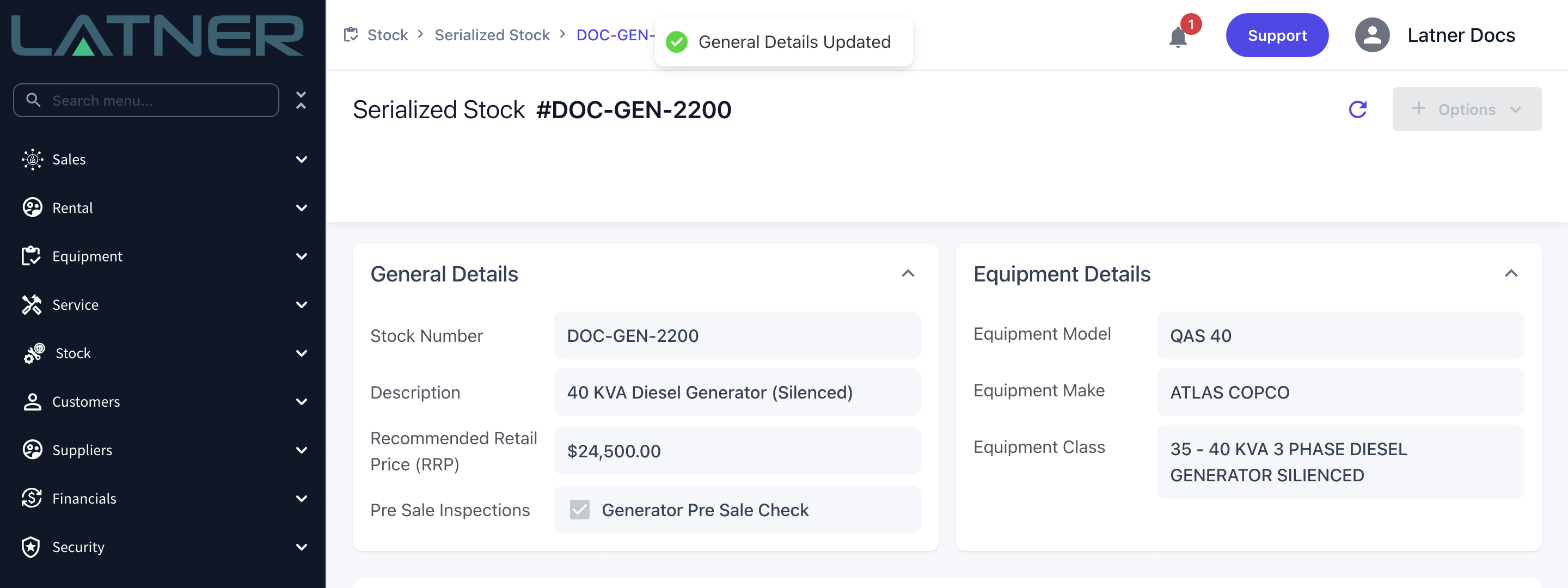
This is the only place a Pre Sale checklist can be set. Unlike Run Up and Return checklists, a Pre Sale Inspection does not fall back to the Equipment Class or Model, so a stock number with the box ticked but no checklist named raises an inspection with no checklist on it.
Creating the Pre Sale Inspection
With the setup done, the inspection comes out of the normal sales process.
Step 4 - Add a Serialized Stock line to the Sales Order
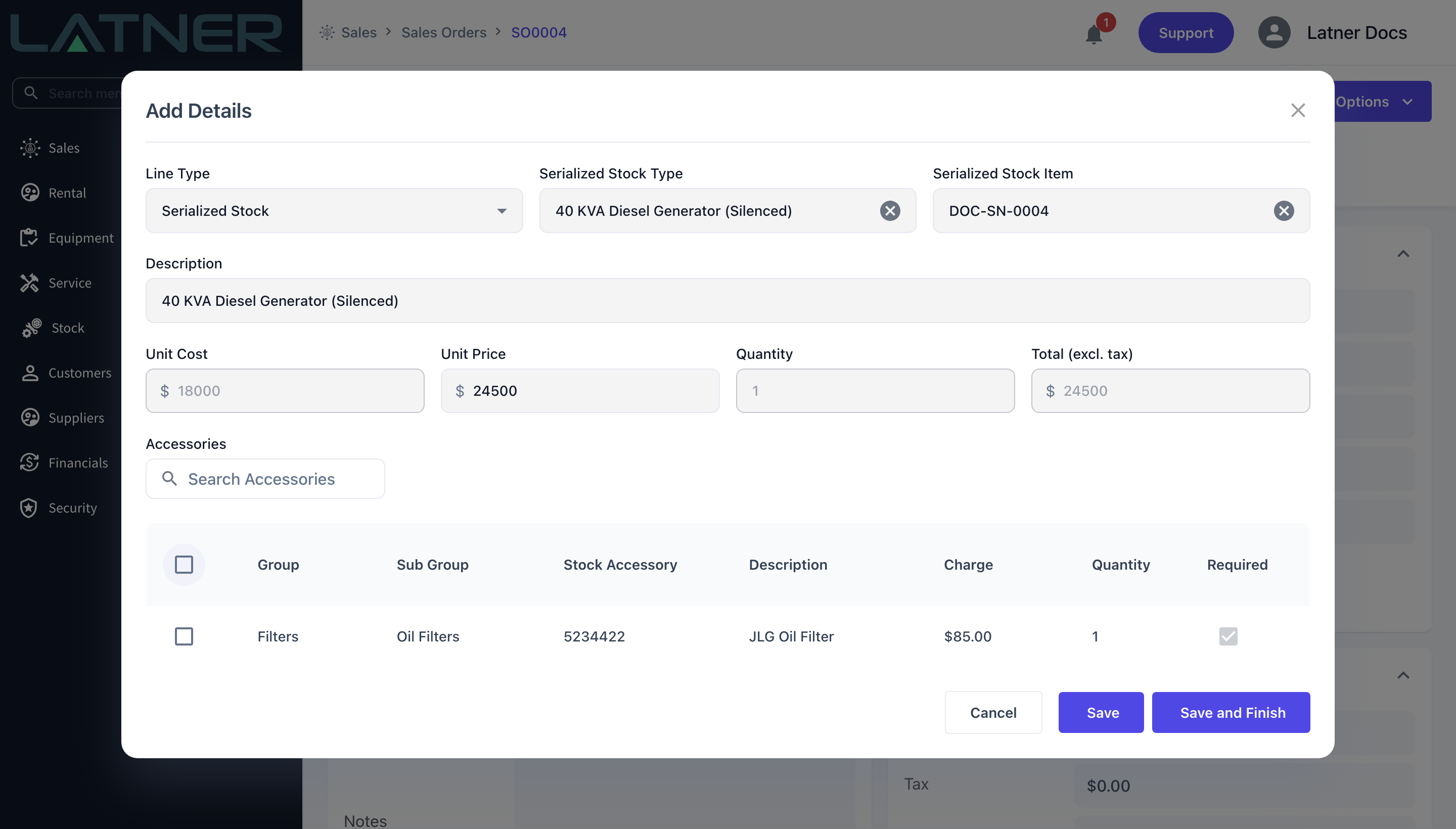
Open the Sales Order and choose Options › Add Sales Order Detail. Set Line Type to Serialized Stock and fill in the line.
-
Serialized Stock Type - required. The stock number you set up in Step 2.
-
Serialized Stock Item - optional here, but the inspection cannot be completed without it. The search only offers items with a status of In Stock.
-
Unit Price and Quantity - default from the stock record and the serial number you pick.
-
Accessories - anything ticked here is added as its own stock line under the machine.
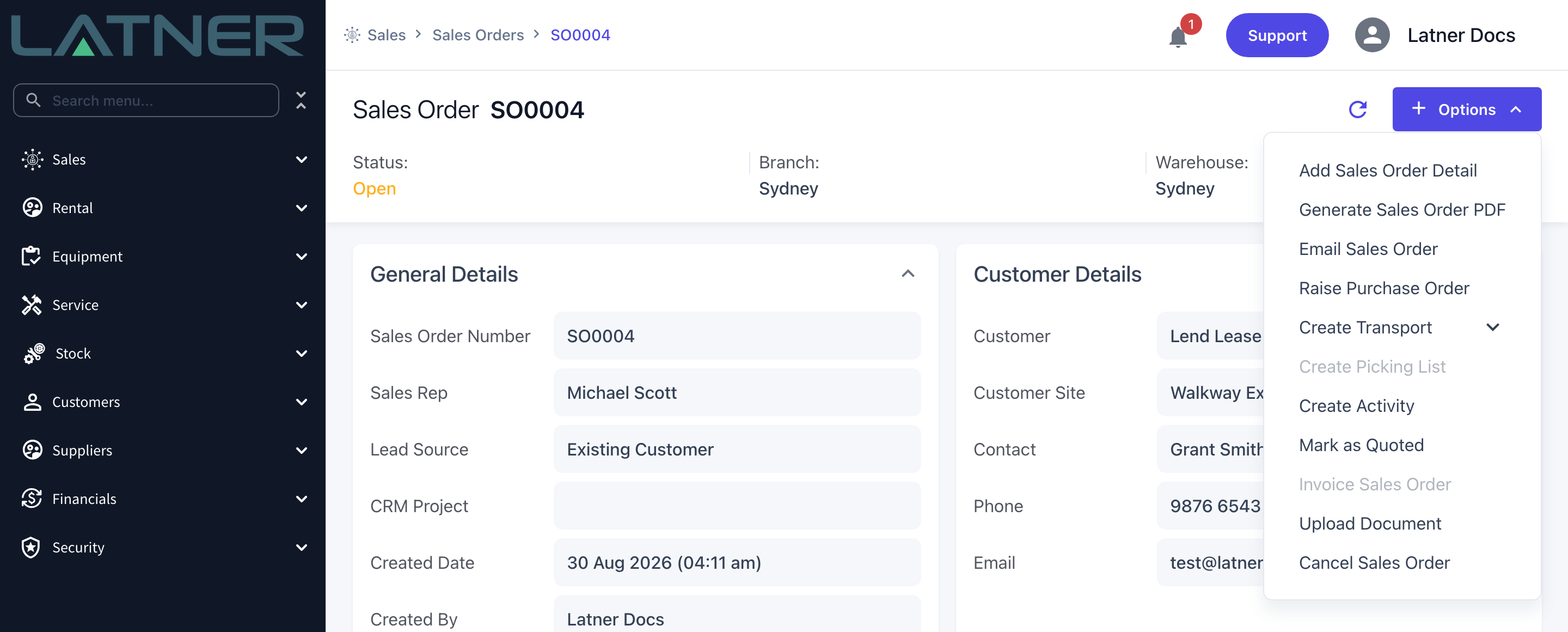
Step 5 - Mark the Sales Order as Quoted
Nothing happens while the order is still Open. Choose Options › Mark as Quoted, and Latner raises a Pre Sale Inspection for every Serialized Stock line on the order that doesn't already have one. Email Sales Order does the same thing, because sending the quote also moves the order to Quoted.
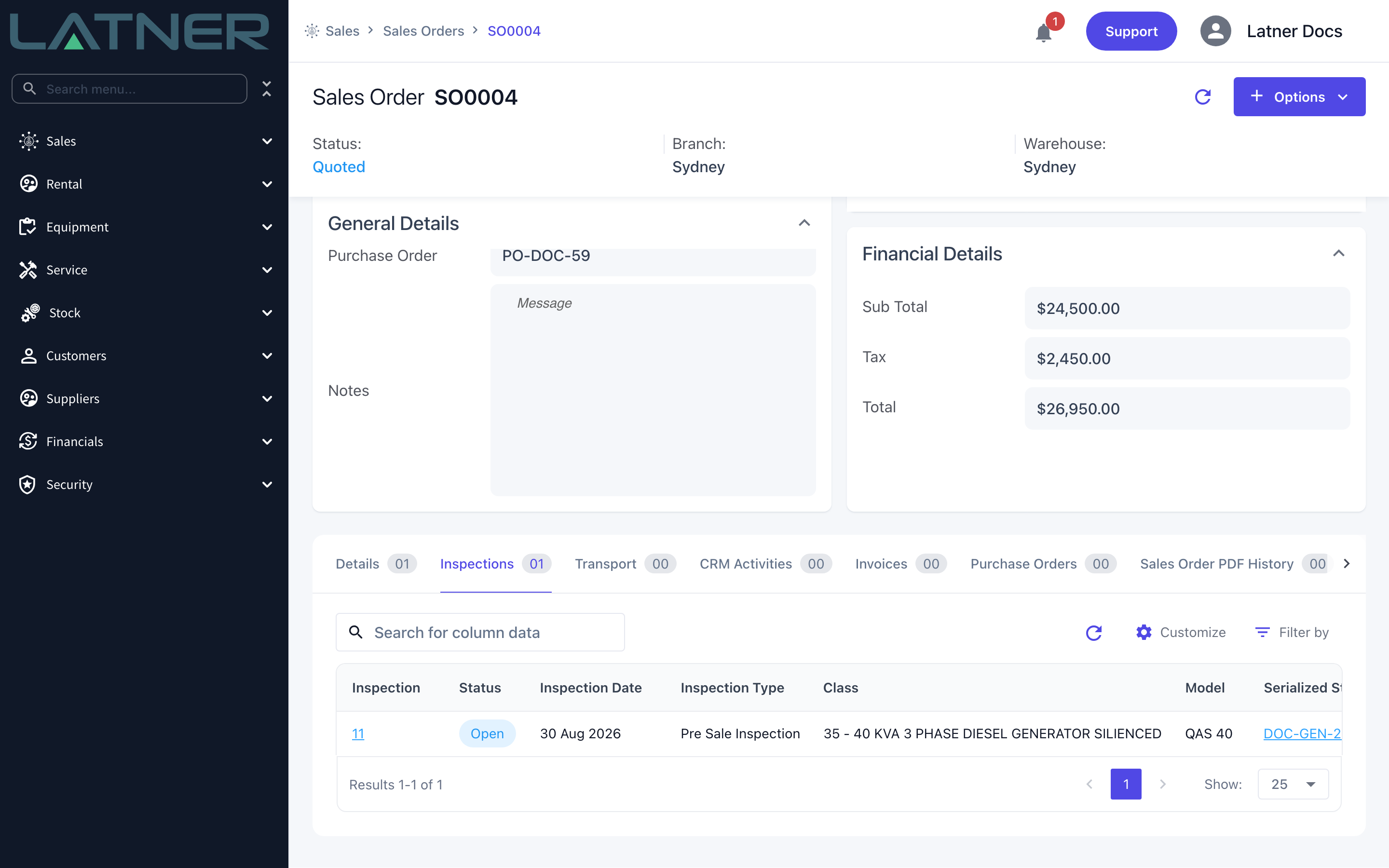
Step 6 - Check the Inspections tab
The new inspection is listed on the Sales Order's Inspections tab, with a status of Open and a type of Pre Sale Inspection.
Working the Inspection
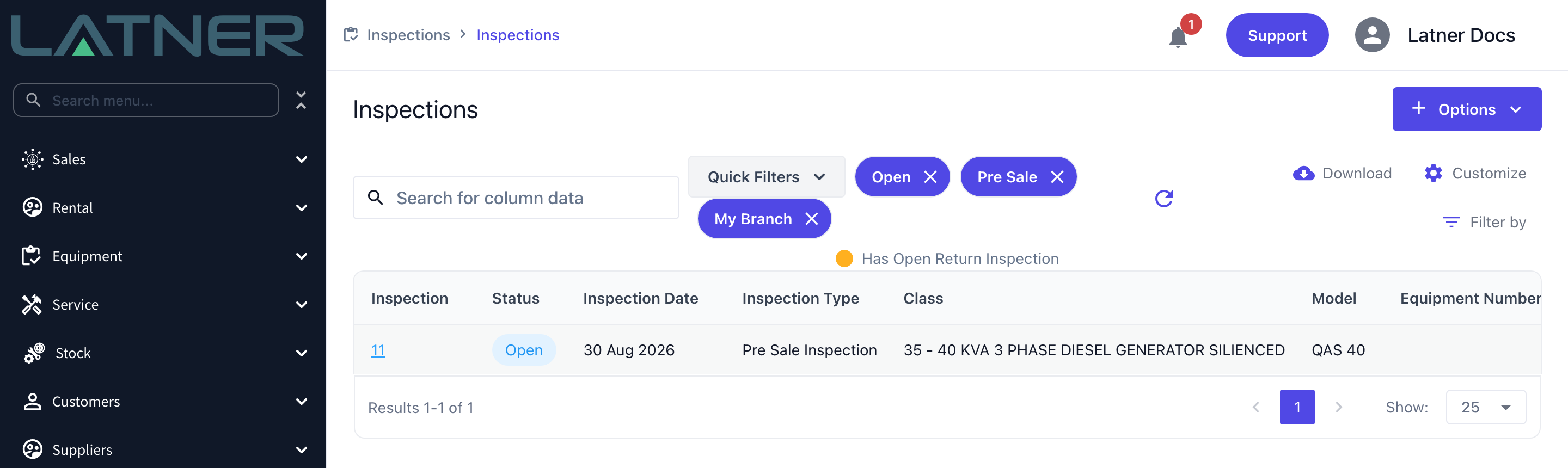
Step 7 - Find it on the Inspections screen
Go to Equipment › Inspections and use the Pre Sale quick filter to see only this type. The default My Branch filter uses the Sales Order's branch, so clear it if you are looking at another yard's work.
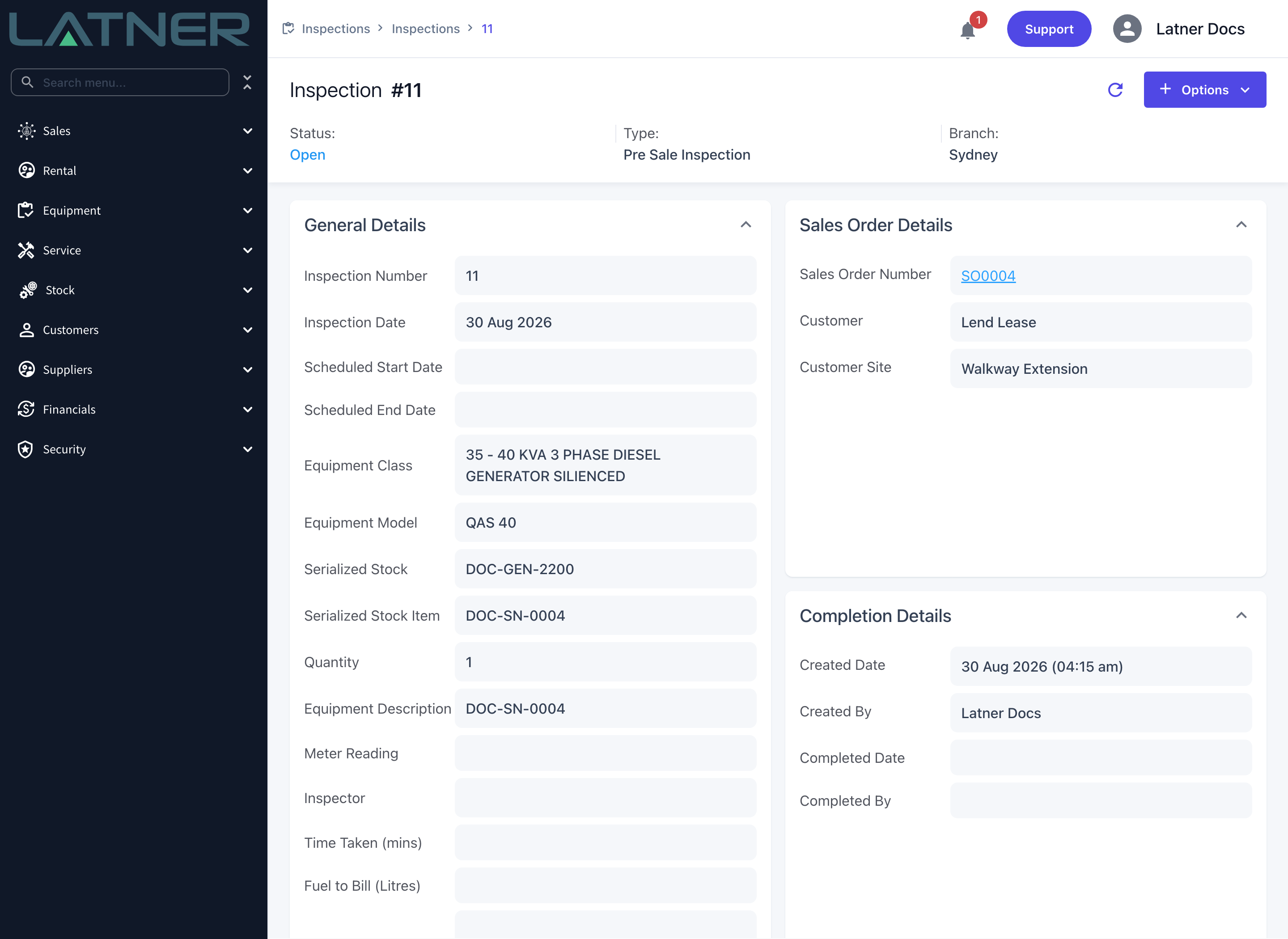
Step 8 - Review the inspection
A Pre Sale Inspection looks a little different to the others. There is no Equipment Number field, because you are inspecting stock rather than a fleet asset.
-
Serialized Stock - read only, taken from the sales order line.
-
Serialized Stock Item - the serial number being sold. You can pick it here if the sales order line doesn't have one yet; once the line has a serial number, the field is locked.
-
Sales Order Details - a link straight back to the order, plus the customer and site.
Step 9 - Answer the checklist
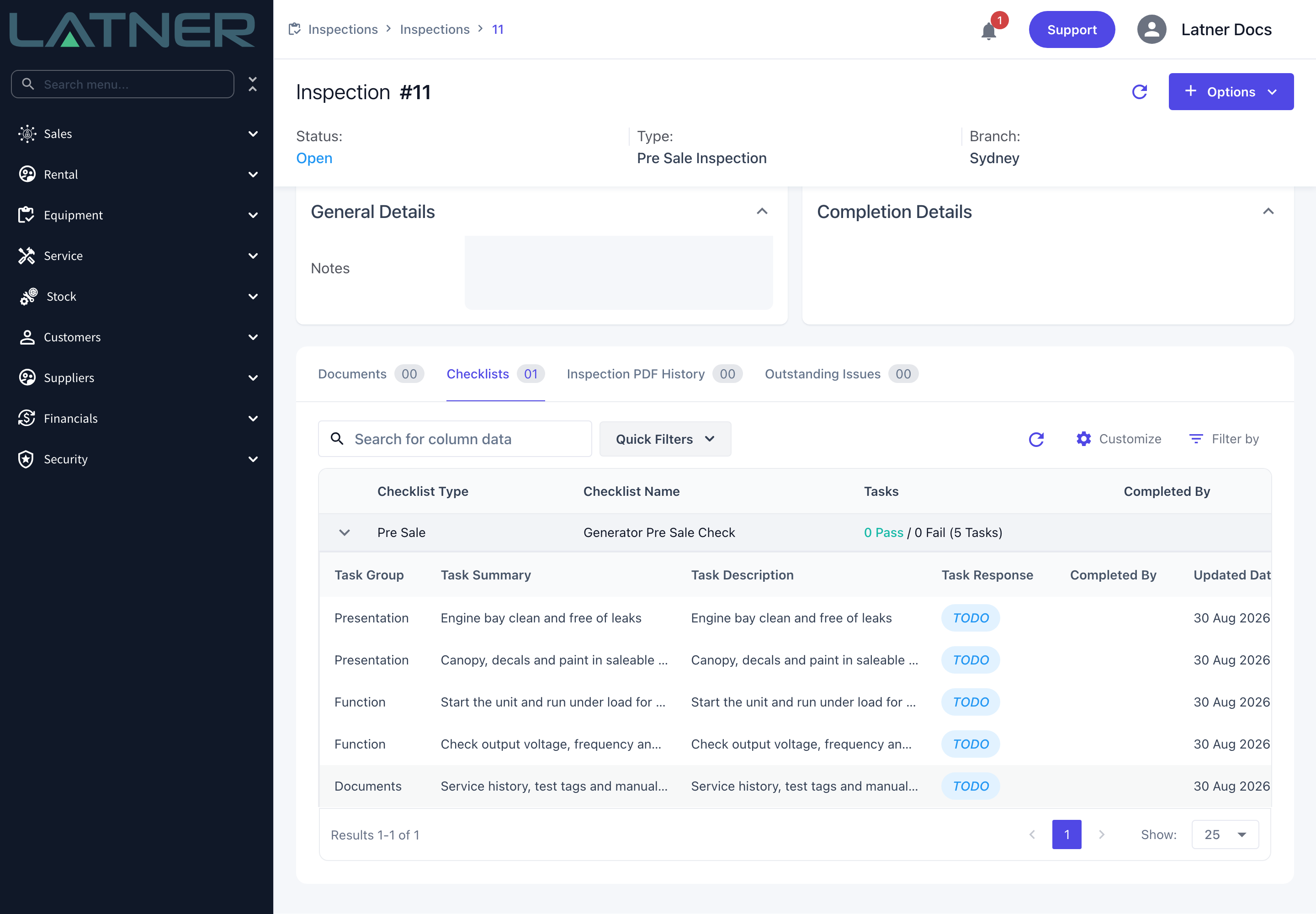
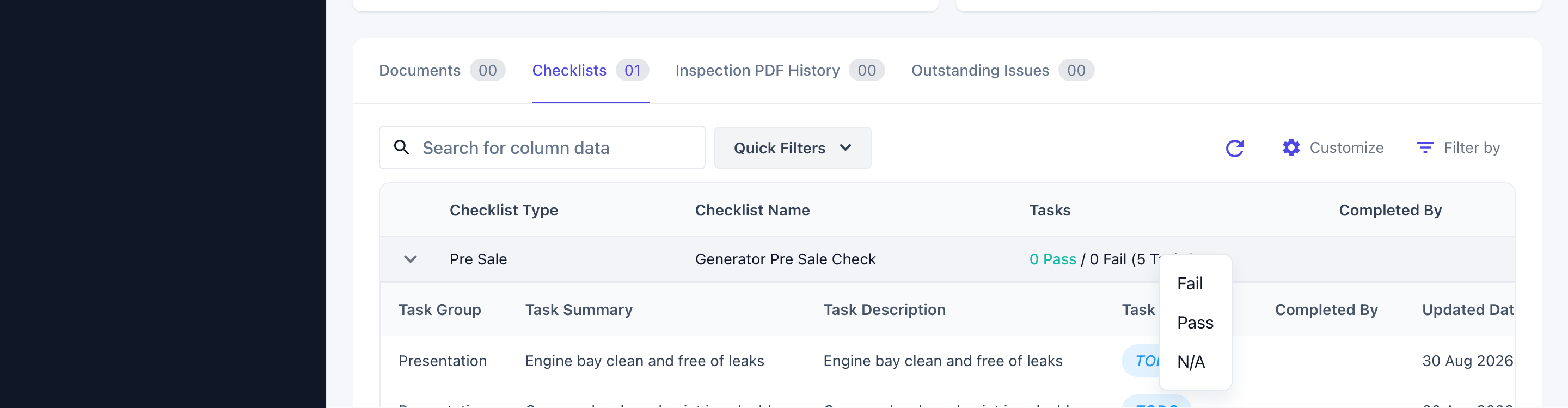
Open the Checklists tab and expand the checklist to see its tasks. Every task starts as TODO. Right click a task's response to set it to Pass, Fail or N/A - a left click just reminds you to right click.
Step 10 - Complete the inspection
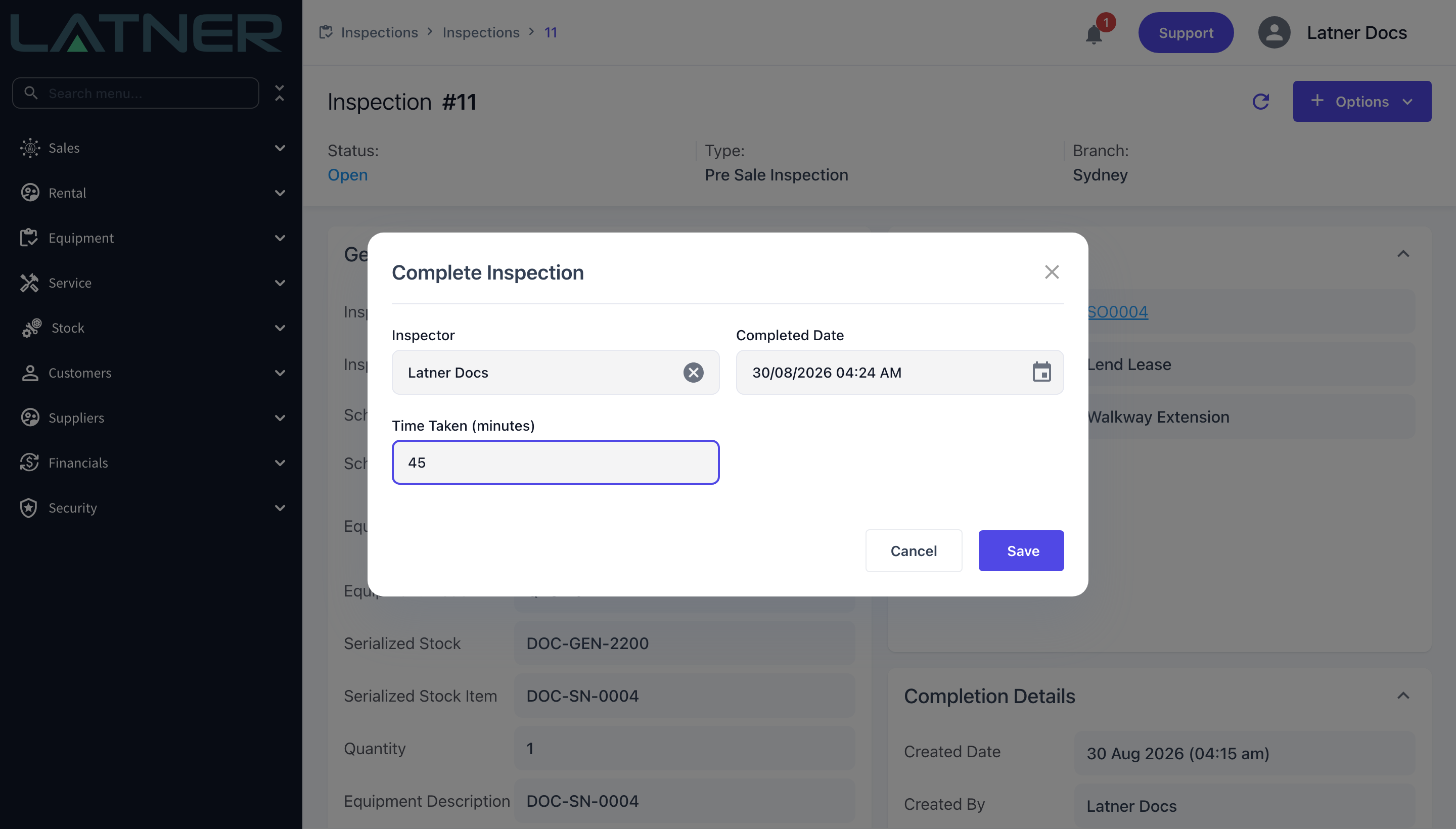
Choose Options › Complete Inspection, confirm the Inspector and Completed Date, enter the Time Taken (minutes) and click Save.
After Completion
-
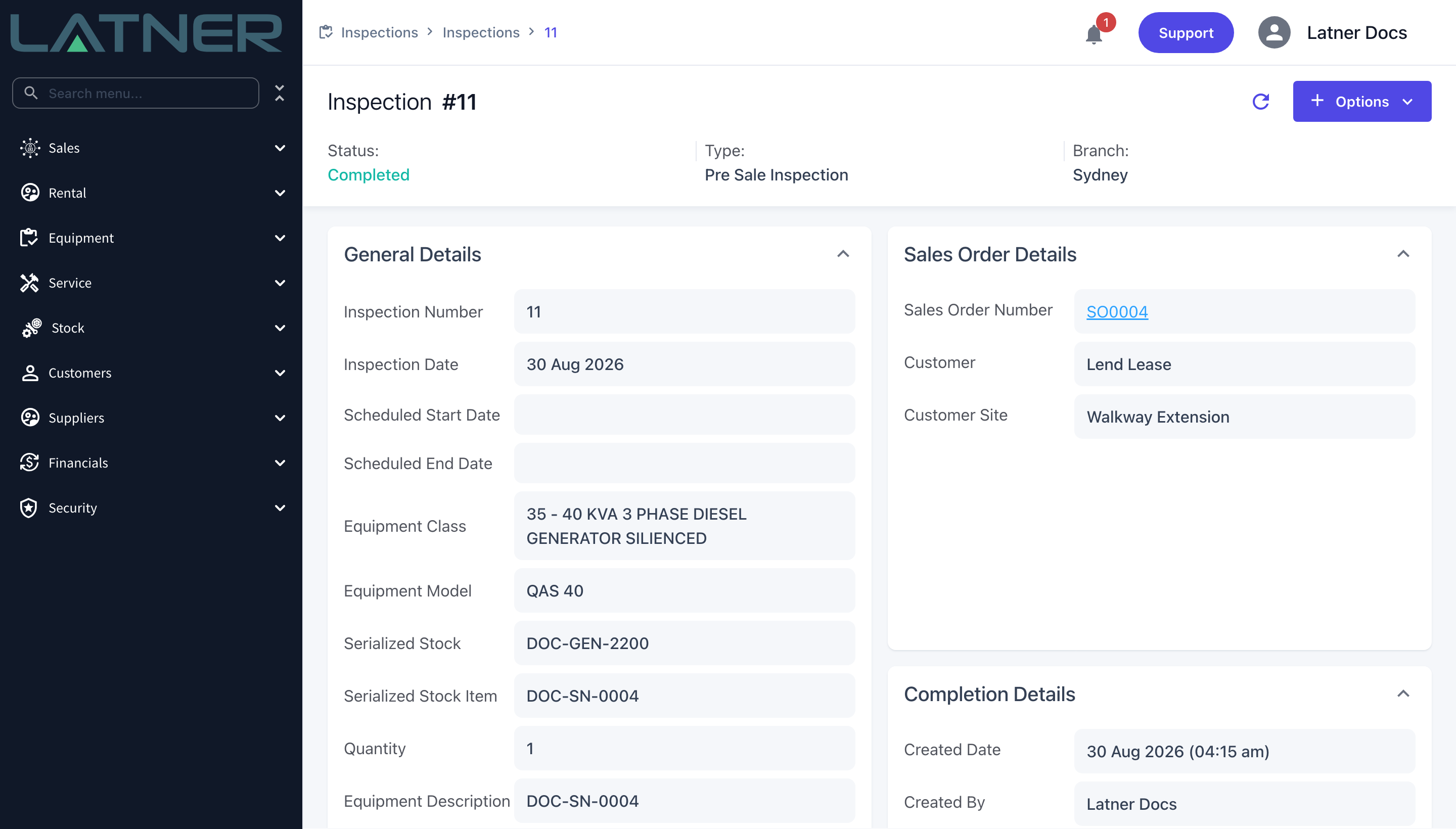
The inspection moves to Completed and the Completion Details card records who completed it and when.
-
A checklist PDF is generated and filed under the Inspection PDF History tab.
-
A timesheet entry is created for the inspector from the time taken.
-
If a checklist task was marked Fail and Failed Inspection Checklist Points Require Approval is switched on, the inspection goes to Pending Approval instead of Completed, and someone with the Approve Inspection Completion permission has to sign it off.
-
Nothing on the serialized stock item's status changes - completing the inspection records the check, it does not move or reserve the machine.
Cancelling the Sales Order automatically cancels any Open or Pending Approval Pre Sale Inspection on it, with a cancellation note explaining why. A cancelled inspection cannot be reopened, and Latner will not raise a replacement for that line. If the sale is going ahead after all, raise a new Sales Order rather than trying to revive the cancelled inspection.
FAQs
Watch the Demo
Prefer to watch it? Step through the same flow here.