
Sales order details are the lines that make up the sale - the parts, serialised items, machines, labour and charges the customer is actually being billed for.
Overview
A new sales order starts out empty. Adding details is where the sale takes shape: each line says what is being sold, at what price, in what quantity, and where it is coming from.
-
Lines are added one at a time from the sales order itself, through Options › Add Sales Order Detail.
-
There are six line types - Admin, Asset/Equipment, Stock, Serialized Stock, Transport and Labour. The line type decides which fields the form asks for.
-
Latner numbers the lines for you in the order you add them, and recalculates the sales order's sub total, tax and total after every save.
-
Stock, serialised and equipment lines reserve what they sell as soon as the line is saved, so nobody else can hire or sell the same item out from under you.
-
Details can only be added while the sales order is Open. Once it is quoted, invoiced or cancelled, the option is greyed out.
-
Accessories configured against a serialised item come across as their own linked sub-lines, so they price and pick separately.
Before You Begin
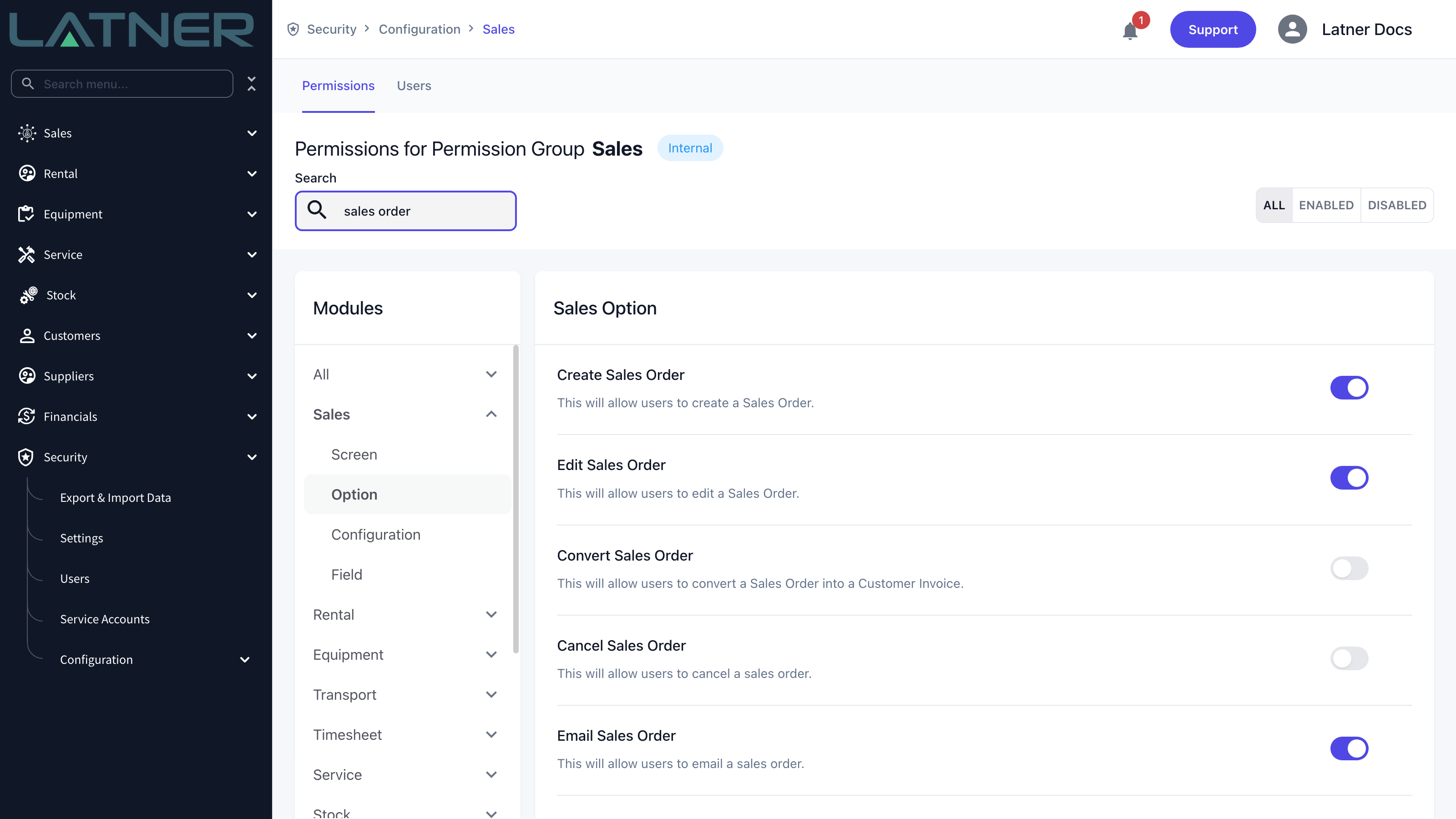
Two permissions cover the whole flow, and the sales order itself has to be in the right state.
|
Requirement |
Where to Find It |
|---|---|
|
Sales Order permission - lets you open the sales order and see its Details tab |
Security › Configuration › Permission Groups › Sales › Screen |
|
Create Sales Order permission - lets you add detail lines |
Security › Configuration › Permission Groups › Sales › Option |
|
Edit Sales Order permission - lets you change or delete a line once it is there |
Security › Configuration › Permission Groups › Sales › Option |
|
A sales order with the status Open |
Sales › Sales Orders |
|
Stock, serialised stock or equipment held at the sales order's branch |
Stock › Parts, Stock › Serialized Stock, Equipment › Equipment |
Permissions are granted per branch, and the item lookups on the form are filtered to the sales order's own branch. If a stock number or machine you expect isn't in the list, check which branch it is held at before assuming it doesn't exist.
Adding a Detail Line
Step 1 - Open the sales order and start the form
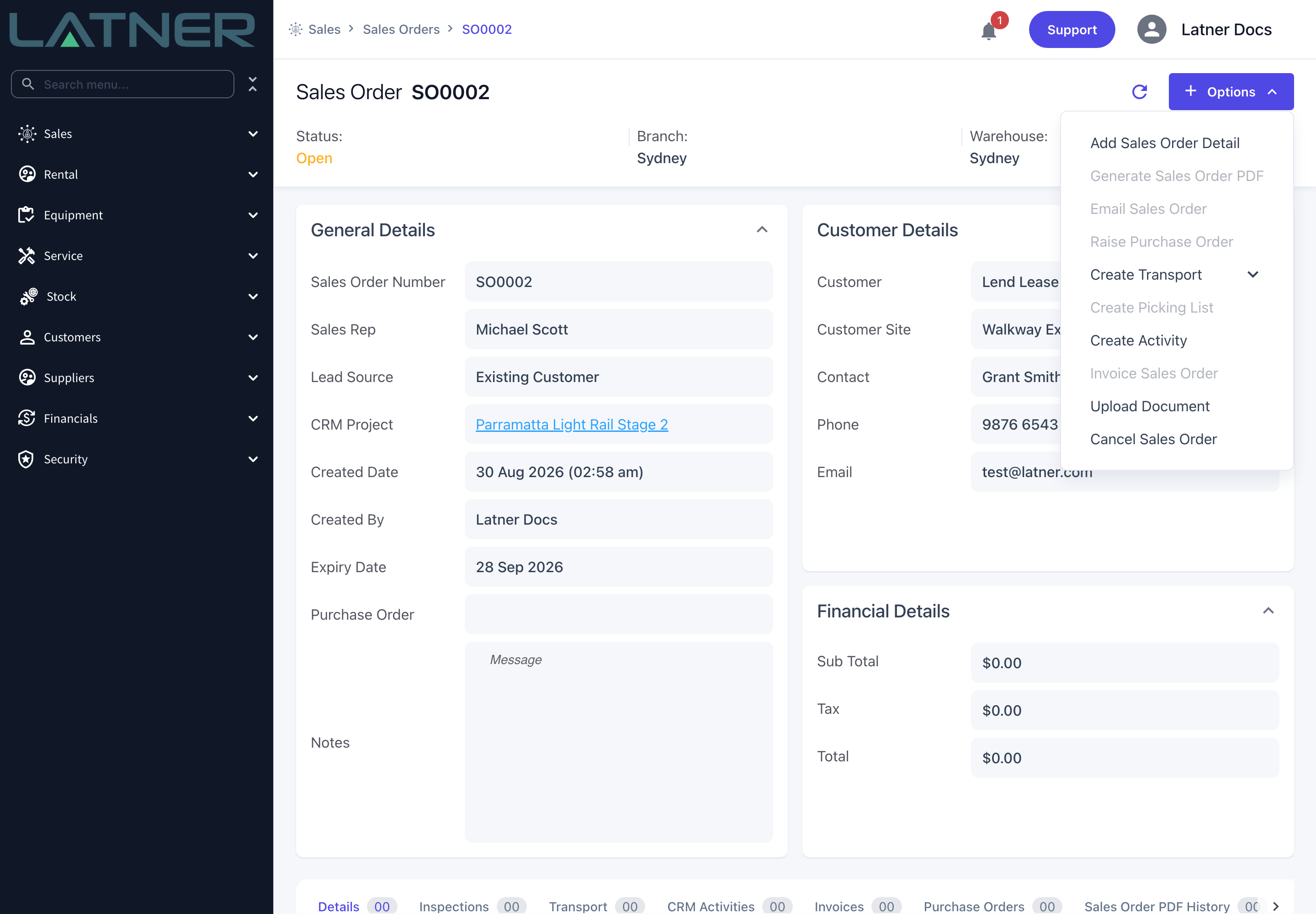
Go to Sales › Sales Orders and open the order you're working on, then choose Options › Add Sales Order Detail. The Add Details dialog opens.
Step 2 - Choose the line type
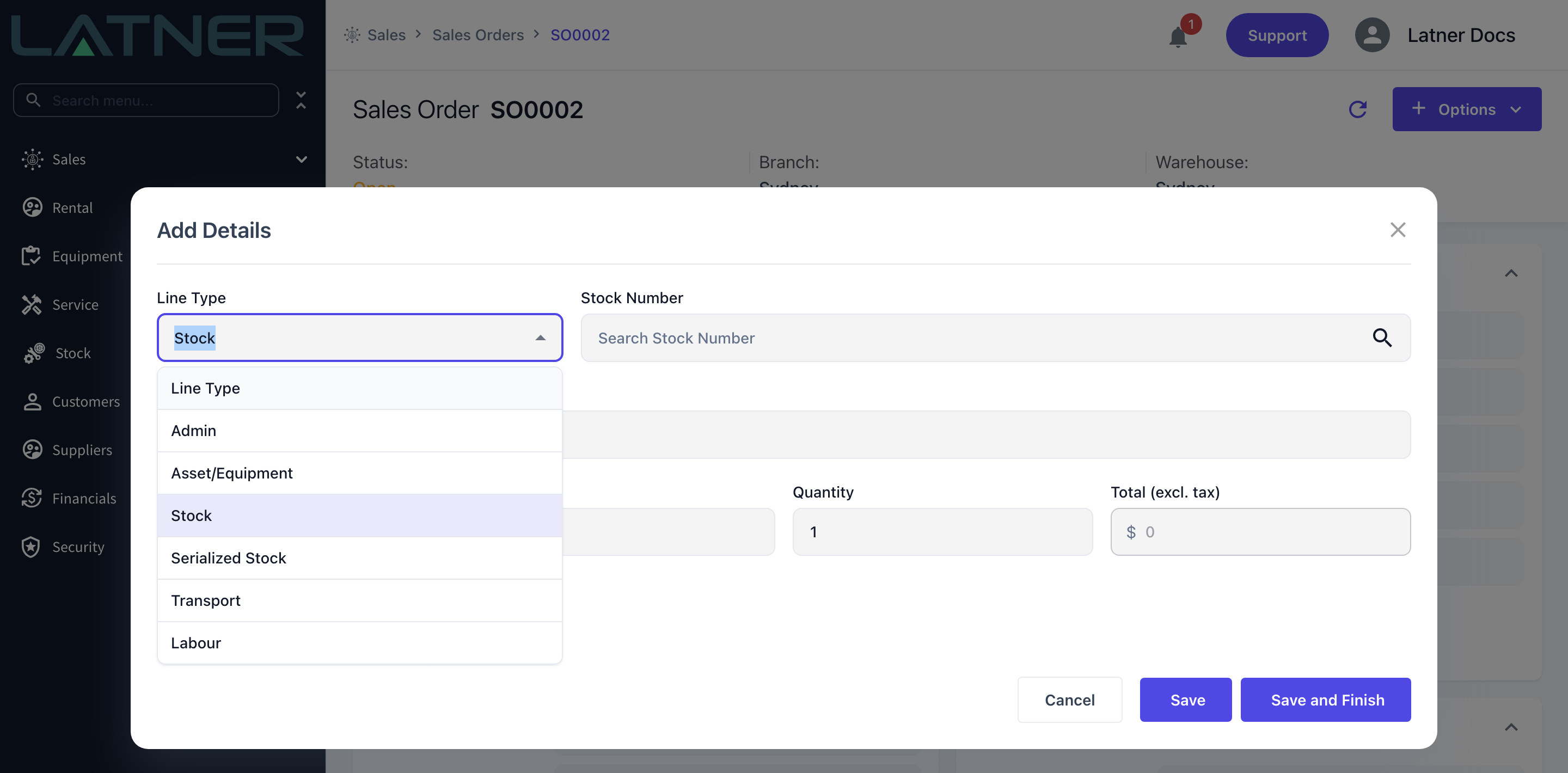
Line Type is the first field and it drives the rest of the form. It starts on Stock; change it and the fields underneath change with it.
-
Admin - a standing charge from your admin charge list, such as an environmental levy or a credit card surcharge.
-
Asset/Equipment - a machine out of your own rental fleet.
-
Stock - a part or consumable held in a warehouse.
-
Serialized Stock - a serialised item bought in for resale, optionally down to a specific serial number.
-
Transport - a delivery or pick up charge.
-
Labour - time from your labour service list, such as a machine operator or a mechanic.
Step 3 - Choose what you're selling
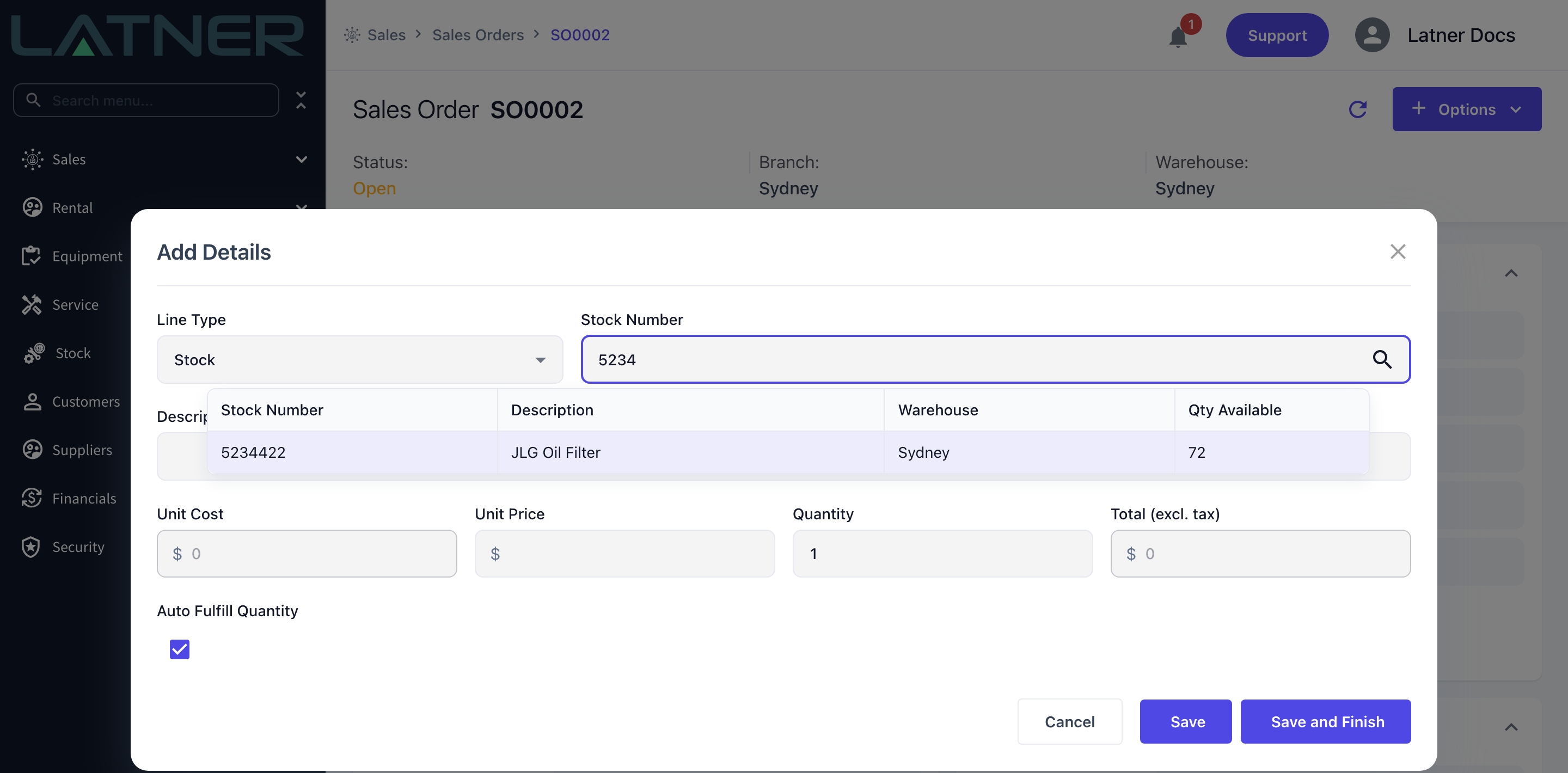
The lookup next to Line Type is the one required field for most line types. Start typing and pick a row from the results.
-
Stock Number - searchable by number, description, warehouse and quantity available, and limited to the sales order's branch.
-
Serialized Stock Type and Serialized Stock Item - the type is required, the individual serial is optional. Only serials that are In Stock are listed.
-
Equipment Class, Equipment Model and Equipment Number - narrow down to a specific machine, or leave the number blank to record the sale against a class or model for now.
-
Admin Charge or Labour Service - required on Admin and Labour lines.
-
Transport lines have no lookup at all - just type a description.
Whatever you pick fills in the Description for you. You can overwrite it, and it is what prints on the quote and the invoice.
Step 4 - Set the price and quantity
Latner prices the line for you where it can, and works out the total as you type.
-
Unit Cost - shown on Stock and Serialized Stock lines only, and read only. It is the stock's average cost, or the serial's purchase cost, so you can see your margin while you set the price.
-
Unit Price - required. On Stock and Serialized Stock lines it is filled from the customer's or site's sales order rate book, falling back to the stock's retail price or the serialised item's recommended retail price when no rate applies. Admin and Labour lines use the charge's default charge. Everything else starts blank.
-
Quantity - defaults to 1. It must be a whole number on Stock, Serialized Stock and Asset/Equipment lines; only Admin, Transport and Labour lines accept part quantities such as 2.5 hours. Zero and negative quantities are rejected.
-
Total (excl. tax) - read only, unit price multiplied by quantity.
Step 5 - Save the line
There are two save buttons, and the difference matters when you're building a long order.
-
Save - saves the line and clears the form so you can add the next one without reopening the dialog.
-
Save and Finish - saves the line and closes the dialog.
Either way the line appears on the Details tab and the sales order's totals are recalculated.
What Each Line Type Needs
Stock
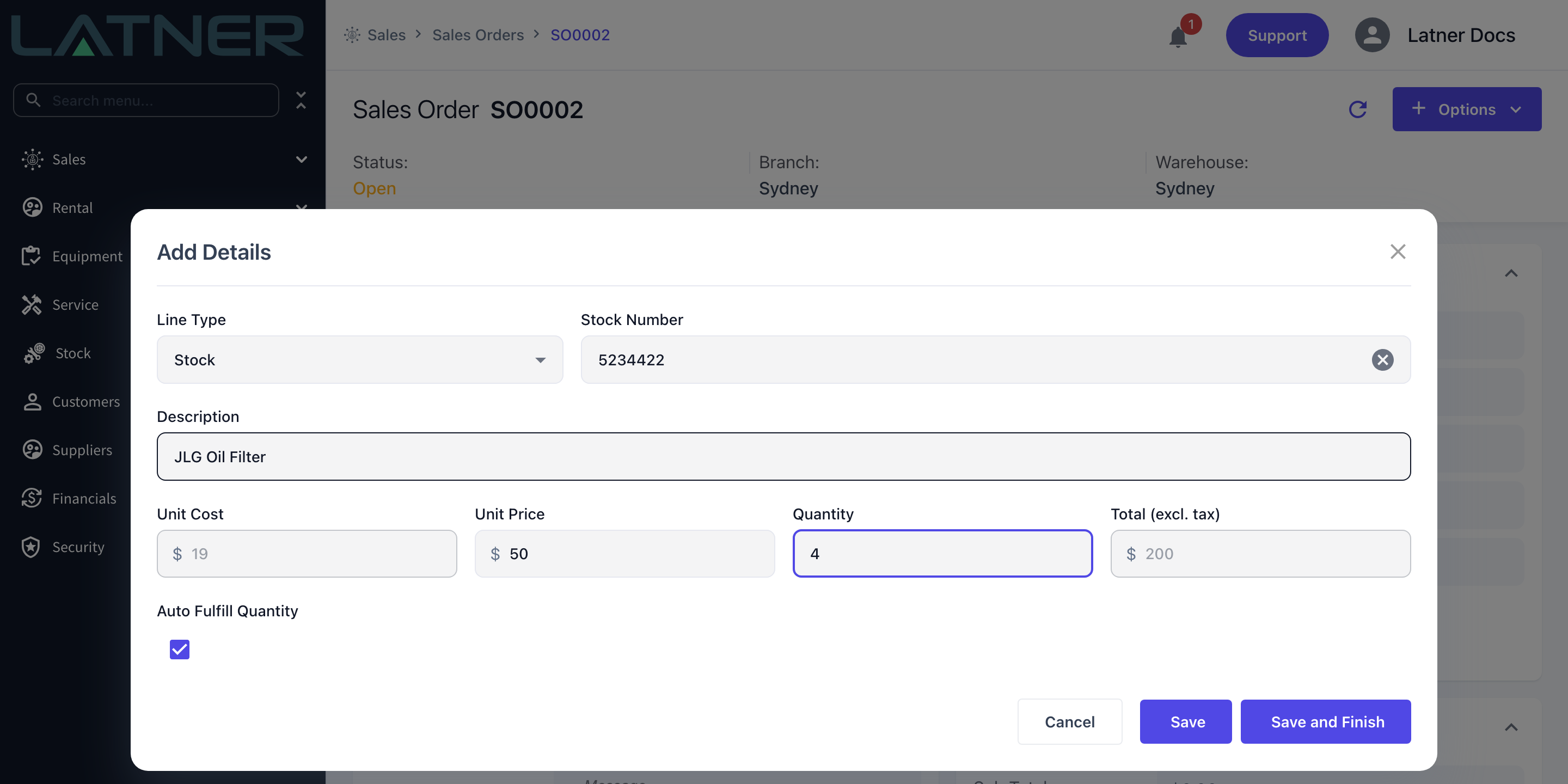
Stock lines carry an extra Auto Fulfill Quantity tick box, on by default. With it ticked, Latner allocates as much of the quantity as the warehouse actually has when you save - so ordering 4 of something with 2 on hand gives you a fulfilled quantity of 2 and leaves the rest outstanding. Untick it and the line is created with nothing fulfilled, which is what you want when the goods are being bought in specially.
Allocated quantity comes out of the warehouse's available figure immediately, so a sales order line reserves parts the same way a picking list does.
Serialized Stock
Quantity is locked to 1 on these lines - a serialised item is sold one at a time. Choosing a Serialized Stock Item allocates that exact serial to the order; leave it blank if you know the model but not yet the unit, and come back to set it later.
If accessories are configured against the serialised stock, they appear in an Accessories table at the bottom of the form. Tick the ones you're including, adjust the charge and quantity, and each ticked row is created as its own linked Stock sub-line numbered under the parent - 2.1, 2.2 and so on. Accessories flagged as Required are ticked for you.
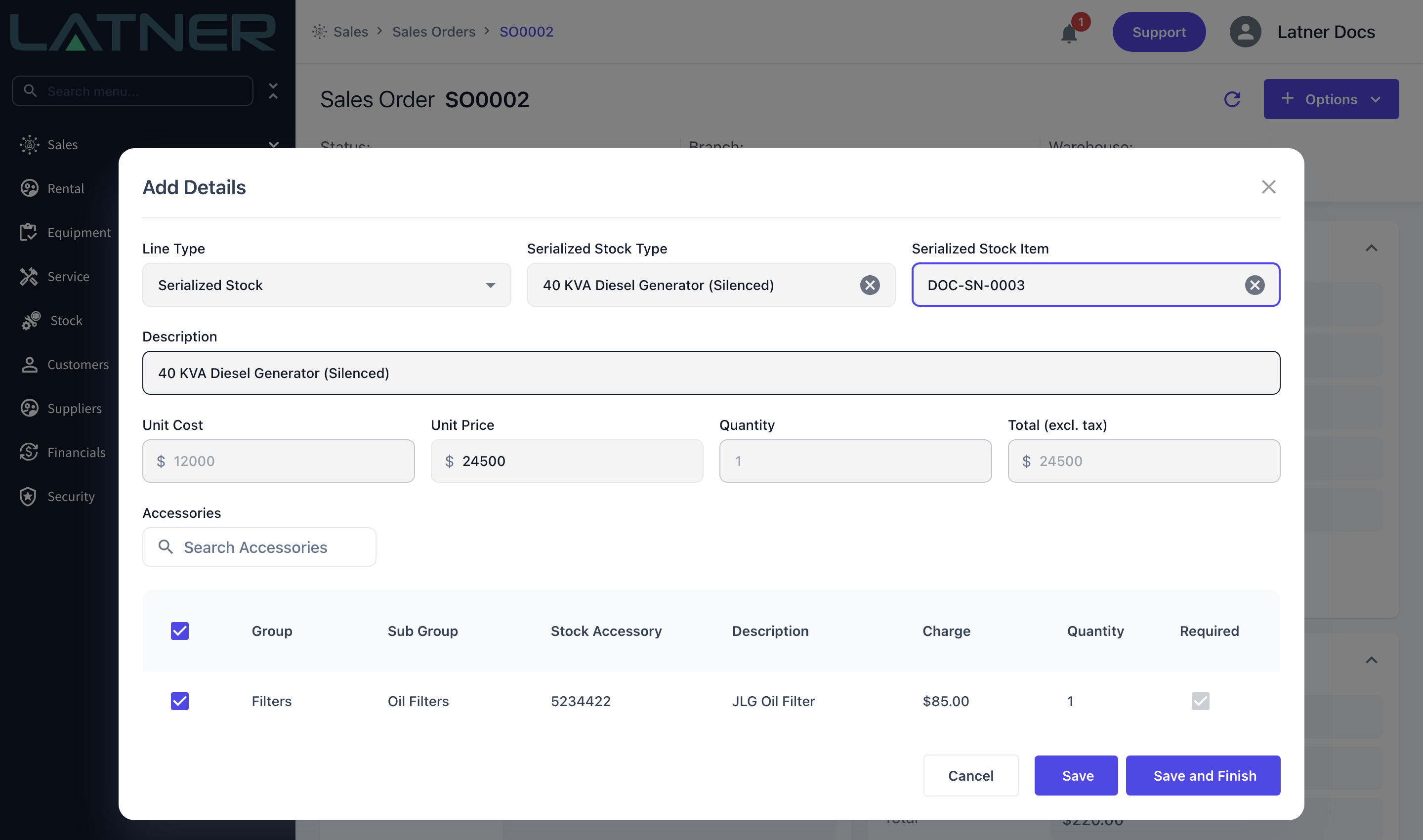
Accessory sub-lines are created without a fulfilled quantity. If the accessory is coming out of stock, open the sub-line and set Qty Fulfilled so the parts are allocated.
Asset/Equipment
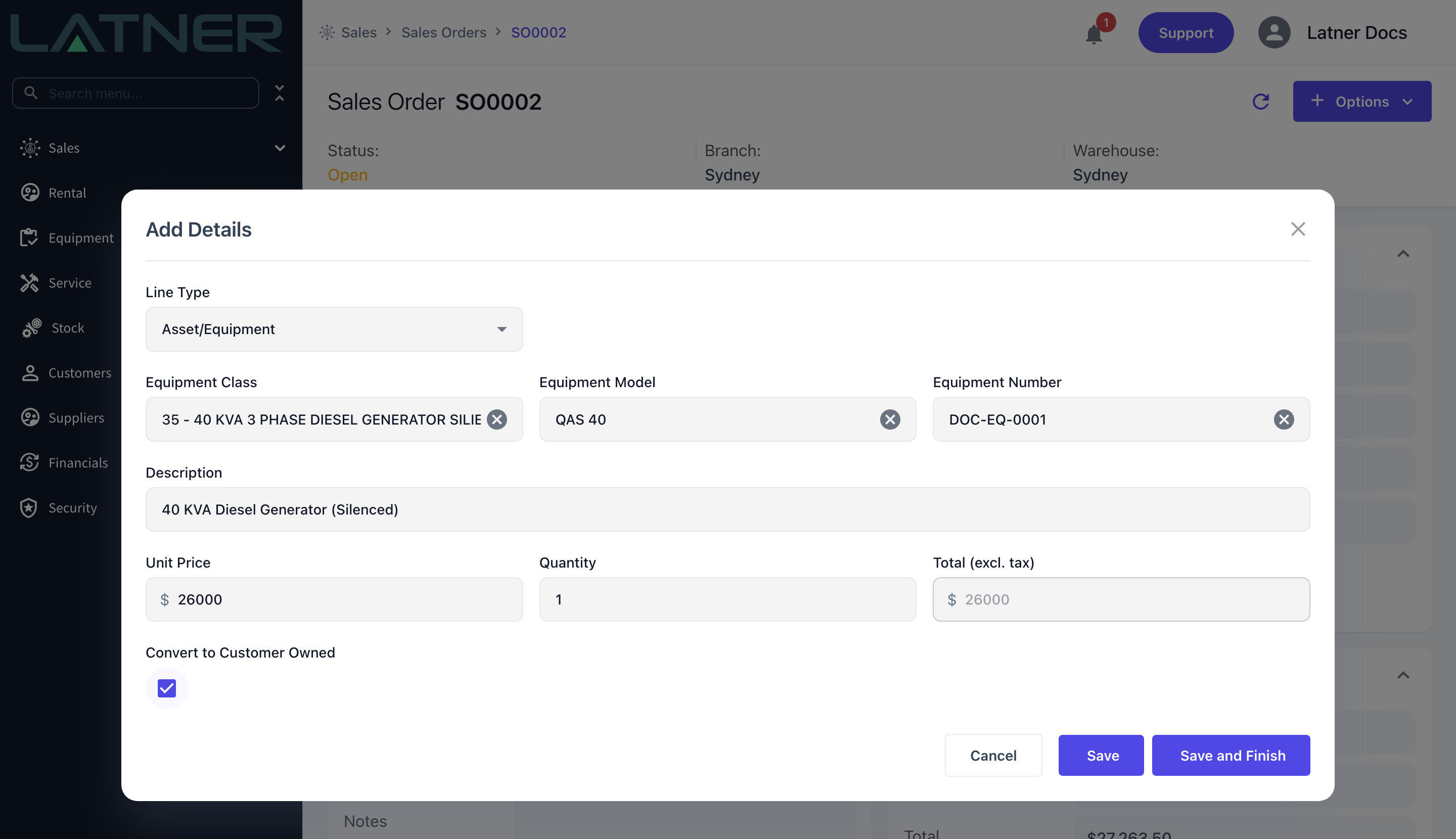
Use this line type when you're selling a machine out of your own fleet. The Equipment Number list is limited to rentable equipment at the sales order's branch. Picking a machine reserves it on the spot: serialised equipment moves to a rental status of Reserved for Sale, and bulk equipment has the quantity moved from available to reserved.
Serialised equipment can only be sold one at a time, so the quantity has to stay at 1. Bulk equipment can be sold in multiples, up to the quantity available.
Convert to Customer Owned is the one extra field. Tick it when the machine is staying on your books as customer owned equipment after the sale - Latner converts it and attaches it to the sales order's site when the line is invoiced (or sold without invoice), instead of simply marking it sold.
Admin, Labour and Transport
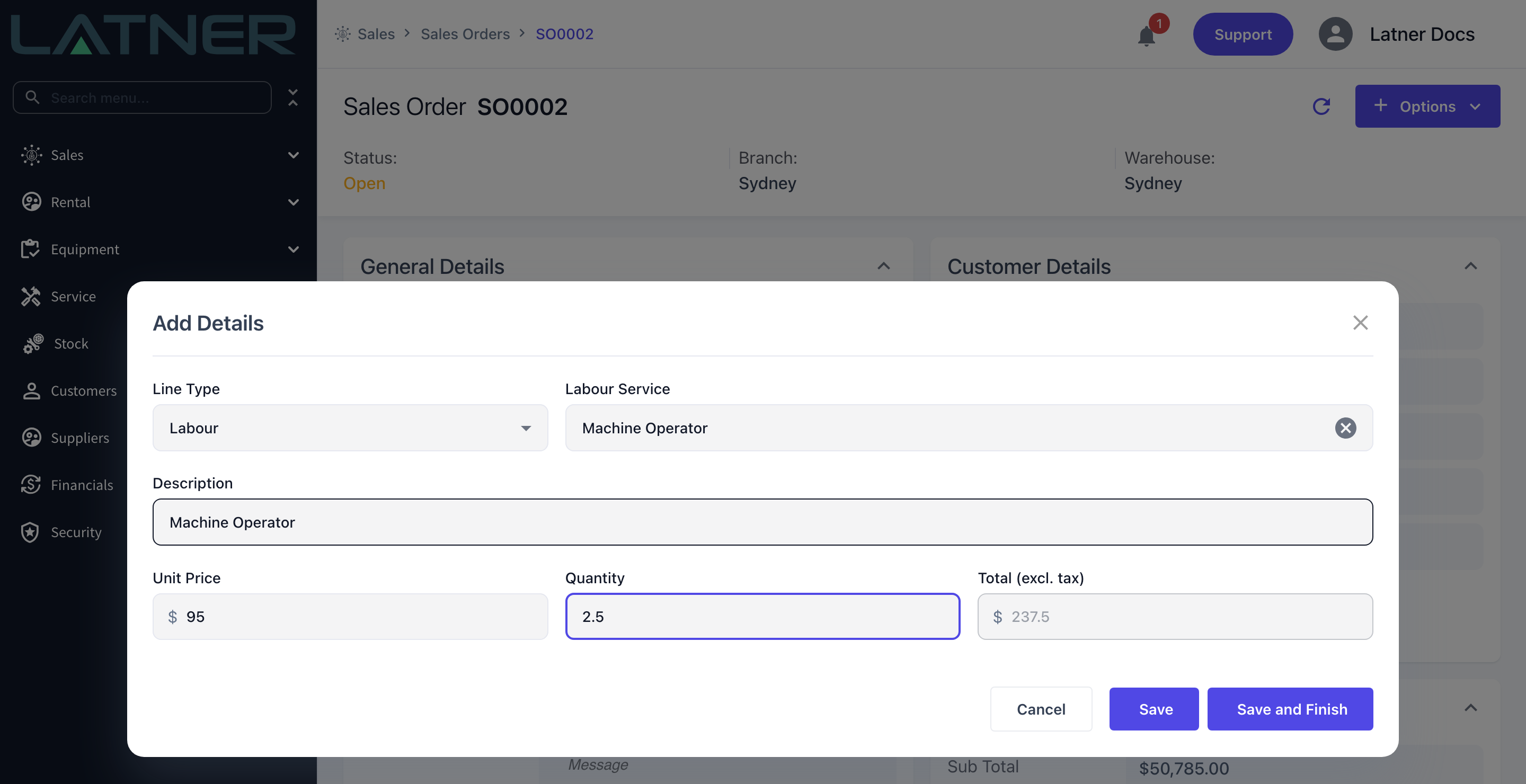
These three are the simple ones: pick the charge or service (or, for transport, just describe it), set a price and a quantity. They are also the only line types that accept part quantities, which is what makes them the right fit for hours.
After You Add Details
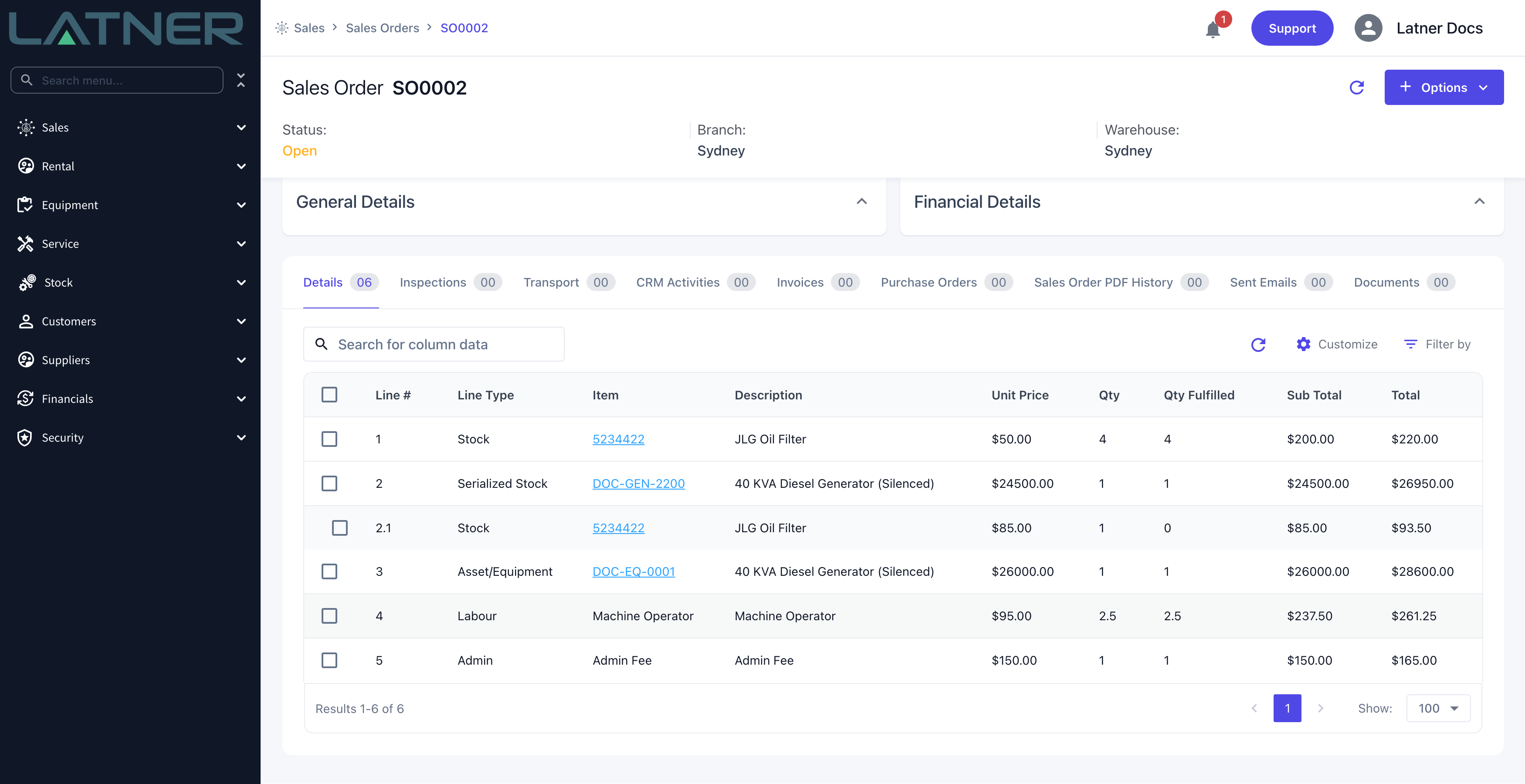
Every saved line lands on the Details tab, and the sales order's Financial Details card is recalculated from the lines each time.
-
Lines are numbered in the order they were added. Accessory sub-lines sit under their parent as 2.1, 2.2 and so on.
-
Qty Fulfilled tells you how much of each line is actually covered - by stock on hand, by an allocated serial or by a reserved machine.
-
Stock, serialised and equipment allocations are already in place, so the items are held against this order.
-
Once the order has at least one line, the rest of the Options menu comes alive: Generate Sales Order PDF, Email Sales Order, Raise Purchase Order and Mark as Quoted.
Reordering lines
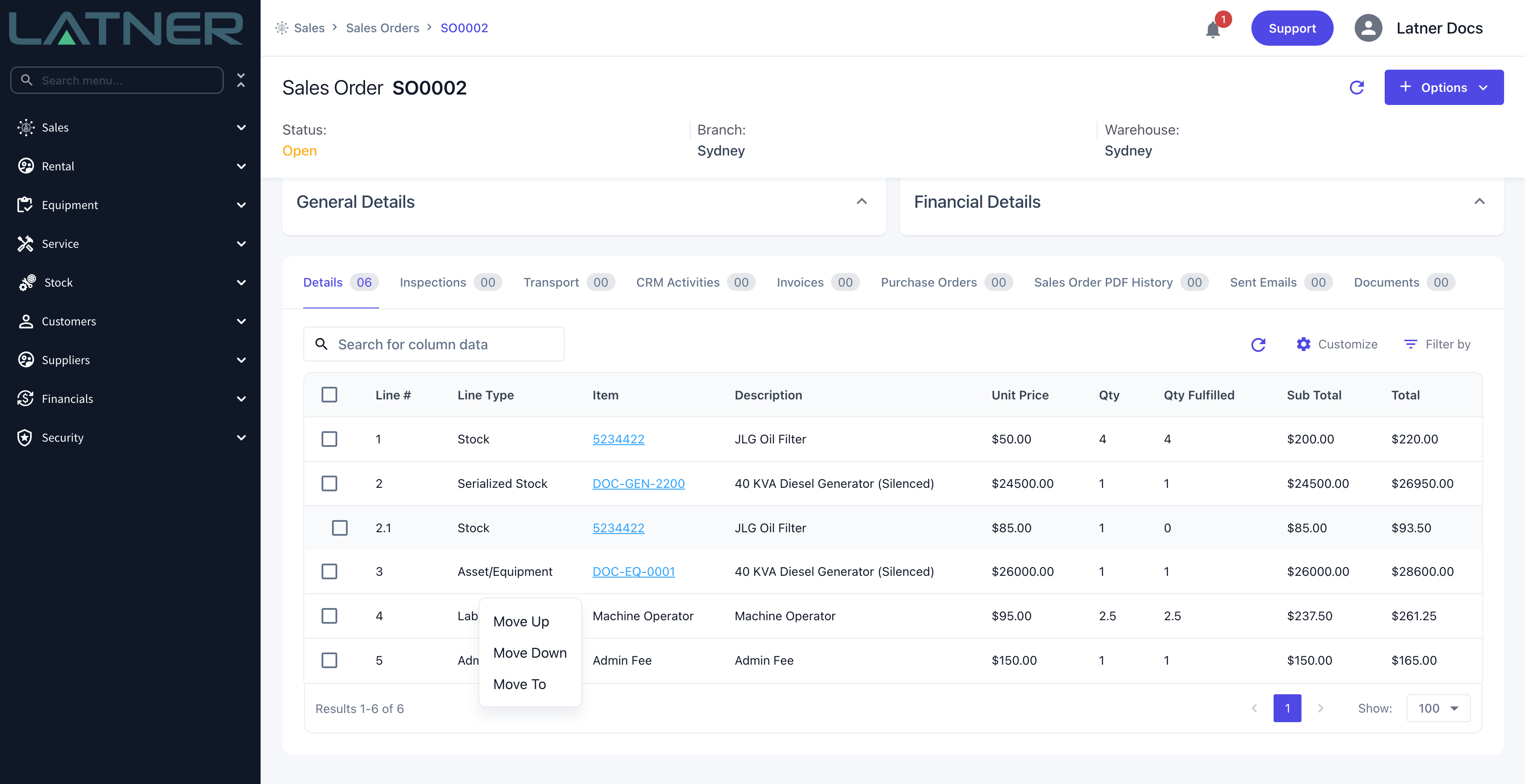
The order of the lines is the order they print in, so it is worth tidying. Right-click any line for Move Up, Move Down and Move To. Latner renumbers everything else to suit, and sub-lines travel with their parent.
Changing or removing a line
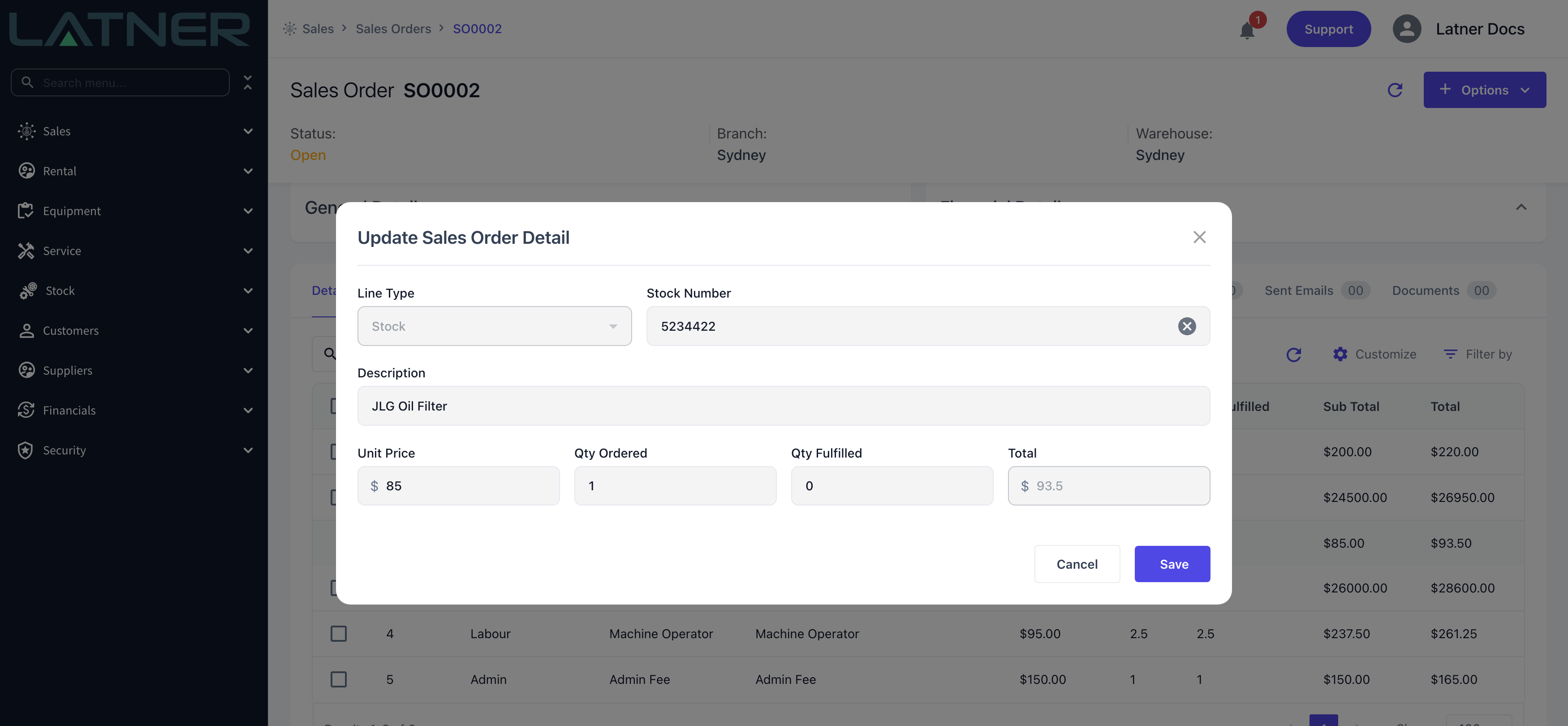
Double-click a line (or tick it and use the pencil in the toolbar) to open Update Sales Order Detail. The line type itself can't be changed, but the item, description, price and quantity can. Qty Fulfilled is editable on Stock lines and on bulk equipment lines, which is how you allocate stock that arrived after the line was raised.
To delete, tick one or more lines and use the delete icon in the toolbar. Deleting releases whatever the line was holding - stock goes back to available, an allocated serial returns to In Stock, and reserved equipment goes back to Available.
Lines can only be deleted while the sales order is Open, and never once any of the quantity has been invoiced. If a line has transport dockets against it, cancel those first - Latner will refuse the delete otherwise. To take a partly invoiced line off the order, credit the invoice rather than trying to delete the line.
FAQs
Watch the Demo
Prefer to watch it? Step through the same flow here.