
Transport dockets on a sales order tell your yard and your drivers what has been sold, where it has to go and when, so a machine or a pallet of parts leaves the branch against a paper trail instead of a phone call.
Overview
A sale isn't finished when the order is written up - somebody still has to get the goods to the customer. Latner treats that as its own record: a transport docket raised from the sales order, carrying the lines being moved and the quantity of each.
-
You can raise two kinds of transport from a sales order: a Delivery (you take the goods to the customer) and a Customer Collection (the customer comes and gets them).
-
Only Stock, Serialized Stock and Asset/Equipment lines can be transported. Labour, Admin and Transport lines never appear on the docket.
-
A line is only available to transport once it has been fulfilled. The quantity you can send is Qty Fulfilled less what is already in transit or delivered.
-
The docket inherits the customer, site, branch and contact from the sales order, so the only things you normally type are the due date and the quantities.
-
Creating the docket moves the quantity into Qty in Transit on the sales order line. Completing it moves that quantity into Qty Delivered.
-
A delivery can be run by your own driver (Internal) or by a carrier (External), and an external one can raise a Transport Purchase Order against the carrier.
-
You can raise as many dockets as you like against one order - part of it today, the rest next week.
Before You Begin
Transport on a sales order needs one permission and a little groundwork on the order itself.
|
Requirement |
Where to Find It |
|---|---|
|
Create Delivery permission |
Security › Configuration › your permission group › Rental › Option. Without it, Create Transport is hidden from the sales order's Options menu. |
|
A sales order that isn't Cancelled or Lost |
Sales › Sales Orders. Open, Quoted, Partially Invoiced and Invoiced orders can all have transport raised against them; Cancelled and Lost cannot. |
|
At least one fulfilled Stock, Serialized Stock or Asset line |
The Details tab of the sales order - check the Qty Fulfilled column. A line with nothing fulfilled shows a Qty To Deliver of 0 and cannot be put on a docket. |
|
A customer who is not on credit hold |
Customers › the customer › Credit Status. Deliveries and customer collections are both blocked while the customer is on credit hold. |
|
Complete Transport on Delivery/Pick Up Dockets permission (optional) |
Security › Configuration › your permission group › Transport › Field. Only needed if you want to tick Complete Transport and finish the docket as you create it. |
|
Allow Transport Cost To Be Greater Than Charge permission (external only) |
Security › Configuration › your permission group › Rental › Field. See Using an External Carrier below for why an external sales-order delivery needs it. |
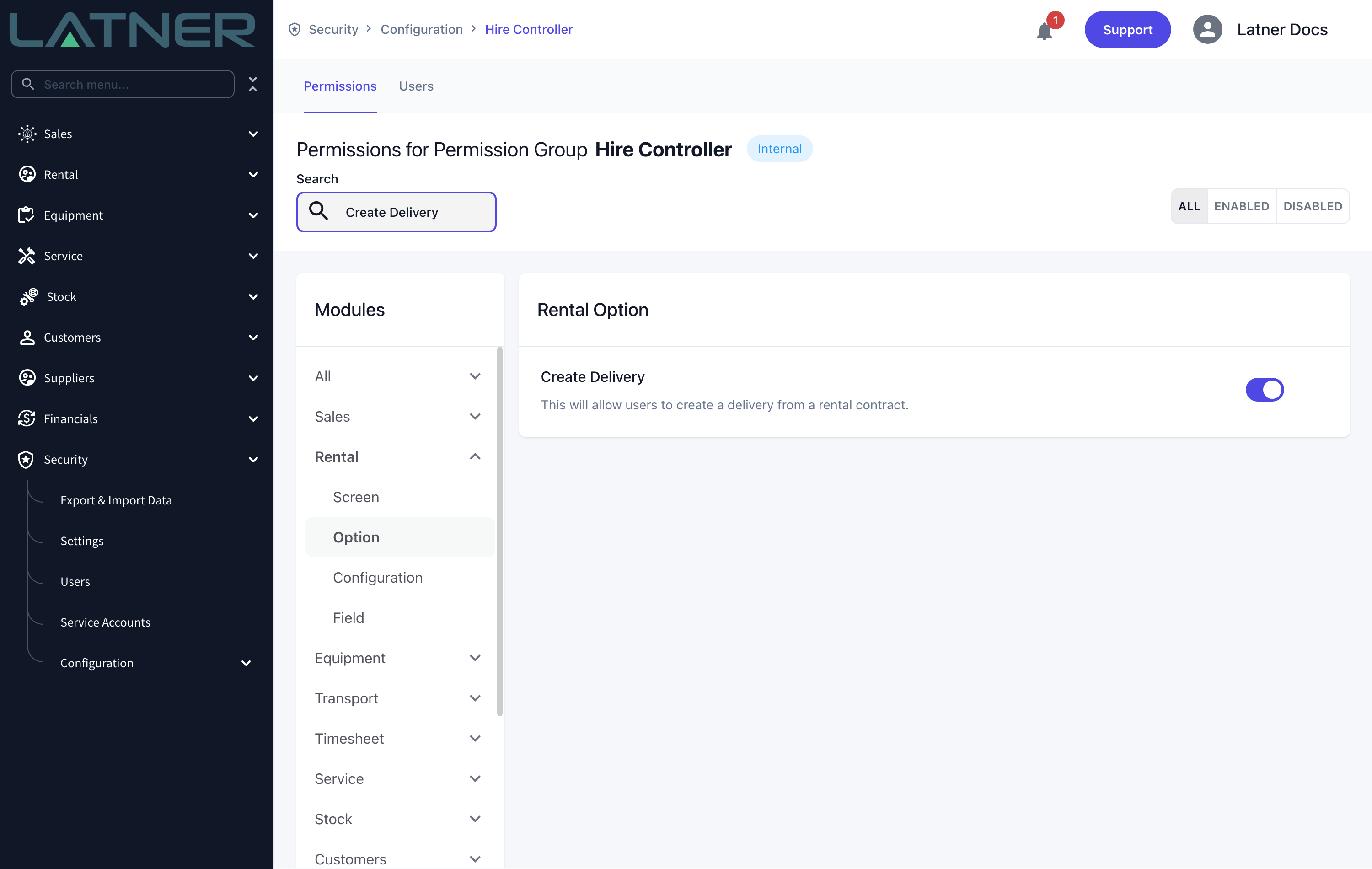
Nothing needs to be switched on in Security › Settings for this to work. The Transport settings that do exist - Create Transport Purchase Orders, Minimum Markup for External Transports, Allow Assigning Drivers to an External Transport and Transport Docket Take 5 Checklist - only change how an external or internal docket behaves, not whether you can raise one.
Creating a Delivery
Step 1 - Open the sales order and choose the transport type
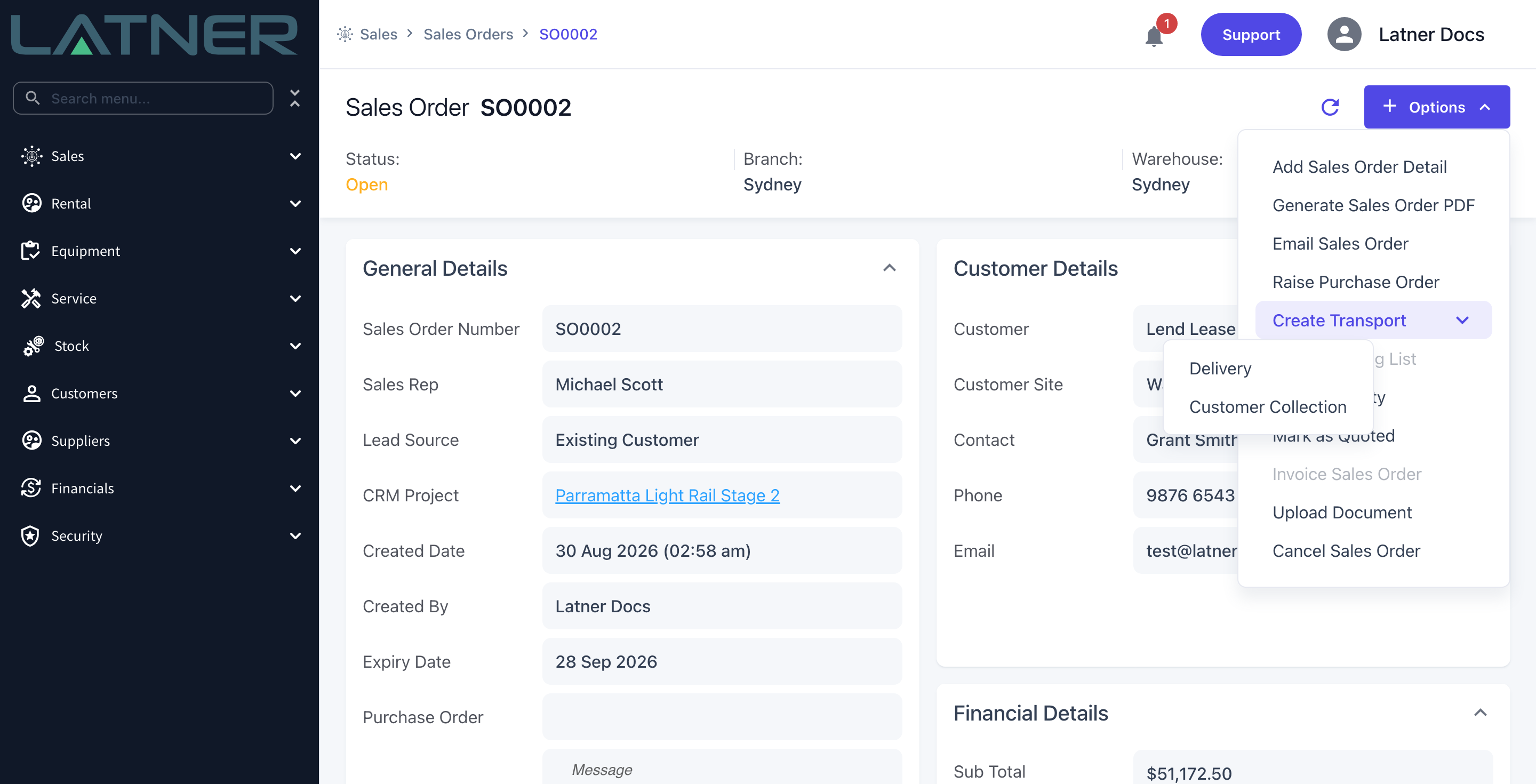
Go to Sales › Sales Orders and open the order. Choose Options › Create Transport, then pick Delivery.
If Create Transport is greyed out, the order is Cancelled or Lost. If it isn't in the menu at all, you're missing the Create Delivery permission.
Step 2 - Check what Latner has filled in for you
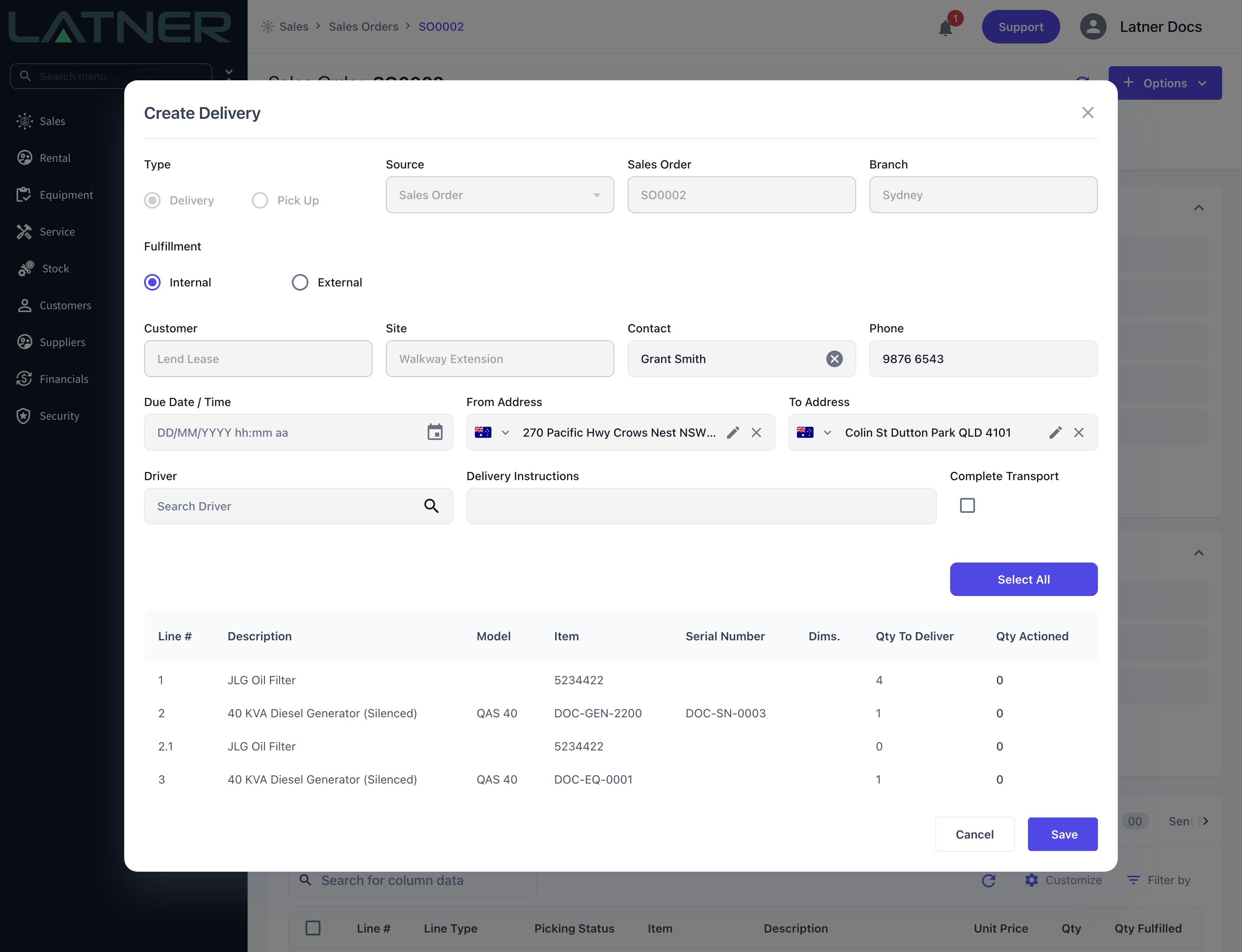
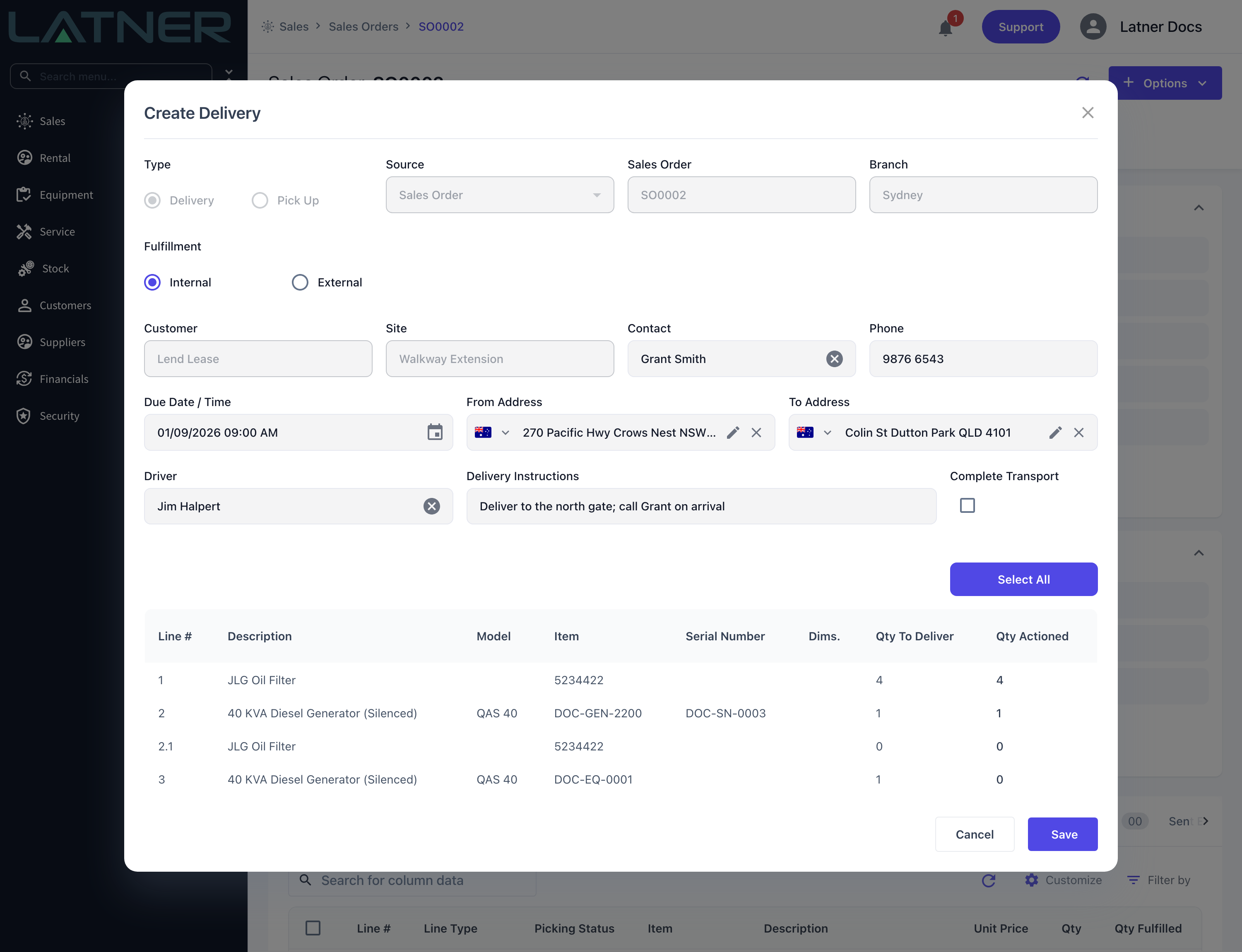
The Create Delivery form arrives mostly complete. These fields are read-only, because they come from the sales order:
-
Type - locked to Delivery. A sales order cannot raise a Pick Up.
-
Source - Sales Order, and Sales Order shows the order number.
-
Branch - the branch on the sales order.
-
Customer and Site - the customer and customer site on the order.
These you can change:
-
Fulfillment - Internal (your own driver) or External (a carrier). Internal is the default.
-
Contact and Phone - taken from the order's contact; overwrite them if someone else is meeting the truck.
-
Due Date / Time - required, and deliberately left blank so you have to state when it's needed.
-
From Address - defaults to the branch address. To Address - defaults to the customer site's address. Both are required and both can be edited for a one-off drop.
-
Driver - the skilled person driving. Available on Internal transport only, unless Allow Assigning Drivers to an External Transport is enabled.
-
Delivery Instructions - free text that the driver sees on the docket.
-
Complete Transport - see step 4.
Step 3 - Enter the quantities you're sending
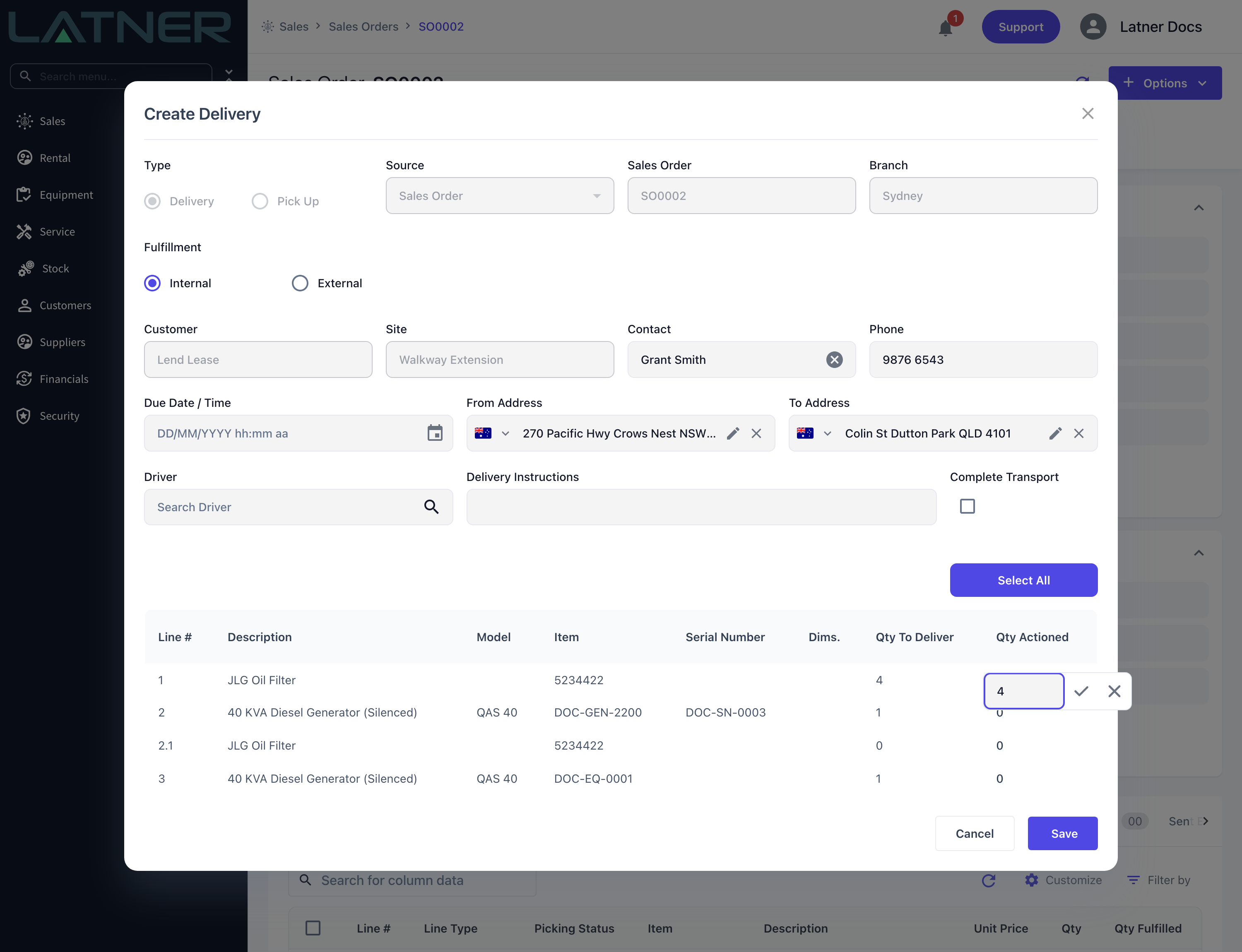
The table at the bottom lists every line that still has something to send. Qty To Deliver is the quantity available - the line's Qty Fulfilled less anything already in transit or delivered - and Qty Actioned is what's going on this docket.
Click a Qty Actioned cell to open a small editor, type the quantity, and click the tick to accept it. You can't enter more than the Qty To Deliver. Use the Select All button to fill every row with its full available quantity in one go, and Deselect All to clear them.
A row with a Qty To Deliver of 0 is a line that hasn't been fulfilled yet - fulfil or pick it first and it becomes available. At least one line must carry a quantity, or the form refuses to save.
Step 4 - Decide whether to complete it now
Leave Complete Transport unticked for the normal case: the docket is created as Open, ready for a driver to run and complete on the road or in the office.
Tick it and Latner asks "Are you sure you want to complete this transport docket?" and, on Yes, creates and completes the docket in one step with the full actioned quantity delivered. That's the right choice for goods that have already physically gone. The tickbox needs the Complete Transport on Delivery/Pick Up Dockets permission; without it the box is disabled and its tooltip says so.
Step 5 - Save
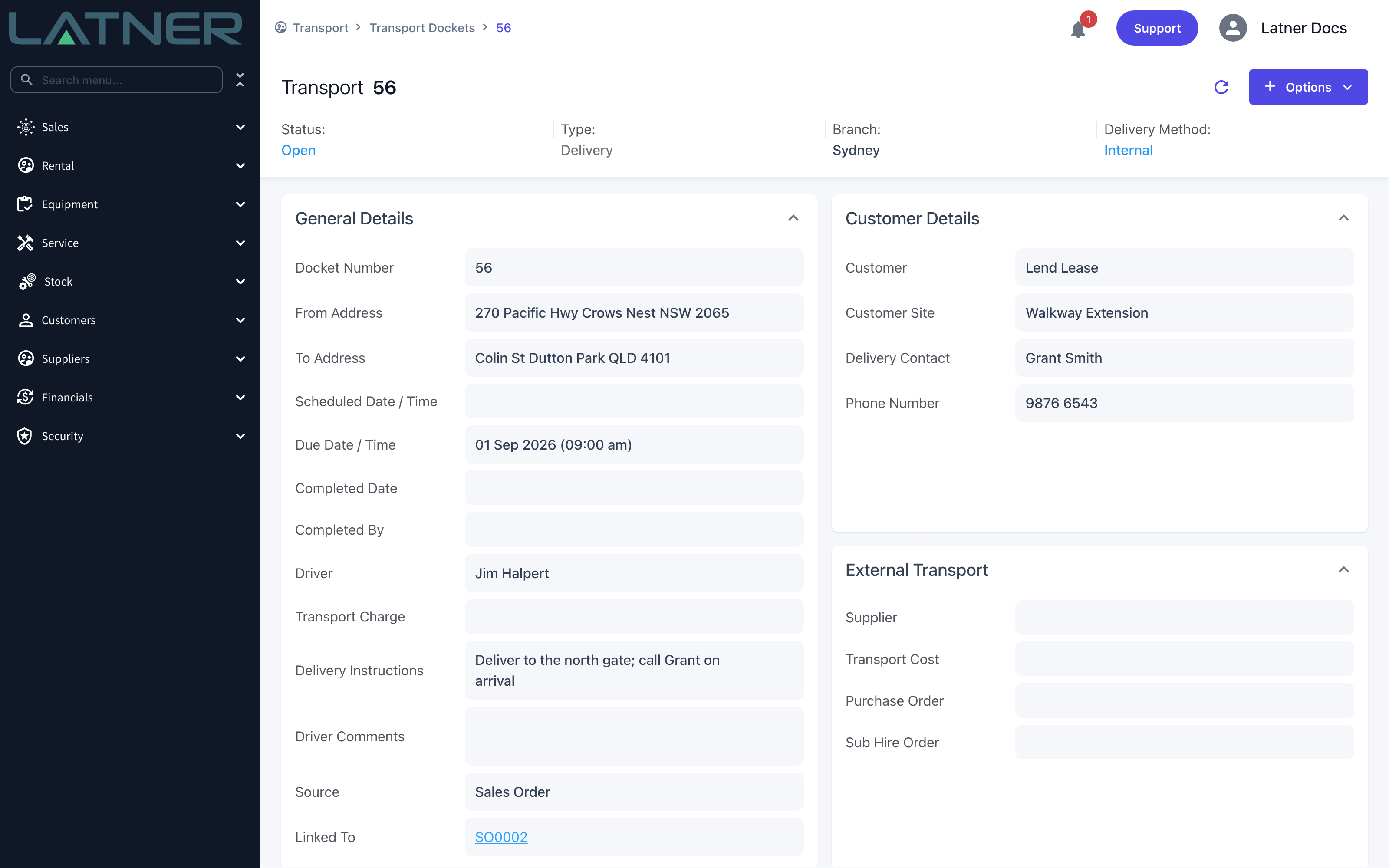
Click Save. Latner creates the docket and offers you a link straight to it.
On the docket, Source reads Sales Order and Linked To is a link back to the order, so the two records always find each other.
Using an External Transport Supplier
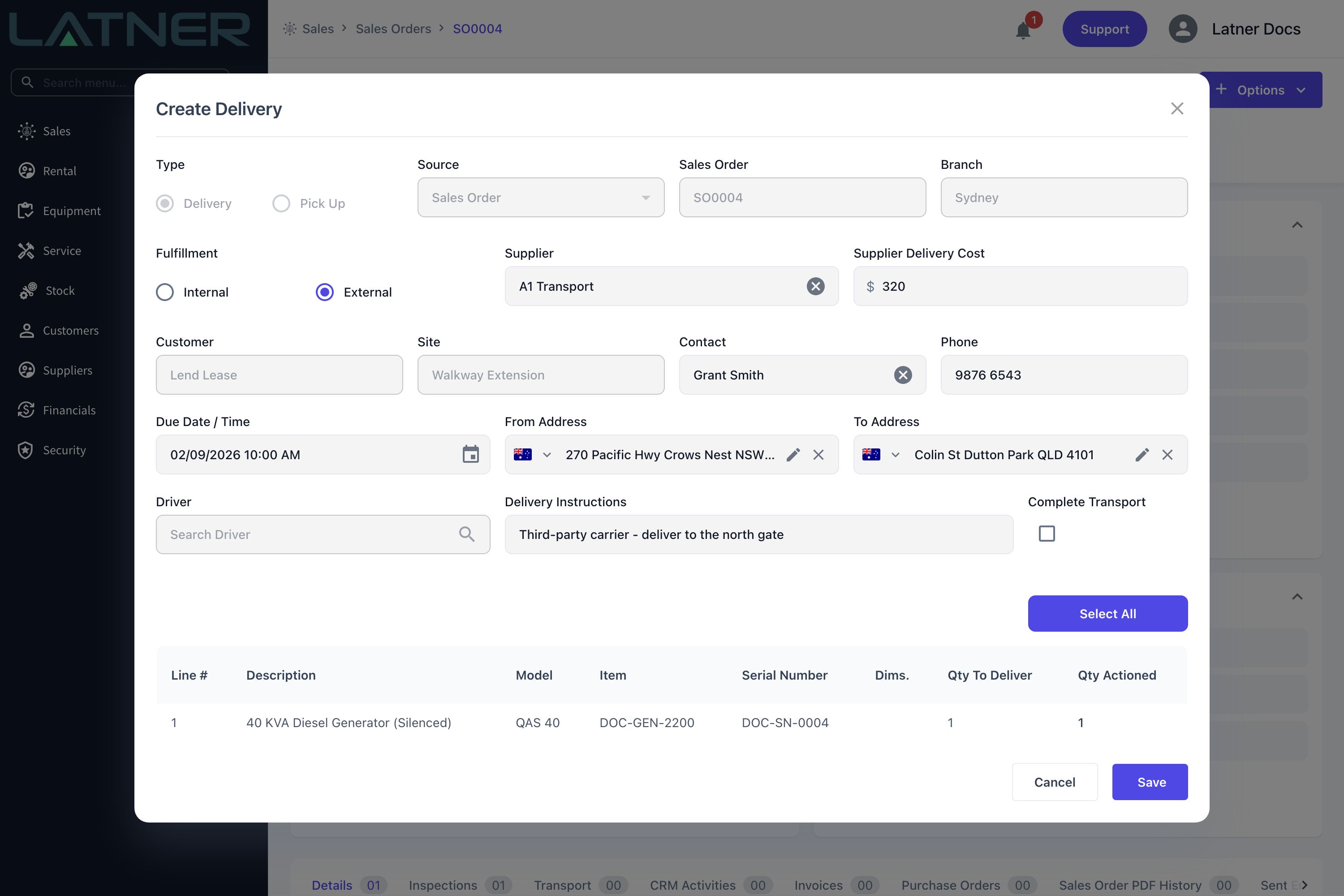
Switch Fulfillment to External and two fields appear, both required: Supplier (the carrier, which must be an Active supplier) and Supplier Delivery Cost (what they're charging you). The Driver field greys out, since the carrier supplies the driver.
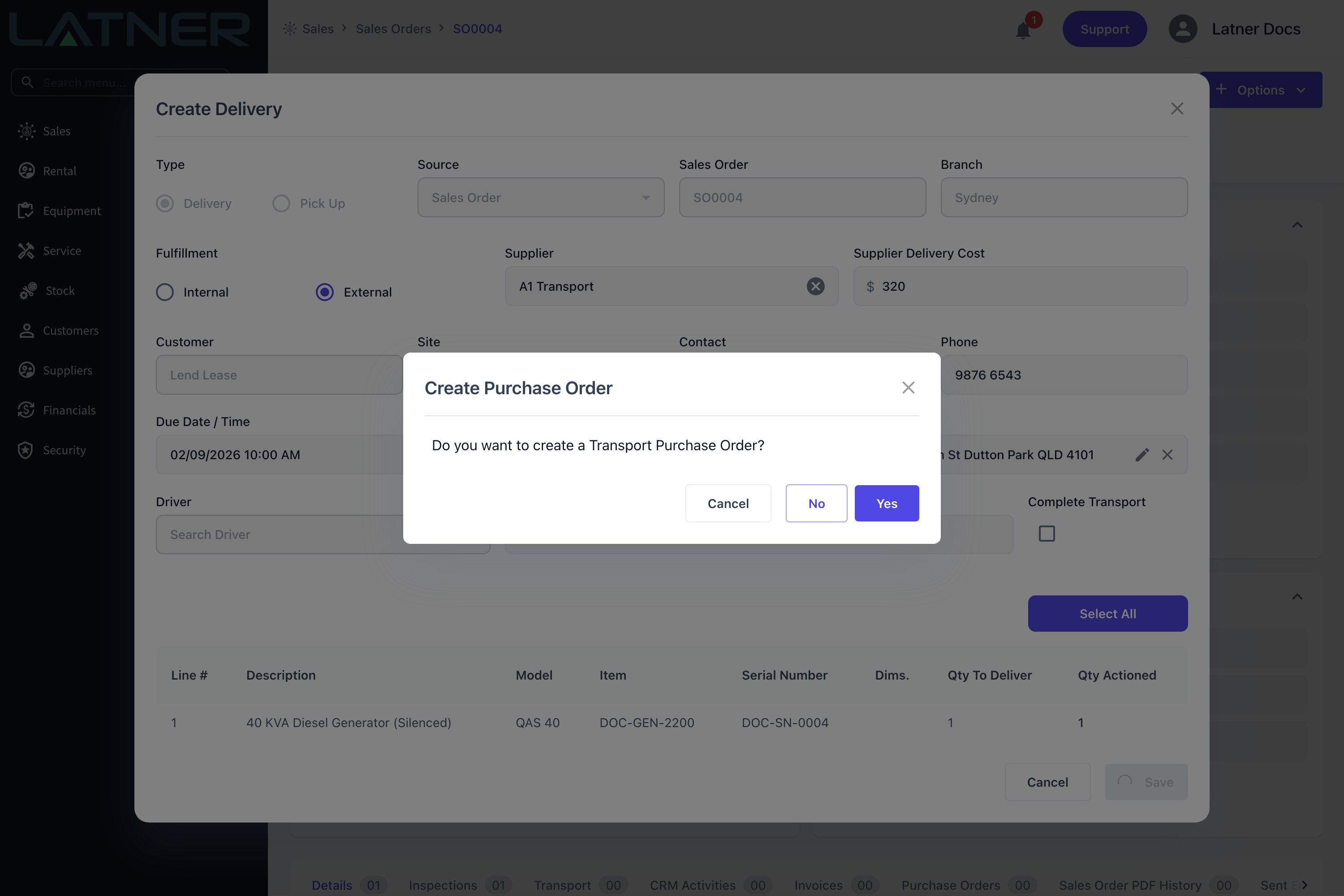
On save, Latner asks "Do you want to create a Transport Purchase Order?". Answer Yes and a purchase order for the carrier's cost is raised and linked to the docket, where it shows in the External Transport card. Answer No and the cost is recorded on the docket without a purchase order.
Your tenant can take that question away: the Create Transport Purchase Orders setting under Security › Settings › Transport can be set to always create one without asking, or never create one at all.
A sales-order docket has no Delivery Charge field, so as far as the markup check is concerned the charge is nil and any supplier cost exceeds it. Saving an external sales-order delivery therefore needs the Allow Transport Cost To Be Greater Than Charge permission - otherwise it's rejected with "Transport cost cannot be higher than transport charge" (or with the minimum-markup message, if Minimum Markup for External Transports is set). To bill the customer for freight, add a Transport line to the sales order itself rather than looking for a charge field on the docket.
Creating a Customer Collection
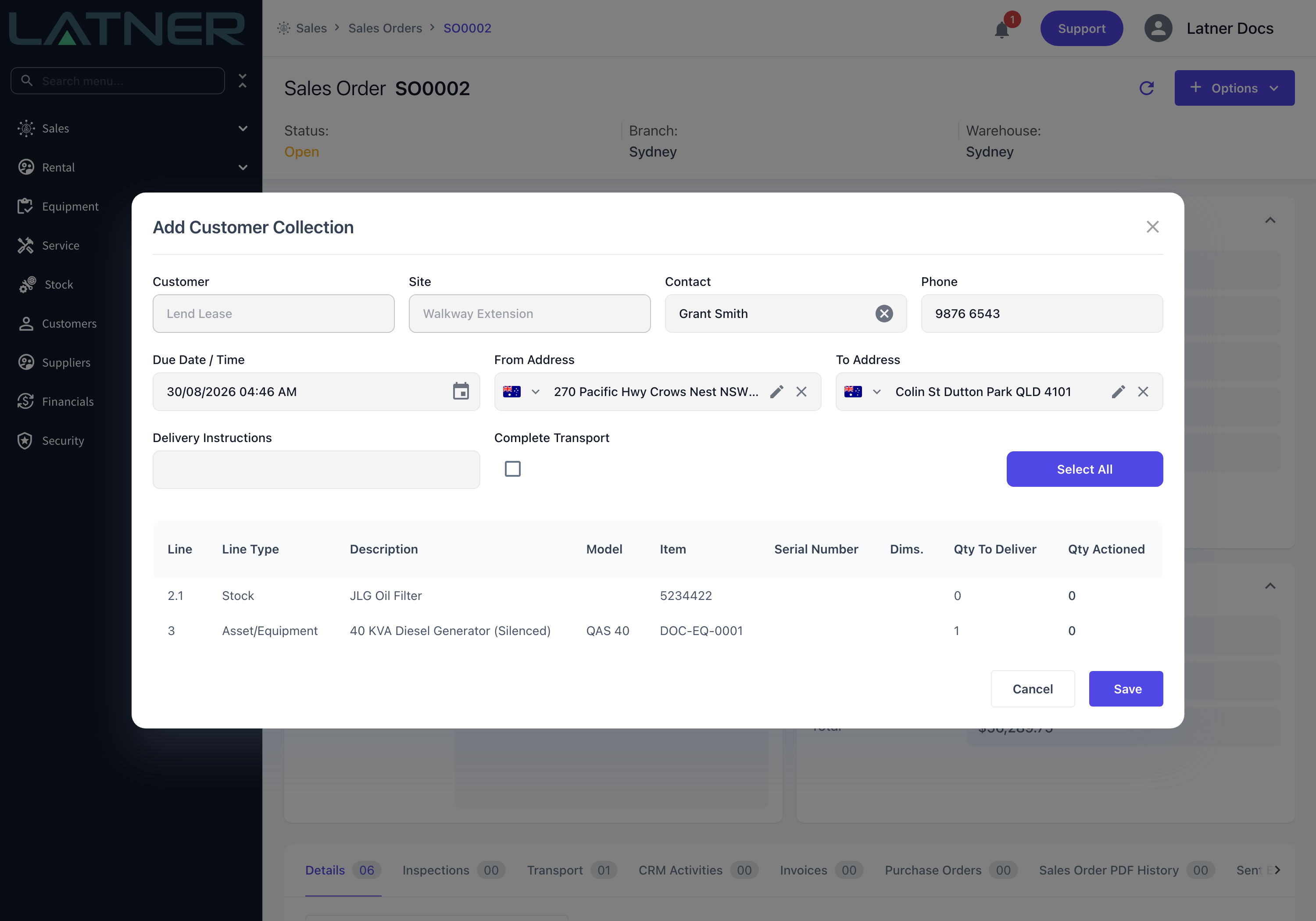
When the customer is coming to you, choose Options › Create Transport › Customer Collection instead. The Add Customer Collection form is the short version of the delivery form:
-
There's no Type or Fulfillment choice - the docket is always of type Customer Collection.
-
There's no Driver, Supplier or cost, because nobody of yours is driving.
-
Customer and Site are read-only; Contact and Phone are required.
-
Due Date / Time is pre-filled with the current date and time - change it if the customer is coming later.
-
The lines table works exactly as it does on a delivery, and adds a Line Type column so you can see at a glance what kind of line each row is.
Ticking Complete Transport here completes the collection immediately, without a confirmation prompt - which suits a customer standing at the counter.
After Creation
-
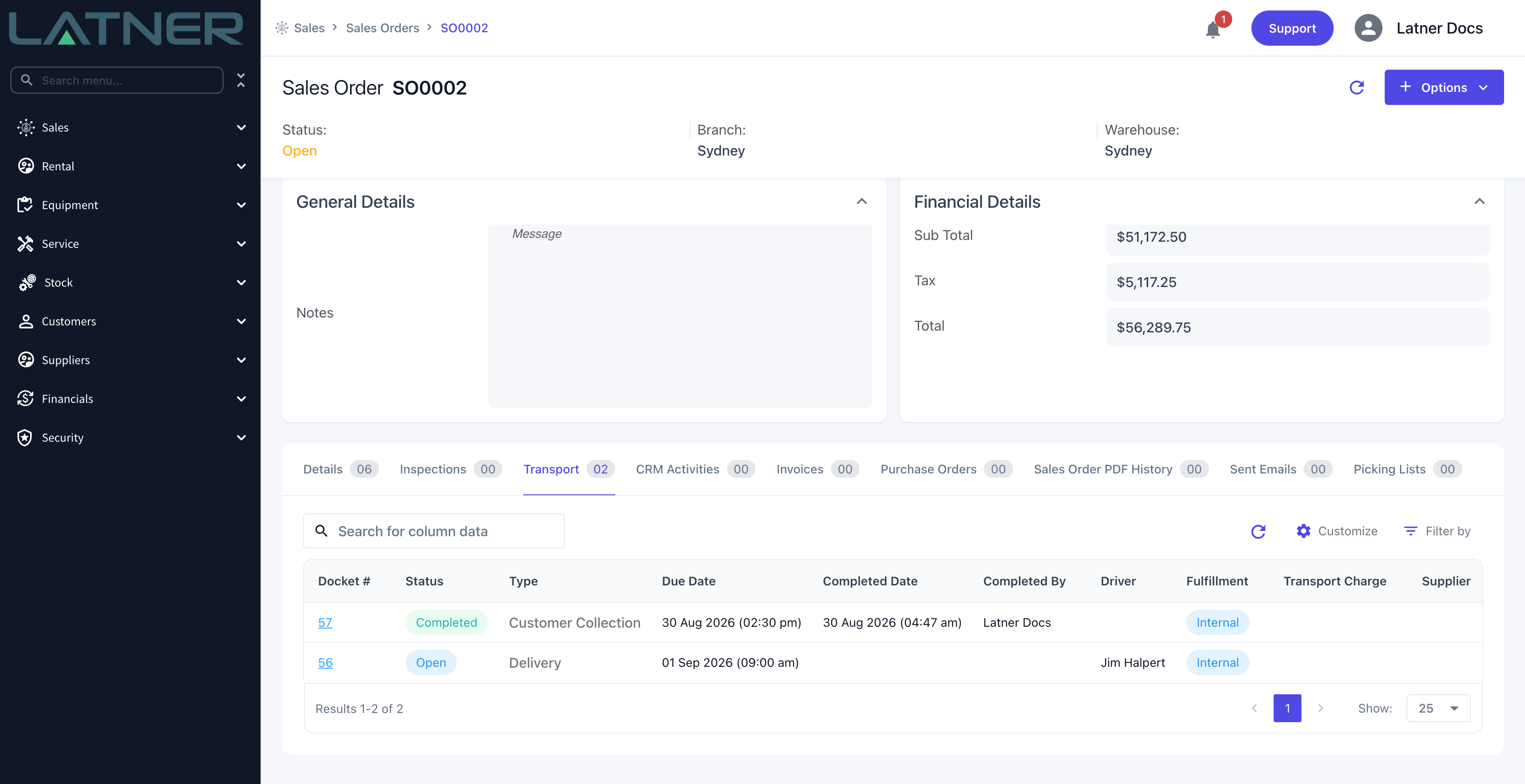
The actioned quantity moves into Qty in Transit on each sales order line. When the docket is completed it moves again, into Qty Delivered.
-
The docket appears on the sales order's Transport tab, with its status, type, due date, driver, fulfillment and any supplier cost.
-
It also appears in Rental › Transport Dockets with a Source of Sales Order, and on Rental › Transport Allocation once it has a driver and a scheduled time.
-
Lines already fully in transit or delivered drop out of the next Create Delivery or Add Customer Collection form, so you can't accidentally send the same goods twice.
-
If an Internal docket is completed with less than the actioned quantity, Latner automatically raises a second Open docket for the shortfall. External dockets don't do this - raise the follow-up docket yourself.
-
Cancelling a docket hands its quantity back: Qty in Transit drops and the lines become available to transport again.
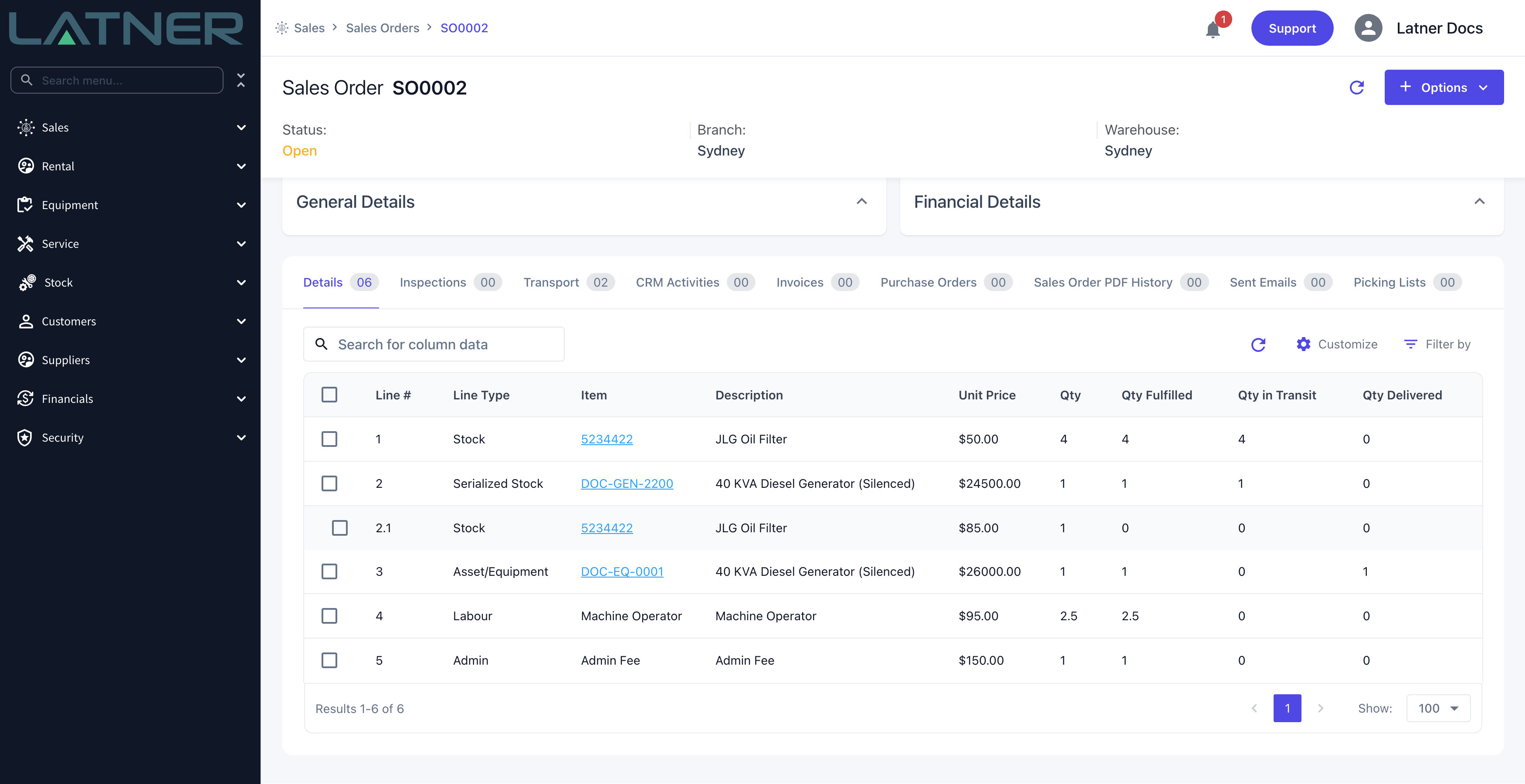
Delivering is not what makes a line invoiceable. Invoicing a sales order is capped by Qty Fulfilled, not by Qty Delivered, so a line can be invoiced before it ever leaves the yard. If you need goods out the door before the invoice goes out, that's a process rule at your end, not something the transport docket enforces.
FAQs
Watch the Demo
Prefer to watch it? Step through the same flow here.