
Adding schedule details manually lets you build a finance schedule's repayments line by line, for the loans that don't fit the standard calculation.
Overview
Most schedules are built in one go with Generate Schedule Details. Entering lines by hand is for the rest - the irregular contracts, and the tidying up afterwards.
-
Useful when repayments aren't the same each month, when the rate changes part way through the term, or when the financier's schedule simply doesn't match Latner's calculation.
-
Also the way to add a line that's missing from a generated schedule, or to correct one that isn't right.
-
You type the repayment and its split, and Latner suggests the principal outstanding to carry forward.
-
Manual lines aren't reconciled against the amount financed the way generated ones are, so the arithmetic is yours to get right.
-
Lines can be added, edited and deleted while the schedule is Open or Active, and once a line has been invoiced it's fixed.
Before You Begin
Make sure the following are in place before you start.
|
Requirement |
Where to Find It |
|---|---|
|
A finance schedule in Open or Active status |
Financials › Finance Schedules |
|
The financier's own repayment schedule, so you can copy the dates and amounts |
The finance contract |
|
Create Finance Schedule permission |
Security › Configuration › Permission Groups › Financial › Options |
If the loan is a normal amortising one, generate the details instead and only fall back to manual entry for the lines that need fixing. Generating is one dialog for the whole term, and it checks the schedule reconciles before saving it.
Adding a Line
Step 1 - Choose Add Schedule Details
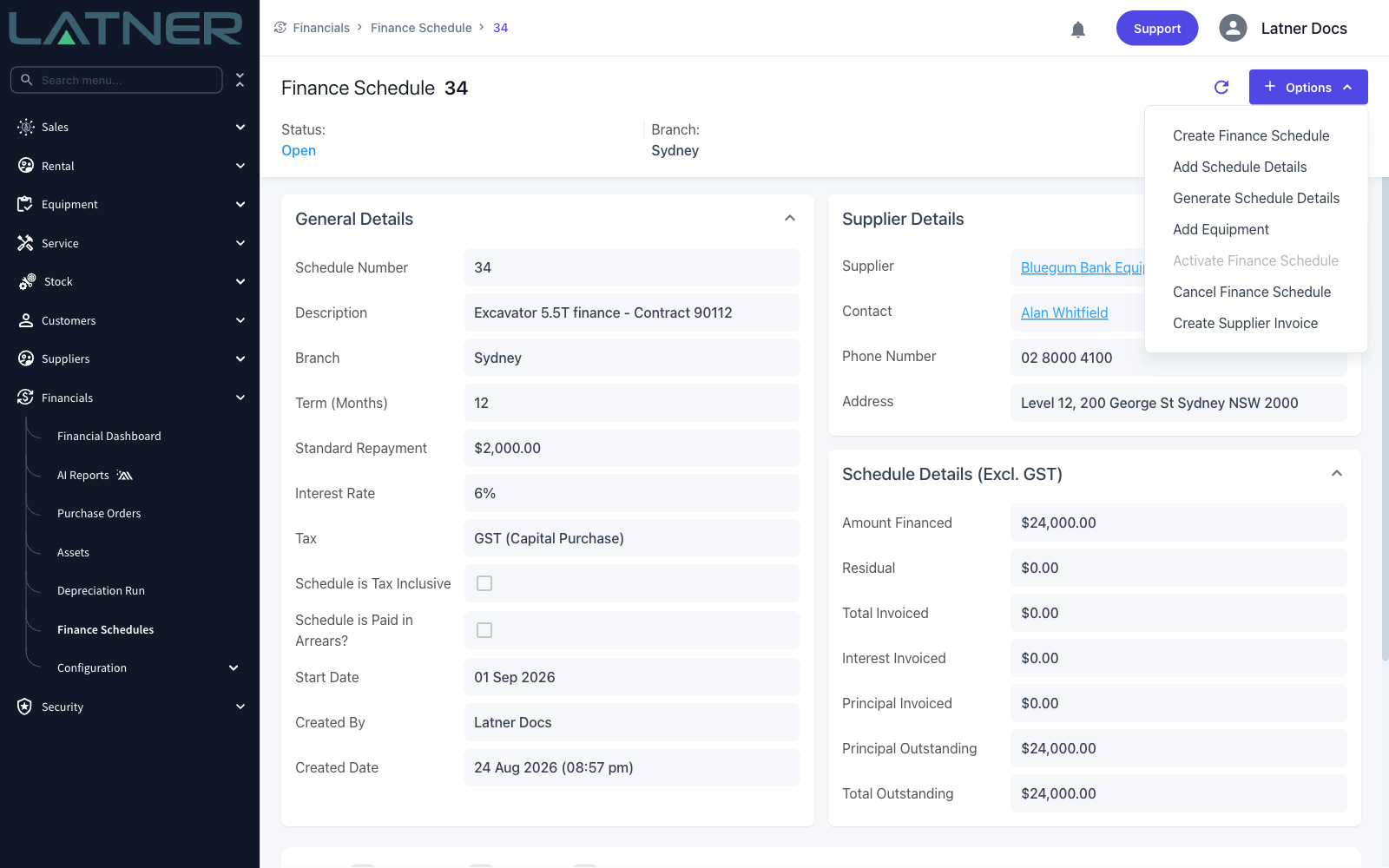
Open the finance schedule and choose Options › Add Schedule Details. The option is greyed out unless the schedule is Open or Active.
Step 2 - Enter the repayment
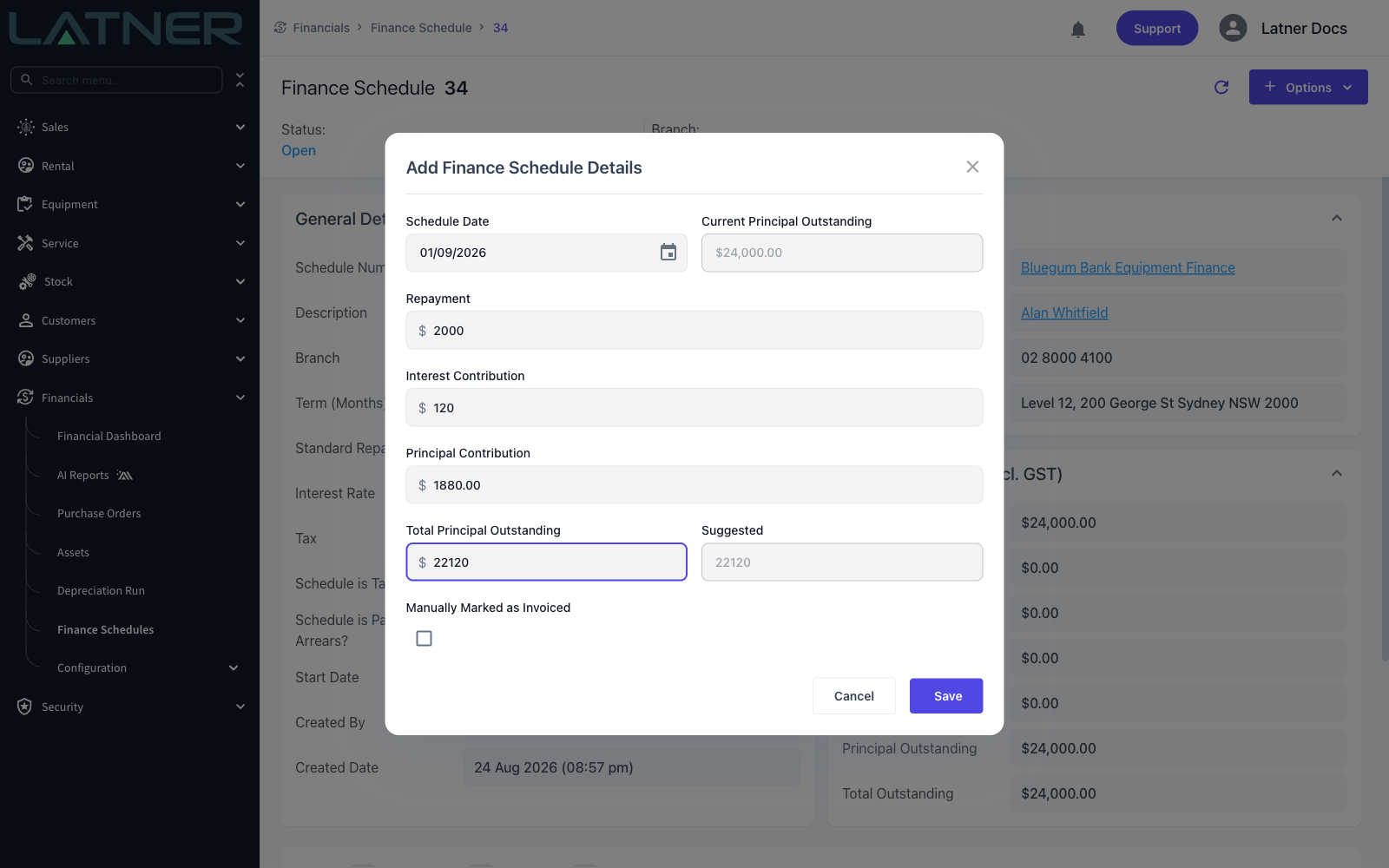
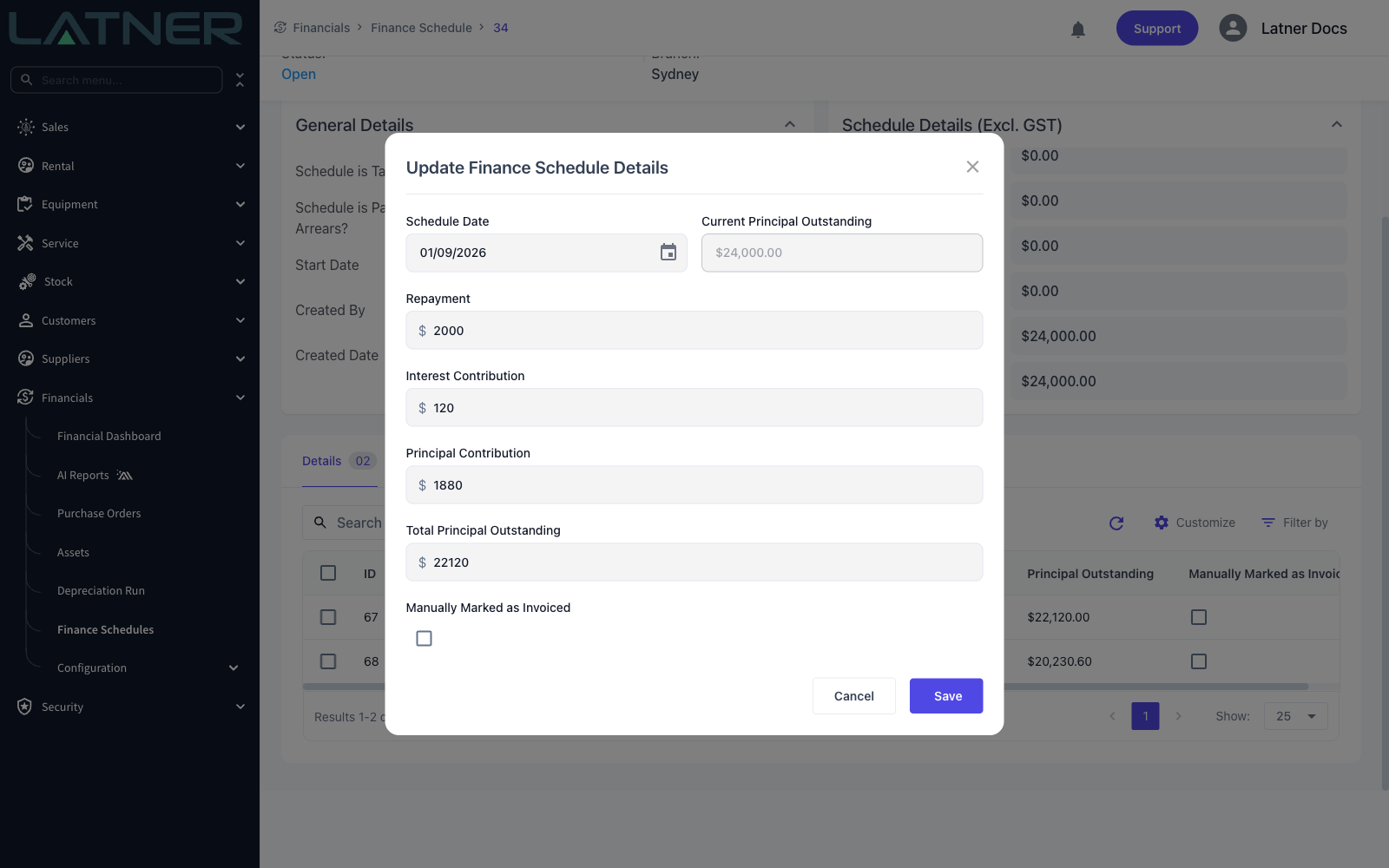
Each line is one repayment. The fields are:
-
Schedule Date - the date the repayment falls due. Required.
-
Current Principal Outstanding - read-only. The principal still outstanding based on what has been invoiced so far, which is why it doesn't move as you add lines.
-
Repayment - the amount of the repayment. Defaults to the schedule's standard repayment.
-
Interest Contribution - the interest portion. Type this first and Latner fills in the principal for you.
-
Principal Contribution - the principal portion. Interest and principal have to add up to the repayment, or you'll see "Sum of Principal & Interest must equal Repayment".
-
Total Principal Outstanding - the principal left after this repayment, with a read-only Suggested figure next to it for the value Latner expects.
-
Manually Marked as Invoiced - tick this if the repayment has already been paid outside Latner, so it isn't picked up by the next invoice run.
Step 3 - Save, then repeat for each repayment
Choose Save. The line appears on the Details tab, and you reopen Add Schedule Details for the next one. Lines are always listed in date order, so they don't have to be entered that way.
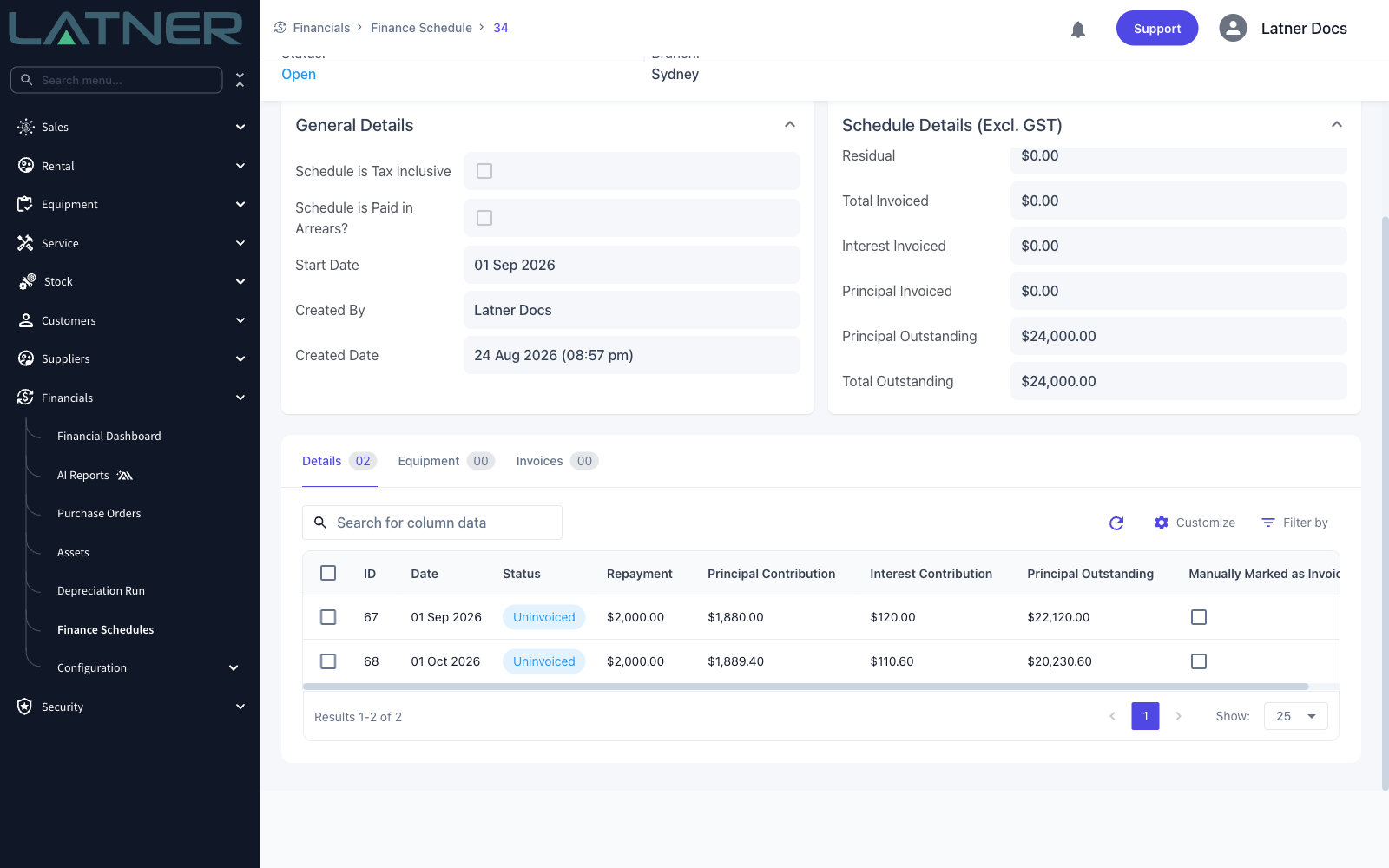
Enter at least as many lines as the schedule's Term. Latner won't complete a schedule whose line count is short of the term, so a 36 month schedule with 30 hand-entered lines stays open forever.
Editing and Deleting Lines
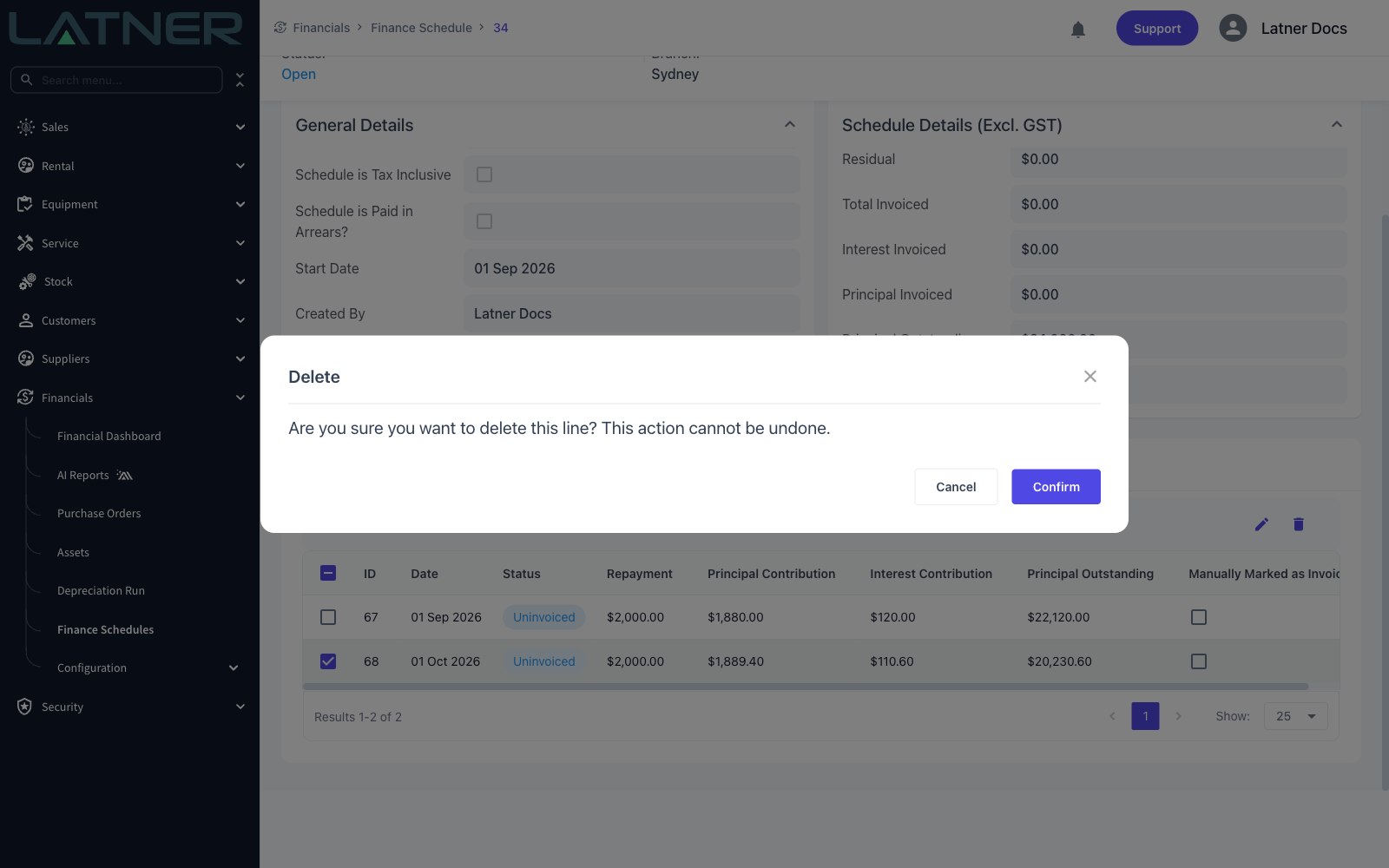
Tick a line on the Details tab and the toolbar offers a pencil to edit it and a bin to delete it. Double-clicking the row opens it for editing as well.
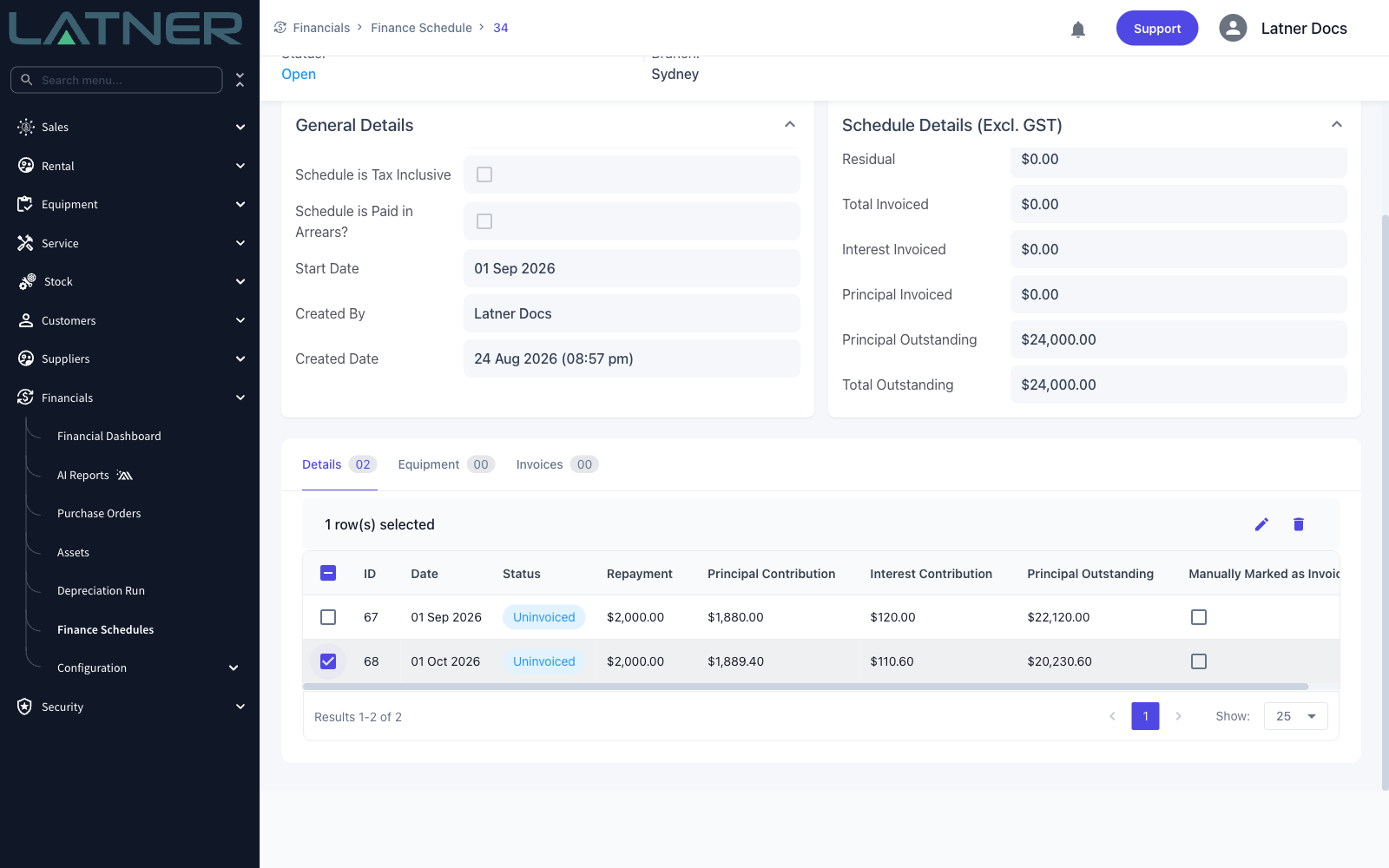
Editing opens the same form under the title Update Finance Schedule Details, this time without the Suggested figure. Everything on the line can be changed, including the date and the invoiced tick box.
Deleting asks you to confirm, and there's no undo - the line has to be re-entered if you delete it by mistake.
After Adding Lines
-
Every line starts as Uninvoiced, unless you ticked Manually Marked as Invoiced.
-
Once the lines are right, activate the schedule and then invoice the repayments as they fall due.
-
Hand-entered lines invoice exactly like generated ones, splitting into a principal line and an interest line on the supplier invoice.
-
The Schedule Details (Excl. GST) totals move as the lines are invoiced, not as they're entered.