
Invoicing a finance schedule turns its repayments into supplier invoices for the financier - either in bulk across every schedule that's due, or one repayment at a time.
Overview
The repayment lines already know what's owed and when, so invoicing is mostly a matter of telling Latner how far forward to go.
-
Create Supplier Invoices on the Finance Schedules list invoices every repayment that's due, across all schedules, in one run.
-
Create Supplier Invoice on an individual schedule invoices a single repayment and lets you preview the lines first.
-
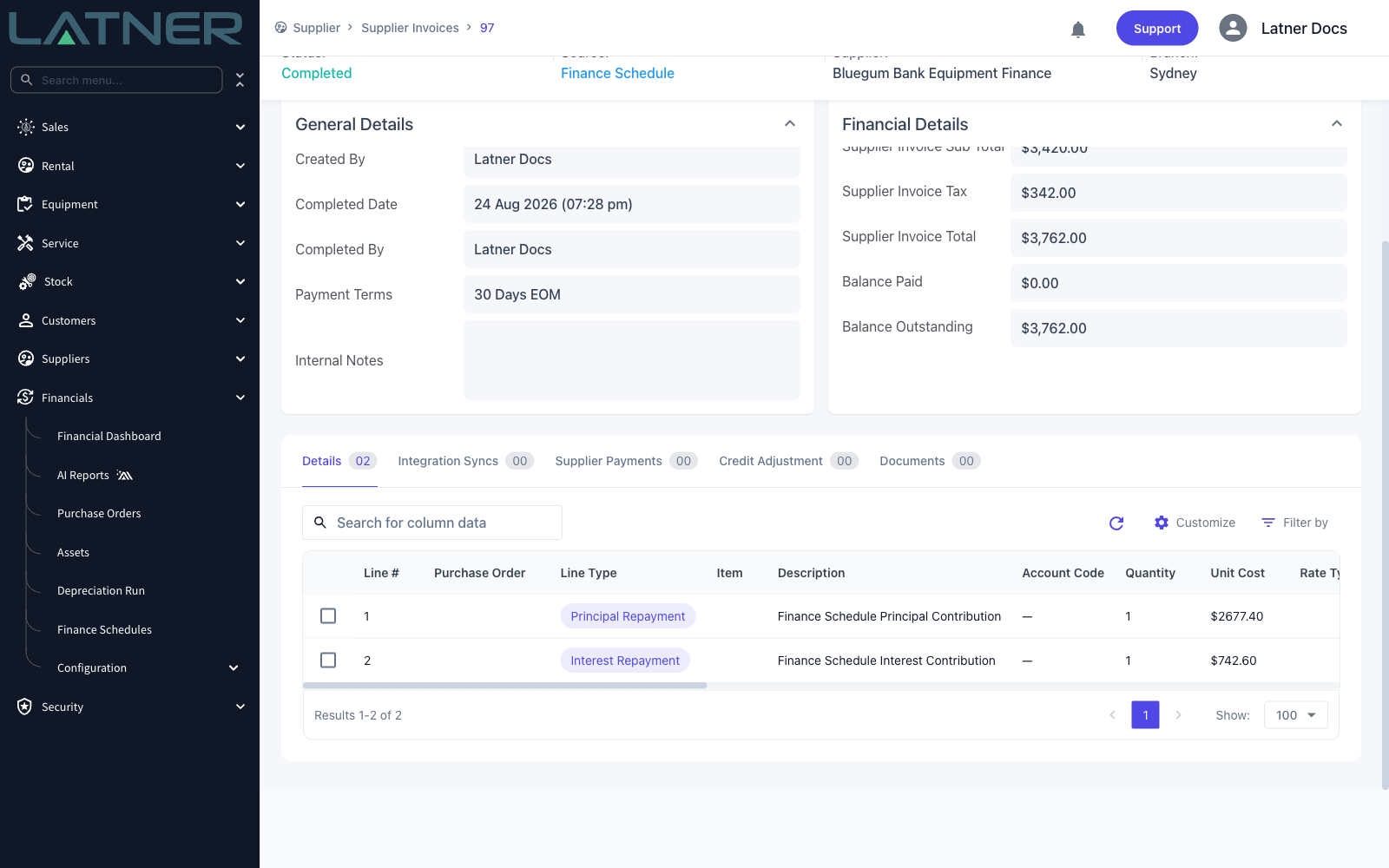
One repayment becomes one supplier invoice, dated on the repayment's own schedule date, completed on creation with a Source of Finance Schedule.
-
Each invoice carries a Principal Repayment line and an Interest Repayment line, unless the schedule is a simple schedule, which produces a single repayment line instead.
-
Repayments paid outside Latner can be marked as invoiced instead, so the schedule stays accurate without creating invoices you don't need.
Before You Begin
Make sure the following are in place before you start.
|
Requirement |
Where to Find It |
|---|---|
|
A finance schedule with uninvoiced repayment lines, in Open or Active status |
Financials › Finance Schedules |
|
The financier set up as a supplier with a site and a billing contact |
Suppliers › Suppliers |
|
Create Finance Schedule permission |
Security › Configuration › Permission Groups › Financial › Options |
A cancelled or completed schedule can't be invoiced. If you need to invoice against one, use Options › Reactivate Finance Schedule first.
Invoicing the Repayments in Bulk
Step 1 - Open Create Supplier Invoices
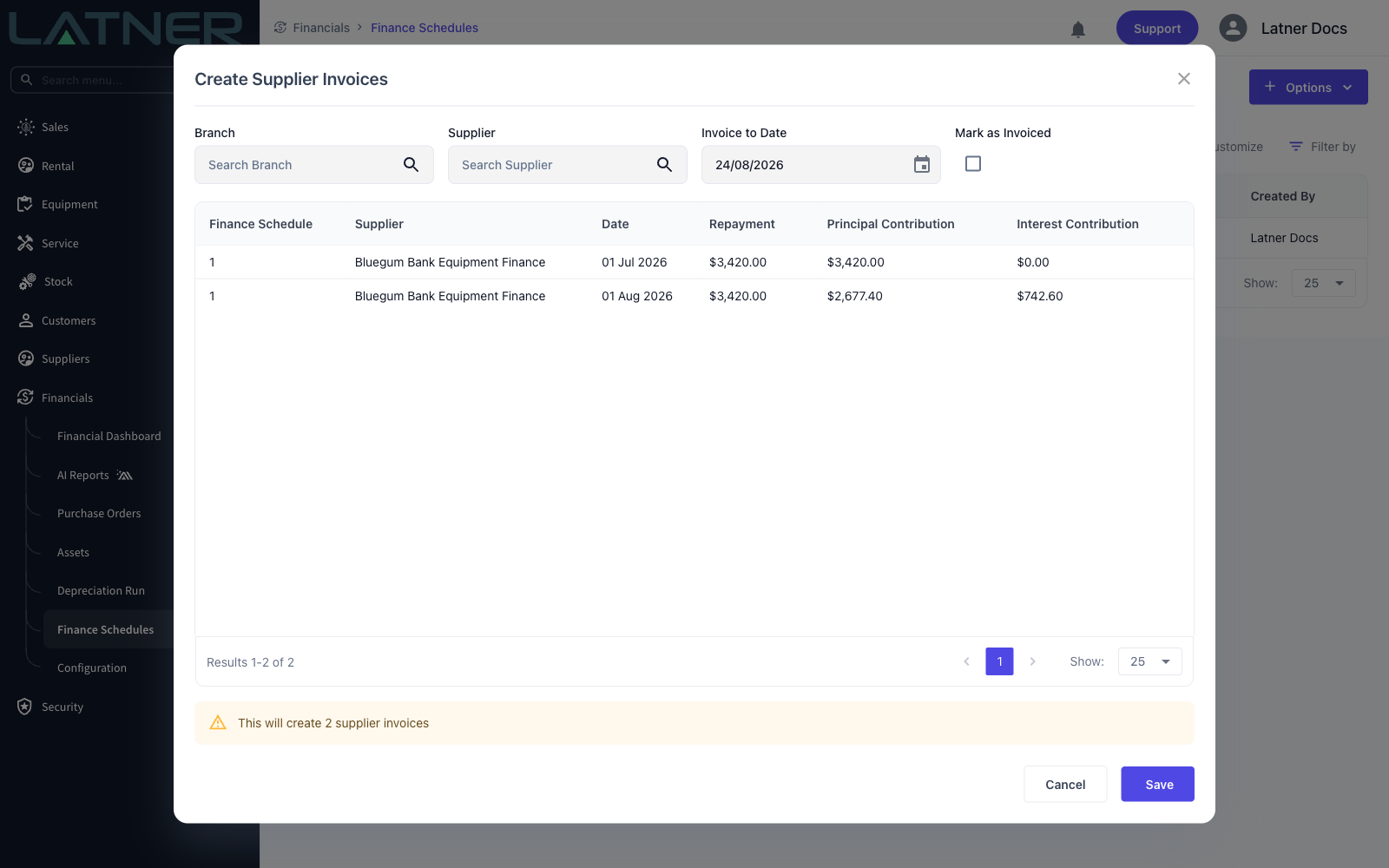
Go to Financials › Finance Schedules and choose Options › Create Supplier Invoices. This runs across every schedule rather than the one you happen to have open, which is what makes it a monthly job rather than a per-loan one.
Step 2 - Choose what to invoice
-
Branch and Supplier - optional filters. Leave them empty to invoice every schedule that's due.
-
Invoice to Date - required. Every uninvoiced repayment dated on or before this date is included. It defaults to today.
-
Mark as Invoiced - leave this unticked to create real invoices.
The table underneath previews exactly which repayments will be picked up, and the warning below it tells you how many invoices that is. Save stays greyed out while nothing matches.
Step 3 - Save
Choose Save. Latner creates one supplier invoice per repayment, dated on the repayment's own schedule date and covering the month that follows it. The supplier, site and branch come from the schedule, the status is Completed, and each repayment line moves to Invoiced.
Repayments dated later than the end of next month are never picked up, even if you set Invoice to Date further out. That limit is deliberate - it stops a single run from raising years of invoices by accident.
Marking Repayments as Invoiced
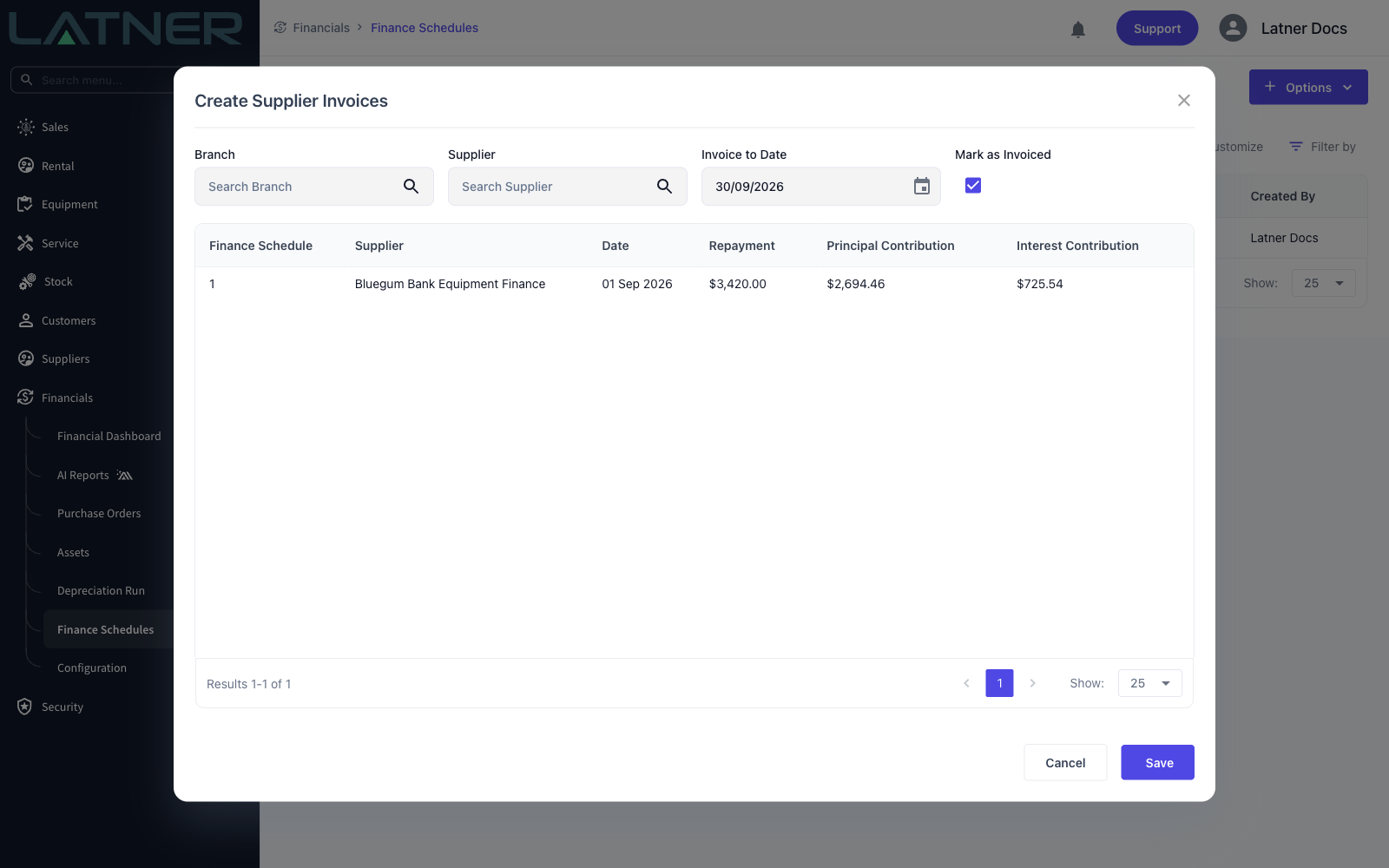
Repayments that were paid outside Latner shouldn't become invoices. Run the same Create Supplier Invoices dialog, set Invoice to Date to cover them, and tick Mark as Invoiced. No invoices are created - the matching lines simply move to Manually Marked as Invoiced and count towards the schedule's invoiced totals.
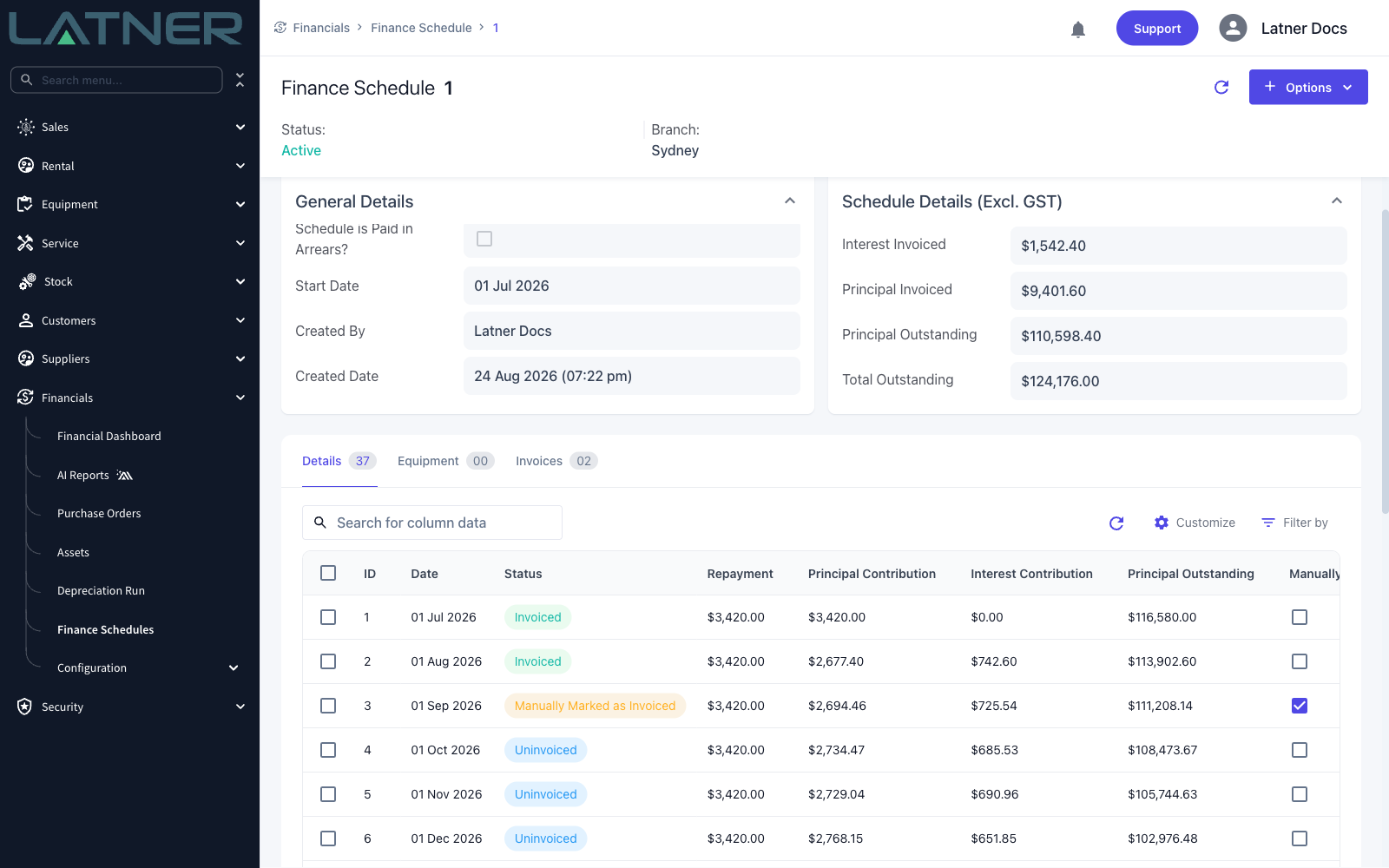
You can also do it a line at a time from the schedule's Details tab, using the Manually Marked as Invoiced checkbox on each row. Unticking it puts the line back to Uninvoiced, but only while the schedule is Active. For a loan that started before you moved onto Latner, it's quicker to set Invoiced Until when the schedule details are first generated.
After Invoicing
-
The Details tab shows each repayment's status - Uninvoiced, Invoiced or Manually Marked as Invoiced - and both invoiced states count towards the schedule totals.
-
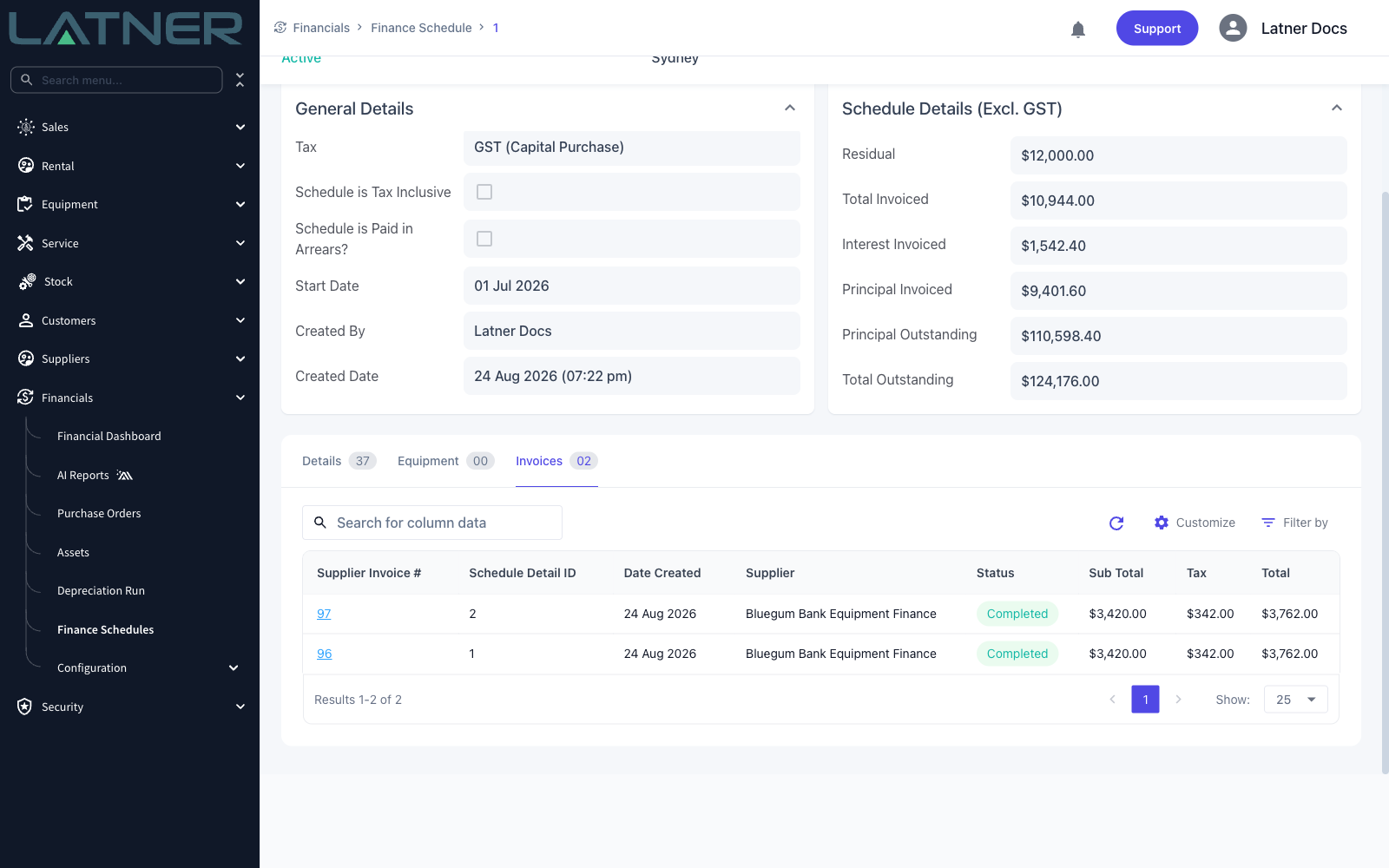
The Invoices tab lists every supplier invoice raised from the schedule. They also appear under Suppliers › Supplier Invoices with a source of Finance Schedule.
-
Invoices are created as Completed, so they're ready to be paid and picked up by your accounting integration without any further approval step.
-
Once every line is invoiced or marked as invoiced, Latner completes the schedule for you and the status changes to Completed.
Once a repayment has a real invoice against it, it can't be manually marked as invoiced and the line can't be deleted - cancel the supplier invoice first. Header amounts on the schedule also lock as soon as any principal has been invoiced.