
Serialized Stock lets you track individual, serial-numbered machines through their whole life in Latner, from the purchase order that brings them in, through capital preparation, to the day they are either sold to a customer or converted into a rental fleet asset.
Overview
Some things you buy are interchangeable boxes on a shelf. Others are individual machines you need to follow by serial number, cost, and condition for their entire life. Serialized Stock is for the second kind.
A Serialized Stock record is the product definition (for example, a particular generator model), and each physical unit you own is a Serialized Stock Item with its own unique serial number. Latner tracks each item through a defined lifecycle:
-
Each item carries its own serial number, warehouse, supplier, and purchase cost.
-
Items are created from a confirmed Purchase Order and become available once received into stock.
-
You can raise Capital Preparation work orders to ready an item for service, and the cost of that work is captured against the item.
-
An item has two possible destinations: sold to a customer through a Sales Order and invoice, or converted into a rental fleet Equipment asset.
-
Every financial movement (received, sold, credited) is recorded and can be synced to your accounting package.
The Serialized Stock Lifecycle
Every Serialized Stock Item moves through a set status. The status is shown on the item and drives which actions are available.
|
Status |
What it means |
|---|---|
|
Ordered |
The item has been created from a confirmed Purchase Order but has not yet arrived. It is not on hand. |
|
In Stock |
The item has been received into a warehouse. It is on hand and available to prepare, sell, or convert. |
|
Capital Preparation |
The item is the subject of an open Capital Preparation work order (checks, fit-out, servicing). |
|
Allocated |
The item has been reserved to a Sales Order line, but the sale is not yet invoiced. |
|
Sold |
The item has been sold to a customer through a completed invoice. This is a final state. |
|
Converted |
The item has been converted into a rental fleet Equipment asset. This is a final state; from here on you manage the machine as Equipment. |
Before You Begin
Access to Serialized Stock is controlled by permissions, and one optional setting changes how selling behaves.
|
Requirement |
Where to Find It |
|---|---|
|
Serialized Stock permission (view) |
Security › Configuration › Permission Groups — under the Stock module. Lets users search and view Serialized Stock. |
|
Create Serialized Stock permission |
Security › Configuration › Permission Groups — required to create Serialized Stock records. |
|
Edit Serialized Stock permission |
Security › Configuration › Permission Groups — required to edit records, add accessories, and raise capital prep work orders. |
|
Edit Serial Number permission |
Security › Configuration › Permission Groups — required to change an item's serial number after it has been received. |
|
Create Pre Sale Inspection after adding Serialized Stock to Sales Order setting (optional) |
Security › Settings › Equipment — when on, adding a Serialized Stock item to a Sales Order automatically raises a pre-sale inspection. |
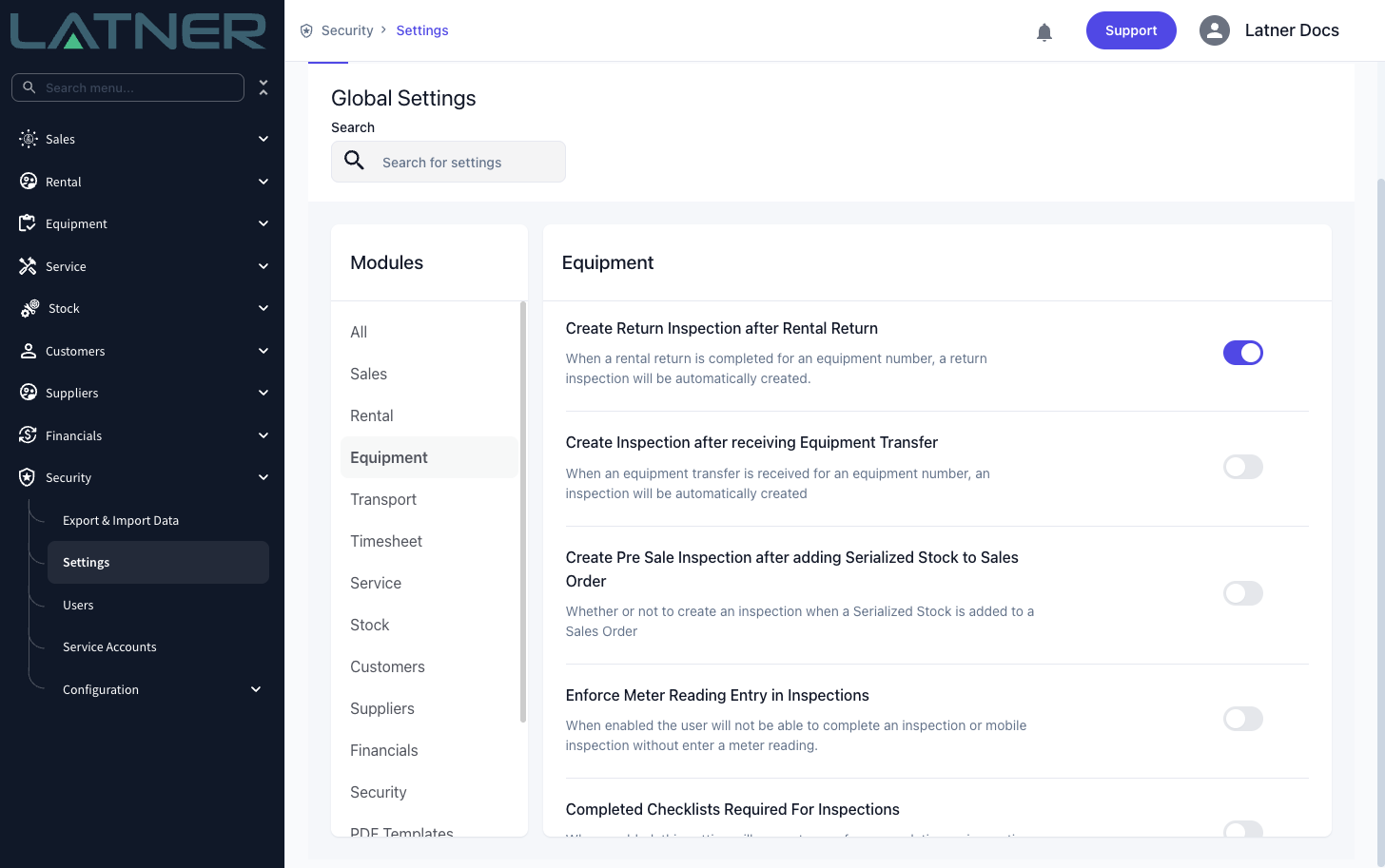
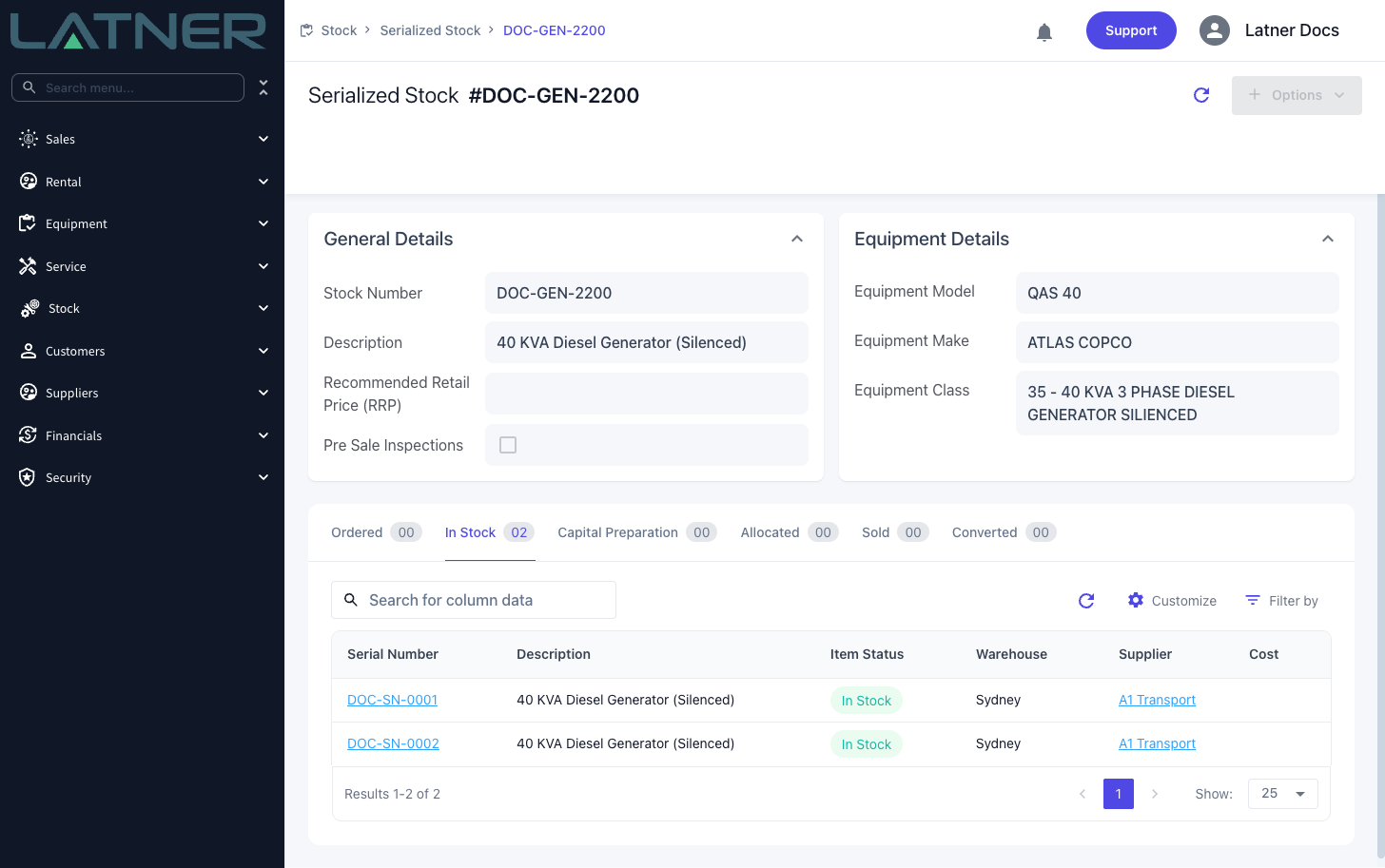
The pre-sale inspection setting only takes effect if the Serialized Stock record has Pre Sale Inspections ticked and a Pre Sale Checklist selected on its detail page. The setting is the master switch; the record fields decide which checklist is used.
Where to Find Serialized Stock
Everything lives under the Stock menu, in the Serialized Stock group:
-
Stock › Serialized Stock › Serialized Stock — the product records and, beneath each, its individual items grouped by status.
-
Stock › Serialized Stock › Serial Numbers — a flat list of every individual item across all products, searchable by serial number.
-
Stock › Serialized Stock › Accessories — the accessory bundles that travel with a product (see below).
Accessories
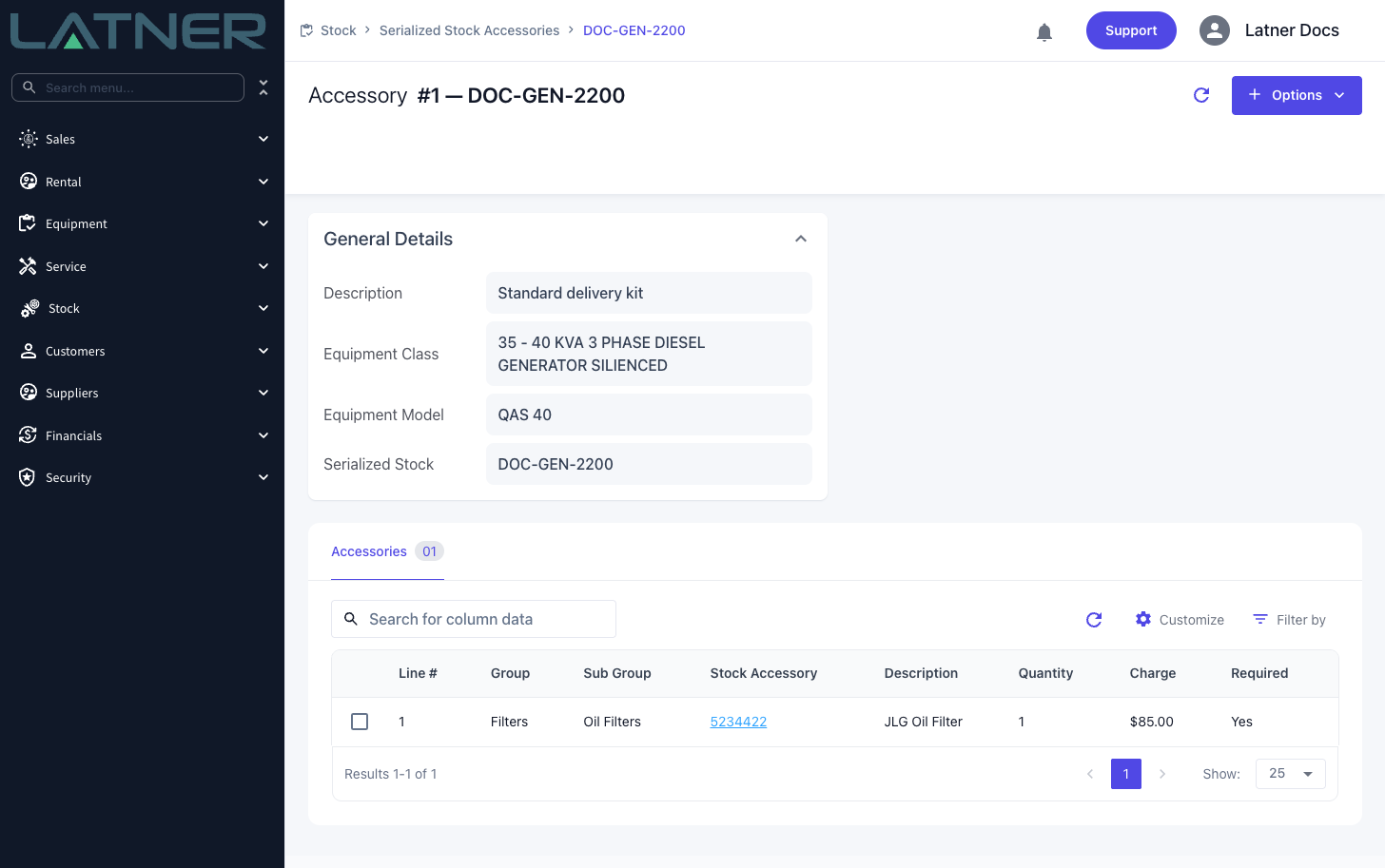
An accessory is a bundle of stock lines that should travel with a serialized product, for example a battery, a lead set, or a manual. Accessories are defined once and then pulled onto Sales Orders and Purchase Orders automatically when the product is added.
Accessories are matched at three levels of specificity, so you can define a default set broadly and override it narrowly:
-
Equipment Class only — applies to every product in the class.
-
Equipment Class + Equipment Model — applies to a specific model.
-
Equipment Class + Equipment Model + Serialized Stock — applies to one specific product.
The most specific matching accessory wins. Create and manage these from Stock › Serialized Stock › Accessories using Create Accessory, then add lines with Add Accessory Line. Accessory definitions can also be bulk loaded through the standard Imports and Exports screens using the Serialized Stock Accessories and Serialized Stock Accessory Details types.
Pricing
There are two ways a price reaches a Serialized Stock sale:
-
Recommended Retail Price (RRP) — set on each Serialized Stock record's detail page. This is the default price used when the product is added to a Sales Order.
-
Sales Order Rate Books — customer- and site-specific price lists managed under Sales › Configuration › Sales Order Rate Books. A rate book can set a specific rate for a stock or serialized stock line, and is assigned to customers or sites so the right price is applied automatically.
Related Tasks
-
How to Purchase Serialized Stock — create the product record and bring items in on a Purchase Order.
-
How to Capital Prep a Serialized Stock Item — raise a work order to ready an item for service.
-
How to Sell or Convert Serialized Stock — sell an item to a customer, or turn it into a rental fleet asset.