
Linking equipment to a finance schedule tells Latner which machines the loan paid for, so the repayments show up as a cost against those machines.
Overview
A finance schedule works perfectly well on its own, but on its own it can't tell you whether the machine it funded is earning its keep. Linking the equipment is what closes that gap.
-
Each link names an equipment class and model, and optionally a specific equipment number.
-
A Finance Percentage sets how much of each repayment belongs to that machine, so one loan can be split across several.
-
Linked repayments feed the Finance Payments column on the Equipment Profitability dashboard, apportioned by that percentage.
-
A machine can only be on one finance schedule at a time.
-
Links can be added while the schedule is Open or Active, and edited at any time.
Before You Begin
Make sure the following are in place before you start.
|
Requirement |
Where to Find It |
|---|---|
|
A finance schedule in Open or Active status |
Financials › Finance Schedules |
|
The equipment the finance paid for, already created in Latner |
Equipment › Equipment |
|
Create Finance Schedule permission |
Security › Configuration › Permission Groups › Financial › Options |
Work out the split before you start. If a $120,000 loan bought two identical excavators, each one carries 50% of every repayment; if it bought one machine outright, leave the percentage at 100%.
Linking the Equipment
Step 1 - Choose Add Equipment
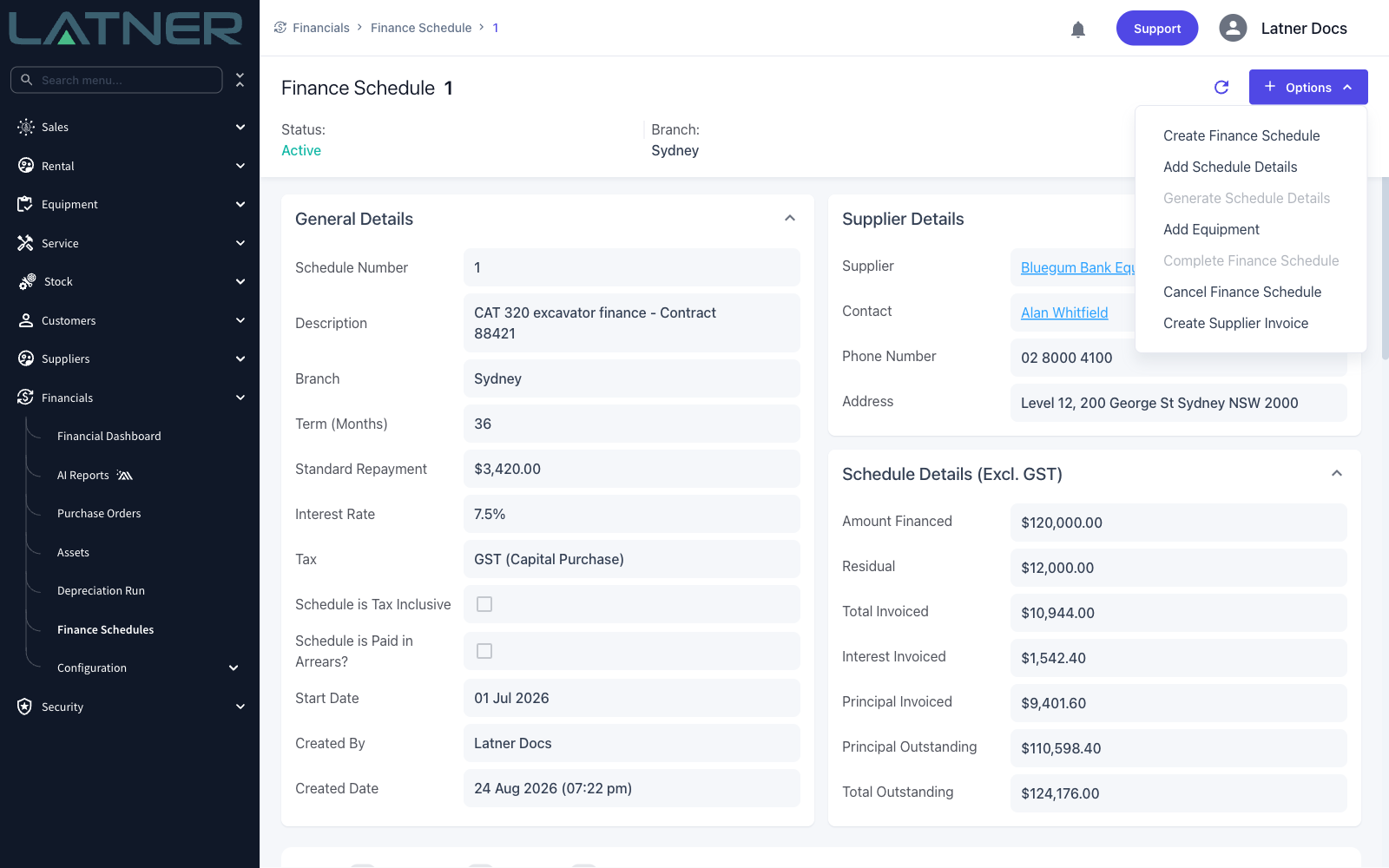
Open the finance schedule and choose Options › Add Equipment. If the option is greyed out, the schedule is Completed or Cancelled - the tooltip reads "Schedule must be Open/Active to add Equipment".
Step 2 - Choose the machine and its share
-
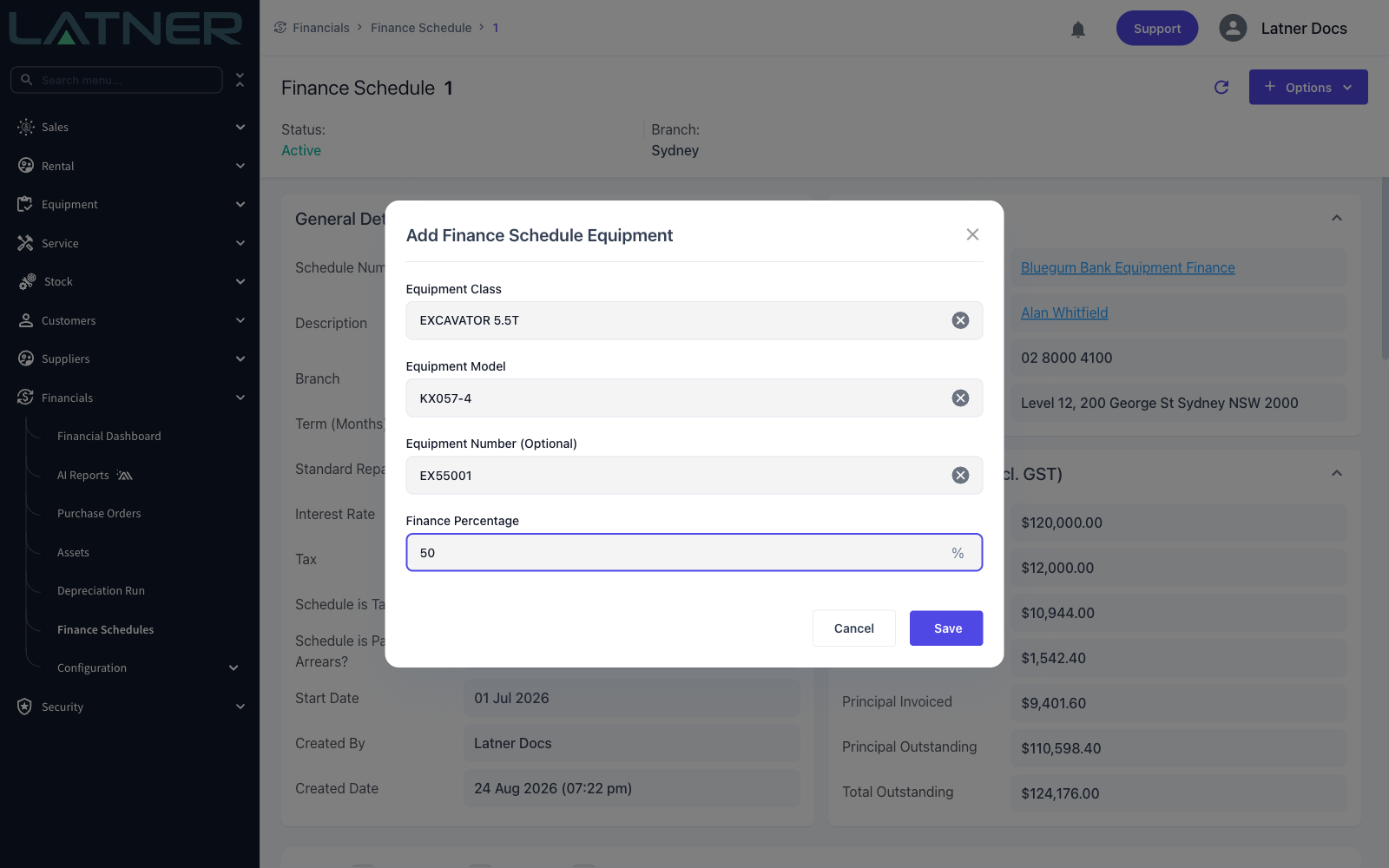
Equipment Class - required. Narrows the models you can choose from.
-
Equipment Model - required. Link at model level when the finance covers a batch of identical machines and you don't need it broken down further.
-
Equipment Number (Optional) - the individual machine. Only equipment that isn't already on another finance schedule appears in the list.
-
Finance Percentage - the share of each repayment that belongs to this machine. Defaults to 100%.
Step 3 - Save, and repeat for each machine
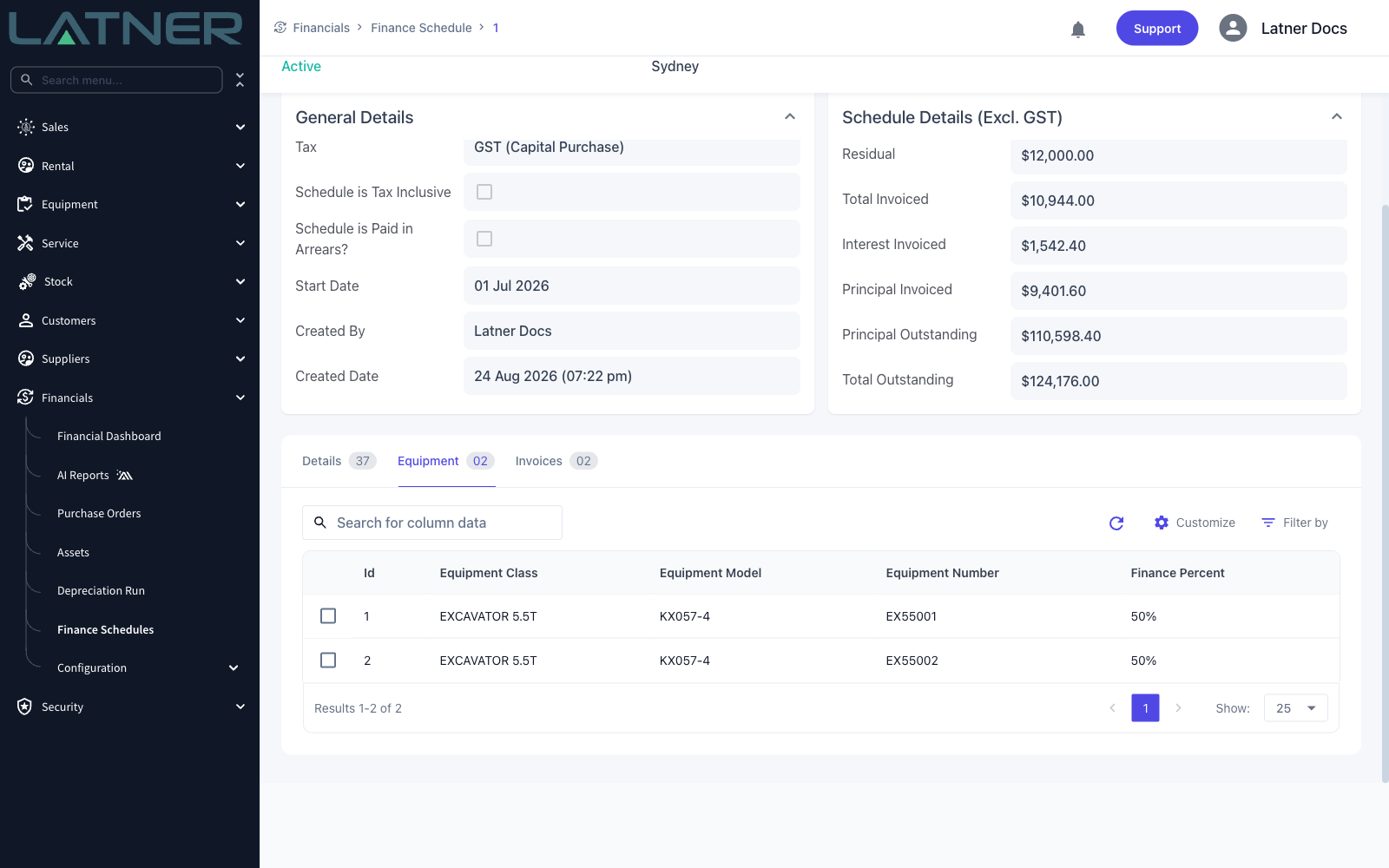
Choose Save. The link appears on the schedule's Equipment tab, and you reopen Add Equipment for the next machine. Double-click a row to change the machine or its percentage later.
After Linking
-
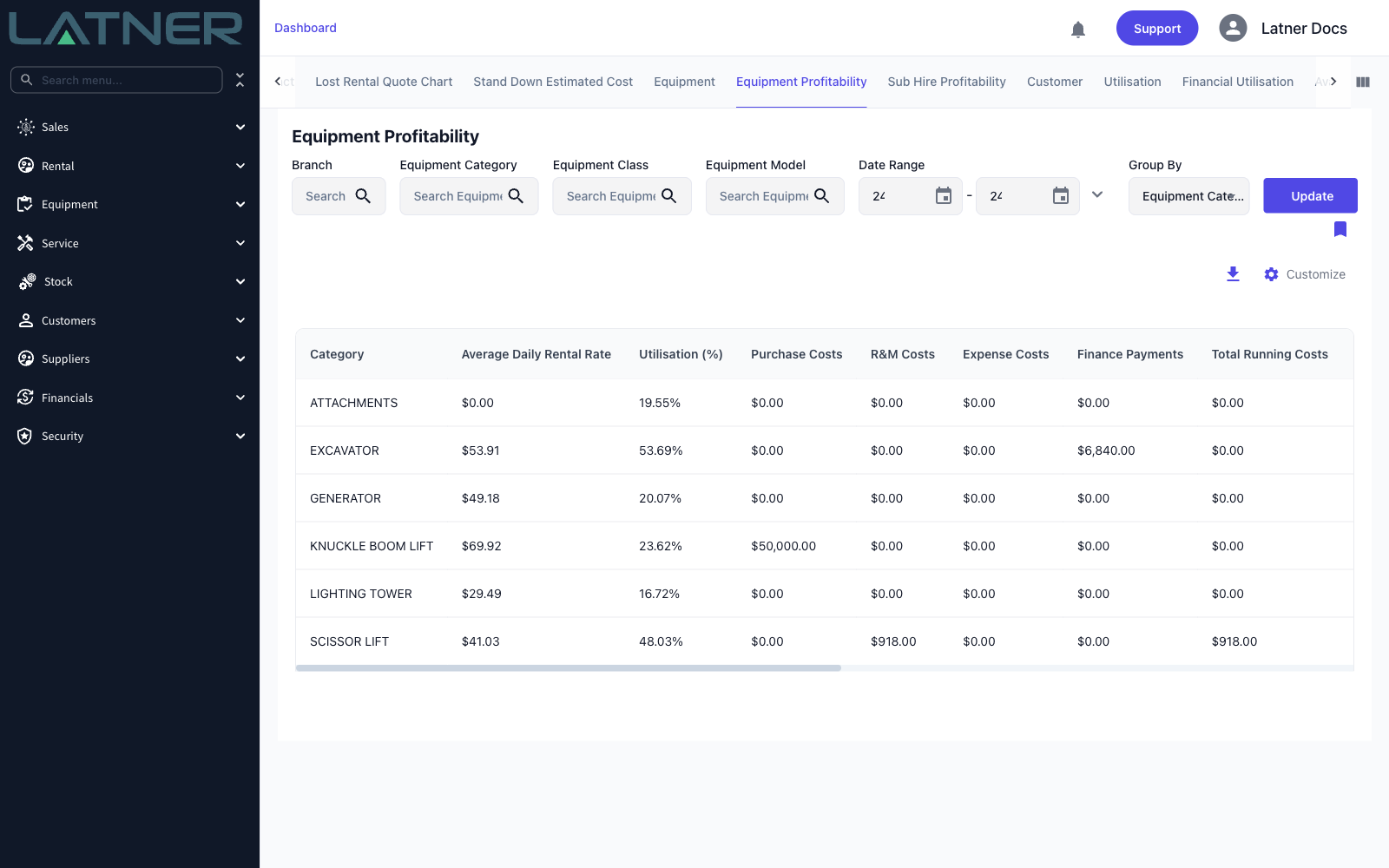
The repayments appear against those machines in the Finance Payments column of Dashboard › Equipment Profitability, which you can group by equipment category, class, model or number.
-
Each machine is credited with its share of the repayment, so a $3,420 repayment split 50/50 contributes $1,710 to each machine.
-
Only repayment dates inside the dashboard's date range are counted, and cancelled schedules are left out.
-
The Finance Payments panel on Financials › Financial Dashboard reports the same repayments grouped by branch and supplier, whether or not equipment is linked.
Equipment links can be edited but not removed. If a machine was linked to the wrong schedule, edit the row to point at the right machine, or set its finance percentage to 0% so it stops attracting a share of the repayments.