
The Dashboard is Latner's home screen: a row of tabs that each answer a common question - what's overdue, what's earning, what's available - without running a report.
Overview
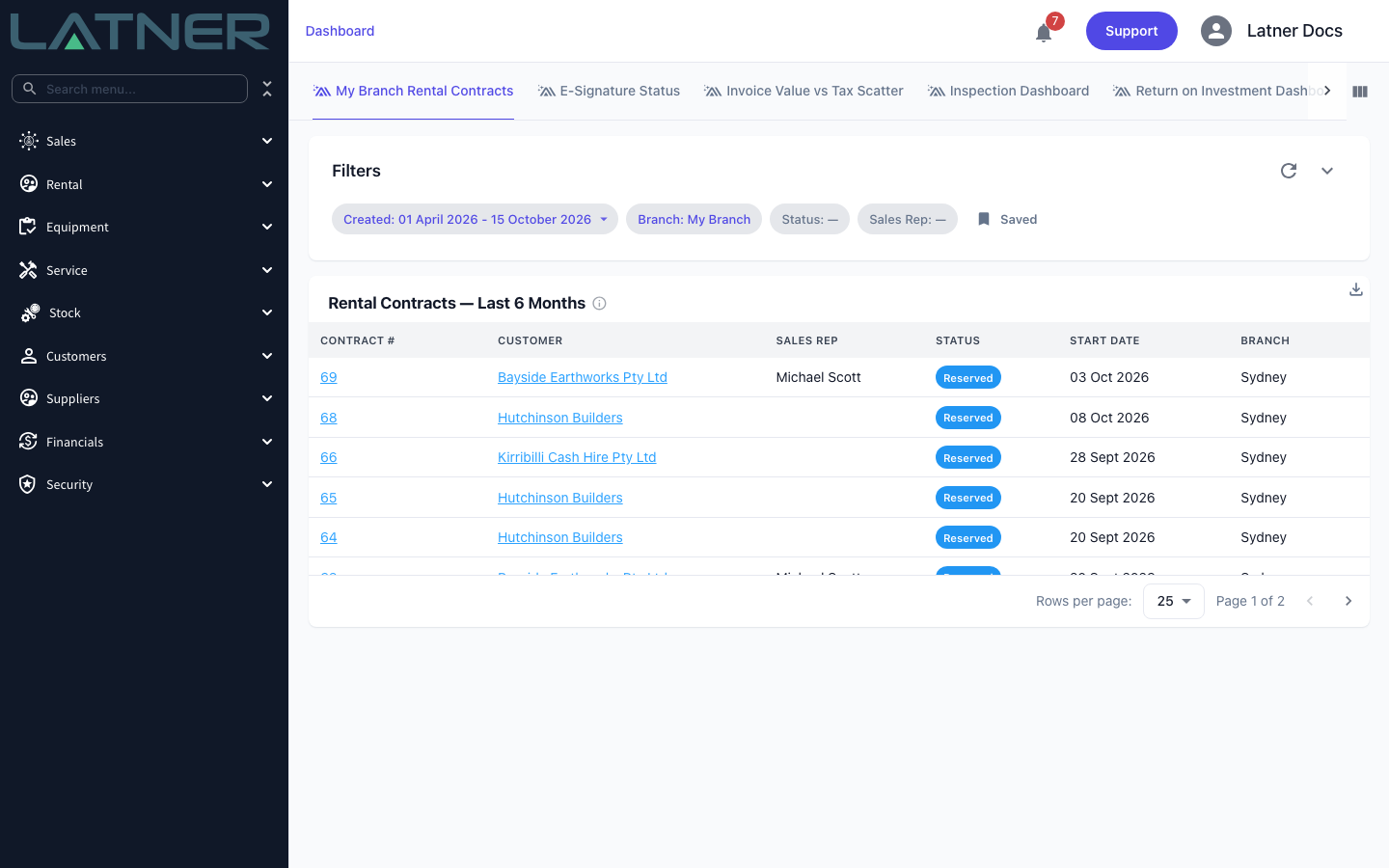
Every dashboard in Latner lives on this one screen. There's no Dashboards item under Equipment, Sales or any other menu: click the Latner logo at the top of the side menu (or log in) to open Dashboard, then pick a tab along the top.
-
You only see the tabs your permission group allows. Each tab has its own permission, listed below.
-
Use the Customize tabs icon at the right-hand end of the tab row to reorder tabs or hide the ones you don't use. Your layout is saved to your user, so it follows you to any computer.
-
Clicking a tab adds it to the address bar (for example ?tab=Revenue), so you can bookmark or share a link straight to a tab.
-
Before you build an AI report, check the tabs - revenue by customer, utilisation by branch and quote conversion are already here.
-
On a phone or tablet, Dashboard shows the mobile home screen instead of these tabs.
The Tabs and Their Permissions
Permissions are switched on per permission group in Security › Configuration › Permission Groups. All of them are Screen permissions in the module shown.
|
Tab |
What it's for |
Permission (module) |
|---|---|---|
|
CRM |
Your CRM to-do list: Overdue Activities, Upcoming Activities, Recently Completed Activities (last 7 days) and Accounts Converted This Month |
CRM Dashboard (Sales) |
|
Activities, quotes and accounts charted by month, including quote conversion |
CRM Dashboard Charts (Sales) |
|
|
Overdue quotes, quotes from the last 7 days and lost sales |
Rental Quote Dashboard (Rental) |
|
|
Contracts needing action: upcoming, overdue off hire, unreturned, uninvoiced, awaiting completion and cash customer checks |
Rental Contract Dashboard (Rental) |
|
|
The value of lost and cancelled quotes by reason, branch, sales rep or source |
Rental Quote Dashboard (Rental) |
|
|
Estimated revenue given up to stand downs, month by month |
Equipment Stand Down Estimated Cost Dashboard (Equipment) |
|
|
Equipment documents (such as registrations) that have expired or expire soon |
Equipment Dashboard (Equipment) |
|
|
Revenue against running costs, margin and ROI by machine, class or category |
Equipment Profitability Dashboard (Equipment) |
|
|
Customer revenue against supplier cost for sub hired equipment |
Sub Hire Profitability Dashboard (Rental) |
|
|
Invoices that are open, unsent or not synced to accounting, and customers pending approval |
Customer Dashboards (Customers) |
|
|
Time utilisation - days on hire over days in the fleet |
Equipment Performance/Utilisation Dashboard (Equipment) |
|
|
Dollar utilisation - annualised revenue over purchase price |
Equipment Performance/Utilisation Dashboard (Equipment) |
|
|
Projected quantity available by class or model over the coming days and months |
Equipment Availability Dashboard (Equipment) |
|
|
Invoiced revenue by month, grouped by branch, customer, line type and more |
Customer Revenue Dashboards (Customers) |
|
|
This month's invoiced revenue plus forecast rental revenue, or a long range forecast |
Customer Revenue Dashboards (Customers) |
A dashboard permission shows the tab, but the data on it still comes from the underlying screens. If a tab appears but a table or chart won't load, the user may also need the matching screen permission - for example Rental Quote for the quote charts.
Other Tabs You Might See
-
AI report tabs - marked with the AI icon and listed first. Each active AI report shared with you appears as its own tab. AI reports are created under Financials › AI Reports where that feature is enabled. Some may have names similar to a built-in tab - the built-in tabs don't have the AI icon.
-
Timesheet Dashboard isn't on this screen. It's a tab on Service › Timesheets - see Timesheet.