
The Revenue tab on the Dashboard charts your invoiced revenue month by month, so you can see where income is coming from and how it's trending without building a report.
Overview
Revenue is a tab on the Dashboard home screen - the screen you land on when you log in. It isn't a menu item, so if you can't find it in the side menu, open Dashboard and pick the Revenue tab along the top.
-
Each column is one calendar month, stacked by whatever you choose in Group By (Line Type by default).
-
Figures come from invoice lines on invoices and credit notes that are Completed or Paid. Open, pending approval and cancelled invoices aren't counted.
-
Amounts are the line sub total, excluding GST, and each line lands in the month of its invoice date.
-
Where an invoice line has been split across branches or contract lines in its accounting details, each split is counted against its own branch and line type.
-
The date range can span up to 12 months.
Before You Begin
Here's what you need to see this tab.
|
Requirement |
Where to Find It |
|---|---|
|
Customer Revenue Dashboards permission (this also shows the Revenue Forecast tab) |
Security › Configuration › Permission Groups - see How to Change What a User Can Do Using Permission Groups |
|
Branch access |
You only see revenue for branches your user can access |
Using the Revenue Tab
Step 1 - Open the Revenue tab
Open Dashboard from the side menu and select the Revenue tab. The chart loads straight away for the last 12 months (from the first of the month 11 months ago to today), grouped by line type.
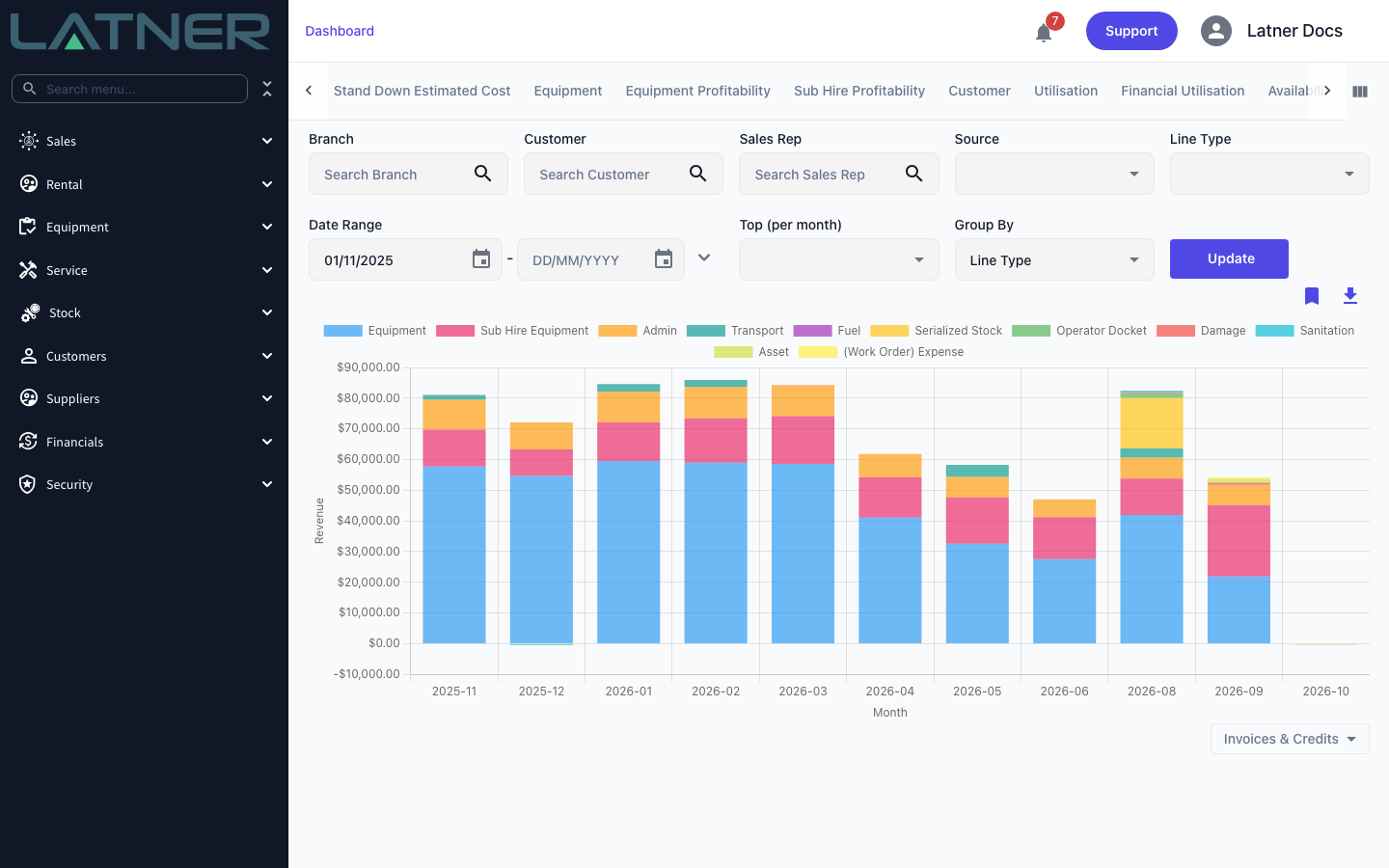
Step 2 - Set the filters
Every filter is optional. Leave one blank to include everything.
-
Branch - one or more branches. A line counts against the branch it was invoiced from, or the branch its revenue was split to.
-
Customer - one or more customers.
-
Sales Rep - the sales rep on the invoice, or on the rental contract if the invoice has none.
-
Source - where the invoice came from: Manual, Rental Contract, Sales Order, Work Order or Transport.
-
Line Type - the kind of charge, such as Equipment, Sub Hire Equipment, Stock, Transport, Admin, Fuel, Damage, Labour, Sanitation, Package or the work order line types.
-
Date Range - filters on invoice date. The From date is required and the range can be no more than 12 months apart. Leave To blank to run to today. The arrow beside the dates offers presets such as Current Month, Last Quarter, Financial Year to Date and Last 6 Months (the financial year starts 1 July).
-
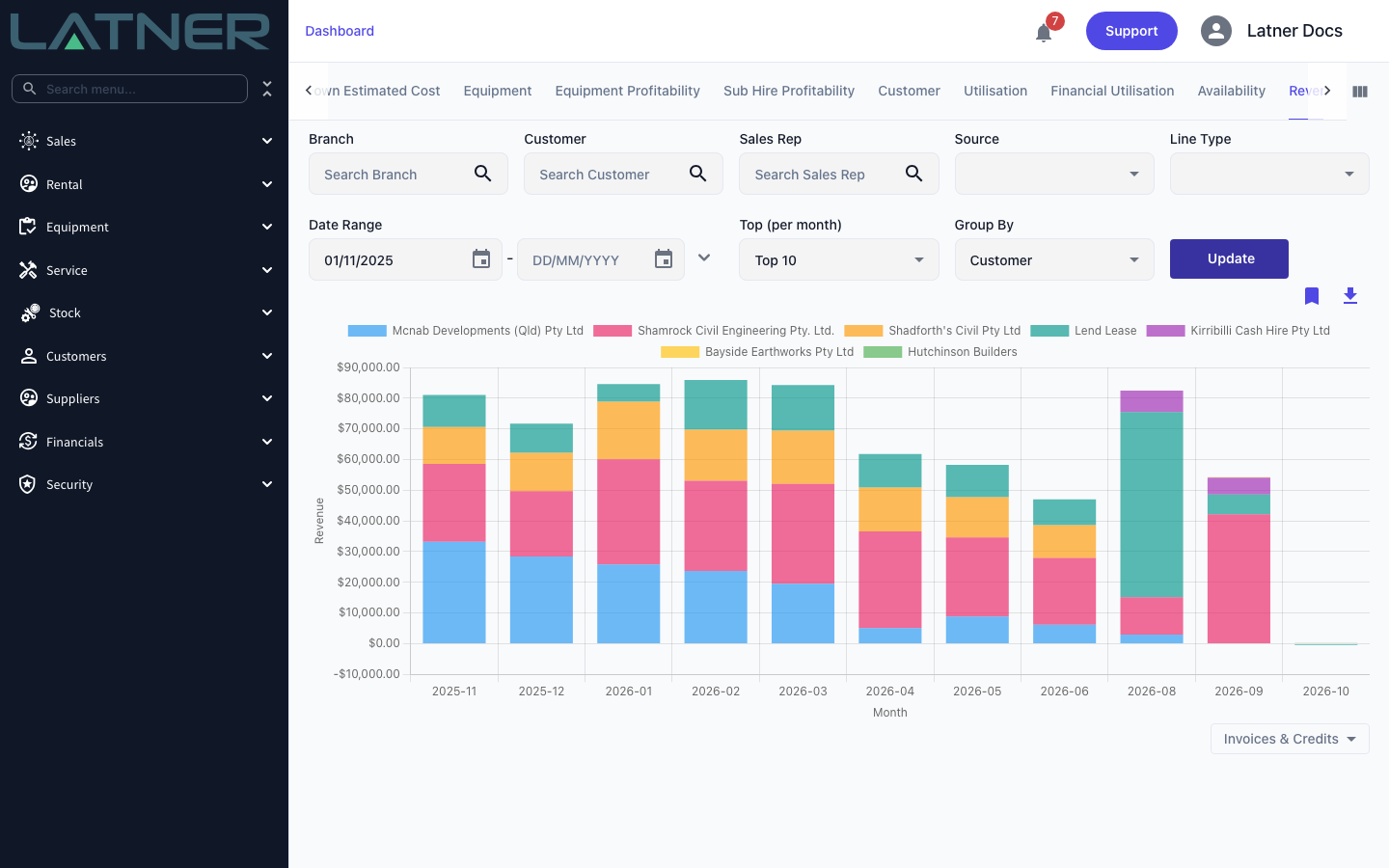
Top (per month) - Top 10 or Top 25 keeps only the biggest groups in each month. Leave it blank to show every group.
-
Group By - how each month's column is split (see below).
Click Update to redraw the chart.
If you pick a From date more than 12 months before the To date (or before today, if To is blank), the chart won't update and you'll see From Date and To Date cannot be more than 12 months apart. To compare longer periods, run the tab once per 12-month window and download each one.
Step 3 - Choose how to group the revenue
Group By decides what each coloured segment represents:
-
Company, Division or Branch - your organisation structure, based on the invoice line's branch.
-
Customer - one segment per customer.
-
Industry - the customer's industry. Customers with no industry show as Unknown.
-
Line Type - the default; one segment per kind of charge.
-
Equipment Category (Rental), Equipment Class (Rental), Equipment Model (Rental) and Package - lines with no equipment or package are left out of these groupings.
-
Service Reason and Service Category - work order invoices only.
-
Transport Type, Admin Charge Type, Fuel Type, Sanitation Type and Labour Type - only available when the Line Type filter is set to that single line type (for example, Transport Type needs Line Type = Transport).
Step 4 - Read the chart
-
Hover over a column to see the month's Total and the amount for each segment.
-
The selector under the chart switches between Invoices & Credits (invoiced revenue less credits - the default), Invoices Only and Credit Notes Only (shown as negative amounts). Credits include credit note lines and negative lines on an invoice, such as a discount.
-
Months with no matching invoices don't appear on the chart.
Top (per month) ranks groups separately in each month, so a customer can appear in March and not in April. Groups outside the top 10 or 25 are dropped rather than rolled into an "Other" segment, so with Top applied a column's total only covers the groups shown.
Step 5 - Download the data
Click the download icon (Download Chart Data) above the chart to save Revenue.csv. It has one row per group and one column per month shown on the chart, using the current filters, Group By, Top and Invoices & Credits selection. For an annual total per customer or branch, set a 12-month date range, group by Customer or Branch and add the month columns up in your spreadsheet.
Step 6 - Save the filters (optional)
Click the bookmark icon (Saved Filters) to save the current filters under a name. Choosing a saved filter later reloads it and redraws the chart.
FAQs
Watch the Demo
Prefer to watch it? Step through the same screen here.