
The Transport Allocation screen is the whiteboard for your yard's day: every unscheduled docket sits in one column, every driver and carrier gets a row, and you drag work from the first to the second.
Overview
Transport dockets pile up faster than anyone can keep in their head, and a list view won't tell you whether Dwight is already flat out at 10am. The allocation board answers that in one glance, and lets you fix it without leaving the screen.
-
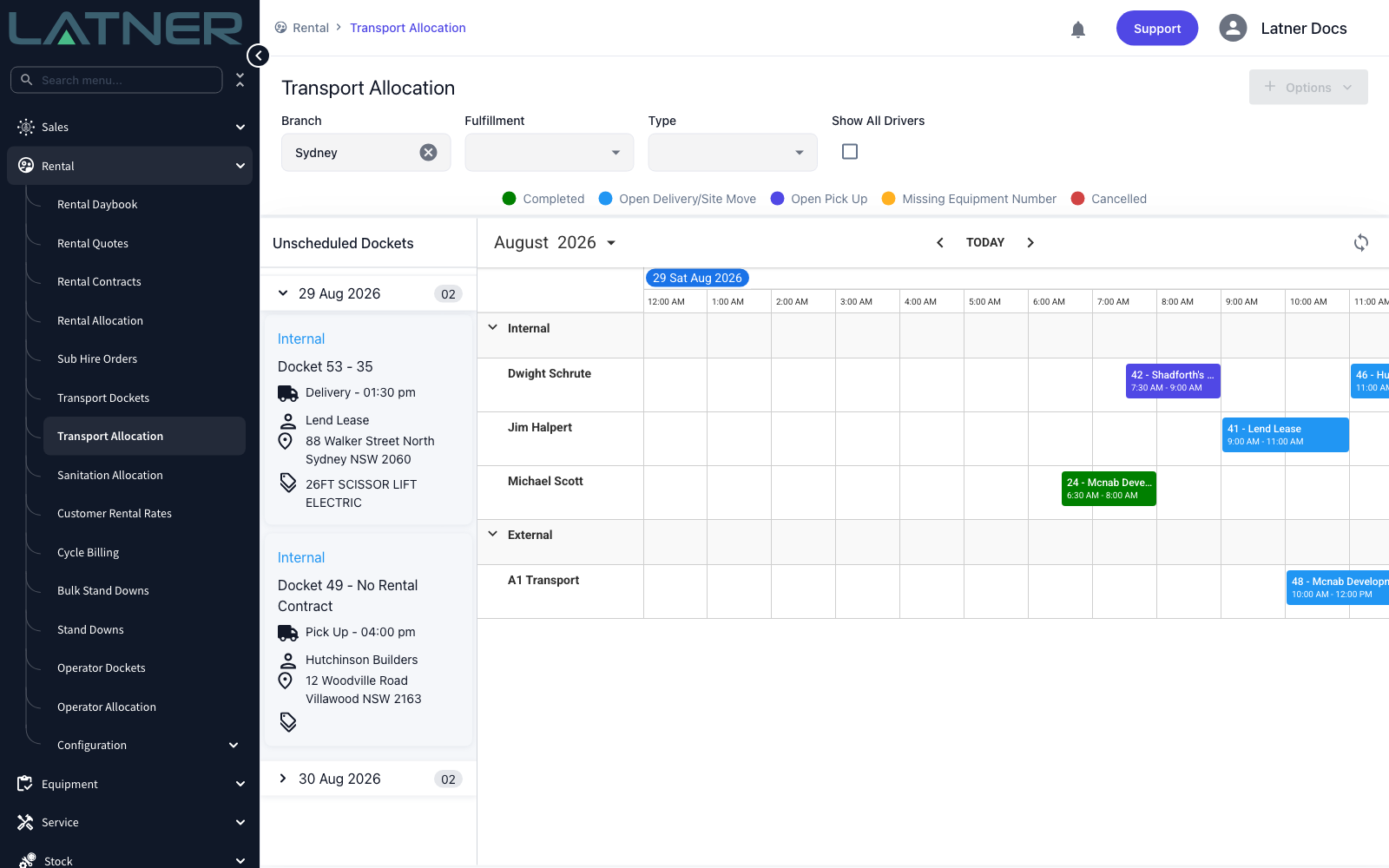
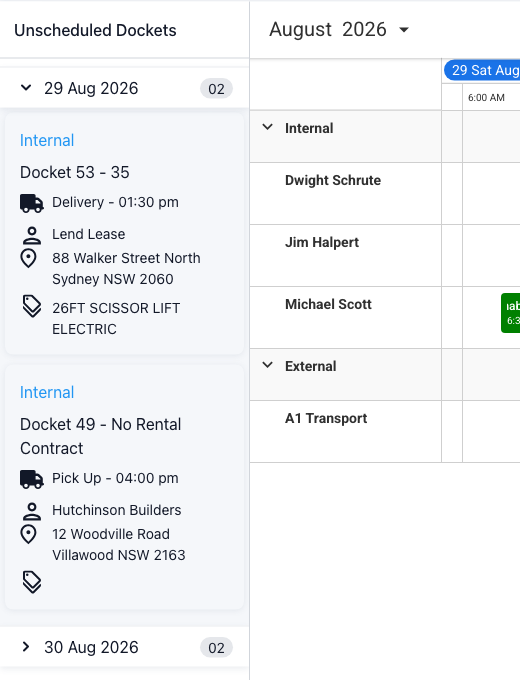
The left column, Unscheduled Dockets, holds every open docket that has not been given a time and a driver yet, grouped by the date it is due.
-
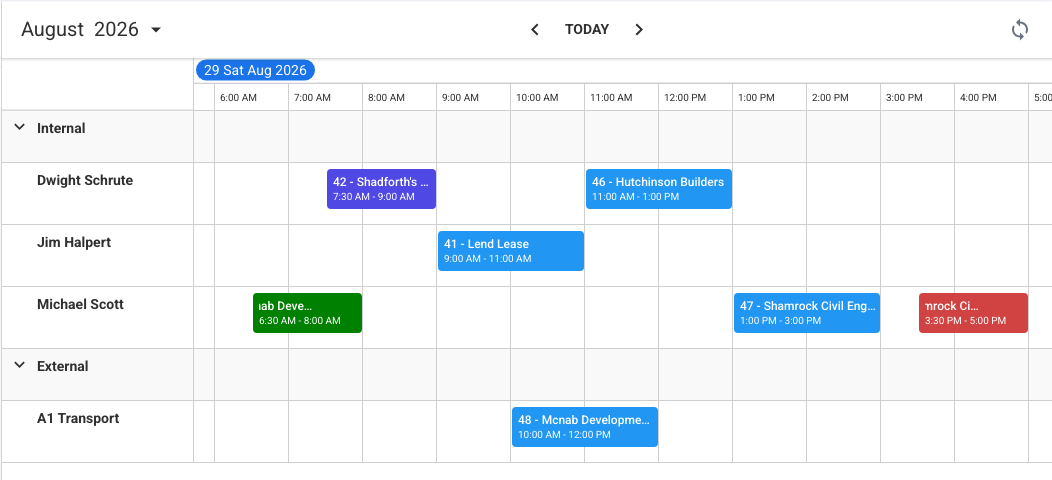
The right side is a timeline you can view a day or a week at a time, with one row per resource, split into an Internal group (your own drivers) and an External group (carriers you sub the work out to).
-
Dragging a docket from the queue onto a row sets the scheduled start time, the scheduled end time and the driver or carrier in a single action.
-
Blocks are colour coded by status and type, so a docket that is missing an equipment number or has been cancelled stands out without being opened.
-
This board is the only place the scheduled times are set. On the docket itself the Scheduled Date / Time field is read only.
Before You Begin
The board is only as useful as the resources and dockets behind it, so check these first.
|
Requirement |
Where to Find It |
|---|---|
|
Transport Allocation screen permission - lets users search and view transport dockets in the transport allocation screen |
Security › Configuration › Permission Groups › Rental › Screen |
|
Your drivers exist as skilled people and carry the Driver role |
Service › Configuration › Skilled Persons |
|
Any carrier you allocate to is a supplier with the Driver role |
Suppliers › Suppliers, on the supplier's Roles field |
|
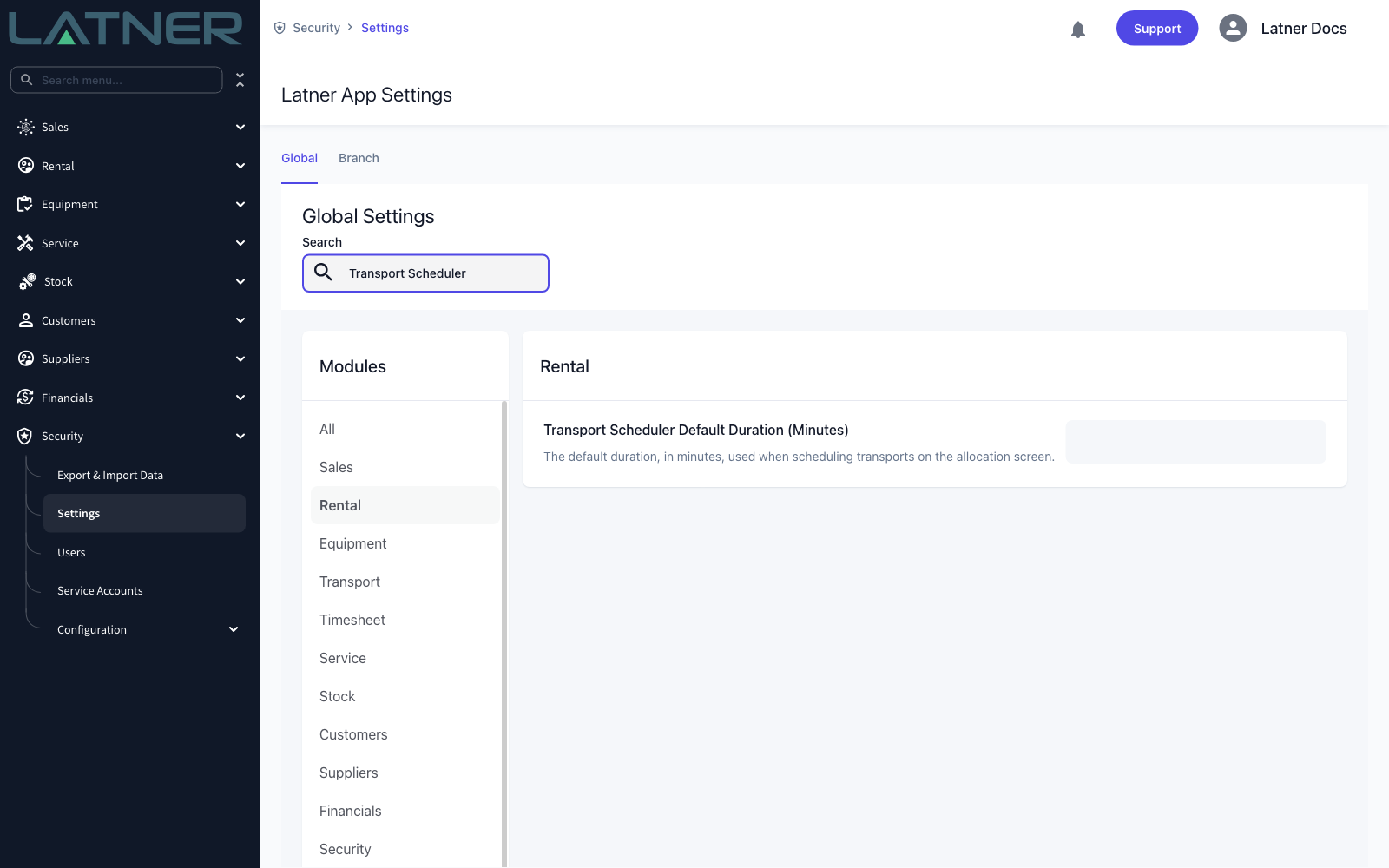
Transport Scheduler Default Duration (Minutes) - how long a block runs when the board creates one for you |
Security › Settings › Rental |
|
Allow Assigning Drivers to an External Transport - only needed if your own drivers run jobs a carrier is fulfilling |
Security › Settings › Transport |
Every branch you put in the Branch filter has to use the same timezone, because the timeline can only draw one clock. Pick two branches in different timezones and Latner rejects it with "Selected Branches must all use the same Timezone", and the board is replaced by a prompt to fix the selection.
Working the Board
The screen is designed to be worked left to right: filter it down, read the queue, then place the work.
Step 1 - Open the Transport Allocation screen
Go to Rental › Transport Allocation. The board opens in the view you last used - Daily, on today, the first time - filtered to your own branch.
Step 2 - Get your bearings
The screen has three parts, and they always sit in the same place.
-
The filter bar and colour legend - across the top, above everything else.
-
Unscheduled Dockets - the fixed left column. This is your queue.
-
The timeline - the rest of the screen, one row per driver or carrier for the day or week you are looking at.
The timeline header gives you the controls for moving around:
-
The month and year picker on the left - jump straight to any date.
-
The arrows beside TODAY - step back or forward a day in the Daily view, or a week in the weekly views. TODAY brings you back to the current day.
-
The date or date range you are looking at, in the middle.
-
Refresh and Auto Refresh on the right (see Step 8), then the View selector.
View sets how much time the timeline shows:
-
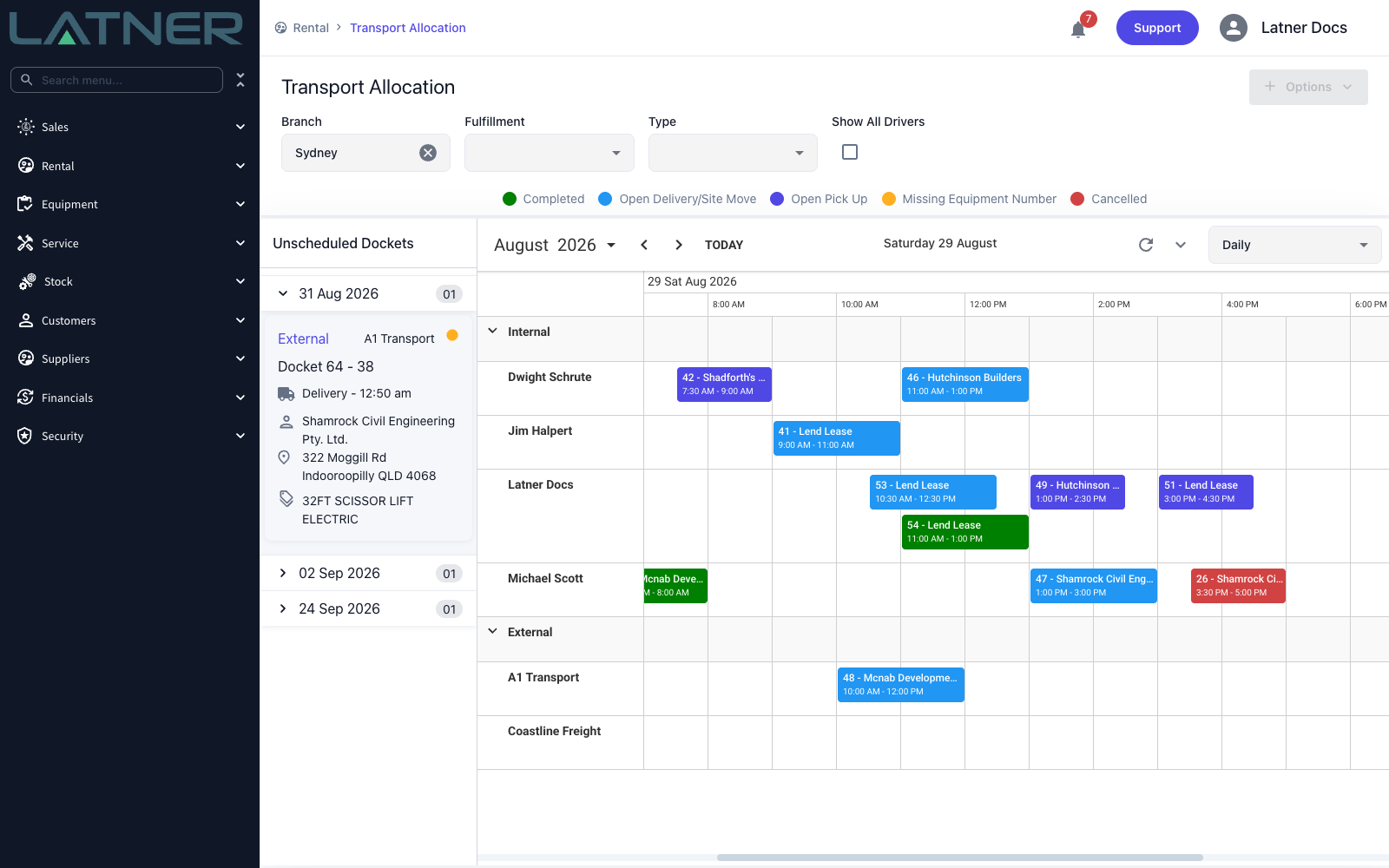
Daily - one day, an hour per column. The default, and the easiest view for placing work precisely.
-
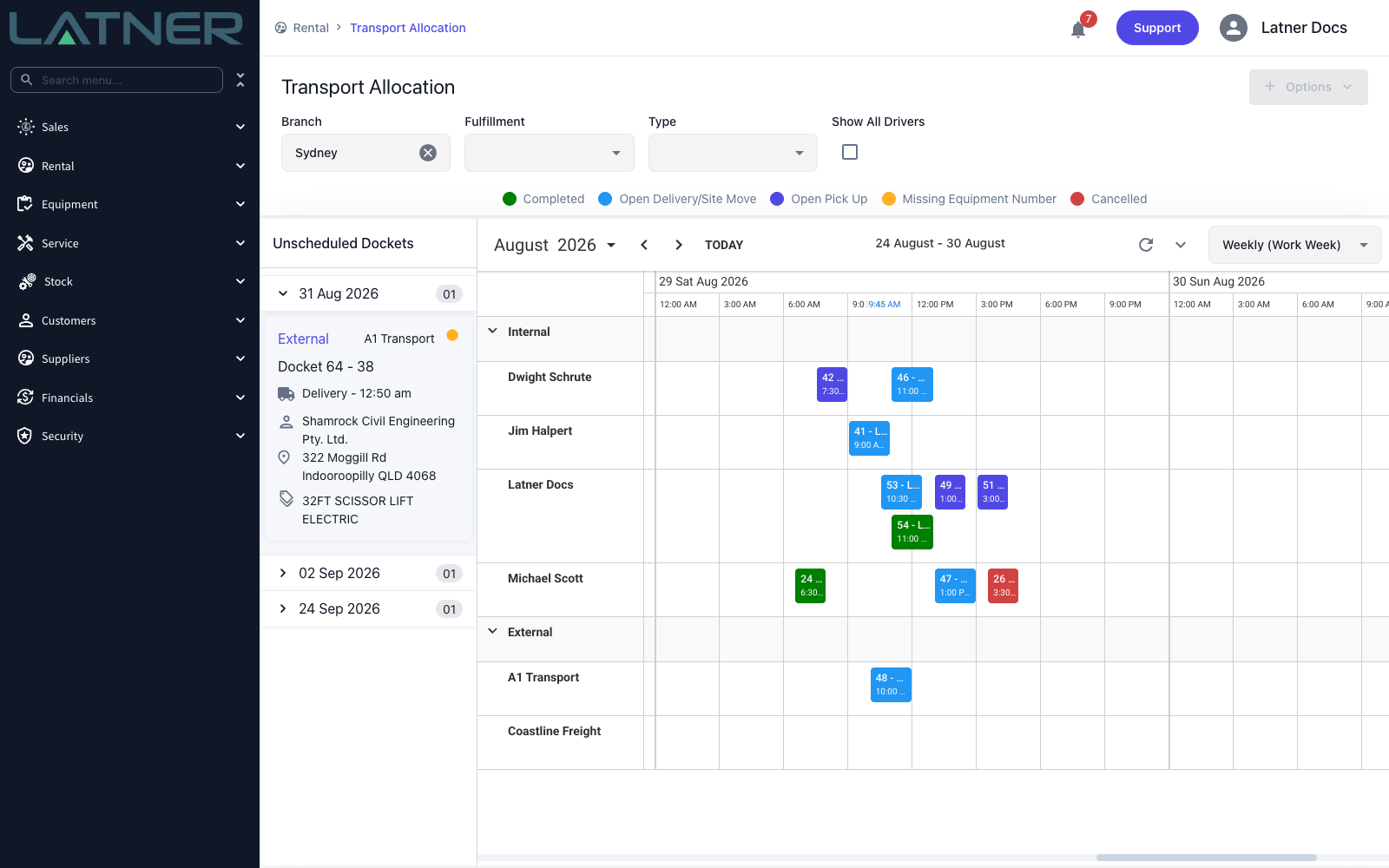
Weekly (Work Week) - Monday to Sunday, three hours per column.
-
Weekly (Rolling) - seven days starting the day before the date you are on, so yesterday leads the board. Three hours per column.
Every view covers the full 24 hours of each day, so scroll sideways for early starts and late finishes. Latner remembers the view you pick and opens the board in it next time. The queue does not change with the view or the date, because the queue is about what is due, not what is scheduled.
Step 3 - Narrow the board with the filters
Four filters sit above the legend, and every one of them reshapes what the board draws.
-
Branch - accepts more than one branch, and starts on yours. All selected branches must share a timezone. It narrows the dockets to those belonging to the selected branches and the Internal drivers to those based at them. Carriers in the External group are not filtered by branch at all.
-
Fulfillment - Internal or External. Leave it blank to see both.
-
Type - Delivery, Pick Up or Site Move. Blank shows all three. Customer collections are deliberately not on this board, because nobody from your yard is driving them.
-
Show All Drivers - tick it to list every driver regardless of branch. Left unticked, the Internal group only shows drivers whose branch is one of the branches you filtered to.
The colour legend underneath tells you how to read the blocks on the timeline.

Step 4 - Read the Unscheduled Dockets queue
The queue holds open dockets that have not been fully scheduled, grouped under the date they are due, earliest first. The badge on each date header is the number of dockets waiting on that day, and the first group is expanded for you.
Each card is a docket at a glance:
-
Internal / External - who is expected to run it, and therefore which group of rows it can be dropped on.
-
Driver or carrier name - shown when one is already assigned but the times are not set yet.
-
An amber dot - the docket has a line with no equipment number against it yet.
-
Docket number, followed by the rental contract or sales order it came from, or No Rental Contract for a manual docket.
-
Type and due time, the customer, and the address - the pick up address on a pick up, the To address on a delivery or site move.
-
The equipment summary - the first two items on the docket, then +N more.
Click a card to open the full docket in a new screen.
Step 5 - Read the timeline
Rows are grouped into Internal, listing skilled people with the Driver role, and External, listing suppliers with the Driver role. Each block is labelled with the docket number and the customer, and hovering it shows the type, when it is due, the customer, the address, the delivery contact and phone, the equipment summary and any delivery instructions.
The colours are worth learning, because they save you opening dockets:
-
Green - the docket is completed.
-
Blue - an open delivery or site move.
-
Purple - an open pick up.
-
Amber - an open docket with a line that still has no equipment number. Worth resolving before the driver leaves.
-
Red - the docket is no longer live. Cancelled dockets are red, and so are attempted ones.
Double-click a block to open that docket.
Step 6 - Schedule, move and unschedule dockets
Everything on this board is done by dragging.
-
To schedule - drag a card out of the queue and drop it on a driver or carrier row at the time you want it to start. Latner saves the scheduled start, the scheduled end and the resource in one go, and the card leaves the queue.
-
To move a job - drag its block to another time or another row.
-
To change how long it takes - drag the edge of the block.
-
To unschedule - drag the block off the timeline and drop it back on the Unscheduled Dockets column. The driver and both scheduled times are cleared and the docket rejoins the queue. An external docket keeps its carrier, so only the times are lost.
An internal docket belongs on a driver row and an external docket on a carrier row - the board will not swap one for the other. Dropping an internal docket on a carrier is rejected with "Cannot set Supplier for Internal Transport", and dropping an external docket on a driver with "Cannot set Driver for External Transport" unless Allow Assigning Drivers to an External Transport is switched on. If the work genuinely needs to change hands, change the docket's fulfillment on the docket itself rather than fighting the board.
Step 7 - Create a docket straight from the board
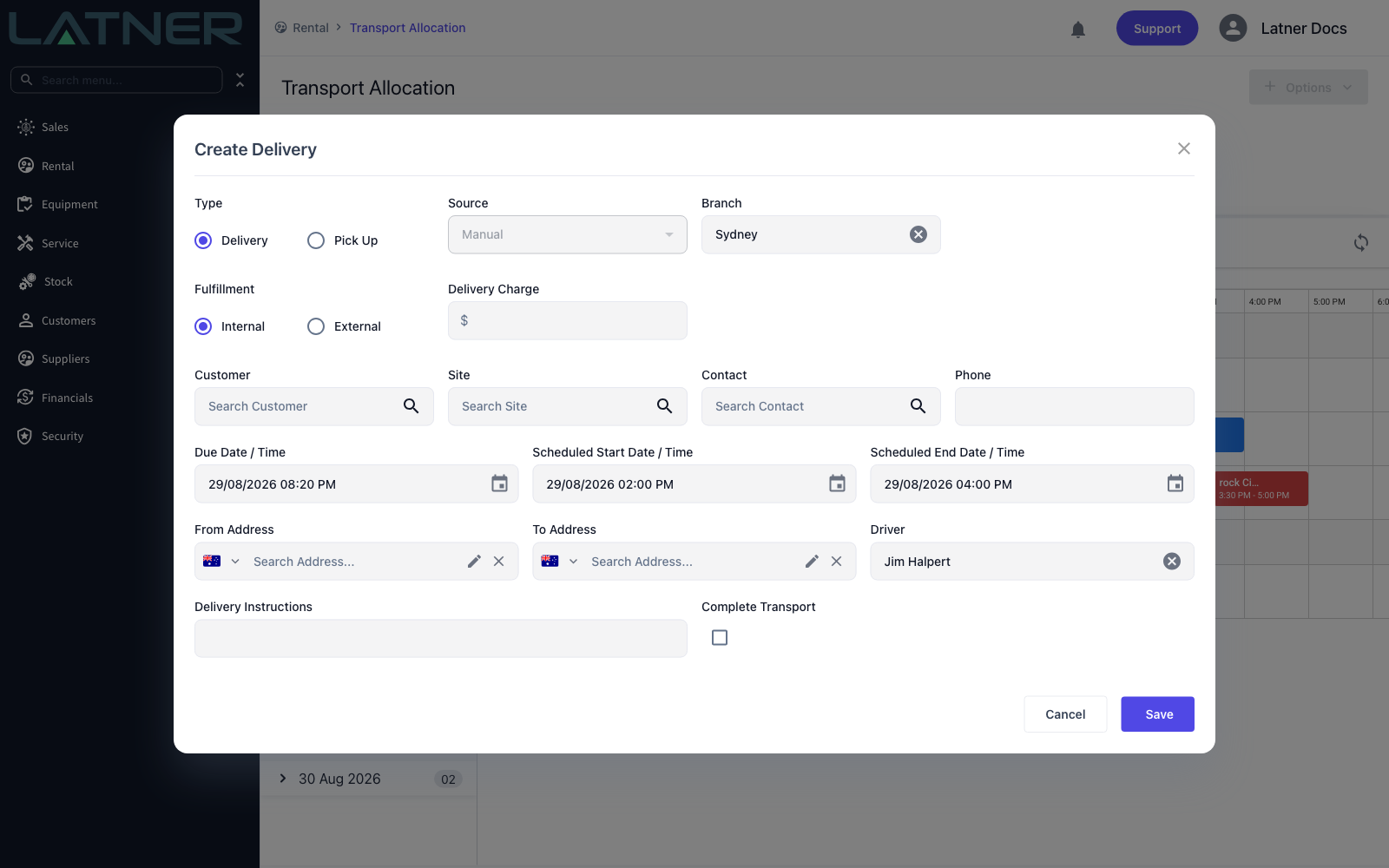
When a job comes in over the phone and you already know who is taking it, double-click the empty slot on that driver's row. The Create Delivery form opens with the scheduled start and end times and the Driver already filled in from the slot you clicked, and your branch pre-selected, so you only need the customer, the site and the addresses. Switch Type to Pick Up and the form retitles itself accordingly.
The block runs for the length set in Transport Scheduler Default Duration (Minutes), or two hours if that setting is empty. Adjust the times in the form, or drag the block afterwards.
Step 8 - Keep the board current
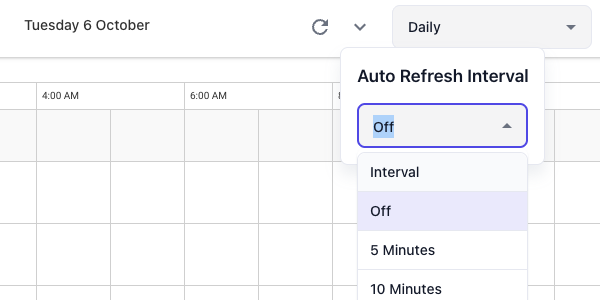
Allocation boards get left open on a screen all day, and drivers complete work on their mobiles while you are looking at it. The refresh icon at the right of the timeline header reloads the board straight away. The arrow beside it, Auto Refresh, opens Auto Refresh Interval, where you can have the board reload itself every 5 Minutes or 10 Minutes. It starts on Off and goes back to Off when you leave the screen.
After Allocation
-
The docket leaves the Unscheduled Dockets queue and appears as a block on that driver's or carrier's row.
-
The driver picks it up in My Transport on their mobile, where they can confirm equipment and complete the job.
-
The docket's Scheduled Date / Time is filled in and stays read only on the docket screen, tooltipped "Scheduling is managed in the Transport Allocation screen".
-
Allocating does not change the docket's status. It stays Open until it is completed or cancelled.
Unscheduling clears the driver as well as the times, so an internal docket dragged back to the queue loses who it was assigned to. If you only want to move the job to a different time, drag the block along its row instead of taking it off the board.
FAQs
Watch the Demo
Prefer to watch it? Step through the same flow here.