
Completing a Transport Docket by hand records a delivery, collection or pick up that the driver didn't close off on their phone, so the equipment moves on hire, the contract lines update and the job stops showing as outstanding work.
Overview
Most dockets close themselves. The driver arrives on site, works through the docket on the mobile app and taps Complete. But phones go flat, sites have no reception, and sometimes the job was done days ago and nobody told Latner. Completing the docket from the desktop is how you catch up.
-
Complete Transport lives on the Transport Docket screen under Options. It does the same work as a driver completing the docket in the mobile app.
-
It works for every docket, whether the docket came from a rental contract, an equipment transfer, a sales order, or was created manually.
-
You record what actually turned up, line by line, as a Qty Delivered. It doesn't have to match what was scheduled.
-
A docket can only be completed while it is Open. Completed, Cancelled and Attempted dockets are rejected.
-
If a line comes up short, Latner raises a new Open docket for the balance so the rest of the job stays on the board.
-
Completing the docket is what moves the source record. Delivered lines go On Rent, picked up lines move to Pending Return.
-
Completion can be undone with Reopen Transport, but only until an invoice is raised against it.
Before You Begin
You only need one permission to complete a docket. The rest of this list is what shapes the completion, or what stops it.
|
Requirement |
Where to Find It |
|---|---|
|
Transport Dockets permission - to open a docket and complete it |
Security › Configuration › Permission Groups › Rental › Screen |
|
Complete Transport without Take 5 permission - only needed when a Take 5 is configured and the driver hasn't done one |
Security › Configuration › Permission Groups › Transport › Field |
|
Reopen Transport Docket permission - only needed to undo a completion |
Security › Configuration › Permission Groups › Transport › Option |
|
Transport Docket Take 5 Checklist - when a checklist is selected, an Internal docket needs a completed Take 5 before it can be completed |
Security › Settings › Transport |
|
Allow Transport Dockets to be Completed with Open Inspections - the inspection types Latner will ignore when it checks the equipment |
Security › Settings › Equipment |
|
Auto Receipt Transport Purchase Orders - whether completing an External docket also confirms and receipts its Purchase Order |
Security › Settings › Transport |
|
Default Transport Customer Invoices to Completed - the status of the invoice raised when a charged manual docket is completed |
Security › Settings › Customers |
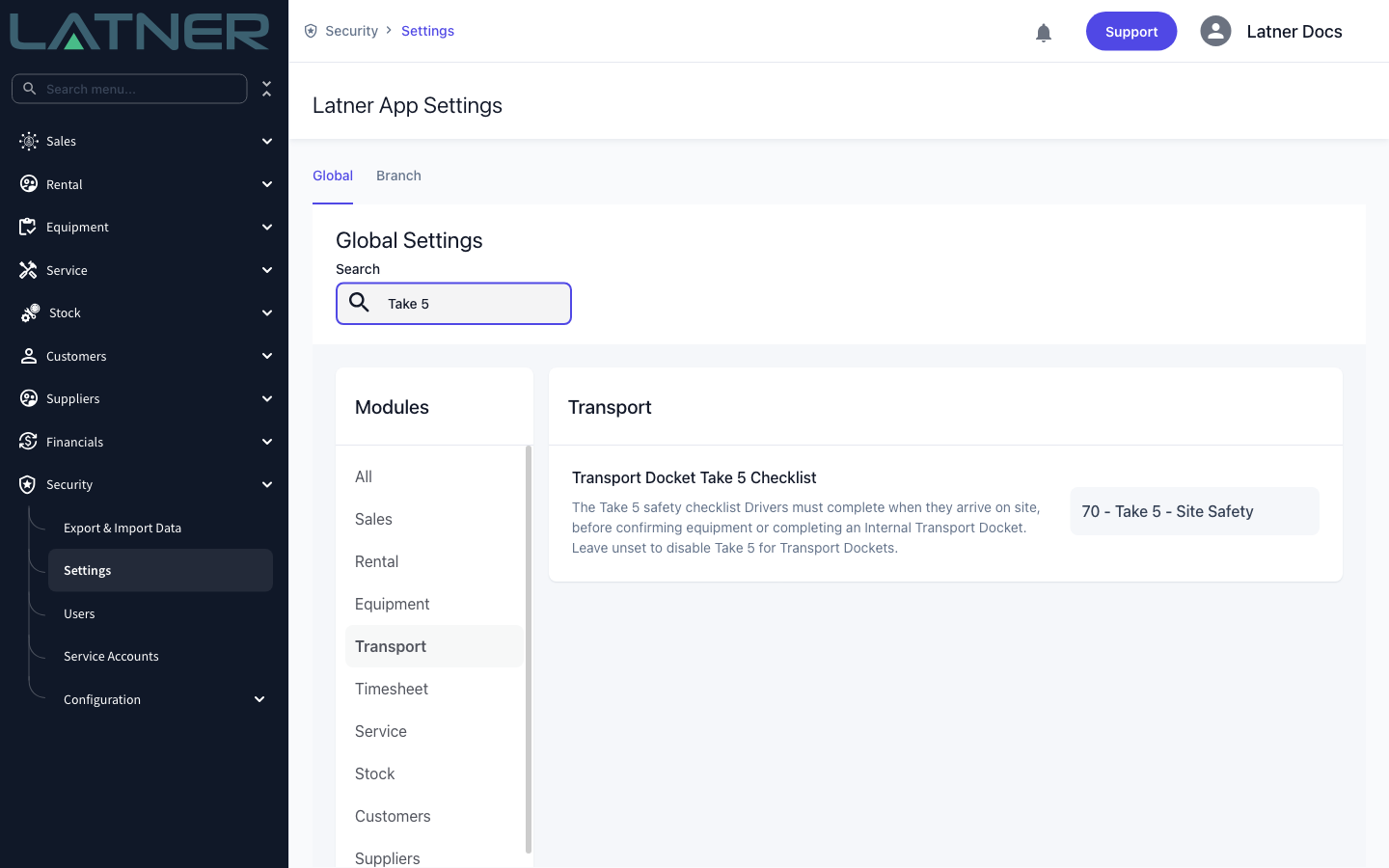
Take 5 only applies to Internal dockets, the ones your own driver runs. If a checklist is configured and nobody has completed one, Latner stops you with A Take 5 must be completed before completing this Transport Docket. Users who hold Complete Transport without Take 5 can complete the docket anyway, which is exactly the situation this article is about.
Completing the Docket
Step 1 - Find the docket
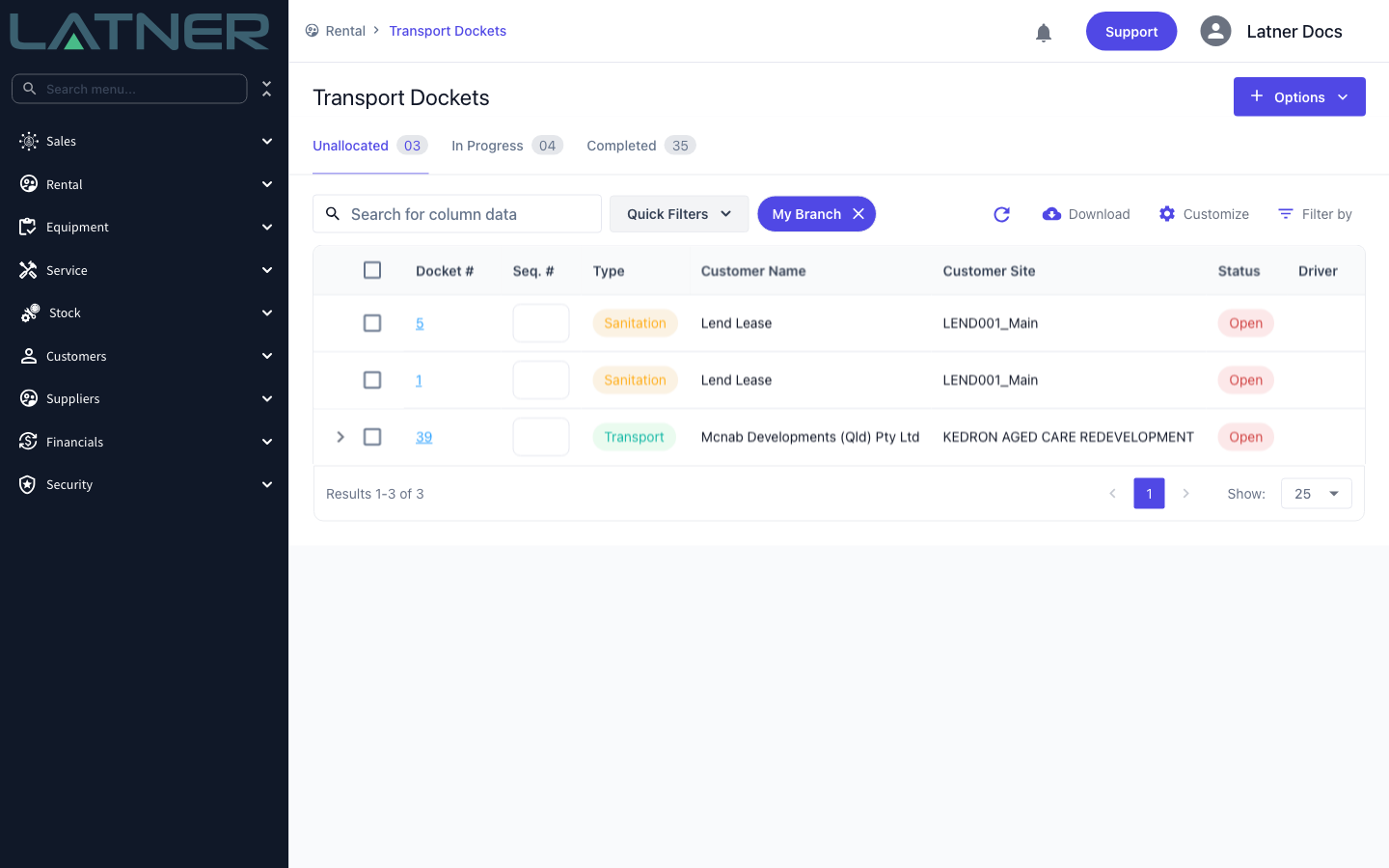
Go to Rental › Transport Dockets. The screen opens on three tabs: Unallocated holds Open dockets with no driver on them yet, In Progress holds Open dockets that have been given to a driver, and Completed is the history, including cancelled and invoiced dockets. The docket you are chasing is on one of the first two.
Step 2 - Check the lines before you complete
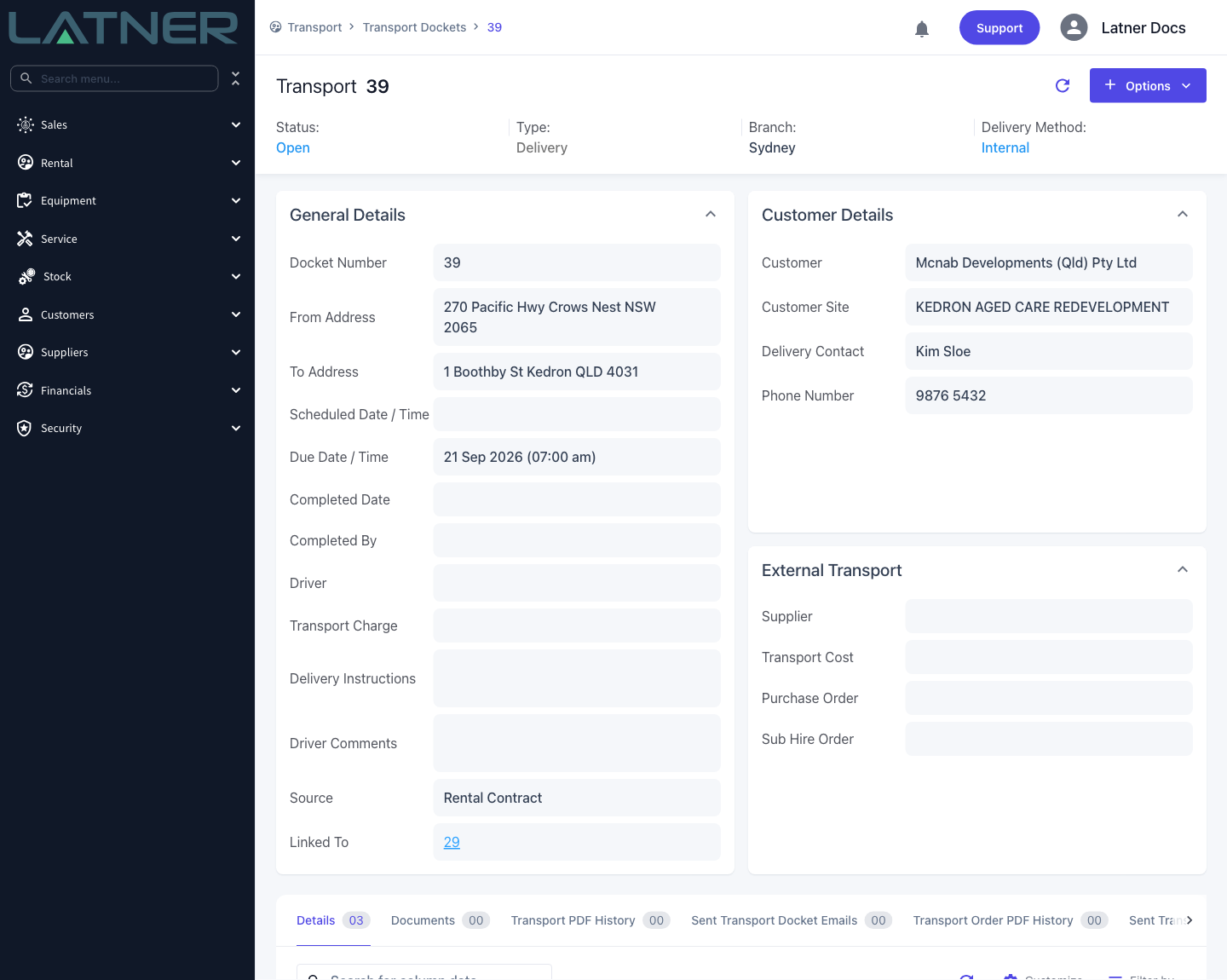
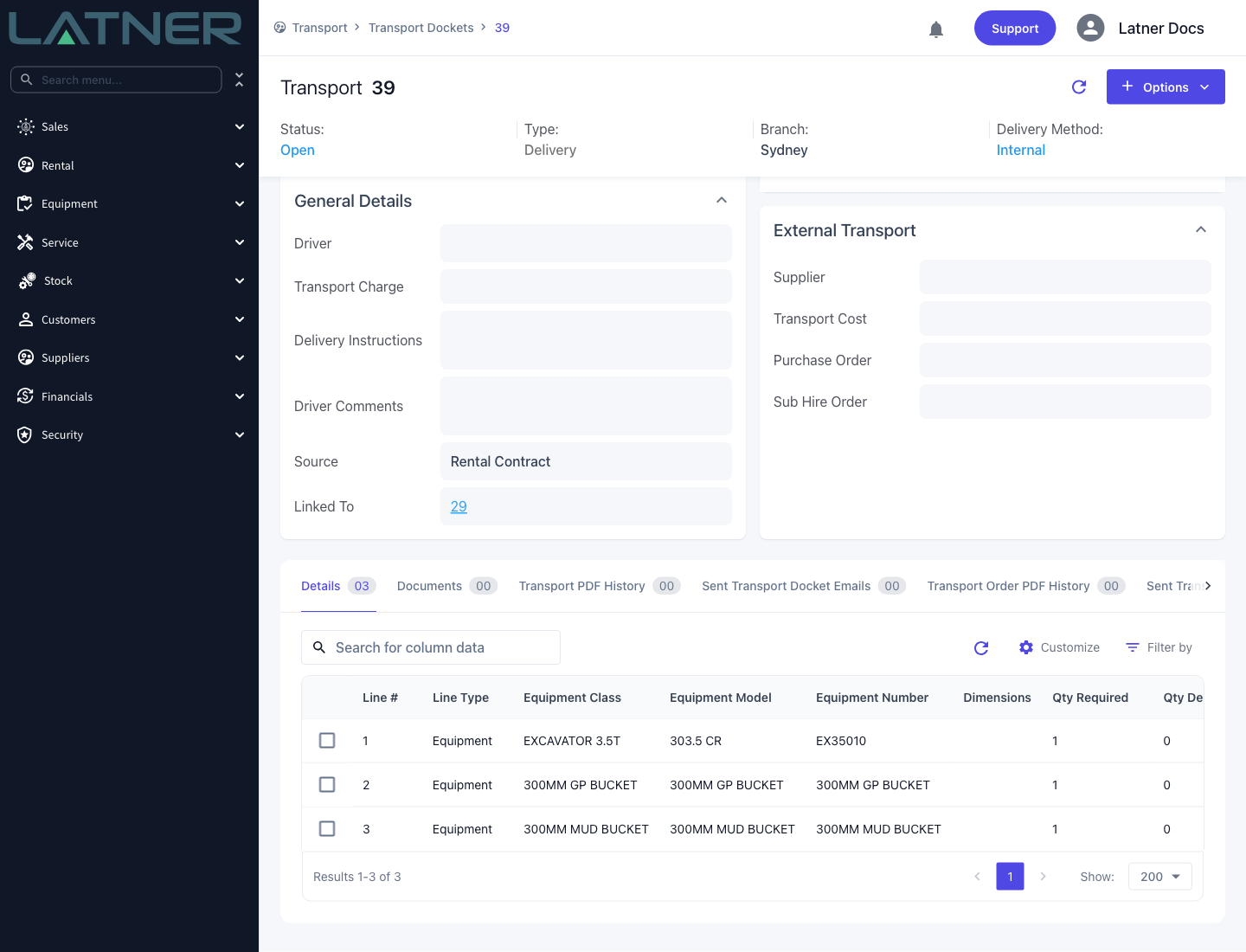
Click the docket number to open it, and look at two things: the Status in the header, which has to be Open, and the Details tab, which lists what the driver was meant to move.
Every equipment line needs an Equipment Number against it before the docket can be completed. Latner can't put a rental contract line on hire without knowing which machine went out, and it will refuse with You cannot complete a delivery docket without an Equipment Number allocated. Allocate the equipment on the rental contract first, then come back.
Step 3 - Open Complete Transport
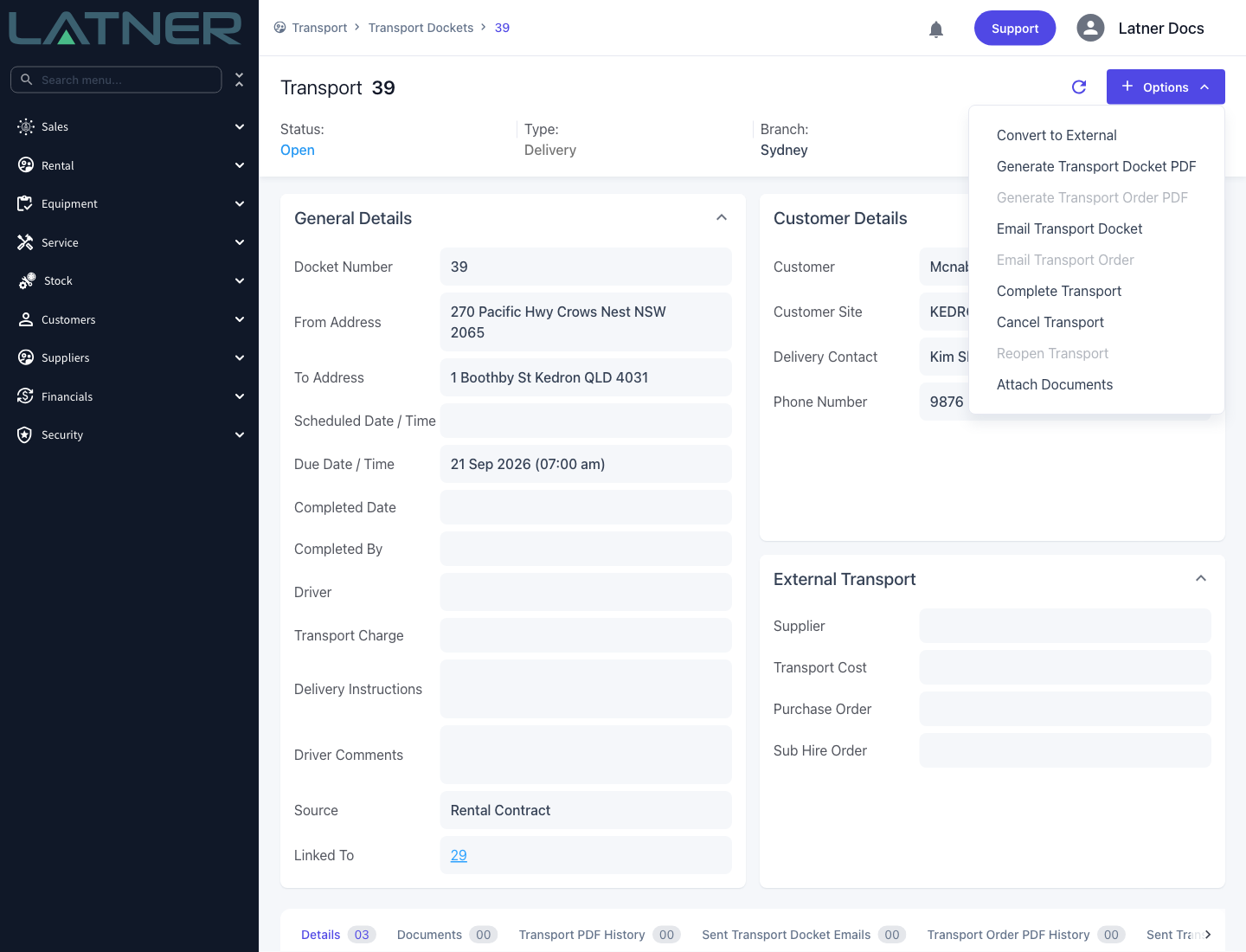
Choose Options › Complete Transport. If the option is greyed out, hover it: the tooltip tells you which of the three blockers you have hit - the docket is already completed, it has no lines on it (which only applies to dockets raised from a record, not to manual ones), or one of its rental contract lines is still Pre-Allocated and the equipment isn't free yet.
On a manual docket that carries a transport charge, Latner asks first: Completing this transport will also create a transport customer invoice, would you like to proceed? Answer Yes and the completion window opens.
Step 4 - Record what was delivered
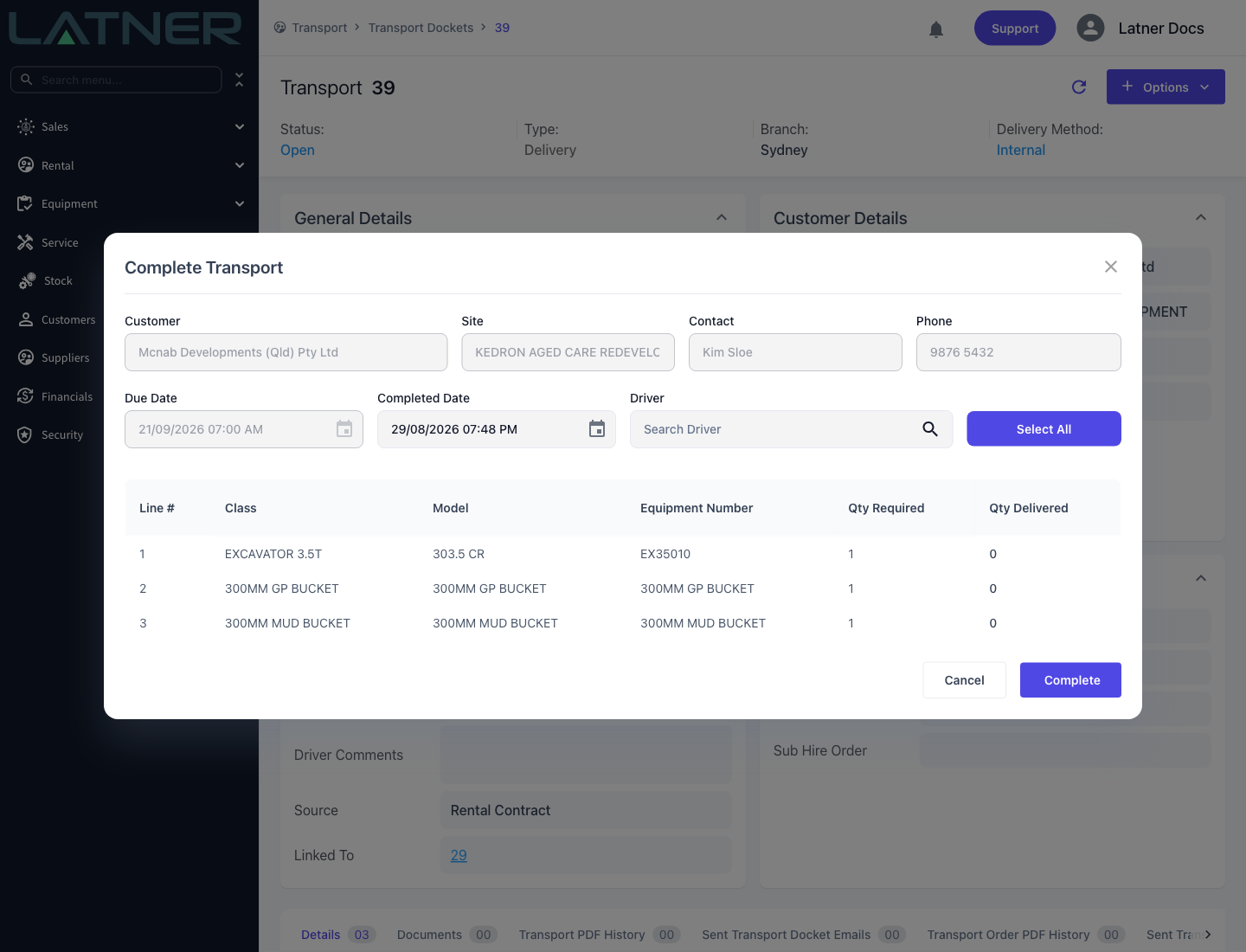
The Complete Transport window shows the job at the top and the lines underneath.
-
Customer, Site, Contact, Phone and Due Date - read only. They are on the window so you can check you have the right job, not so you can change it.
-
Completed Date - required. It defaults to now, in the docket branch's time zone. Change it to when the job actually happened, because this is the date that lands on the docket and drives the rental start.
-
Driver - for reference only. Picking someone here does not change the driver recorded on the docket, so if the driver is wrong or missing, fix it with Assign Driver on the Transport Allocation screen instead.
-
Qty Delivered - one per line, and the only figure you really have to think about. It can't be more than Qty Required.
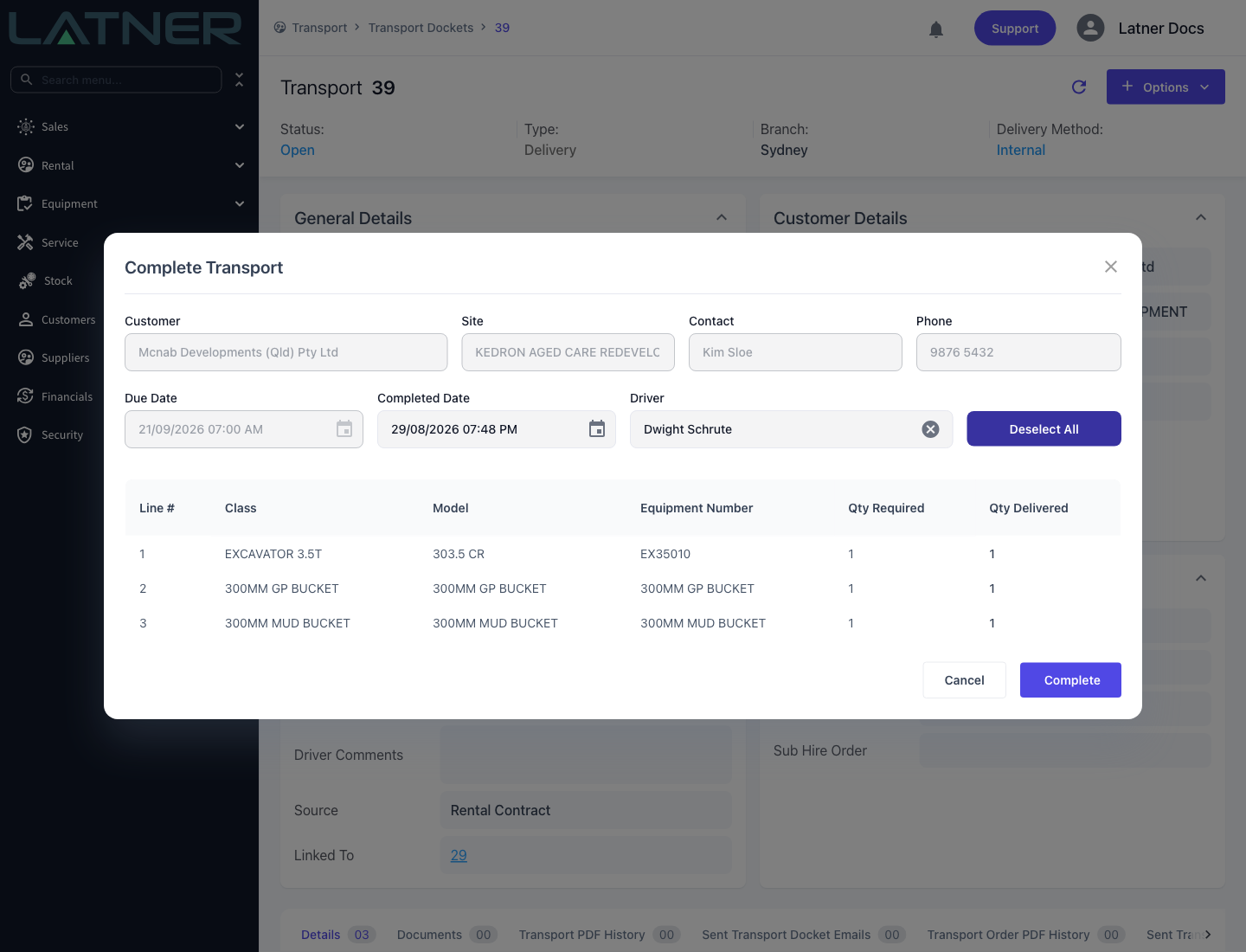
If the whole load went out as planned, click Select All and every line is filled with its full quantity. The button turns into Deselect All so you can start again.
Step 5 - Complete
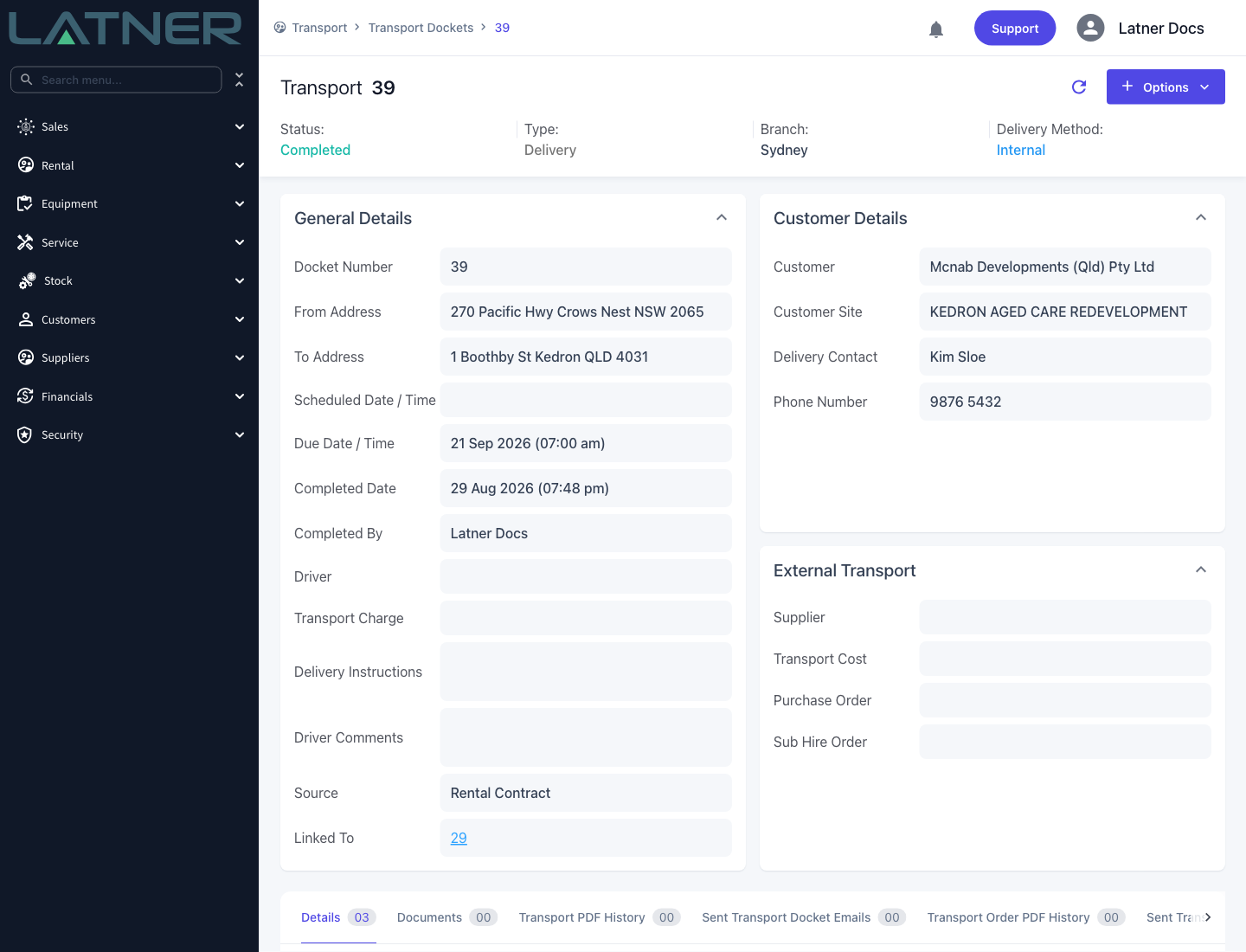
Click Complete. If any line is short of its required quantity, Latner double-checks with Are you sure that you want to only partially complete this transport docket? before it commits. Once it's through, the status flips to Completed and the docket is closed off.
After Completion
-
The docket moves to Completed, with Completed Date and Completed By filled in, and it drops off the Unallocated and In Progress tabs onto the Completed tab.
-
Each line's Qty Delivered is stamped with what you entered.
-
On a rental contract, Delivery and Collection lines go On Rent and pick up the equipment's current meter reading as their start reading; Pick Up lines move to Pending Return. A reserved contract becomes Active on its first delivery.
-
Transport charge lines on the contract move from Pending to Applied, so they can be invoiced.
-
Recurring sanitation on a delivered line starts its schedule, and the first sanitation docket is raised.
-
Equipment transfer and sales order dockets update their own source lines the same way.
-
Anything delivered short, or not at all, is rolled onto a brand new Open docket for the balance so the outstanding work stays visible.
-
On an External docket, transport lines on the Sub Hire Order move to Completed, and if Auto Receipt Transport Purchase Orders is set to completion, the docket's Purchase Order is confirmed and receipted.
-
On a Site Move, the rental contract's site and delivery address are updated, if that was ticked when the docket was created.
-
On a manual docket with a charge, a transport customer invoice is raised for that amount.
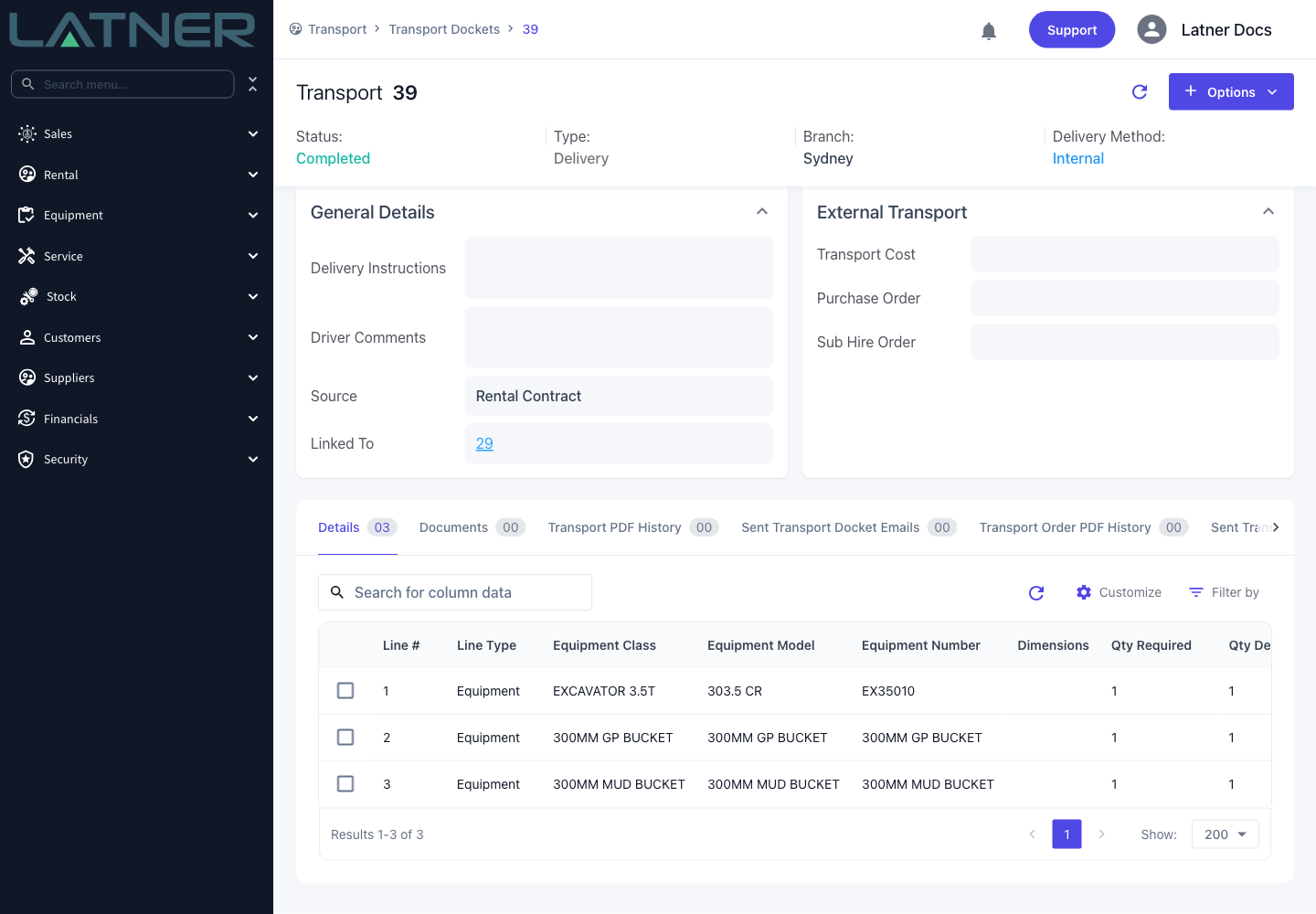
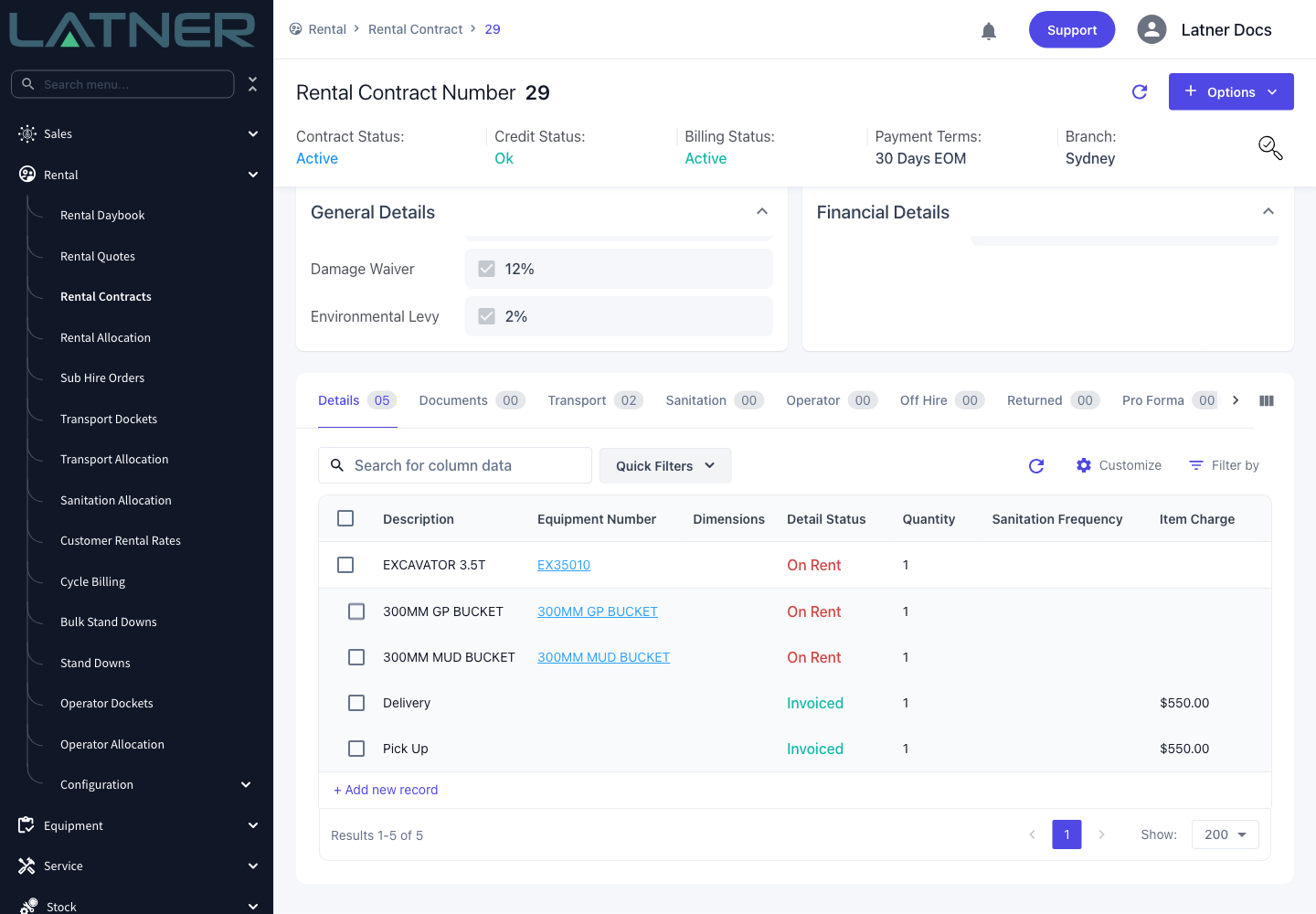
Completing a docket starts the customer being charged, so get the Completed Date right. A completion can be undone with Options › Reopen Transport, but not once an invoice has been raised against the docket - Latner blocks it with Cannot reopen Transport with Invoice(s) attached to it: Please Cancel the Invoice(s) first. Cancel the invoice first, or leave the docket as it stands.
FAQs
Watch the Demo
Prefer to watch it? Step through the same flow here.