
Assigning a transport docket to a driver takes a job out of the unallocated queue and puts it in someone's hands, so the yard knows who is doing what and the driver sees the run on their mobile.
Overview
A transport docket is only half a plan until someone is driving it. Latner gives you two ways to hand a docket over, depending on whether you just need a name against the job or you are building a driver's day around it.
-
The Transport Dockets list has an Assign Driver panel that appears as soon as you tick rows on the Unallocated tab. It sets the driver on every ticked docket in one go.
-
The Transport Allocation board sets the driver and the scheduled start and end time in one drag, so the job lands in a slot on that driver's day.
-
Whether a docket counts as unallocated is decided purely by the Driver field. A docket with no driver sits on the Unallocated tab, and the moment a driver is set it moves to In Progress.
-
Assigning a driver does not change the docket's status. It stays Open until it is completed or cancelled.
-
Sanitation dockets share the same queue and are assigned exactly the same way, so a service run and a delivery can be handed to the same driver from one screen.
Before You Begin
Check that the people and permissions are in place before you start allocating.
|
Requirement |
Where to Find It |
|---|---|
|
Drivers exist as skilled people, with the Driver role and a warehouse in the branch they work from |
Service › Configuration › Skilled Persons |
|
Transport Dockets screen permission - lets users search and view transport dockets |
Security › Configuration › Permission Groups › Rental › Screen |
|
Transport Allocation screen permission - lets users search and view transport dockets in the transport allocation screen |
Security › Configuration › Permission Groups › Rental › Screen |
|
Allow Assigning Drivers to an External Transport - only needed if you put your own drivers against dockets a carrier is fulfilling |
Security › Settings › Transport |
|
Transport Scheduler Default Duration (Minutes) - the length a job is given when you drop it on the allocation board |
Security › Settings › Rental |
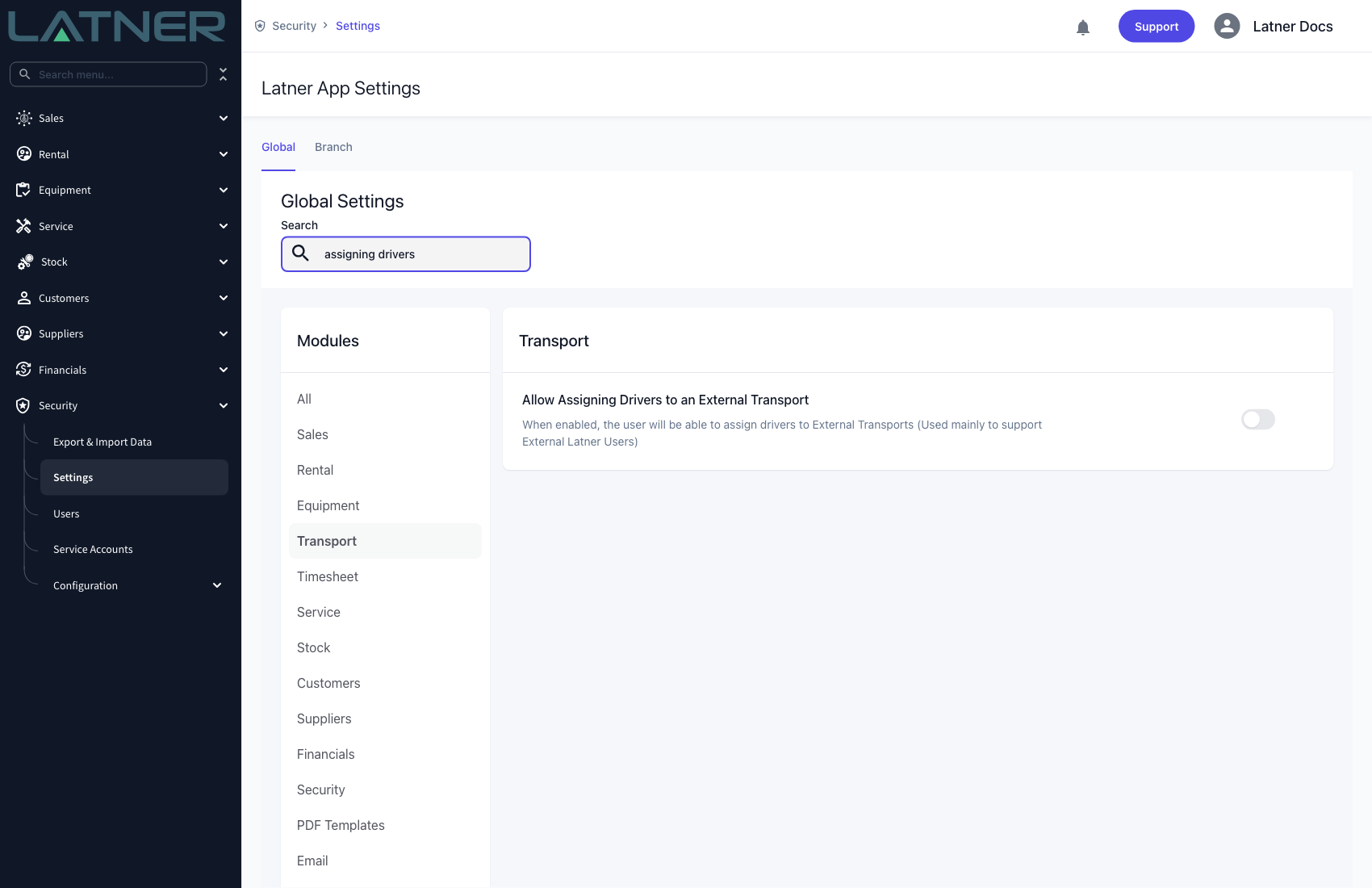
An External docket is one a supplier is carrying for you, so Latner expects a Supplier rather than a driver. With Allow Assigning Drivers to an External Transport switched off, setting the Driver field on an external docket is rejected with "Cannot set Driver for External Transport". Turn it on only if your drivers need to see external jobs on their mobile.
Assigning a Driver from the Transport Dockets List
This is the quickest route when you already know who is taking the job and the timing is not in question.
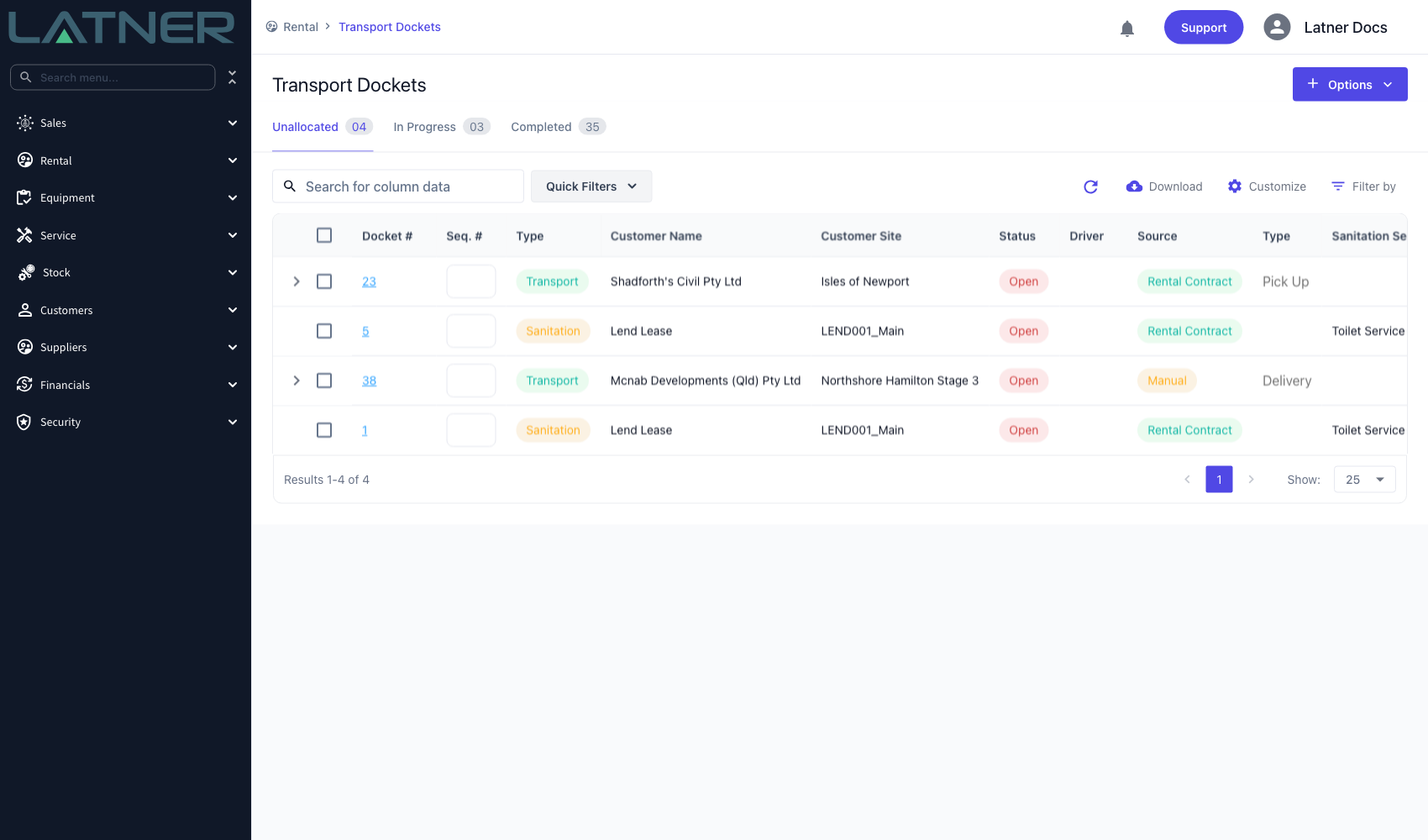
Step 1 - Open the Transport Dockets screen
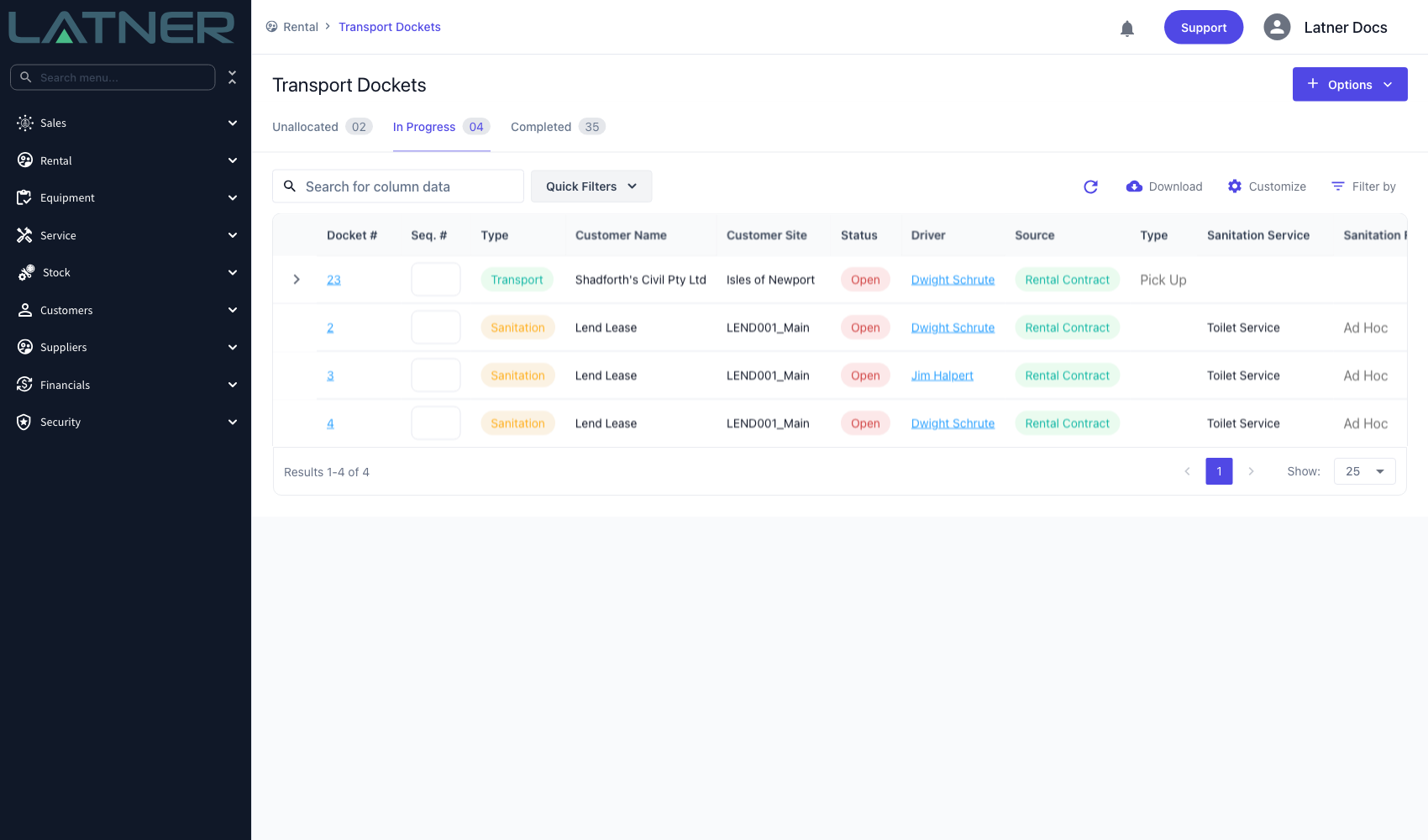
Go to Rental › Transport Dockets and stay on the Unallocated tab. It lists every open or attempted docket that has no driver against it yet, transport and sanitation together. The list opens with the My Branch quick filter applied, so clear it or swap it out if you allocate for more than one branch.
Step 2 - Select the dockets to assign
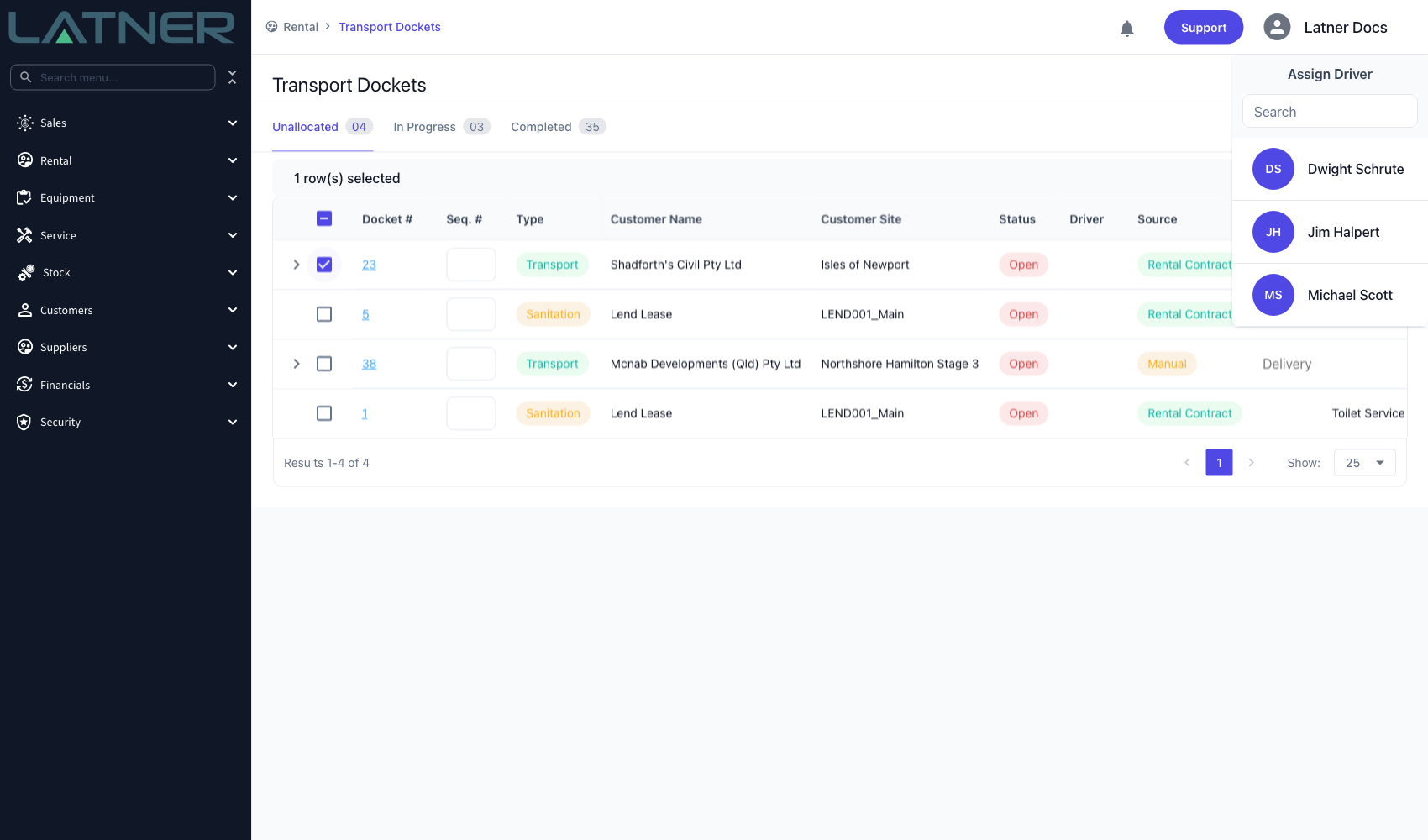
Tick the checkbox on each docket you want to hand to the same driver. The Assign Driver panel opens at the top right as soon as the first row is ticked, and closes again if you untick everything.
-
Ticking several rows assigns them all to the same driver in one action, which is how you build a run.
-
You can mix transport and sanitation dockets in the same selection.
-
Only the Unallocated tab lets you tick rows. The In Progress and Completed tabs have no checkboxes.
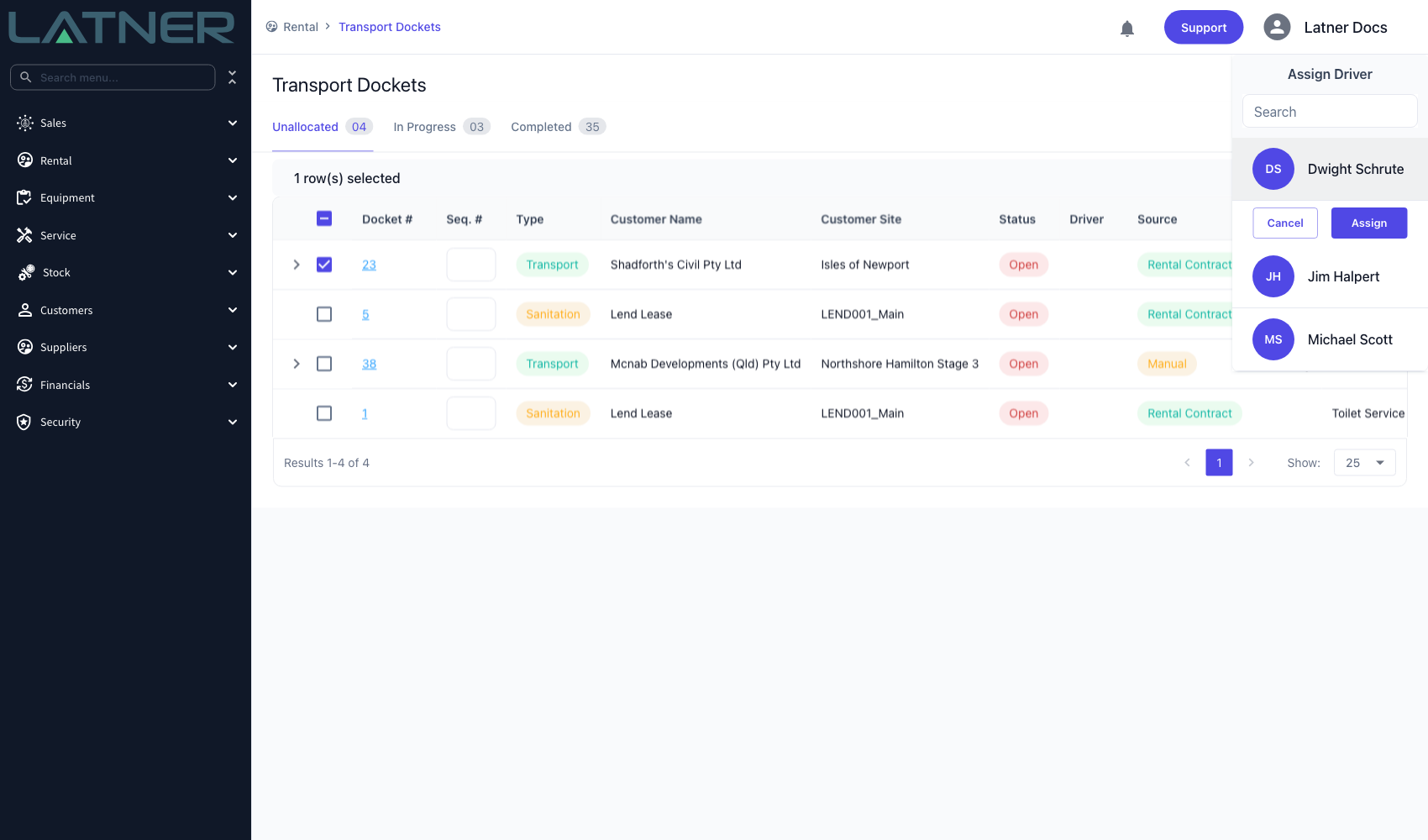
Step 3 - Pick the driver and click Assign
Find the person in the panel and click their name. Use the Search box to narrow a long list by name. Selecting someone reveals Cancel and Assign beneath their row - click Assign to commit.
Step 4 - Check the In Progress tab
The list refreshes, your selection clears, and the dockets you just assigned move off Unallocated and onto In Progress with the driver's name in the Driver column.
Assigning a Driver on the Transport Allocation Board
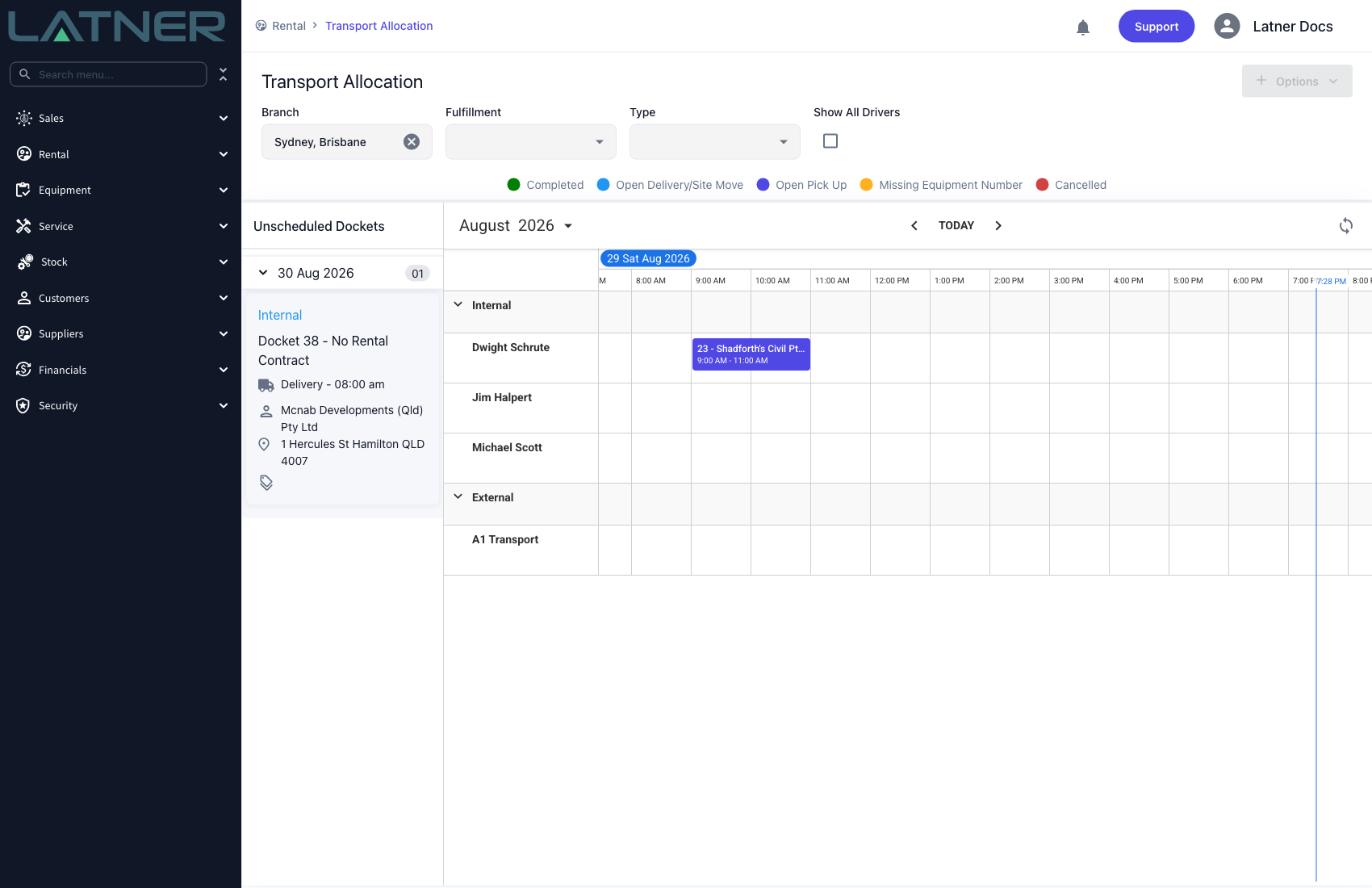
Use the board when the time of day matters as much as the driver. Go to Rental › Transport Allocation, choose the branches you are allocating for, and drag a card from Unscheduled Dockets onto the driver's row.
-
Branch is required, and every branch you pick has to use the same timezone - the board can't lay one day out across two clocks.
-
Drivers appear as rows under Internal, and carriers under External. Only skilled people with the Driver role are listed, filtered to the branches you selected. Tick Show All Drivers to see drivers from every branch.
-
Dropping a card sets the driver and the scheduled start and end together. The length comes from Transport Scheduler Default Duration (Minutes), and you can drag the edges of the block afterwards to stretch or shrink it.
-
Drag a block back off the board to unschedule it. That clears the driver and both scheduled times, and the docket returns to Unscheduled Dockets.
-
Colours follow the legend above the board: open deliveries and site moves, open pick ups, completed, cancelled, and dockets still missing an equipment number.
After Assigning
-
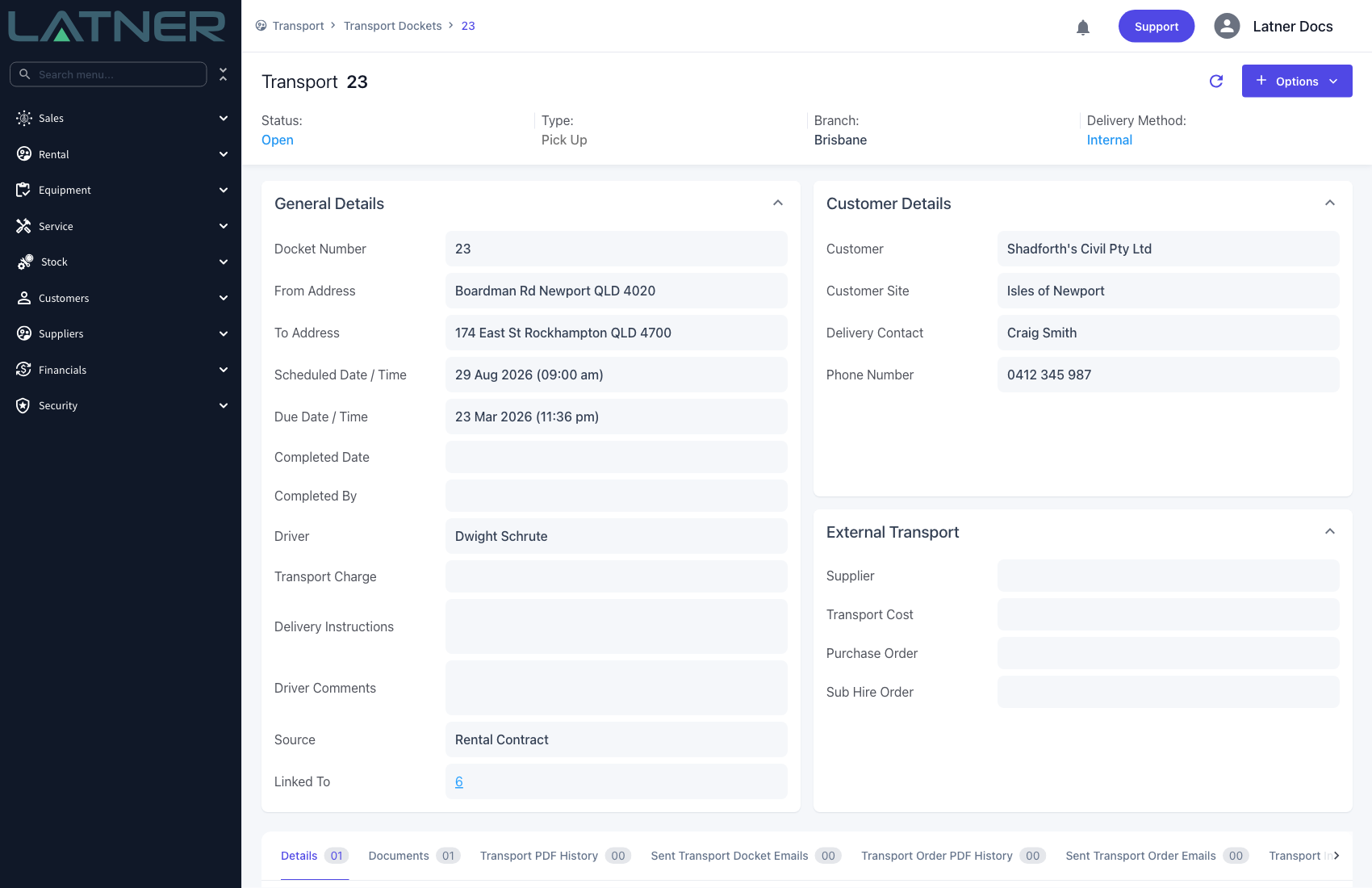
The docket carries the driver in its Driver field, which you can see and change on the docket itself under General Details.
-
The docket moves to the In Progress tab of the Transport Dockets list and off the Unallocated tab.
-
It appears in the driver's My Transport list on their mobile, ready to be completed on site.
-
It shows on the allocation board on that driver's row only once it also has a scheduled start and end. Assigning from the list sets the driver alone, so it stays in Unscheduled Dockets until you place it.
-
The status is untouched - the docket stays Open until it is completed or cancelled.
Dragging a block off the allocation board clears the driver and both scheduled times in one go, not just the timing. If you only want to move the job to a different time or a different person, drag it to the new slot instead of dropping it back into the unscheduled list.
FAQs
Watch the Demo
Prefer to watch it? Step through the same flow here.