
A manual transport docket with a charge on it turns into a customer invoice the moment you complete the docket, so a one-off delivery or pick up gets billed without anyone having to key an invoice by hand.
Overview
Transport that belongs to a rental contract is billed with the contract. Transport that doesn't belong to anything - a customer's own machine shifted across town, a load dropped at a site, a competitor's unit dragged back to your yard - has nowhere to hang a charge. That's what the charge on a manual docket is for, and completing the docket is what bills it.
-
Only Manual dockets invoice this way. A docket raised from a rental contract carries its charge as a transport line on the contract, and that line is billed with the contract.
-
The trigger is completion, not creation. A manual docket with a charge greater than zero raises a customer invoice as soon as it is completed, whether that happens on the desktop or on the driver's phone.
-
The invoice is for exactly one line: quantity 1 at the docket's charge, with the docket's type (Delivery, Pick Up, Collection or Site Move) as the item.
-
A charge needs somebody to bill, so the docket must have a Customer and a Customer Site. A manual docket with no charge, or a charge of zero, completes without raising anything.
-
The invoice arrives as Open unless Default Transport Customer Invoices to Completed is switched on, and it is linked back to the docket both ways.
-
Once the invoice exists the docket can't be reopened until the invoice is cancelled, so it is worth getting the charge right before you complete.
Before You Begin
Nothing has to be turned on for a charged docket to invoice itself, but one setting decides what state the invoice lands in, and a couple of permissions decide who can see and finish it.
|
Requirement |
Where to Find It |
|---|---|
|
Default Transport Customer Invoices to Completed - off means the invoice arrives as Open, on means it arrives Completed |
Security › Settings › Customers |
|
Transport Dockets permission - to open the docket at all |
Security › Configuration › Permission Groups › Rental › Screen |
|
Customer Invoices permission - to open the invoice the docket raises |
Security › Configuration › Permission Groups › Customers › Screen |
|
Cancel Customer Invoice permission - only needed if you have to undo an invoice and re-charge the docket |
Security › Configuration › Permission Groups › Customers › Option |
|
Reopen Transport Docket permission - only needed if you have to correct a charge after completion |
Security › Configuration › Permission Groups › Transport › Option |
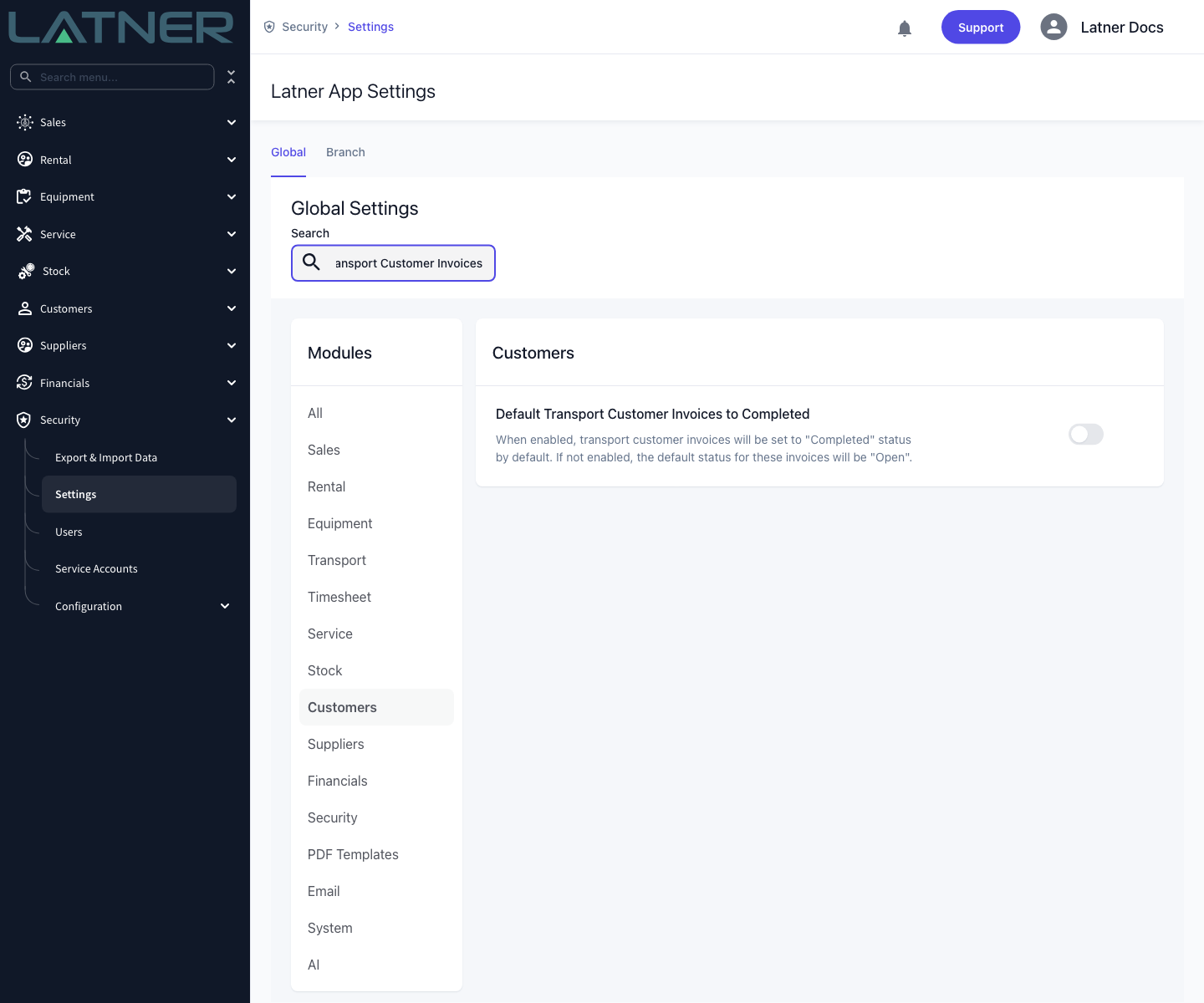
The setting is read at the moment the invoice is created, so changing it later has no effect on invoices that already exist. It applies to transport invoices only - rental contract, sales order and work order invoices each have their own equivalent setting in the same list.
Invoicing the Docket
Step 1 - Check the charge before you complete the docket
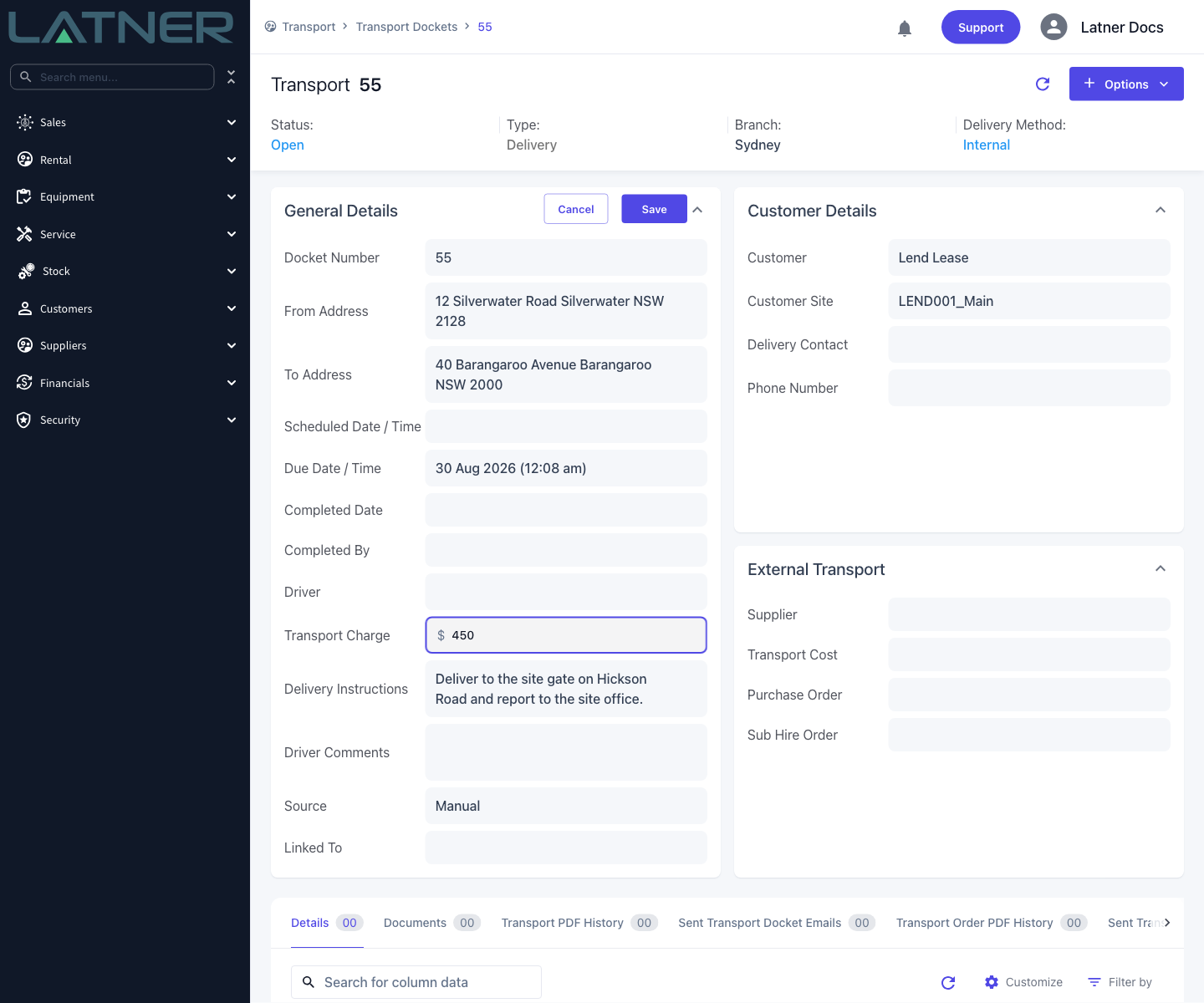
Open the docket from Transport › Transport Dockets and look at Transport Charge under General Details. While the docket is Open you can click straight into the field and change it, then use Save at the top of the card.
-
Transport Charge - what the customer pays for the job, excluding tax. This is the whole invoice, so it needs to be the full price of the delivery or pick up, not a rate.
-
Customer and Customer Site - both required as soon as there is a charge. Without a customer the save is rejected with Cannot have Transport Charge if Transport is not linked to a Customer, and a customer without a site is rejected with Cannot have Customer without Customer Site selected.
The field is only editable on a Manual docket that is still Open. On a docket that came from a rental contract it is read-only, with a tooltip pointing you at the contract's transport line instead.
Step 2 - Complete the docket
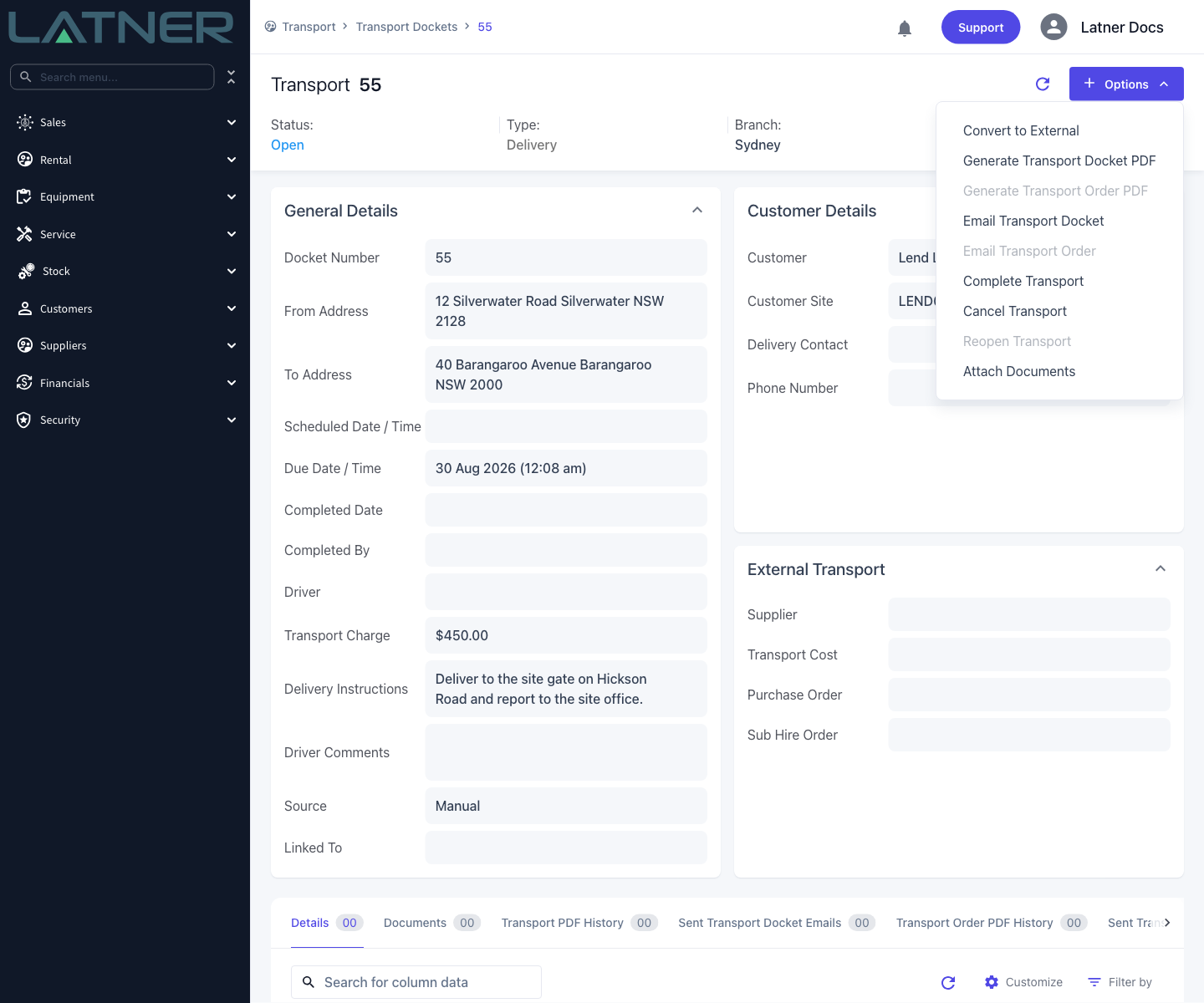
Choose Options › Complete Transport. Because the docket is manual and carries a charge, Latner asks you to confirm before it goes any further.
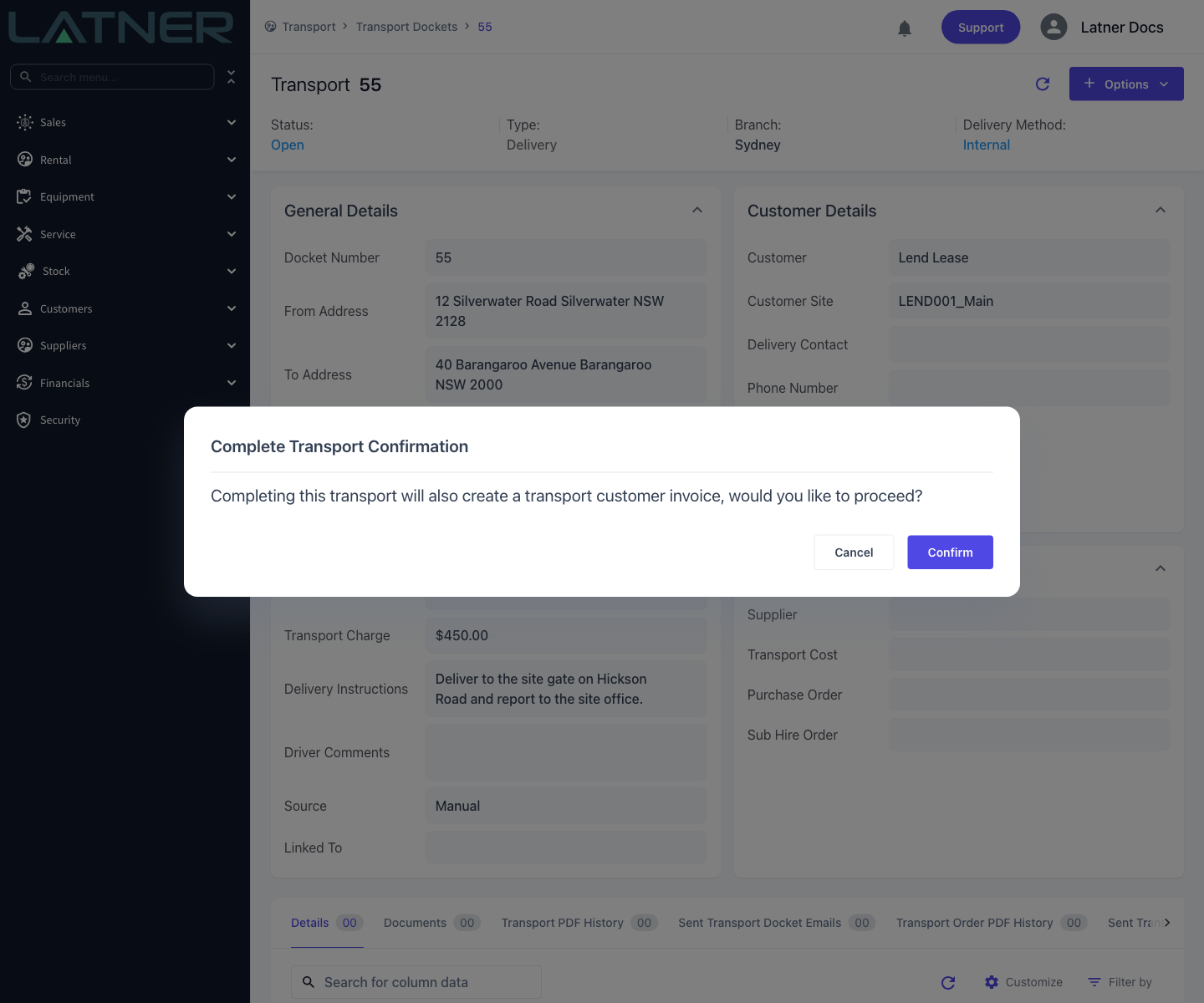
The confirmation reads Completing this transport will also create a transport customer invoice, would you like to proceed? Choose Confirm to carry on. This prompt only appears for a manual docket with a charge above zero, so if you don't see it, check the charge actually saved.
Step 3 - Fill in the completion details
The Complete Transport dialog opens with the customer, site, contact, phone and due date already filled from the docket and greyed out. Two fields are yours:
-
Completed Date - required, and defaults to now in the branch's timezone. Set it back if the job was actually done earlier.
-
Driver - optional, and useful when a driver was never allocated to the docket in the first place.
The equipment table below is empty on a manual docket, because a manual docket has no equipment lines. That's expected - unlike a contract docket, you don't have to tick anything off before Complete will go through.
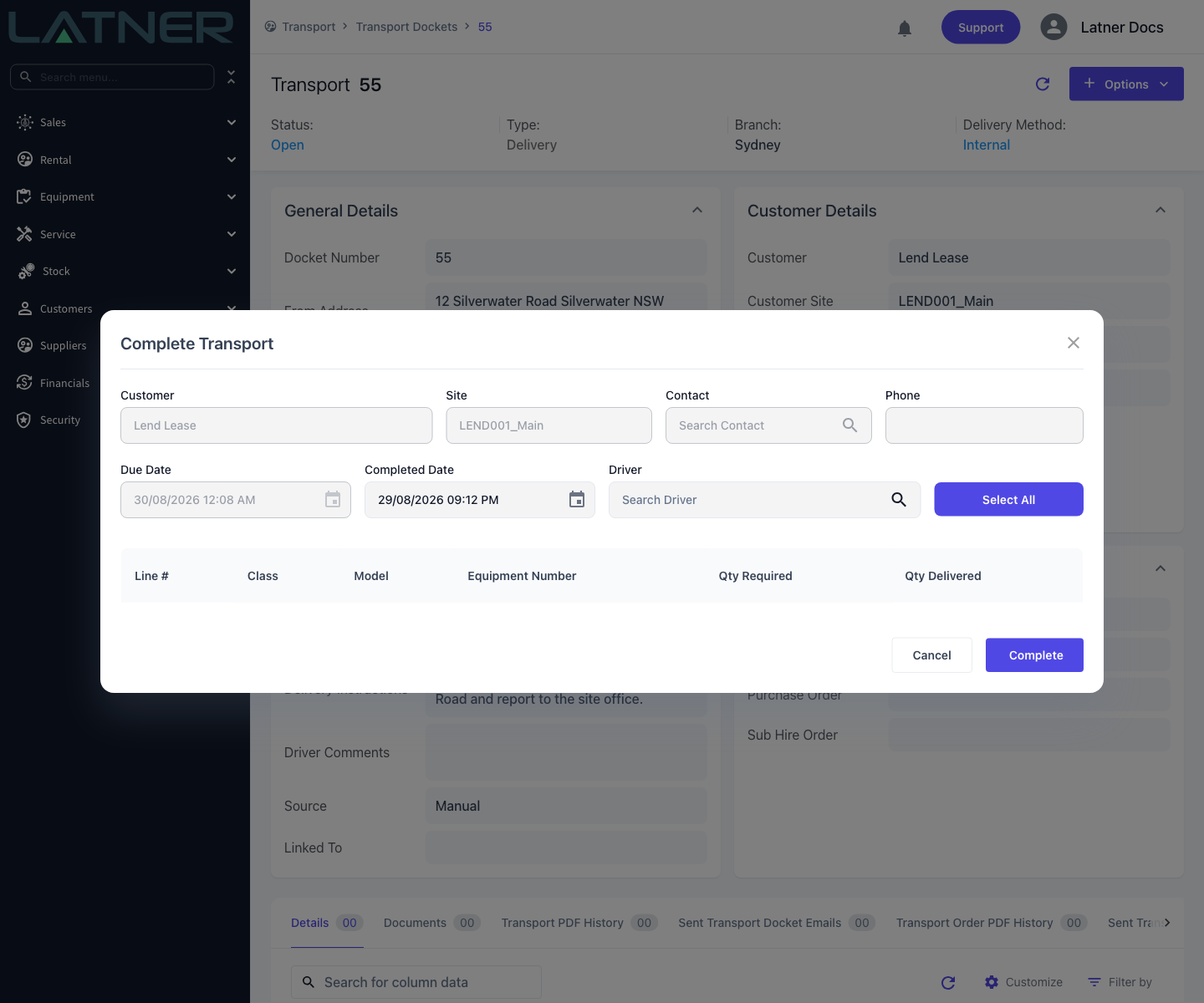
Once you click Complete, the docket moves to Completed, Completed Date and Completed By fill in, and the charge becomes read-only.
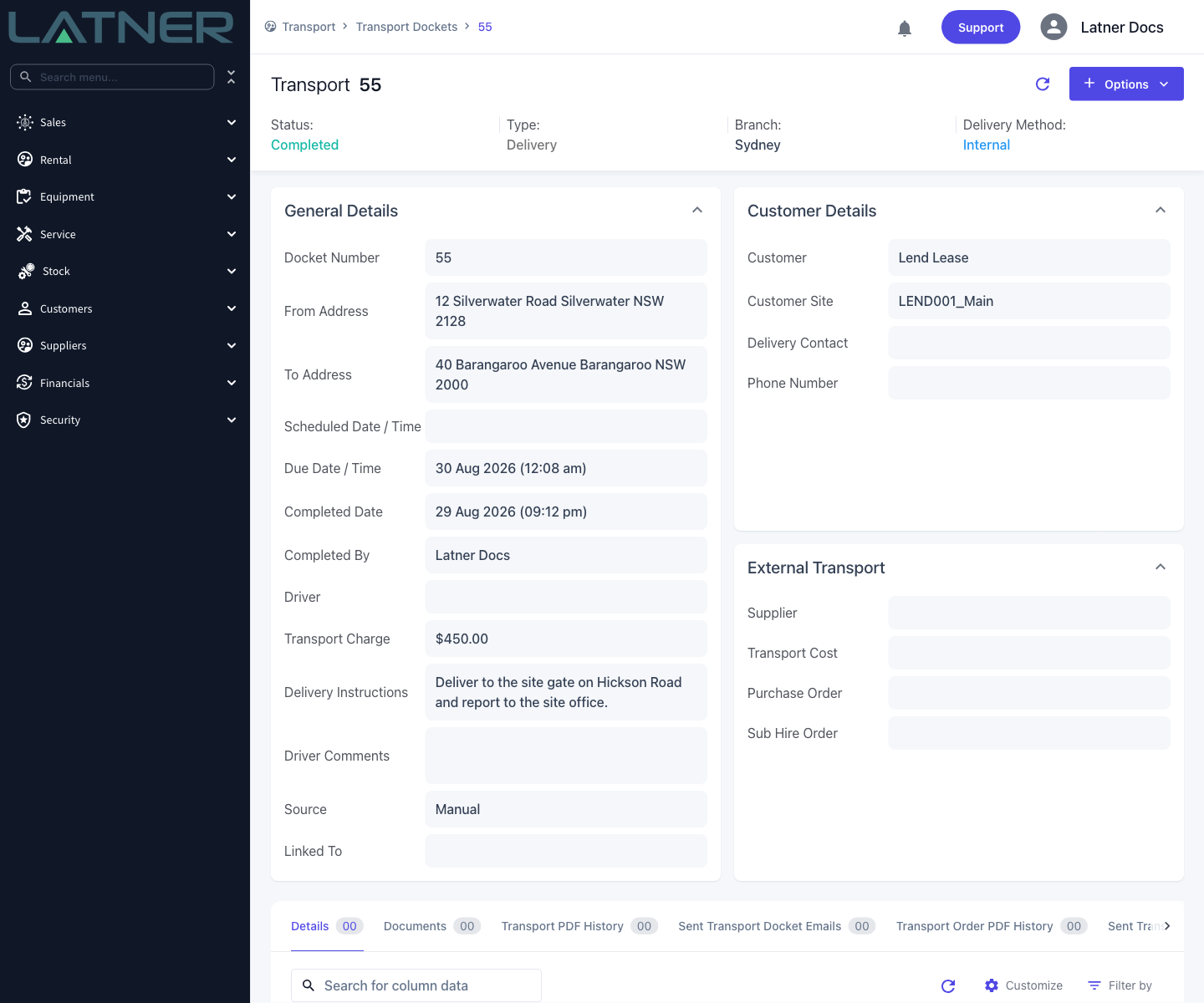
Step 4 - Find the invoice on the docket
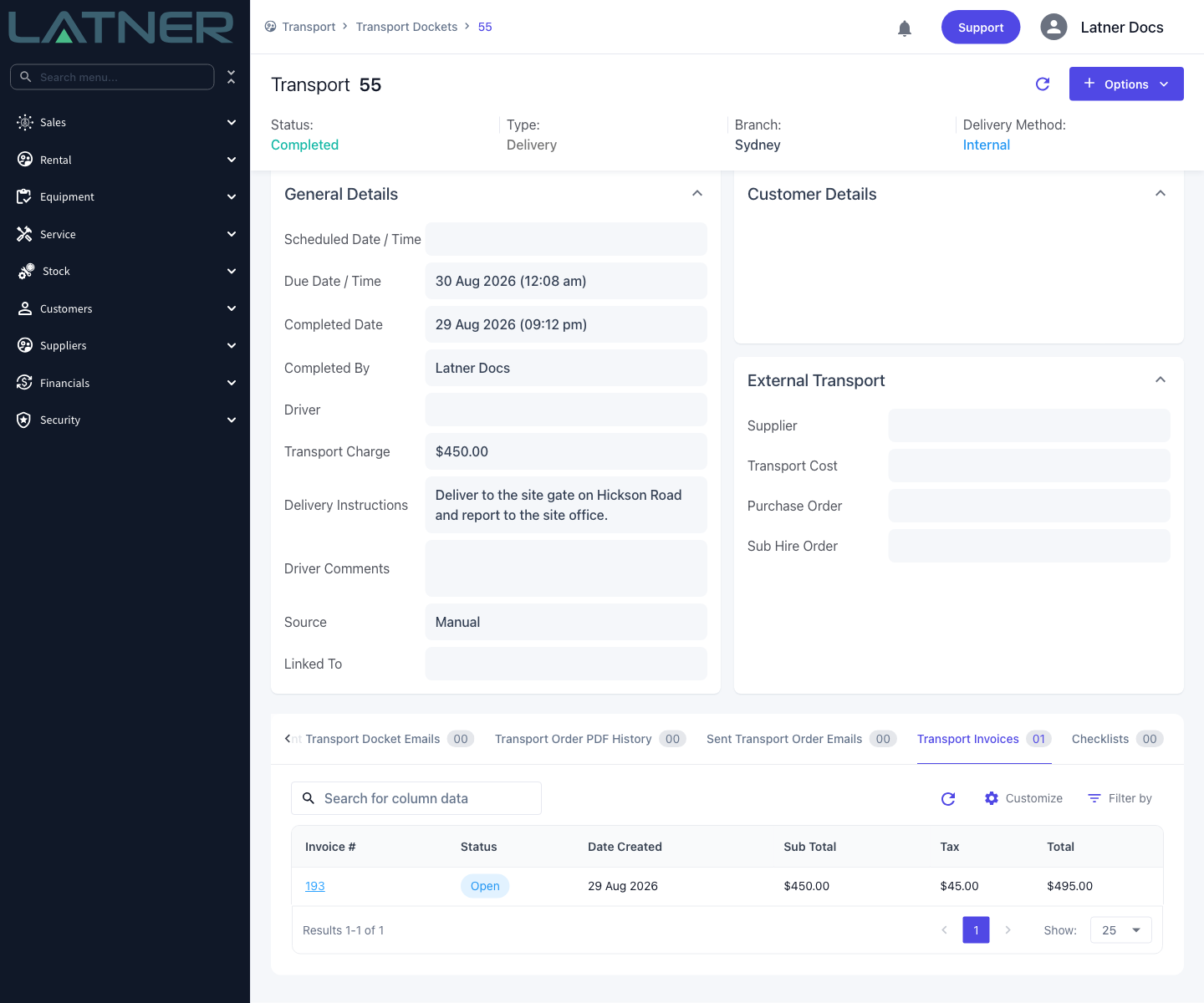
Scroll to the tab strip at the bottom of the docket and open Transport Invoices. Every invoice raised from this docket is listed there with its status and totals, and the invoice number is a link straight through to it.
Step 5 - Check the invoice
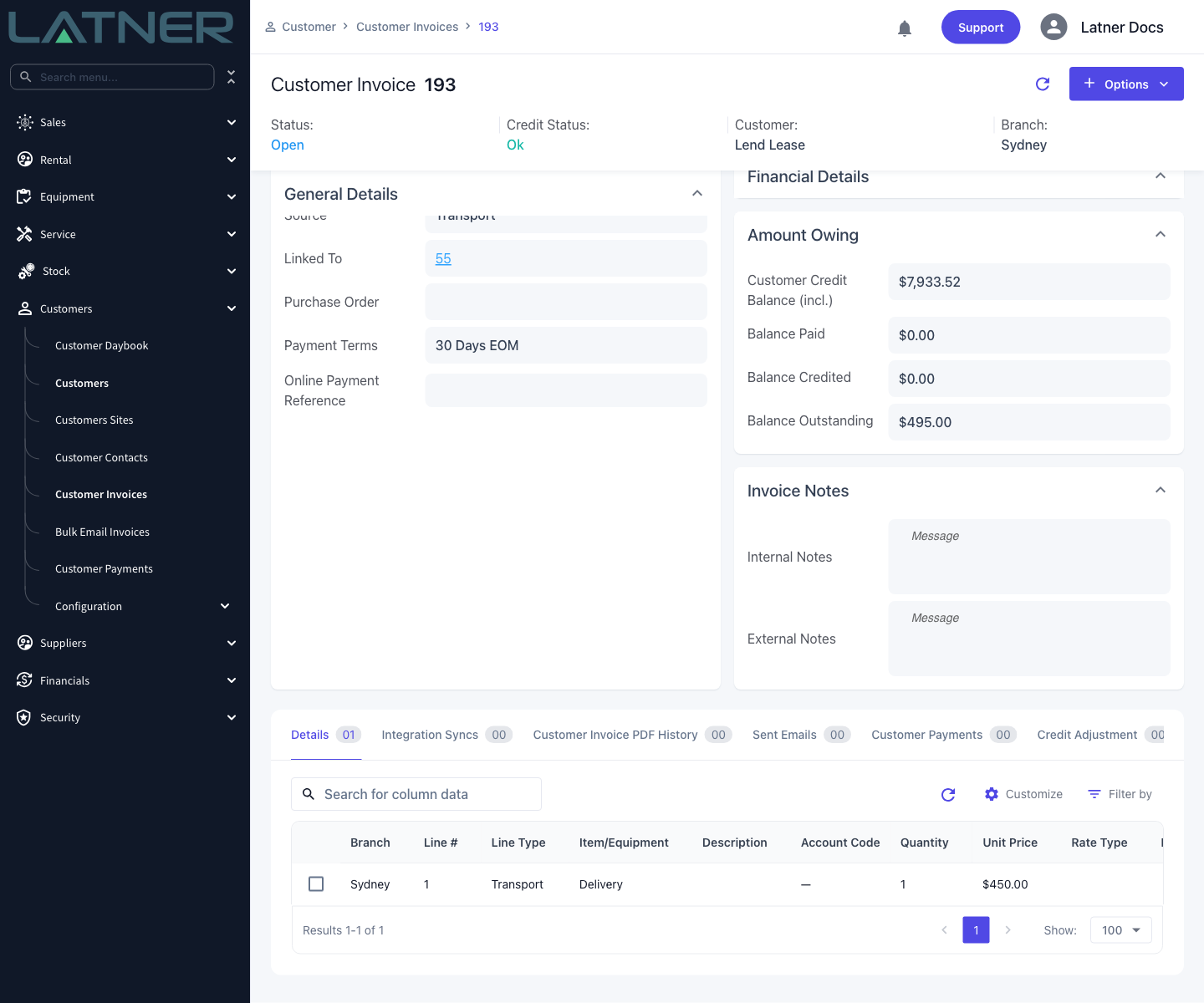
Open the invoice and check it reads the way you expect before you send it. Everything on it comes from the docket and the customer:
-
Source - Transport, and Linked To is the docket number, so you can get back to the job from the invoice.
-
Branch, Customer Name and Customer Site - copied from the docket.
-
Invoice Date - today's date in the branch's timezone, which is the day you completed the docket, not the day the job was done.
-
Payment Terms and Due Date - the customer's payment terms, or the global default term when the customer has none.
-
Billing Contact and Billing Address - the site's billing contact if it has one, otherwise the customer's.
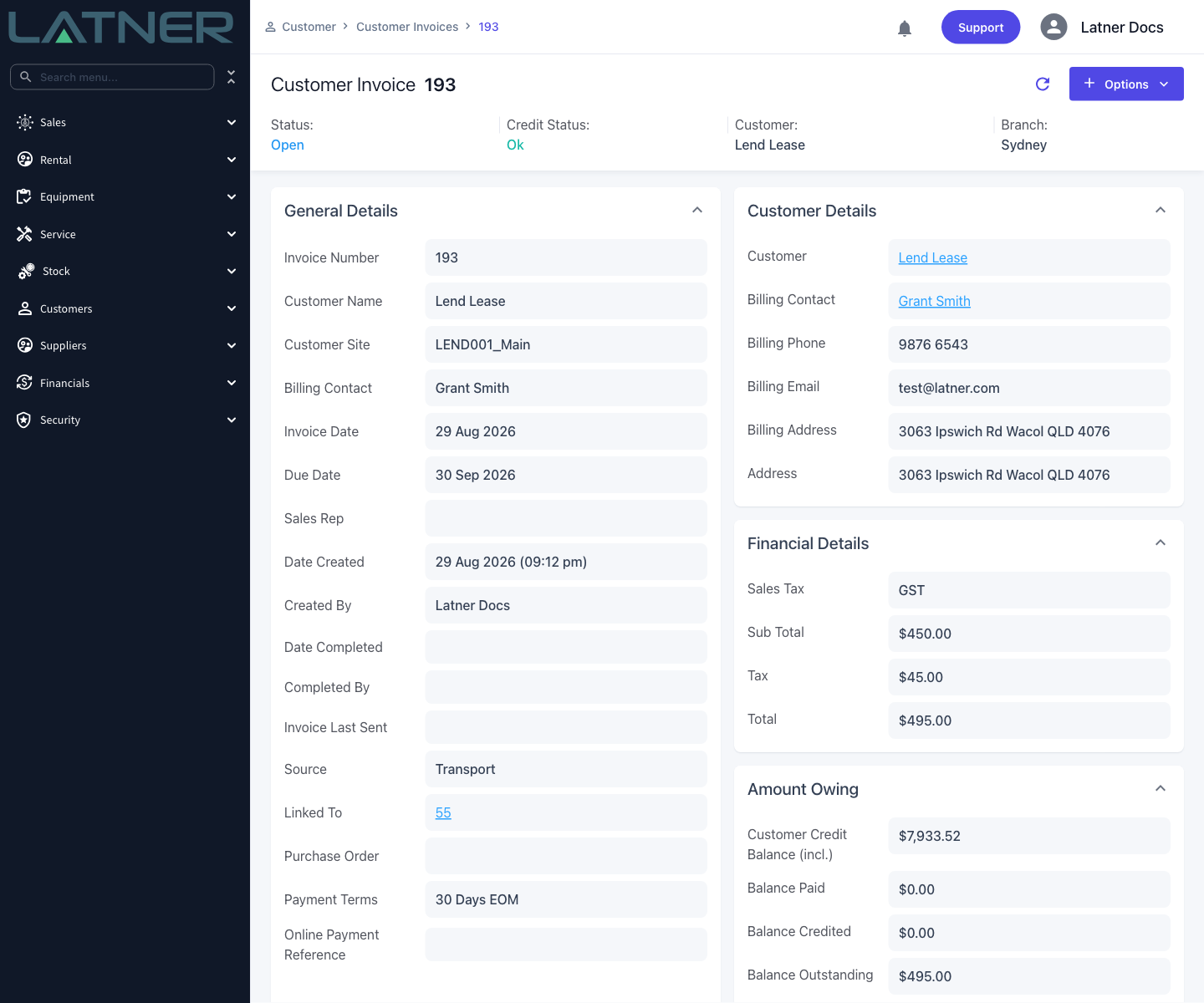
On the Details tab there is exactly one line: Line Type Transport, the docket's type as the item, quantity 1, and the charge as the unit price. Tax is calculated at the customer's tax rate.
Step 6 - Complete the invoice
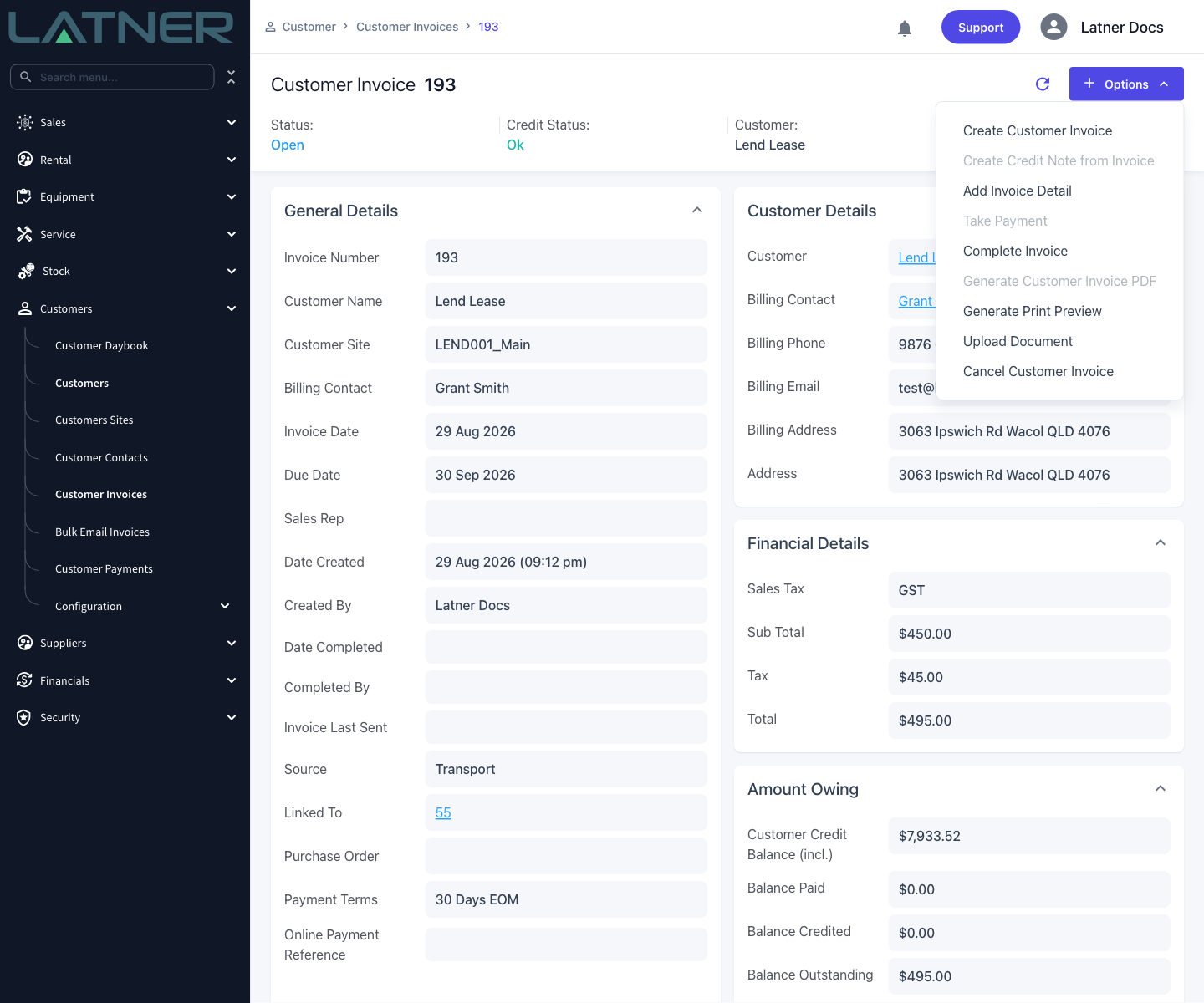
An Open invoice is still a draft. While it is Open you can add lines to it with Options › Add Invoice Detail - handy when the same job also earned a waiting-time charge - and you can look at it with Generate Print Preview, but Generate Customer Invoice PDF, Email Invoice, Mark Invoice as Sent and Take Payment are all unavailable until it is finished.
Choose Options › Complete Invoice when you're happy with it.
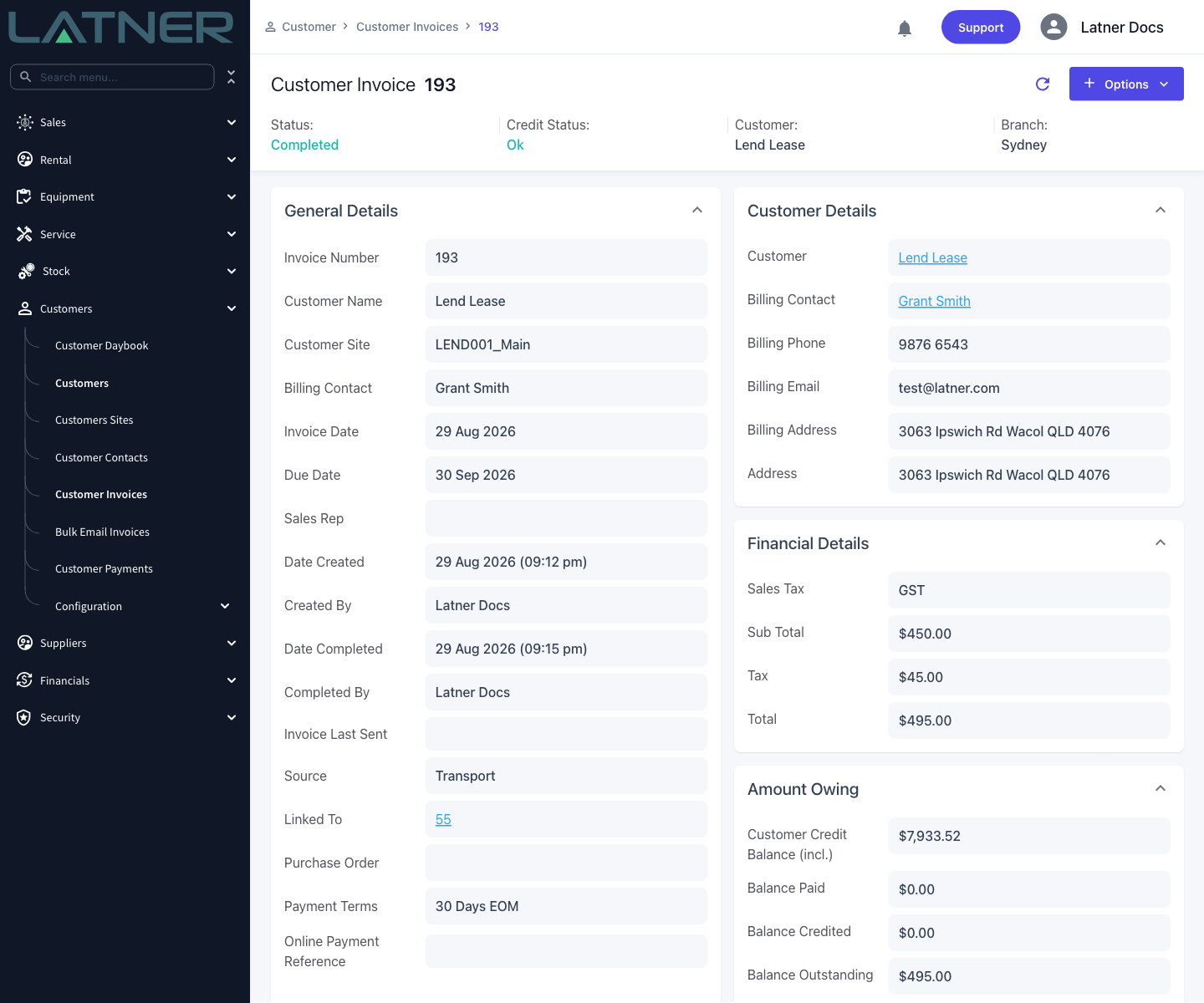
The status moves to Completed, Date Completed and Completed By fill in, and the PDF, email and payment options become available.
After Invoicing
-
The invoice appears in Customers › Customer Invoices alongside every other customer invoice, and on the customer's own record, with Transport as its source.
-
It also stays on the docket's Transport Invoices tab, so the job and the money it earned never get separated.
-
The line's revenue is reported under the Transport line type, and can be broken down by transport type where that grouping is offered.
-
Where an accounting integration is active, the line's revenue account is resolved from your account code configuration and stamped onto the invoice, so what gets synced is what you can see.
-
A completed docket can't be completed a second time, so the same job can't be double-billed by accident. A second invoice only ever comes from reopening the docket or from a new docket.
An invoiced docket can't simply be reopened. Latner refuses with Cannot reopen Transport with Invoice(s) attached to it: Please Cancel the Invoice(s) first. If the charge was wrong, cancel the invoice first, then reopen the docket, correct the charge and complete it again - which raises a fresh invoice for the corrected amount.
FAQs
Watch the Demo
Prefer to watch it? Step through the same flow here.