
Cancelling a transport docket withdraws a delivery, collection, pick up or site move that is no longer going to happen, and hands the equipment back to the record it came from so it can be scheduled again.
Overview
Plans change. A customer pushes their start date out a fortnight, a site shuts, a driver's run gets rebuilt around a breakdown - and the docket you raised this morning is now wrong. Cancelling is how you take it out of the run without losing the record that it existed.
-
Cancel Transport lives on the docket's Options menu and works on any docket still showing a status of Open.
-
Cancelling releases the lines the docket was carrying, so they drop back to the status they held before it was raised and can go onto a new docket.
-
Anything the docket created downstream is cancelled with it - a transport purchase order, a sub hire order line, and, on a pick up docket raised from an off hire request, the off hire request itself.
-
A transport charge that the docket had consumed is released, so you can use it on the replacement docket.
-
The docket isn't deleted. It keeps its number, stays searchable, and records who cancelled it and when.
-
There's no undo. Reopen Transport only works on a completed docket, so a cancelled docket stays cancelled.
Before You Begin
Cancelling needs no special setting, but it does need access to the docket and a docket in the right state.
|
Requirement |
Where to Find It |
|---|---|
|
Transport Dockets permission |
Security › Configuration › Permission Groups, then the group's Permissions tab. This is the screen permission that lets a user open a docket at all. |
|
Mobile Transport permission |
The same screen. Only needed for drivers working dockets on a phone, and it doesn't add the ability to cancel - see the FAQs. |
|
A docket with a status of Open |
Rental › Transport Dockets. Completed, attempted and already-cancelled dockets can't be cancelled. |
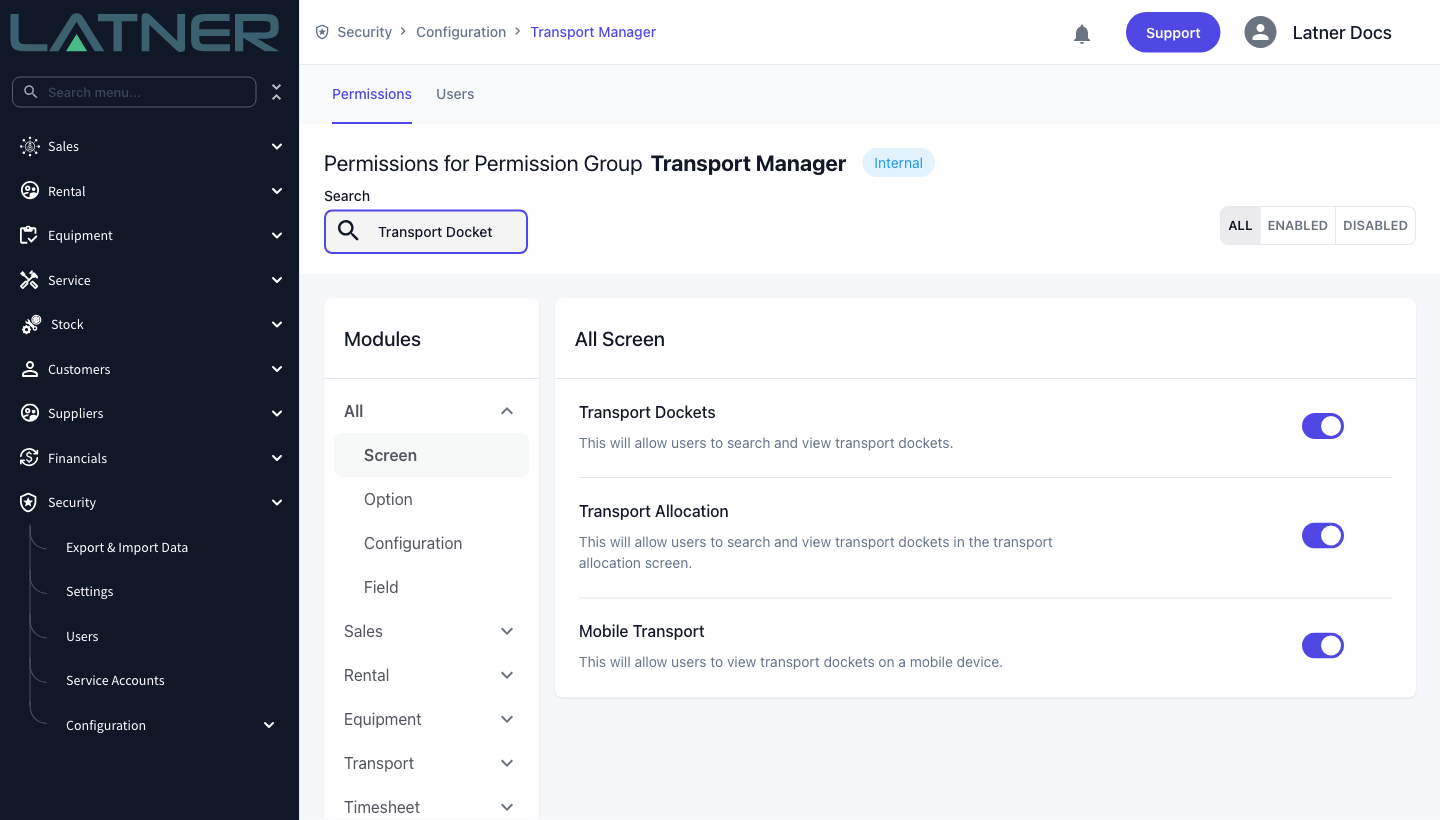
There is no separate cancel permission. Anyone who can open a transport docket can cancel one, so if you need to limit who cancels dockets, limit the Transport Dockets permission itself.
Cancelling the Docket
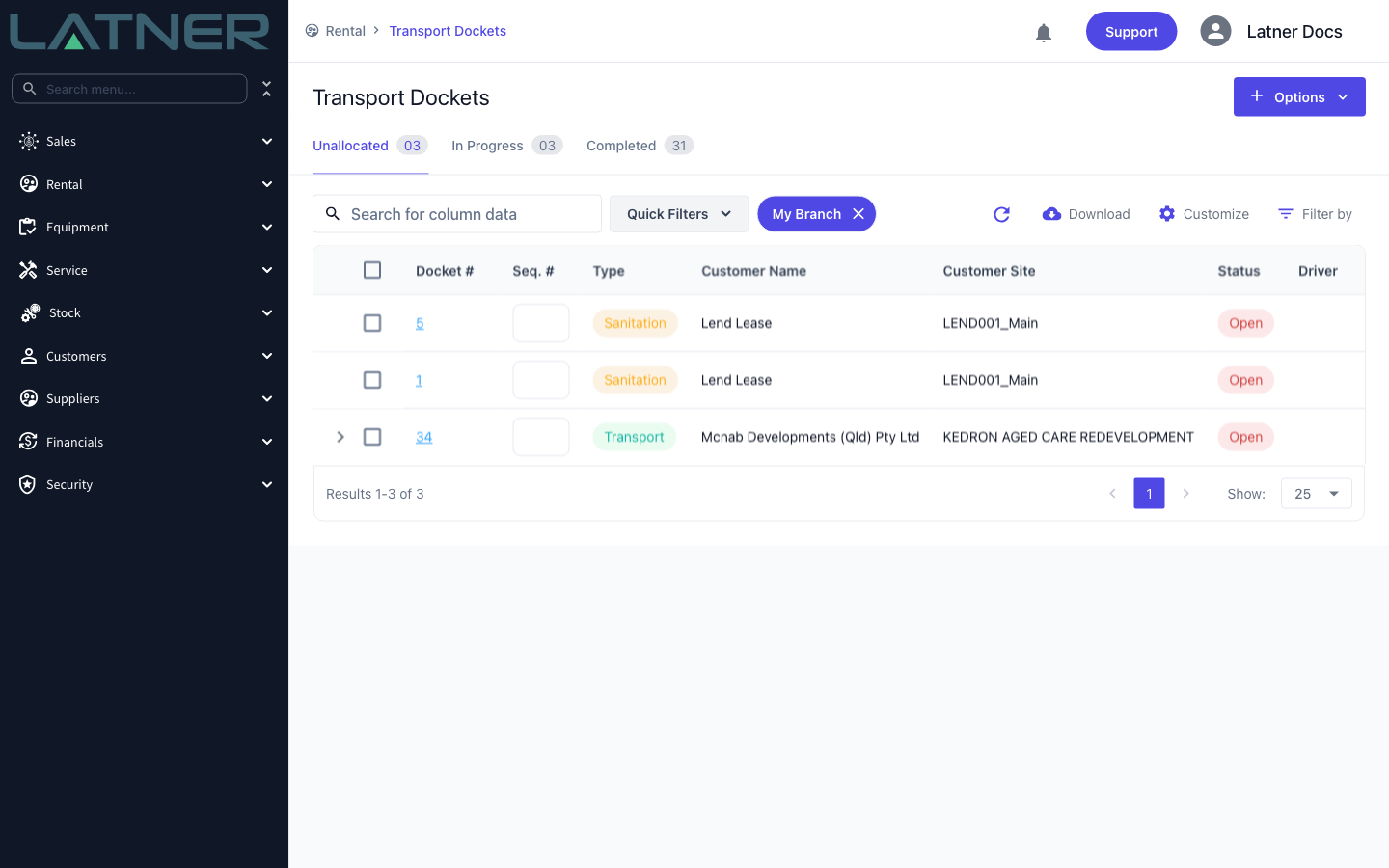
Step 1 - Open the Transport Dockets screen
Go to Rental › Transport Dockets. Dockets that are still to be done sit on the Unallocated tab until a driver is assigned, and move to In Progress once one is.
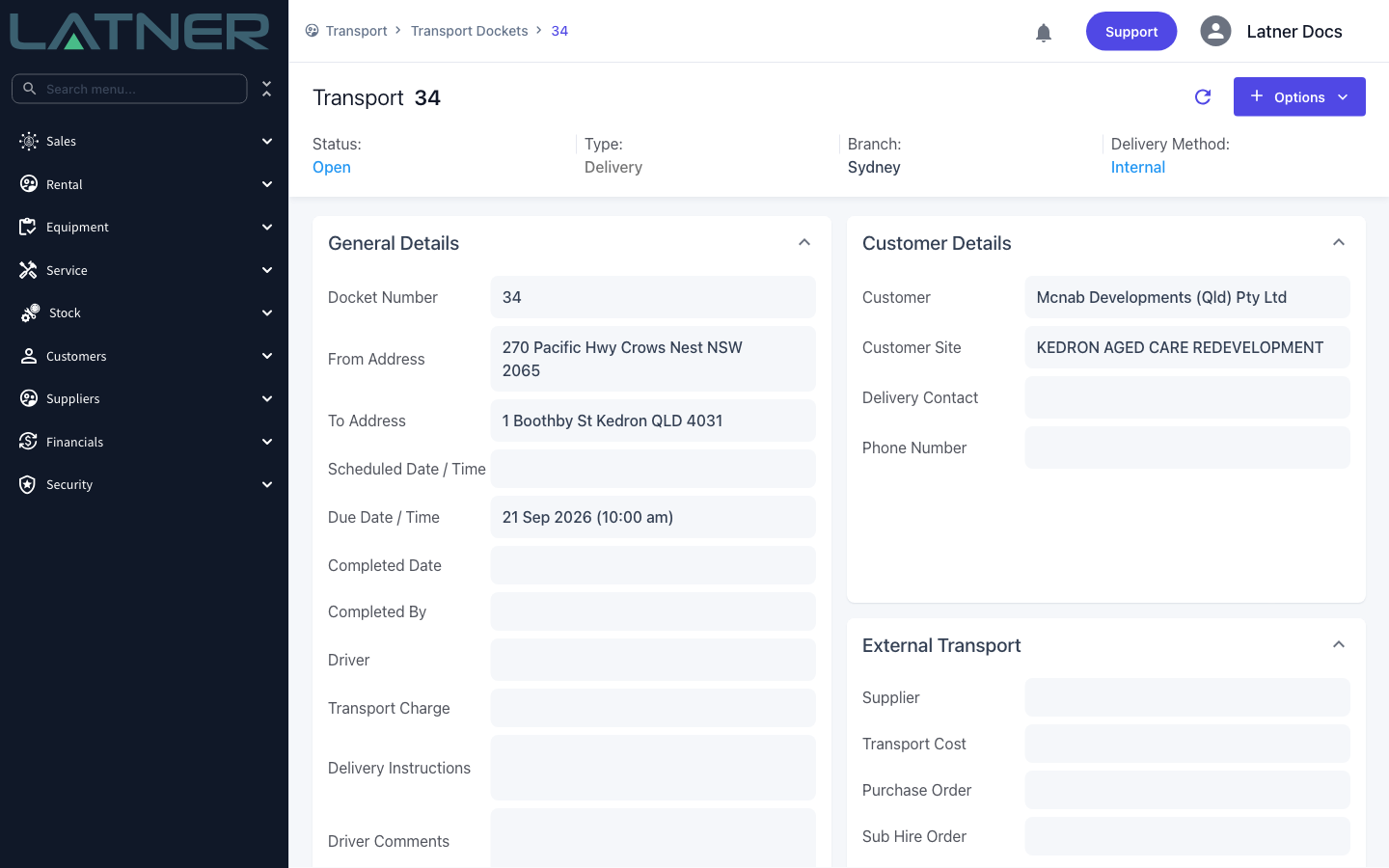
Step 2 - Open the docket
Click the docket number, or double-click the row, to open it. Before you go any further, check the Status at the top of the docket reads Open, and check the Linked To and Customer details are the ones you meant to cancel.
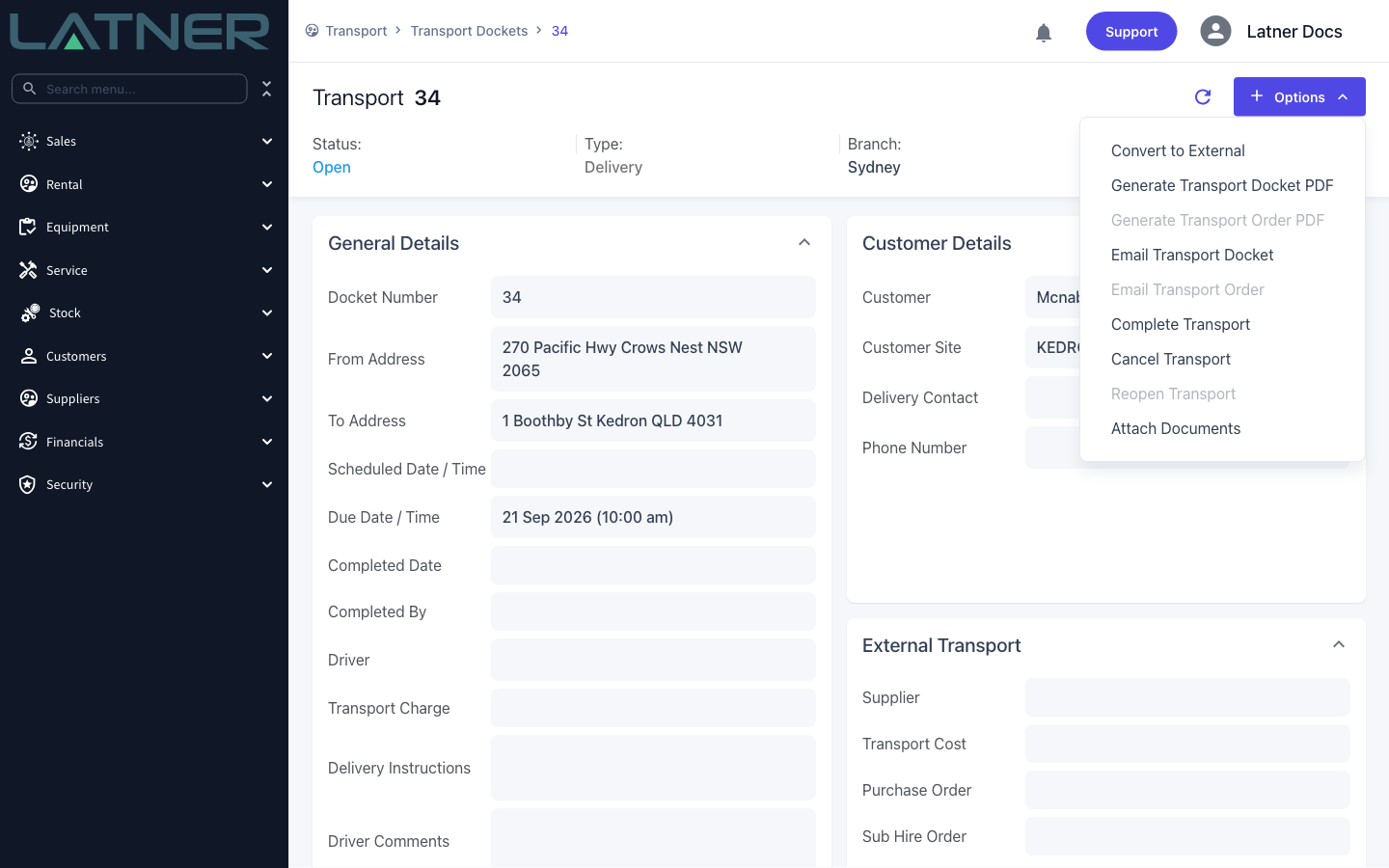
Step 3 - Choose Cancel Transport
Select Options › Cancel Transport. If the option is greyed out, the docket is no longer Open - see the FAQs.
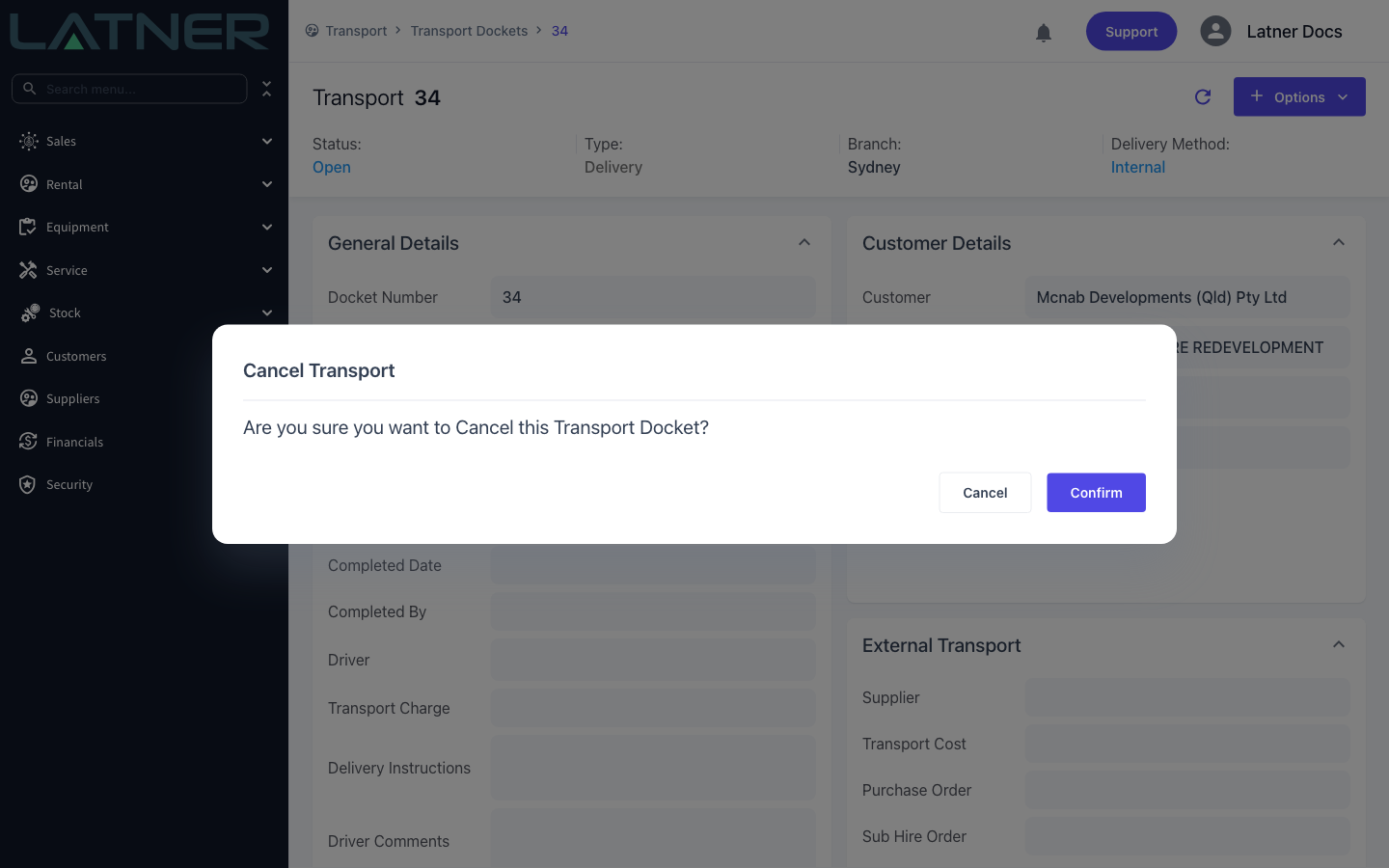
Step 4 - Confirm
Latner asks Are you sure you want to Cancel this Transport Docket? Select Confirm to cancel it, or Cancel to back out and leave the docket alone.
There's no reason field and no second chance, so this prompt is the last point at which you can check you're on the right docket.
Step 5 - Check the result
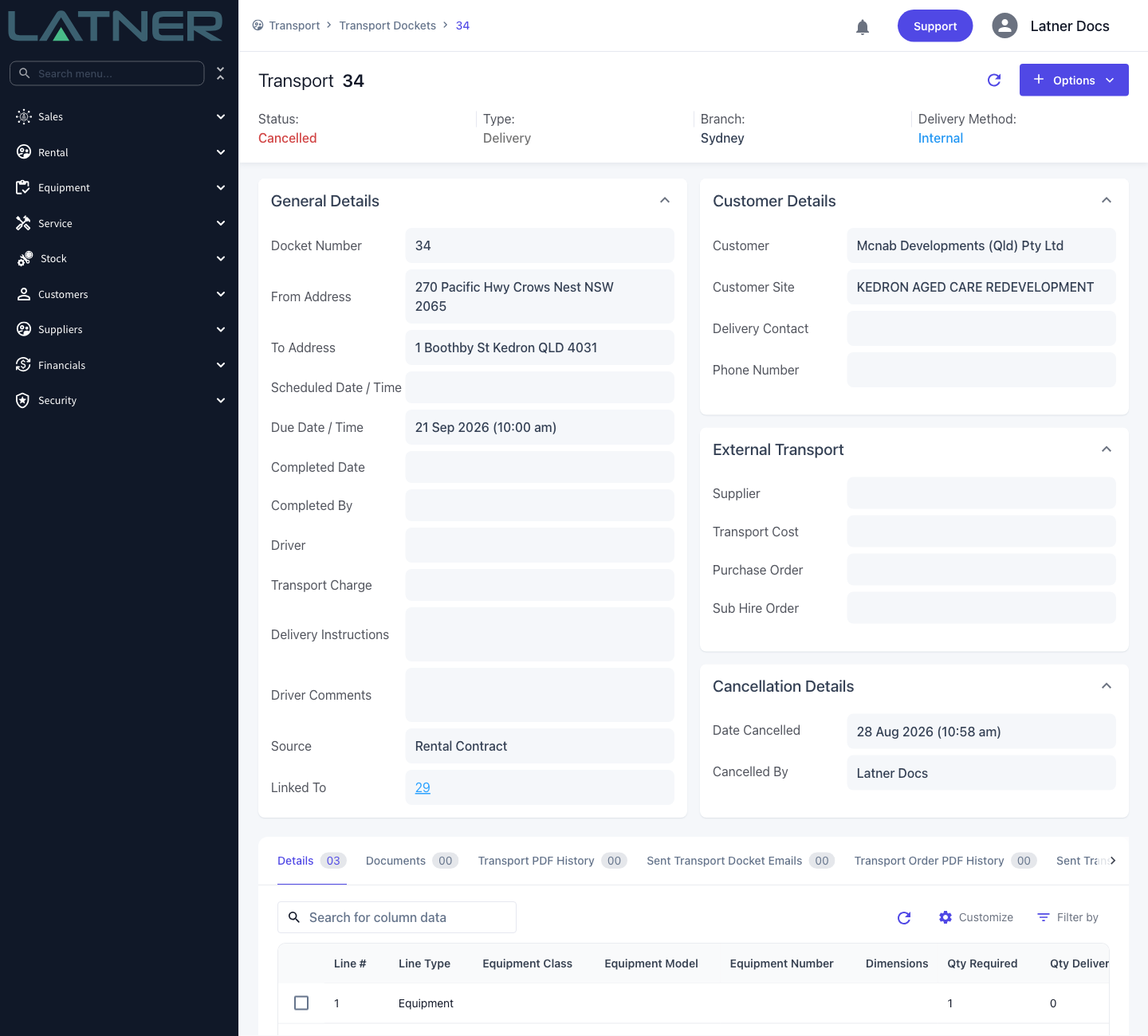
The docket reloads with a status of Cancelled and a new Cancellation Details card showing Date Cancelled and Cancelled By.
After Cancelling
-
The docket keeps its number and stays on the Transport Dockets screen. It moves to the Completed tab, which lists completed, cancelled and invoiced dockets together.
-
Equipment lines go back to the source record. On a delivery or collection docket, rental contract lines return to Reserved (or Preallocated, if that's where they started); on a pick up docket they return to Off Hire.
-
Lines that have already moved on are left alone. Cancelling a delivery docket doesn't disturb a line that is already Pending Pick Up, and cancelling a pick up docket doesn't disturb a line that is still Pending Delivery.
-
For a docket raised against an equipment transfer or a sales order, the quantity the docket had in transit is handed back to that record instead.
-
A transport purchase order raised for the docket is cancelled, and so is any sub hire order line covering the transport.
-
A transport charge that the docket had consumed is released and can be put on the replacement docket.
-
If the docket was a pick up raised from an off hire request that is still Requested, the off hire request is cancelled as well. An off hire that has already been actioned is left as it is.
-
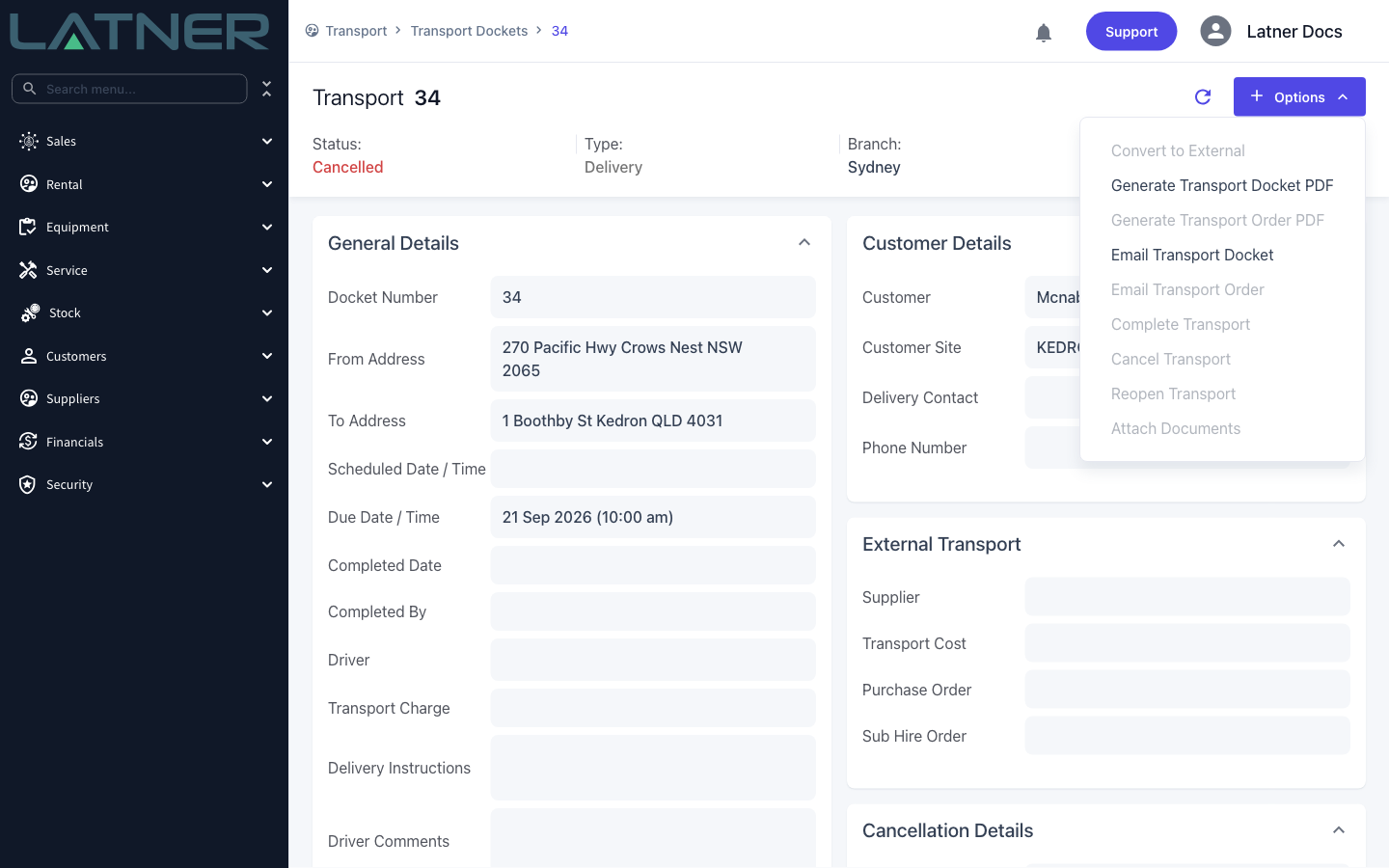
The docket becomes read-only. Convert to External, Complete Transport, Cancel Transport and Attach Documents are all greyed out on the Options menu, though you can still generate and email the docket PDF.
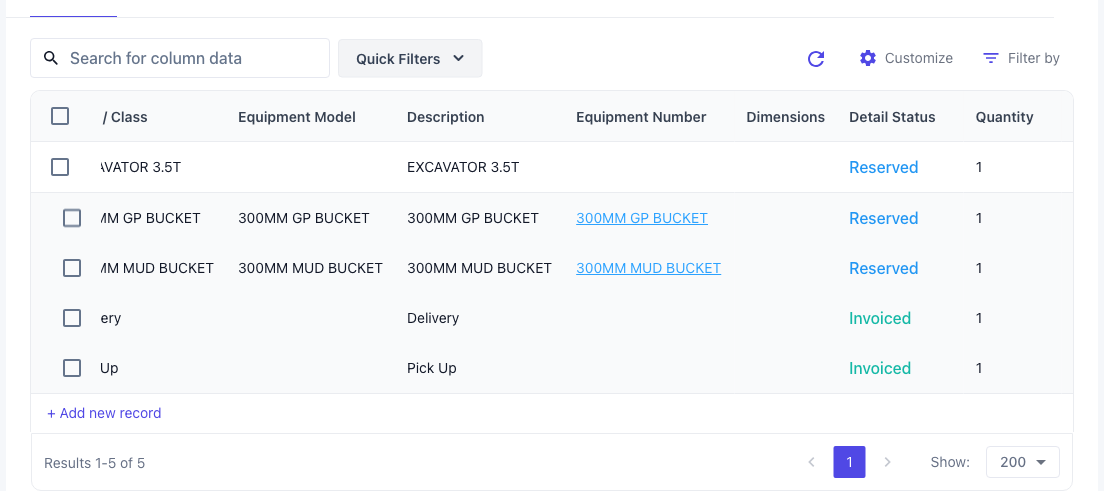
Cancelling can't be undone. Reopen Transport only works on a docket that was completed, so it won't bring a cancelled docket back. If you cancelled the wrong one, raise a new docket from the rental contract - the lines are already back in Reserved, so they're ready to go straight onto it.
FAQs
Watch the Demo
Prefer to watch it? Step through the same flow here.