
A manual transport docket lets you schedule, allocate and charge a delivery or pick up that isn't tied to a rental contract, sales order, work order or equipment transfer, so one-off transport jobs still get planned and invoiced in Latner.
Overview
Not every truck movement starts with a rental contract. A customer asks you to shift their own machine across town, a site needs a load of materials dropped off, or a competitor's unit has to come back to your yard. A manual docket is how those jobs get onto the transport board.
-
Manual dockets are created from the Transport Dockets screen. Every other docket is created from the record it belongs to, so Options › Create Transport always produces a manual one.
-
Source is set to Manual and can't be changed, and the docket can't be linked to a rental contract, sales order, work order or equipment transfer.
-
A manual docket has no equipment lines. It records the job - where from, where to, when, and who for - not what is being carried.
-
It can be Internal (your own driver) or External (a transport supplier), the same as any other docket.
-
Unlike a contract docket, you choose the Branch yourself, and you type both addresses yourself.
-
If the docket carries a charge, completing it raises a customer invoice for that amount automatically.
-
Once saved it behaves like every other docket: driver allocation, the Transport Allocation board, the mobile app, completion and cancellation all work the same way.
Before You Begin
Nothing has to be switched on to create a manual docket, but these permissions control who can, and these settings shape what happens to an External one.
|
Requirement |
Where to Find It |
|---|---|
|
Transport Dockets permission - to open the screen at all |
Security › Configuration › Permission Groups › Rental › Screen |
|
Create Delivery permission - to save a new docket |
Security › Configuration › Permission Groups › Rental › Option |
|
Complete Transport on Delivery/Pick Up Dockets permission - only needed to tick Complete Transport on the form |
Security › Configuration › Permission Groups › Transport › Field |
|
Allow Transport Cost To Be Greater Than Charge permission - only needed when an External job costs more than you're charging for it |
Security › Configuration › Permission Groups › Rental › Field |
|
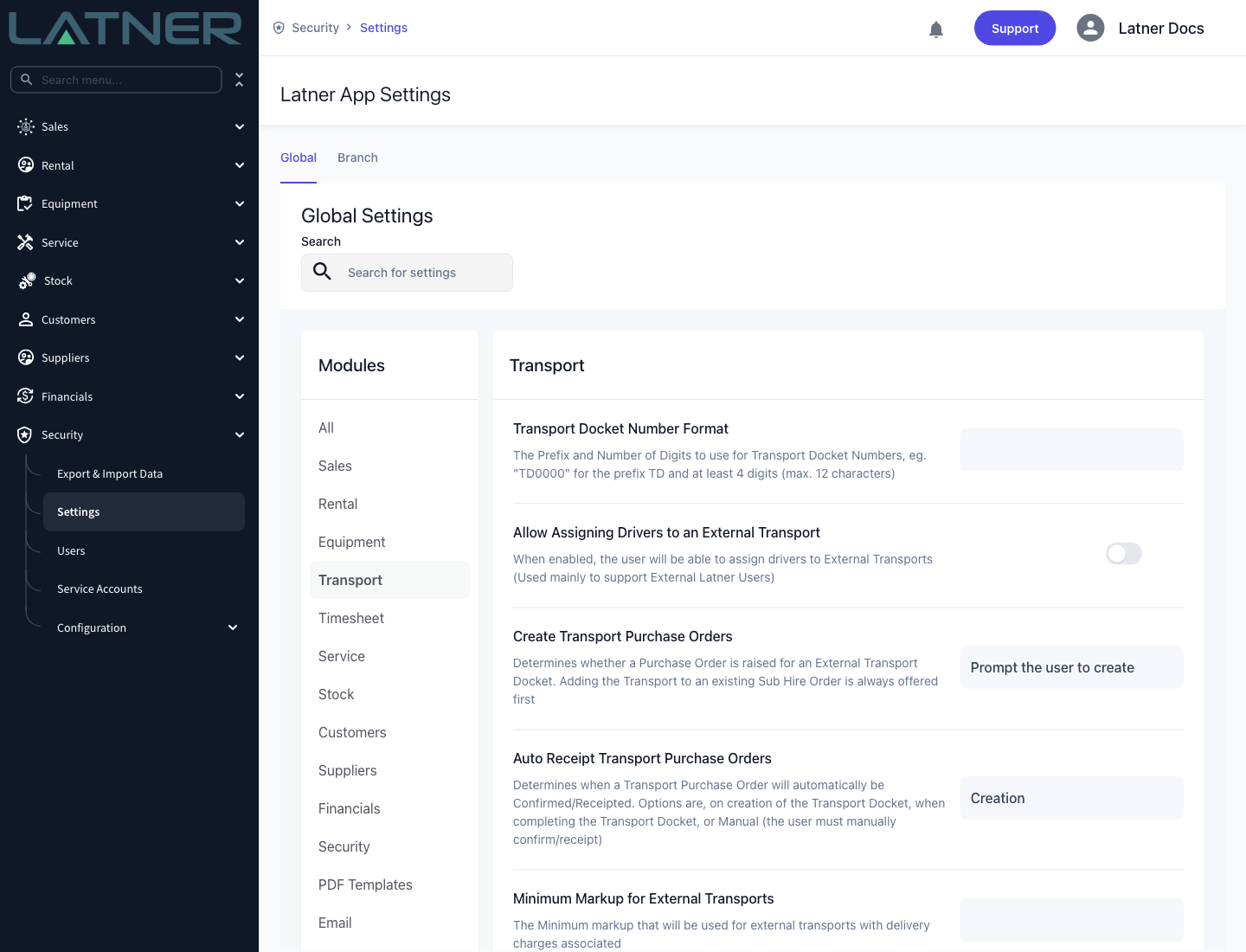
Transport Docket Number Format - the prefix and digits used for the docket number |
Security › Settings › Transport |
|
Create Transport Purchase Orders - whether saving an External docket offers to raise a Purchase Order |
Security › Settings › Transport |
|
Minimum Markup for External Transports - the margin an External docket's charge must keep over its cost |
Security › Settings › Transport |
|
Allow Assigning Drivers to an External Transport - lets you name a driver on an External docket |
Security › Settings › Transport |
|
Default Transport Customer Invoices to Completed - the status of the invoice raised when a charged docket is completed |
Security › Settings › Customers |
A customer on credit hold can't be given a Delivery - Latner blocks it with Cannot create Transport for customer on credit hold. A Pick Up is still allowed, so you can always go and collect your equipment.
Creating the Manual Transport Docket
Step 1 - Open the Transport Dockets screen
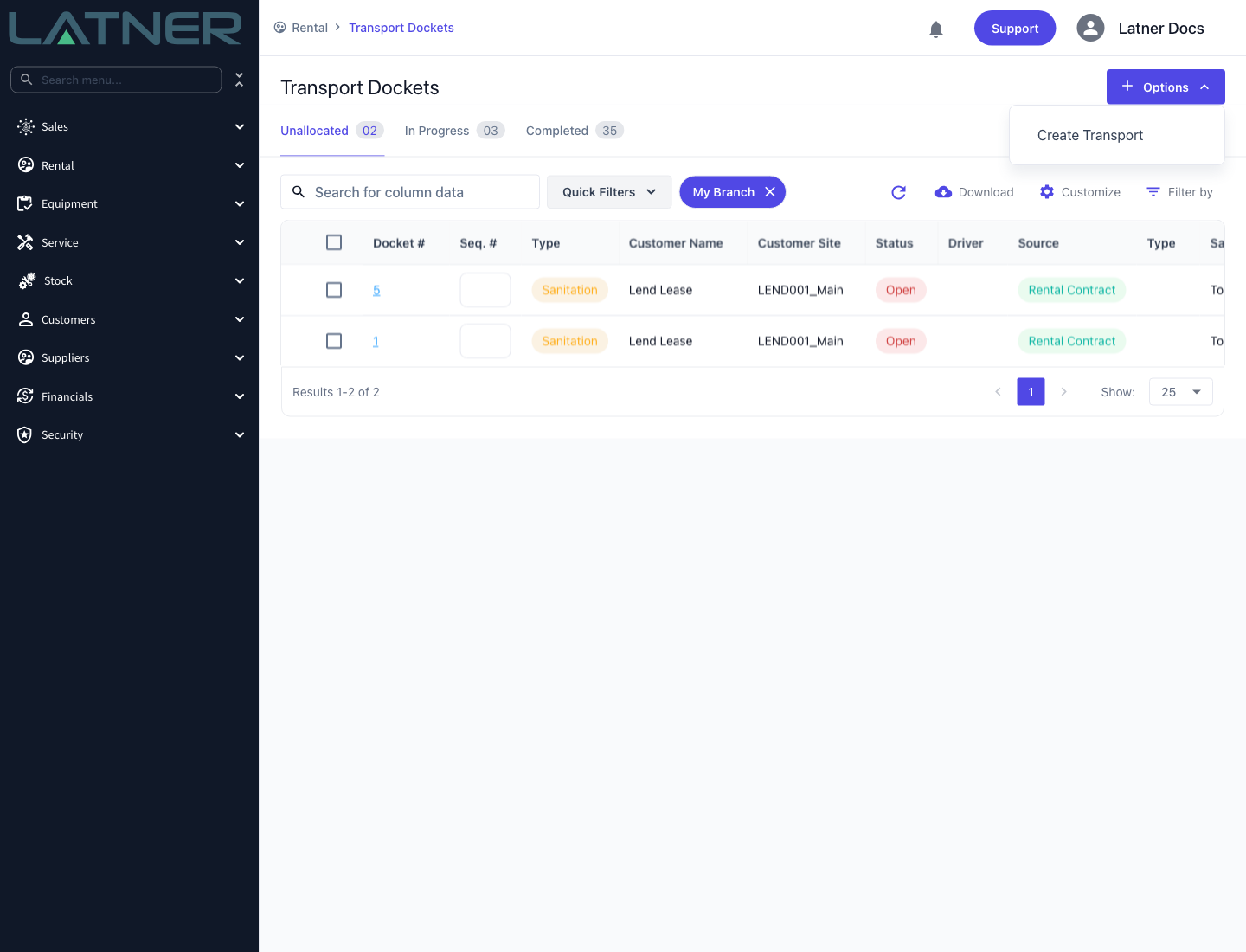
Go to Rental › Transport Dockets, then choose Options › Create Transport. This is the only place a manual docket can be started.
Step 2 - Choose the type and branch
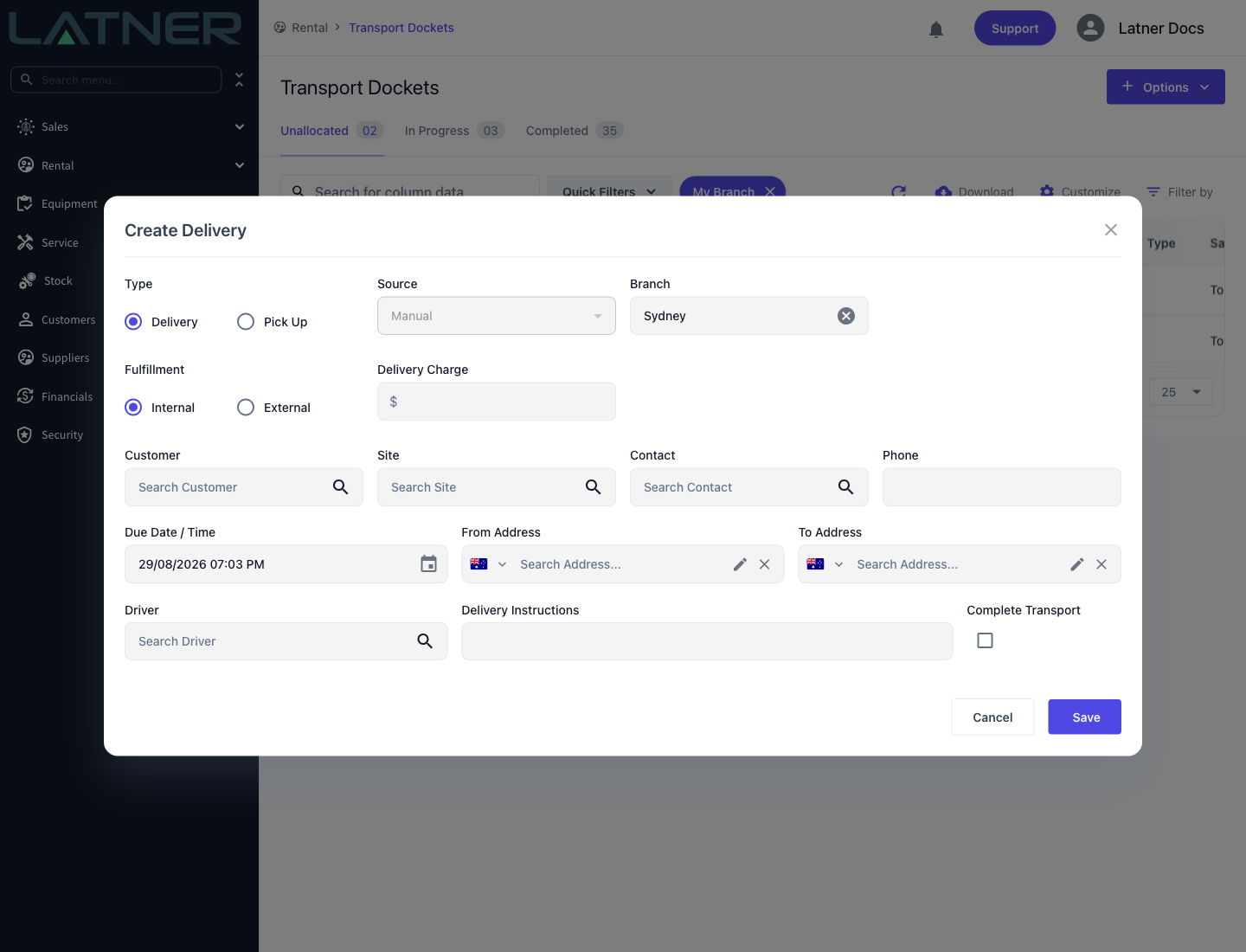
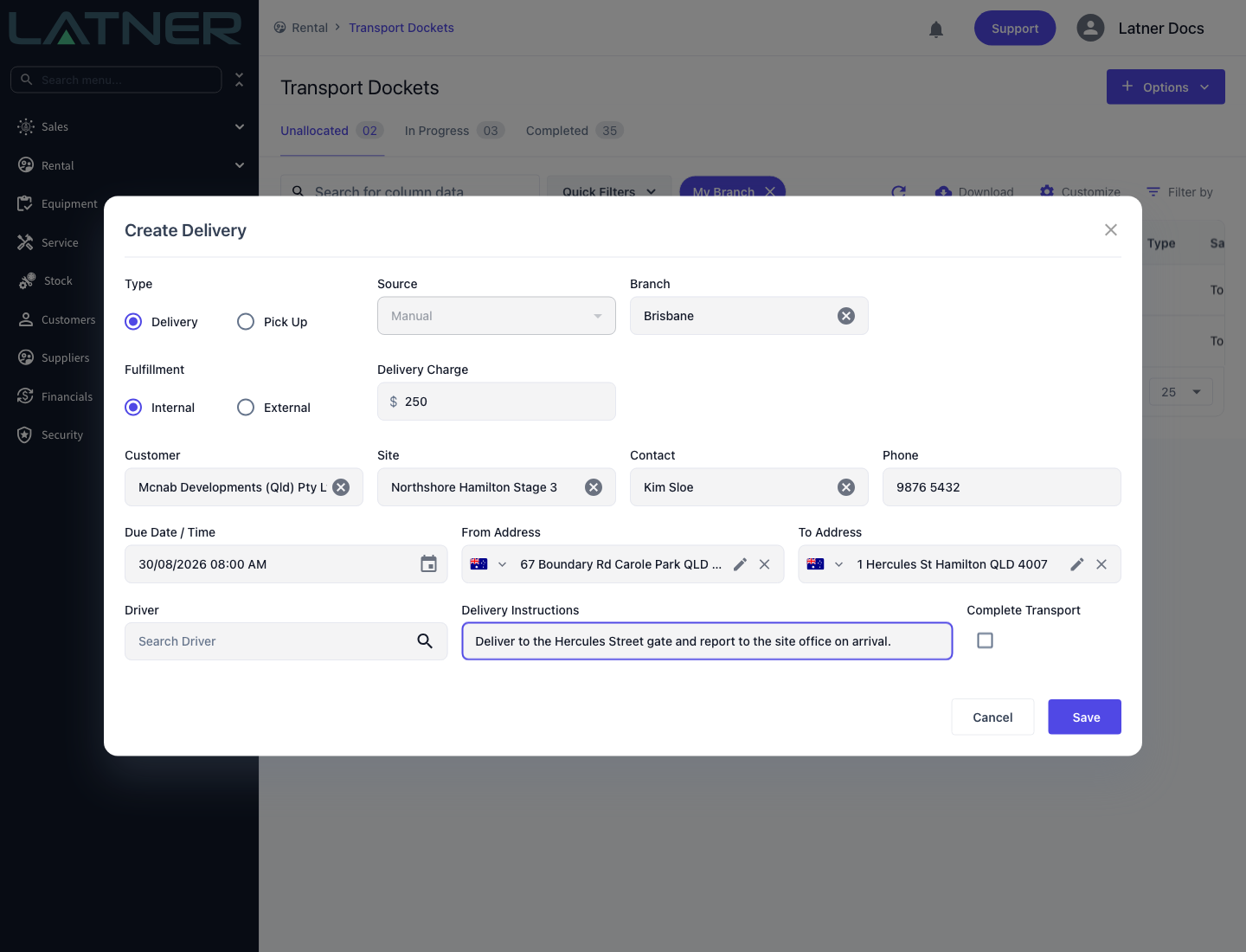
The form opens as Create Delivery. Switching Type to Pick Up retitles it Create Pick Up and relabels the address and money fields to match.
-
Type - required. Delivery means you are taking something out, Pick Up means you are bringing something back.
-
Source - fixed at Manual and read-only.
-
Branch - required, and defaults to your own branch. On a manual docket you're free to change it, which decides the docket number sequence and which branch's transport board the job appears on.
Step 3 - Choose how the job will be fulfilled
Fulfillment decides who actually drives it, and changes which fields you see.
-
Internal - your own driver. The Driver field is available, though you can leave it blank and allocate later.
-
External - a transport supplier. Supplier appears and is required, a supplier cost field appears beside it, and Delivery Charge becomes required (zero is accepted). Driver is greyed out with the tooltip Only applicable for Internal transport unless Allow Assigning Drivers to an External Transport is enabled.
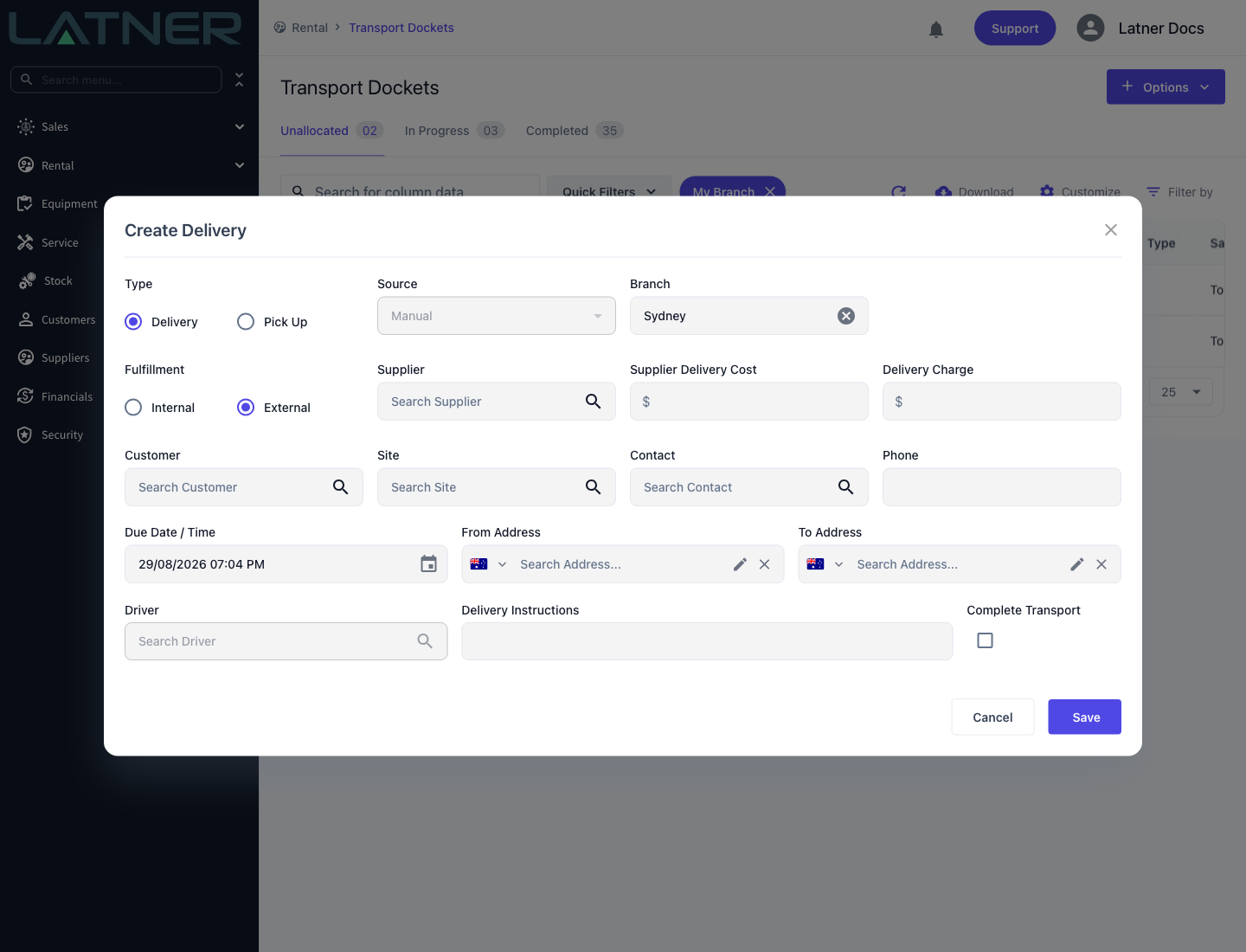
On an External docket the cost has to stay under the charge. If it doesn't, Latner rejects the save with Transport cost cannot be higher than transport charge, or with Transport cost does not meet the minimum markup of ... when Minimum Markup for External Transports is set. The Allow Transport Cost To Be Greater Than Charge permission waives both.
Step 4 - Add the customer and the charge
A manual docket doesn't have to belong to a customer - an internal yard-to-yard shift can be left blank. But as soon as money is involved, Latner needs to know who to bill.
-
Customer - optional, but required as soon as there is a charge. Without one you'll see Cannot have Transport Charge if Transport is not linked to a Customer.
-
Site - required whenever a customer is chosen. Leaving it out gives Cannot have Customer without Customer Site selected.
-
Contact and Phone - filled in from the site's delivery contact when you pick a site, and editable afterwards.
-
Delivery Charge (or Pick Up Charge) - what the customer pays. Optional on an Internal docket, required on an External one.
Step 5 - Set the timing, addresses and instructions
These are the details the driver actually works from.
-
Due Date / Time - required, and defaults to now.
-
From Address and To Address - both required. Start typing and pick the match from the address search, or use the pencil icon to type an address in by hand. Choosing a Site fills in the contact details but not the addresses, so on a manual docket you enter both yourself.
-
Driver - optional. Leave it blank and the docket waits on the Unallocated tab for allocation.
-
Delivery Instructions - optional free text that shows on the driver's mobile screen and is available to the transport docket PDF template.
Step 6 - Save
Click Save. Latner confirms the docket with its new number and offers a link straight to it.
-
Ticking Complete Transport before saving creates and completes the docket in one go. You'll be asked Are you sure you want to complete this transport docket? first. The checkbox is disabled without the Complete Transport on Delivery/Pick Up Dockets permission.
-
On an External docket you may then be asked Do you want to create a Transport Purchase Order?. That prompt only appears while Create Transport Purchase Orders is set to Prompt the user to create; the other options raise one automatically or never raise one.
After Creation
-
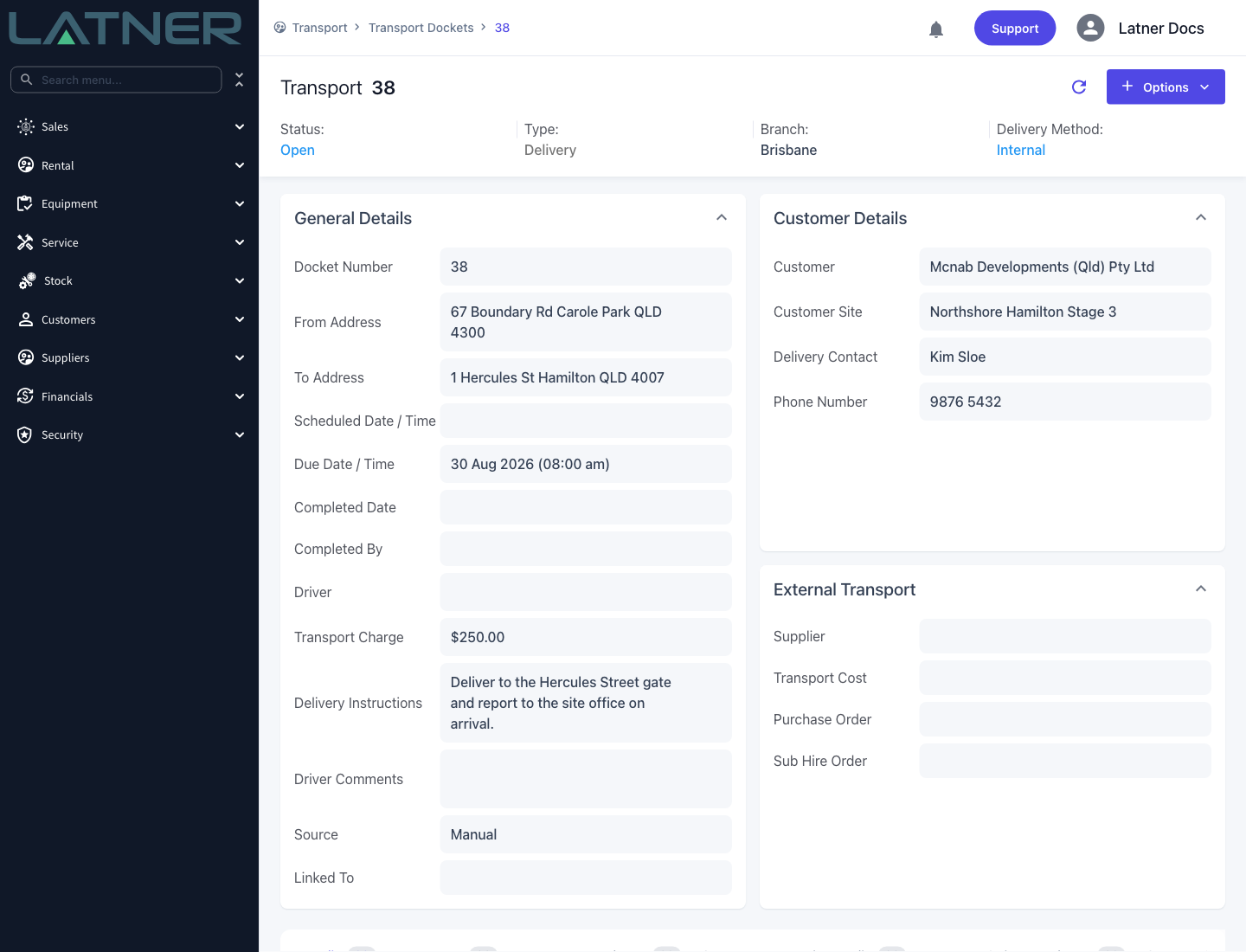
The docket is created with status Open, Source of Manual, and an empty Linked To field - that pair is what tells a manual docket apart from a contract one at a glance.
-
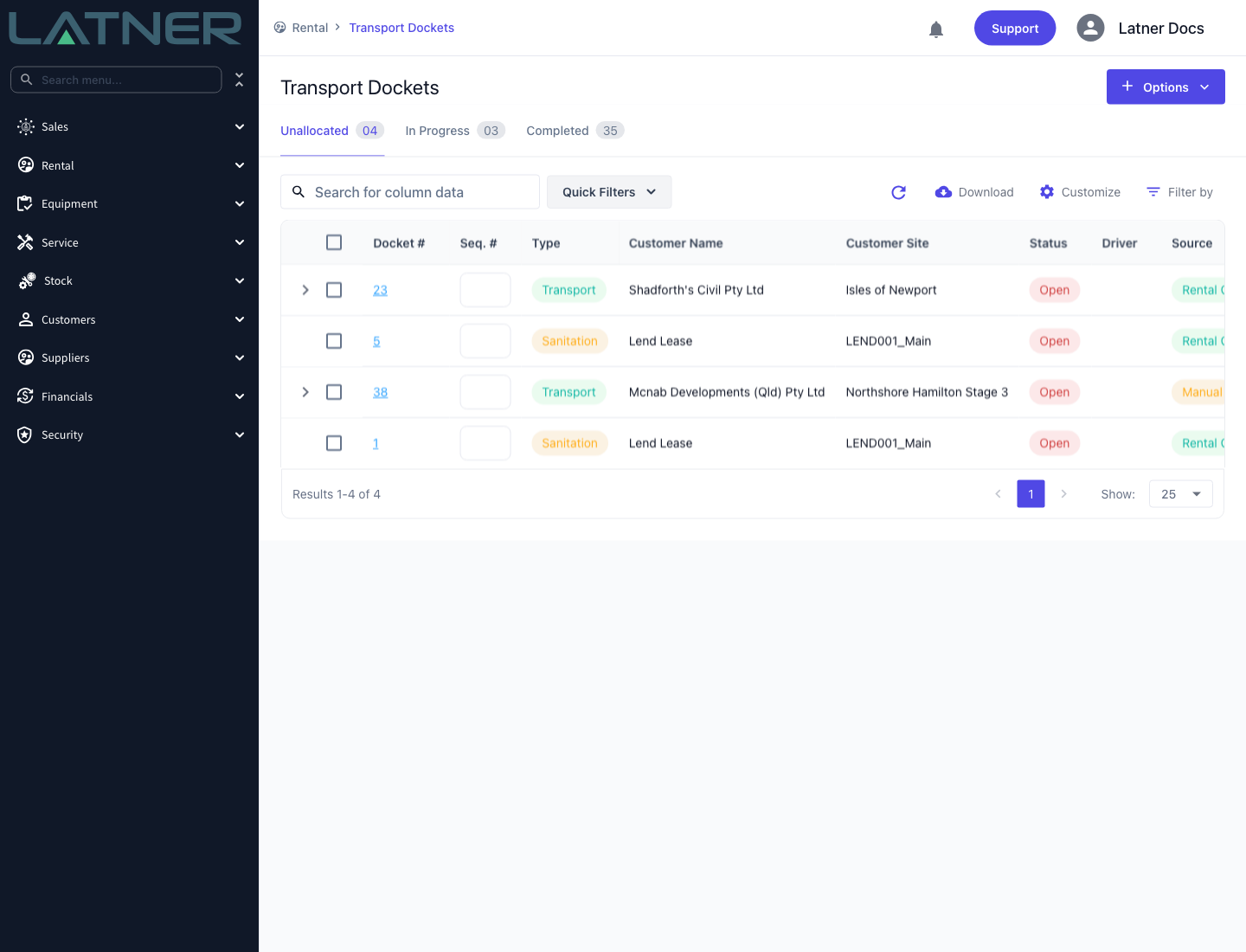
It appears on the Transport Dockets screen under Unallocated until a driver is assigned, then moves to In Progress. It's also available on the Transport Allocation board for scheduling.
-
On an External docket, any Purchase Order raised is shown in the External Transport card on the docket, and can still be raised later from Options › Create Purchase Order.
-
Because there are no equipment lines, completing a manual docket doesn't move any equipment. It records who completed it and when.
-
Completing a manual docket that carries a charge raises a customer invoice for that charge automatically, against the docket's customer and site. Its status is Open, or Completed when Default Transport Customer Invoices to Completed is enabled.
The invoice raised on completion isn't undone by reopening the docket. Latner refuses with Cannot reopen Transport with Invoice(s) attached to it: Please Cancel the Invoice(s) first, so cancel the invoice before you reopen, and check the charge is right before you complete a docket rather than after.
FAQs
Watch the Demo
Prefer to watch it? Step through the same flow here.