
A site move delivery docket records equipment being shifted from one of a customer's sites to another without ever coming off hire, so the contract keeps billing while your transport team gets a proper docket to run.
Overview
Jobs move. The scissor lift that went out to a shopping centre in March is needed across town in August, and the customer would rather you truck it straight there than off hire it, bring it home and start again. A site move does exactly that: it moves the gear, not the contract.
-
A site move is a transport docket of type Site Move, raised from the rental contract itself.
-
The equipment stays on hire the whole time. Detail lines keep the status they already had, so billing is uninterrupted.
-
You create it in two steps: a short dialog that asks which sites the gear is moving between, then the usual transport docket form.
-
The From Address and To Address are pre-filled from the two sites, so you rarely have to type an address.
-
When the docket is completed, Latner can update the contract's Customer Site and Delivery Address for you, so the next pick up goes to the right place.
-
Site moves are charged the same way deliveries are, through a Transport line on the contract.
Before You Begin
A site move needs one permission and, if you plan to charge for it, one setting.
|
Requirement |
Where to Find It |
|---|---|
|
Create Delivery permission - "This will allow users to create a delivery from a rental contract." |
Security › Configuration › Permission Groups › Rental › Option |
|
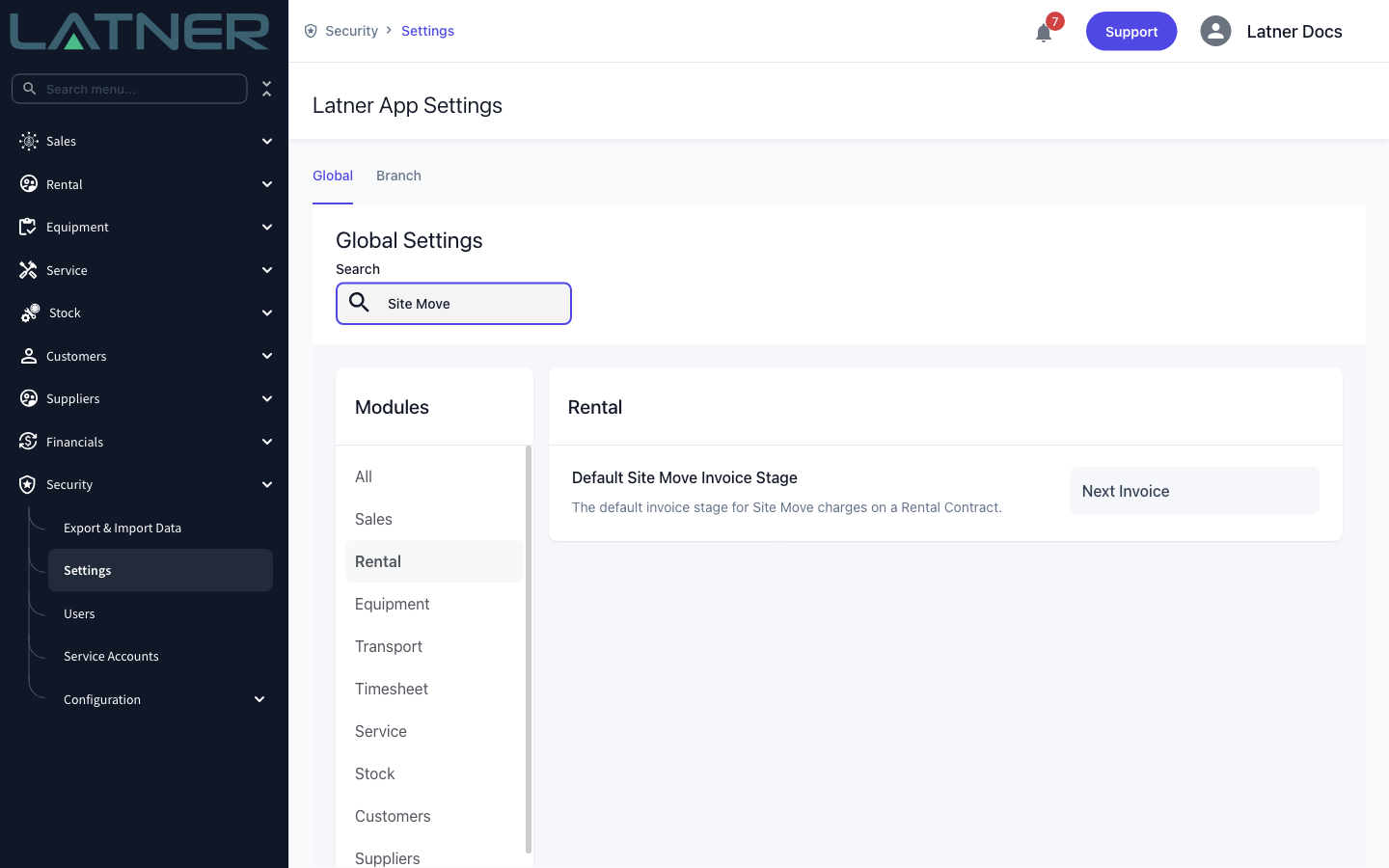
Default Site Move Invoice Stage - decides when a site move charge is invoiced |
Security › Settings › Rental |
|
Site Move Docket PDF Template ID - only if you print dockets for drivers |
Security › Settings › PDF Template |
|
A rental contract in Reserved or Active status |
Rental › Rental Contracts |
|
A second site on the same customer to move the equipment to |
Customers › Sites, or create one from the site move dialog |
Create Site Move stays clickable even when the customer is on credit hold or is missing a required purchase order, unlike Create Delivery. You'll only find out when you save, and the docket is rejected with "Cannot create Transport for customer on credit hold" or "Purchase Order is required before creating Transport for this Customer". Clear the hold or add the purchase order to the contract first.
Creating the Site Move Docket
Step 1 - Open the contract and start the site move
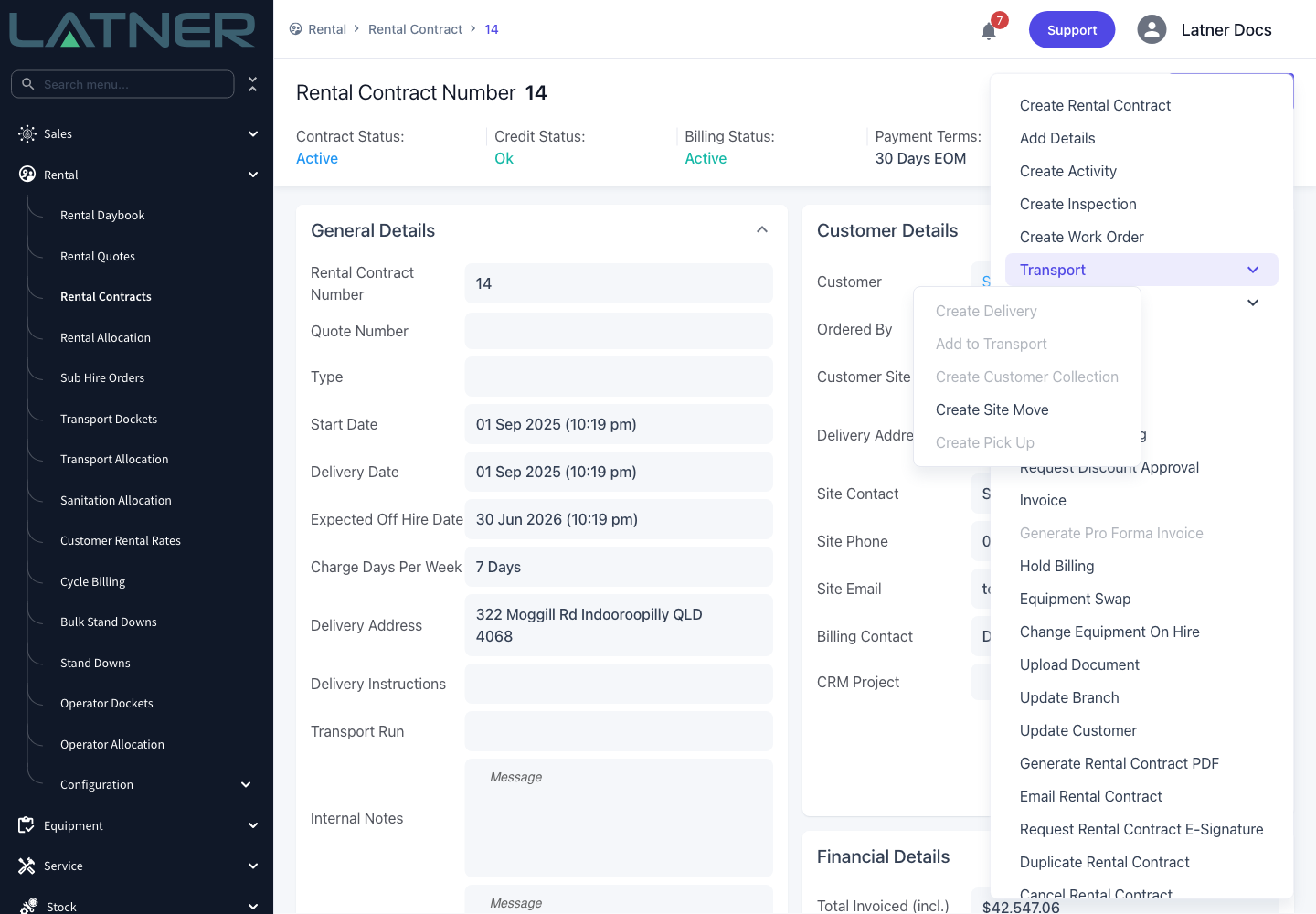
Open the rental contract the equipment is on, then choose Options › Transport › Create Site Move.
Note that the other transport actions in this menu depend on the contract having something to deliver or pick up. Create Site Move doesn't - it only needs the contract to be open, so it stays available on a contract where everything is already out on site.
Step 2 - Choose the new site
The Create Site Move dialog asks one real question: where is the equipment going?
-
Rental Contract - the contract you started from. Read-only.
-
Old Customer Site - the contract's current site. Read-only, and it becomes the From Address on the docket.
-
New Customer Site - required. The list is limited to sites belonging to this customer and excludes the site the equipment is already on. If the new site doesn't exist yet, use Create New at the bottom of the list to add it without leaving the dialog.
-
Also Update the Site and Delivery Address on the Rental Contract? - ticked by default. Leave it ticked and completing the docket will repoint the contract at the new site.
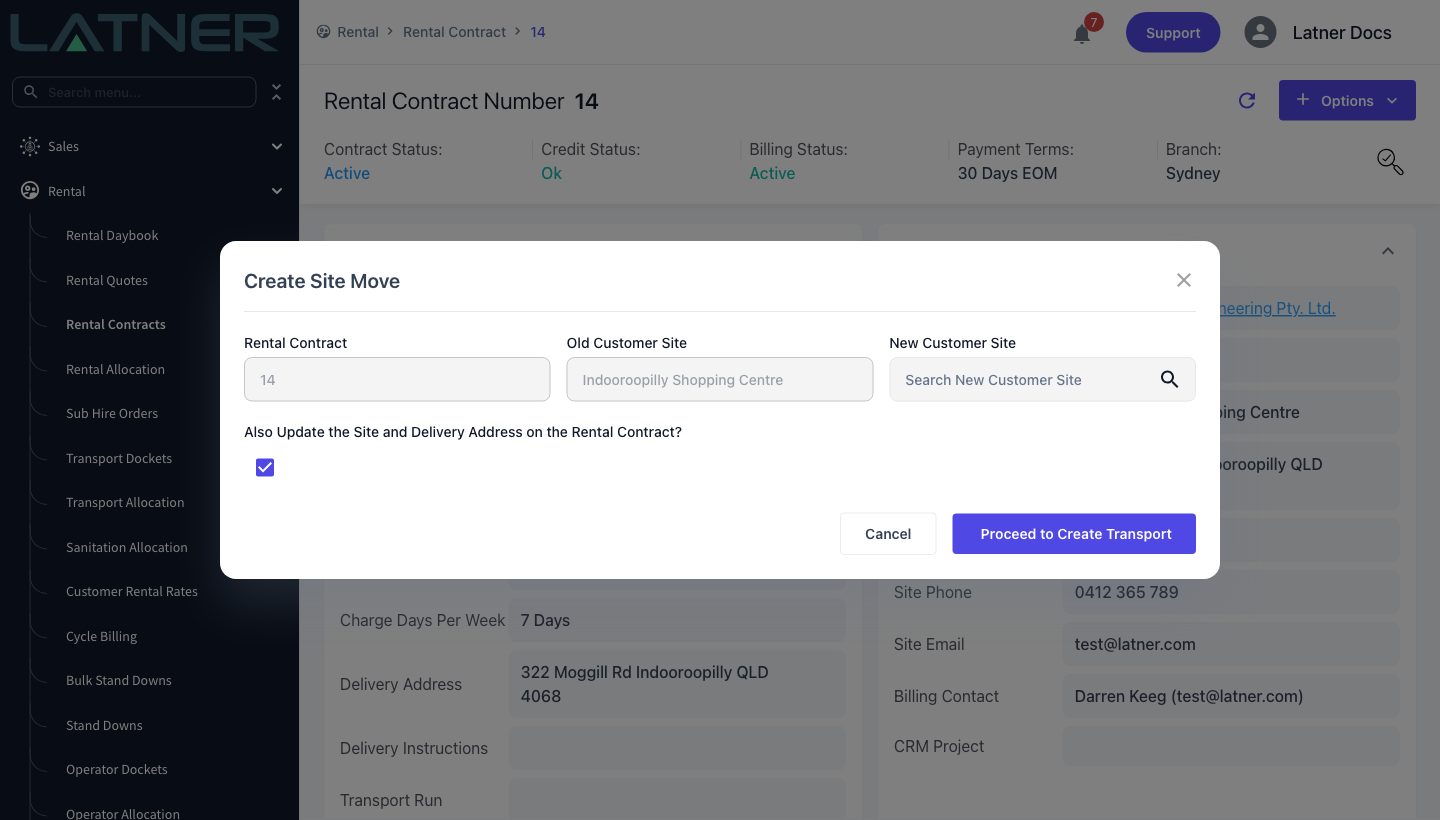
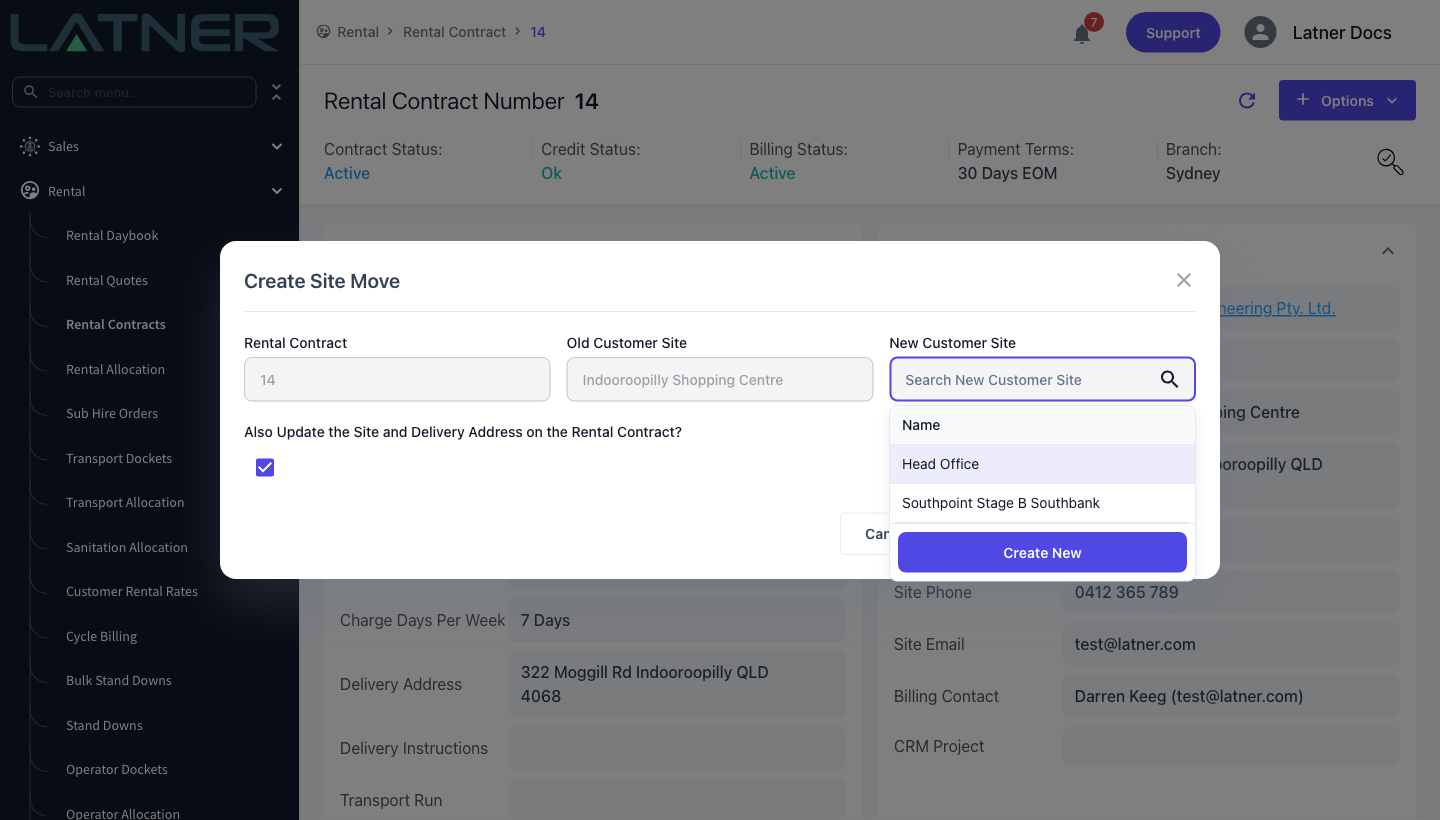
Select Proceed to Create Transport when you're done.
Step 3 - Fill in the transport docket
The transport form opens with the site move already built in. Type is locked to Site Move, Site shows the new site, and the two addresses are carried across from the sites you picked.
-
Fulfillment - Internal if one of your own trucks is doing the move, External if you're paying a carrier. External also asks for a Supplier and a supplier cost.
-
Due Date / Time - required. This is when the move is meant to happen.
-
From Address and To Address - required, pre-filled from the old and new sites. Edit them if the truck is going to a specific gate or compound rather than the registered site address.
-
Driver - optional at this point. You can leave it blank and allocate the docket later on the Transport Allocation board.
-
Delivery Instructions - anything the driver needs to know about access, contacts or timing.
-
Complete Transport - tick this only if the move has already happened and you're recording it after the fact.
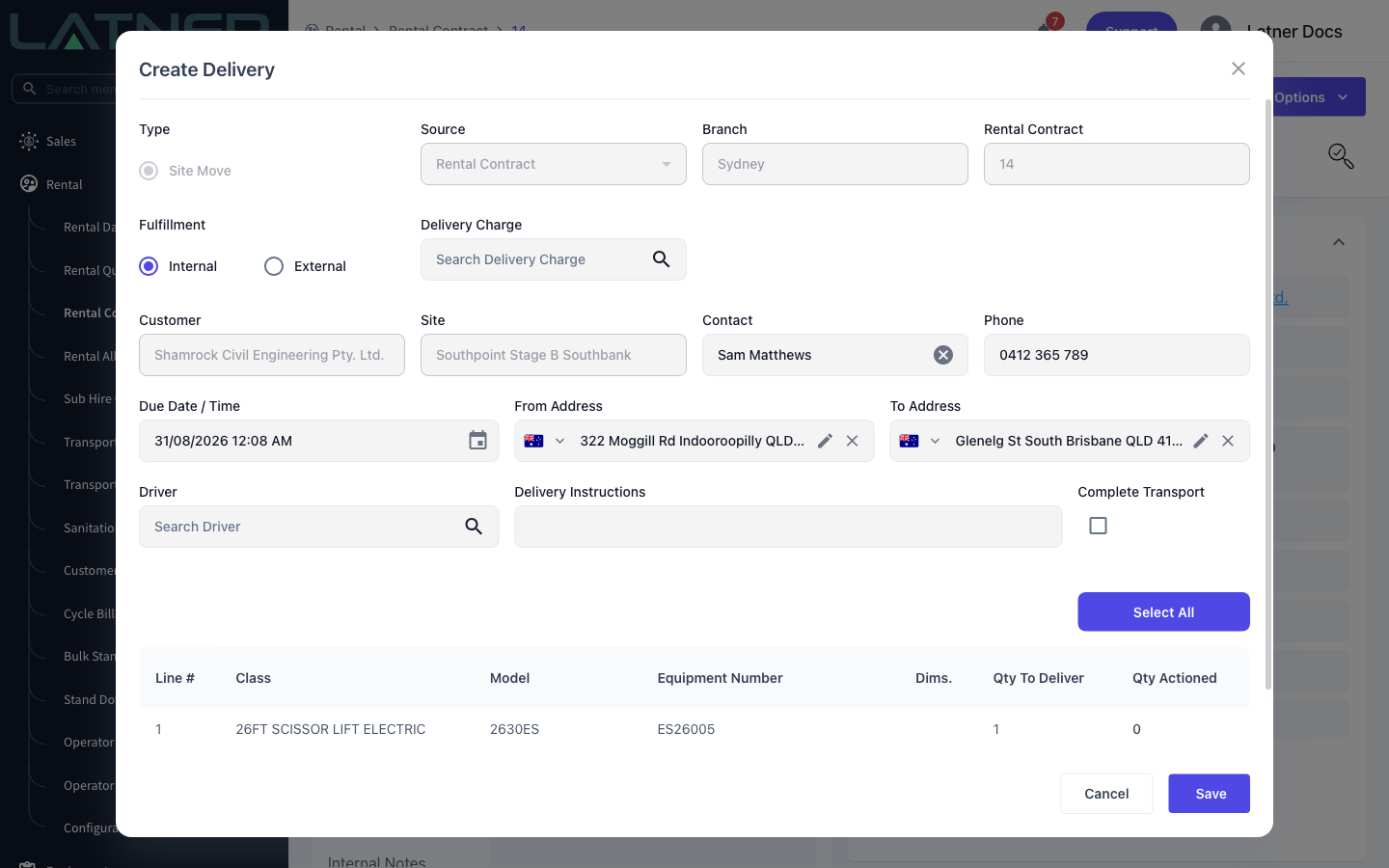
The dialog is titled Create Delivery rather than Create Site Move. That's cosmetic - the Type field is the one that matters, and it's fixed to Site Move and can't be changed.
Step 4 - Add the site move charge
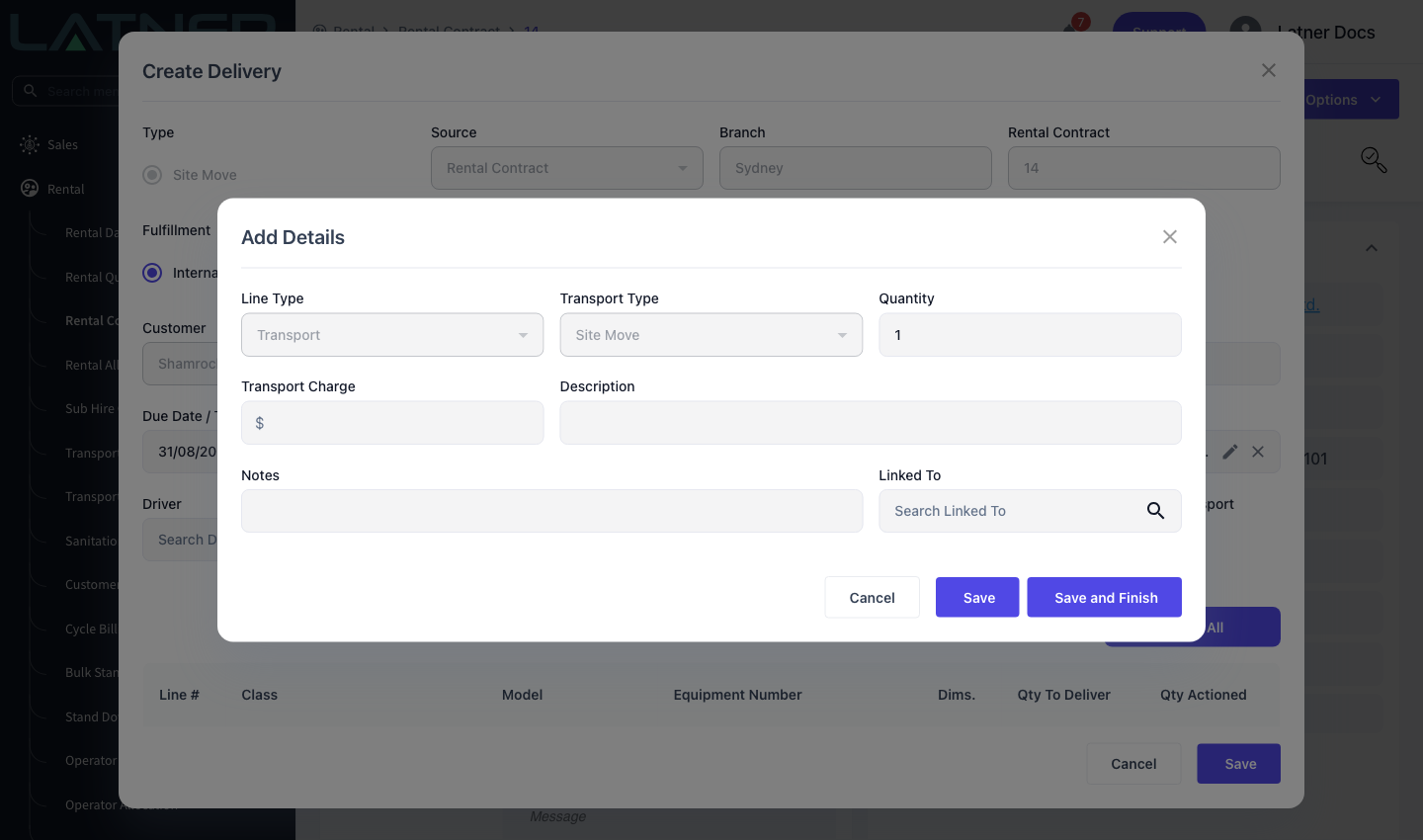
Latner does not price a site move for you. The Delivery Charge field looks for a line already on the contract with a Line Type of Transport and a Transport Type of Site Move, and only unused lines appear. If there isn't one, select Create New in the picker and add it without leaving the form - Line Type and Transport Type are filled in and locked for you, so all you enter is the charge and a description.
A charge is optional on an internal move and required on an external one. The amount you pick becomes the docket's Transport Charge, and the line is invoiced according to your Default Site Move Invoice Stage setting.
Step 5 - Choose the equipment to move
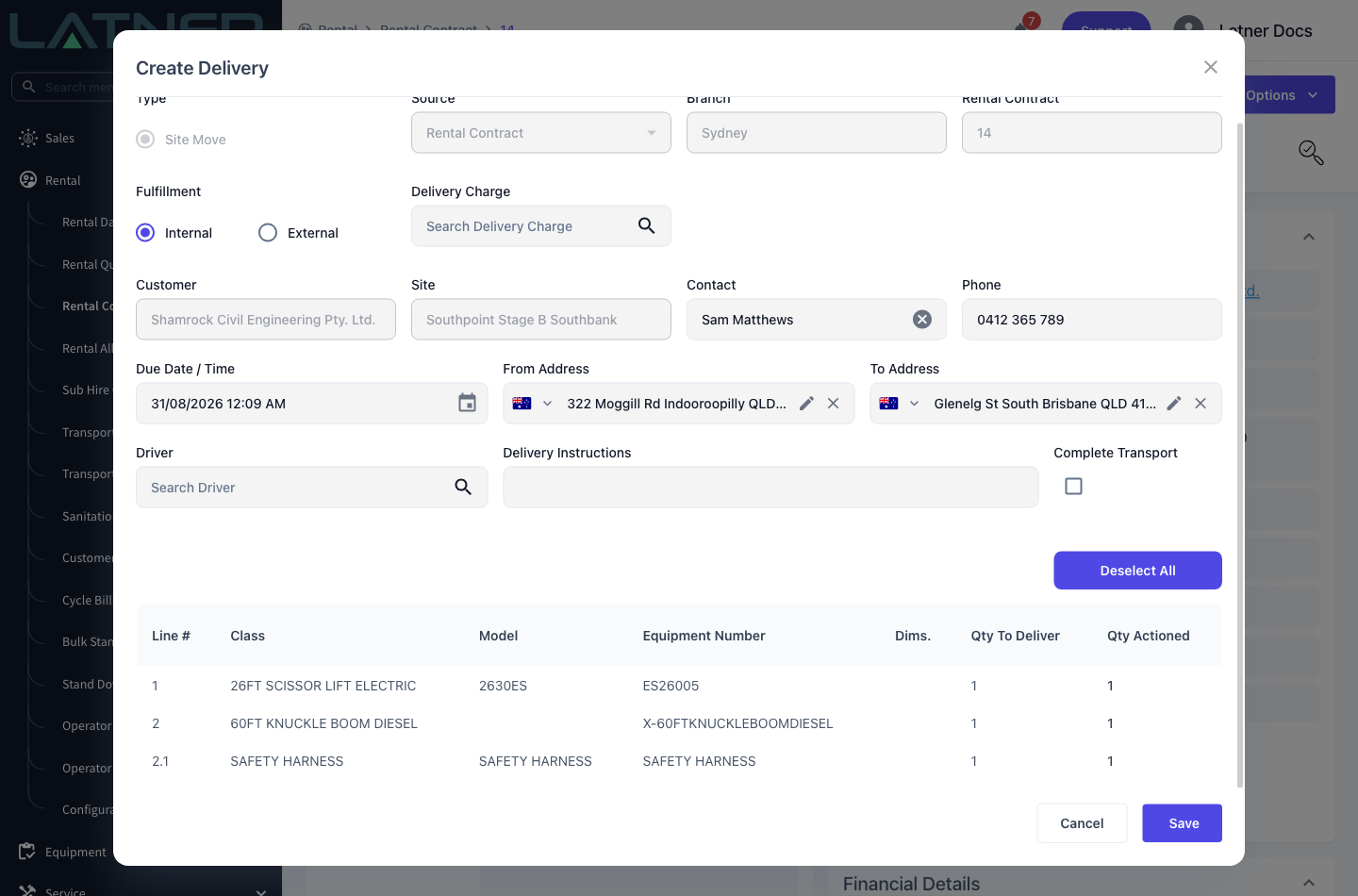
The table lists every equipment and sub hire equipment line on the contract. Enter a Qty Actioned against each item going on the truck, or use Select All to take the lot.
Unlike a delivery or a pick up docket, this list is not filtered by line status - everything on the contract is offered, because a site move is about where the gear physically is rather than where it sits in the hire lifecycle. At least one line must have a quantity, or the save is rejected with "At least one piece of equipment must be selected for transport".
Step 6 - Save
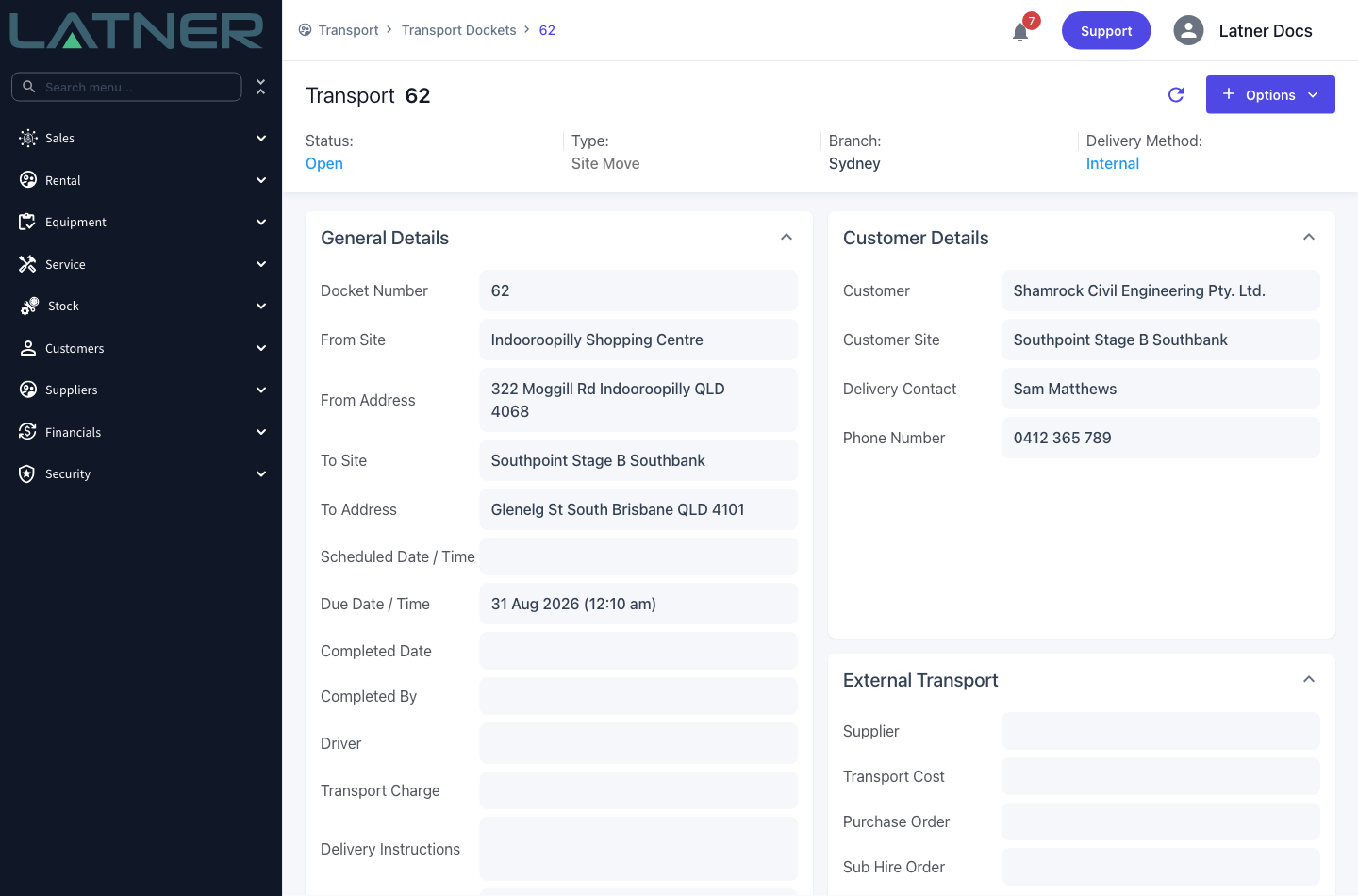
Select Save. Latner creates the docket in Open status and a toast offers a link straight to it.
The docket screen shows two fields you'll only ever see on a site move: From Site and To Site. Everything else is the standard transport docket - you can allocate a driver, generate a PDF for them, or email the docket from Options.
Completing the Site Move
Step 7 - Complete the docket once the gear has landed
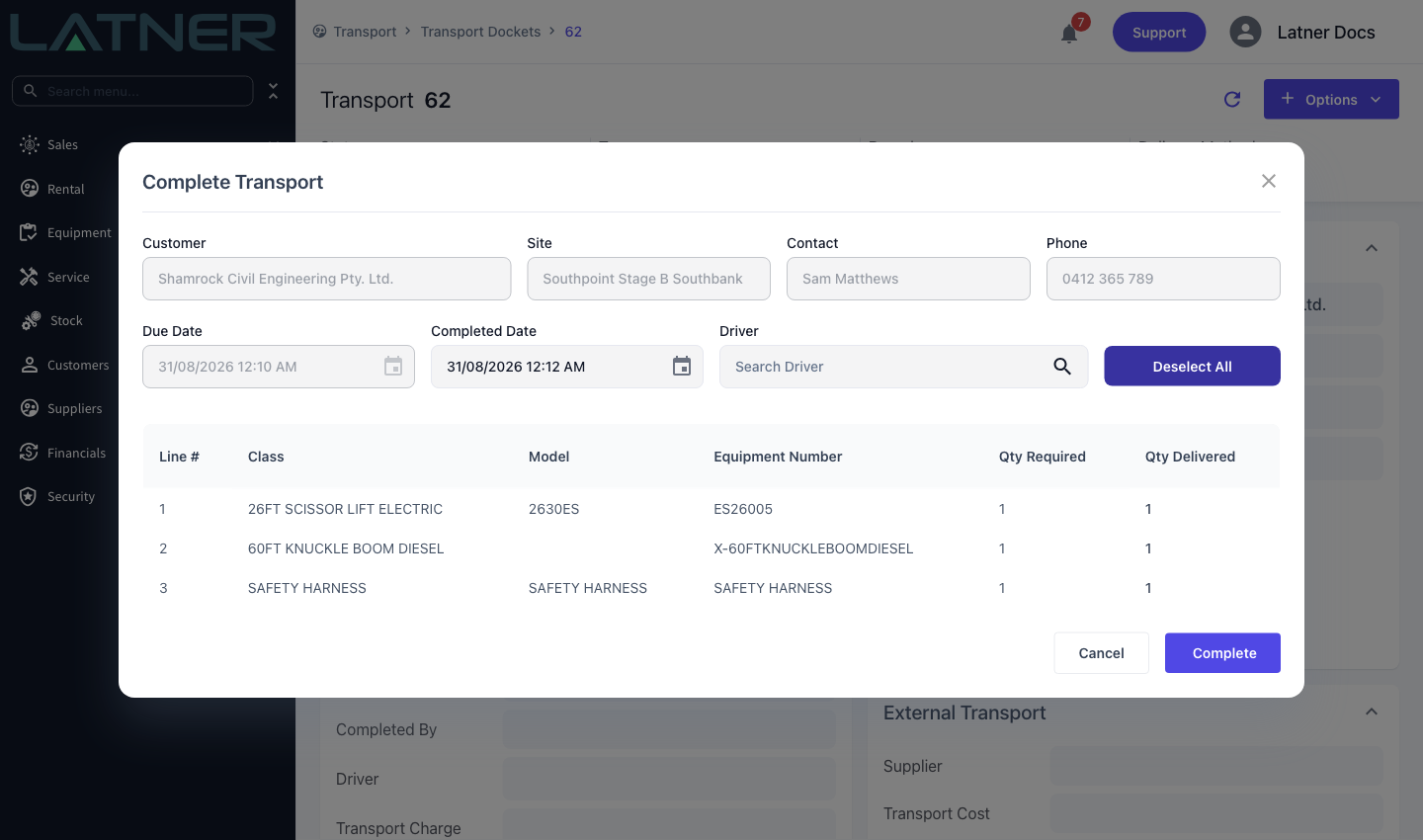
When the equipment is on the new site, open the docket and choose Options › Complete Transport. Set the Completed Date, record the Driver if you didn't allocate one earlier, and enter a Qty Delivered against each line (or use Select All).
Any line you leave at zero is cancelled off this docket and rolled onto a new Open one, so a part-completed move doesn't lose track of what's still to shift.
Step 8 - Check the contract
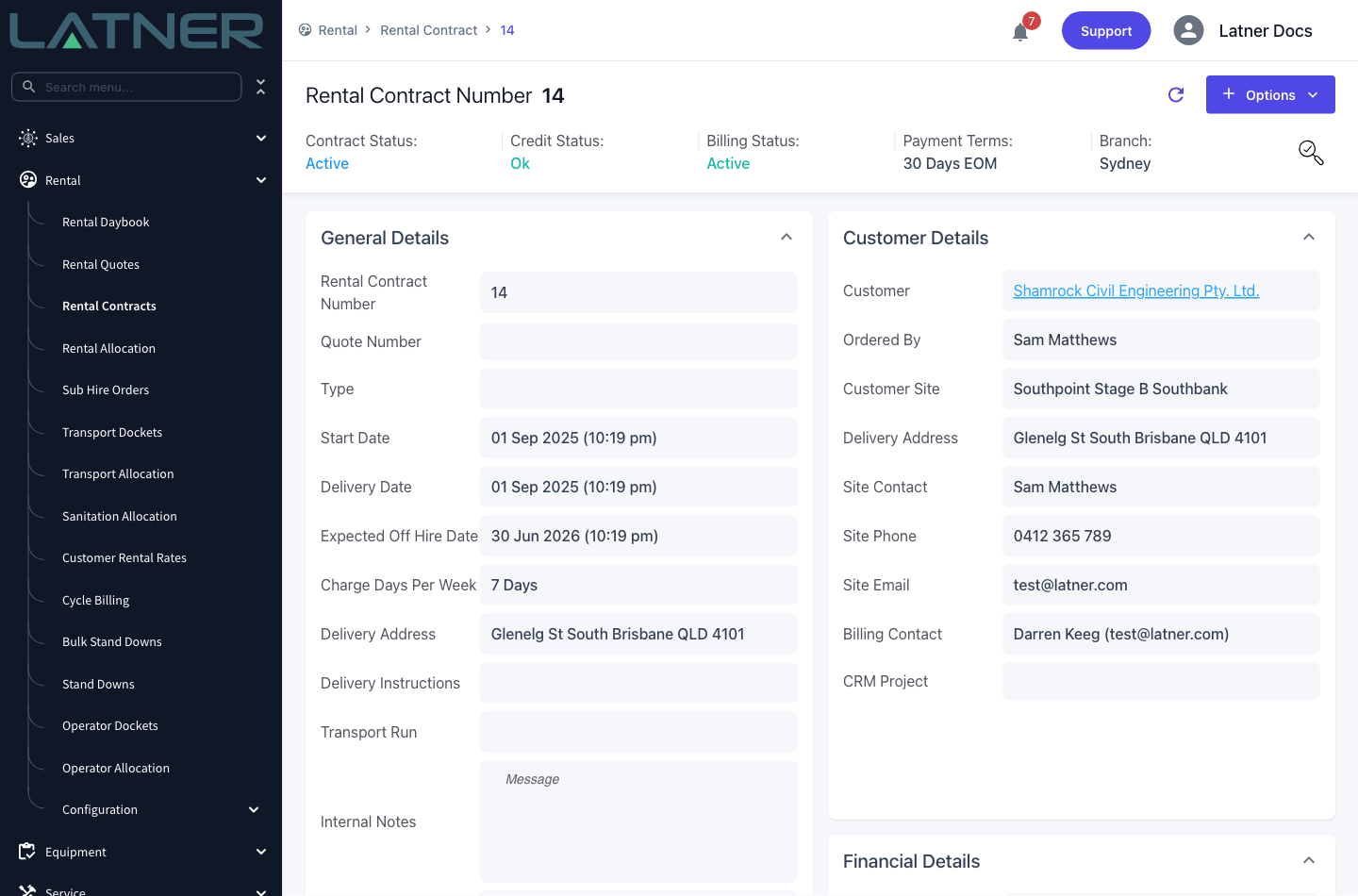
If you left Also Update the Site and Delivery Address on the Rental Contract? ticked, the contract's Customer Site and Delivery Address now point at the new site.
After Creation
-
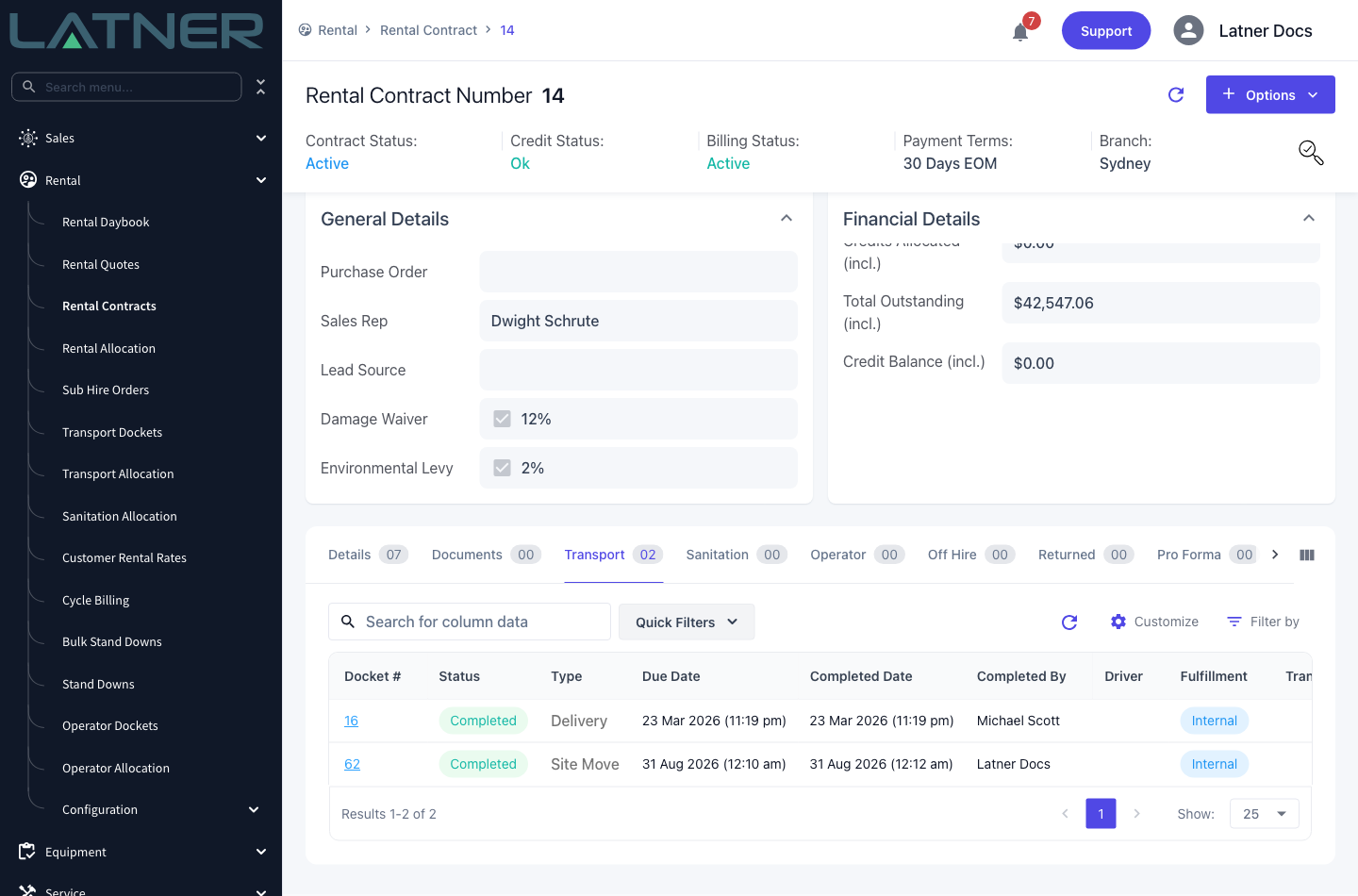
The docket appears on the contract's Transport tab alongside its deliveries and pick ups, listed with a Type of Site Move.
-
It also appears on Rental › Transport Dockets and, once it has a driver and a scheduled time, on Rental › Transport Allocation.
-
The equipment stays on hire. Detail line statuses are untouched by both creating and completing a site move, so billing continues without a break.
-
Any site move charge you attached moves from Pending to Applied on completion, and is picked up by the next invoice that matches your Default Site Move Invoice Stage setting.
-
Options › Generate Transport Docket PDF produces a docket for the driver using the Site Move Docket template.
A completed site move cannot be reopened - Latner rejects it with "Cannot reopen a Transport of type: SITE_MOVE". Completing it also does not remember the contract's previous site, so undoing the address change means editing the contract by hand or raising a second site move back the other way. If you're not certain the equipment has landed, leave the docket Open rather than completing it early.
FAQs
Watch the Demo
Prefer to watch it? Step through the same flow here.