
Moving a rental contract line from Reserved to On Rent is the moment the hire actually starts: the equipment leaves your yard on paper, the line becomes billable, and Off Hire and Return open up.
Overview
Reserving equipment isn't the same as hiring it out. A Reserved line means the machine is committed to that contract and held back from everyone else, but as far as Latner is concerned it hasn't gone anywhere yet. Two things can move it On Rent.
-
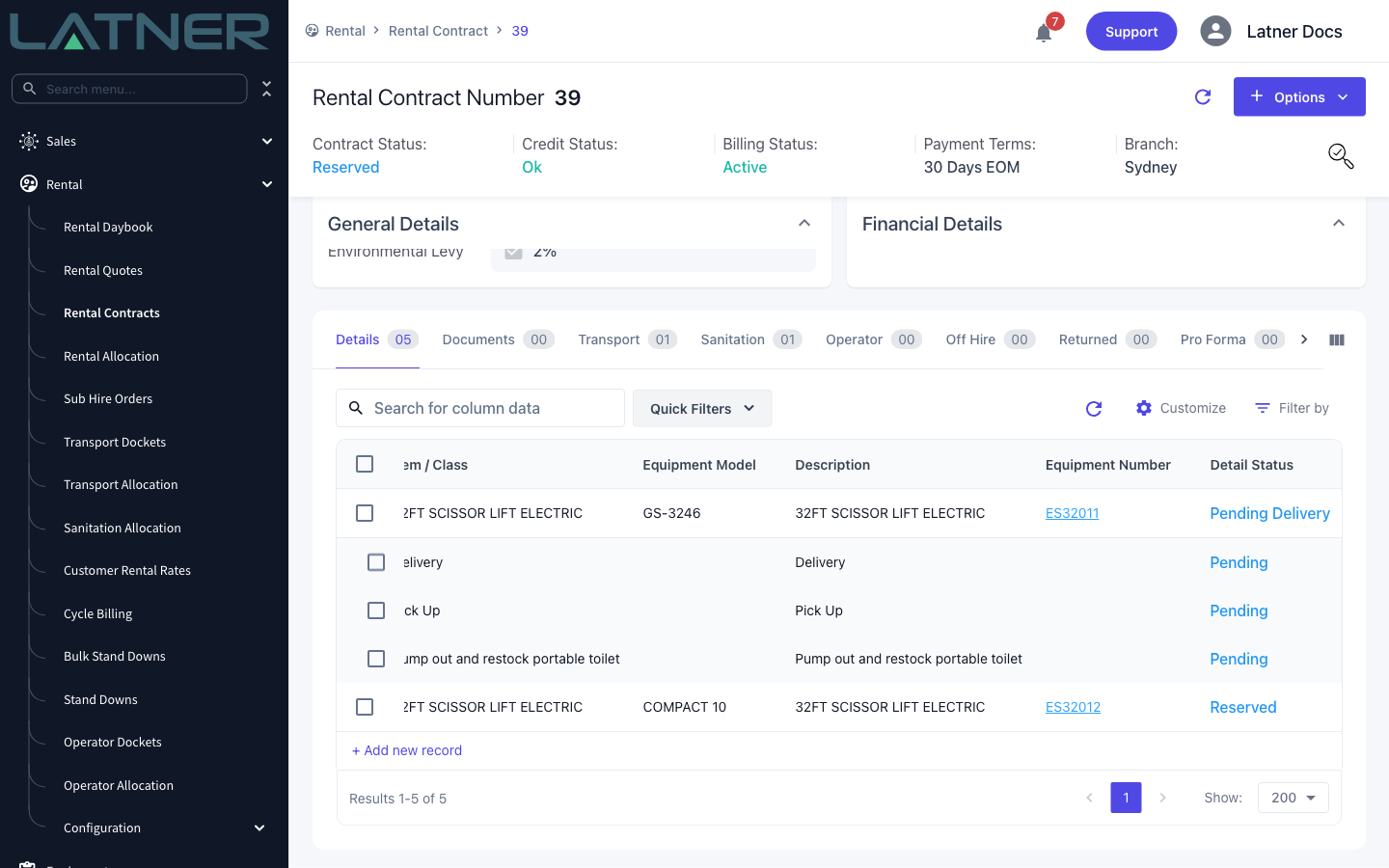
Completing a transport docket is the normal route. Creating a Delivery or Customer Collection docket moves the line to Pending Delivery or Pending Collection, and completing that docket puts it On Rent.
-
Manual On Hire is the shortcut for jobs with no transport to record, such as a customer who picks the machine up off the counter. It moves a Reserved line straight to On Rent without a docket, and it has to be switched on first.
-
Either way, the rental contract itself moves from Reserved to Active as soon as the first line goes On Rent.
-
Reverse On Hire undoes a manual or delivered on hire and puts the line back to Reserved.
-
Quantities can be split. Put two of five units On Rent and the remaining three stay behind on their own Reserved line.
Before You Begin
The transport docket route needs nothing turned on. Manual On Hire and Reverse On Hire do.
|
Requirement |
Where to Find It |
|---|---|
|
Allow Manual On Rent switched on |
Security › Settings › Rental |
|
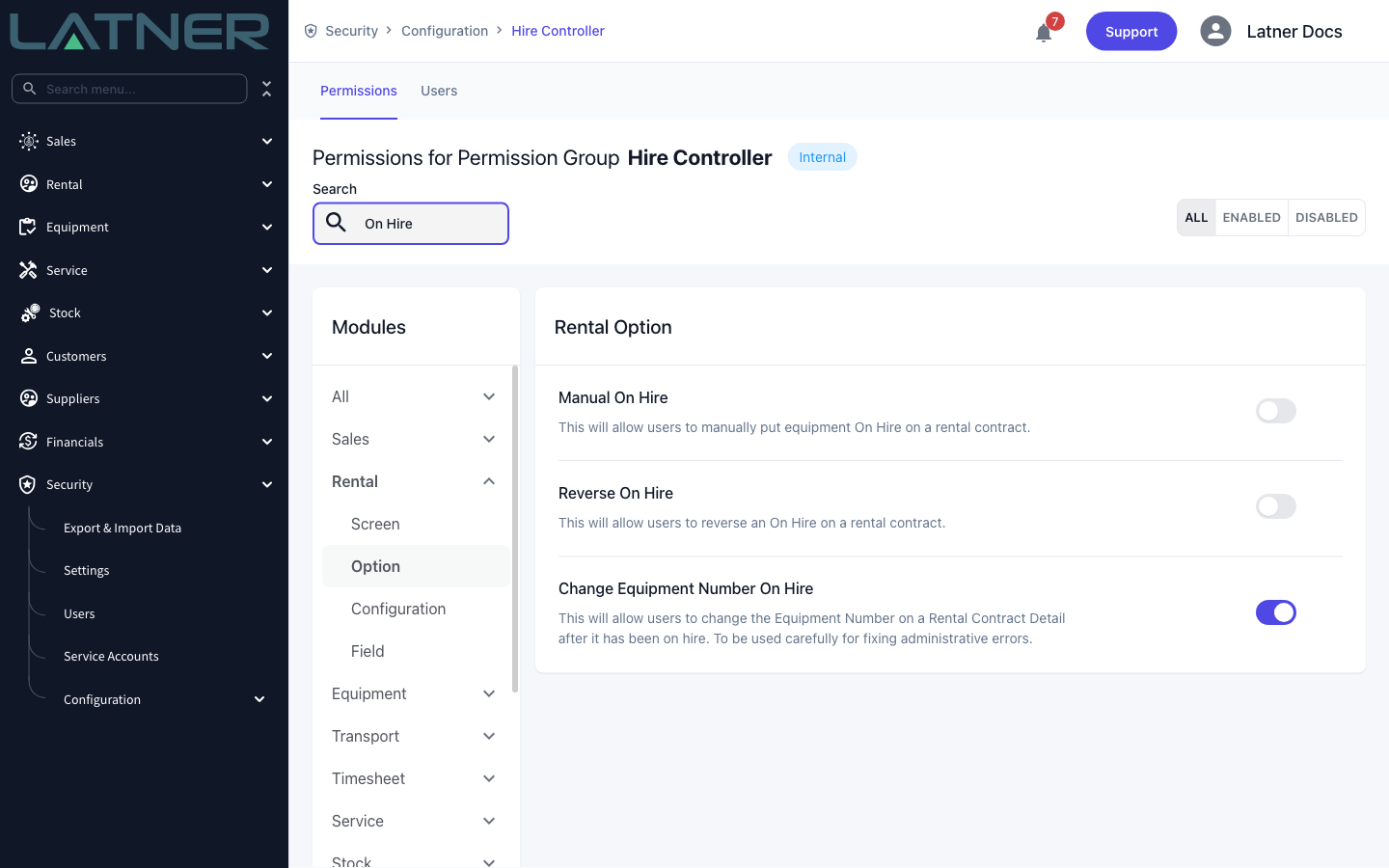
Manual On Hire permission |
Security › Configuration › Permission Groups › Rental › Option |
|
Reverse On Hire permission |
Security › Configuration › Permission Groups › Rental › Option |
|
An equipment number allocated to the line |
The Equipment Number column on the contract's Details tab |
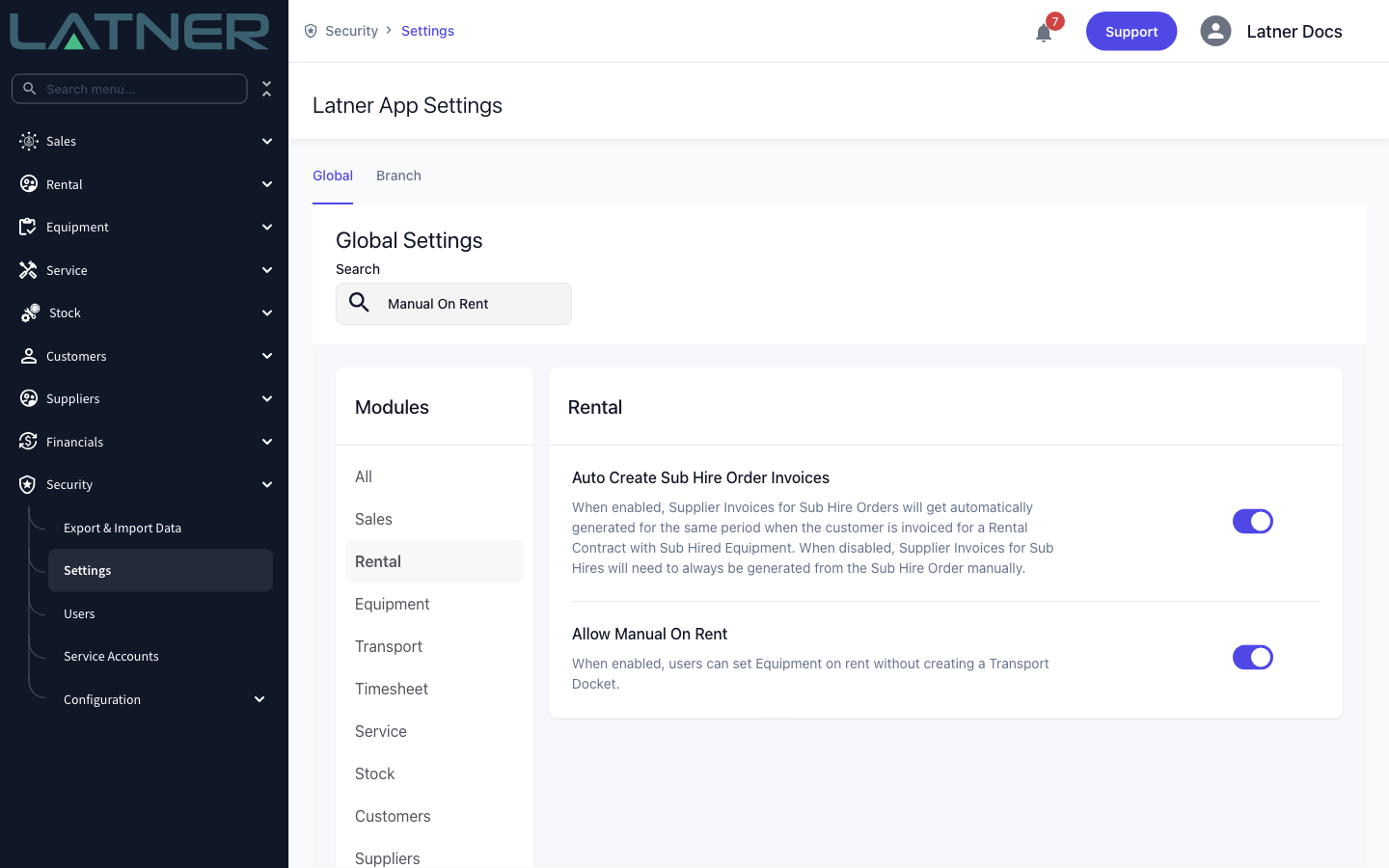
The setting gates the whole feature, not just the menu. With Allow Manual On Rent off, the On Hire option disappears from the contract's Options menu and the underlying request is refused even if someone has the permission. Turning the setting back off later doesn't undo anything already put On Rent.
Where a Reserved Line Sits
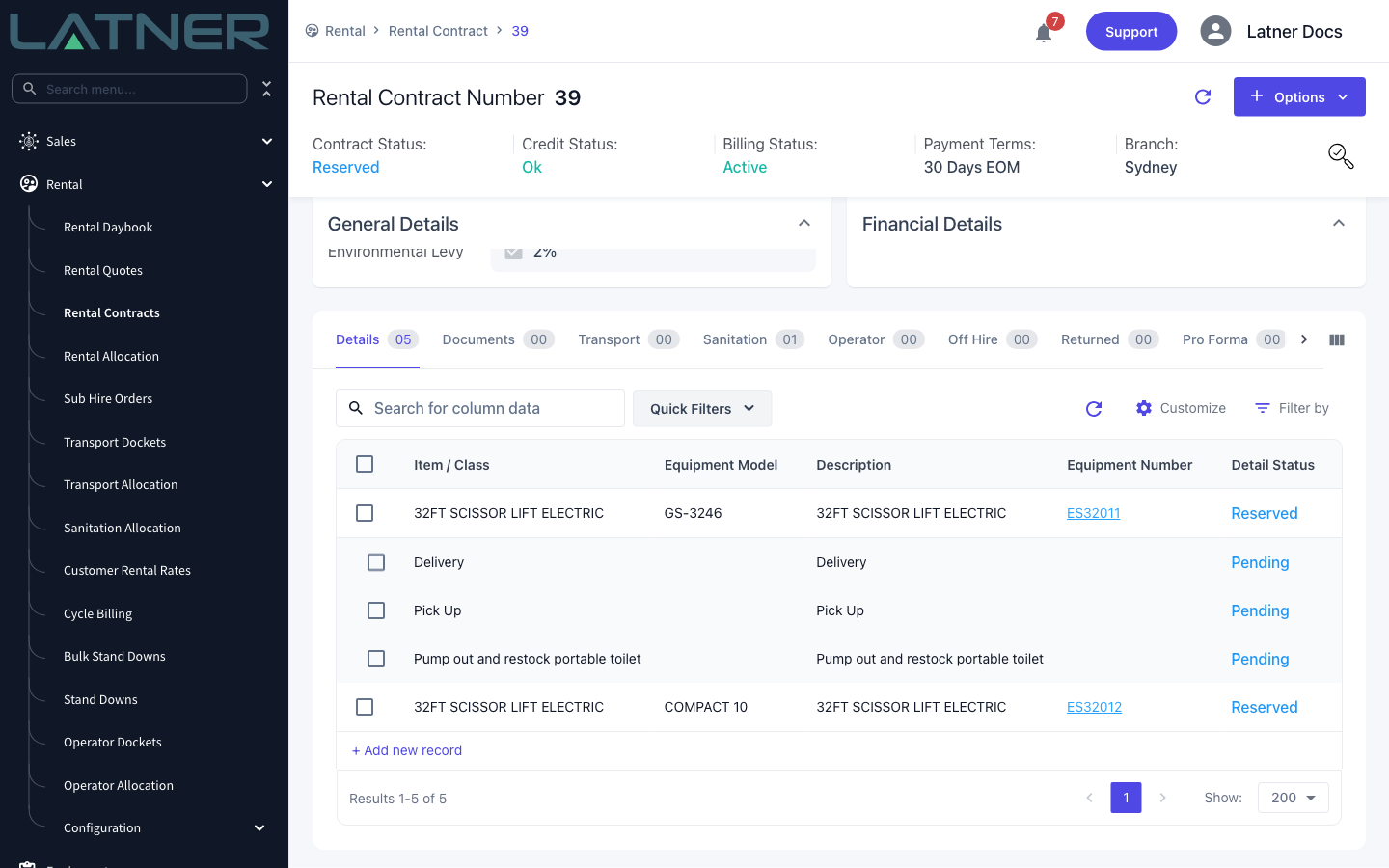
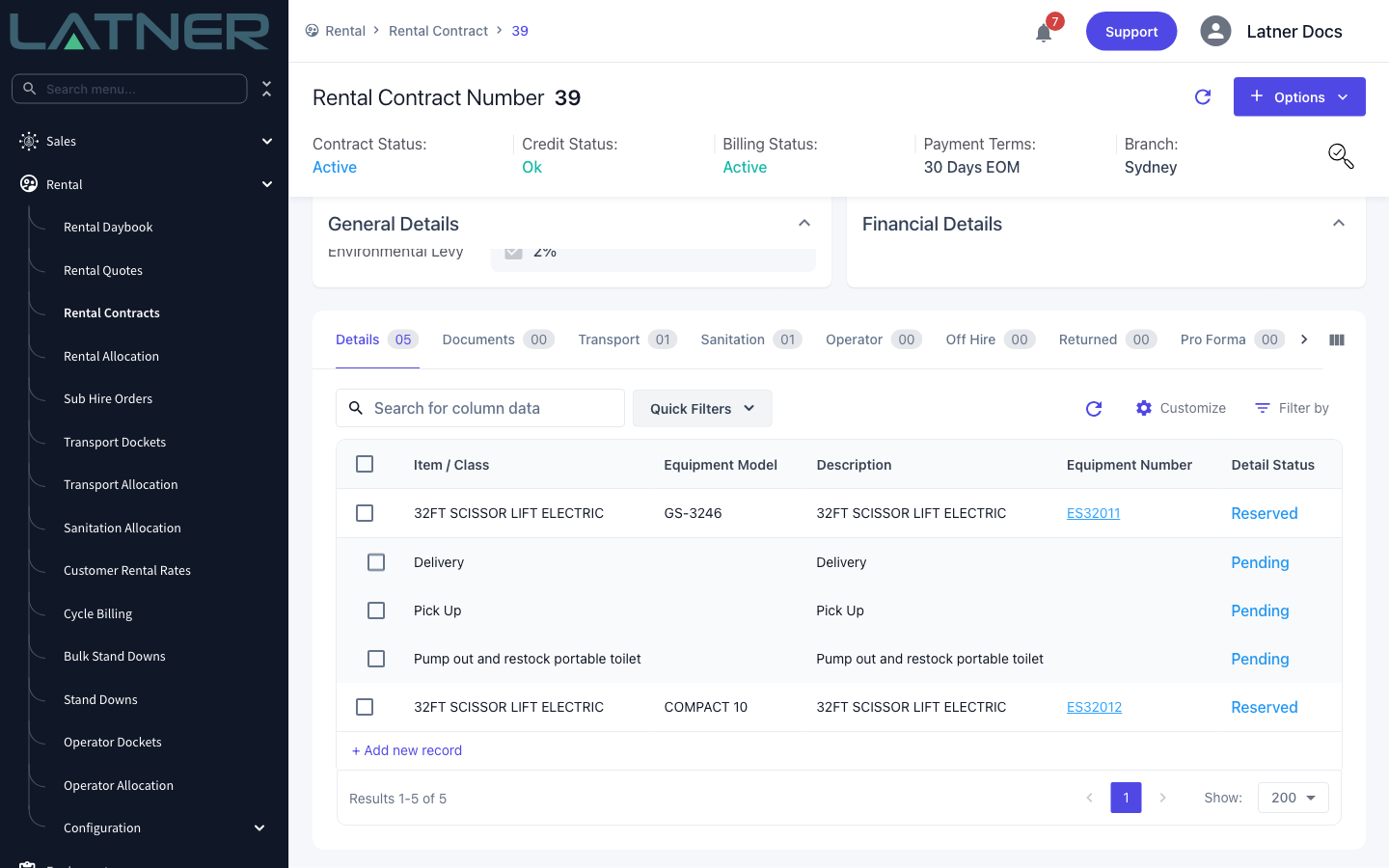
Open the rental contract and look at the Detail Status column on the Details tab. Equipment lines that are committed but not yet gone show Reserved, and each one carries a sub-status telling you what it is waiting for.
-
Pending PO or Payment - no invoice on the contract has been paid, and either the customer is cash on delivery or the contract has no purchase order recorded.
-
Pending Delivery Creation - the line is ready to go and just needs a docket (or a manual on hire).
-
Pending Equipment Allocation - the line is already on a docket but no specific equipment number has been picked.
-
Pending Run Up Inspection - the line is on a docket and an inspection is still open or waiting for approval.
A line showing Pre-Allocated rather than Reserved is waiting on equipment that isn't available yet. You can't put it On Rent, and you don't have to do anything - Latner promotes it to Reserved automatically once the equipment frees up.
Putting Equipment On Rent With a Transport Docket
This is the standard path and the one that leaves the cleanest audit trail, because the delivery or collection is recorded as well as the status change.
Step 1 - Create the delivery or collection docket
From the contract, choose Options › Transport › Create Delivery (or create a customer collection docket if the customer is picking up). The line moves from Reserved to Pending Delivery, or to Pending Collection for a customer collection. The step-by-step for each docket type is covered separately.
How to Create an Internal Delivery Docket
How to Create an External Delivery Docket
How to Create a Customer Collection Docket
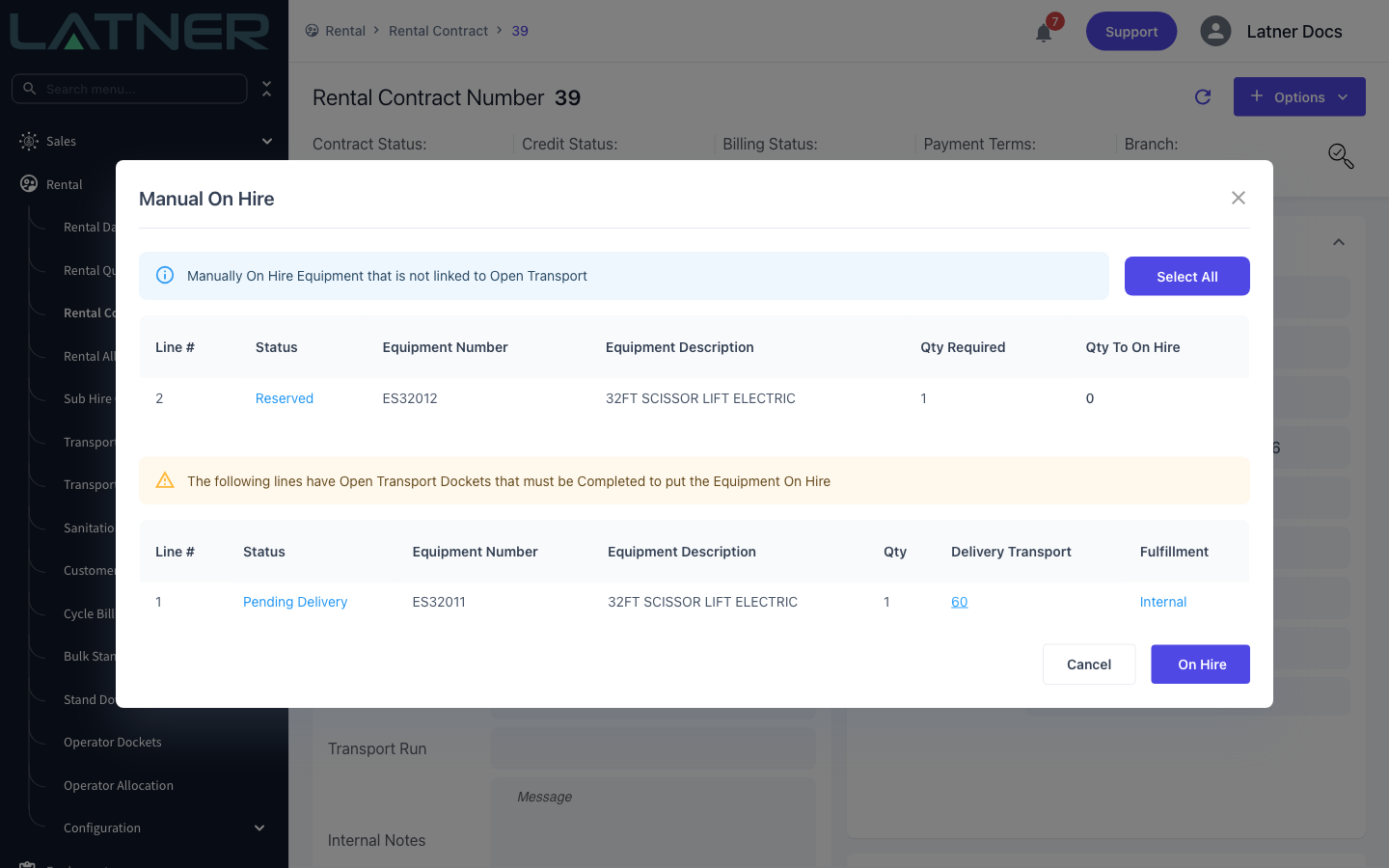
While that docket is open, the line is committed to it. It appears in the Manual On Hire window in a second, read-only table rather than as something you can select, with a link straight to the docket holding it up.
Step 2 - Complete the docket
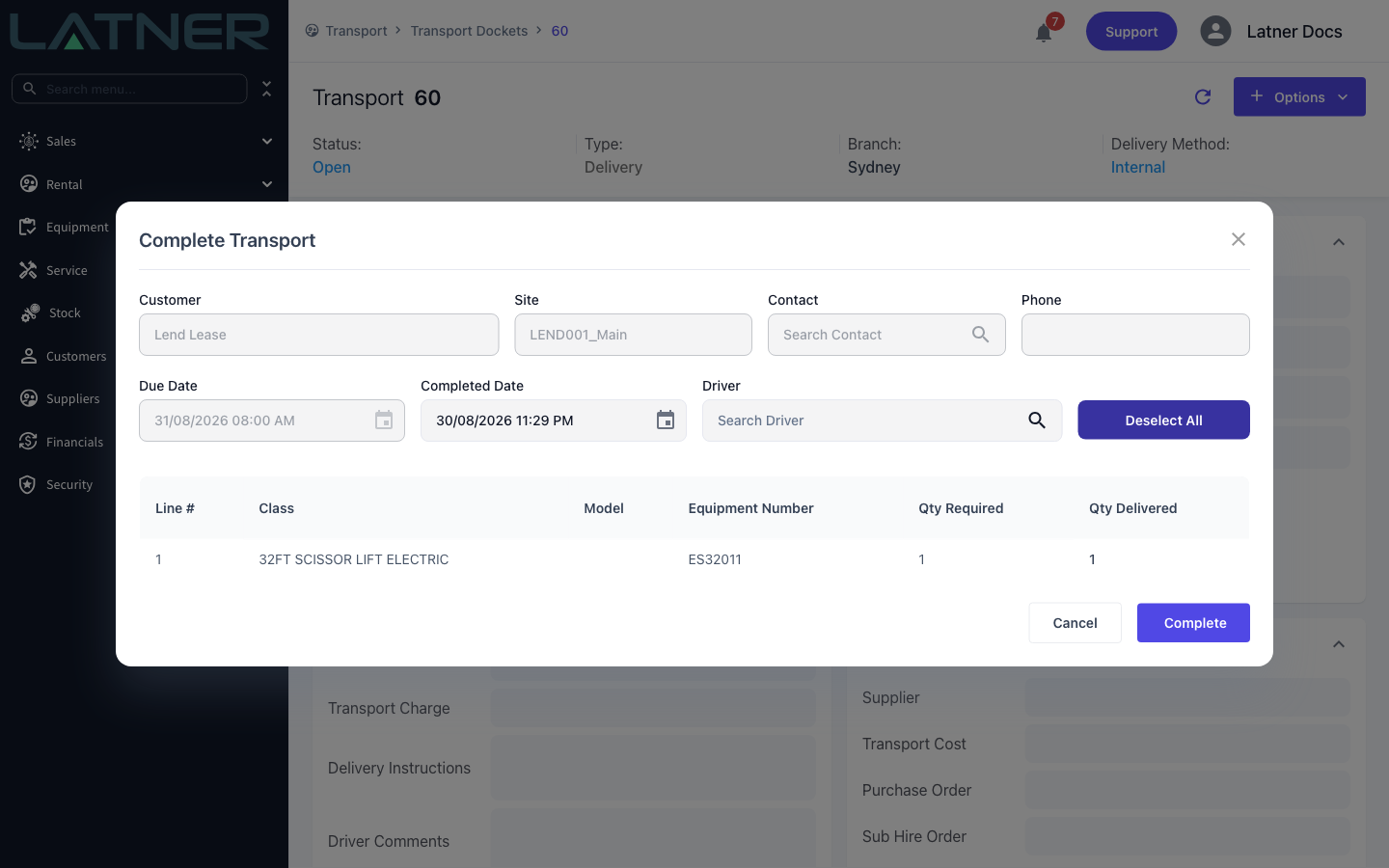
Open the transport docket and choose Options › Complete Transport. Fill in Qty Delivered for each line, or use Select All to accept the full quantity, then select Complete. On an internal docket the driver can do this from their mobile device instead.
-
Completed Date - defaults to now; change it if the delivery happened earlier.
-
Driver - optional, and recorded against the docket rather than the rental line.
-
Qty Delivered - anything less than Qty Required is a partial delivery. The undelivered balance splits onto a fresh line, and on an internal docket a new docket is raised for it.
Step 3 - Check the line
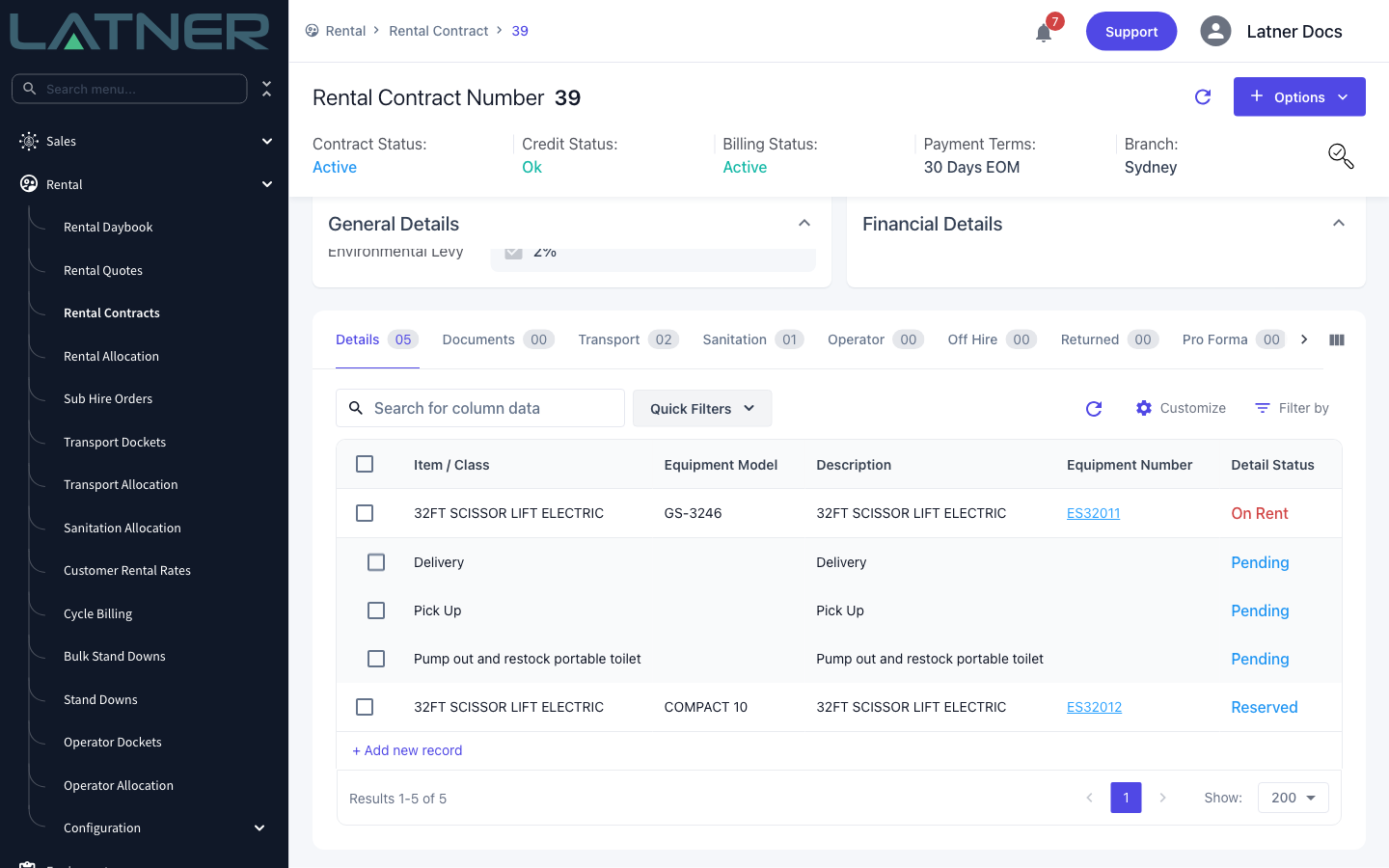
Back on the contract, the delivered line now reads On Rent and the contract header has flipped to Active. Lines that weren't on the docket are untouched.
A docket won't complete if the equipment has an open inspection, if no equipment number has been allocated, or if the line is still Pre-Allocated. Clear the inspection or allocate the equipment first rather than reaching for Manual On Hire, which doesn't run those checks.
Putting Equipment On Rent Manually
Use this when there is genuinely no transport to record - a counter collection, a machine already sitting on the customer's site, or a docket that was never raised.
Step 1 - Open Manual On Hire
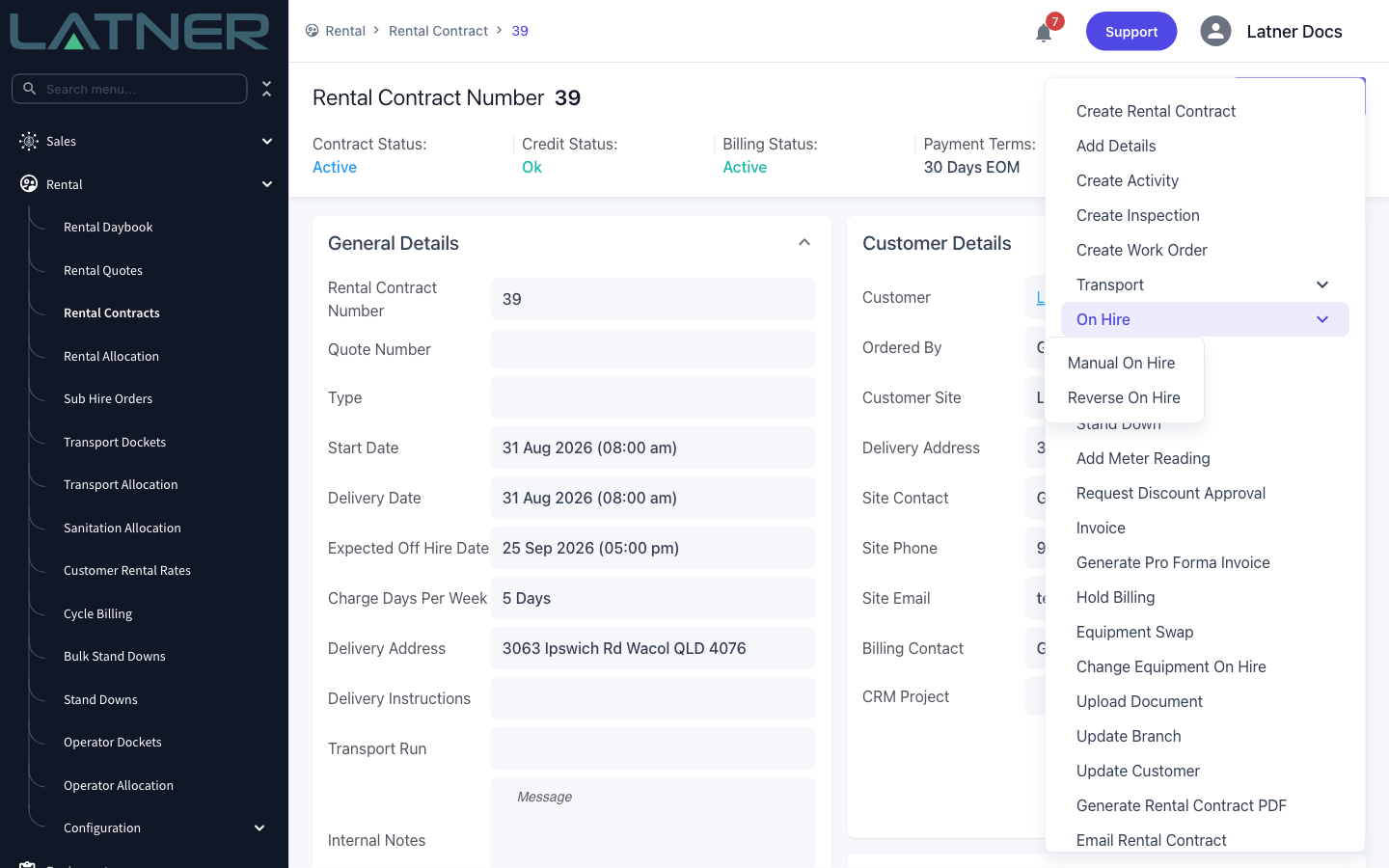
On the rental contract, choose Options › On Hire › Manual On Hire.
Step 2 - Enter the quantities
The window lists every line currently in Reserved. Set Qty To On Hire against the lines you're releasing, or use Select All to fill in the full quantity on every line at once. Leave a line at 0 and it's ignored.
-
Qty Required - the quantity reserved on that line. You can't enter more than this.
-
Qty To On Hire - how much is actually going out. A smaller number splits the line, leaving the balance Reserved.
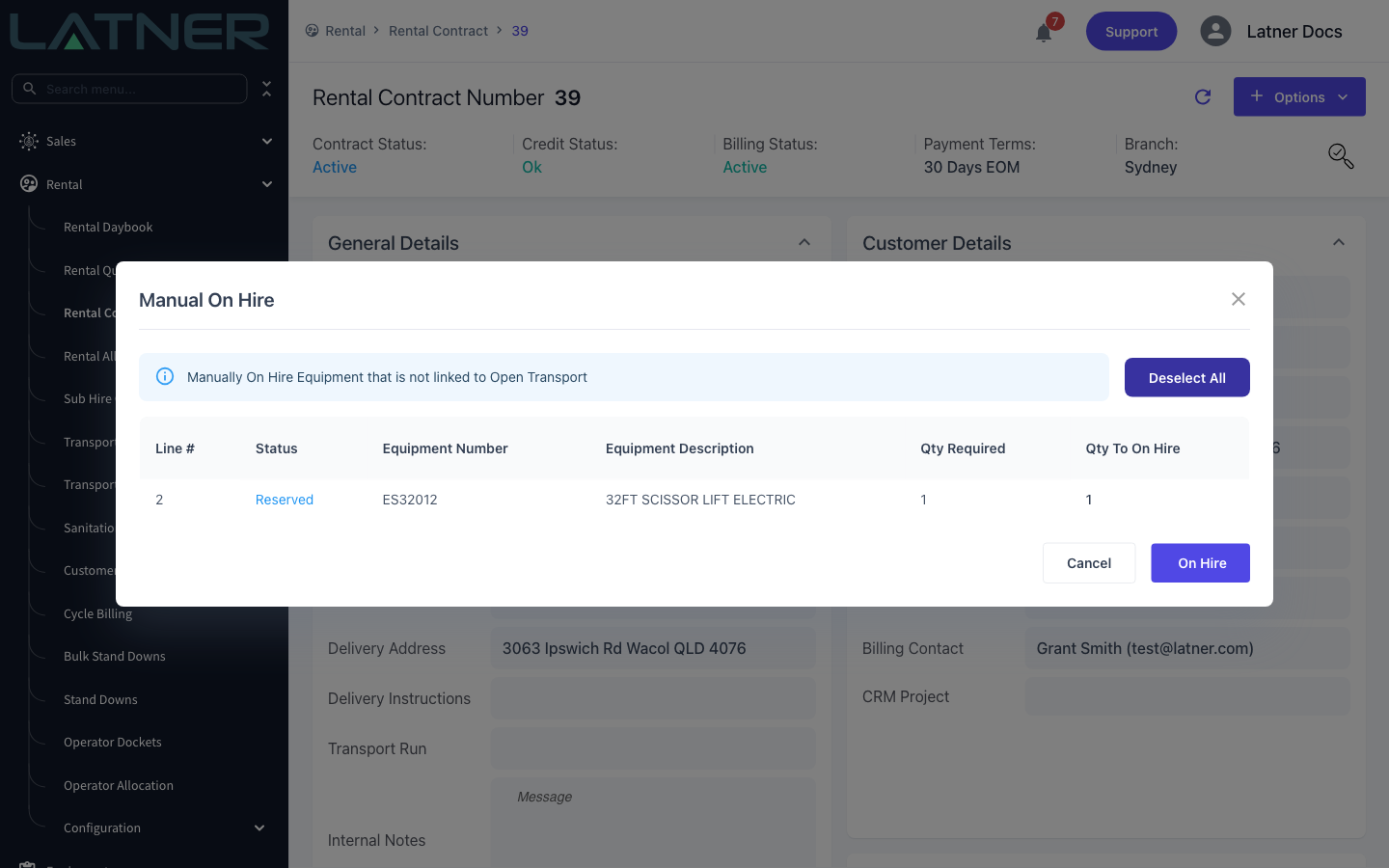
Step 3 - Select On Hire
Select On Hire. Every selected line moves to On Rent and the contract becomes Active. At least one line needs a quantity above 0 or the window won't submit.
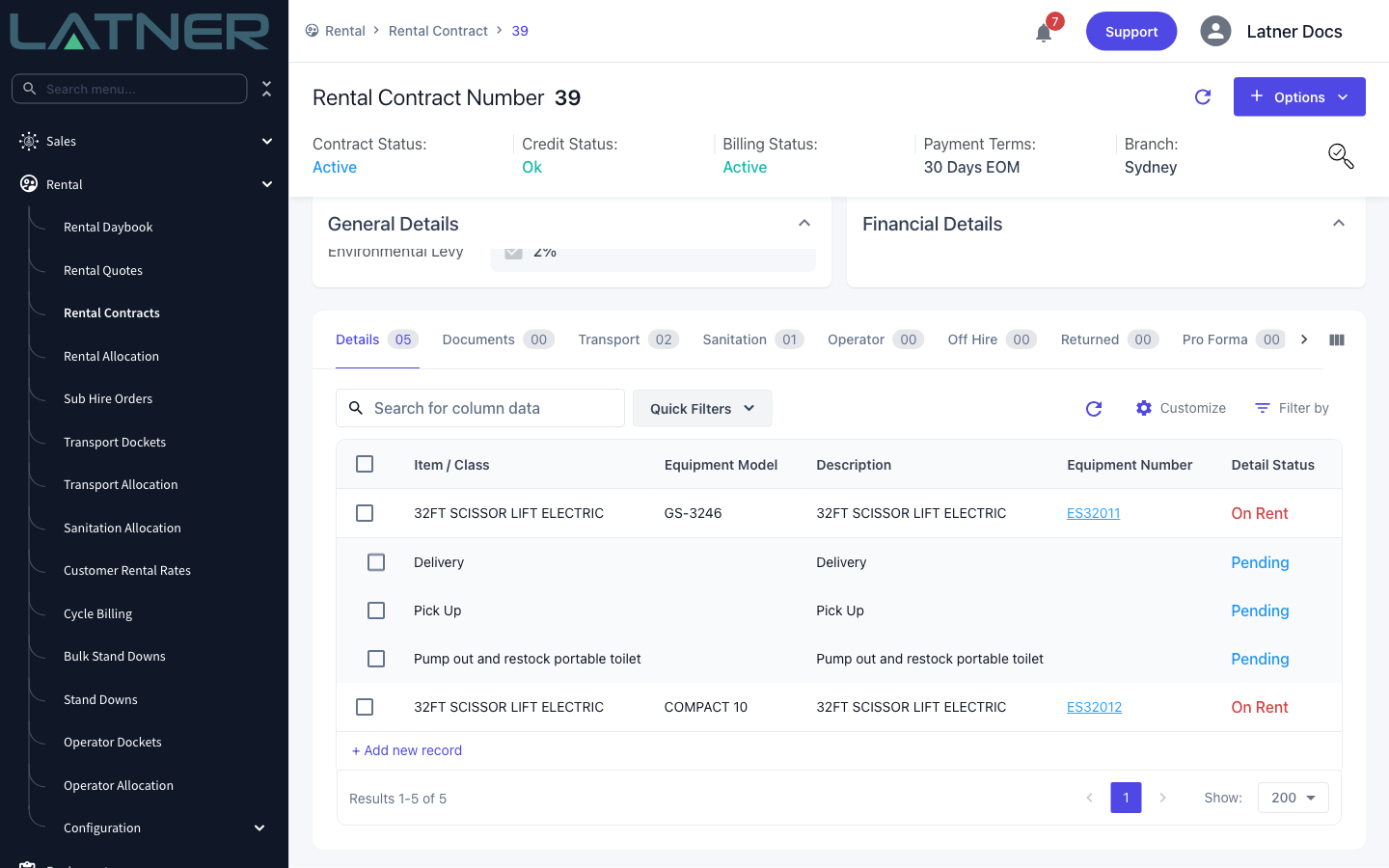
Reversing an On Hire
If a line went On Rent by mistake, Options › On Hire › Reverse On Hire puts it back. It works on any On Rent line, whether it got there through a docket or manually.
Set Qty To Reverse against the lines you're pulling back, or use Select All. A partial reversal splits the line, leaving the balance On Rent.
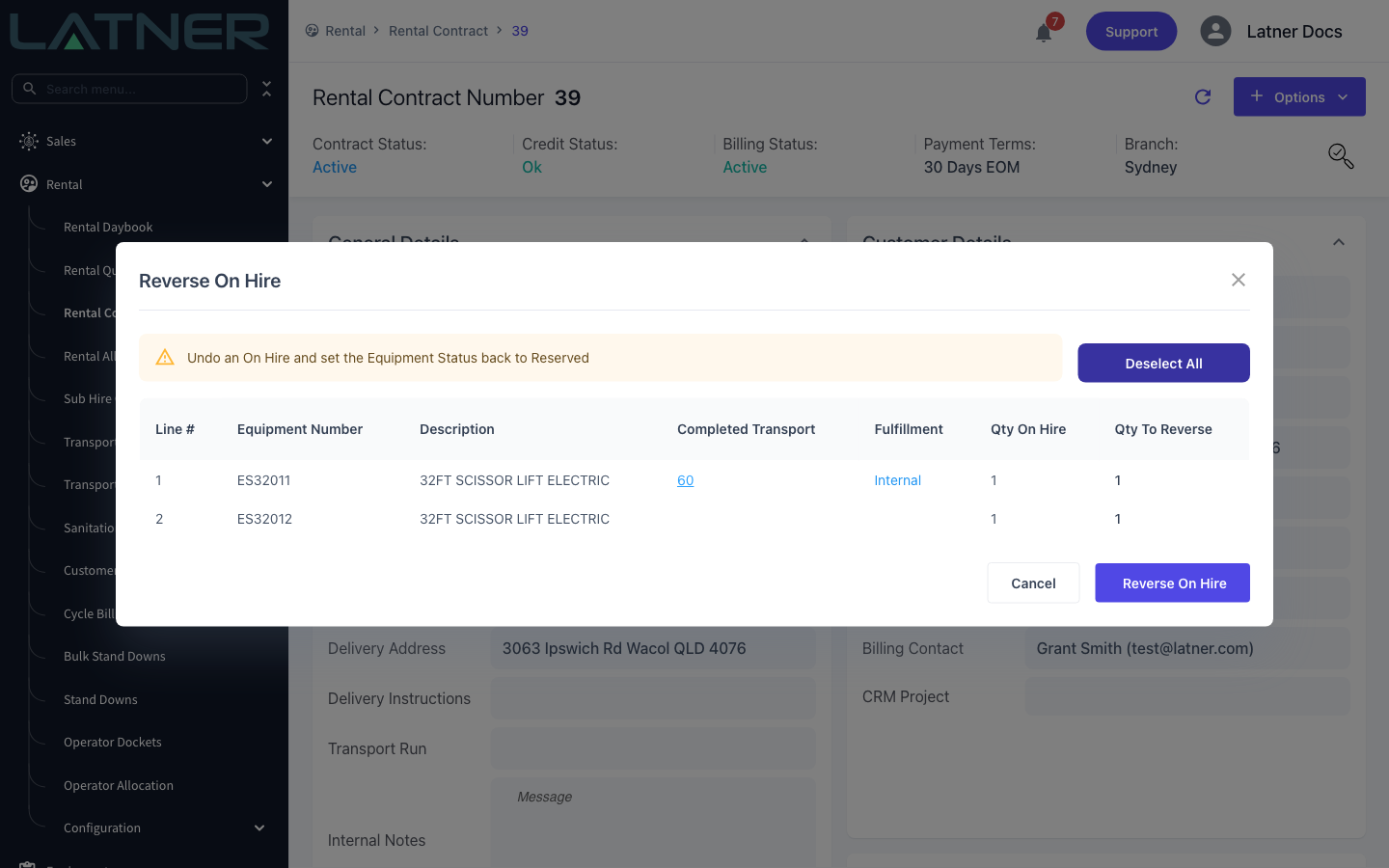
If any selected line came from a completed delivery or collection docket, Latner asks you to confirm. The docket is deliberately left alone - only the rental line and the equipment move.
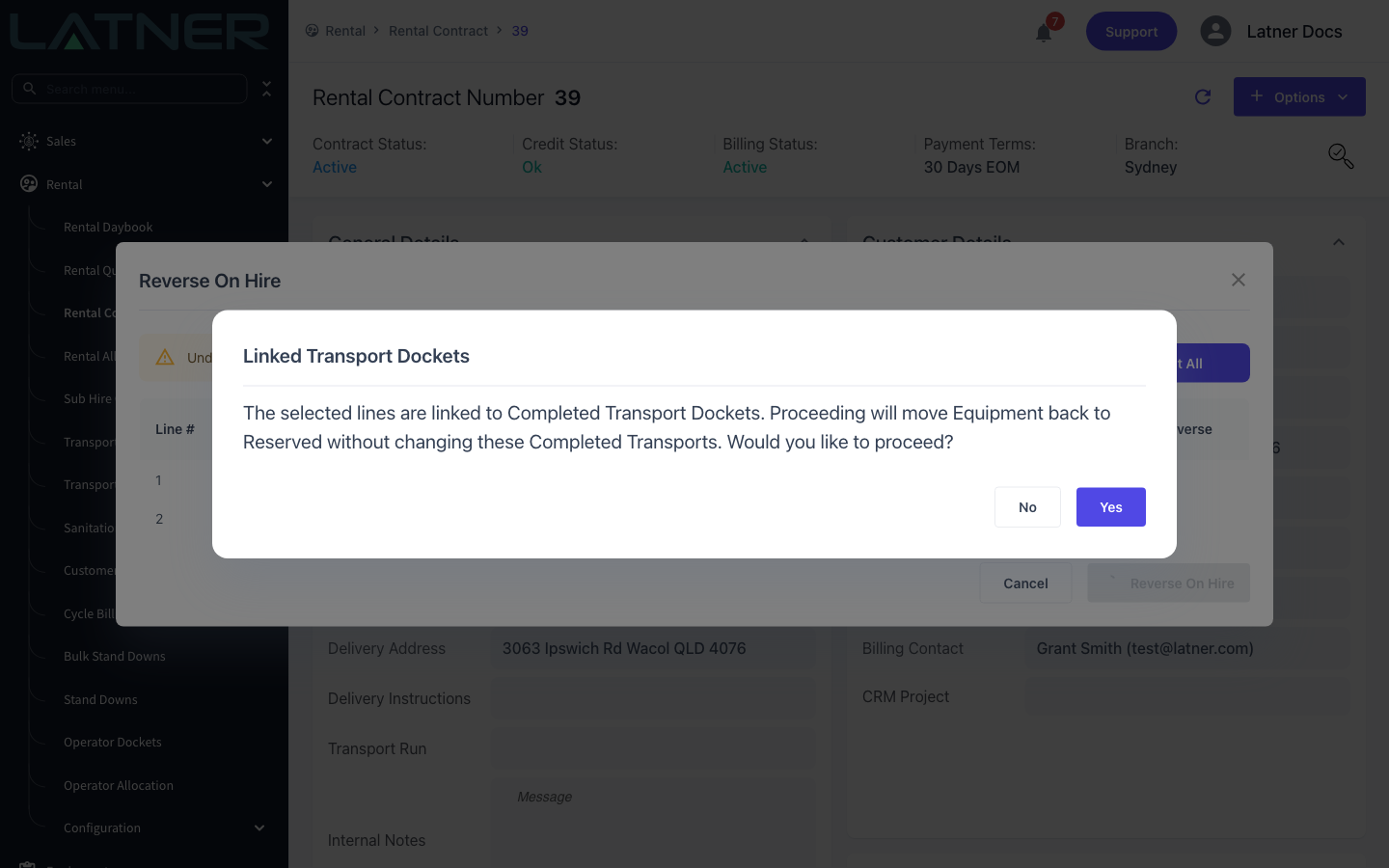
The reversed lines go back to Reserved, the equipment returns to Reserved, and the line's start meter reading is cleared.
Reversing an on hire does not put the contract back to Reserved, and it does not cancel or reopen a completed transport docket. If the delivery genuinely didn't happen, reopen or cancel the docket separately.
After the Equipment Goes On Rent
-
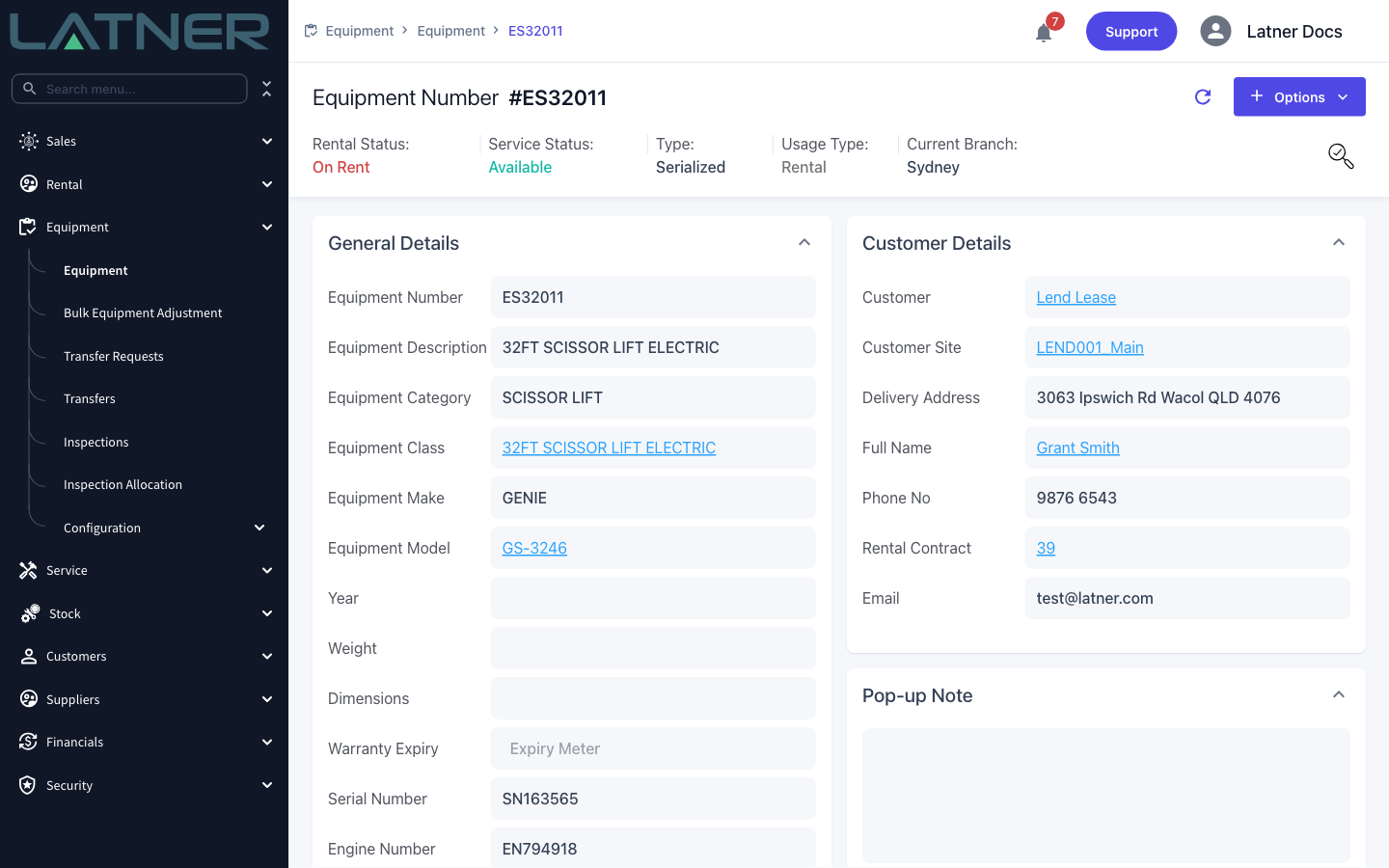
The equipment record's Rental Status becomes On Rent, and its quantity moves out of Reserved into On Rent. The customer, site and contract show on the equipment's Customer Details panel.
-
The line's Start Meter Reading is captured from the equipment's current meter reading.
-
Any open Run Up or Rental Return inspection on that equipment is marked Incomplete.
-
Recurring sanitation dockets attached to the line start their schedule.
-
The line becomes billable. Rental invoicing skips lines that are still Reserved, Pending Delivery, Pending Collection or Pre-Allocated.
-
The rental contract moves to Active, and Off Hire and Return become available for the line.
Going On Rent is what makes a line billable, but it isn't what sets the charge period. Charging runs from the line's Start Date, so putting a line On Rent three days late doesn't shorten the bill - correct the Start Date if that's what you meant.