
A Customer Collection Docket records equipment that the customer picks up from your yard themselves, so the hire is still tracked on a transport docket even though none of your drivers leave the branch.
Overview
Not every machine leaves on one of your trucks. When the customer turns up with their own float, you still want a docket - something for the customer to sign, and something that moves the contract lines from Reserved to on hire at the right moment. That is what a Customer Collection Docket is for.
-
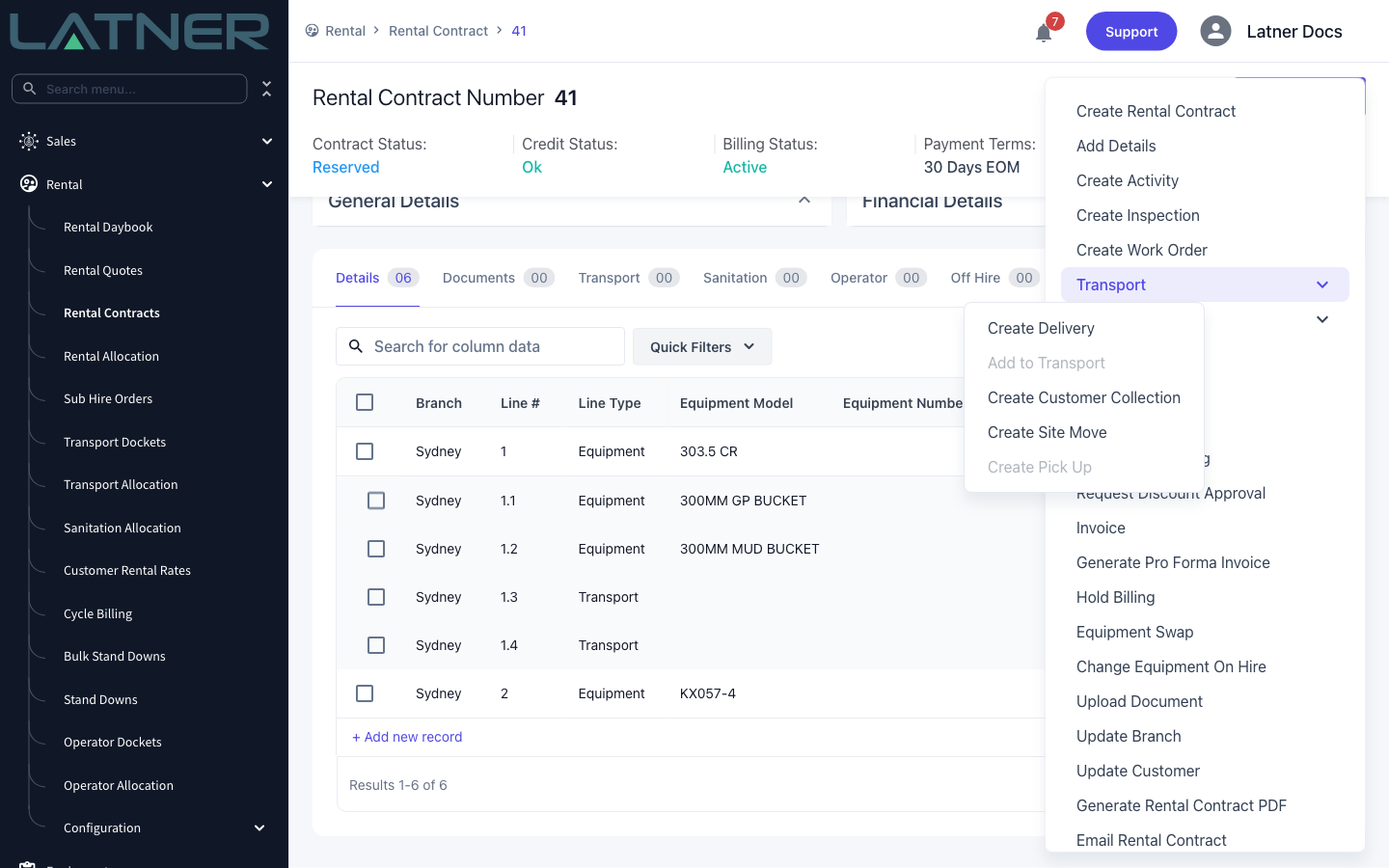
You create one from a rental contract (Options › Transport › Create Customer Collection) or from a sales order (Options › Create Transport › Customer Collection).
-
Only rental contract lines sitting in Reserved or Pre-Allocated status can be collected. Every line you action moves to Pending Collection, or to Pre-Allocated (Pending Collection) if the equipment isn't back in the fleet yet.
-
The docket is created as Internal and the form has no cost or charge fields, so a customer collection carries no transport charge.
-
There is no driver to allocate, so collection dockets never appear on the Transport Allocation screen. You track them from Rental Daybook › Customer Collect or the Transport Dockets list.
-
Tick Complete Transport to close the docket and put the equipment on hire straight away, or leave it unticked and complete the docket when the customer actually arrives.
Before You Begin
Check the following before you start, so the option isn't greyed out when you go looking for it.
|
Requirement |
Where to Find It |
|---|---|
|
Create Delivery permission |
Security › Configuration › Permission Groups › Rental › Options. The one permission covers deliveries, collections, site moves and pick ups. |
|
Something to collect |
The rental contract needs at least one equipment line in Reserved or Pre-Allocated status. With nothing eligible, the menu item is disabled and reads Nothing to Collect. |
|
A customer who is not on credit hold |
Customers › Customers › Credit Status. On credit hold the menu item is disabled and reads Customer On Hold. |
|
A purchase order, if the customer needs one |
The rental contract's Purchase Order field. If the customer is flagged as requiring a purchase order, the menu item reads Purchase Order is Required before Collection until one is entered. |
|
Allow Create Transports for unpaid COD Rental Contracts |
Security › Settings › Rental. Only relevant to Cash On Delivery contracts that have no paid invoice yet. |
|
Customer Collection Docket PDF Template ID |
Security › Settings › PDF Template. Optional - leave it blank and Latner uses its built-in collection docket template. |
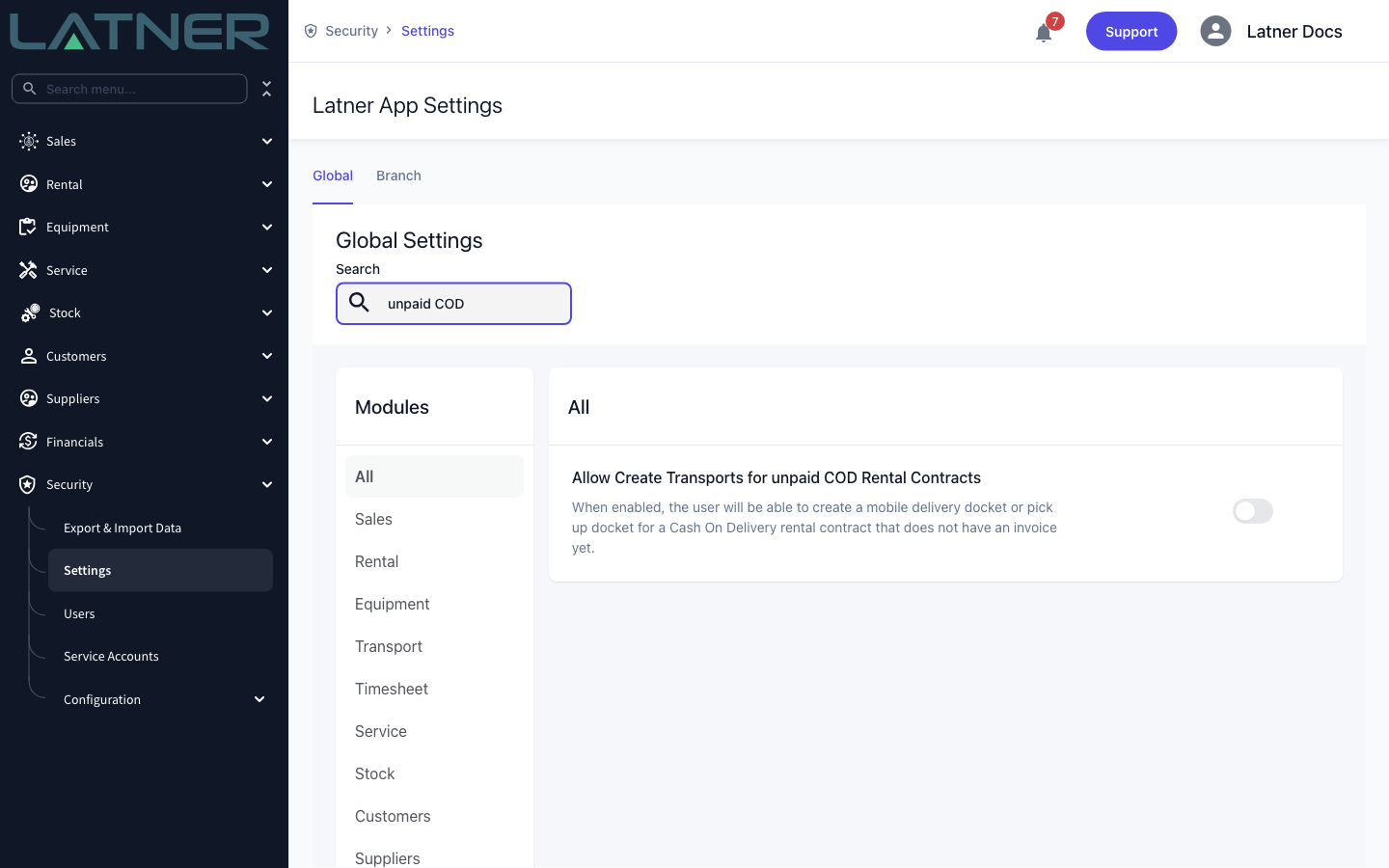
If the setting is off and the contract belongs to a Cash On Delivery customer with no paid invoice, saving fails with Cannot create transport linked to a COD rental contract with no paid invoices. Take the payment first, or switch the setting on.
Creating the Collection Docket
Step 1 - Open the rental contract
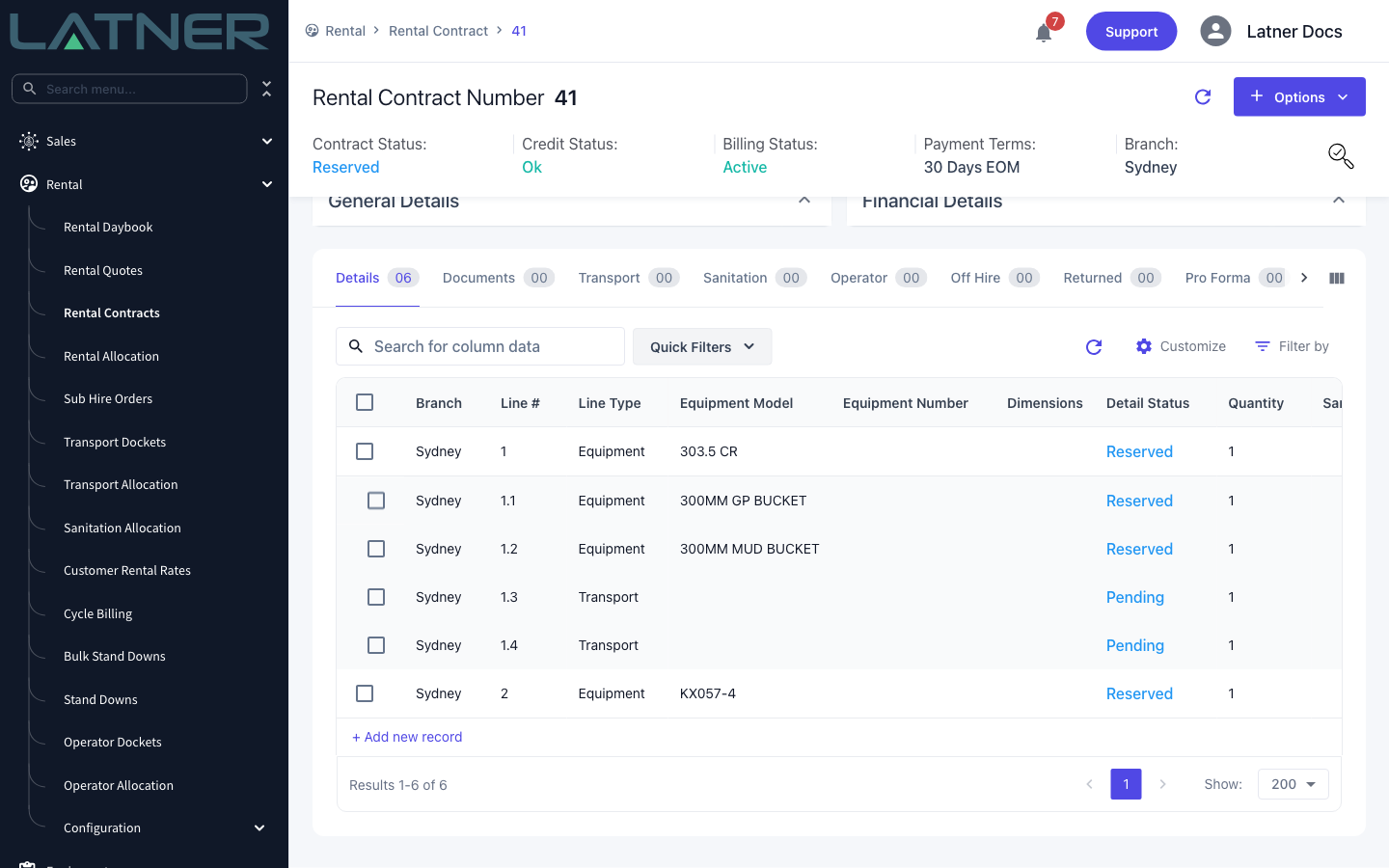
Go to Rental › Rental Contracts and open the contract the customer is collecting against. On the Details tab, check that the lines you want to hand over are still Reserved (or Pre-Allocated). Lines that are already on a delivery docket, on hire or returned won't be offered.
Step 2 - Choose Create Customer Collection
Select Options › Transport › Create Customer Collection. The other transport actions live in the same submenu, so it is worth knowing which one you want: Create Delivery is you taking the equipment out, Create Customer Collection is the customer taking it away, and Create Pick Up is you bringing it back at the end of the hire.
Step 3 - Check the collection details
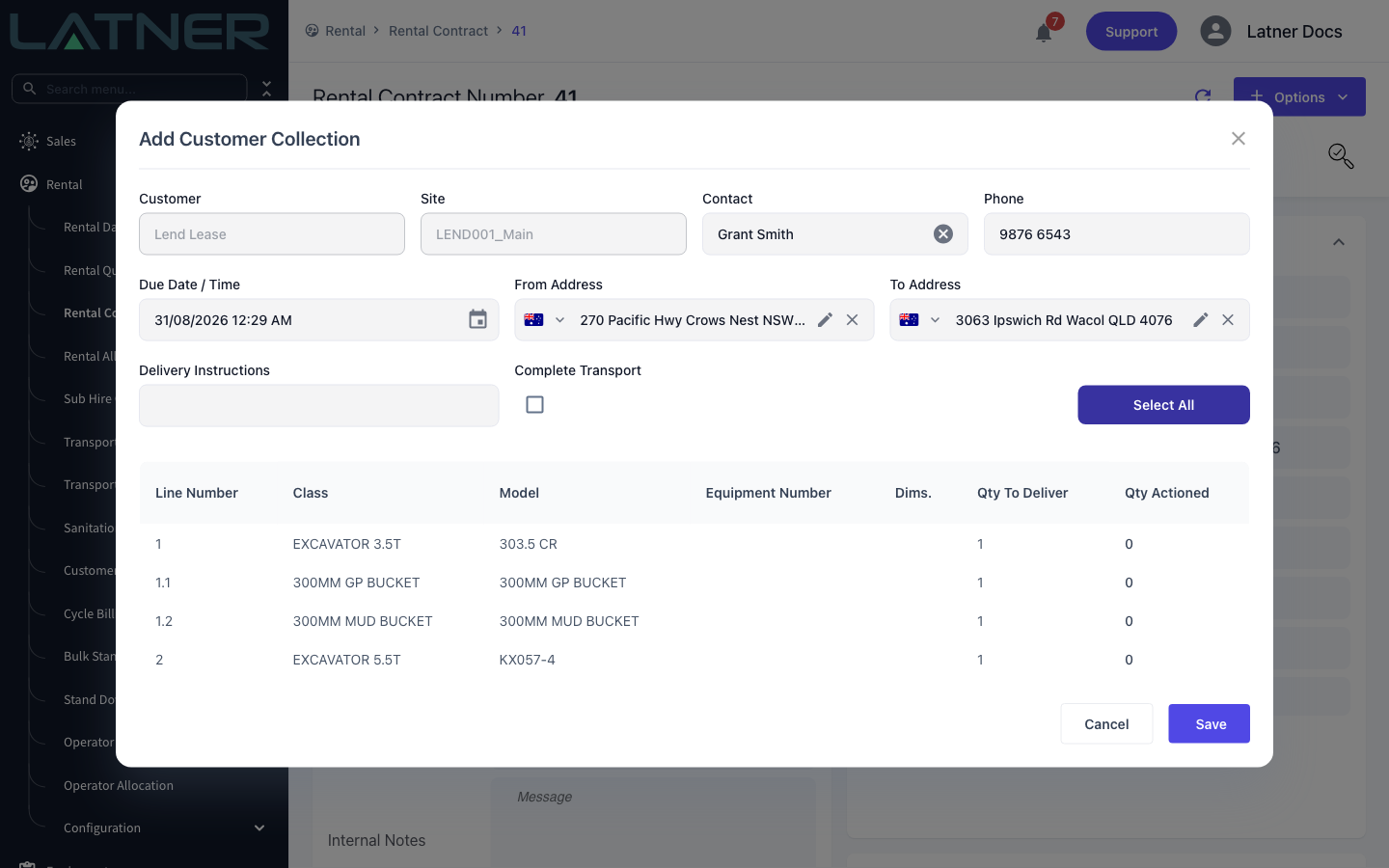
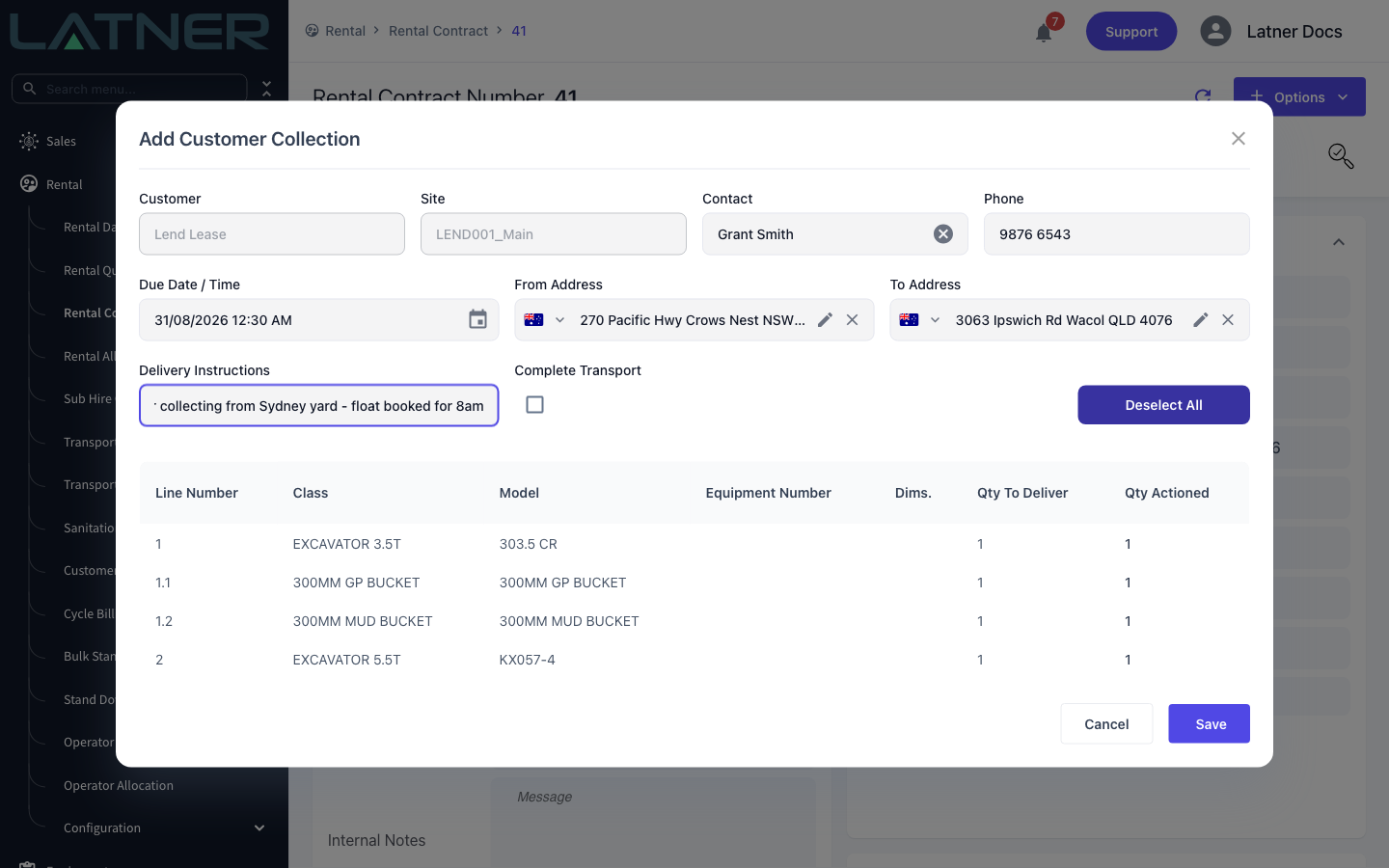
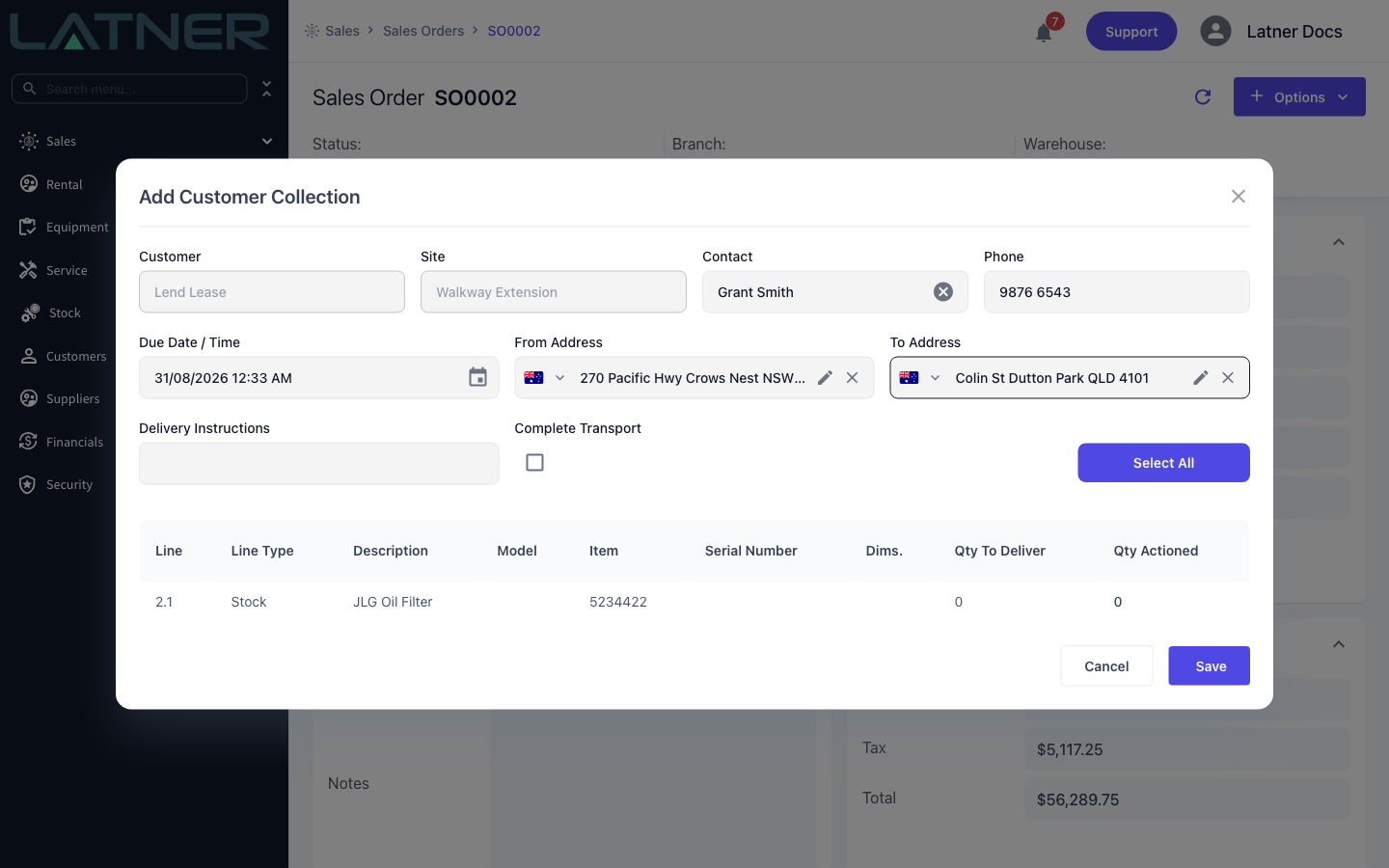
The Add Customer Collection form opens with most of the work already done for you.
-
Customer and Site - taken from the contract and read-only. If they are wrong, fix the contract first.
-
Contact - required. Defaults to the contract's site contact. Use the field's create option to add a new customer contact without leaving the form, which is handy when a subcontractor is doing the pick up.
-
Phone - filled from the contact and validated as a phone number. Changing the contact refreshes it.
-
Due Date / Time - required. Defaults to the contract's delivery date, or to right now if that date has already passed.
-
From Address - required. Defaults to the branch address, because the customer is collecting from your yard.
-
To Address - required. Defaults to the contract's delivery address, or the customer site address if there isn't one.
-
Delivery Instructions - optional free text that prints on the docket. A good place for the collection time or the gate to use.
Step 4 - Set the quantity on each line
The table lists every eligible contract line with its Qty To Deliver. Type a number into Qty Actioned for each line the customer is taking, or use Select All to fill every line with its full quantity (the button then becomes Deselect All). You can't action more than the quantity on the line, and a line left at zero simply isn't added to the docket.
If you action less than the full quantity on a line, Latner splits that contract line in two, so the collected portion moves to Pending Collection and the remainder stays Reserved for a later docket.
Step 5 - Decide whether to complete the collection now
Leave Complete Transport unticked if you are booking the collection for later - the docket is created as Open and someone completes it when the customer turns up.
Tick it if the customer is standing at the counter right now. Latner asks you to confirm with Complete Customer Collection, and choosing Yes creates the docket and completes it in one go, which puts the equipment on hire and makes the contract Active immediately.
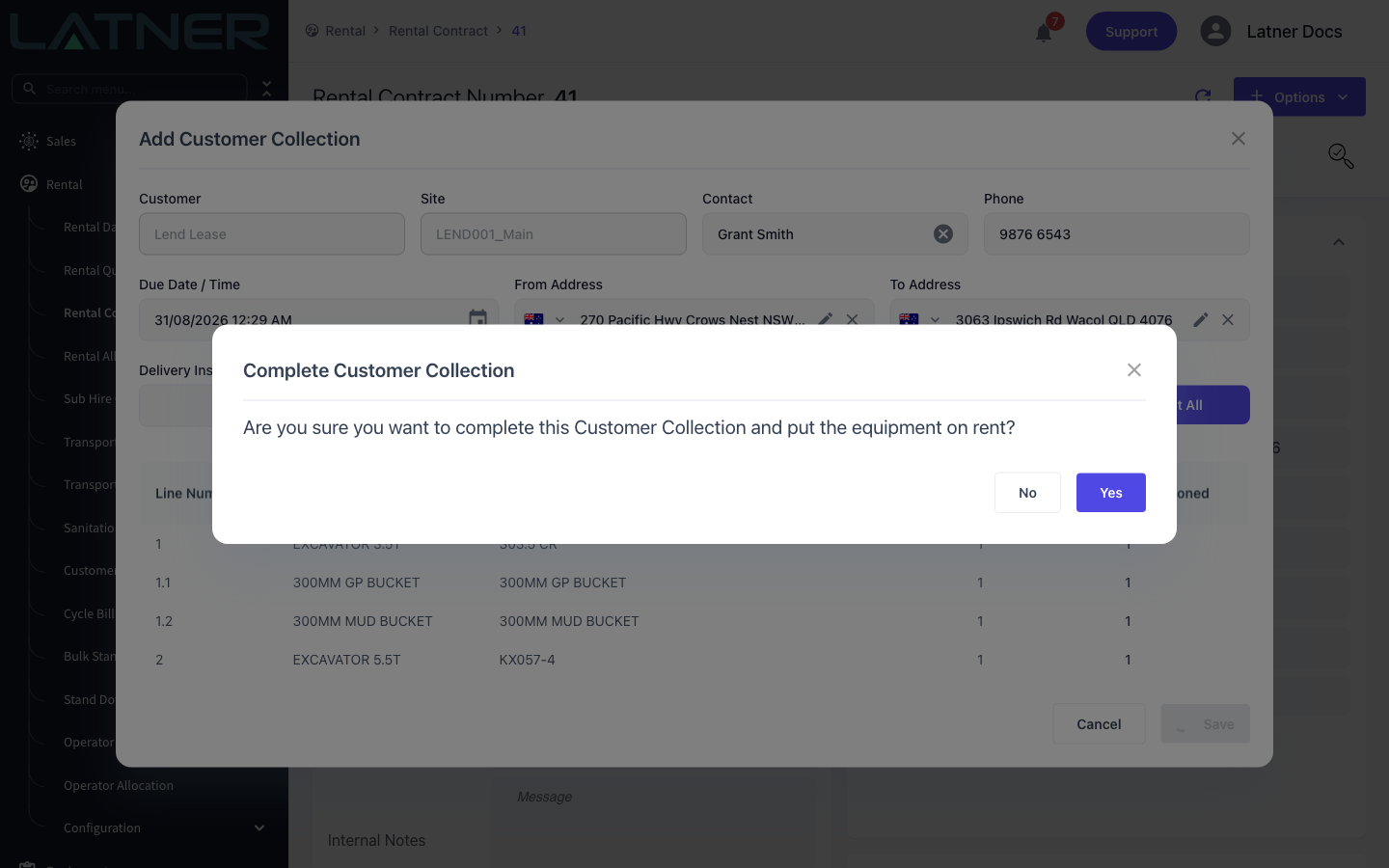
Completing the collection needs an Equipment Number allocated on every equipment line, and it will be refused if any of that equipment has an open inspection or if a line is still Pre-Allocated. If you haven't allocated equipment yet, leave Complete Transport unticked and complete the docket once the numbers are on the lines.
Step 6 - Save
Select Save. If nothing has a quantity, Latner tells you that At least one piece of equipment must be selected for collection and the form stays open. Otherwise the docket is created and you land back on the contract with its Transport tab count increased by one.
Creating a Collection from a Sales Order
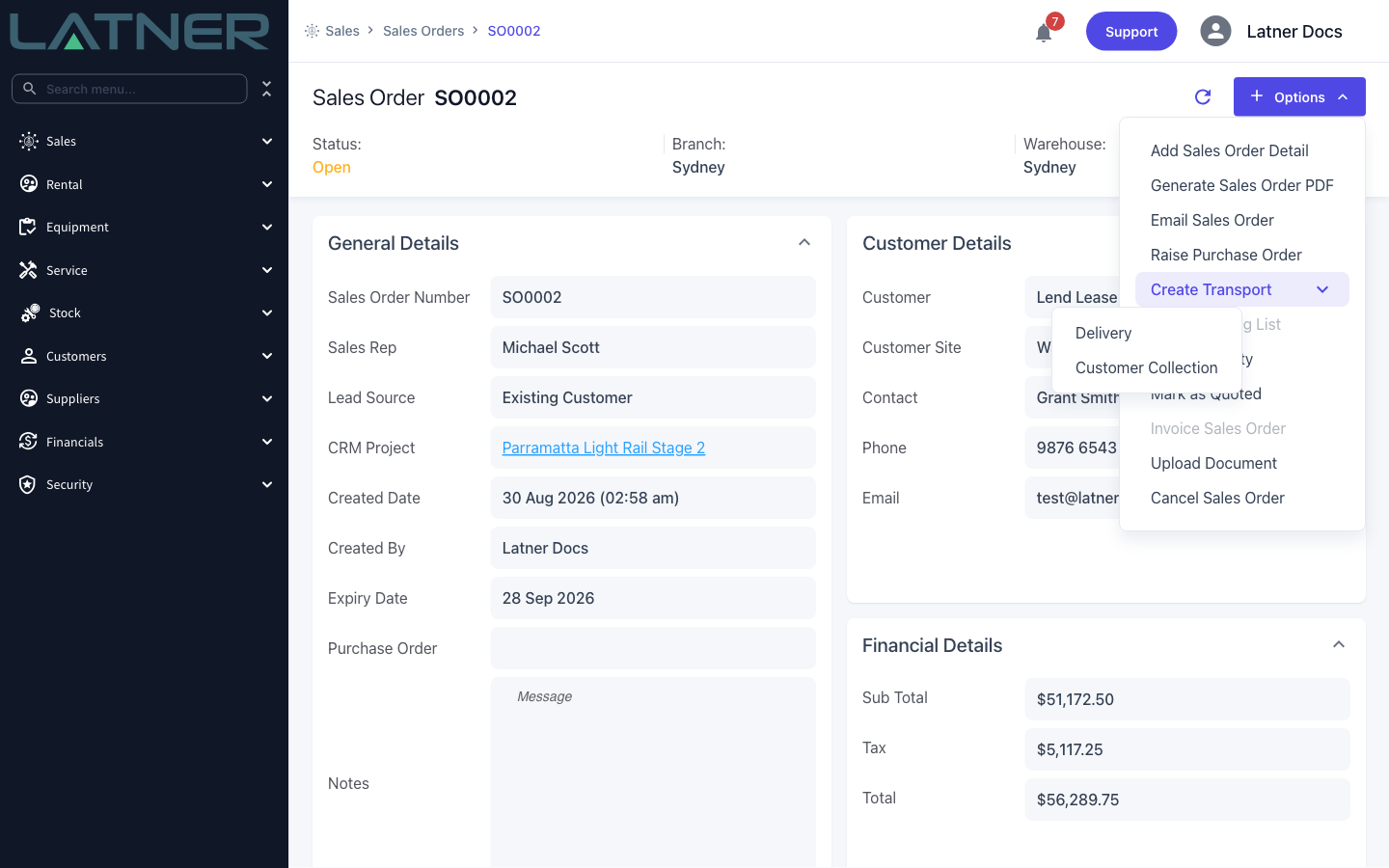
Customers collect purchased items too. From a sales order, choose Options › Create Transport › Customer Collection. The form is the same one, with the line table swapped for sales order columns - Line Type, Description, Item and Serial Number.
The important difference is what counts as available. A sales order line only has a Qty To Deliver once the stock has been fulfilled, so pick the order first or the line will be listed with nothing to action. Ticking Complete Transport on a sales order collection does not raise the confirmation prompt - it completes straight away on save.
After Creation
-
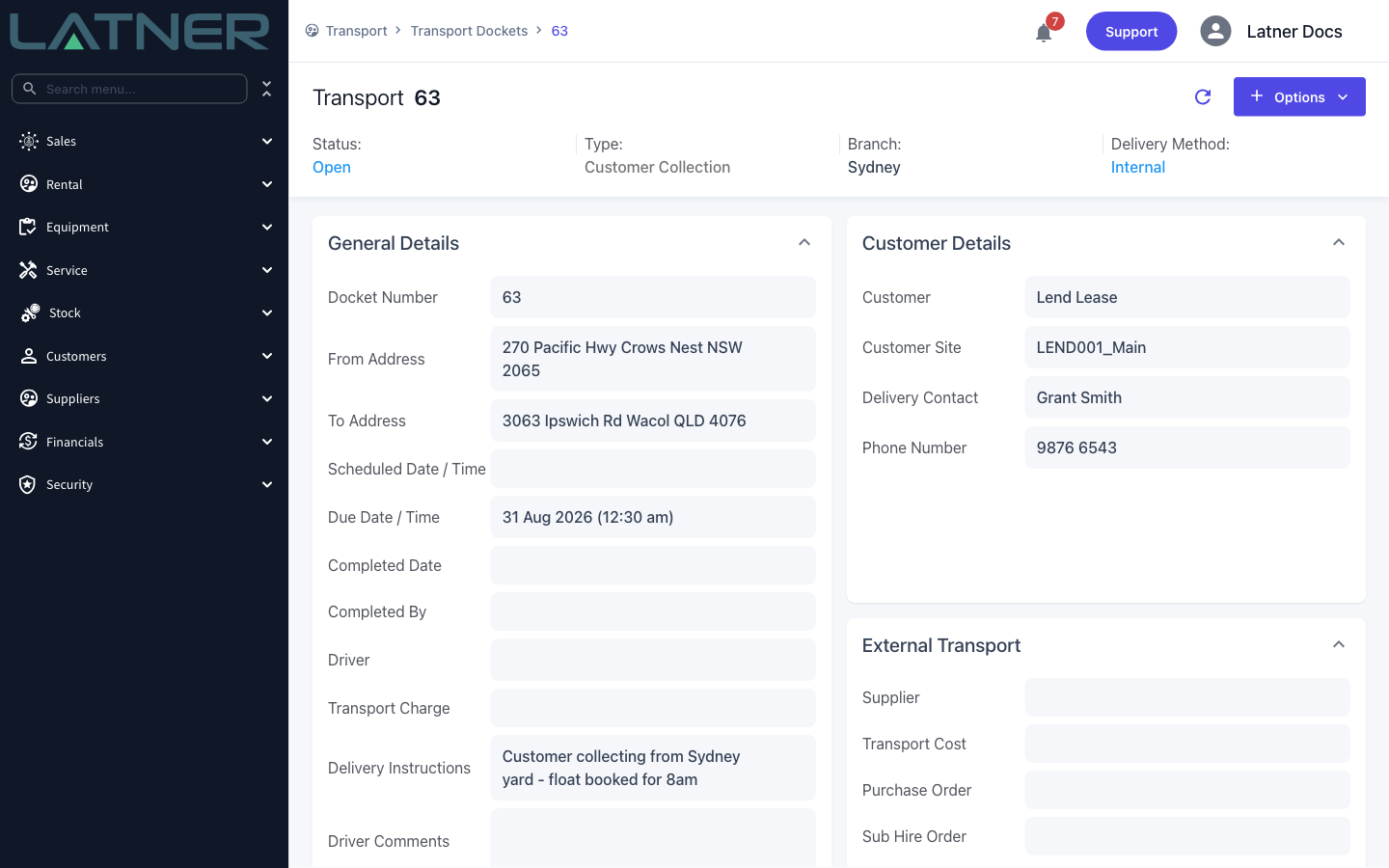
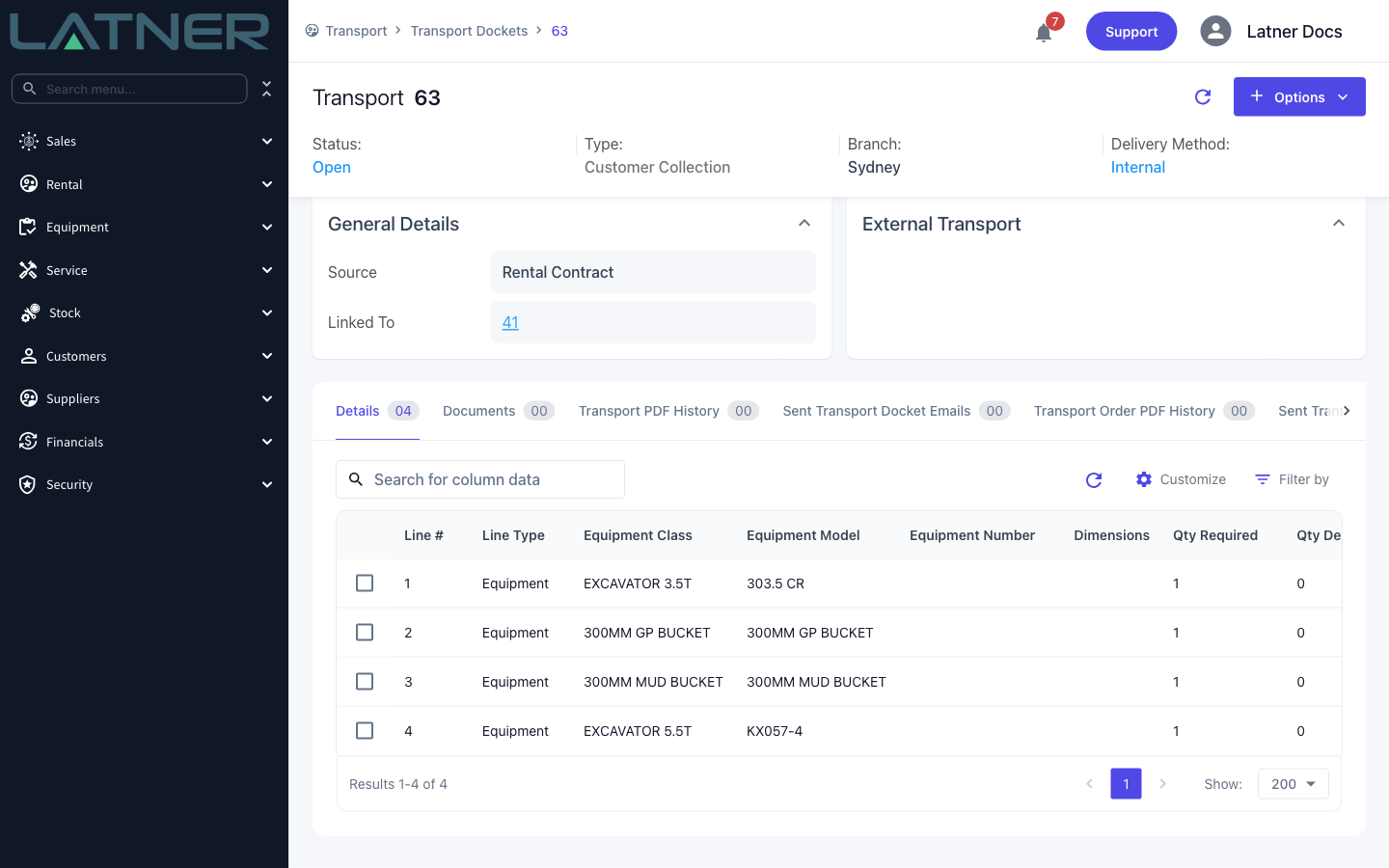
The docket is created with status Open, type Customer Collection and source Rental Contract (or Sales Order), and its Linked To field points back at the record you created it from.
-
Every actioned contract line moves to Pending Collection - or Pre-Allocated (Pending Collection) if it was pre-allocated - which takes it out of the pool available to other transport dockets.
-
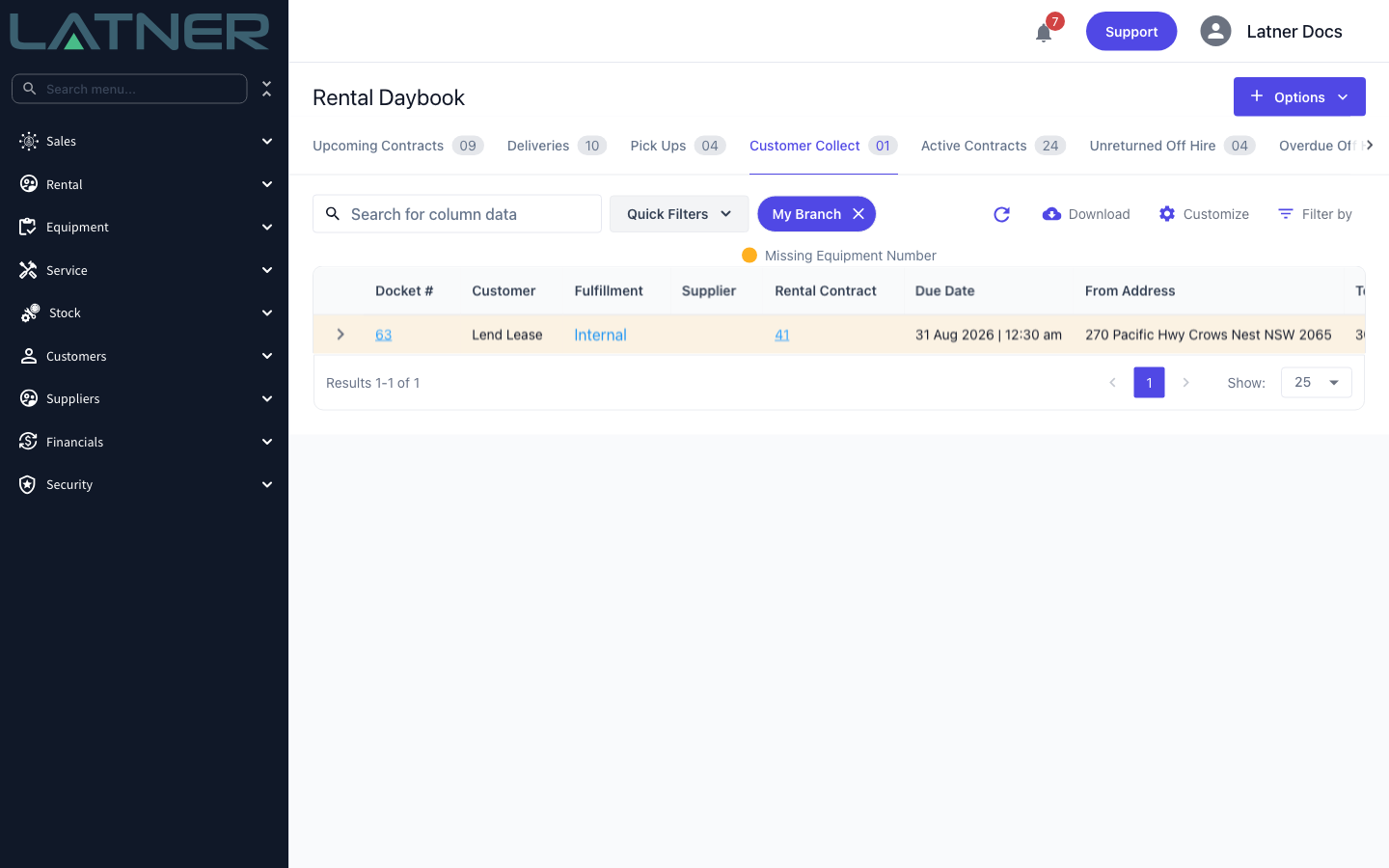
The docket appears on the Transport Dockets list under the Customer Collection quick filter, and on Rental Daybook › Customer Collect. It will not appear on Transport Allocation, which only handles deliveries, pick ups and site moves.
-
Rows on the daybook are highlighted while any line is still missing an equipment number, so the tab doubles as your allocation worklist.
-
Options › Generate Transport Docket PDF produces the printable docket for the customer to sign, using the collection docket template.
-
Completing the docket later puts the equipment on hire; see How to Manually Complete a Transport Docket.
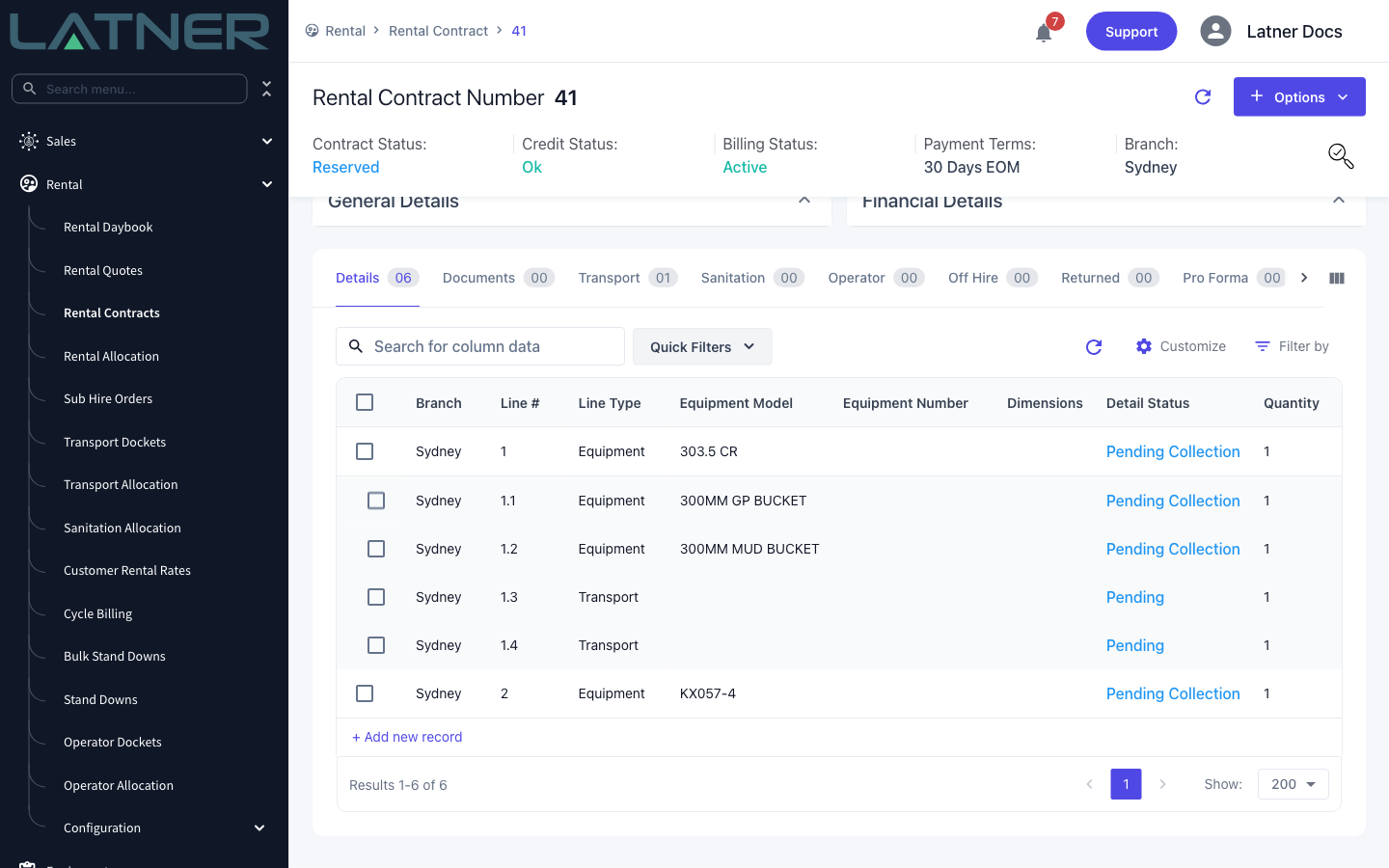
Cancelling the docket returns its lines to Reserved, so a booking made in error is easy to undo. Once the docket has been completed the equipment is on hire and cancelling is no longer possible - reopen the docket instead, which puts the lines back to Pending Collection, and only works while the equipment is still on hire.
FAQs
Watch the Demo
Prefer to watch it? Step through the same flow here.