
An external delivery docket is how you send reserved equipment out to a customer on a transport supplier's truck, so the job is booked with the carrier, the cost is captured against a Purchase Order, and the delivery charge still follows the equipment onto the customer's invoice.
Overview
Sooner or later the yard runs out of trucks. An external docket is the same delivery job, handed to a carrier instead of one of your drivers - and because someone is now invoicing you for it, Latner asks for two numbers instead of one: what the supplier charges you, and what you charge the customer.
-
An external delivery docket is created exactly where an internal one is - on the rental contract, under Options › Transport › Create Delivery. The only difference is setting Fulfillment to External.
-
Switching to External reveals Supplier and Supplier Delivery Cost, makes the Delivery Charge mandatory, and greys out Driver.
-
The cost has to be less than the charge. Going the other way needs the Allow Transport Cost To Be Greater Than Charge permission, and a tenant can insist on a margin with Minimum Markup for External Transports.
-
Saving asks whether to raise a Transport Purchase Order against the supplier. If the equipment is already sub hired from that same supplier, Latner offers to put the cost on that Sub Hire Order instead - and that offer always comes first.
-
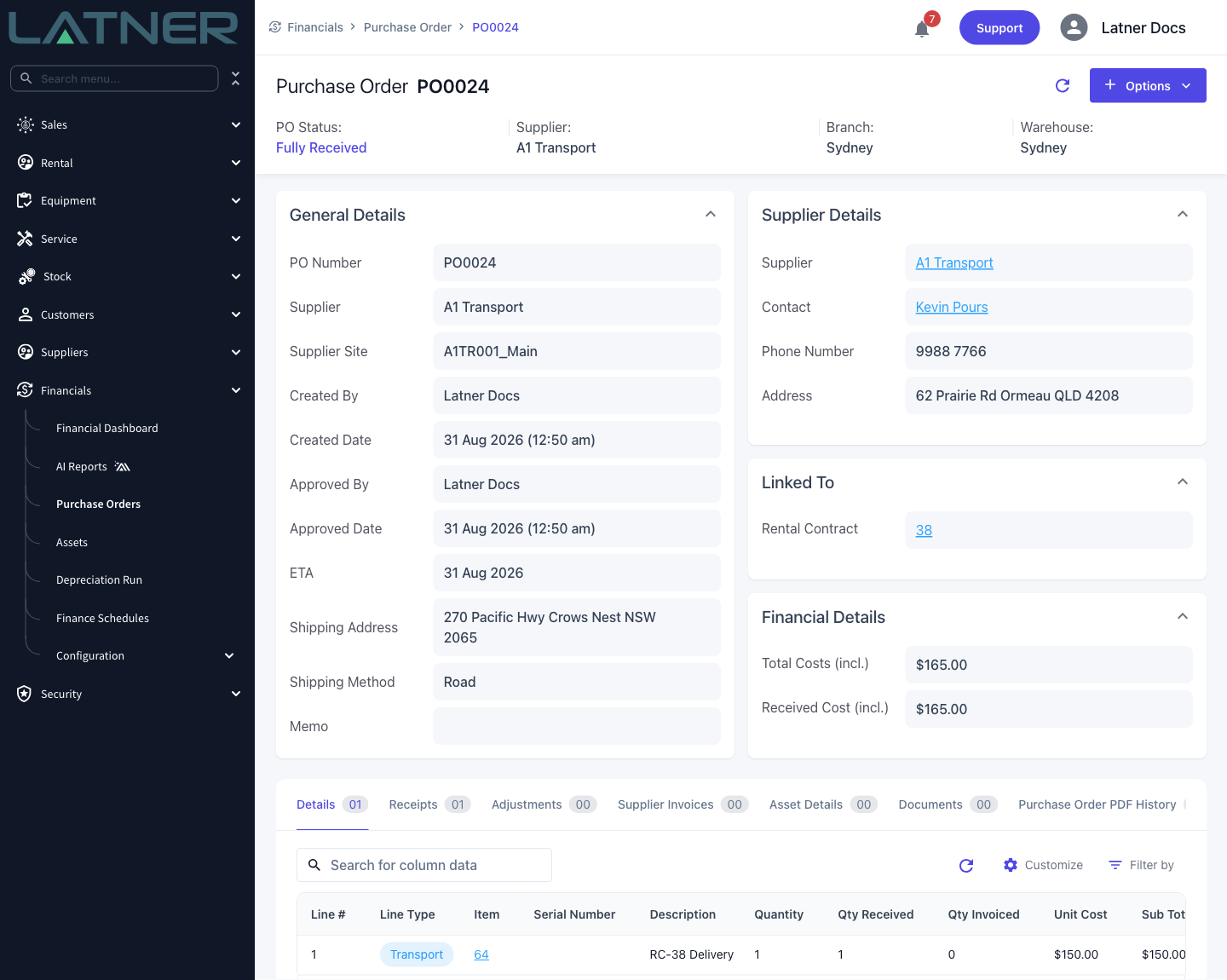
The Purchase Order carries a single Transport line for the cost you entered, and may be confirmed and receipted automatically depending on your settings.
-
Answering No to the prompt isn't final. Options › Create Purchase Order on the docket raises it later.
-
External dockets are the only ones that can produce a Transport Order - the document you send the carrier.
Before You Begin
Nothing has to be switched on to create an external delivery docket, but these permissions decide who can, and these settings decide what happens to the money afterwards.
|
Requirement |
Where to Find It |
|---|---|
|
Create Delivery permission - to see the Transport menu on a rental contract at all |
Security › Configuration › Permission Groups › Rental › Option |
|
Create Purchase Order permission - to raise the Transport Purchase Order, at creation or afterwards |
Security › Configuration › Permission Groups › Financials › Option |
|
Allow Transport Cost To Be Greater Than Charge permission - to save a docket where the supplier costs more than the customer pays |
Security › Configuration › Permission Groups › Rental › Field |
|
Generate Transport Order PDF and Email Transport Order permissions - to send the carrier their order |
Security › Configuration › Permission Groups › Transport › Option |
|
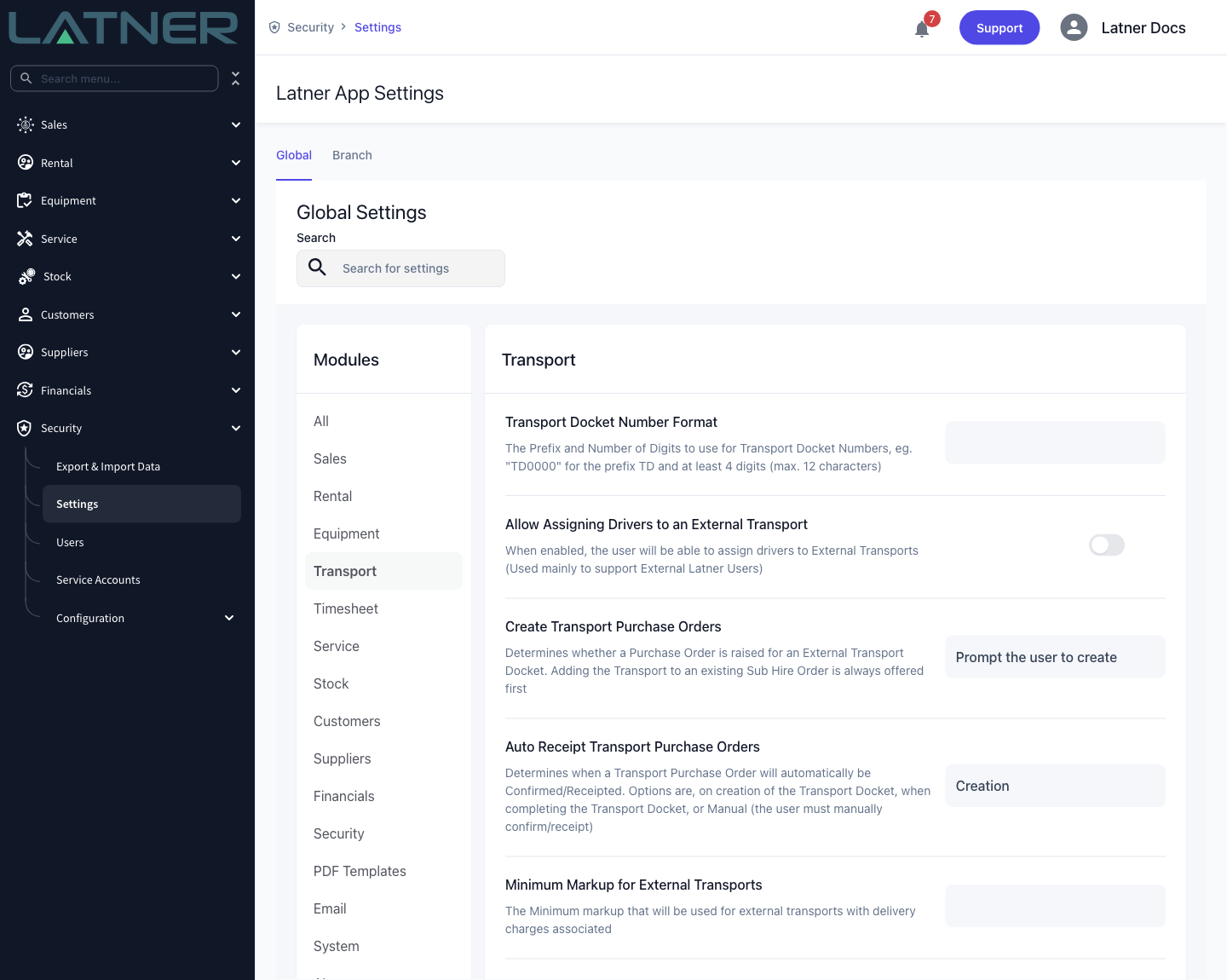
Create Transport Purchase Orders - whether Latner prompts you, always raises the Purchase Order, or never does |
Security › Settings › Transport |
|
Auto Receipt Transport Purchase Orders - when that Purchase Order is confirmed and receipted |
Security › Settings › Transport |
|
Minimum Markup for External Transports - the margin the charge must carry over the cost |
Security › Settings › Transport |
|
Allow Assigning Drivers to an External Transport - whether the Driver field stays available on an external docket |
Security › Settings › Transport |
|
Transport Order PDF Template ID - the template used for the document you send the carrier |
Security › Settings › PDF Templates |
The supplier you pick has to be Active and needs at least one site, because the Purchase Order is raised against a supplier site and takes its purchase tax from there. A supplier with no site is rejected with There are no sites created for the Supplier, and the whole docket fails with it.
Creating the External Delivery Docket
Step 1 - Open the contract and start a delivery
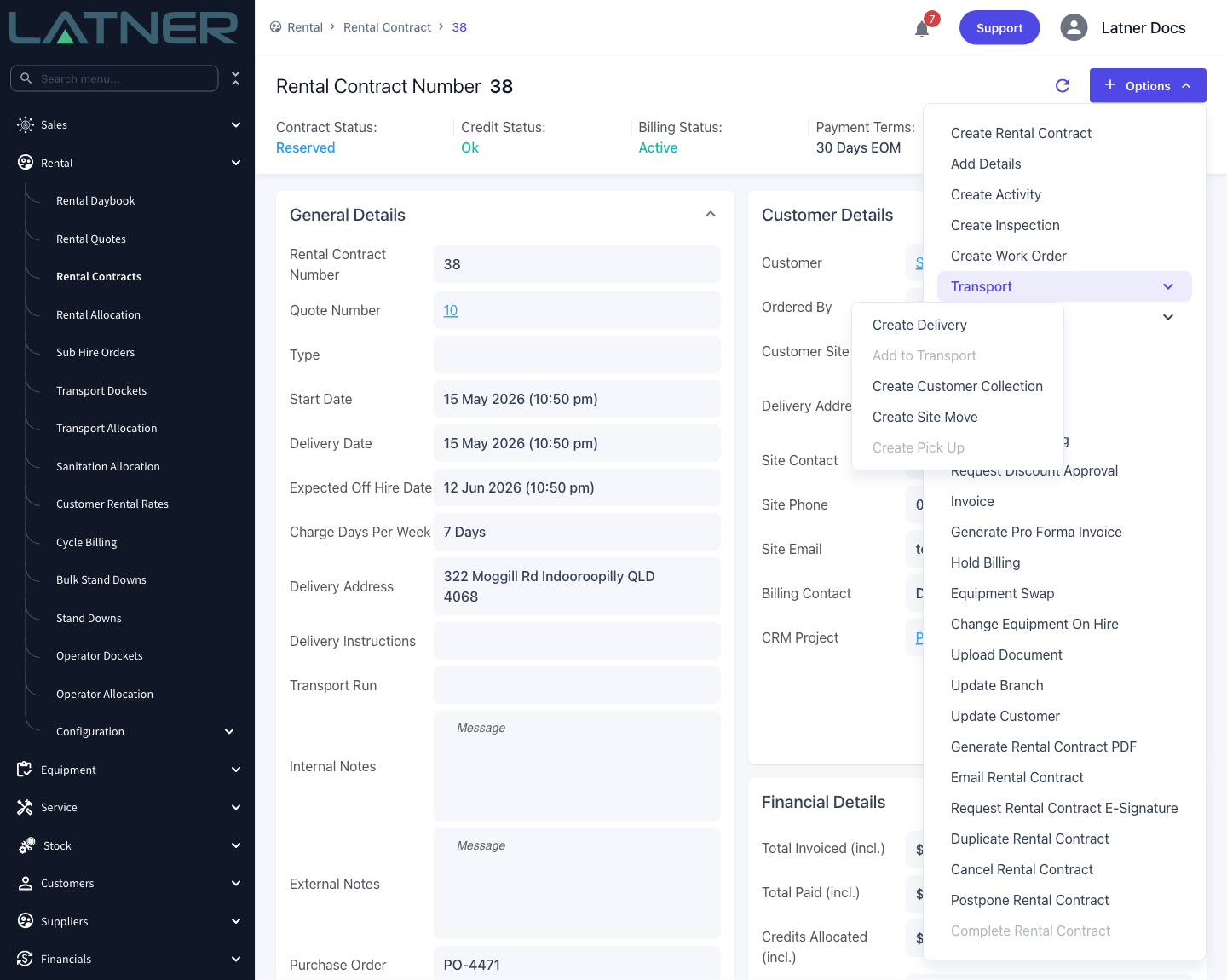
Open the rental contract, then choose Options › Transport › Create Delivery. There is no separate "external" menu item - internal and external are the same form, decided by one field inside it.
The contract needs something to send: if no line is still Reserved or Pre-Allocated, Create Delivery is greyed out with the tooltip Nothing to Deliver.
Step 2 - Switch Fulfillment to External
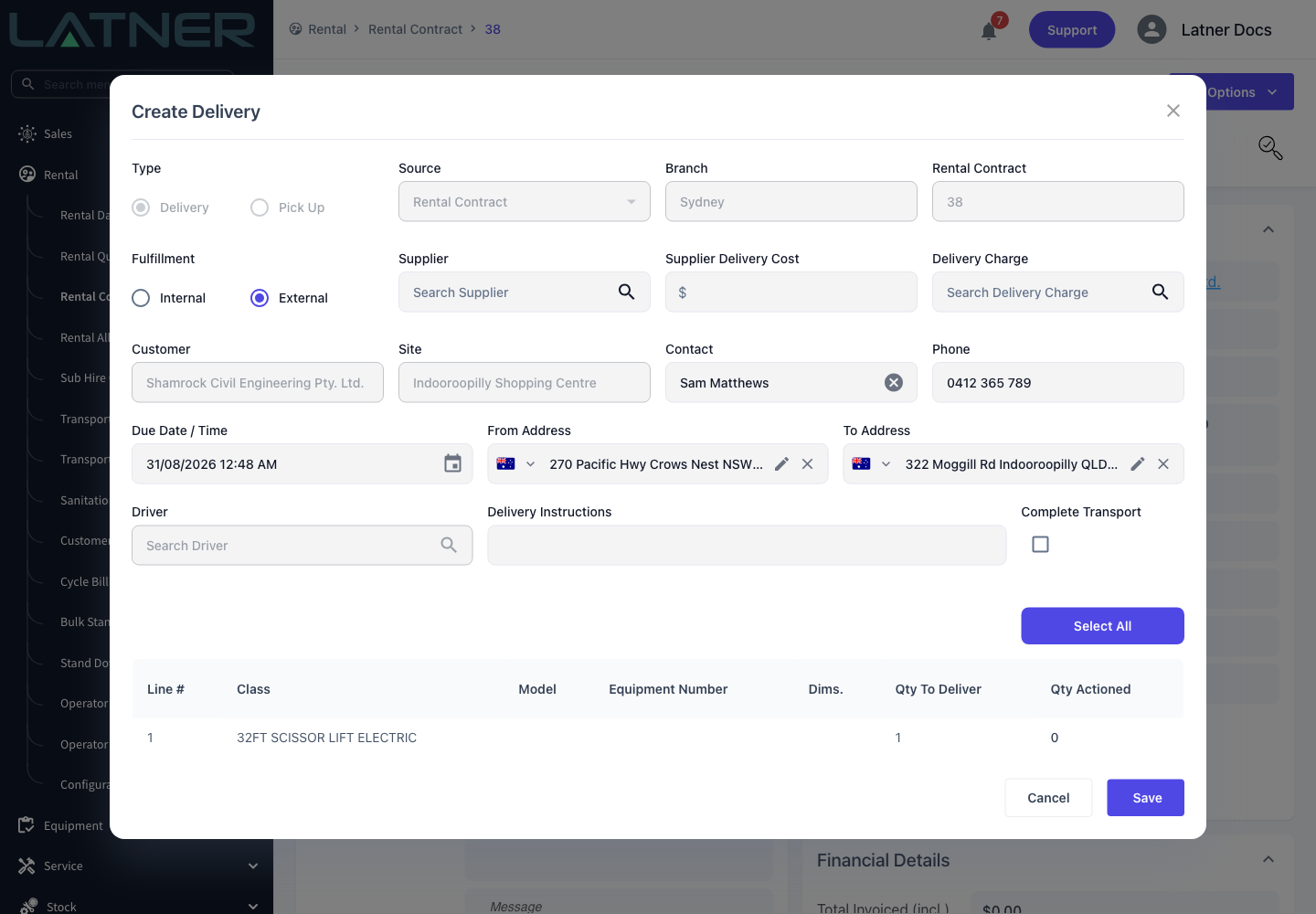
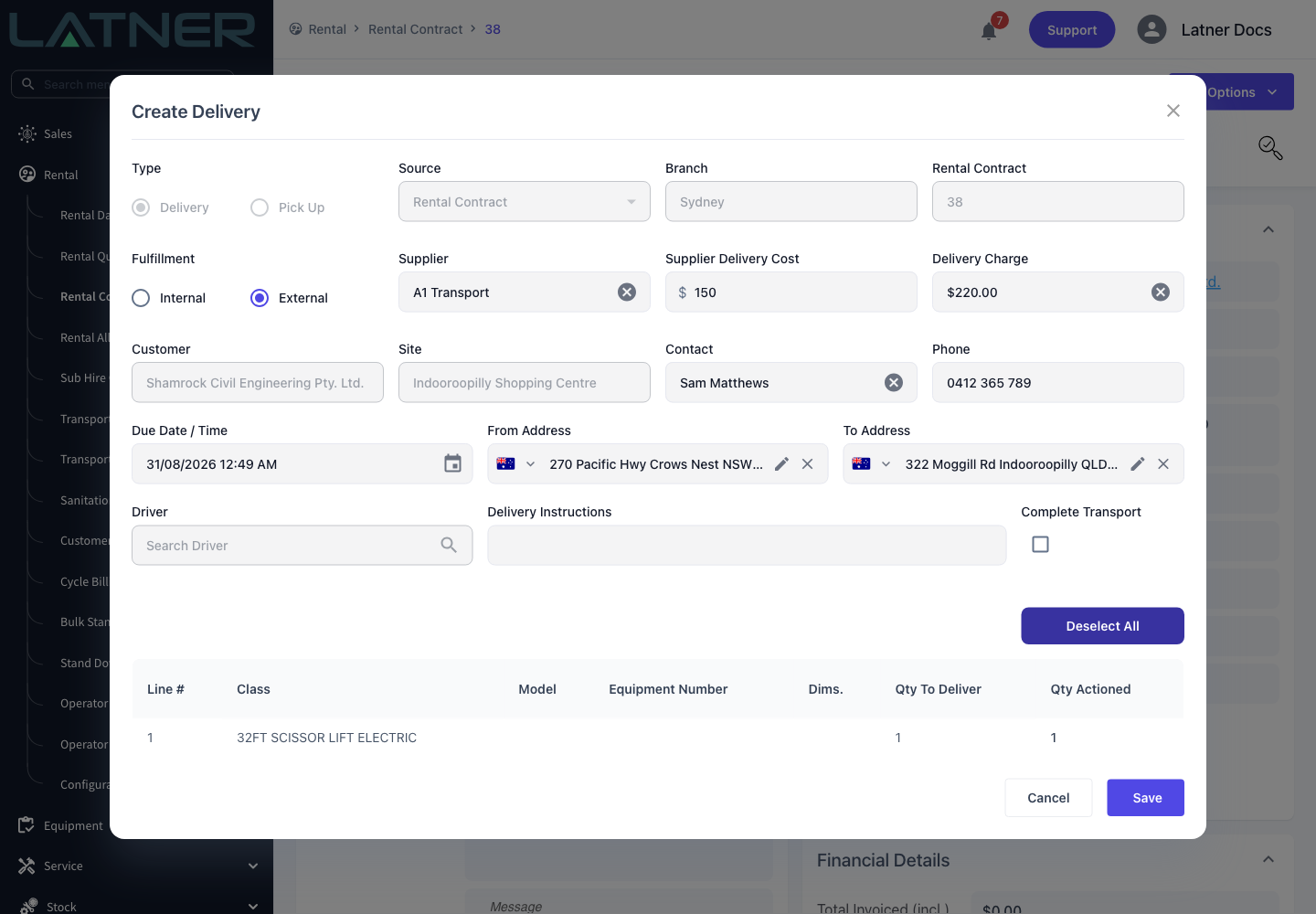
The form opens as Create Delivery with Fulfillment on Internal. Click External and three things change at once.
-
Supplier appears and is required. It only lists suppliers with a status of Active.
-
Supplier Delivery Cost appears and is required. This is what the carrier bills you.
-
Driver greys out with the tooltip Only applicable for Internal transport, unless Allow Assigning Drivers to an External Transport is enabled.
Switching back to Internal clears the supplier again, so pick the fulfillment before you fill anything else in.
Step 3 - Pick the delivery charge
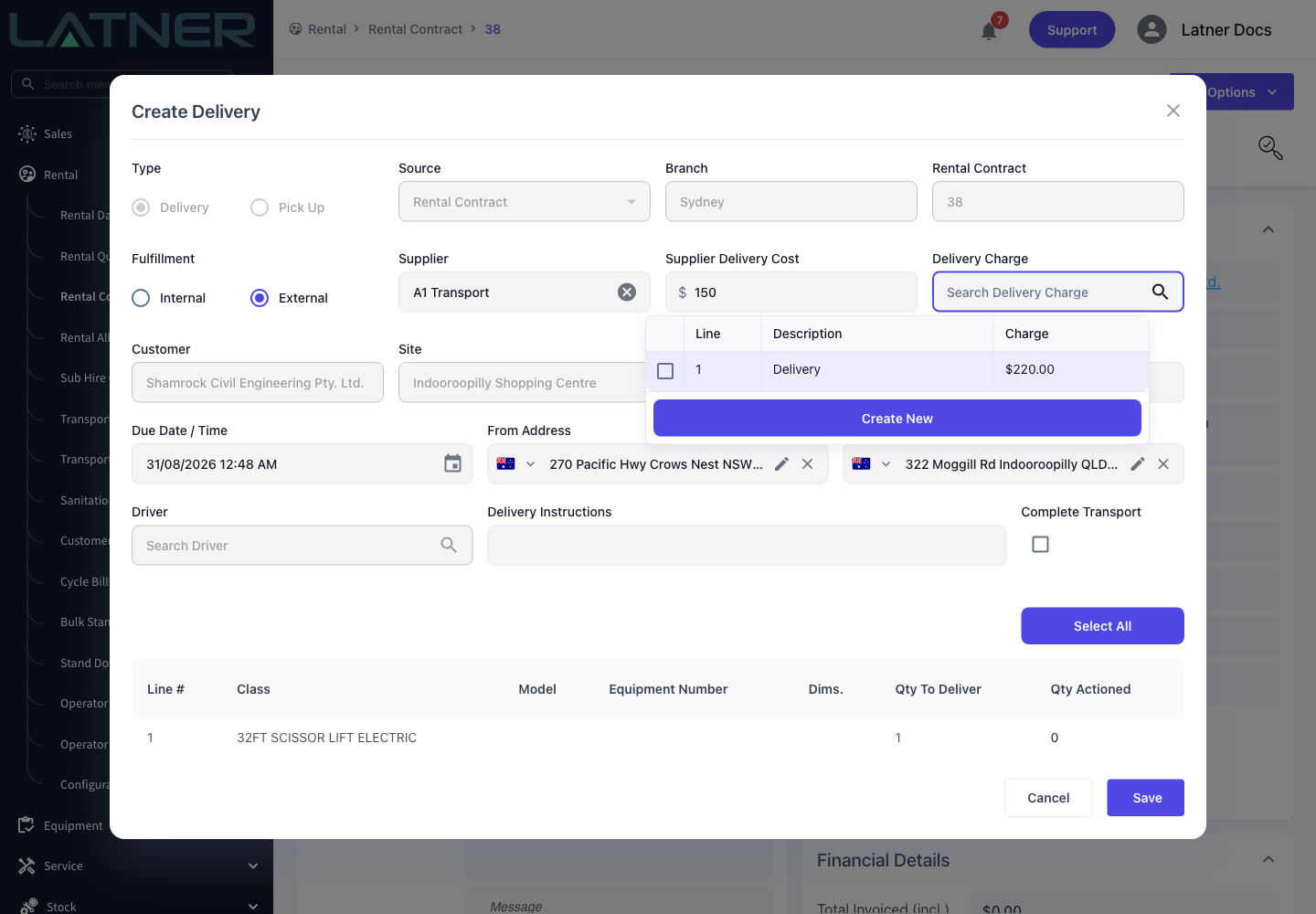
On a contract docket you don't type the customer's charge in. Click Delivery Charge and tick one of the transport charge lines already sitting on the rental contract - the picker only offers Delivery lines that haven't been used on another docket. If the contract hasn't got one, Create New adds a transport line to the contract without leaving the form.
On an internal docket this is optional. On an external one it isn't: save without a charge and the field is flagged Required.
Step 4 - Enter the supplier's cost
Type what the carrier is charging you into Supplier Delivery Cost. Latner checks it against the delivery charge before it will save.
-
The cost must be less than the charge. A cost that meets or exceeds it flags the field and blocks Save.
-
The Allow Transport Cost To Be Greater Than Charge permission waives that check for people who need it, typically because the delivery is being absorbed.
-
If Minimum Markup for External Transports is set, the margin has to clear it too, and a docket that doesn't is refused with Transport cost does not meet the minimum markup of followed by the percentage. With no markup configured the message is Transport cost cannot be higher than transport charge.
Step 5 - Set the timing, addresses and lines
The rest of the form is the same as an internal docket.
-
Due Date / Time - required, and defaults to the contract's delivery date.
-
From Address and To Address - the branch address and the contract's delivery address. The carrier works from these, so correct them here rather than in a phone call later.
-
Delivery Instructions - copied from the contract and editable.
-
The table at the bottom lists the lines this docket can carry. Give each one a Qty Actioned, or click Select All. Saving with everything at zero is rejected with At least one piece of equipment must be selected for transport.
Step 6 - Answer the Purchase Order prompt
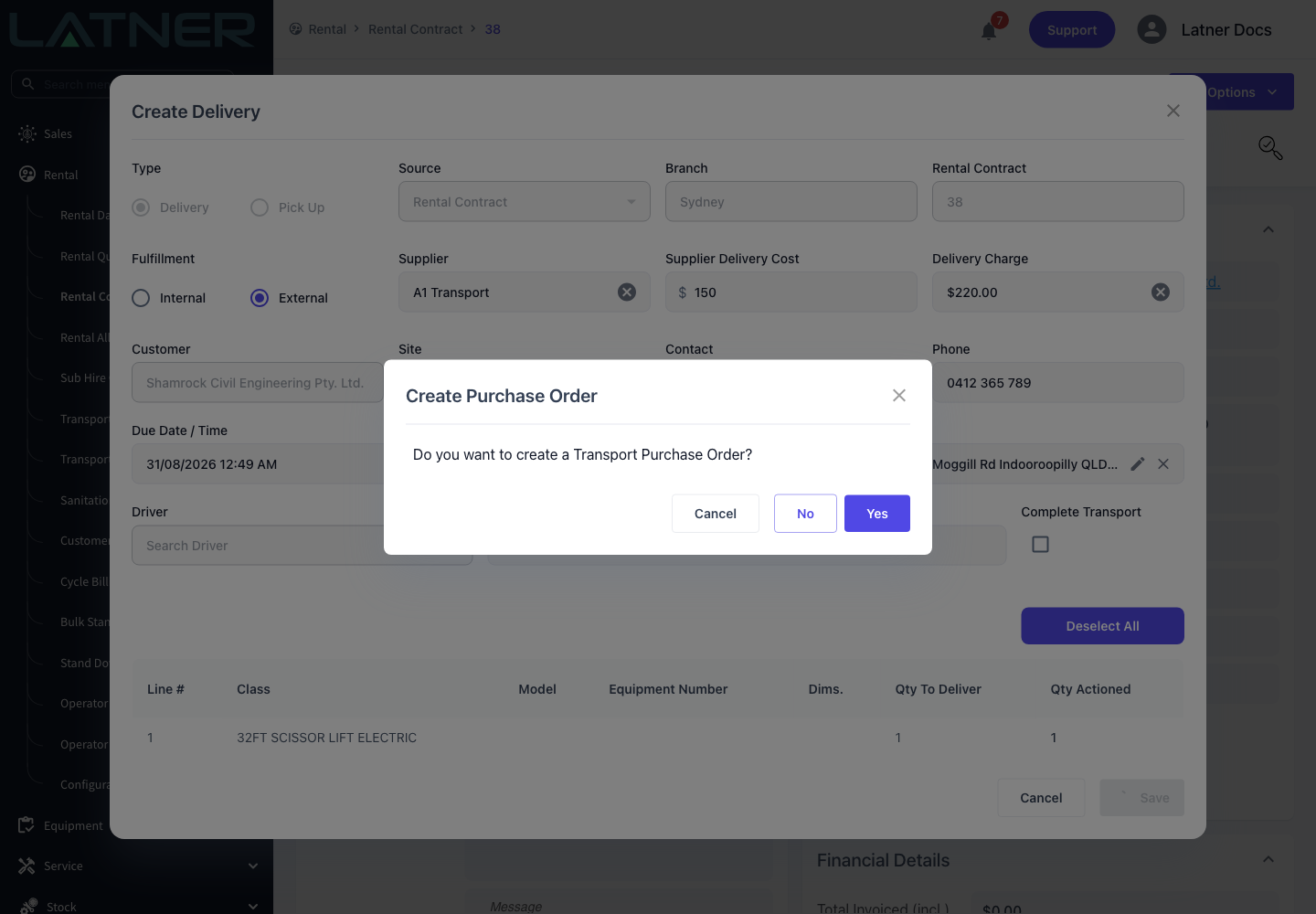
Click Save. Because this is an external docket, Latner asks Do you want to create a Transport Purchase Order? before it commits anything.
-
Yes - creates the docket and raises a Purchase Order against the supplier for the cost you entered.
-
No - creates the docket without one. You can raise it later from the docket.
-
Cancel - abandons the save and leaves you on the form.
The prompt can be turned off for the whole tenant with Create Transport Purchase Orders: Skip prompt and always create answers Yes for you, and Never create answers No.
If any line you selected is already on an Active Sub Hire Order from the same supplier, a different question comes first - Do you want to add this Transport to the existing Sub Hire Order for <supplier>? Answering Yes puts the transport cost on that Sub Hire Order as its own Transport line and no Purchase Order is raised, which keeps the whole sub hire on one order. Answering No falls through to the Purchase Order prompt.
Step 7 - Confirm what was created
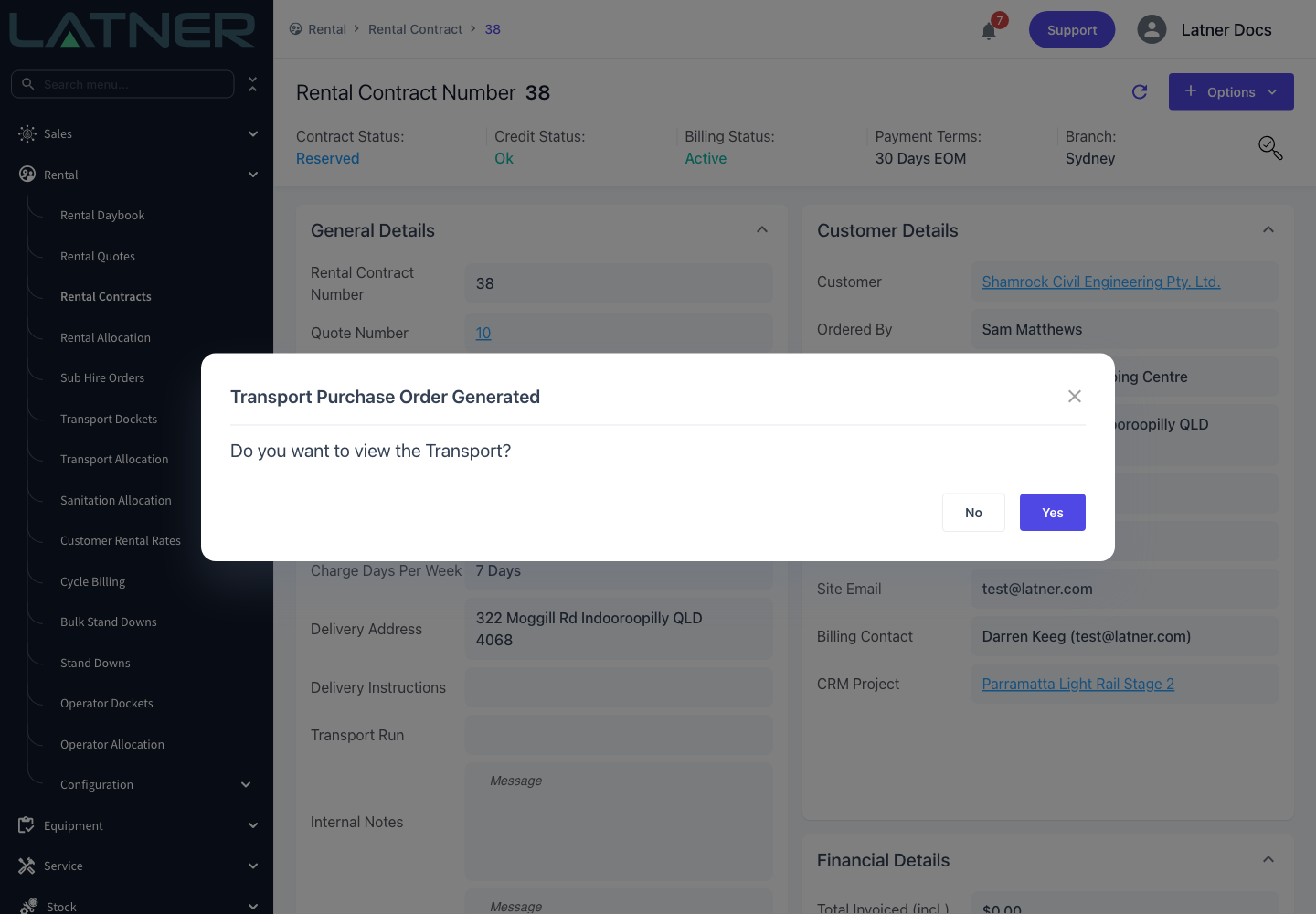
Latner confirms with Transport Purchase Order Generated and offers a link straight to the new docket. If you answered No, or a Purchase Order couldn't be raised, the title reads Transport Order Generated instead - the wording reflects what actually happened, not what you asked for.
After Creation
-
The docket is created with status Open and a Delivery Method of External. Its External Transport panel carries the Supplier, the Transport Cost, and a link to either the Purchase Order or the Sub Hire Order the cost went to.
-
The contract's equipment lines move to Pending Delivery, and the delivery charge line is now attached to this docket and can't be used on another.
-
The Purchase Order is raised against the supplier's site, sourced from the rental contract, with one Transport line described as RC-<contract number> Delivery, quantity 1, at the cost you entered. Its ETA is the docket's due date.
-
Auto Receipt Transport Purchase Orders decides what happens next: Creation confirms and receipts it immediately (so it reads Fully Received straight away), Completion waits until the docket is completed, and Manual leaves it Open for you.
-
The docket appears on Rental › Transport Dockets, and on the Transport Allocation board under the supplier's own lane rather than a driver's.
-
It does not reach the mobile app unless a driver has been assigned to it, so an external docket is normally completed from the desktop once the carrier confirms the job is done.
-
External dockets never ask for a Take 5 checklist - that requirement only applies to internal ones, since it's your driver you're supervising.
-
Completing the docket puts each delivered line On Rent and moves the contract from Reserved to Active.
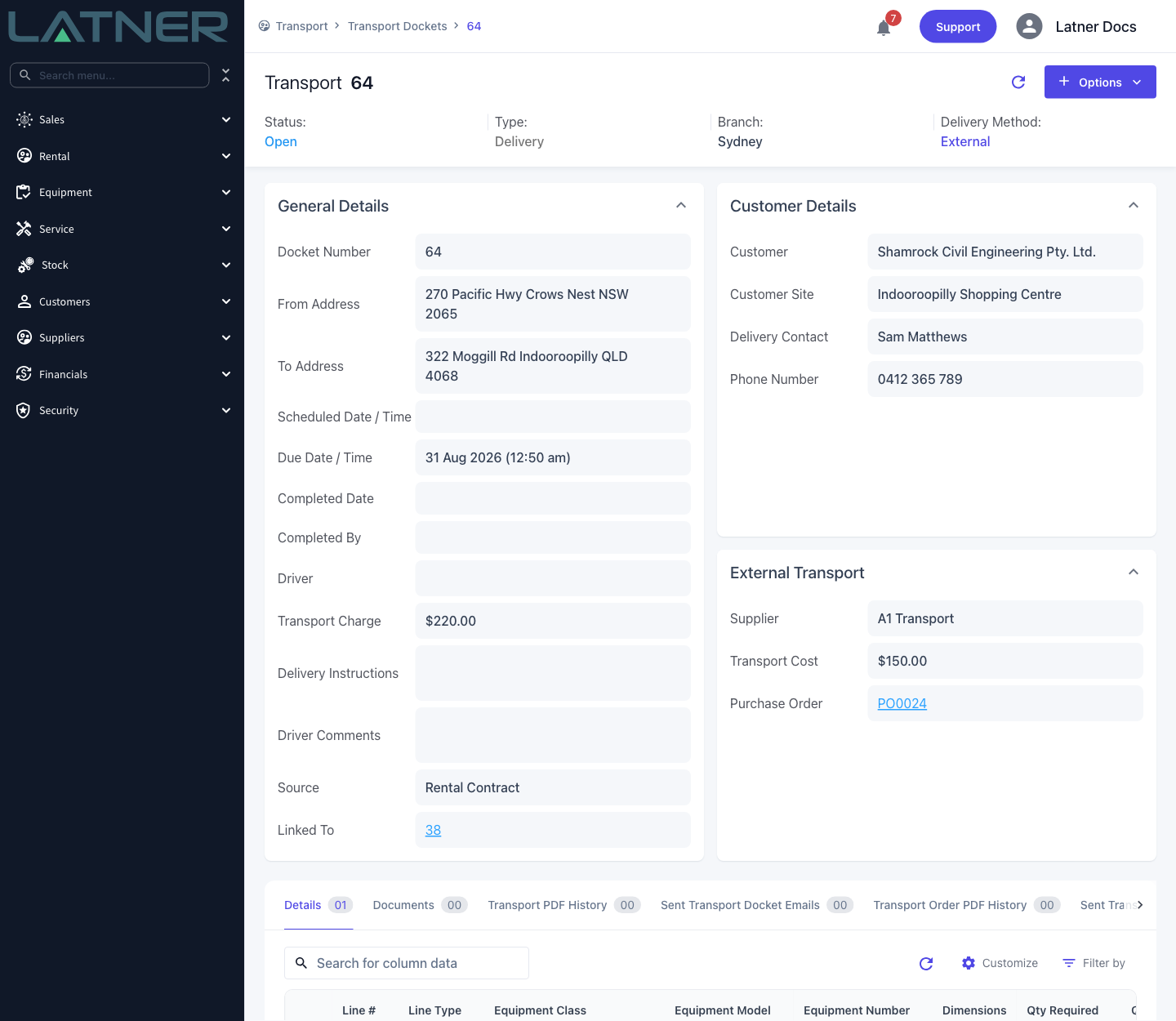
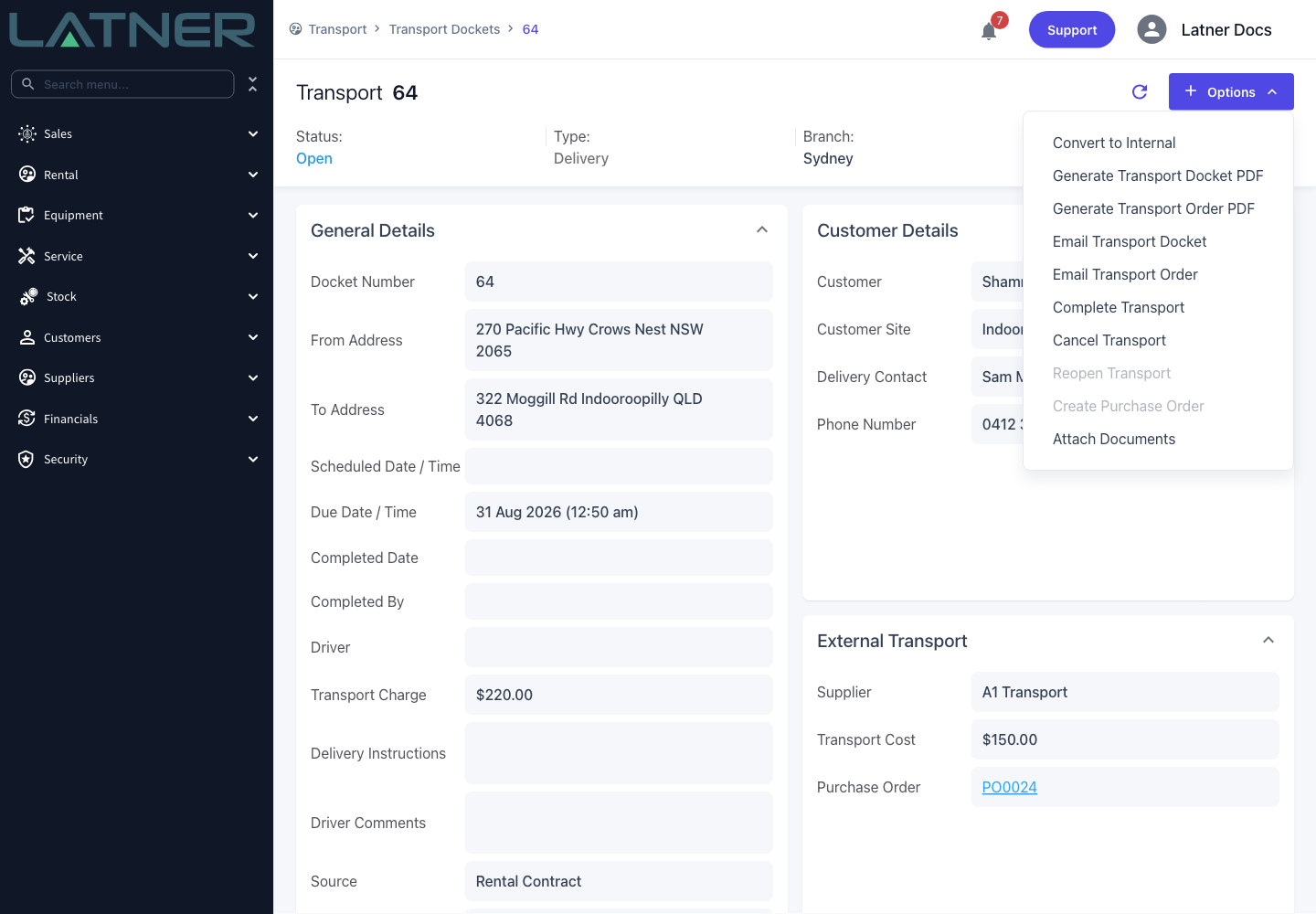
Once the Purchase Order exists, the docket stops being freely editable. Changing the supplier is refused with Cannot Update Transport Supplier as a Purchase Order is already raised, and the cost can only be changed while that Purchase Order is still Open - after it has been receipted you'll get Cannot Update Transport Cost as a Purchase Order is not Open. Get the supplier and the cost right before you answer Yes, or cancel the Purchase Order first if they turn out to be wrong.
FAQs
Watch the Demo
Prefer to watch it? Step through the same flow here.