
Processing a return in Latner records equipment coming back off a rental contract, so the units are released for hire again, the meter readings are captured and the contract can be finalised and invoiced.
Overview
A return is the last step in the hire cycle. Off hiring stops the clock; returning is what actually brings the gear home. Latner keeps the two as separate records, but you don't have to run them separately - the Return screen will off hire anything that is still on rent for you.
-
You process a return from the rental contract, on the Options menu.
-
You can return several lines at once, and you can return part of a line's quantity.
-
Returning captures the Return Meter Reading and the Fuel to Bill, and turns those into charge lines on the contract.
-
Equipment goes back to Available, or to Return Inspection if the model or class is set up to require one.
-
Rental billing stops at the Actual Off Hire Date, not the return date.
-
Only Equipment and Sub Hire Equipment lines can be returned. Transport, admin and fuel lines are not returned.
-
Returns can also be processed on a mobile device, straight from the yard - see Returning on a Mobile Device below.
Before You Begin
A few things need to be in place before the Return option will work the way you expect.
|
Requirement |
Where to Find It |
|---|---|
|
Create Return permission |
Security › Configuration › Permission Groups › Rental › Option |
|
Create Off Hire permission (only if you are returning equipment that is still On Rent) |
Security › Configuration › Permission Groups › Rental › Option |
|
Mobile Returns permission (only if you are returning on a mobile device) |
Security › Configuration › Permission Groups › Rental › Screen |
|
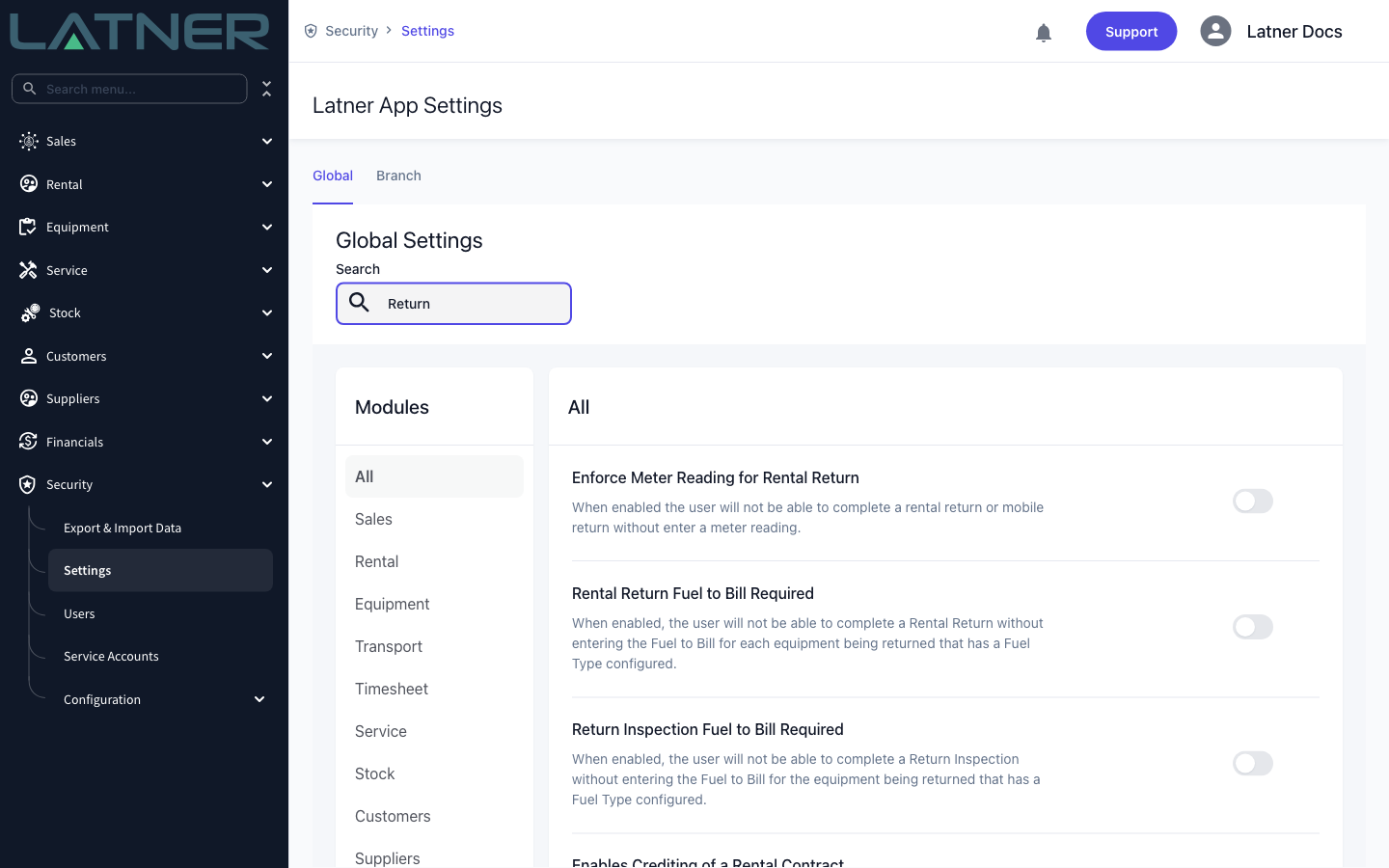
Enforce Meter Reading for Rental Return - makes the meter reading mandatory |
Security › Settings › Rental |
|
Rental Return Fuel to Bill Required - makes the fuel figure mandatory |
Security › Settings › Rental |
|
Record Fuel to Bill in - must include Rental Return for the Fuel to Bill column to appear |
Security › Settings › Rental |
|
Auto Complete Pickup Dockets when Returning Equipment - lets you return lines that are still Pending Pick Up |
Security › Settings › Rental |
|
Create Return Inspection after Rental Return - raises a return inspection automatically |
Security › Settings › Equipment |
|
An Active rental contract with at least one Equipment or Sub Hire Equipment line in On Rent, Off Hire, Pending Return or Pending Pick Up |
Rental › Rental Contracts |
The Return option is greyed out when the contract has no returnable lines, or when the contract is Completed, Cancelled or Lost. If you can't see the option at all, you don't have the Create Return permission.
Processing the Return
Step 1 - Open the rental contract
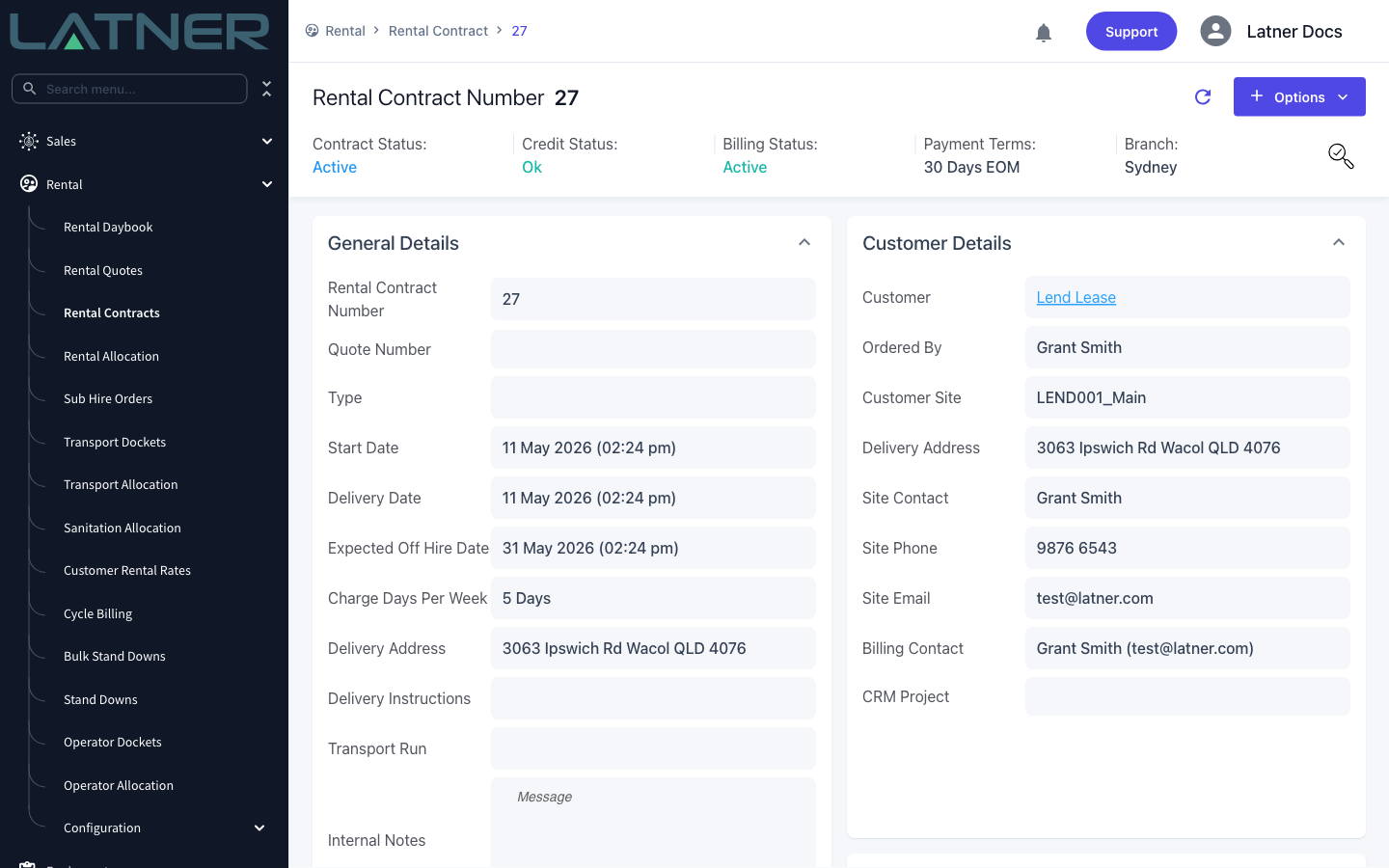
Go to Rental › Rental Contracts and open the contract holding the equipment being returned. Check the Details tab to confirm which lines are coming back and what state they're in.
Step 2 - Choose Return from the Options menu
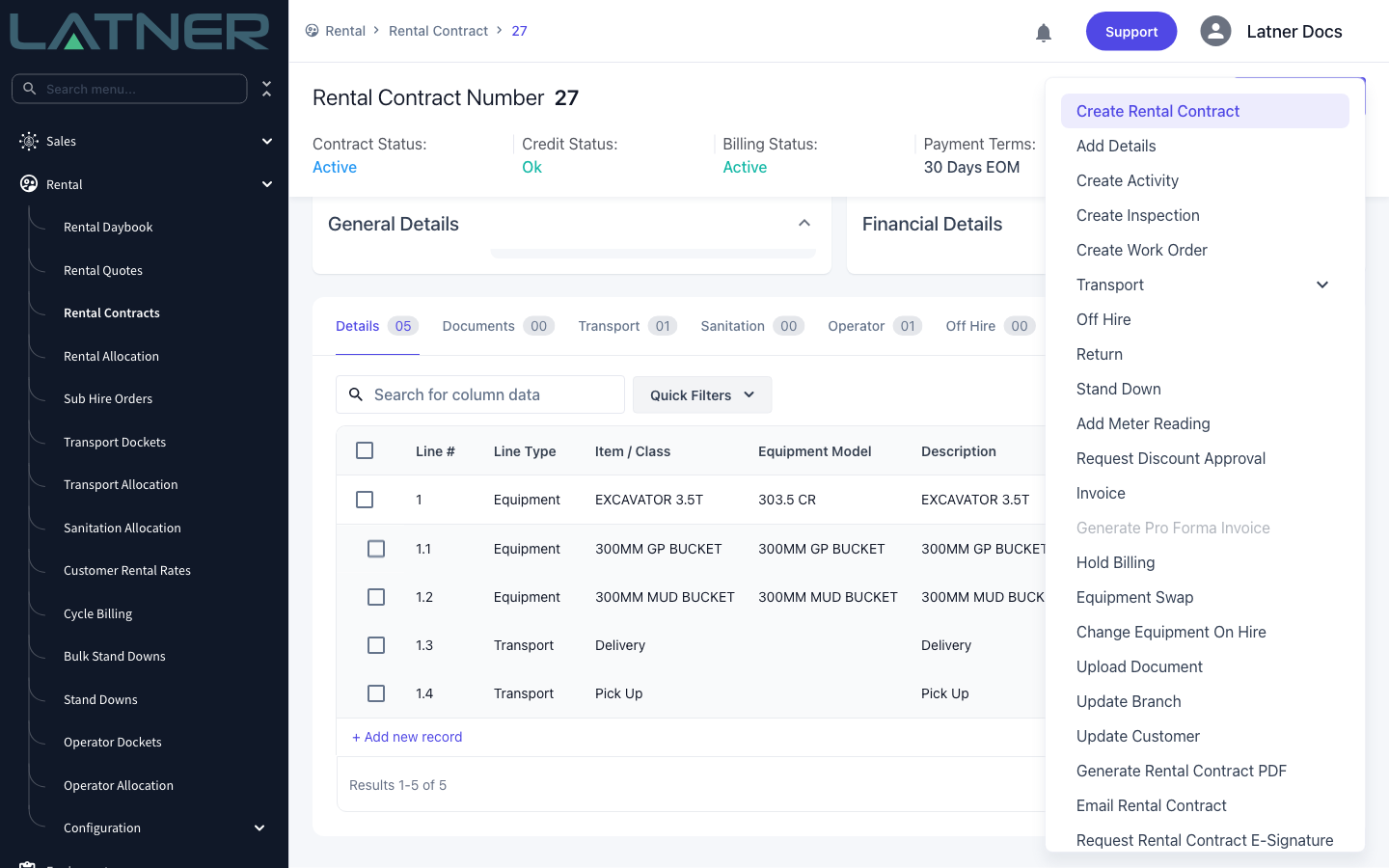
Click Options in the top right and choose Return. The Off Hire option sits just above it, but you don't need to run it first - the return will off hire anything still on rent as part of the same action.
Step 3 - Check the return branch and dates
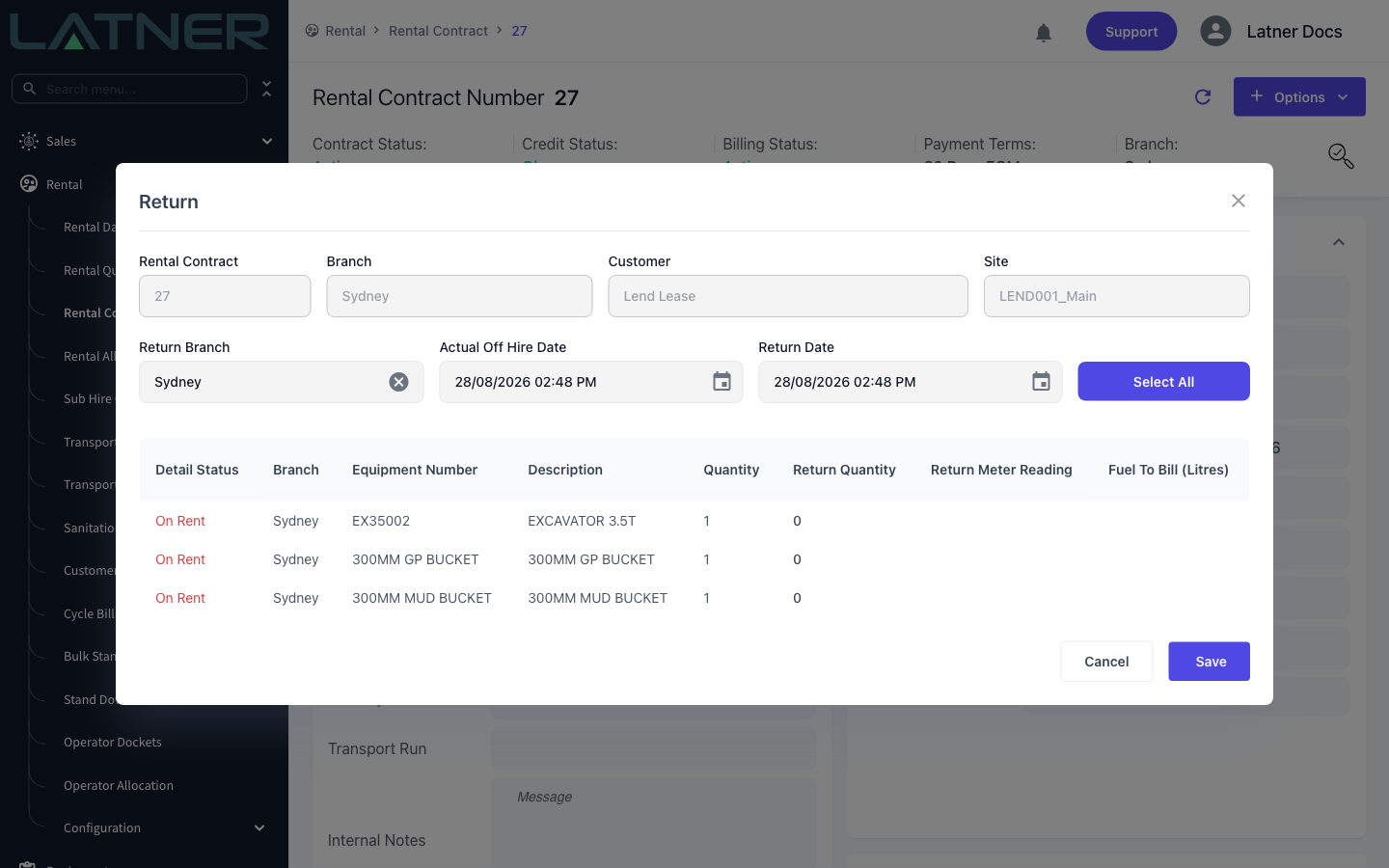
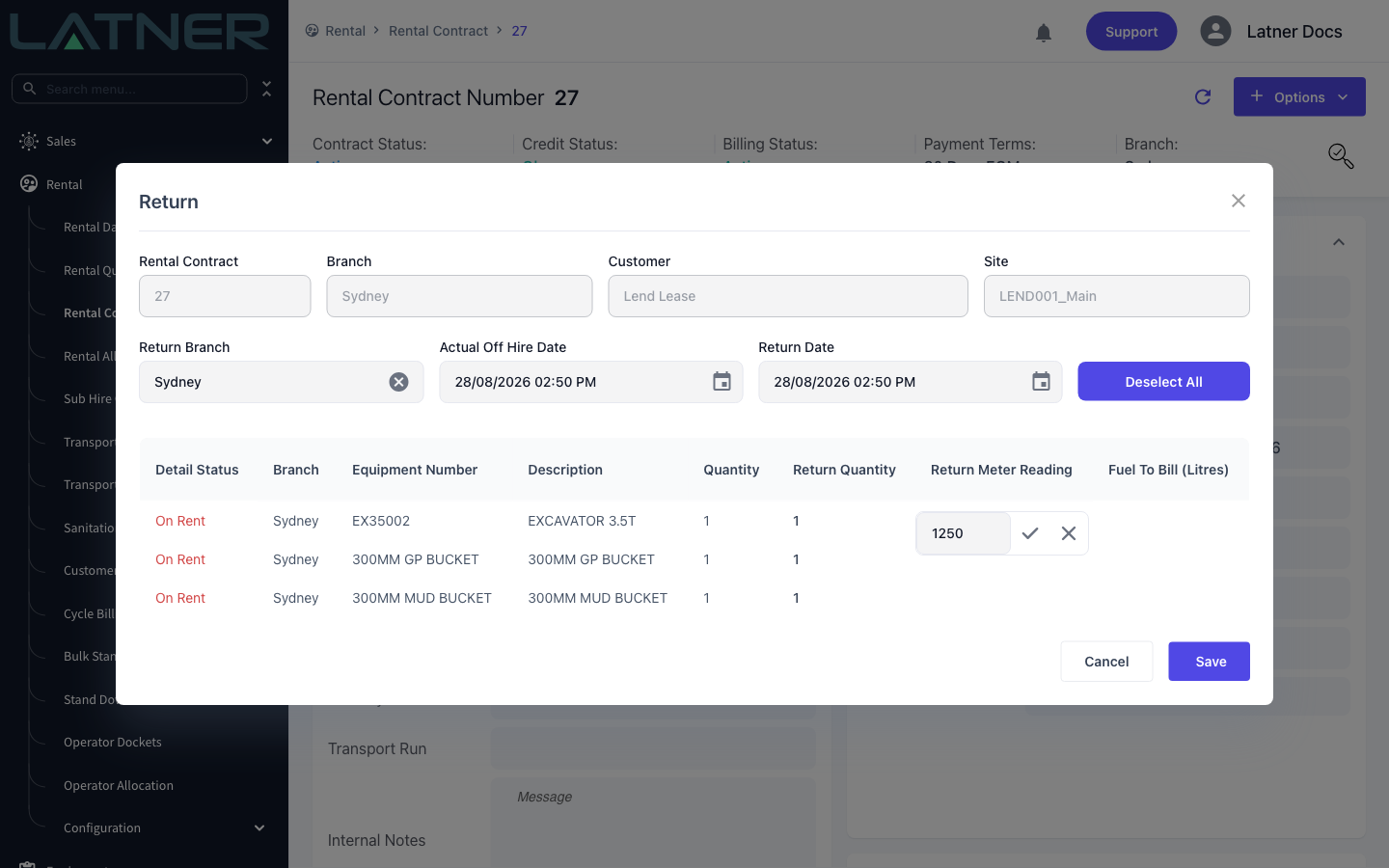
The top of the Return screen carries the contract, branch, customer and site for reference - those fields are read only. Three fields are yours to set, and all three are required:
-
Return Branch - the branch the equipment is physically coming back to. It defaults to the contract's branch, and is left blank when the contract contains cross branch hired equipment so you have to make a deliberate choice.
-
Actual Off Hire Date - the date and time the hire stopped. This is what rental billing is calculated to. It defaults to the last off hire date already recorded on the contract, or to now.
-
Return Date - the date and time the equipment physically came back. It defaults to now and cannot be earlier than the Actual Off Hire Date.
Step 4 - Enter the quantities and readings
Every returnable line on the contract is listed. Set a Return Quantity against each line you're bringing back - use Select All to fill every line with its full quantity in one click, then adjust anything that's only coming back in part. Lines left at zero are ignored.
-
Return Quantity - required. It must be more than zero and cannot exceed the quantity on rent. A quantity lower than the full line quantity is a partial return.
-
Return Meter Reading - the reading on the unit as it comes back, to two decimal places. It must be equal to or greater than the equipment's current meter reading.
-
Fuel to Bill (Litres) - the fuel being charged back to the customer. This column only appears when Record Fuel to Bill in includes Rental Return.
Click a cell to edit it, then tick to confirm the value.
Step 5 - Save
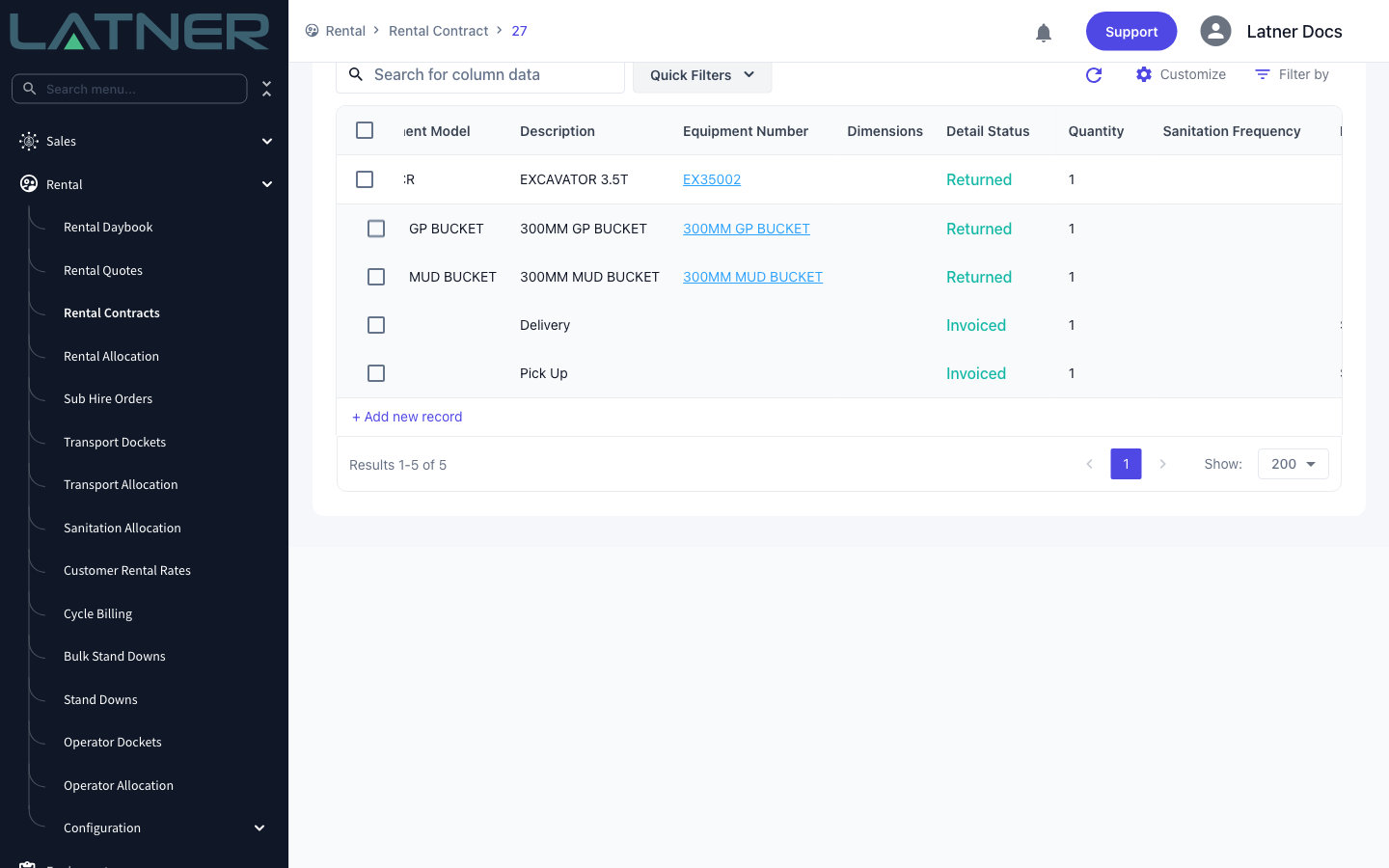
Click Save. Latner confirms with Equipment Returned and the returned lines move to Returned on the contract's Details tab. If you've picked a return branch that differs from where a unit came from, a Cross Branch Return prompt lists the affected equipment first and asks you to confirm.
After You Save
One return can touch a fair bit of the contract. Here's what to expect:
-
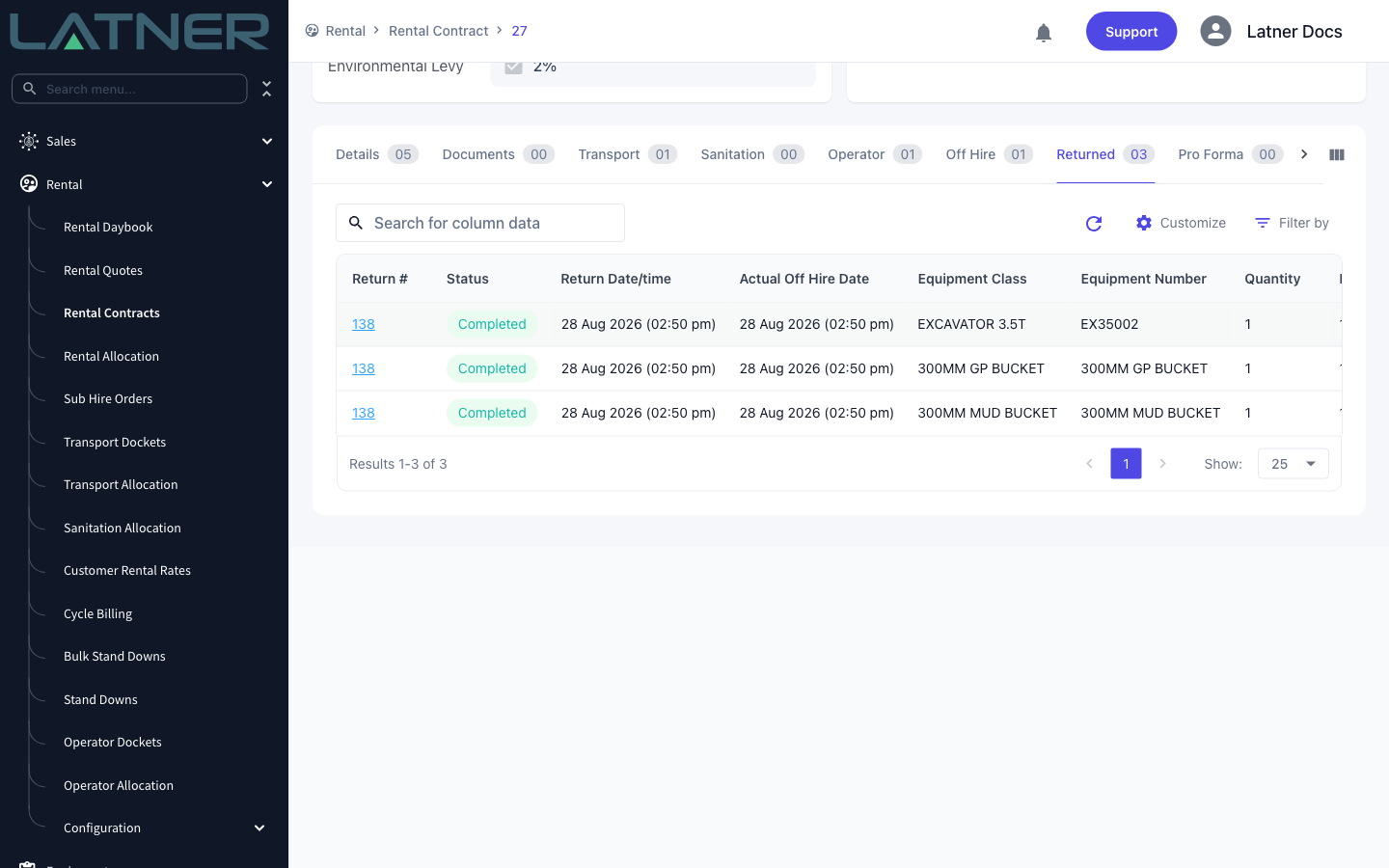
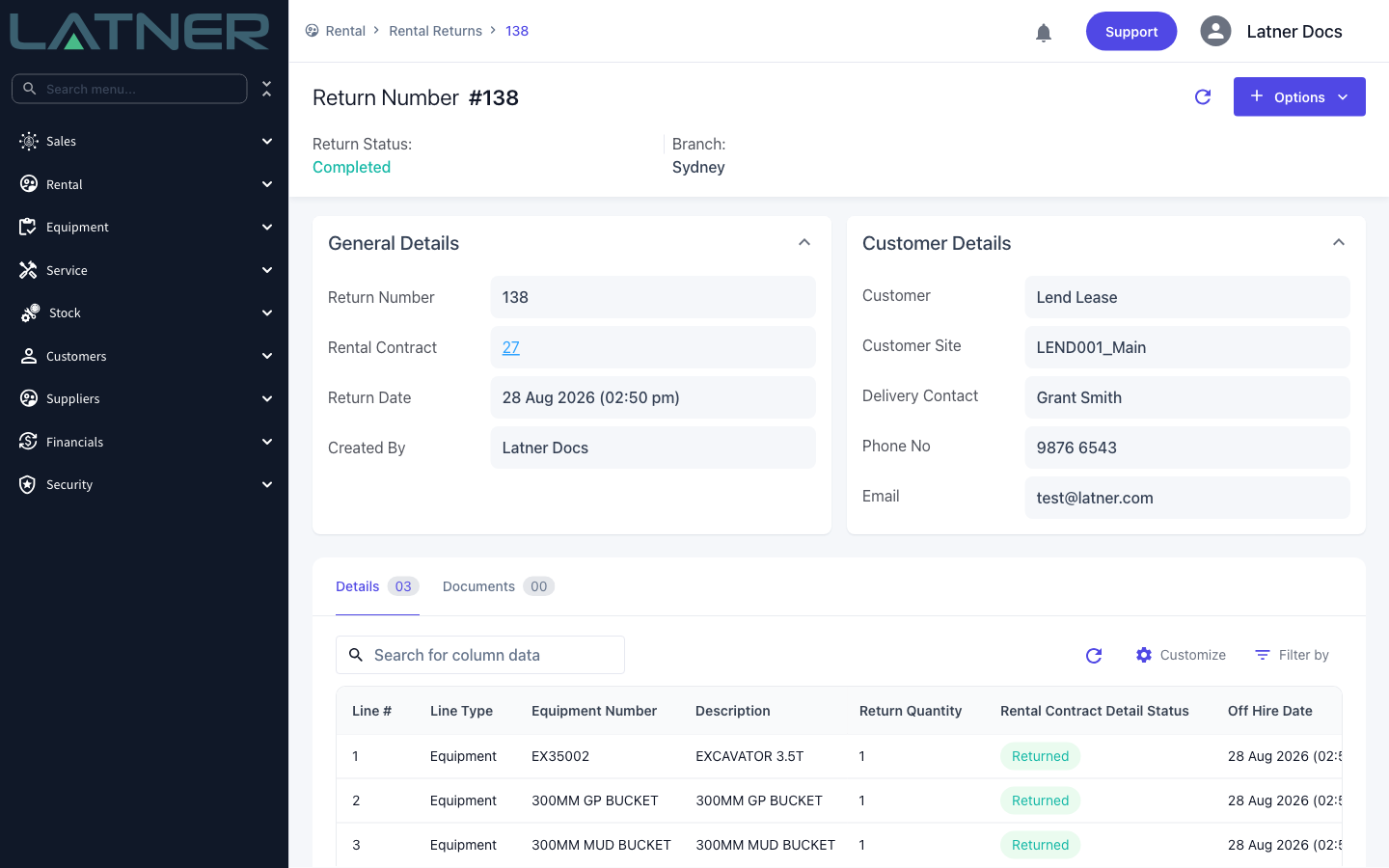
A Return record is created with a status of Completed, and appears on the contract's Returned tab. Click the Return # to open it.
-
Any line that was still On Rent is off hired first, so a matching Off Hire record appears on the Off Hire tab dated to the Actual Off Hire Date. No pick up docket is created by this route.
-
The equipment's quantity moves from on rent back to available at the Return Branch. Where that differs from the unit's home branch, cross branch return movements are recorded against both branches and the unit's current branch is updated.
-
Serialised equipment goes to Available, or to Return Inspection when Create Return Inspection after Rental Return is on and the model or class requires one. In that case an open return inspection is raised and the contract line's sub status becomes Pending Return Inspection.
-
The Return Meter Reading is saved as a meter reading against the equipment and becomes its current reading, which feeds meter based service schedules.
-
New charge lines may be added to the contract, all in Pending status ready for the next invoice: a Fuel line priced at the fuel type's retail price, and an Excess Hours admin line when the meter reading exceeds the line's max daily hours across the days on rent.
-
If the returned unit was needed on another contract, Latner promotes the earliest waiting pre-allocated line to reserved automatically.
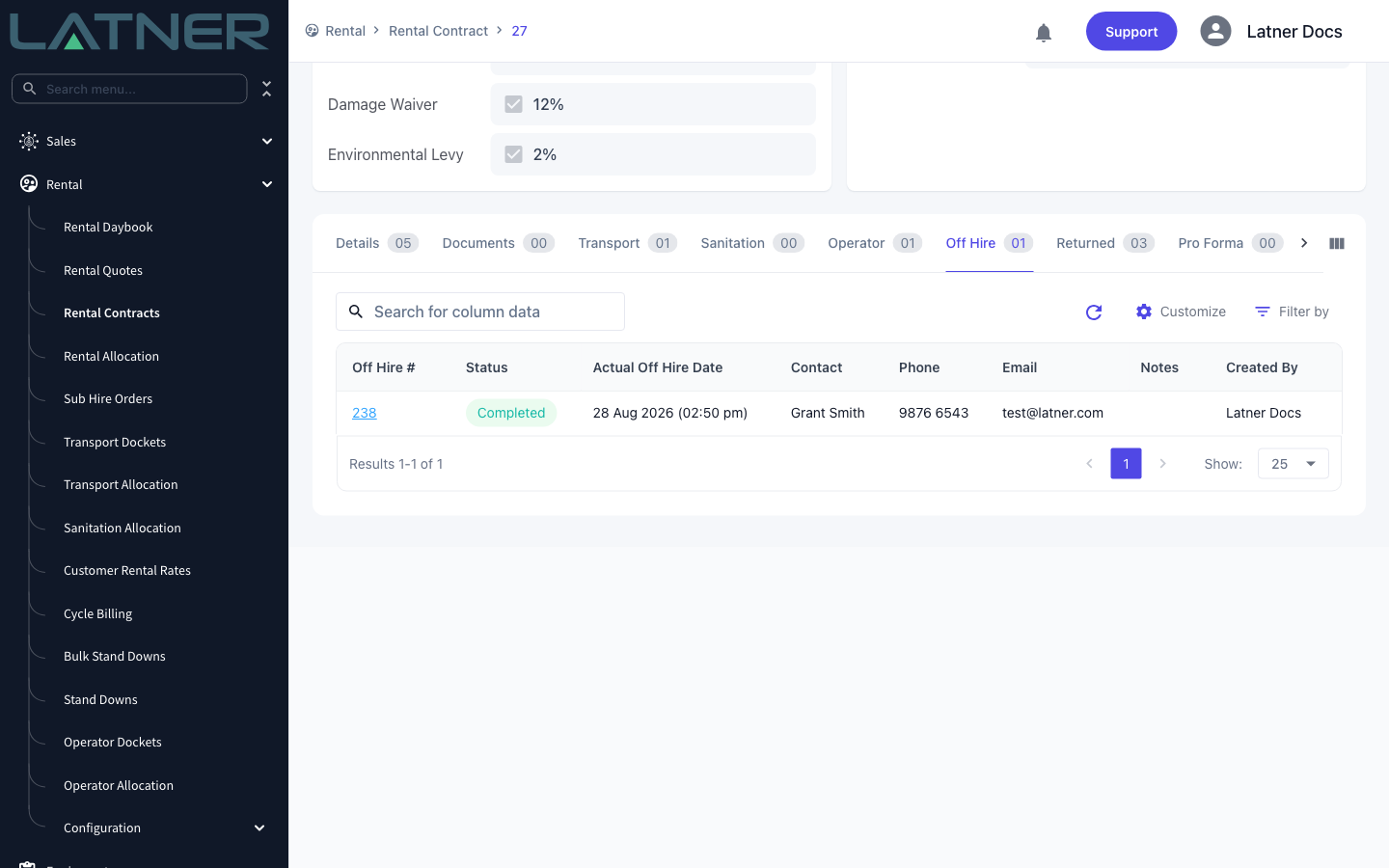
Rental billing runs to the Actual Off Hire Date, not the Return Date, so getting the off hire date right matters more than the return date does. If you set it wrong, don't process a second return - cancel the return from the return record's Options menu and start again, or use Change Return Date if only the return date needs moving. Both options are only available while the contract is still Active.
Returning on a Mobile Device
Returns don't have to be done at a desk. The mobile return screen is built for the yard, so the person unloading the truck can process the return on their phone as the gear comes off. On a mobile device go to Rental › Rental Returns, choose the contract, then tap a line to open its Return Detail form.
It captures everything the desktop screen does - Quantity Returned, Return Meter Reading and Fuel to Bill (Litres) - plus a few things the desktop screen can't:
-
Damage Check Required - ticking it adds a damage line to the contract for someone to price up later.
-
Notes - free text recorded against that individual line and shown on the return record.
-
Photos of the equipment as it comes back, which land on the return record's Documents tab.
-
Additional Return Charges - admin, damage and fuel charge lines added on the spot, available when Allow Additional Mobile Rental Return Charges is switched on.
For the full walkthrough, see How to Complete a Return on a Mobile Device.
The mobile return uses the Return Date as the off hire date as well, so the two are always the same and rental billing stops the moment the gear is booked back in. Where the hire actually stopped earlier than the equipment came back, process the off hire on the desktop first, then complete the mobile return.
FAQs
Watch the Demo
Prefer to watch it? Step through the same flow here.