
Mobile Return lets your yard and field staff hand equipment back onto a rental contract from a phone, recording the quantity, meter reading, fuel and any damage at the moment the gear comes off the truck.
Overview
Returning equipment is the point where the yard and the office finally agree on what came back. Doing it on the phone, while the machine is still in front of you, is what keeps that agreement honest.
-
The Rental Returns screen lists the rental contracts that have equipment waiting to come back, so you don't have to go looking for the contract number.
-
You confirm each equipment line one at a time, entering the quantity returned and, where they apply, the return meter reading and the fuel to be billed.
-
Photos and videos taken on the phone attach to the contract line as you go.
-
Equipment that is still On Hire is off hired for you as part of the return, using the same date and time.
-
Finishing the return creates the rental return, moves the equipment back into available stock at the return branch, and adds any fuel, excess hours, damage and additional charge lines to the contract.
Before You Begin
Mobile Return needs a couple of permissions, and several settings change what you are asked for on the return form.
|
Requirement |
Where to Find It |
|---|---|
|
Mobile Returns permission - lets the user open the screen |
Security › Permission Groups › Rental › Screens |
|
Create Return permission - lets the user finish the return |
Security › Permission Groups › Rental › Options |
|
Create Off Hire permission - only needed when returning equipment that is still On Hire |
Security › Permission Groups › Rental › Options |
|
Record Fuel to Bill in - must include Rental Return for the fuel field to appear |
Security › Settings › Rental |
|
Enforce Meter Reading for Rental Return - makes the meter reading compulsory |
Security › Settings › Rental |
|
Rental Return Fuel to Bill Required - makes the fuel figure compulsory |
Security › Settings › Rental |
|
Allow Additional Mobile Rental Return Charges - adds the charge section to the return form |
Security › Settings › Rental |
|
Auto Complete Pickup Dockets when Returning Equipment - needed to return equipment with an open pick up docket |
Security › Settings › Rental |
|
Create Return Inspection after Rental Return - raises a return inspection instead of freeing the equipment straight away |
Security › Settings › Equipment |
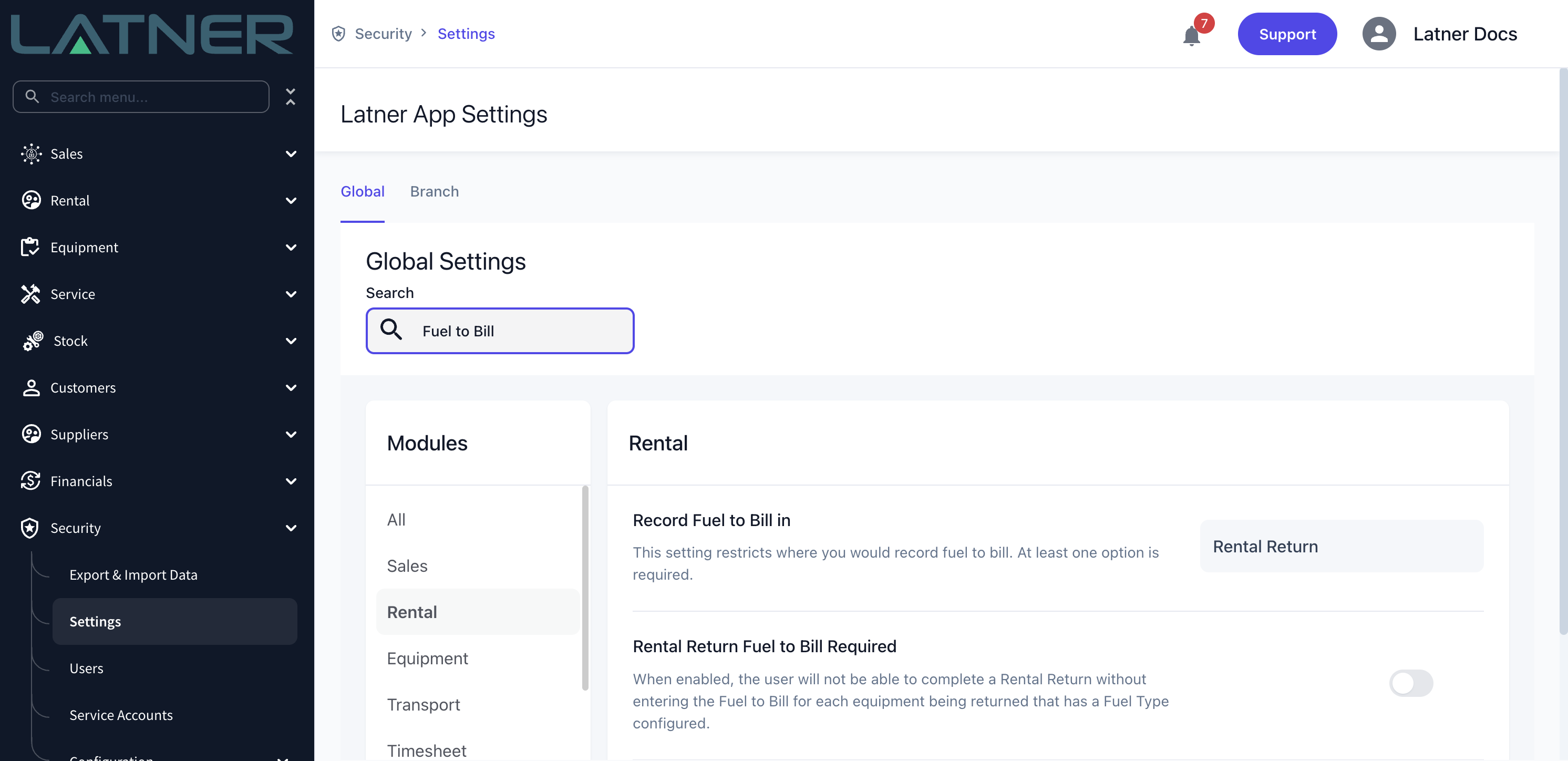
Record Fuel to Bill in decides where fuel is captured, not whether it is captured. If it lists only Return Inspection, the Fuel to Bill (Litres) field never appears on the mobile return and your team records fuel on the return inspection instead.
Returning Equipment
Step 1 - Open the Rental Returns screen
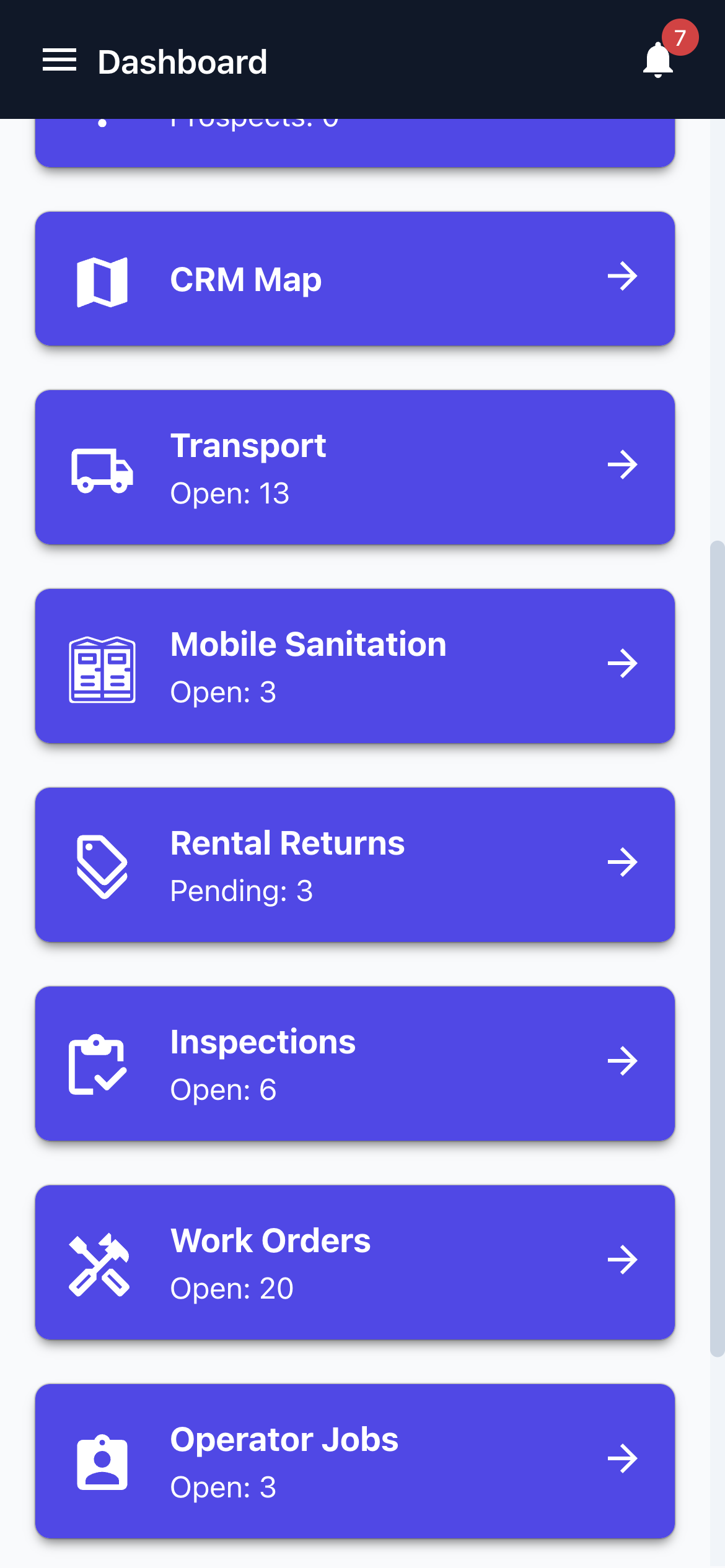
Tap Rental Returns on the mobile dashboard, or open it from the menu. The card on the dashboard shows how many contracts at your branch are waiting on a return.
Step 2 - Find the contract
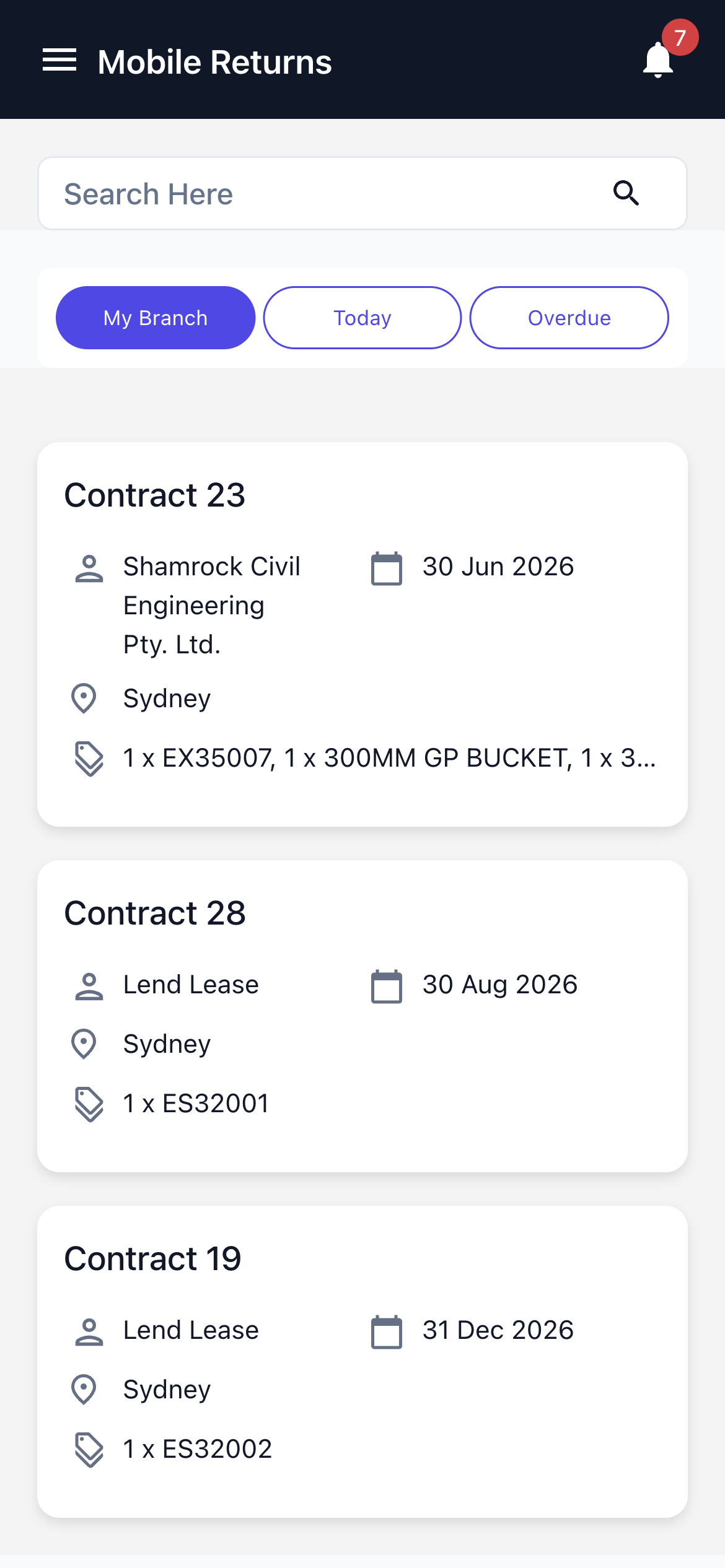
The list shows every rental contract with at least one line that is Off Hire, Pending Return or Pending Pick Up, sorted by expected off hire date. Each card shows the contract number, the customer, the branch, the expected off hire date and a tally of the equipment waiting to come back.
Three tabs narrow the list, and you can combine them with the search:
-
My Branch - contracts on your own branch. This is on by default.
-
Today - contracts expected off hire today.
-
Overdue - contracts whose expected off hire date has already passed.
Step 3 - Check the return information
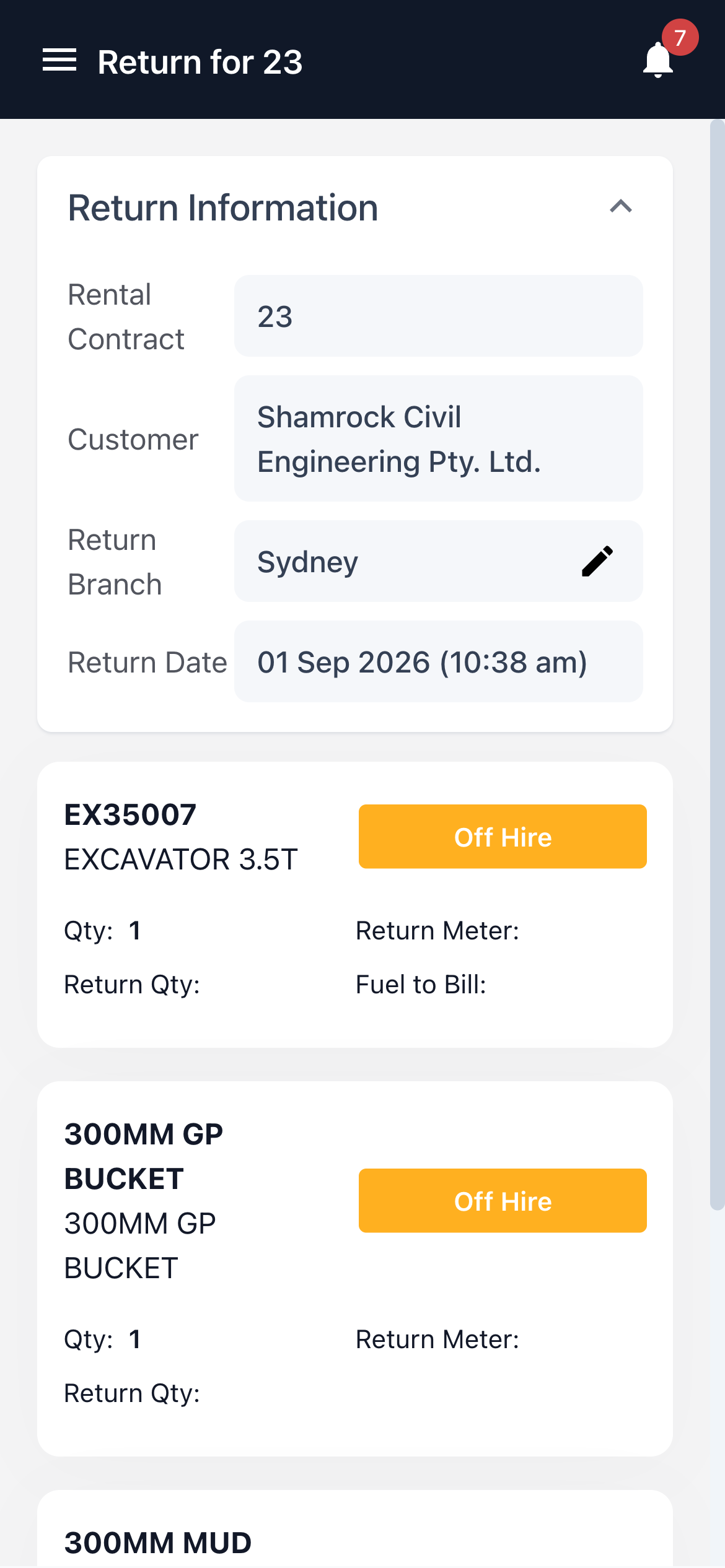
Tapping a contract opens the return, headed Return for the contract number. Return Information holds the details that apply to the whole return:
-
Rental Contract - the contract you are returning against. Read only.
-
Customer - taken from the contract. Read only.
-
Return Branch - defaults to the contract's branch, and is the branch the equipment goes back into. Change it if the gear is coming back to a different yard.
-
Return Date - set to the current date and time, and used as the off hire date for anything still On Hire.
Step 4 - Confirm each equipment line
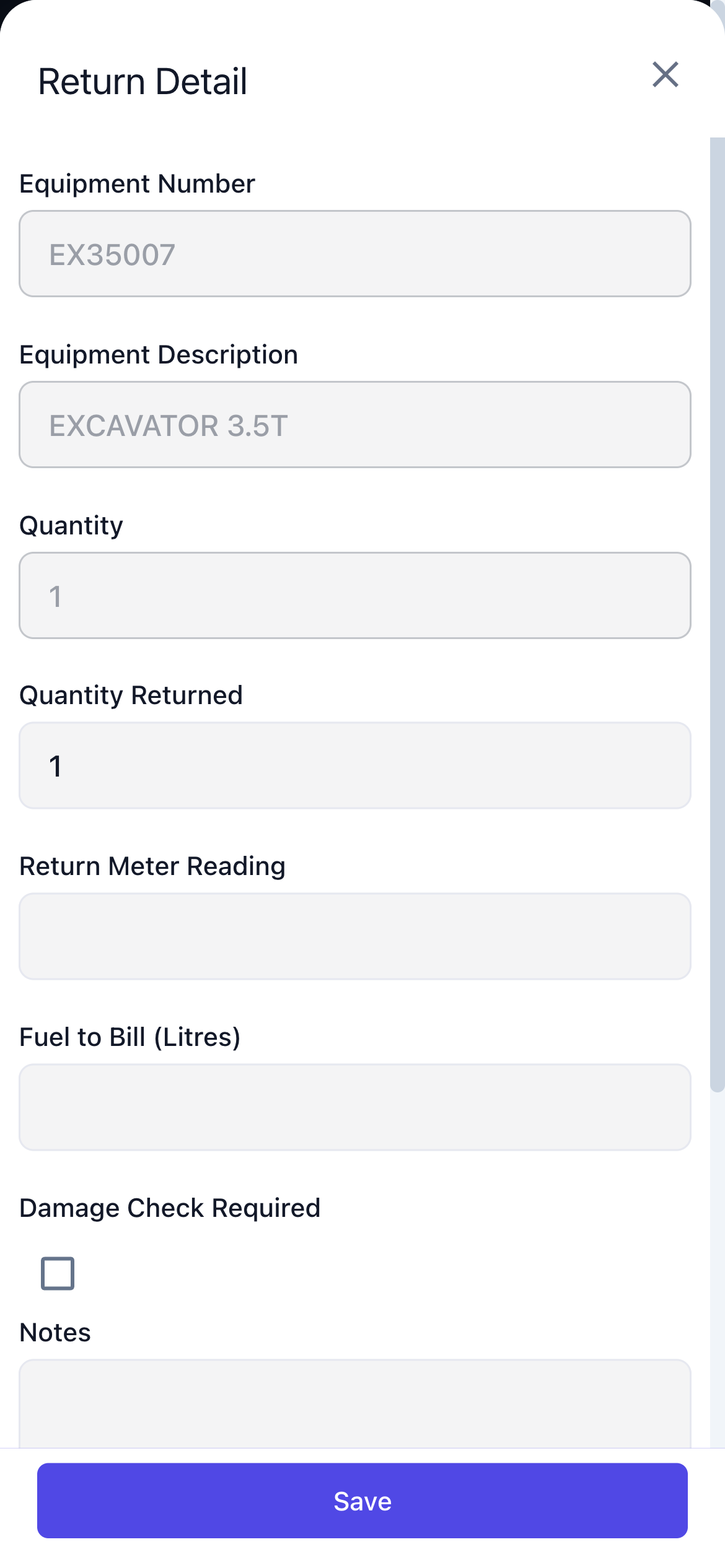
Below Return Information you'll see a card for every line on the contract that can be returned, with its equipment number, description, quantity and current status. Tap a card to open the Return Detail form.
-
Quantity Returned - how many are coming back. Defaults to 1 on single-quantity lines and cannot be more than the quantity on hire. Leave it at zero and the line is left on hire.
-
Return Meter Reading - appears only when the equipment class has a meter type, and must be equal to or greater than the equipment's current reading.
-
Fuel to Bill (Litres) - appears only when the equipment model has a fuel type and Record Fuel to Bill in includes Rental Return.
-
Damage Check Required - tick this when the machine needs looking at. It adds a damage line to the contract.
-
Notes - anything the office needs to know about this line.
Photos and videos you add here attach to the contract line straight away, before the return is finished.
Step 5 - Add any additional return charges
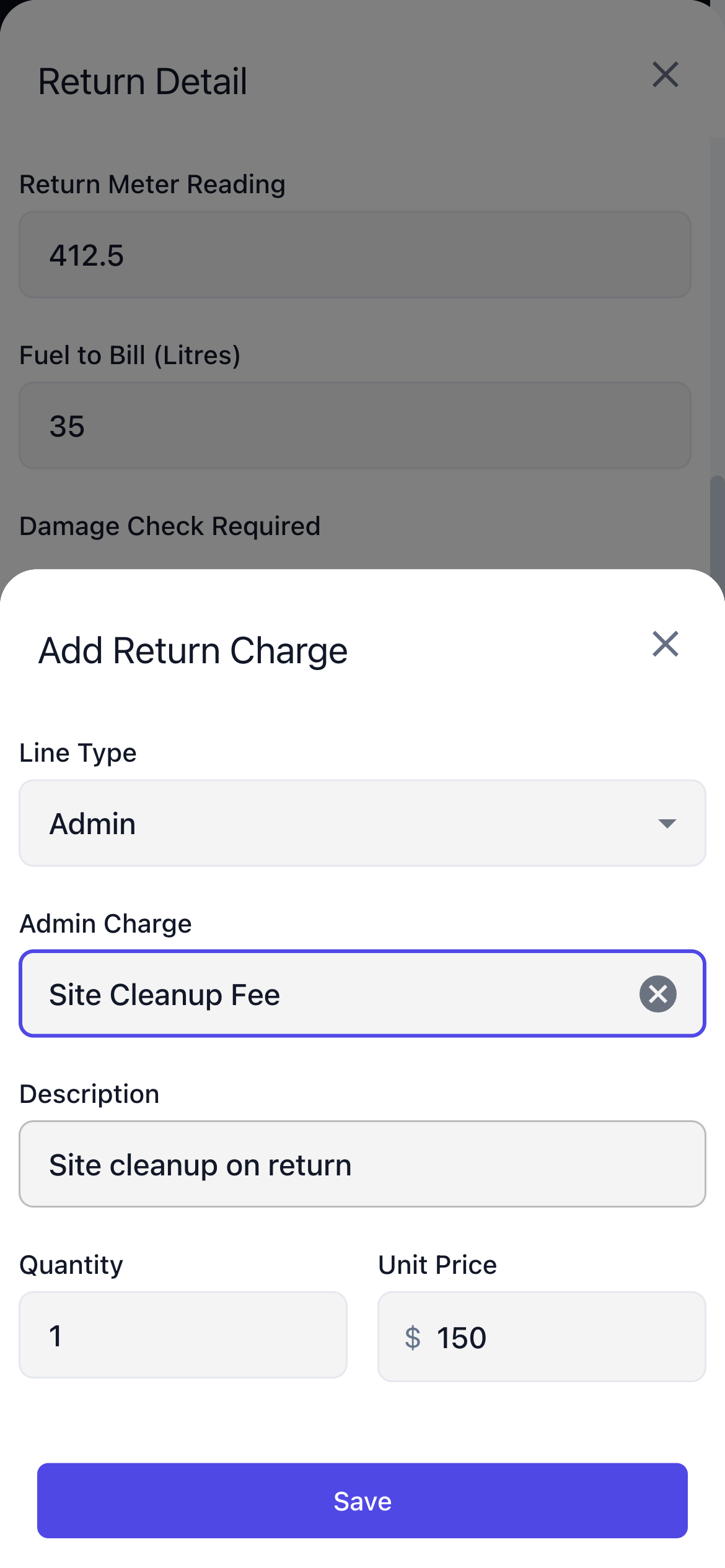
When Allow Additional Mobile Rental Return Charges is enabled, the return form carries an Add Return Charge button. Tap it and choose a Line Type of Admin, Damage or Fuel. Admin lines ask for an Admin Charge and fuel lines for a Fuel Type, each of which fills in the description and unit price for you; damage lines need a description of their own. Saved charges are listed under Additional Return Charges on the form, and are added to the contract when you finish the return.
Step 6 - Save the line
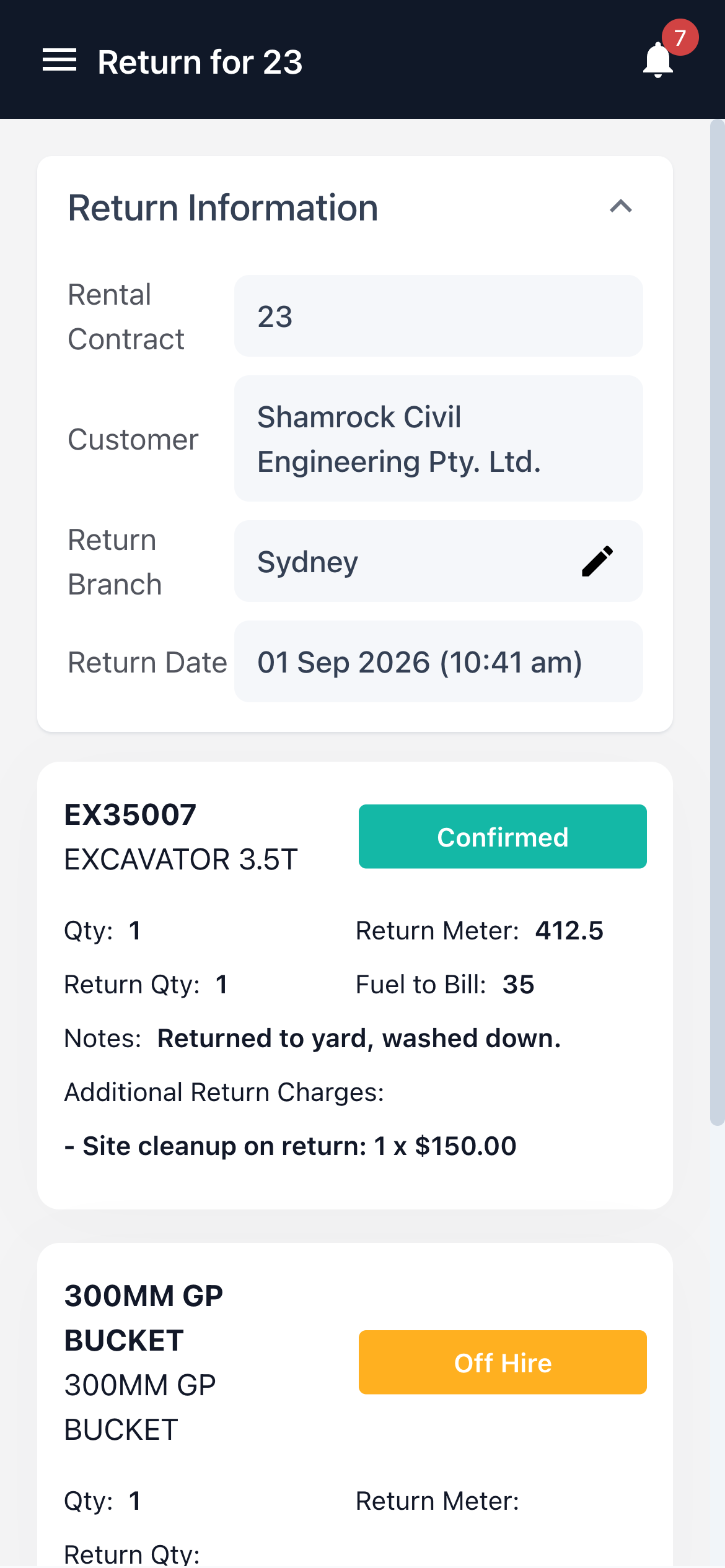
Tap Save. The line's status changes to Confirmed and the card now shows the quantity returned, the meter reading, the fuel and any charges you added. Repeat for every line coming back on this trip - anything you don't confirm stays on hire.
Step 7 - Finish the return
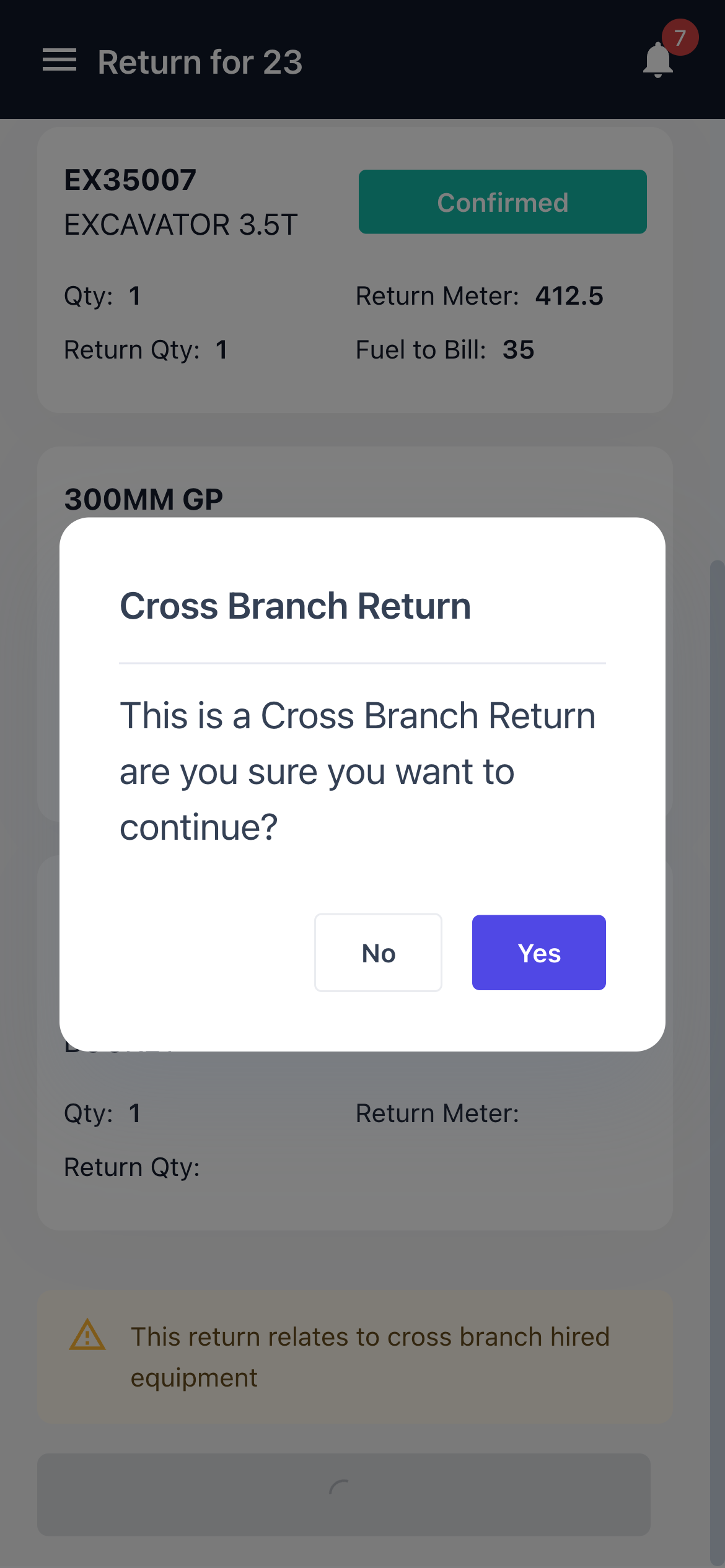
Tap Finish Return. The button stays greyed out until at least one line is confirmed. If any of the confirmed equipment belongs to a branch other than the return branch, the screen warns you that the return relates to cross branch hired equipment and asks you to confirm before it goes through.
After the Return
-
A rental return is created against the contract, dated with the return date and branch you entered.
-
Each returned line moves to Returned, and the returned quantity moves out of on hire and into available stock at the return branch.
-
Equipment that was still On Hire is off hired first, using the return date and time. This needs the Create Off Hire permission.
-
If Auto Complete Pickup Dockets when Returning Equipment is enabled, any open internal pick up dockets for those lines are completed for you.
-
Fuel entered against a line adds a fuel line to the contract, priced at the fuel type's retail price.
-
Where the meter reading, the excess hours rate and the maximum daily hours are all set on the line, any hours over the allowance are added as an excess hours admin line.
-
Ticking Damage Check Required adds a damage line described as "Damage check required" to the contract.
-
If Create Return Inspection after Rental Return is enabled and the equipment model or class is set up for return inspections, an open return inspection is raised and the returned line takes a sub status of Pending Return Inspection. Otherwise the equipment goes straight back to Available.
-
Returning part of a line splits it: the returned quantity becomes a Returned line and the balance stays on a new line in its original status.
Finishing a return is not something the phone can undo. The rental return has to be cancelled from the desktop with Cancel Rental Return, and that is only possible while the contract is still active, every returned line is still at Returned, and the equipment is available or in return inspection - so it can't be reversed once the gear has gone out again.
FAQs
Watch the Demo
Prefer to watch it? Step through the same flow here.