
Cancelling a return reverses it, taking the equipment back out of your yard's available stock and putting the rental contract line back at Off Hire so the return can be recorded again properly.
Overview
Returns get processed on the strength of what the yard says came in, and sometimes the paperwork catches up a day later - wrong meter reading, wrong branch, wrong machine, or the gear never actually came back. Cancelling the return unpicks all of that in one step so you can record the real one.
-
Cancelling is all or nothing. There's no line selection, so every item on the return is reversed together.
-
Each contract line goes back to Off Hire, not On Rent. The off hire that preceded the return is left alone, and the Actual Off Hire Date is kept.
-
The return's Return Date is cleared off the contract lines, the meter reading taken at return is deleted, and the equipment's current meter reading rolls back to the reading before it.
-
Equipment quantities move back out of available and onto rent at the original branch, and serialised equipment goes back to Off Rent.
-
Open return inspections raised by the return are deleted. Inspections already completed or awaiting approval are left as they are.
-
The return record isn't deleted. It stays on the contract's Returned tab as Cancelled, so the history of what was recorded and reversed is still there.
-
Once cancelled, the line can be returned again straight away - a line at Off Hire is ready to return.
Before You Begin
Cancelling a return needs the right permission, and both the contract and the equipment have to be in a state that can still be reversed.
|
Requirement |
Where to Find It |
|---|---|
|
Cancel Rental Return permission |
Security › Configuration › Permission Groups › your group › Rental › Option |
|
Rental Contracts permission, so you can open the contract and the return record behind it |
Security › Configuration › Permission Groups › your group › Rental › Screen |
|
Access to the branch the return was booked into |
The Branch shown on the return, checked against your user's branches |
|
A rental contract in Active status |
Rental › Rental Contracts |
|
A return in Completed status whose contract lines are all still Returned |
The contract's Returned tab |
|
The equipment still sitting in the yard - not already back out on another contract |
Equipment › Equipment, the Rental Status of each item on the return |
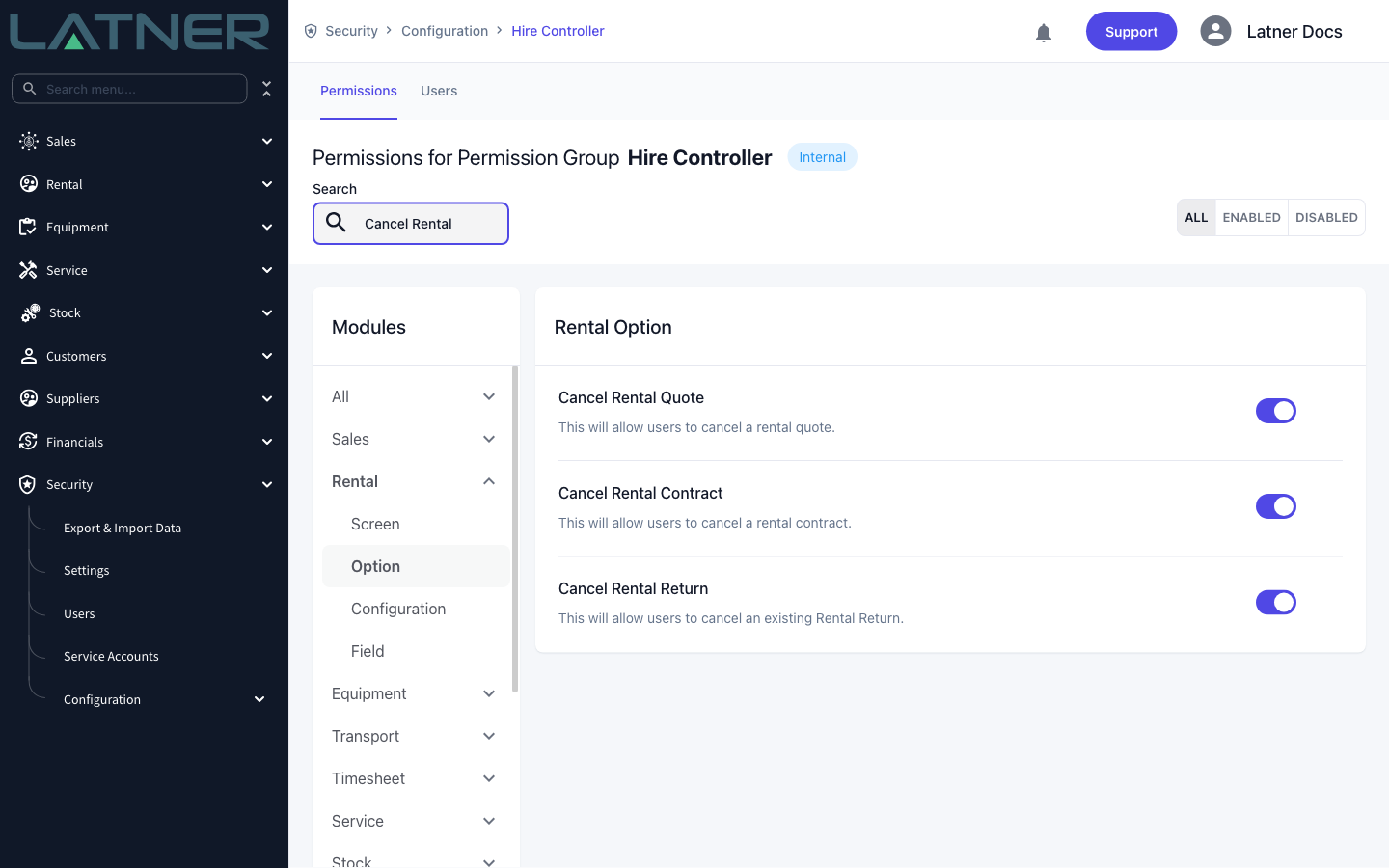
Without the permission, Cancel Rental Return isn't in the Options menu at all. If it's there but greyed out, the problem is record state, not permissions - either the return is already Cancelled, or the rental contract isn't Active. Hovering the greyed out option tells you which: Only Returns for Active Rental contract can be Cancelled.
Cancelling the Return
Step 1 - Open the return from the rental contract
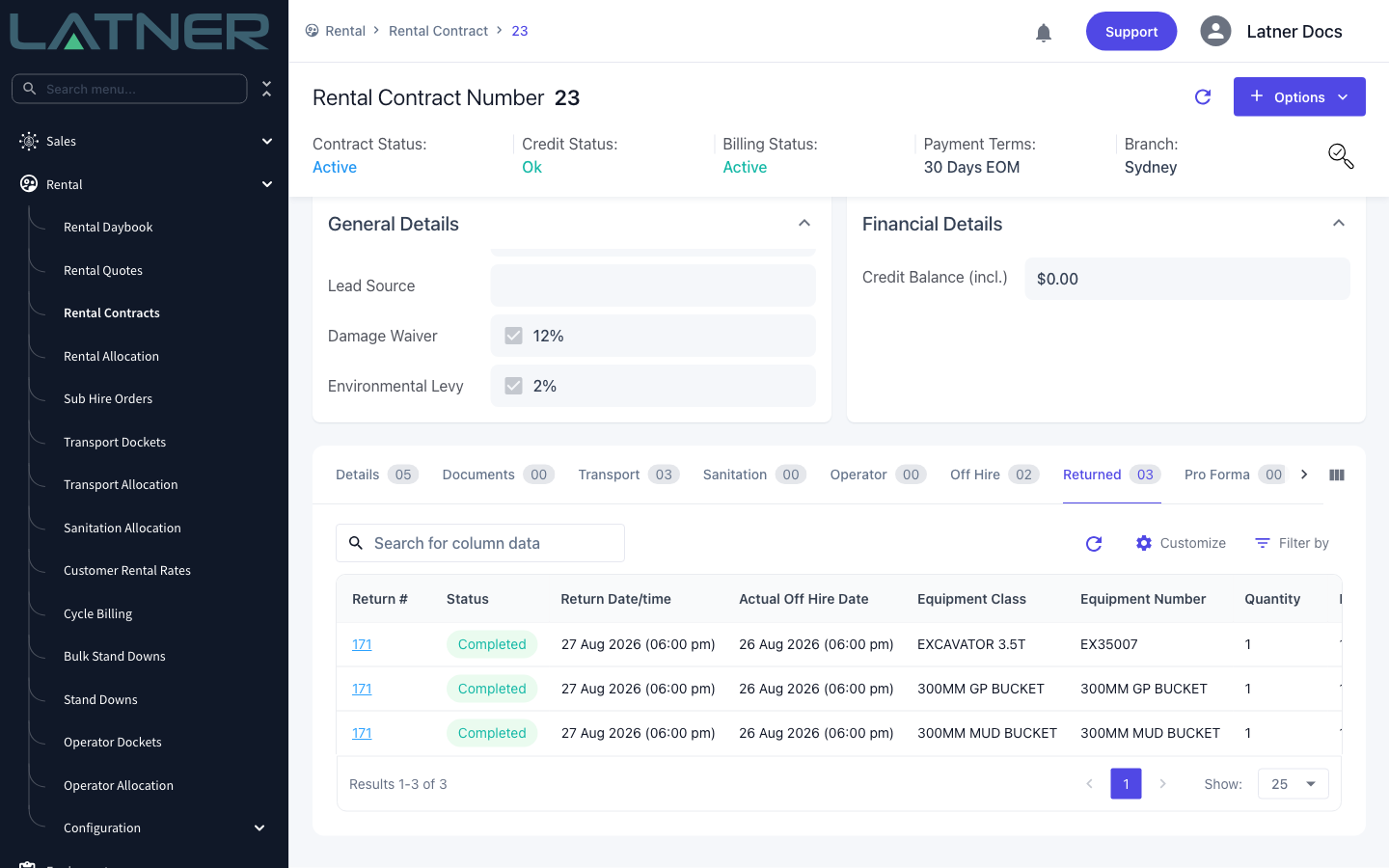
Open the rental contract and go to the Returned tab. Every item that has been returned on the contract is listed here with the return it belongs to. Click the Return # link to open the return itself - that's the only screen the cancel option lives on.
Step 2 - Check what the return covers
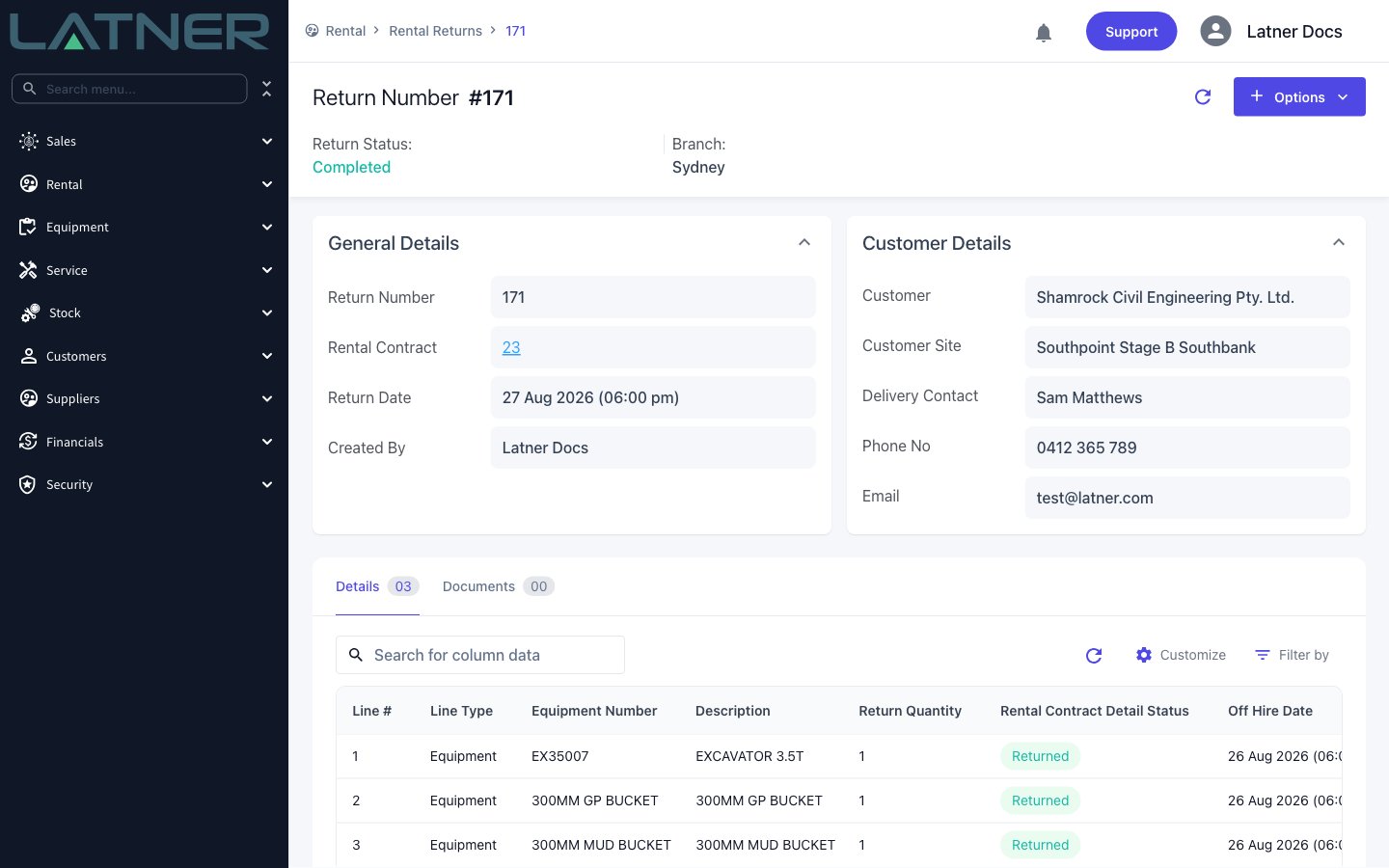
The return screen shows the whole return: its Return Status, the Branch it was booked into, the Return Date, and a Details tab listing every item, its return quantity and meter reading, and the contract line's current status. Read this before you cancel, because all of it goes back together.
-
Return Status - has to be Completed. A return that is already Cancelled can't be cancelled again.
-
Branch - the branch the equipment was returned into, and the branch the quantity is taken back out of.
-
Rental Contract Detail Status - every line has to still read Returned. If one has moved on, the cancellation is refused.
Step 3 - Choose Options › Cancel Rental Return
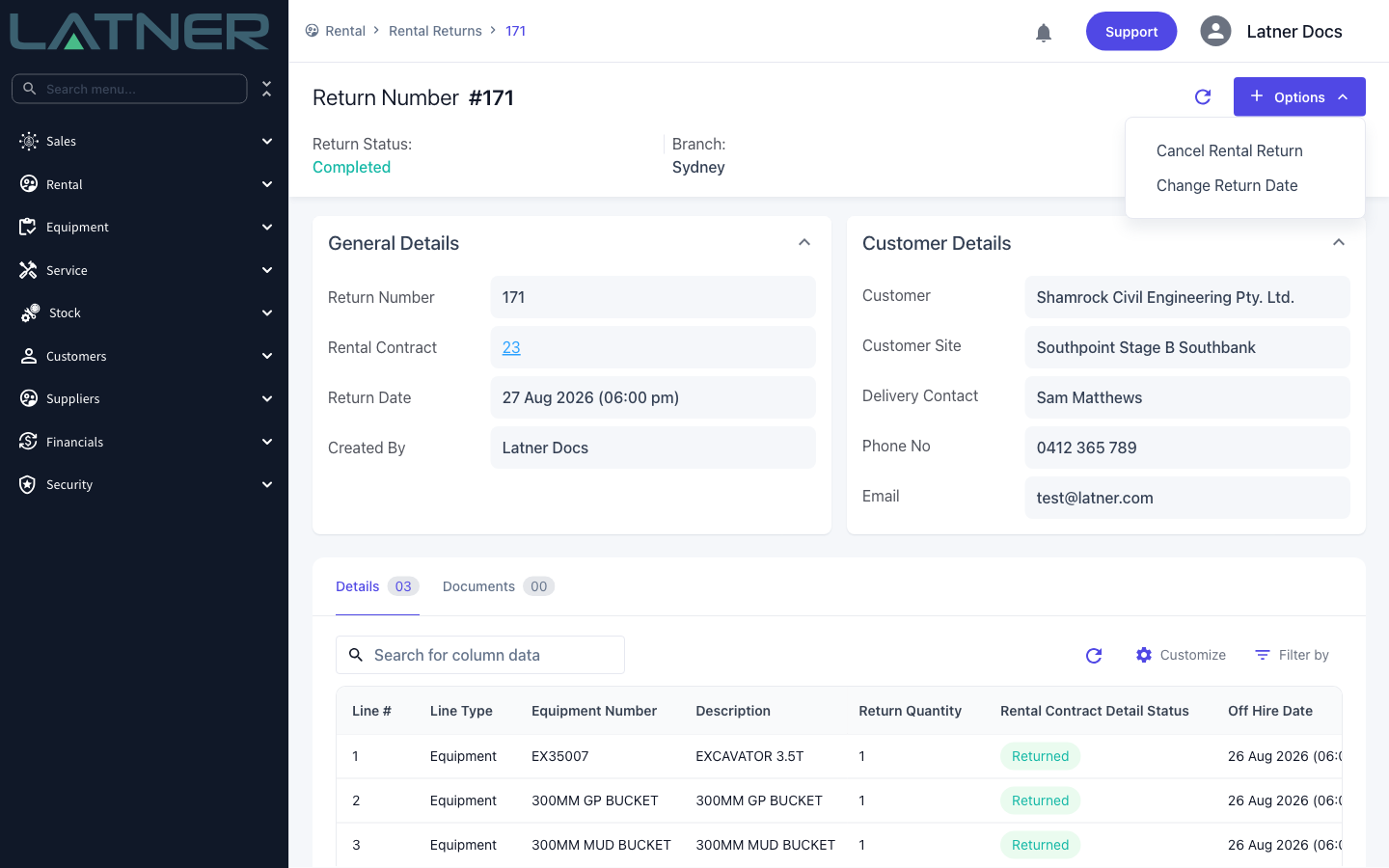
Click Options in the top right and choose Cancel Rental Return. There is nothing to fill in and nothing to tick - the whole return is reversed.
Step 4 - Confirm
Latner asks you to confirm. Click Confirm to reverse the return, or Cancel to back out and leave it as it is.
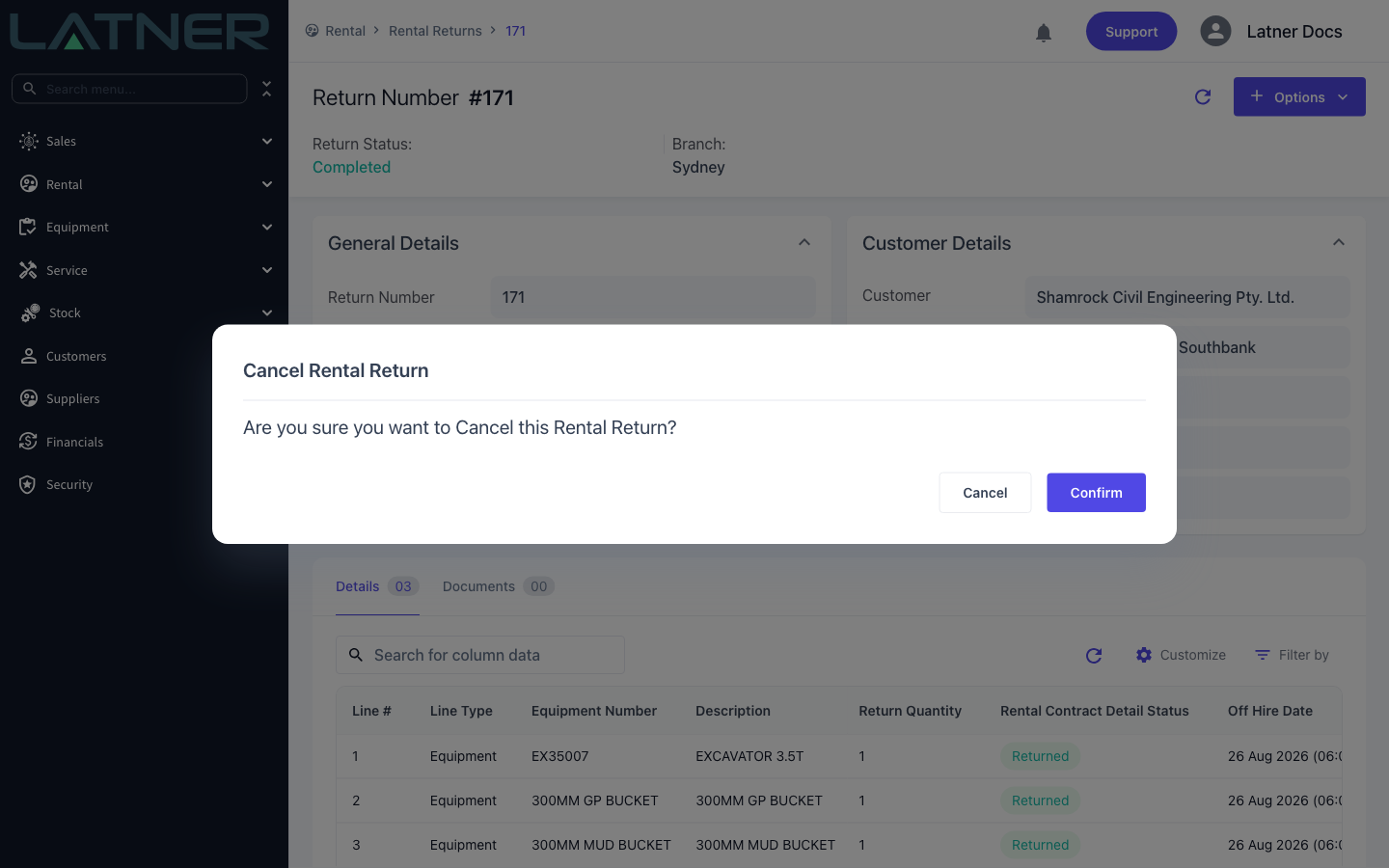
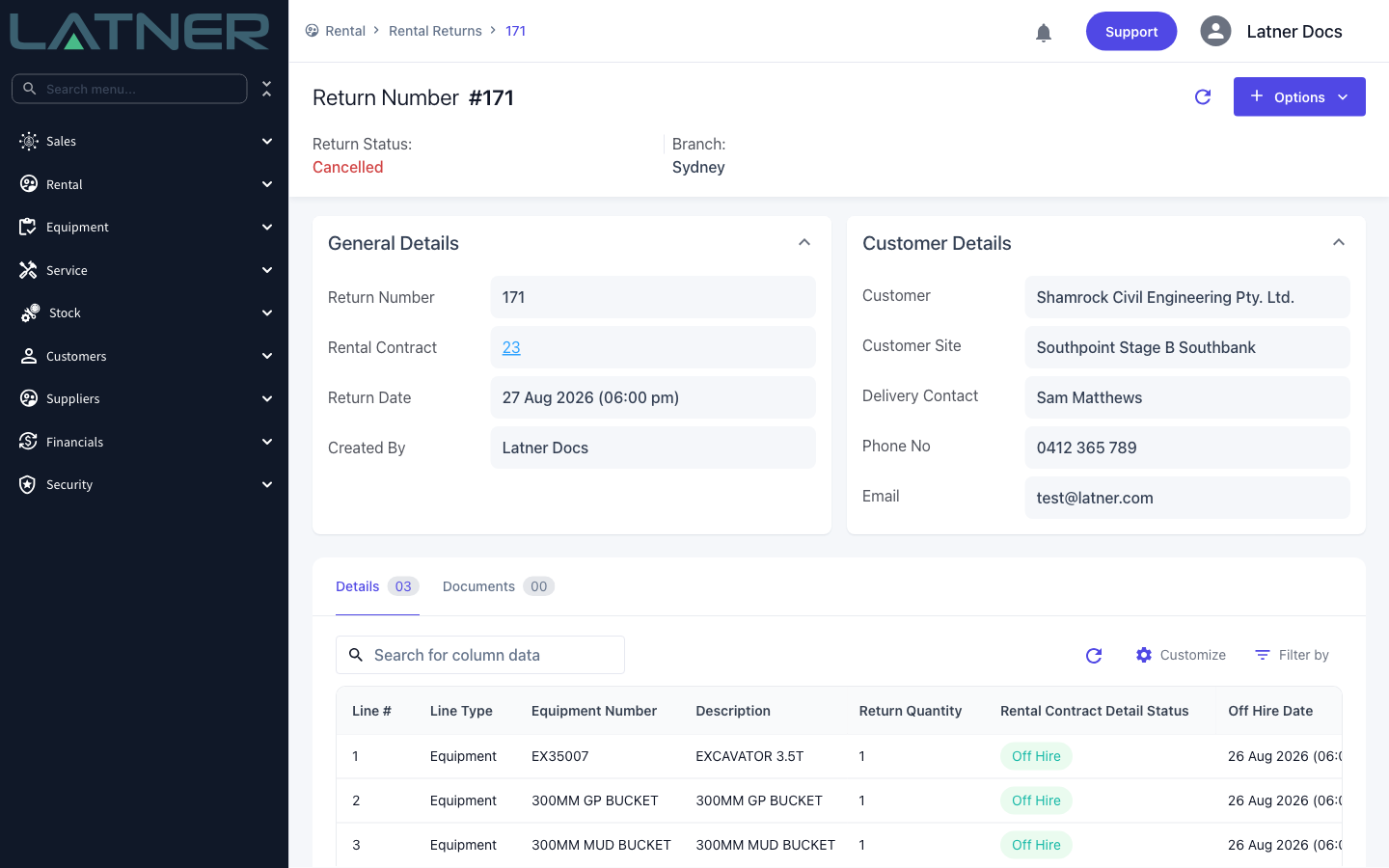
There's no success message. The screen refreshes in place, and the Return Status flipping to Cancelled is how you know it worked. If something blocked the cancellation you get a red error message instead, and nothing is changed - the whole reversal is one transaction, so it either all happens or none of it does.
After Cancelling
The return is now a historical record and the contract is back where it was before the return was processed.
-
The return reads Cancelled, and both Cancel Rental Return and Change Return Date are greyed out on it from here on.
-
Every contract line on the return is back at Off Hire with its Actual Off Hire Date intact, its return date cleared, and any pending return inspection or final invoice sub-status cleared.
-
The meter reading captured at return is gone, and the equipment's current reading is whatever it was before the return.
-
Serialised equipment reads Off Rent again and points back at the contract line. Bulk equipment quantities move back from available to on rent at the branch the equipment was rented from, and any cross branch return movements created by the return are removed.
-
Sub hire lines have their sub hire order and order line put back to Active.
-
The line is ready to be returned again - process a new return with the correct date, branch or meter reading.
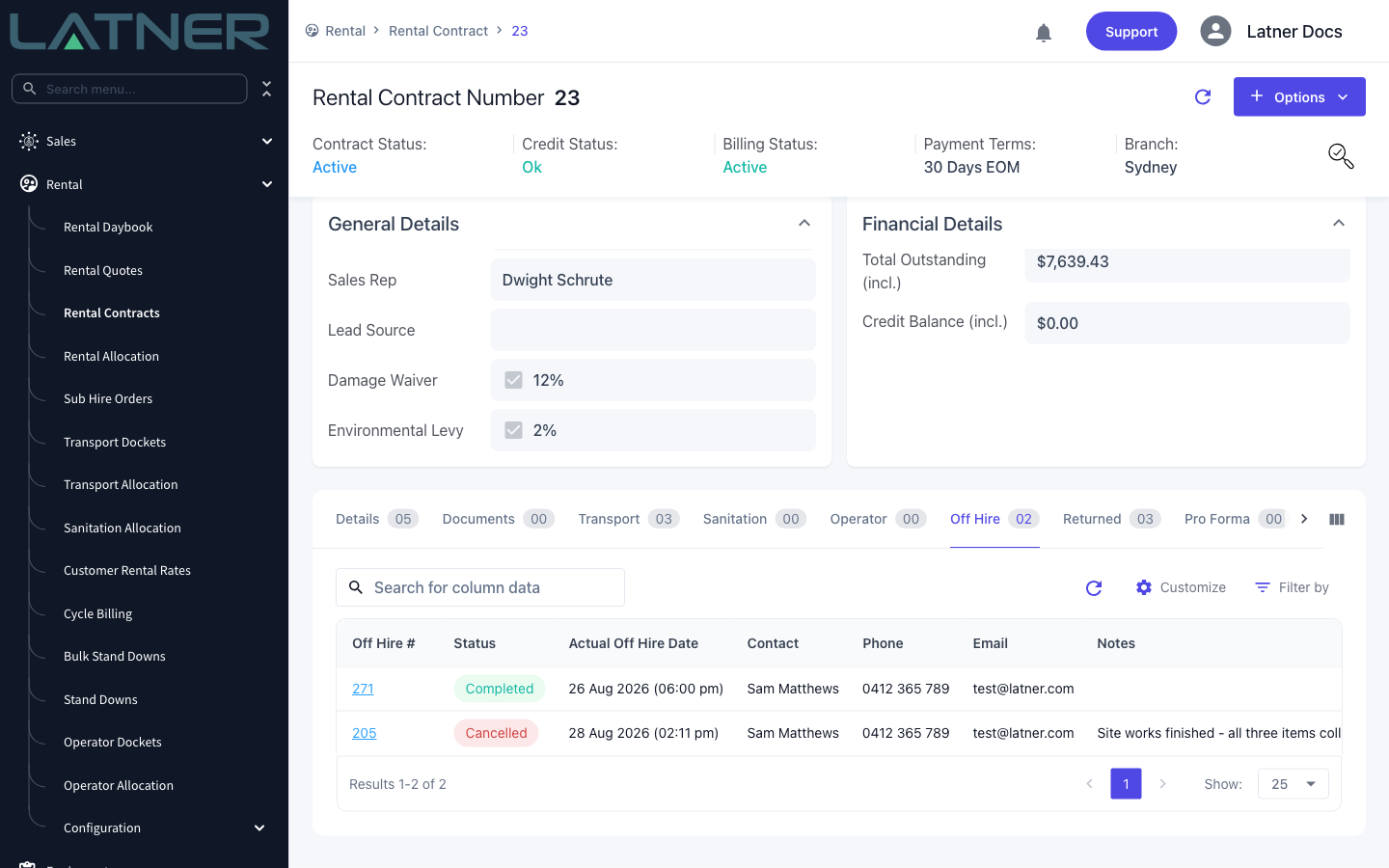
Cancelling the return does not cancel the off hire, even when the return created the off hire for you. The off hire stays Completed and the equipment stays at Off Hire, so charging does not start again. If the equipment is actually staying on site, cancel the off hire as well - use Options › Cancel Off Hire on the off hire record to put the line back on rent.
FAQs
Watch the Demo
Prefer to watch it? Step through the same flow here.