
An off hire records the moment a customer finishes with hired equipment, so rental charging stops on the right date and your yard knows the gear needs to come home.
Overview
An off hire is the customer saying "we're done with it" - not the machine actually being back on your lot. Latner keeps those two things apart on purpose, because the customer stops paying the day they finish, not the day your truck happens to get there.
-
The Actual Off Hire Date you enter is the date rental charging stops for the lines you select.
-
An off hire does not end the rental contract and does not return the equipment. The contract stays Active until the equipment is picked up and returned.
-
You can off hire a whole contract, a few lines, or part of a quantity. Anything you leave behind stays On Rent and keeps charging.
-
Latner can raise a Pick Up transport docket at the same time, so dispatch sees the collection immediately.
-
Every off hire creates its own numbered Off Hire record with its own status, notes and email history.
Off Hire or Return?
The two look similar on the contract, but they answer different questions. The off hire is about money: it records the date the customer stopped using the equipment, and rental charging stops there. The return is about custody: it records the equipment physically arriving back with you, captures the meter reading and condition, and puts the machine back into your available fleet so it can be hired out again.
Nearly every hire goes through both, in that order - off hire first, return when the gear is back on your lot. Off hiring on its own never makes equipment available again, no matter how long ago it happened. For the second half of the journey, see How to Process a Return.
Before You Begin
Check these before you start, or the Off Hire option won't be available.
|
Requirement |
Where to Find It |
|---|---|
|
Create Off Hire permission |
Security › Configuration › Permission Groups - Rental, Options |
|
Off Hires permission (to open the Off Hire record afterwards) |
Security › Configuration › Permission Groups - Rental, Screens |
|
A rental contract that is Active |
Rental › Rental Contracts |
|
At least one contract line still On Rent |
The contract's Details tab |
|
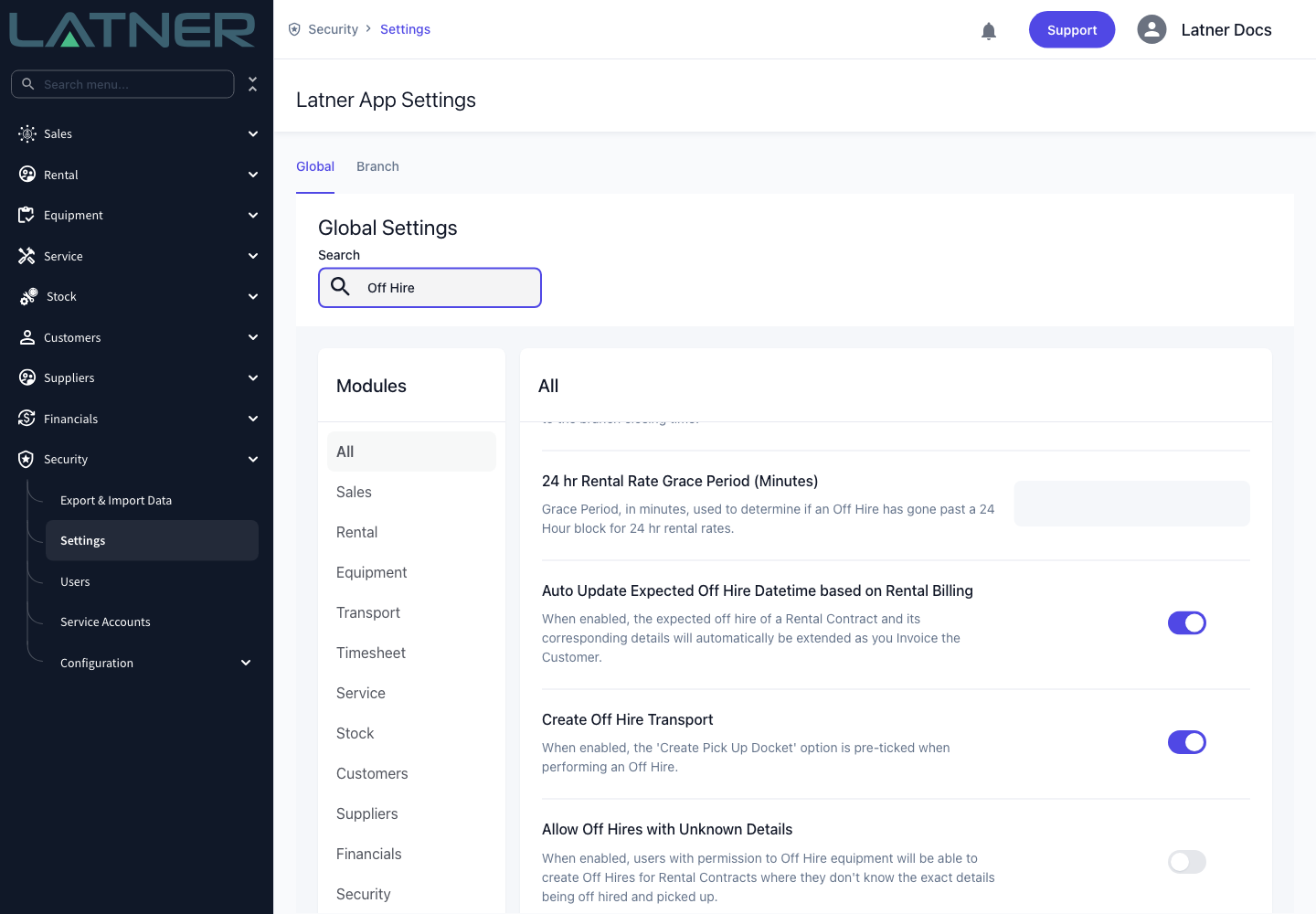
Create Off Hire Transport (pre-ticks Create Pick Up Docket) |
Security › Settings › Global - Rental |
|
Allow Off Hires with Unknown Details (optional) |
Security › Settings › Global - Rental |
|
Use Branch Closing Time as Default Off Hire Time (optional) |
Security › Settings › Global - Rental |
|
Allow Pre-Allocated Equipment (optional - lets off hired gear be booked onto a future contract) |
Security › Settings › Global - Rental |
If Off Hire is greyed out in the Options menu, hover over it. The tooltip tells you which of the two reasons applies: You do not have permission to do an off hire, or Nothing to Off Hire because no line is On Rent. The option is also unavailable on contracts that are Completed, Cancelled or Lost.
Processing the Off Hire
Step 1 - Open the rental contract
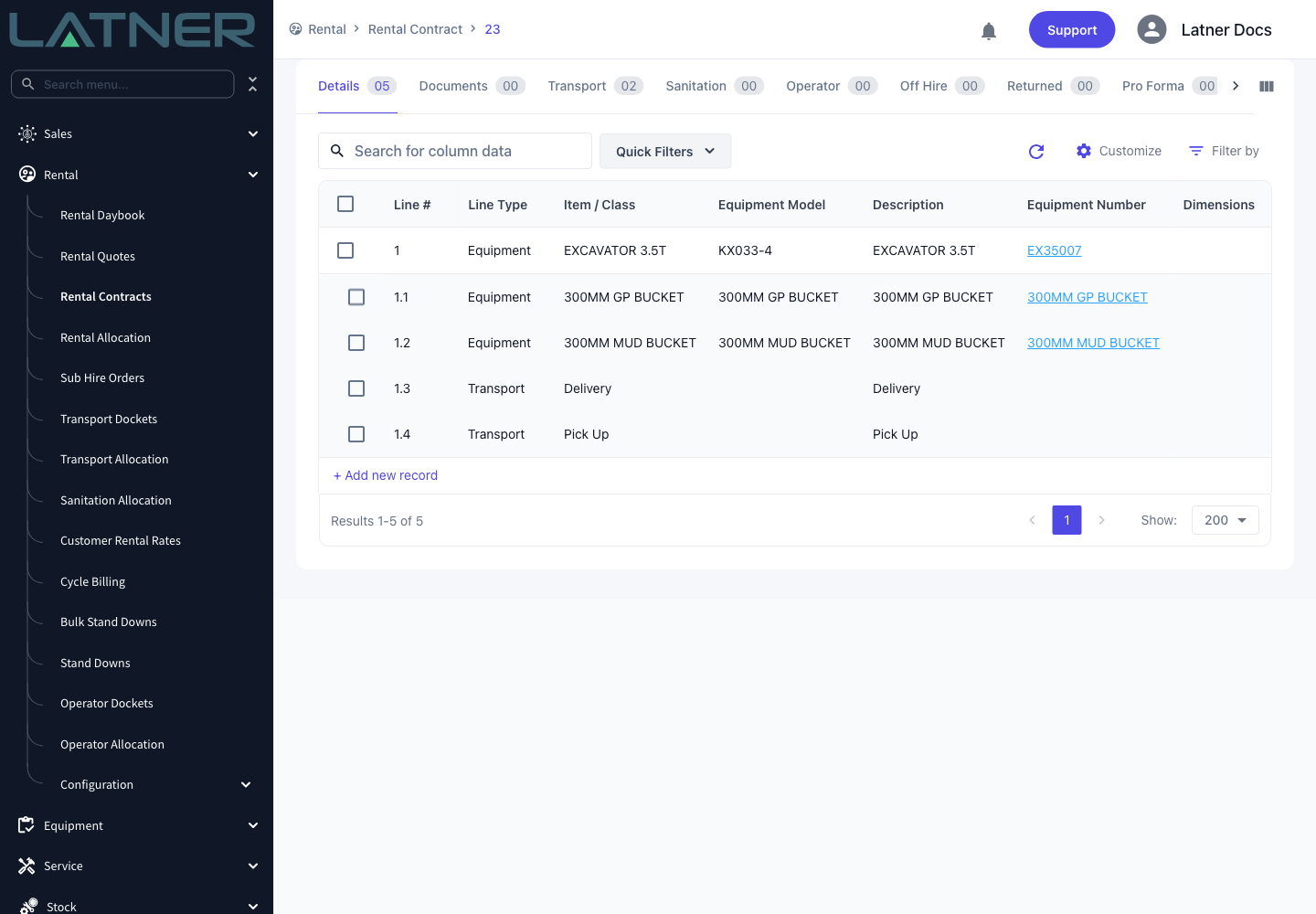
Go to Rental › Rental Contracts and open the contract the customer is finishing with. On the Details tab, check which lines are still On Rent - those are the only ones you can call off hire. Transport lines and lines already off hired or returned are left out of the form.
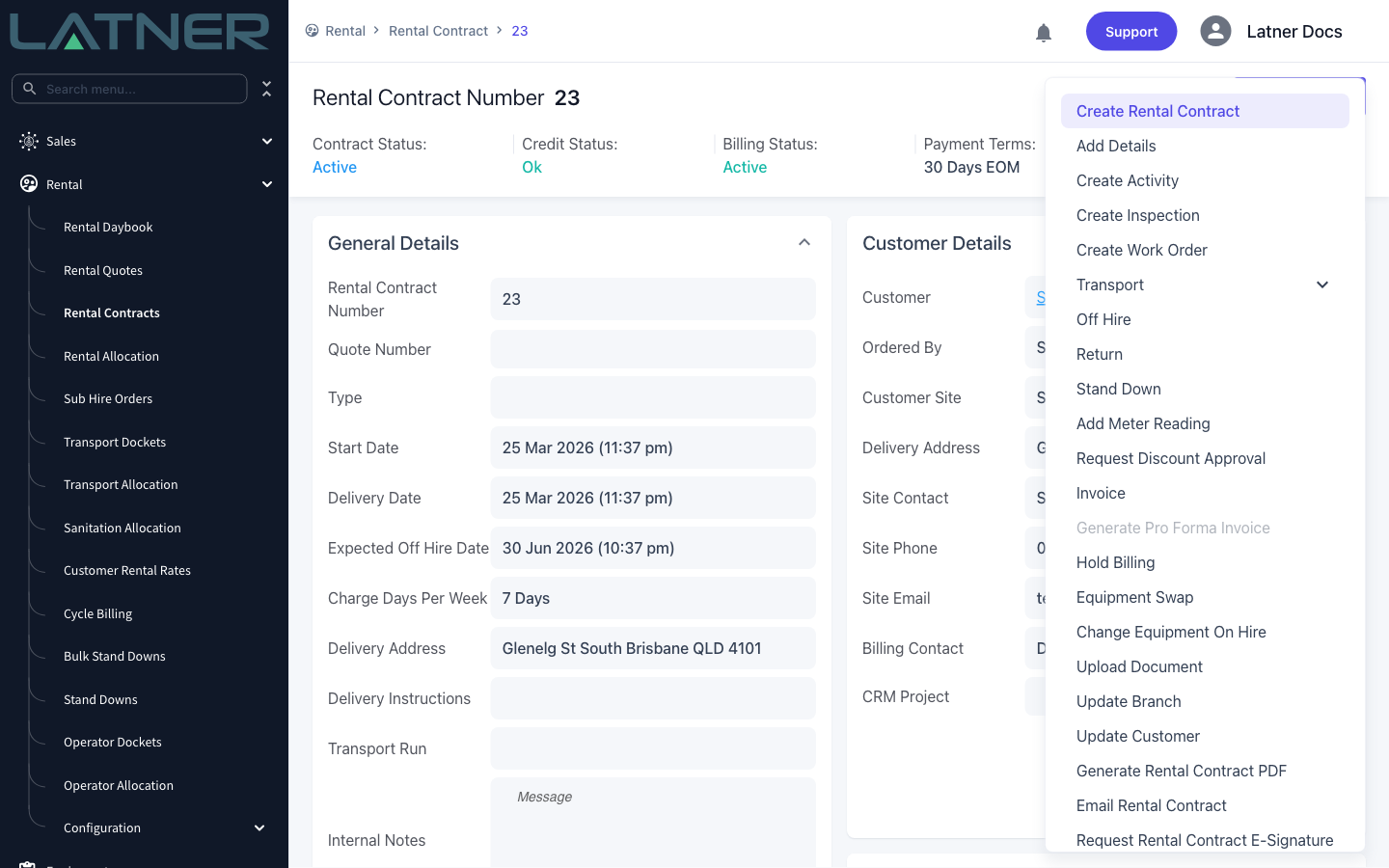
Step 2 - Choose Off Hire from the Options menu
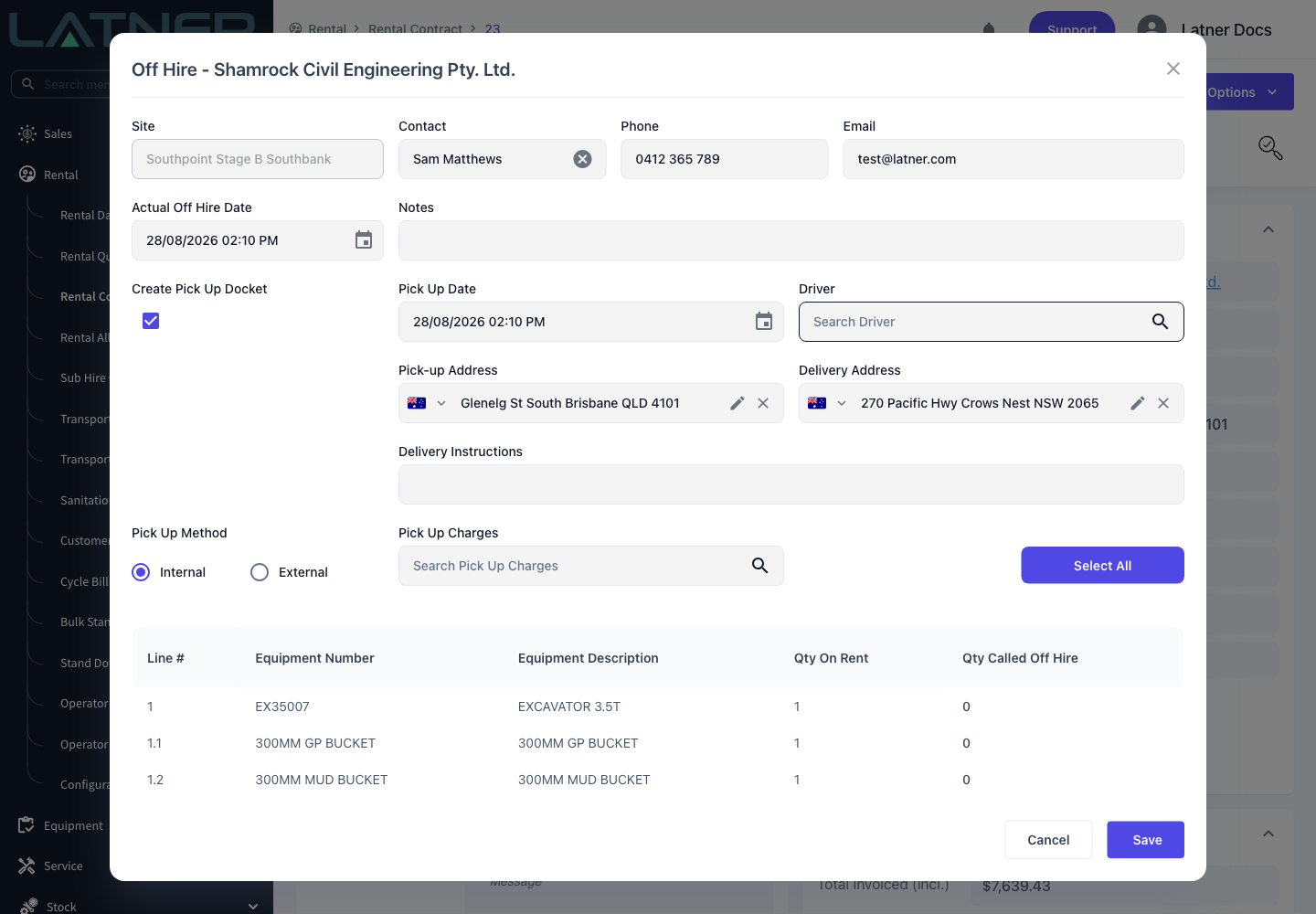
Select Options › Off Hire. The form opens with the customer's name in the title, and the site, contact, phone and email already filled in from the contract.
Step 3 - Confirm who called it off and when
These fields describe the request itself, and they end up on the Off Hire record.
-
Site - read-only, taken from the contract.
-
Contact - required. Who at the customer called the equipment off. Changing the contact refreshes the phone and email underneath it.
-
Phone - the site contact's number.
-
Email - required only when your organisation has made email a mandatory customer site contact field.
-
Actual Off Hire Date - required, and the most important field on the form. Rental charging for the selected lines stops here. It defaults to right now, or to the branch's closing time if Use Branch Closing Time as Default Off Hire Time is enabled.
-
Notes - free text that stays on the Off Hire record.
The date has to sit after the contract's start date, and after the start date of every line you select. A date in the future is allowed, but Latner warns you first in case it was a typo.
Step 4 - Decide how the equipment gets back
Leave Create Pick Up Docket ticked to raise the collection at the same time. Untick it if the customer is dropping the gear back themselves, or if transport will be planned later. When it is ticked you also set:
-
Pick Up Date - required, and must be on or after the Actual Off Hire Date.
-
Driver - only available for Internal pick ups.
-
Pick-up Address - required, defaults to the contract's delivery address.
-
Delivery Address - required, defaults to your branch address (where the gear is heading).
-
Delivery Instructions - carried from the contract, edit as needed.
-
Pick Up Method - Internal for your own truck, External for a transport supplier.
-
Pick Up Charges - the contract's pick up charge lines. Required when the method is External. You can create a new charge line here if the contract doesn't have one.
-
Supplier and Supplier Pick Up Cost - External only, and Supplier is required.
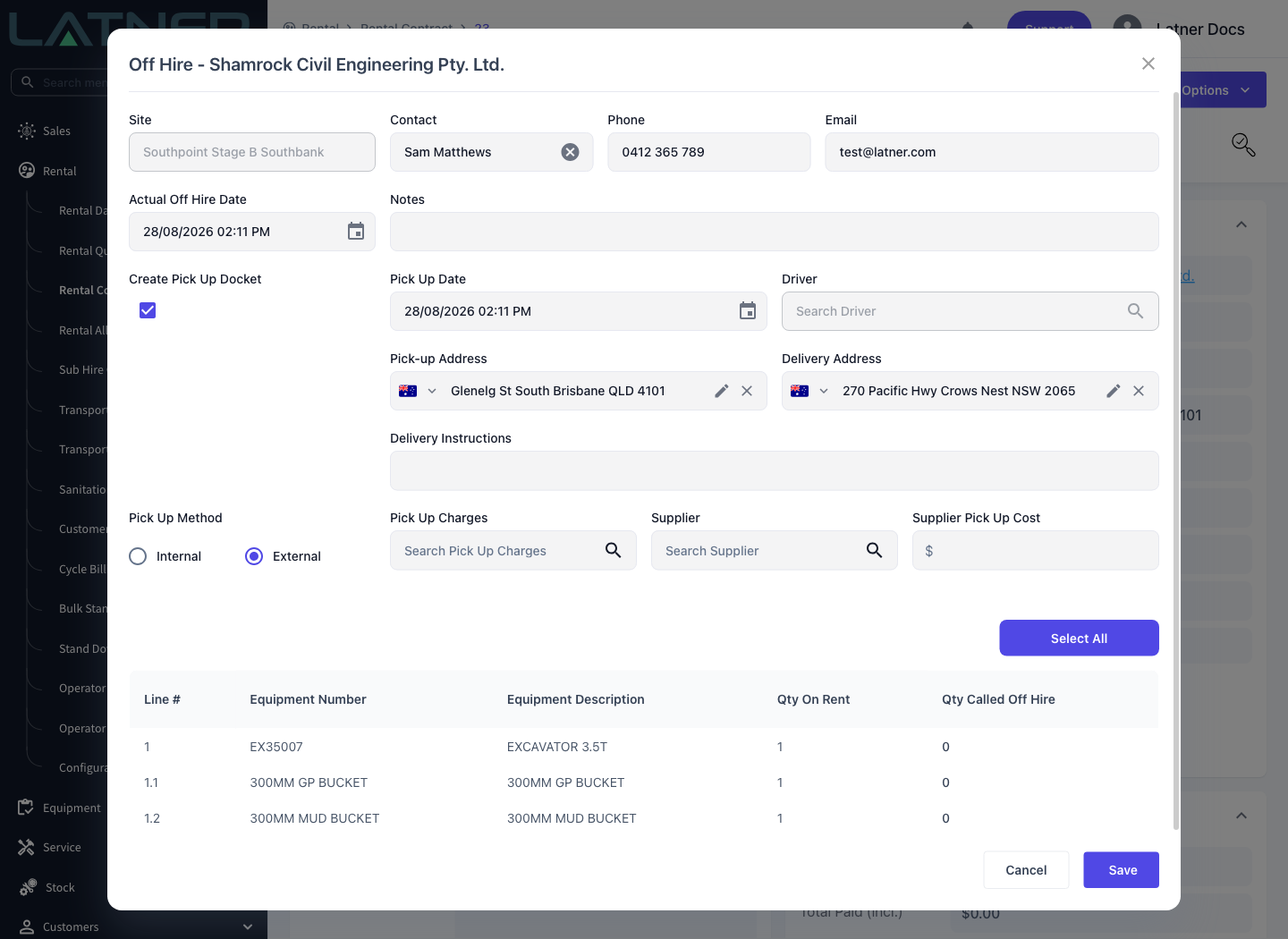
An External pick up can ask you two follow-up questions after you save. If the equipment is already on a sub hire order with that supplier, Latner offers to add the transport to it. Otherwise it asks whether to raise a transport purchase order - unless Create Transport Purchase Orders under Security › Settings › Global is set to always or never, in which case it just does what the setting says. Entering a cost higher than the charge needs the Allow Transport Cost To Be Greater Than Charge permission.
Step 5 - Choose what is coming off hire
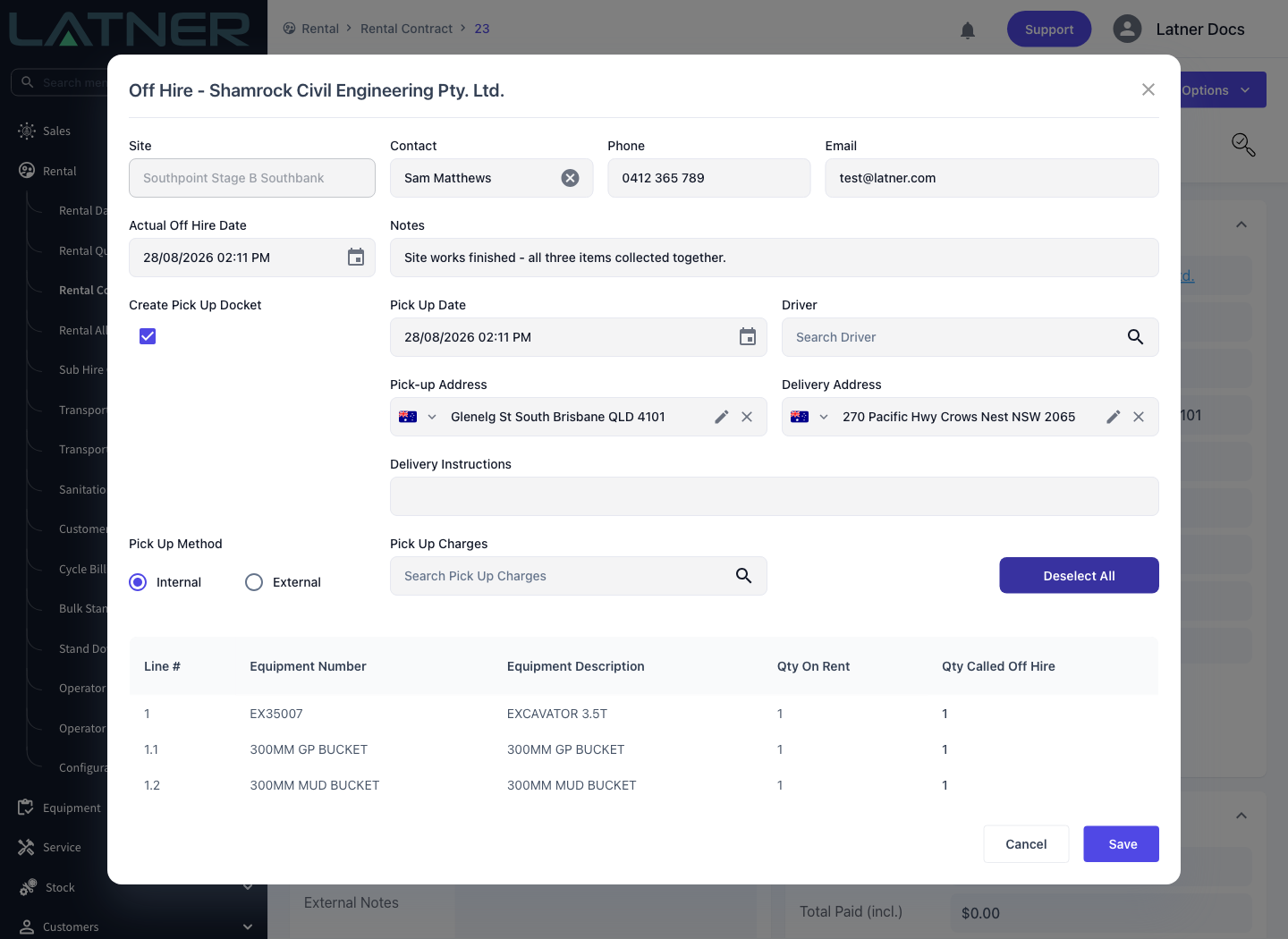
The table at the bottom lists every line still On Rent, with its Qty On Rent. Enter the quantity coming off in Qty Called Off Hire, or use Select All to call the lot off at once (the button then becomes Deselect All).
To bring back only part of a line, type a smaller number. Latner splits the line: the quantity you entered goes off hire, and the remainder carries on as a separate line, still On Rent and still charging. You must select at least one line before you can save.
Step 6 - Save
Select Save. Latner creates the Off Hire record, updates every line you selected, and raises the pick up docket if you asked for one.
After the Off Hire
-
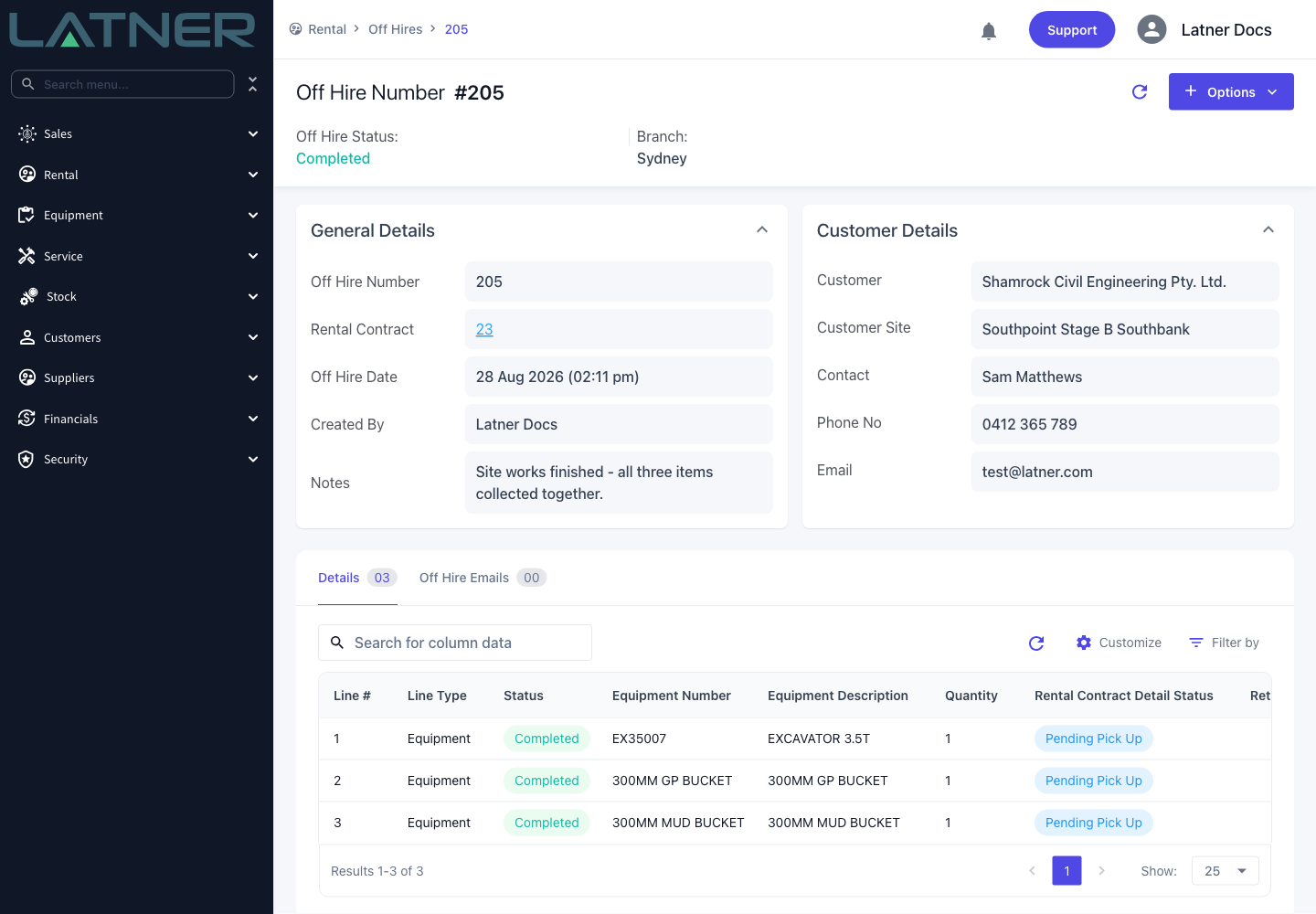
A numbered Off Hire record is created in Completed status, listed on the contract's Off Hire tab.
-
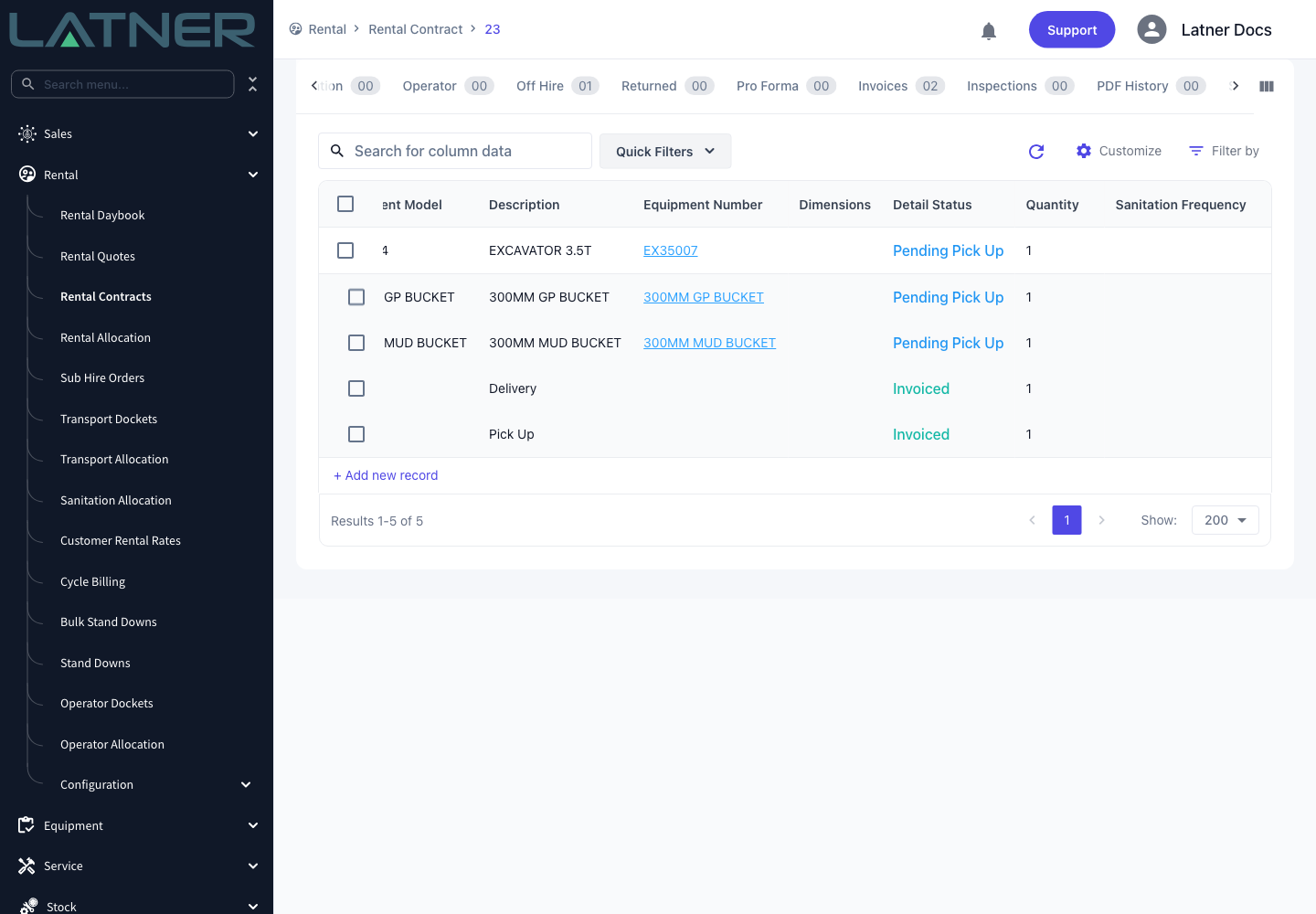
Each selected contract line moves to Off Hire - or straight to Pending Pick Up if you created a pick up docket, because the collection is already booked.
-
The equipment's rental status becomes Off Hired, so it shows as coming back rather than sitting out on hire.
-
Rental charging for those lines stops at the Actual Off Hire Date. The next invoice bills up to that date and no further.
-
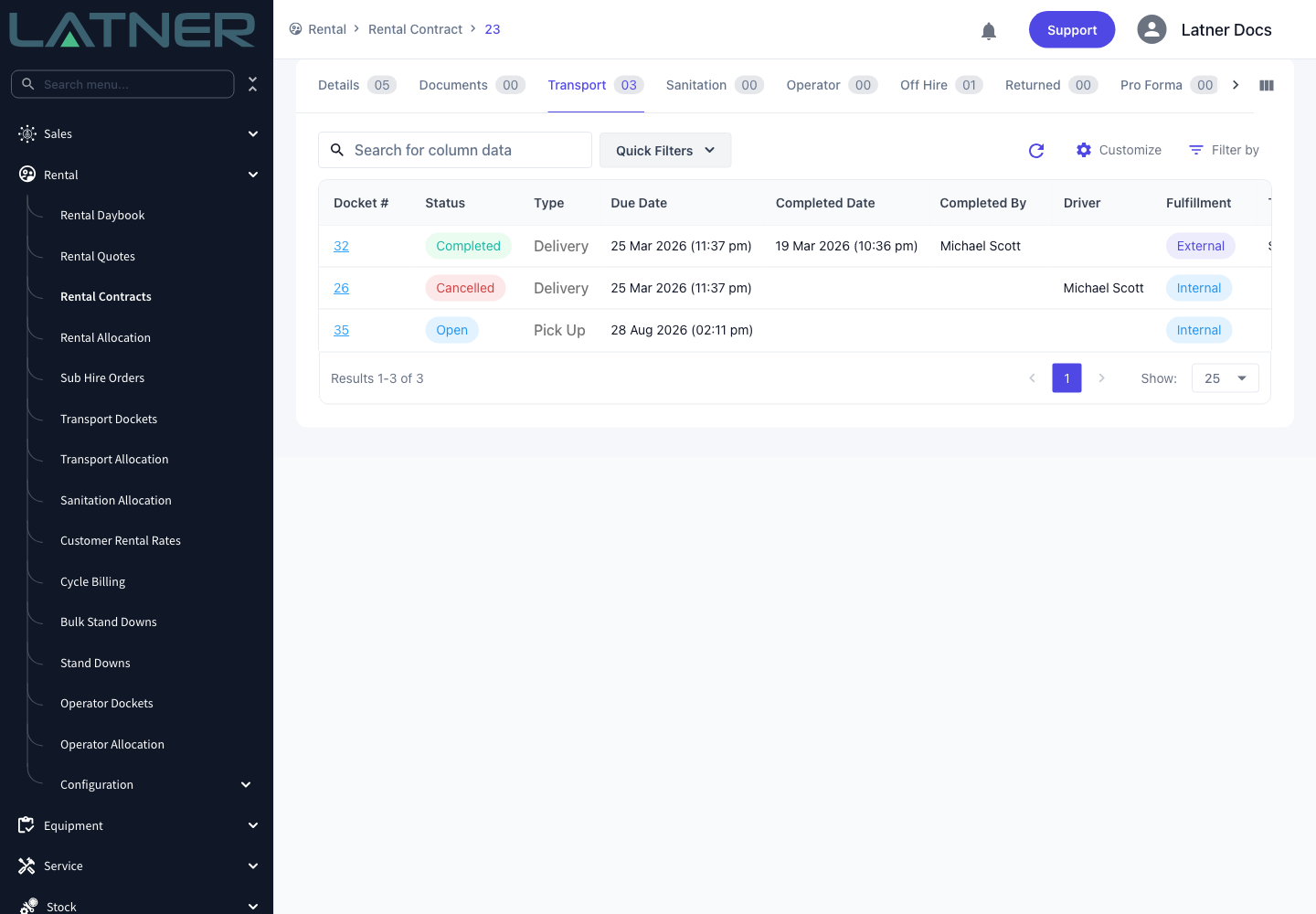
Any pick up docket appears on the contract's Transport tab in Open status, ready to be allocated to a driver or supplier.
-
If your organisation has Finish Sanitation Schedule on Off Hire enabled, the open scheduled sanitation dockets for those lines are cleared now instead of at return. Ad hoc dockets are left alone - someone raised those by hand, so they survive the equipment coming off hire.
-
Off hired equipment that hasn't come back yet is listed on the Unreturned Off Hire tab of the Rental Daybook.
-
If Allow Pre-Allocated Equipment is enabled, the machine can now be booked onto a future rental contract even though it is still out with the customer.
-
Off hiring sub hired equipment prompts you to notify the supplier, which opens the Off Hire record's supplier email.
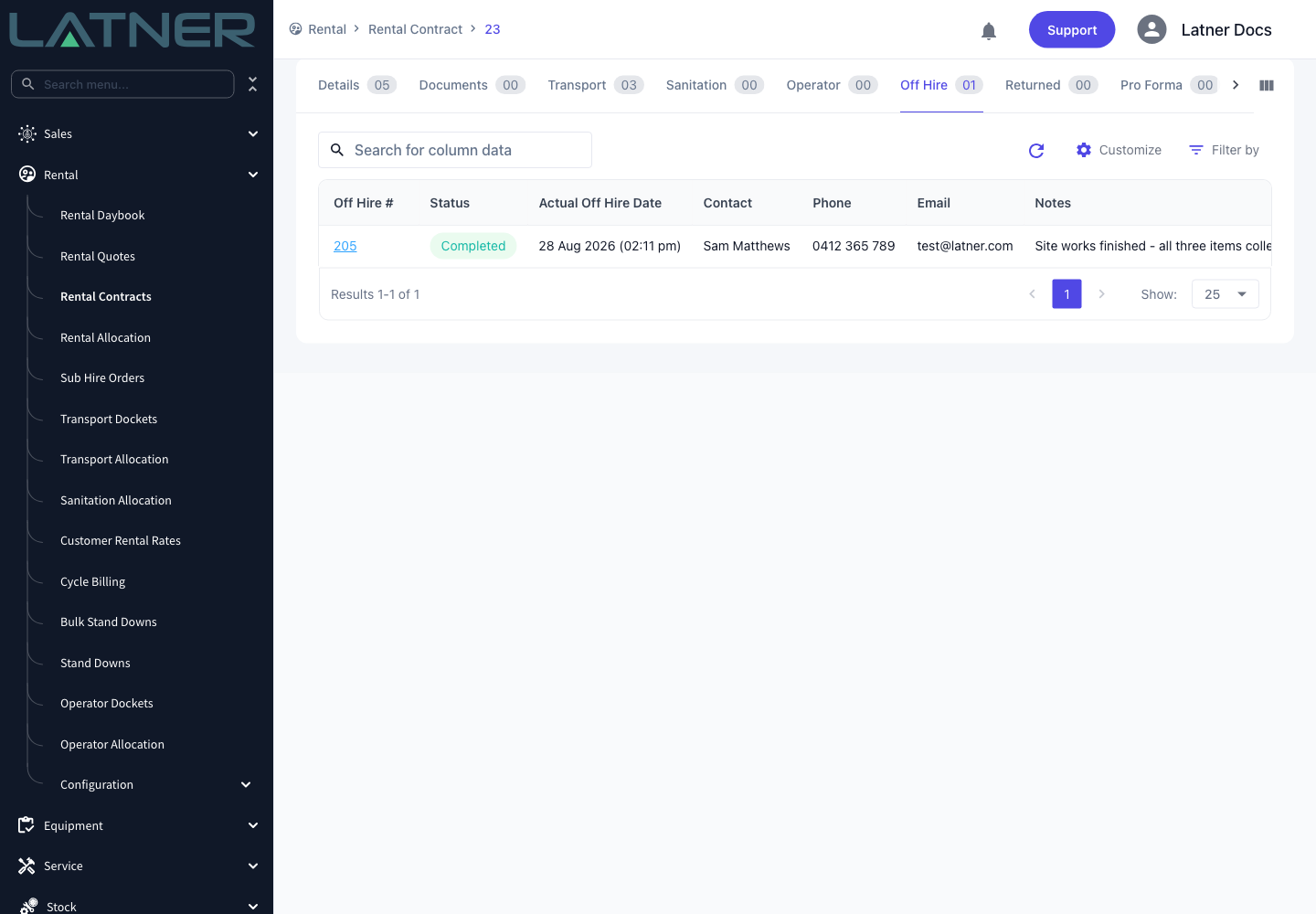
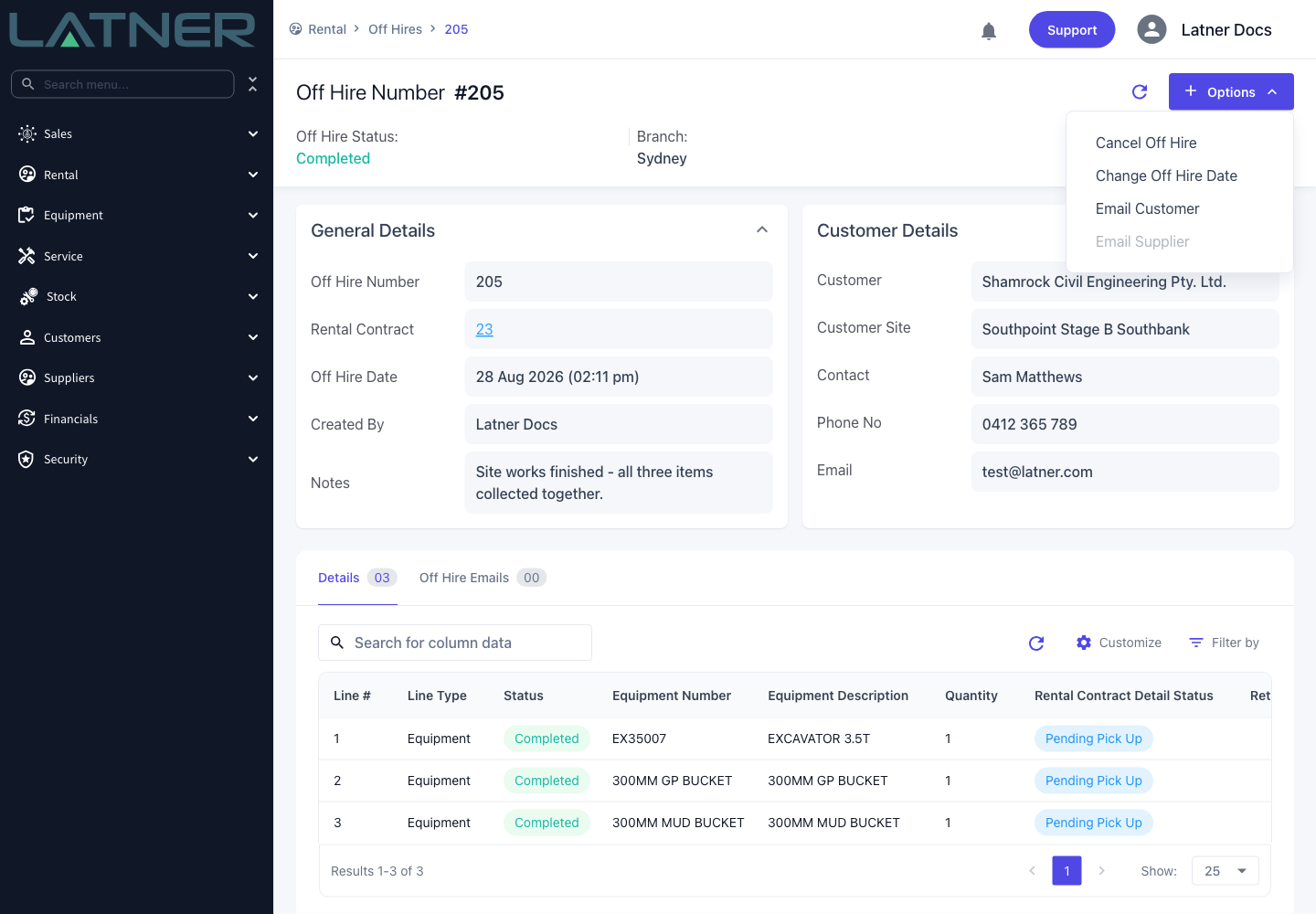
From the Off Hire record's Options menu you can cancel the off hire, change its date, or email the customer or supplier.
Off hired equipment is not available to hire, but with Allow Pre-Allocated Equipment switched on it can still be booked. Add it to a future rental contract the way you normally would and the line is created in Pre-Allocated status instead of Reserved, so your salespeople can promise a specific machine to the next customer while it is still on its way back. When the equipment becomes available again - which happens at the return, not at the off hire - Latner automatically promotes the earliest-starting pre-allocated line to Reserved, and raises a run up inspection if one is required. Book a delivery before then and the line reads Pre-Allocated (Pending Delivery) until the promotion happens. This only works for serialized equipment; without the setting you get an not available to rent error instead.
An off hire is not a return. The contract lines stay open, and the equipment isn't available to hire out again until it has been picked up and returned. If the customer changes their mind before the truck arrives, use Cancel Off Hire rather than leaving the off hire in place - cancelling puts the lines back On Rent, clears the off hire date and cancels the pick up docket if nothing has been collected on it.
FAQs
Watch the Demo
Prefer to watch it? Step through the same flow here.