
Asset Groups and Depreciation Types are the two pieces of configuration to get right before you set any assets up, because new assets inherit them at the moment they are created.
Overview
Both of these are small, but they are the difference between a depreciation journal you can read and one you cannot. Asset Groups decide how your posted journal is broken up; Depreciation Types decide how fast everything writes down.
-
Asset Groups are your own categories - Earthmoving Plant, Access Equipment, and so on. They are the grouping dimension every posted depreciation journal is aggregated by.
-
Depreciation Types pair a method with a rate, so you can apply the same treatment to many assets at once.
-
Depreciation Types can be defaulted at three levels, so most assets never need one picked by hand.
-
Both are configured under Financials › Configuration, and both appear only when Asset Management is switched on.
Before You Begin
|
Requirement |
Where to Find It |
|---|---|
|
Activate Asset Management and Depreciation is switched on |
Security › Settings › Global › Financials |
|
The Assets permission |
Security › Configuration › Permission Groups › Financials › Screen |
|
The Asset Financial Details permission, to see purchase prices and book values |
Security › Configuration › Permission Groups › Financials › Field |
Configuration is not branch-specific. Asset Groups, Depreciation Types and all of the asset settings are global, so a change here applies to every branch.
Creating an Asset Group
Step 1 - Open the Asset Groups screen
Go to Financials › Configuration › Asset Groups.
Step 2 - Create the group
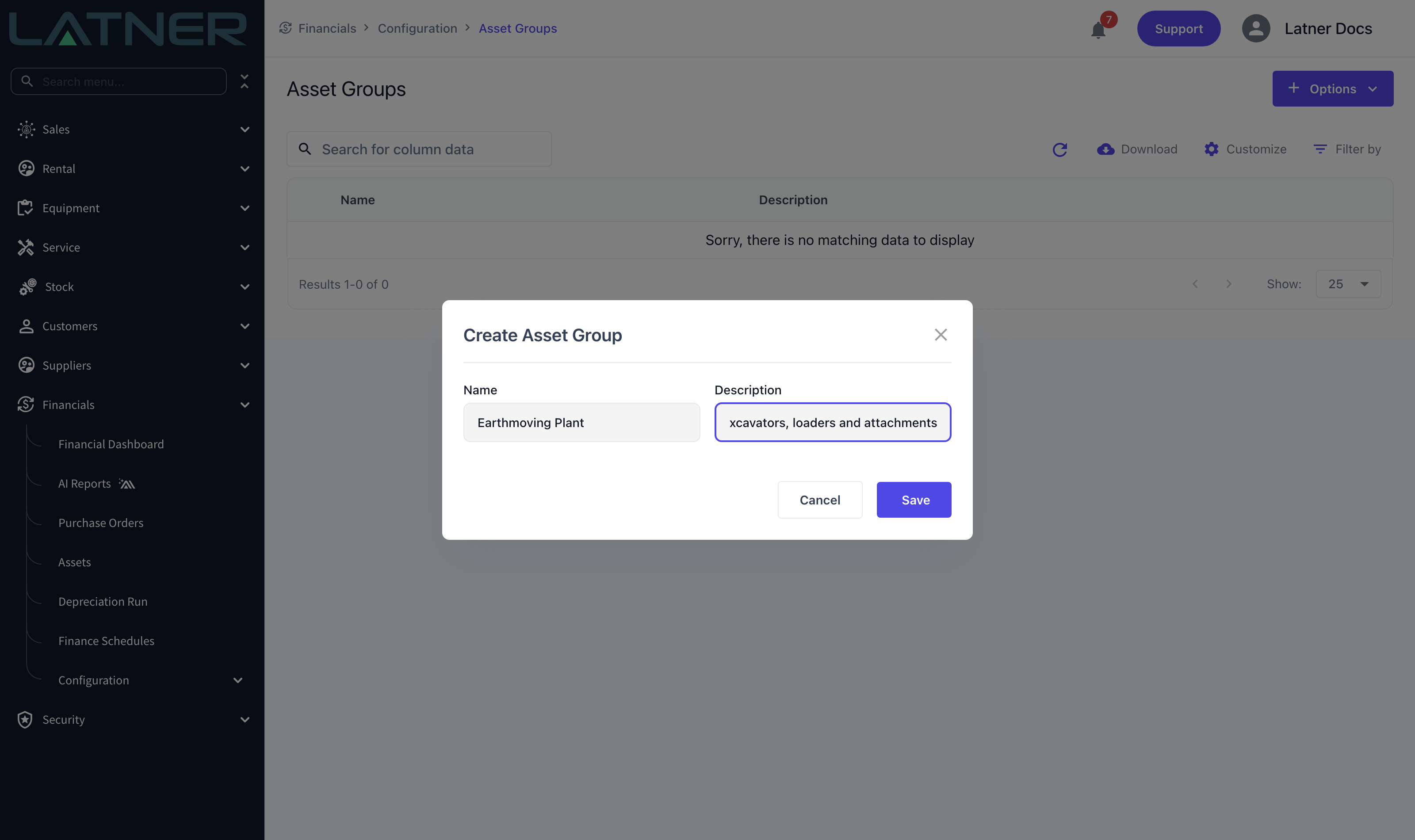
Choose Options › Create Asset Group and fill in both fields. There are only two, and both are required.
-
Name - must be unique across all asset groups.
-
Description - a short explanation of what belongs in the group.
Step 3 - Save
Select Save. The group is available immediately and can be assigned to an asset from the Asset Group field on the asset record. To change a group later, double-click its row in the list.
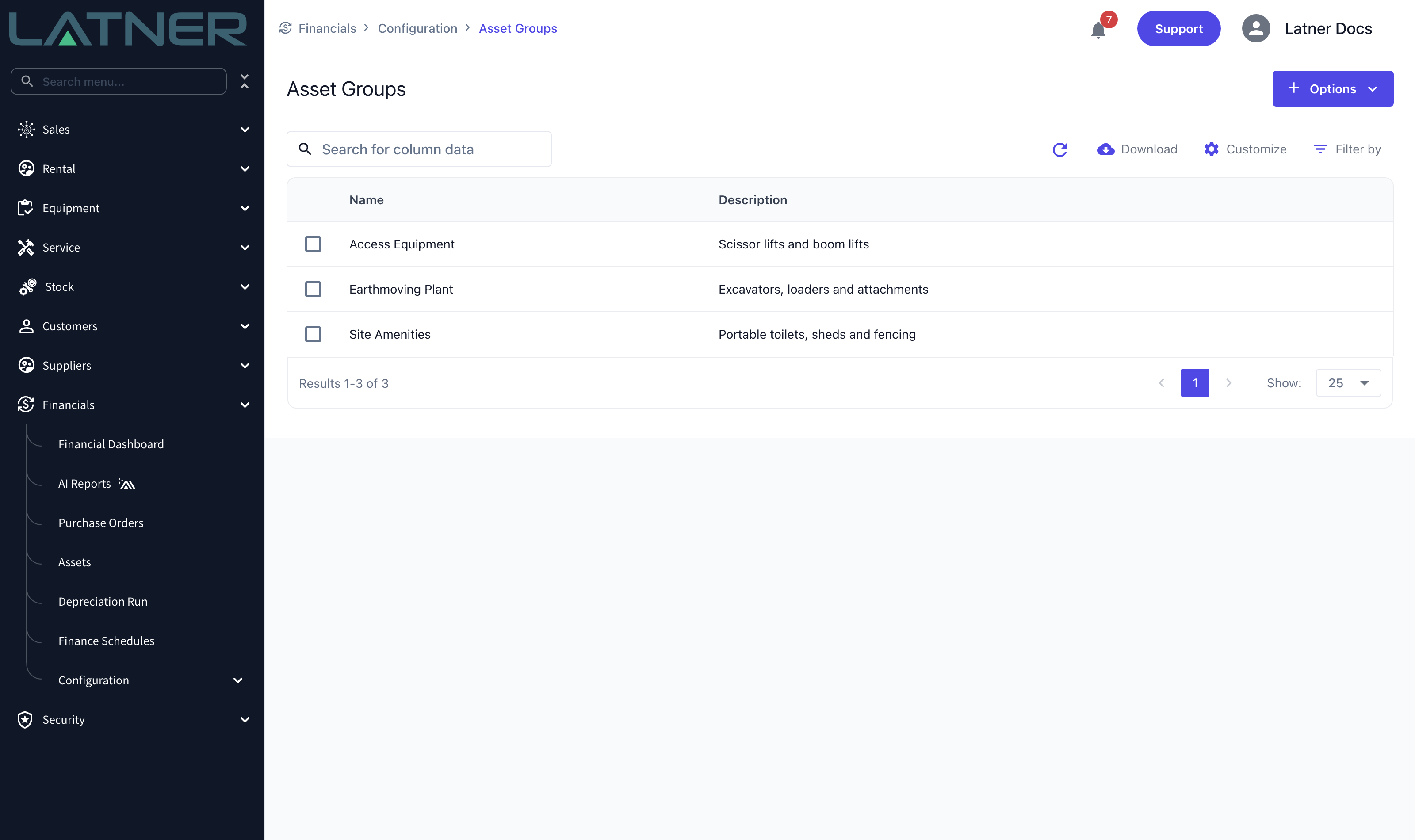
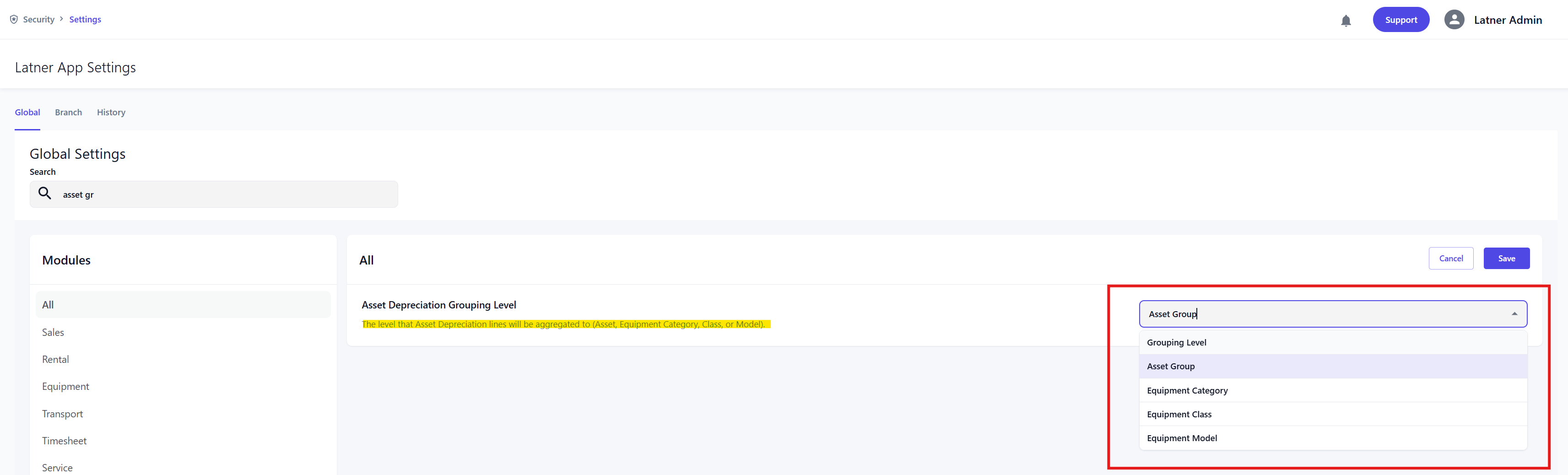
How much detail your journal carries is controlled separately, by the Asset Depreciation Grouping Level setting. Asset Group is always a grouping dimension; the setting adds Equipment Category, Class or Model on top of it. Leave it on Asset Group for the simplest journal.
Creating a Depreciation Type
A depreciation type is a method plus a rate. Latner offers three methods.
|
Method |
How It Calculates |
|---|---|
|
Straight Line |
The same amount every year, worked out from the original purchase value. The depreciation year runs from the asset’s activation date anniversary, so leap years are handled correctly. |
|
Diminishing |
A percentage of the reducing value, so it writes down fastest in the early years. The point at which the carried-over value resets is controlled by the Use Financial Year option below. |
|
Write Off |
The whole original value is expensed in the first period. There is no rate to enter - Latner sets it to 100% for you and hides the field. |
Step 1 - Open the Depreciation Types screen
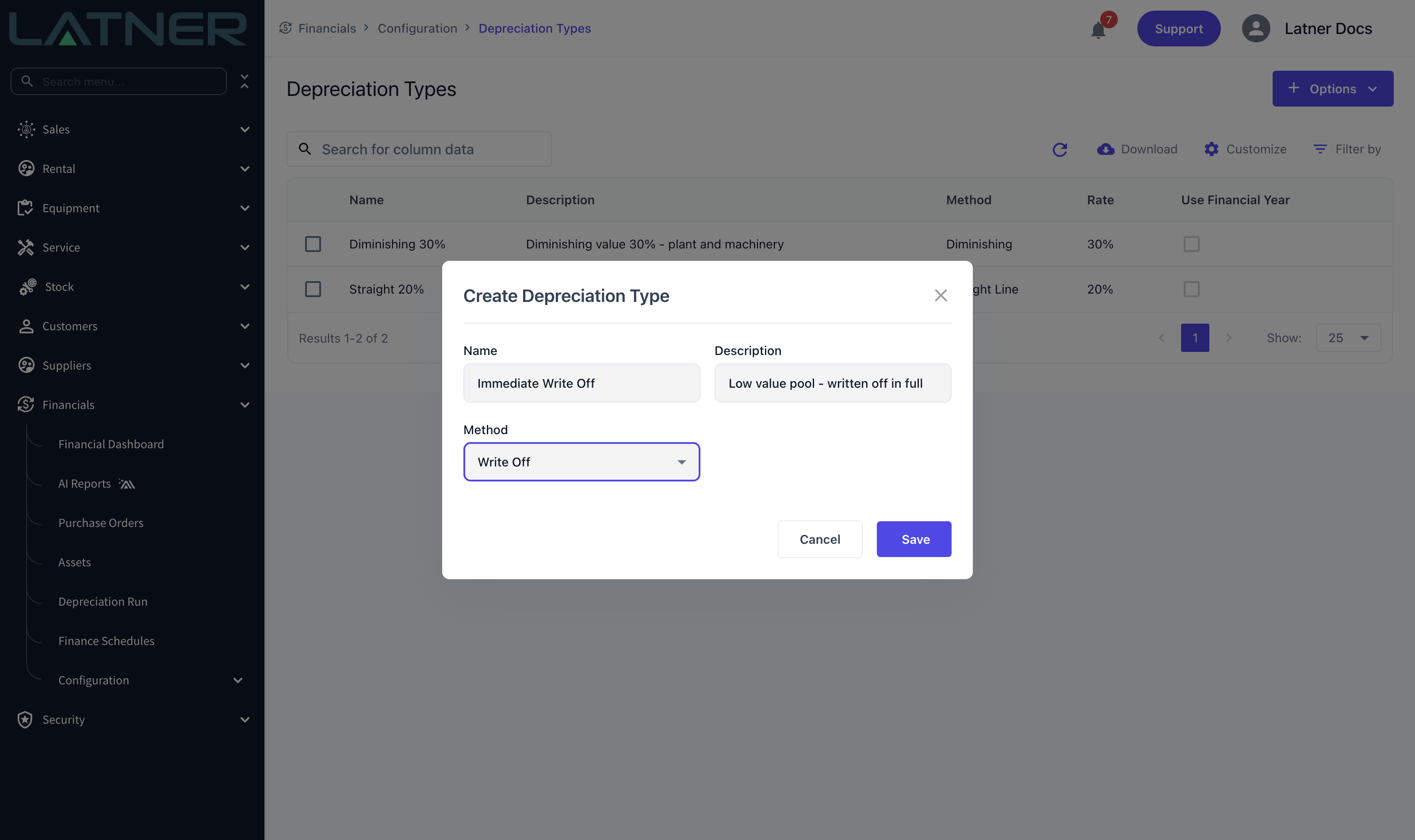
Go to Financials › Configuration › Depreciation Types, then choose Options › Create Depreciation Type.
Step 2 - Fill in the type
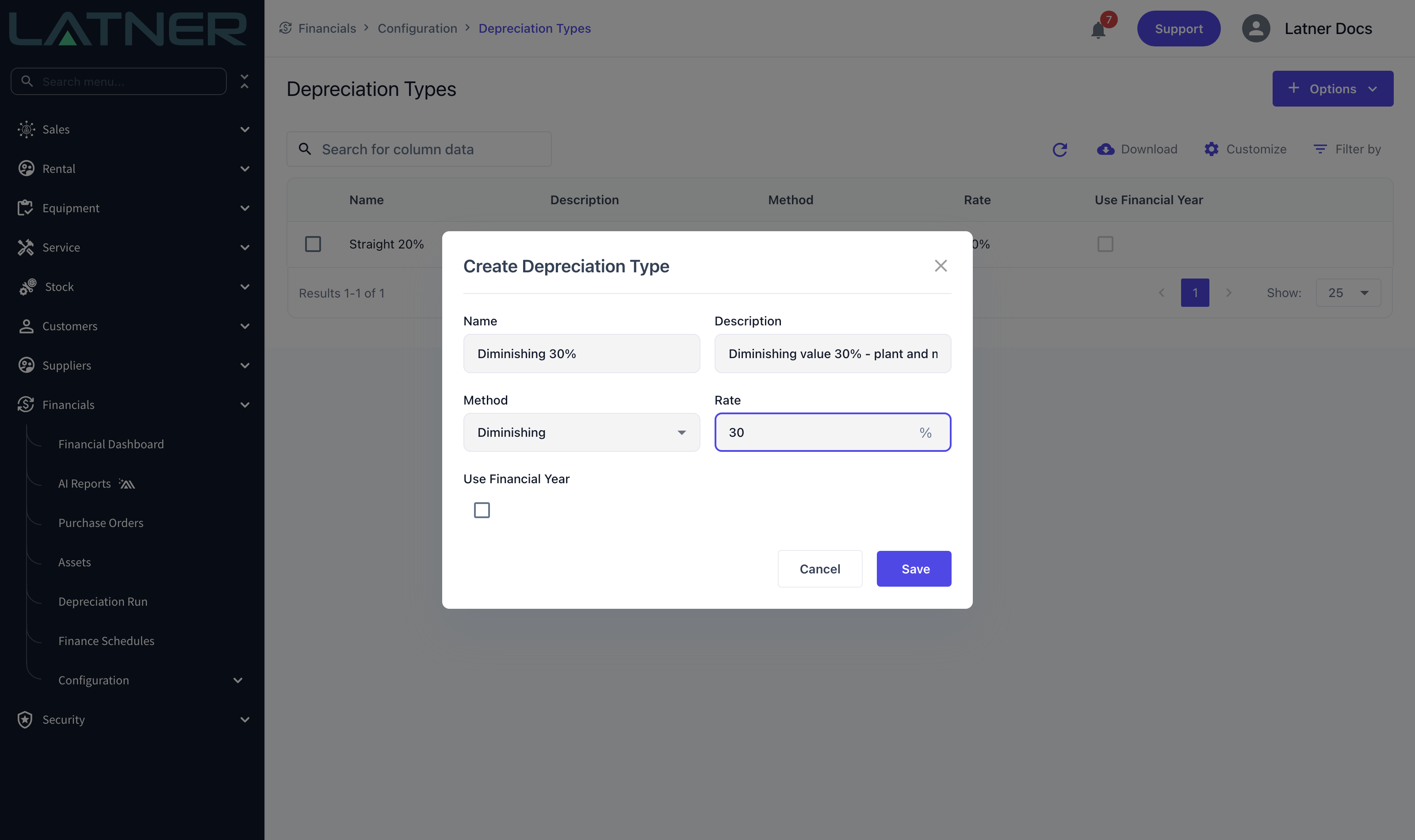
Three fields are always required, and two more appear depending on the method you pick.
-
Name - required, and unique.
-
Description - required.
-
Method - required. Straight Line, Diminishing or Write Off.
-
Rate - required, entered as a percentage. Hidden when the method is Write Off.
-
Use Financial Year - appears only when the method is Diminishing. Tick it to reset the carried-over value at end of financial year instead of on the asset’s activation date anniversary.
Step 3 - Save
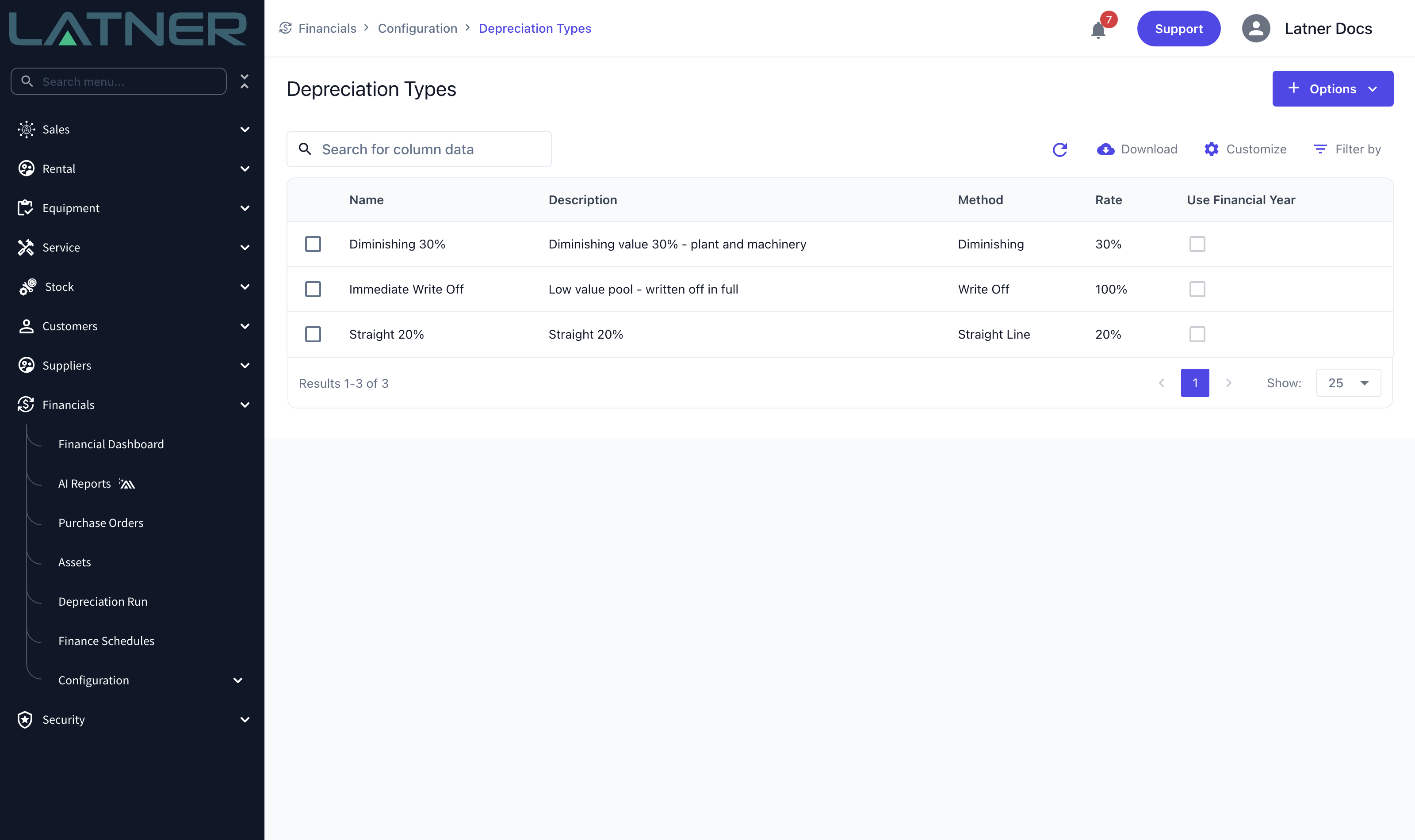
Select Save. The type is listed with its method, rate and financial-year flag, and can be picked as a default or assigned directly to an asset.
Use Financial Year reads the End of Financial Year setting, also under Financials, to know when the year rolls over. If you use financial-year diminishing types, check that date is right for your business before you run any depreciation.
Setting the Defaults
You should not have to pick a depreciation type on every asset. Latner works one out when the asset is created, taking the first of these that has a value.
|
Order |
Where the Depreciation Type Comes From |
|---|---|
|
1 |
A type set explicitly on the asset as it is created. |
|
2 |
The header asset’s type, if this is a sub-asset. |
|
3 |
The Equipment Class of the linked equipment, set on the class record. |
|
4 |
The Default Account Depreciation Type global setting. |
The tax book resolves the same way, using the equipment class’s tax depreciation type and the Default Tax Depreciation Type setting.
This is worked out once, when the asset is created, and then stored on the asset. Changing an Equipment Class or a global default later does not reach back and update assets that already exist. If you need to change an existing asset’s treatment, change it on the asset itself.
FAQs
Watch the Demo
Prefer to watch it? Step through Asset Group configuration here.
And the same for Depreciation Types.