
Every Latner customer has a UAT site - a separate copy of Latner at its own web address - so you can train new staff, practise a process or test a change without touching your live data or sending anything to your customers.
Overview
Sometimes you need somewhere safe to get it wrong. A new starter needs to raise a few practice quotes, you want to try a new rental rate before rolling it out, or you're writing up a procedure and need to click through it end to end. That's what your UAT site is for. Think of it as your training environment, test site or sandbox: it looks and works exactly like Latner, but nothing you do there reaches your live system.
-
Your UAT site lives at https://yourcompany.latner-uat.app - the same company name you use on live (yourcompany.latner.app), with -uat added.
-
It's completely separate from live. Quotes, contracts, invoices, dockets and settings you create or change on UAT never appear on your live site, and changes on live don't flow into UAT as you work.
-
It has its own sign-in. Your users can exist on both sites, but the password for UAT is set separately, so it may not be the same as your live password.
-
Latner doesn't send email to your customers or staff from UAT. Invoices, quotes, dockets and notifications you send there never reach an inbox, so you can practise the whole flow without anyone receiving anything.
-
New Latner releases go to UAT before they go to live, so for a short time your UAT site can be a version ahead.
Before You Begin
You'll need the following to use your UAT site.
|
Requirement |
Where to Find It |
|---|---|
|
Your UAT web address |
Your live address with -uat added: if you sign in to yourcompany.latner.app, your UAT site is yourcompany.latner-uat.app. |
|
A user on the UAT site |
Security › Users on your UAT site. Users are set up on each site separately, so someone who is new on live may not exist on UAT yet. An administrator can add them on UAT with Options › Create User, exactly as on live. |
|
A UAT password |
The UAT sign-in screen. If you've never signed in to UAT, or you don't know your UAT password, use Reset password there to set one. |
Your UAT password is separate from your live password. Changing one never changes the other, which is why your live password often doesn't work on UAT.
Signing In to Your UAT Site
Step 1 - Go to your UAT address
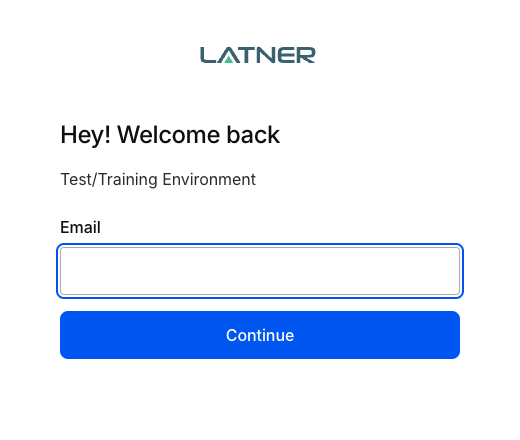
Type yourcompany.latner-uat.app into your browser's address bar, using your own company name. Latner takes you to the UAT sign-in screen, which shows Test/Training Environment under the welcome message. If you don't see that line, you're on your live site.
Step 2 - Enter your email and select Continue
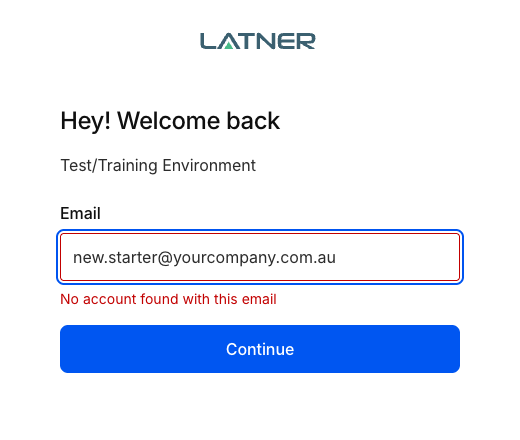
Enter the email address you use for Latner and select Continue. If you see No account found with this email, there's no user for that address on your UAT site yet - ask your administrator to create one under Security › Users on UAT. You can't sign yourself up.
Step 3 - Enter your UAT password, or reset it
Enter your UAT password and select Continue. If it isn't accepted, or you've never set one, select Reset password under Can't sign in?. You'll be emailed a verification code, then asked to choose a new password. This works the same way as on live - see How to Reset My Password - and only changes your UAT password.
A user signing in to UAT for the very first time is asked for a verification code straight away and then chooses a password, just like a first sign-in on live (see Creating an Account).
What's Different on UAT
Your UAT site runs the same Latner as your live site, with the same screens, menus and permissions. These are the things that behave differently.
No emails reach your customers or staff
Latner removes every recipient from emails sent on UAT before the email leaves, so nothing reaches your customers, suppliers or your own team. That covers everything Latner emails: quotes, invoices, statements, dockets, purchase orders, approval requests and notifications. You can practise the full email step - open the email dialog, check the wording, select Submit - knowing nobody receives it.
It also means UAT is not the place to check how an email looks in an inbox. The email can still be listed in the record's email history, so don't take that as proof it was delivered. The only addresses UAT does deliver to are Latner's own staff addresses, which lets our support team test email for you.
The verification codes and password resets on the UAT sign-in screen are the exception: they come from the sign-in page rather than from Latner, so they're emailed to you as normal.
Integrations and text messages are not switched off
Email is the only thing UAT switches off. Any integration connected on your UAT site - an accounting connection to Xero or MYOB, a webhook, or the External API - behaves exactly as it would on live and talks to whatever it is connected to. Before you practise invoicing or syncing on UAT, check the integration screens on your UAT site and make sure nothing there points at your real accounting file or systems. If you're building against the External API, UAT is the right place to start - see Connecting to and Using the External API.
Text messages aren't blocked either. If you practise with Pre Starts on UAT, the verification code and checklist link the Pre Start portal sends by SMS can still go to the phone number entered, so use your own mobile rather than an operator's.
Your data on UAT
Your UAT site has its own separate data. Work you do on live doesn't appear on UAT, and nothing you do on UAT is ever copied to live, so you can create, change and delete freely.
Your UAT data isn't refreshed automatically or on a schedule. If you'd like a fresh copy of your live data on UAT - before a training session for new staff, say, or to test a process against your current customers and equipment - ask Latner support and we'll refresh it for you.
A refresh copies your live data over the top of UAT, so practice records you've created on UAT since the last refresh won't survive it. After a refresh, check your UAT site's integration screens again before you practise invoicing or syncing.
New releases arrive on UAT first
Latner updates your UAT site before your live site, so for a short time UAT can include features that aren't on live yet. That makes UAT a good place to try something new before your team sees it on live.
Using UAT for Training
-
Train new staff by giving them a user on UAT with the same permission groups they'll have on live, then letting them practise real tasks - quoting, booking out, returning and invoicing - without any risk.
-
Test a process change, such as a new setting, rate or template, on UAT first and check the result before you make the same change on live. Settings are separate on each site, so a change on UAT has to be repeated on live.
-
Write procedures by walking through the steps on UAT and taking your screenshots there, so no practice records end up in your live data.
Check the address bar before you start practising. The two sites look alike, and anything you do on latner.app is real - a practice invoice on live is a real invoice that will email your customer and may sync to your accounts. If you're on UAT, the address ends in latner-uat.app.