
Latner runs in the browser on a phone or tablet, and you can save it to the device's home screen so it opens with a single tap, just like an app you'd install from a store.
Overview
There's nothing to download and no app store to wait on. Latner is a web app, so the device already has everything it needs - a browser and your usual login. Saving Latner to the home screen just puts a proper icon in front of it.
-
Latner opens at your company's normal Latner web address in any modern mobile browser.
-
Safari (iPhone and iPad) and Google Chrome (Android) can both save that address to the home screen as an icon.
-
The saved shortcut opens Latner full screen, without the browser's address bar and tabs.
-
The icon and the name Latner come from Latner itself, so the shortcut looks and behaves like an installed app.
-
On a phone, Latner shows its mobile screens - a set of tiles for the jobs people do in the field - instead of the full desktop layout.
-
The shortcut is a link to the live site, so it's always up to date. There's nothing to reinstall after a Latner release.
Before You Begin
You'll need four things, and you probably already have all of them.
|
Requirement |
Where to Find It |
|---|---|
|
Your Latner web address |
The same address you use on your computer, for example yourcompany.latner.app. If you're not sure, check with your Latner administrator. |
|
A Latner login |
Your usual Latner email address and password. The shortcut doesn't create or store a separate login. |
|
Safari, on iPhone and iPad |
Safari is the browser that offers Add to Home Screen on Apple devices. |
|
Google Chrome, on Android |
Chrome is the browser that offers Install and create shortcut on Android devices. |
The shortcut remembers whichever page was on screen when you saved it, not a fixed home page. Sign in and let Latner settle on the dashboard before you add the icon, and the shortcut will land on the dashboard every time you tap it.
Opening Latner on Your Phone or Tablet
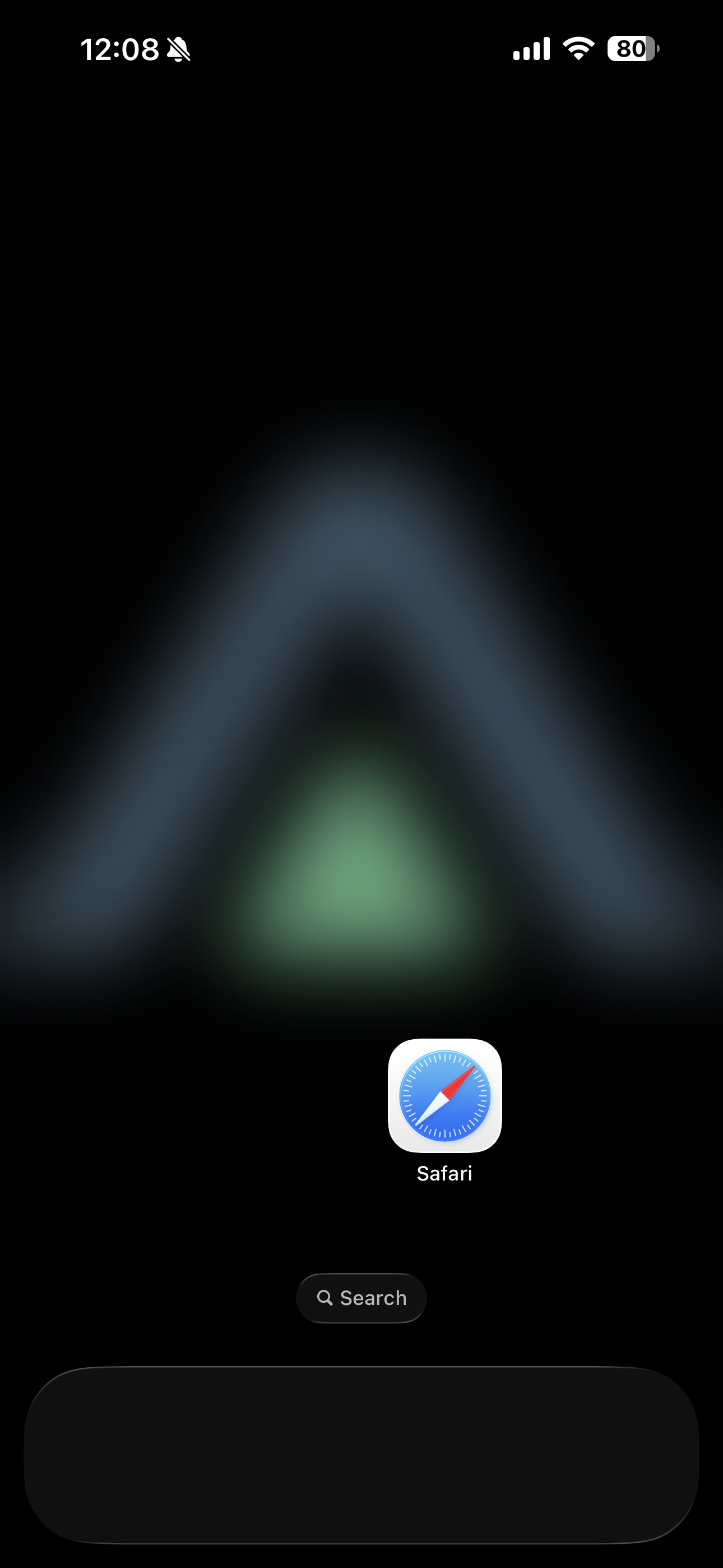
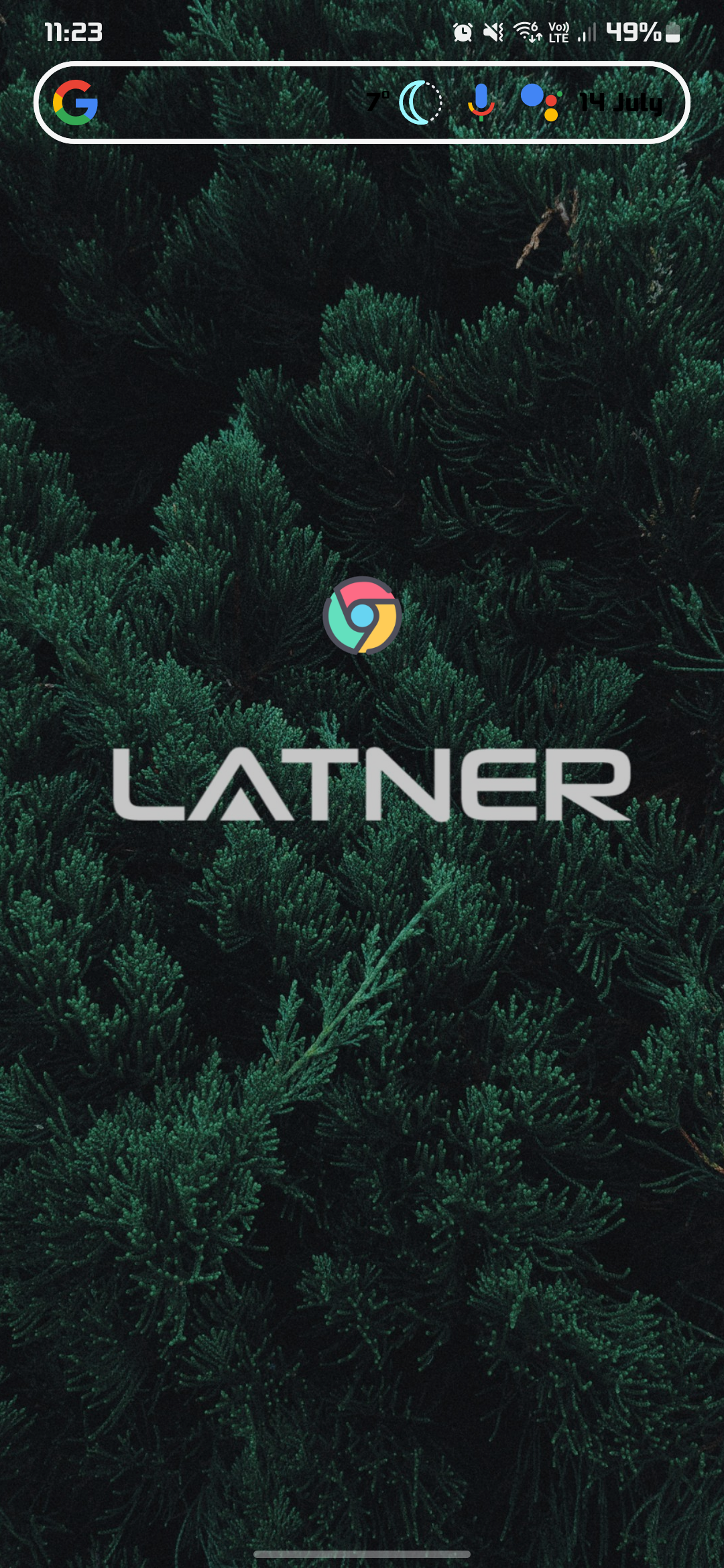
Start by opening Latner in the browser and signing in. The steps are the same on both platforms, so the screenshots below show iPhone on the left and Android on the right.
Step 1 - Open your browser
On an iPhone or iPad, open Safari. On an Android phone or tablet, open Google Chrome. Latner works in other browsers too, but only these two offer the home screen option used later in this article.
|
iPhone and iPad |
Android |
|---|---|
|
|
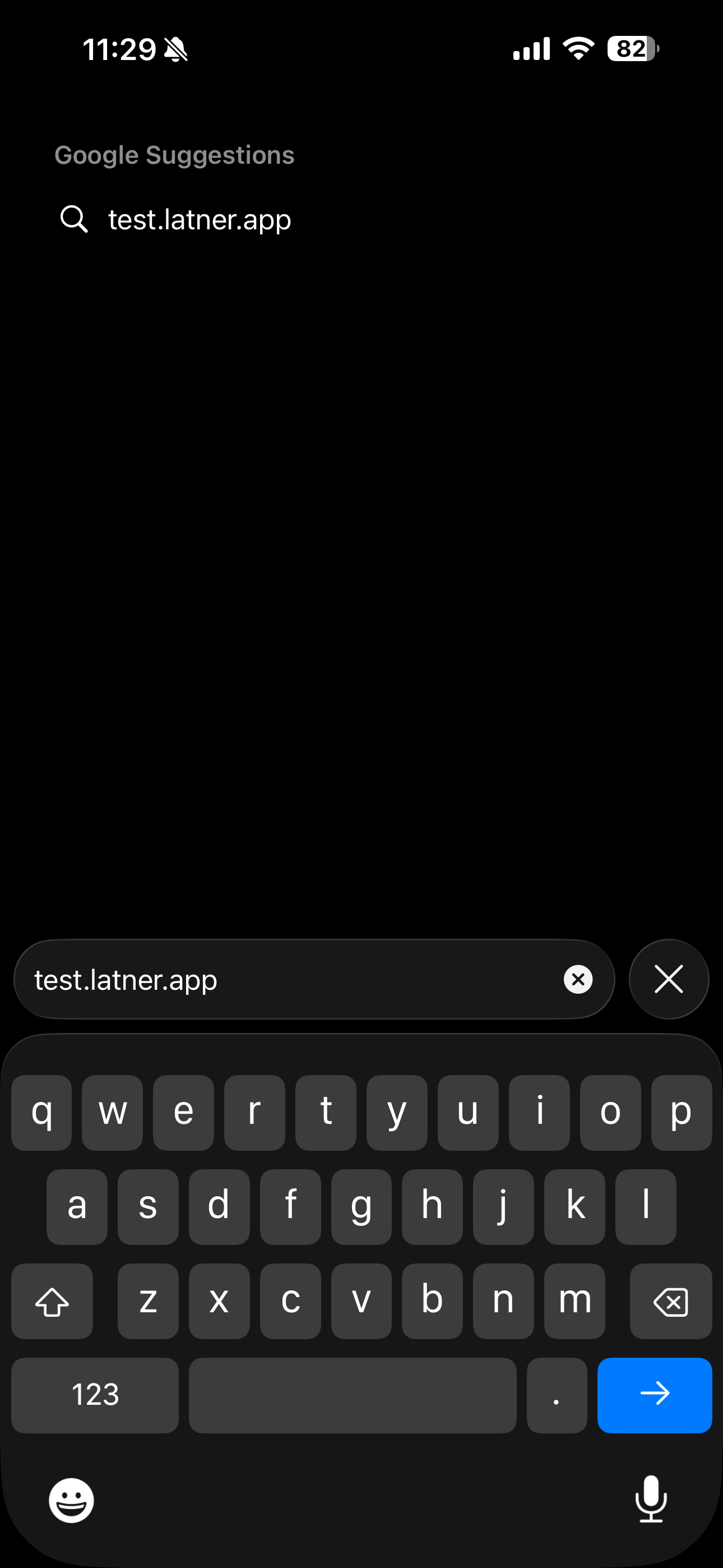
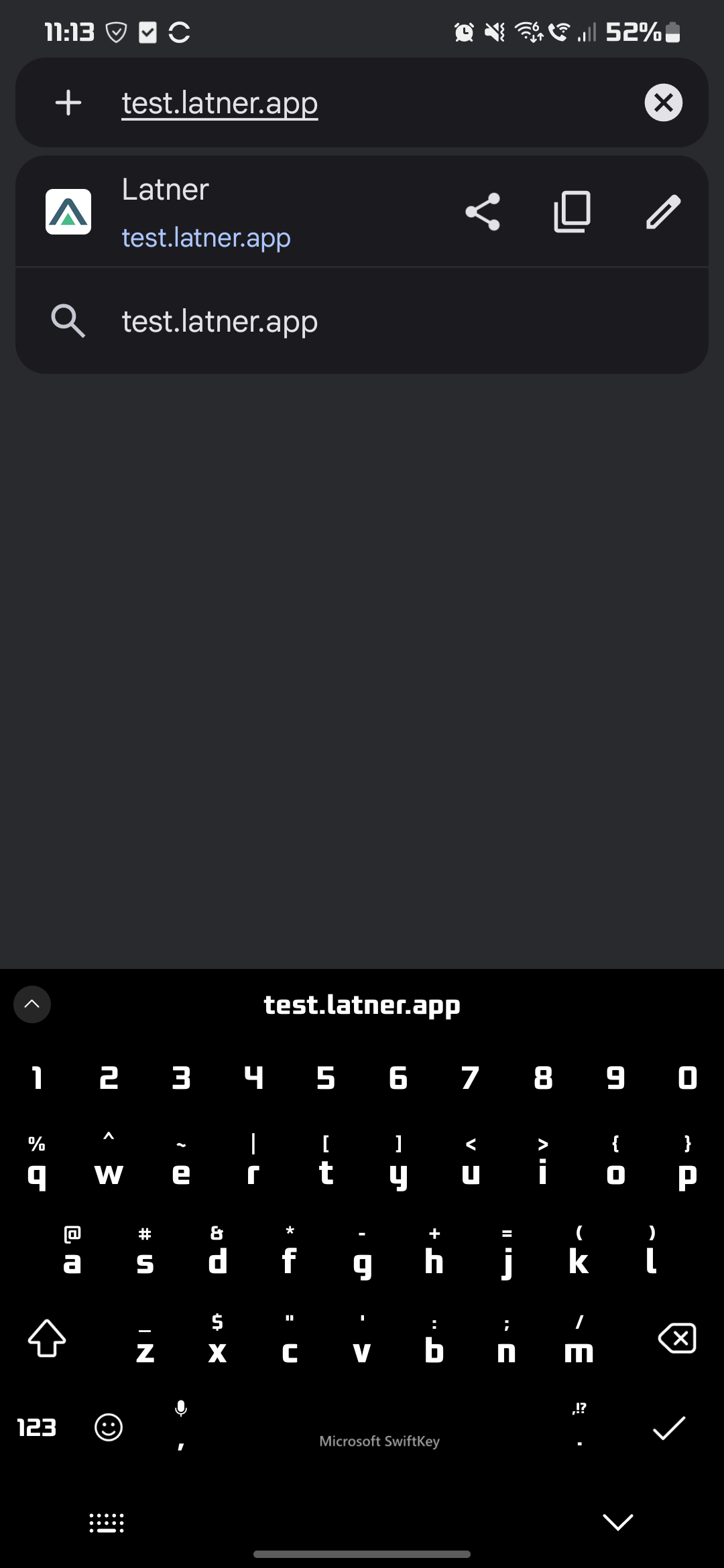
Step 2 - Type your Latner address
Tap the address bar and type your company's Latner address, then go to it. Don't search for "Latner" - type the address itself, so you land on your own site rather than a search results page.
|
iPhone and iPad |
Android |
|---|---|
|
|
Step 3 - Sign in
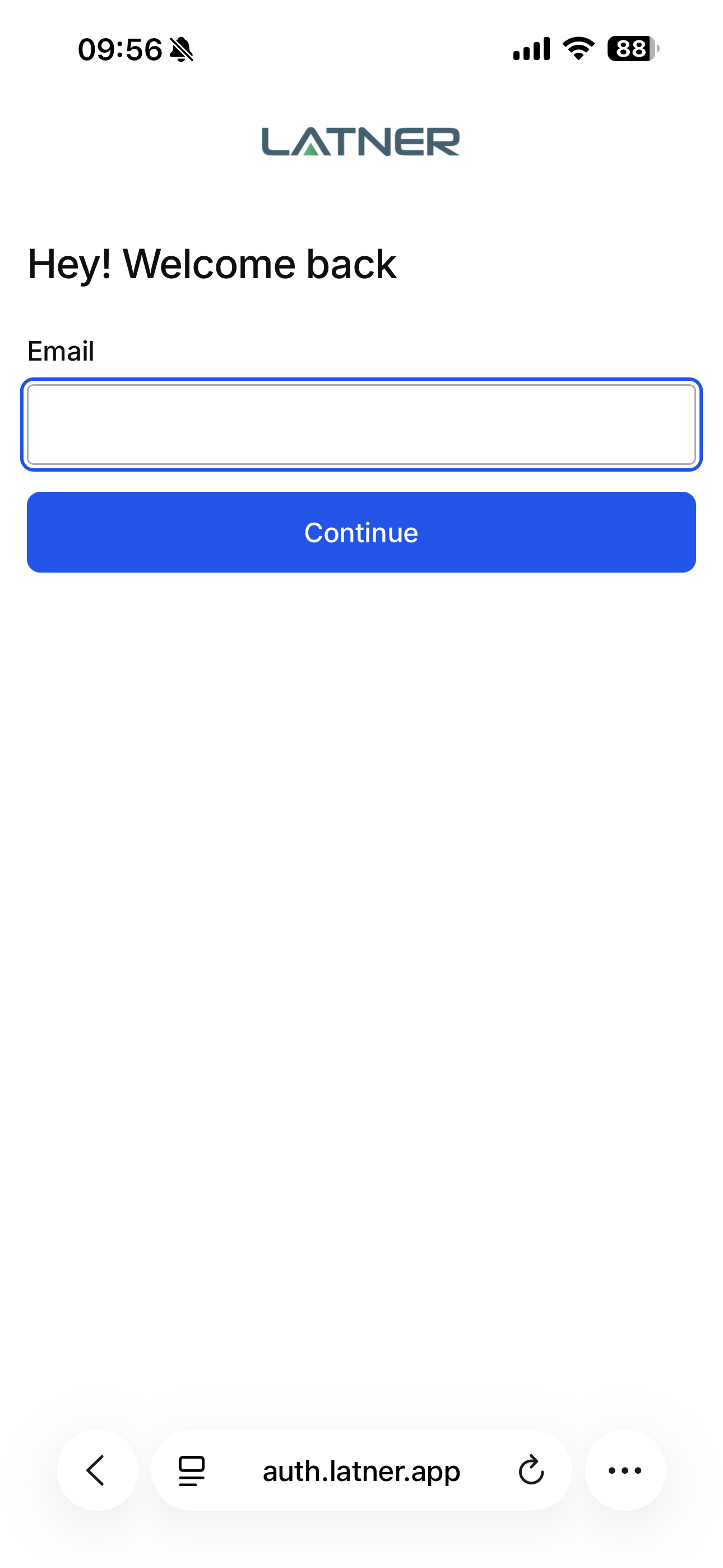
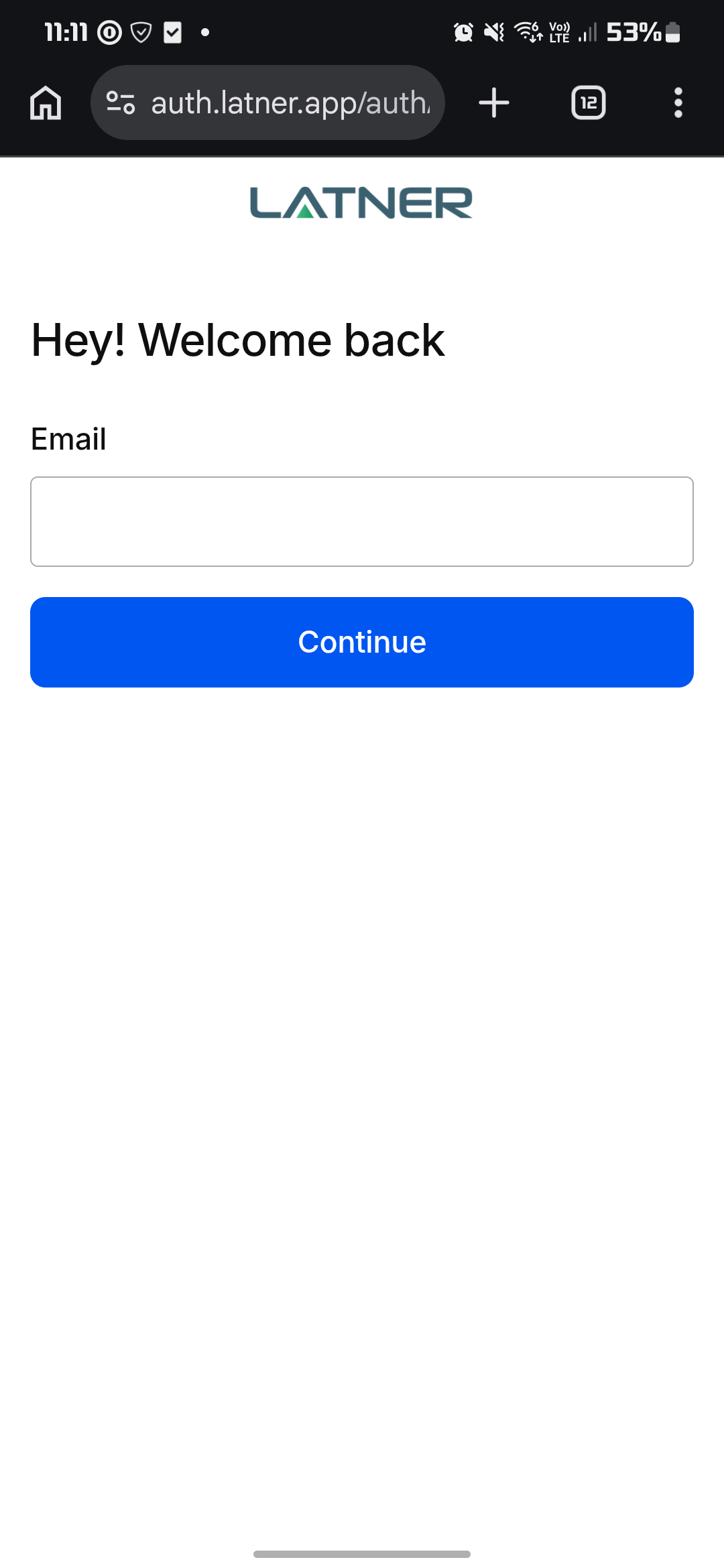
Latner sends you to its sign-in page. Enter your email address and tap Continue, then enter your password and tap Continue again.
|
iPhone and iPad |
Android |
|---|---|
|
|
Step 4 - Wait for the dashboard
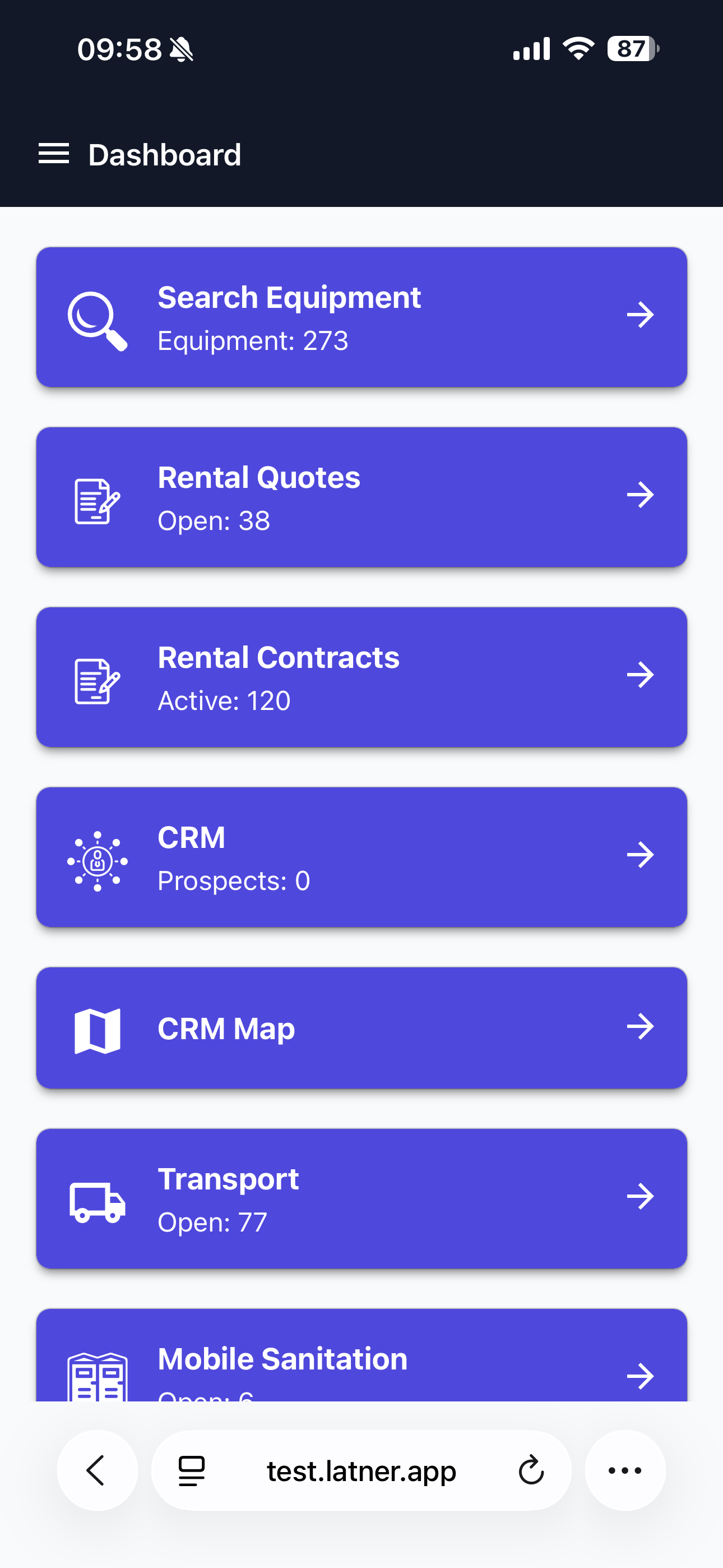
Once you're signed in, Latner returns to your address and shows the mobile dashboard - a stack of tiles, each with a live count next to it. This is the page you want the shortcut to open, so stay here before adding the icon.
Adding the Shortcut on iPhone or iPad
Apple devices add the icon from Safari's share sheet.
Step 1 - Tap Share
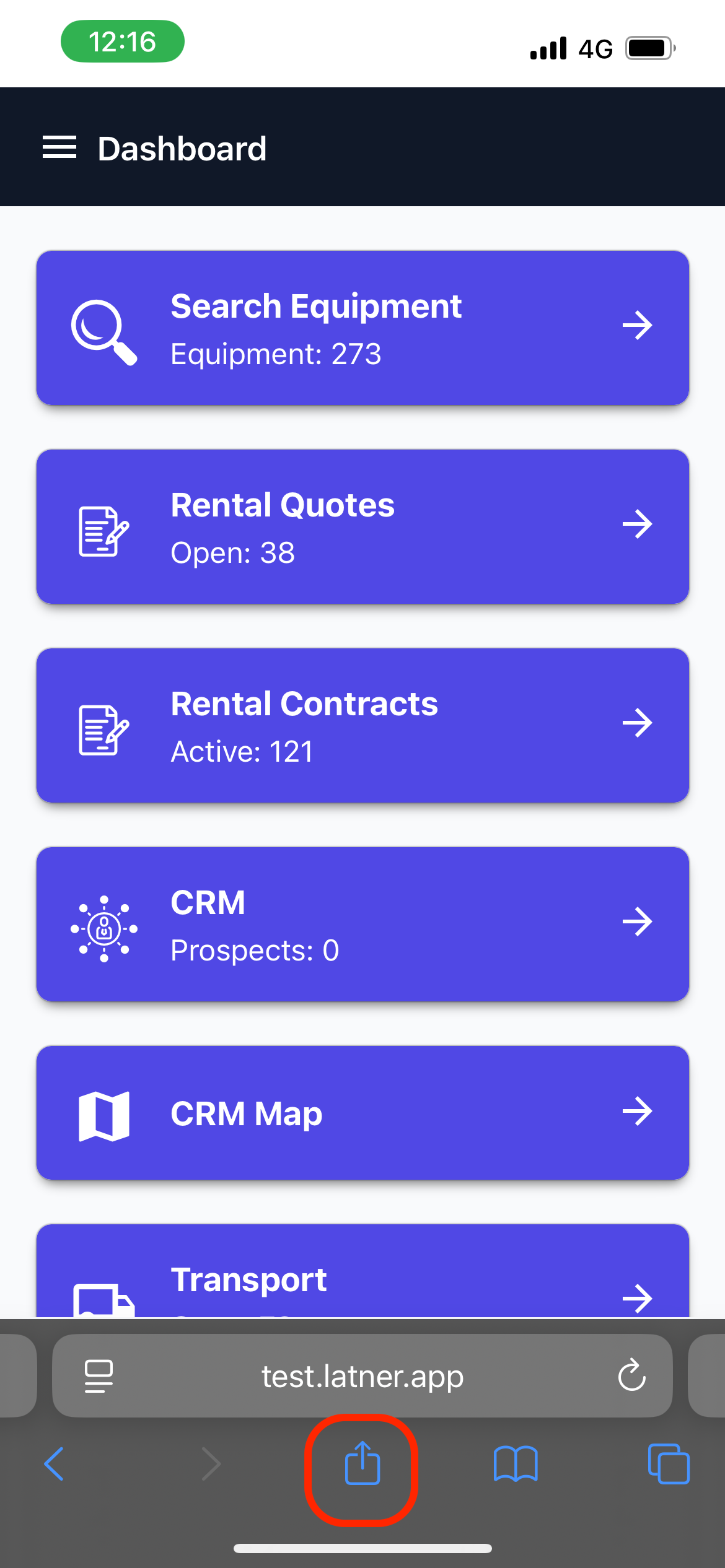
Tap the Share icon in Safari's toolbar - the square with an arrow pointing up. On most iPhones it sits at the bottom of the screen; on iPad it's at the top.
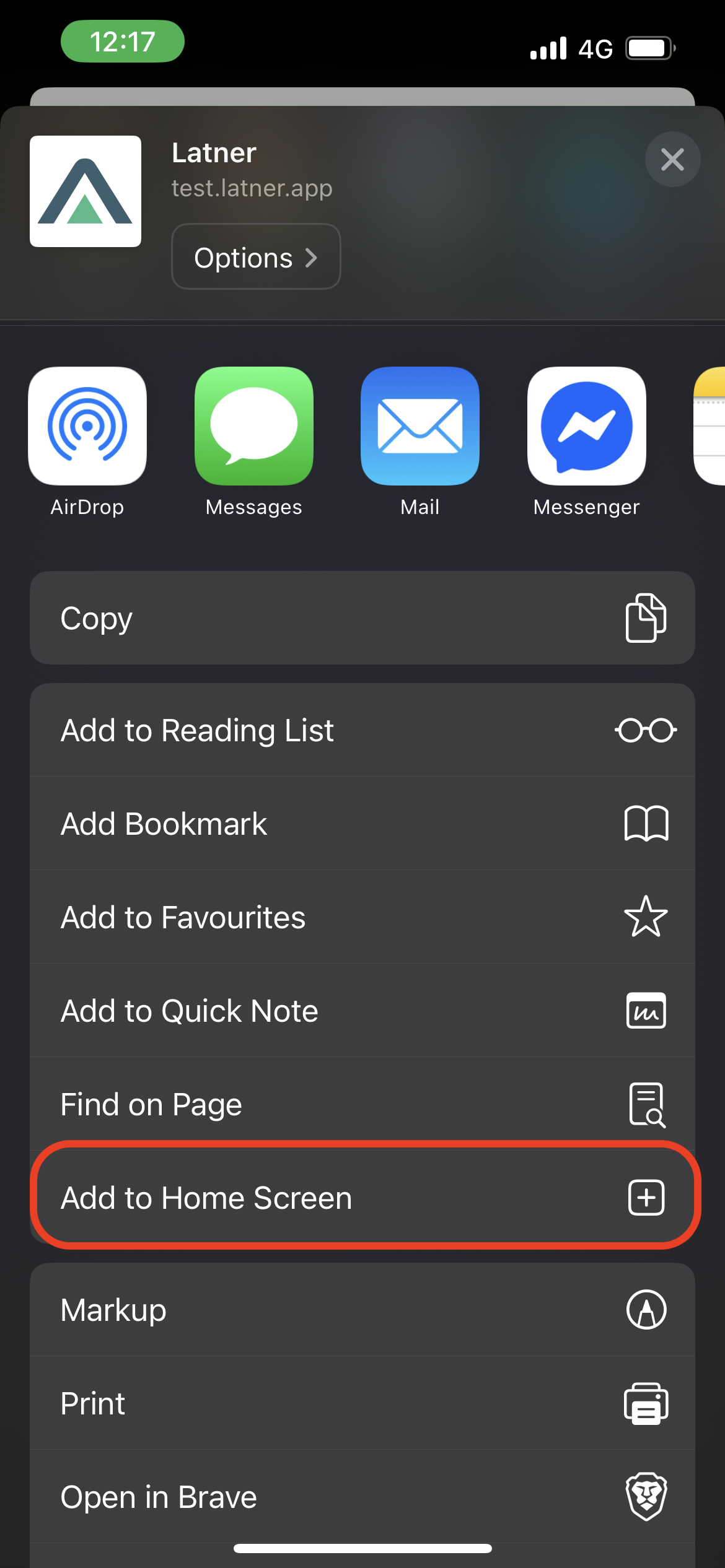
Step 2 - Tap Add to Home Screen
Scroll down the share sheet, past the row of apps, until you see Add to Home Screen, then tap it.
Step 3 - Check the name and tap Add
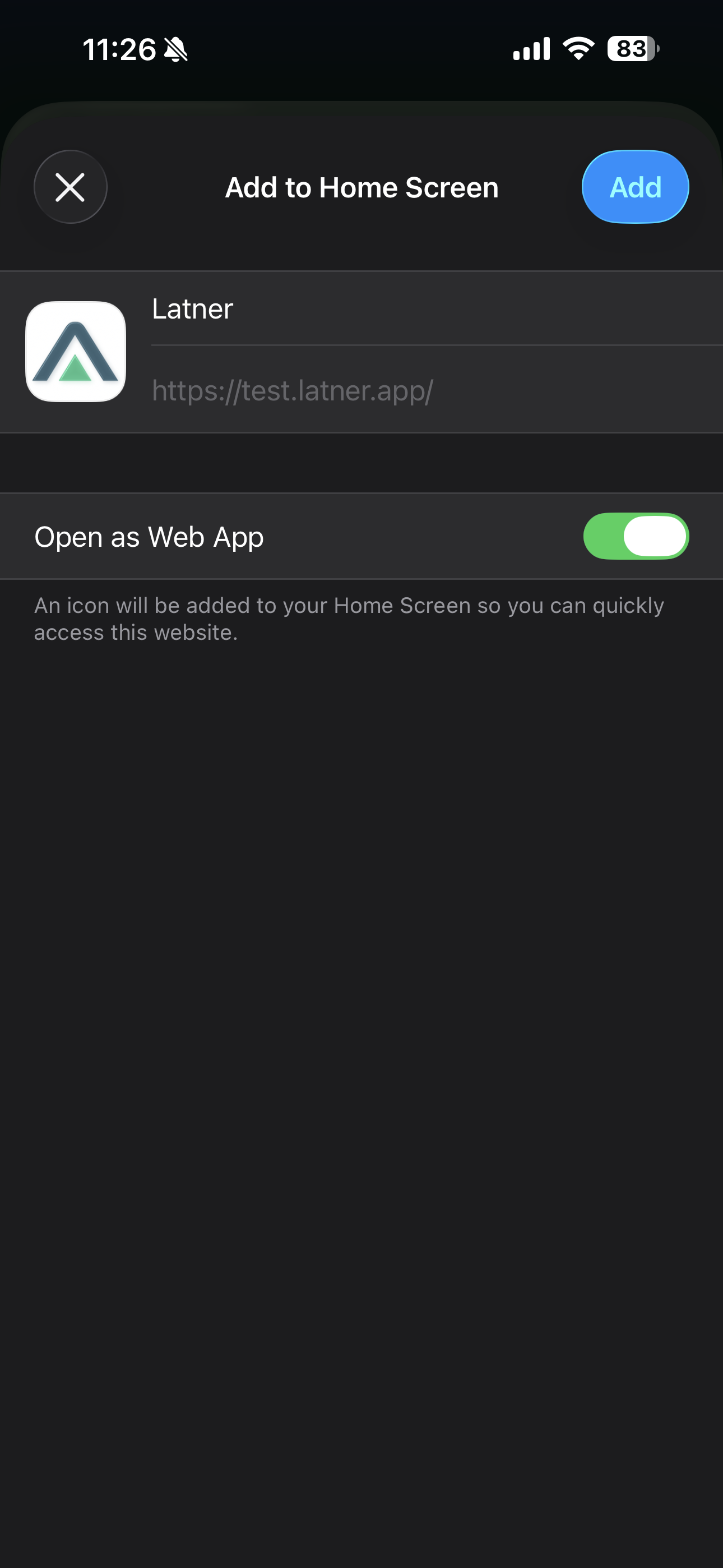
A preview appears showing the Latner icon, the name Latner and the address being saved. You can rename it if you'd rather - useful if you keep shortcuts to more than one Latner environment. Leave Open as Web App switched on so Latner opens full screen, then tap Add.
Step 4 - Open Latner from the home screen
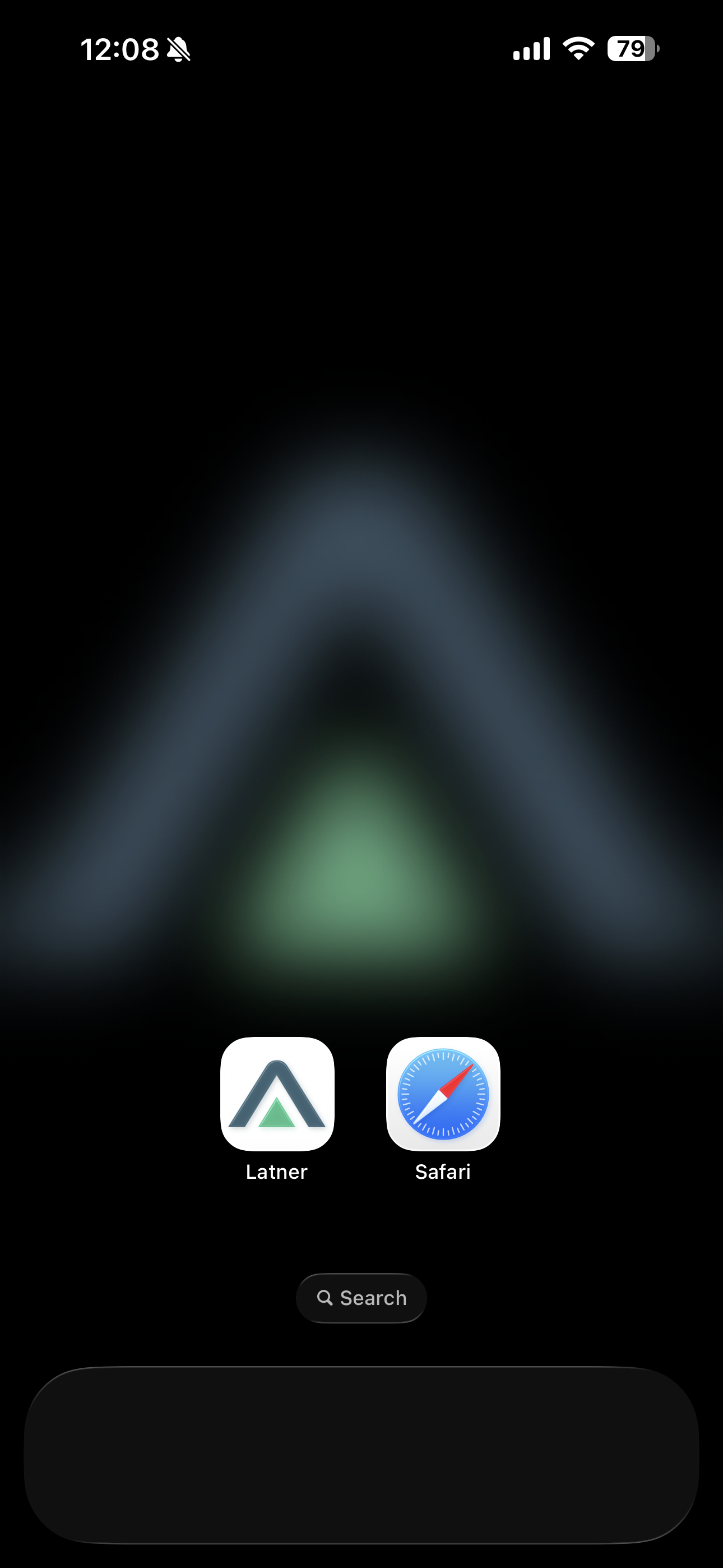
The Latner icon is now on your home screen alongside your other apps. Tap it to open Latner full screen.
Adding the Shortcut on Android
Android devices add the icon from Chrome's menu.
Step 1 - Tap the menu
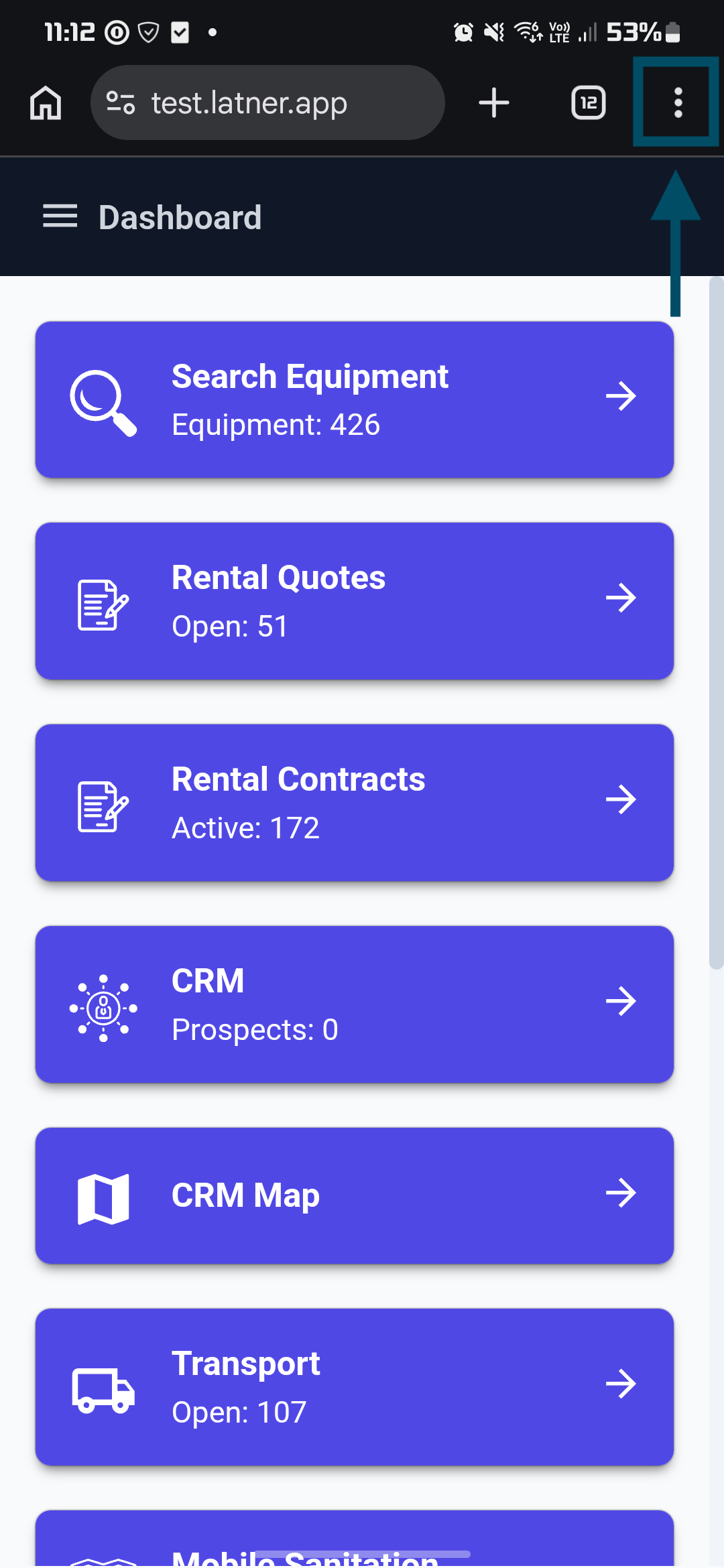
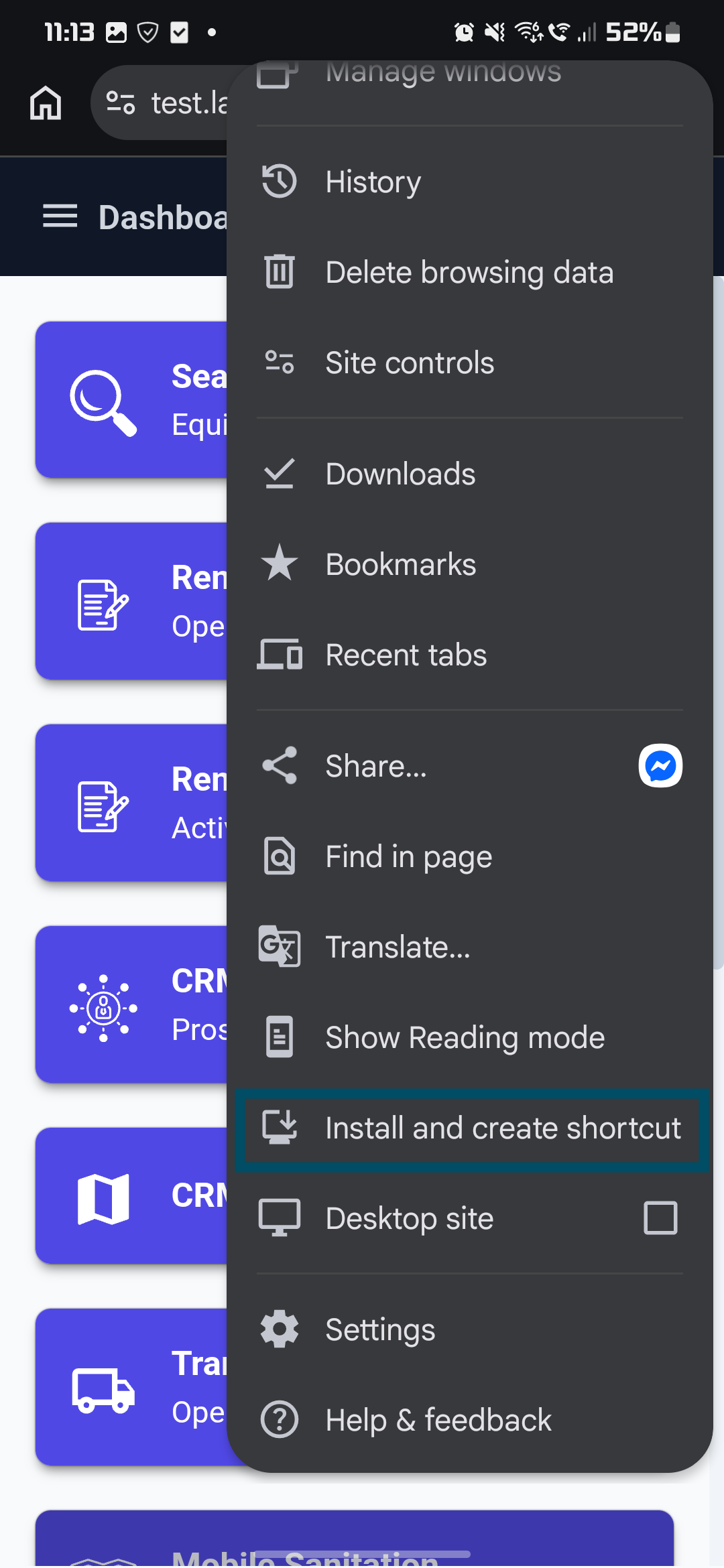
Tap the Menu icon - the three vertical dots at the top right of Chrome.
Step 2 - Tap Install and create shortcut
Scroll down the menu and tap Install and create shortcut. Older versions of Chrome call this Add to Home screen or Install app - they all do the same thing.
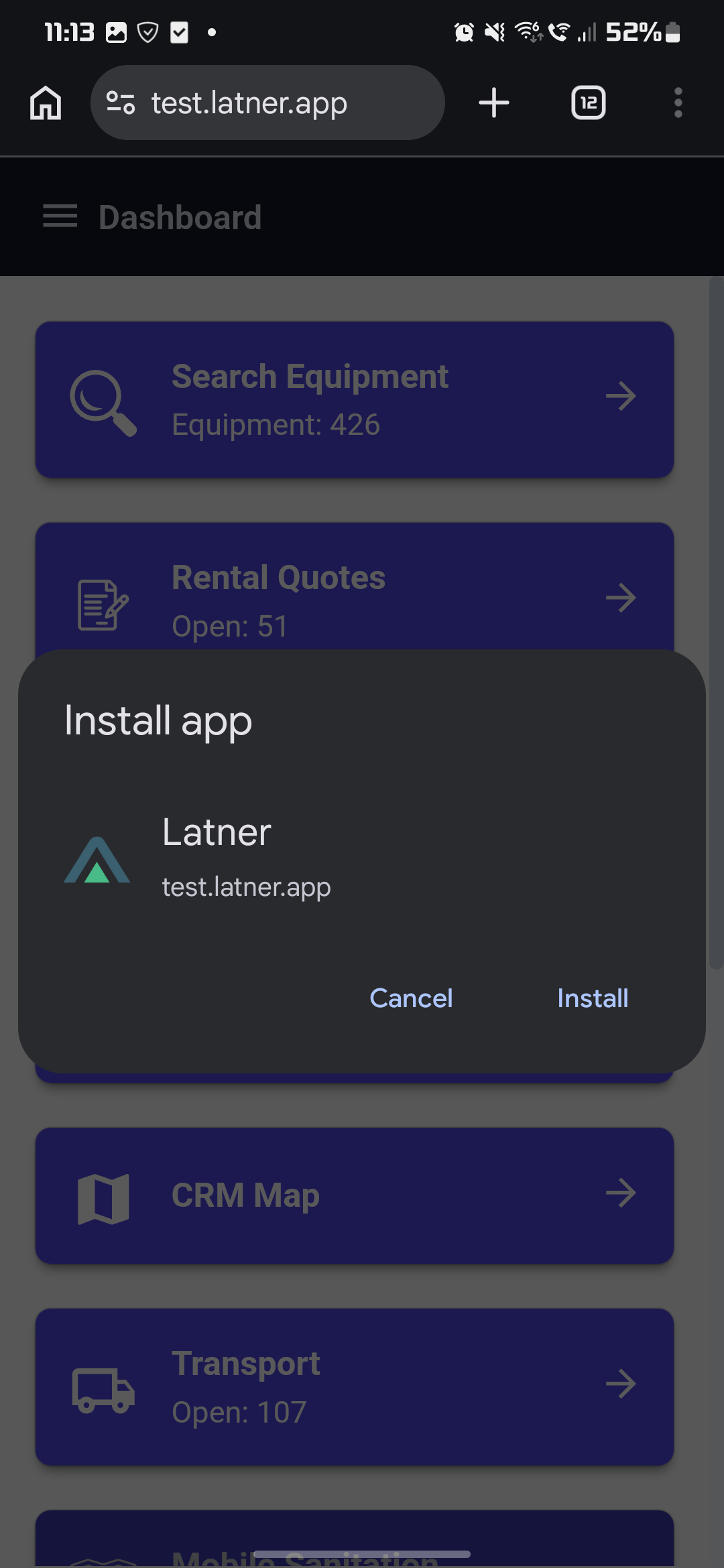
Step 3 - Tap Install
Chrome confirms what it's about to add, showing the Latner icon and address. Tap Install.
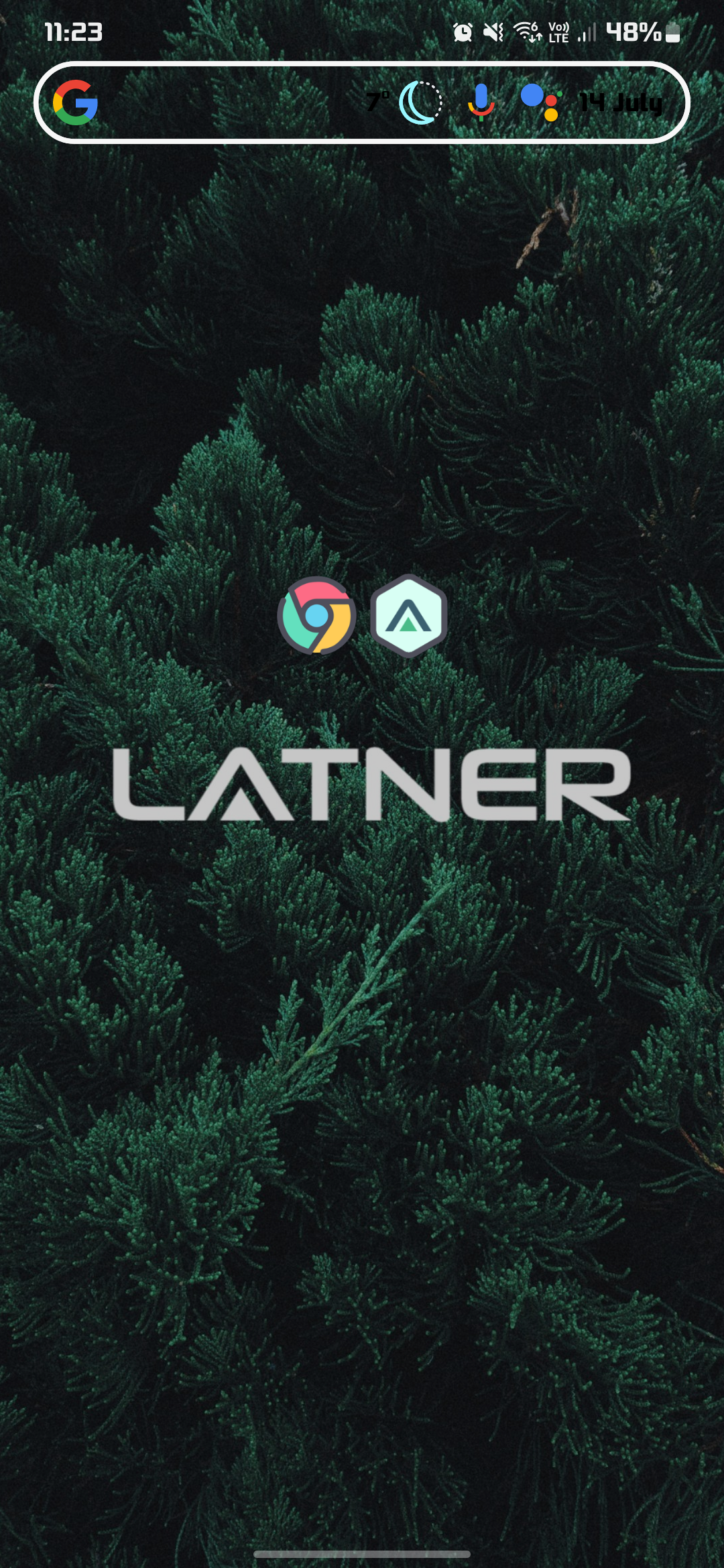
Step 4 - Open Latner from the home screen
The Latner icon appears on your home screen. Tap it to open Latner full screen.
After You Add It
-
The icon behaves like any other app icon - you can move it, put it in a folder, or drop it on the dock.
-
You may be asked to sign in once more the first time you open the shortcut, because it doesn't always share the browser's saved session. After that it remembers you.
-
The shortcut always opens the live Latner site, so you get the current version every time. There's no update to install.
-
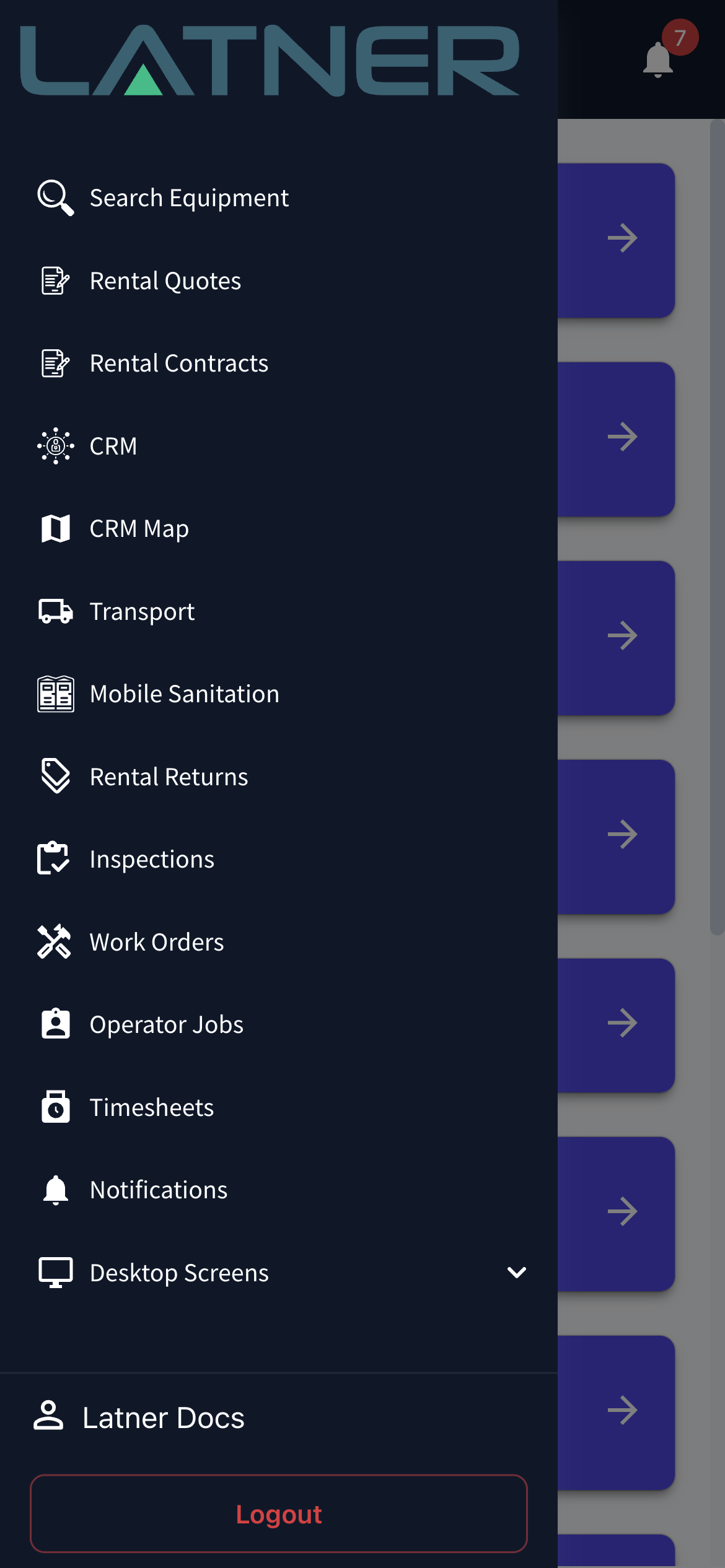
Tap the menu icon at the top left for the full list of mobile screens, plus Desktop Screens if you need something that only exists in the desktop layout, and Logout.
Deleting the icon removes the shortcut only. It doesn't sign you out and it doesn't remove your access to Latner - anyone who picks the device up can still reach Latner through the browser. If you're handing a device to someone else, tap Logout in the menu first.