
Creating an Account walks you through your first sign-in to Latner as a new user: where to go, which email to use, and how you set your own password, so you can get started without waiting on anyone. If you're a new user who can't log in, or you're looking for an invitation or a set-password link, this is the page you want.
Overview
Getting started with Latner takes a couple of minutes. Your administrator sets you up as a user, and you finish the job yourself the first time you sign in. There's no invitation email or set-password link to wait for: you go to your company's Latner web address, enter your email, confirm a code we email you, and choose your password.
-
Latner is 100% web-based, so there's nothing to install. Google Chrome gives the best experience, but any modern browser on desktop or mobile works.
-
Your account is created when your administrator adds you in Security › Users. You can't sign up on your own.
-
You sign in with the exact email address your administrator created your user with.
-
You set your own password on your first sign-in. Nobody else can set it or see it, including administrators.
-
Your first sign-in emails a one-time verification code to that address, so you need to be able to read email sent there.
Before You Begin
You'll need the following before your first sign-in.
|
Requirement |
Where to Find It |
|---|---|
|
Your company's Latner web address |
Your administrator. It's your company's own address in the form yourcompany.latner.app. |
|
The email address you were set up with |
Your administrator. It's the Email on your user in Security › Users, and it must match exactly. |
|
Access to that mailbox |
Your normal email. The verification code for your first sign-in is sent there and nowhere else. |
|
An Active Latner user |
Security › Users. Your administrator creates you with Options › Create User, which needs the Create Users permission. A user with a status of Inactive is blocked at the sign-in page. |
Administrators can't set a password for a user. The Create User dialog has no password field, and there's no password option on a user's record. Every user creates their own password on their first sign-in, and resets it themselves from the sign-in page after that.
Signing In for the First Time
Step 1 - Go to your company's Latner web address
Type your company's Latner address, such as yourcompany.latner.app, into your browser's address bar. Latner takes you straight to the sign-in screen.
Step 2 - Enter your email and select Continue
Enter the email address your administrator created your user with in Email, then select Continue. Use exactly that address - a different address for the same person, or a small typo, is a different account as far as the sign-in page is concerned.
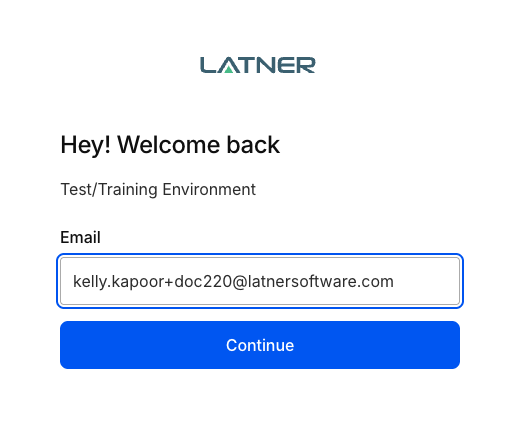
Step 3 - Enter the verification code
Because you haven't signed in before, the screen changes to Check your inbox and a verification code is emailed to you. Type it into Code and select Continue. If the email hasn't arrived after a minute or two, check your junk folder, then select Resend code and use the newest code you receive.
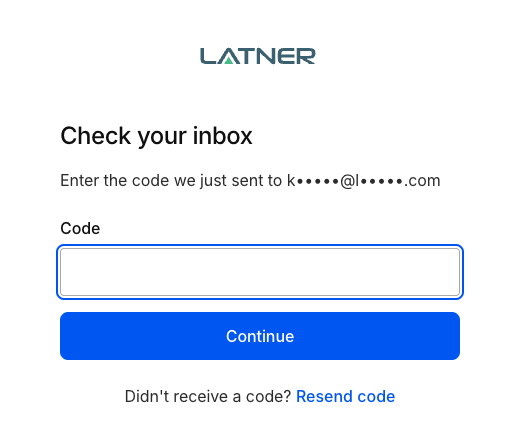
Step 4 - Create your password
Once the code is accepted, you're asked to create your password. Choose one, select Continue, and Latner opens. From now on you sign in with your email and this password - no more codes.
For Administrators: Setting Up a New User
A new user can only sign in once you've added them. Go to Security › Users and select Options › Create User. Every field is required:
-
First Name and Last Name - how the user appears throughout Latner.
-
Email - the address they'll sign in with. Double-check it before you save: it can't be edited on the user record afterwards.
-
Mobile Number - their contact number.
-
Branch - their home branch.
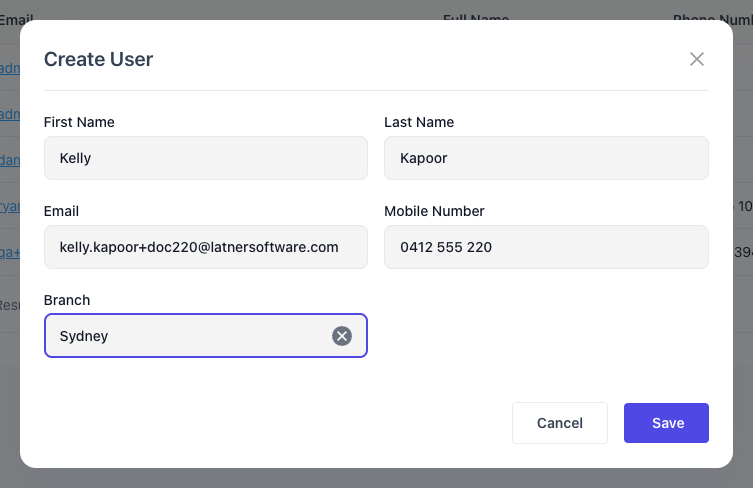
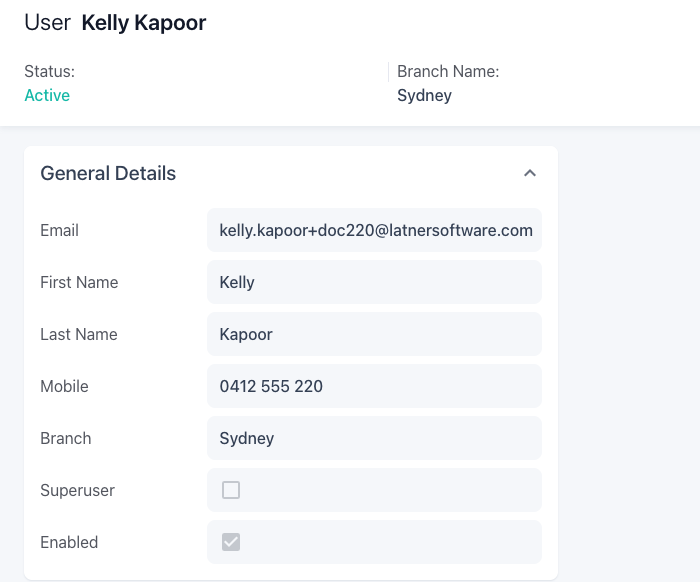
Select Save. The user is created as Active and can sign in straight away, so let them know their email address and your company's Latner web address. Latner doesn't send them an invitation. Then use Options › Assign Permission Group on their record to give them access to the screens they need - see Users for more on managing users.
If the Sign-in Page Refuses You
If you can't log in for the first time, the message on the sign-in page tells you why. Find yours below. Most fixes need your administrator, because they're about your user in Latner rather than anything you typed.
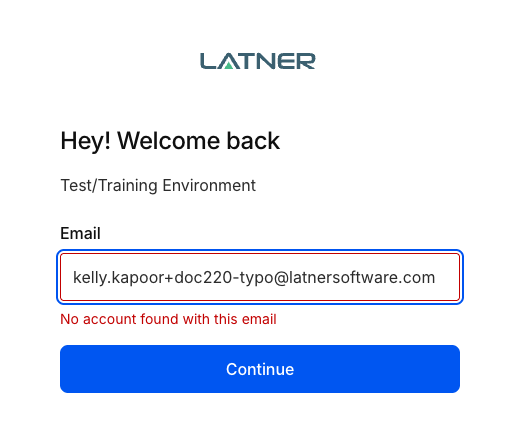
The sign-in page says "No account found with this email". What do I do?
The sign-in page doesn't recognise the address you entered. Check it for typos first. If it's right, ask your administrator to look in Security › Users and confirm that a user exists with exactly that email address - not a work alias, a personal address or a slightly different spelling.
If there's no user, the administrator needs to create one (see For Administrators: Setting Up a New User above). If the user was created with a mistyped email, it can't be corrected on the record, because Email is read-only. Create the user again with the correct address, and untick Enabled on the mistyped one so it's set to Inactive.
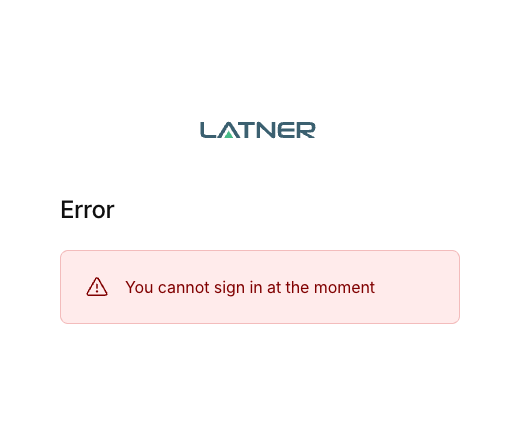
The sign-in page says "You cannot sign in at the moment". Why?
This usually means your Latner user is Inactive. Setting a user to Inactive blocks their sign-in, and a password reset won't get around it. Ask your administrator to open your user in Security › Users, edit General Details, tick Enabled and select Save. The Status changes back to Active and you can sign in again.
FAQs
Related Pages
Watch the Demo
Prefer to watch it? Step through the same flow here.