
Your Latner password is held by the sign-in page rather than inside Latner itself, so if you have forgotten it - or simply want to change it - you reset it yourself from the sign-in screen in a couple of minutes. And if you can't log in for another reason - a "link expired" message on the login page, or being told you don't have access to the organisation when you sign in - jump to Sign-in Problems below.
Overview
Passwords are the one thing Latner deliberately does not keep for you. Signing in happens on a separate, dedicated sign-in page, which is where the reset lives too. That is why hunting through the menus inside Latner for a Change Password option never turns anything up.
-
You reset your own password. You do not need an administrator or a support ticket to do it.
-
There is no Change Password option inside Latner. Forgetting your password and deciding to change it both follow the same steps.
-
Latner emails a one-time verification code to the address you sign in with, so you need to be able to read email sent to that address.
-
Asking for a code does not lock you out. Your old password keeps working right up until you finish setting the new one.
-
Nothing on your Latner user record changes. Your branch, permission groups and settings are untouched by a reset.
Before You Begin
You will need the following before you start.
|
Requirement |
Where to Find It |
|---|---|
|
The email address you sign in with |
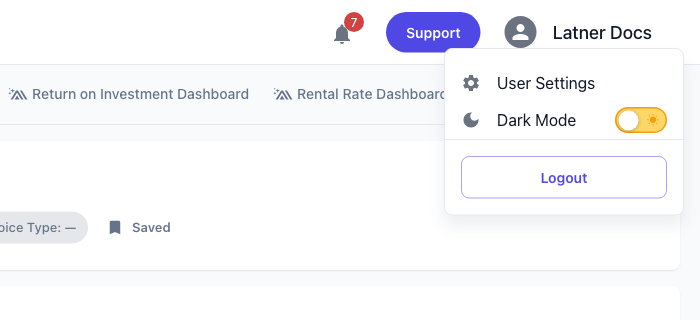
Your account menu (top right) › User Settings. The Email field there is read-only, so it is the address the sign-in page expects. |
|
Access to that mailbox |
Your normal email. The verification code is sent there and nowhere else. |
|
An active Latner user |
Security › Users. A user with a status of Inactive is blocked at the sign-in page, and no amount of resetting will change that. See Users for how administrators activate and deactivate users. |
|
To be signed out of Latner |
Account menu (top right) › Logout. The reset starts from the sign-in screen. |
Latner has no in-app password screen at all, and that is on purpose. Even an administrator with full rights cannot set a password for someone else from Security › Users - everybody resets their own.
Resetting Your Password
Step 1 - Open the sign-in screen
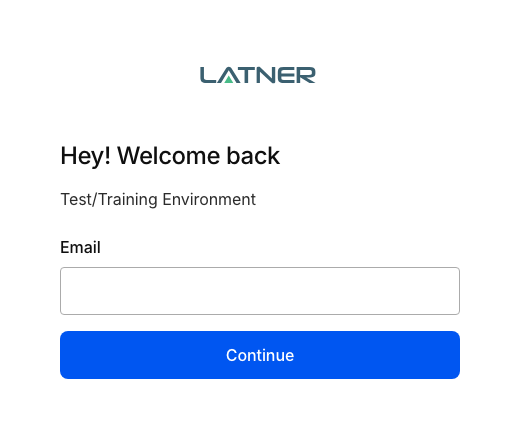
Go to your Latner web address - your company's own address, such as yourcompany.latner.app. If you are still signed in, select your name in the top right and choose Logout. The sign-in screen asks for your Email first: type it in and select Continue.
Step 2 - Select Reset password
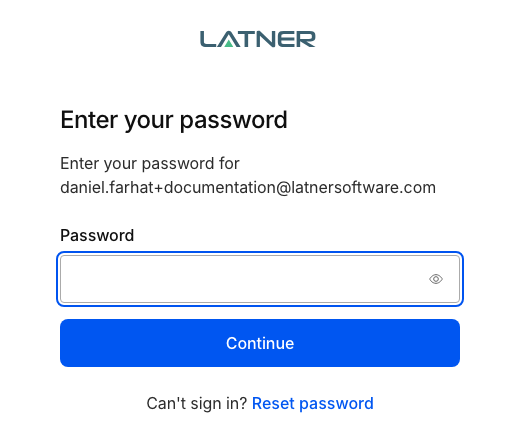
Latner now shows the Enter your password screen. Rather than guessing, look below the Continue button for Can't sign in? and select Reset password.
Step 3 - Check your inbox for the code
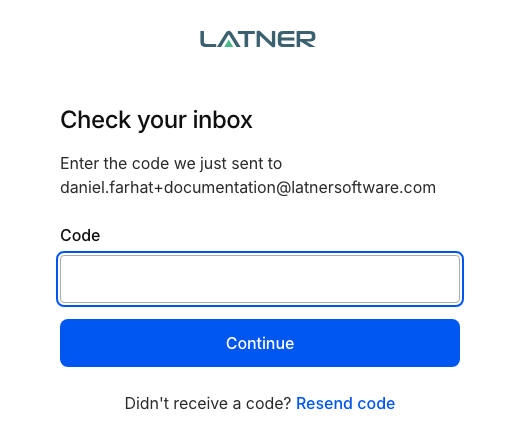
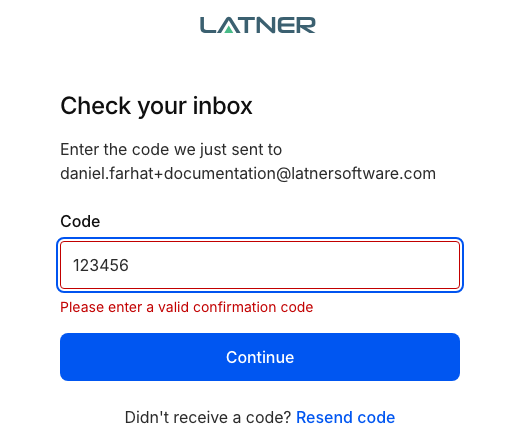
The screen changes to Check your inbox and a verification code is emailed to the address you entered. The email is titled Email verification code and comes from Latner Software at no-reply@kinde.com, which is worth knowing if you have to go looking in a junk folder.
Step 4 - Enter the code
Type the code into the Code field and select Continue. Codes are only good for a short window, and the email tells you how long. If yours has expired, or a digit went astray, the screen answers with Please enter a valid confirmation code - select Resend code and try the fresh one.
Step 5 - Set your new password
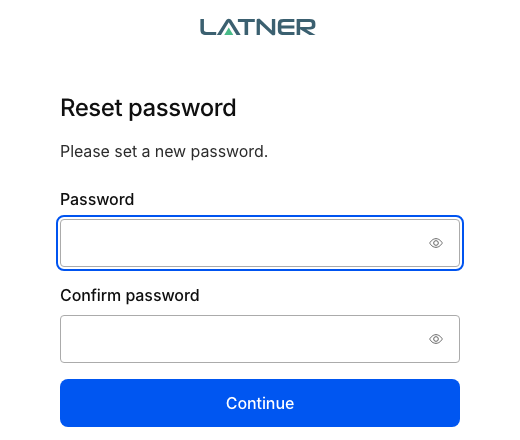
The Reset password screen asks you to set a new password. Enter it in Password, type the same thing again in Confirm password, then select Continue. Each field has an eye icon on the right if you would rather see what you are typing than trust your fingers.
After You Reset
-
You are returned to the sign-in screen, where you sign in as normal with the new password.
-
The new password covers everywhere you sign in to Latner. The mobile app uses the same account, so there is nothing separate to update there.
-
Your Latner user record is untouched. Permission groups, branch, notification groups and user settings all stay exactly as they were.
-
The old password stops working as soon as the new one is saved.
Resetting will not get you back in if your Latner user has been set to Inactive. Deactivating a user also suspends their sign-in, so the sign-in page keeps refusing the account however many times you reset it. Ask an administrator to set your user back to Active in Security › Users first, then sign in with your existing password - you may not need a reset at all. Users explains how a user is deactivated and reactivated.
Sign-in Problems
Not every sign-in problem is a password problem. If you can't log in and the login page shows an error instead of asking for your password again, a reset usually won't help - find the message you're seeing below. Never signed in before? Start with Creating an Account, which walks you through setting up your login for the first time.
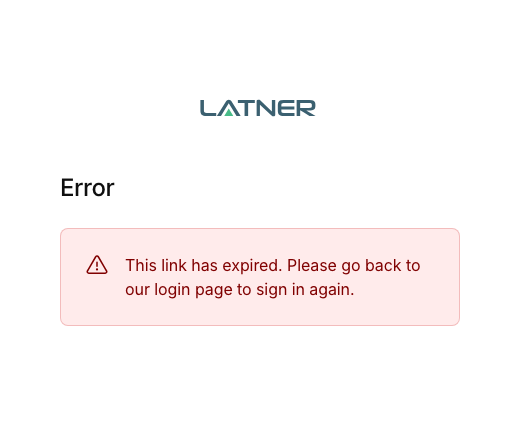
The login page says "This link has expired. Please go back to our login page to sign in again." What do I do?
Your password is fine, so don't reset it. This message means Latner was opened from a bookmark or saved link that points at the sign-in page itself, with old login details still in the address. Every time you go to your Latner address, it creates a fresh sign-in link that is only good for that one sign-in, so a bookmark saved while the sign-in page was showing (an address starting with auth.latner.app) goes stale and keeps landing on this message.
To fix it:
-
Delete the bookmark or saved link you used to open Latner.
-
Type your company's Latner address, such as yourcompany.latner.app, straight into the address bar.
-
Sign in as normal with your email and password.
-
Wait until the Dashboard has loaded, and only then bookmark the page. A bookmark of your company address always starts a fresh sign-in, so it won't expire.
I can log in on one computer, but another says I don't have access to this organisation. Why?
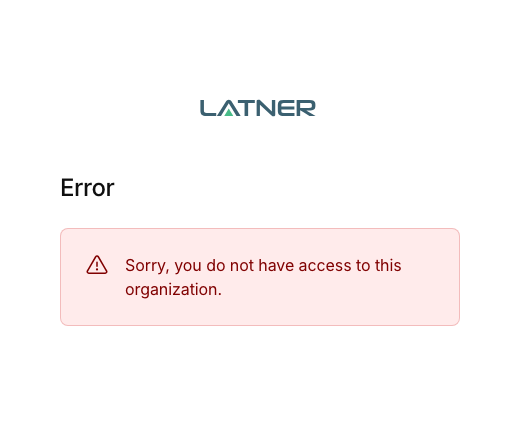
The message on screen is Sorry, you do not have access to this organization. It appears after you enter your password, so your email and password were accepted - don't reset your password. Each Latner site only admits its own users, and the message means the address you're signing in at belongs to a different Latner site from yours.
When it works on one computer and not another, the usual cause is the second computer's browser: its address bar autocomplete, or a bookmark, is taking you to a different Latner address - another company's site, or a training or trial site you've used before. To fix it:
-
Click into the address bar and type your company's full Latner address, such as yourcompany.latner.app.
-
Press Enter on exactly what you typed - don't accept the address the browser suggests as you type.
-
Sign in as normal. Once the Dashboard has loaded, replace any old bookmark with this page.
If you're certain the address is right and still see the message, ask an administrator to check you have been added as a user on that site in Security › Users (see Users).
FAQs
Watch the Demo
Prefer to watch it? Step through the same flow here.