
An in-stock machine has two possible destinations, and Latner keeps them cleanly separate: you can sell it to a customer through a Sales Order and invoice, or convert it into a rental fleet Equipment asset you keep and hire out.
Overview
Not every machine you buy is for sale. Some you on-sell to customers; others you keep and put to work in your rental fleet. These are two different endpoints for a Serialized Stock Item, and an item can only take one of them.
-
Selling moves the item through Allocated (reserved on a Sales Order) to Sold (invoiced). It records the sale, posts the cost of goods, and the machine leaves your business.
-
Converting turns the item into an owned rental Equipment asset. The machine stays with you, becomes hireable, and the Serialized Stock Item is marked Converted as a permanent record of where it came from.
-
Both start from an item in In Stock status.
Before You Begin
|
Requirement |
Where to Find It |
|---|---|
|
An item in In Stock status |
The item must be received and not currently in capital prep. Both selling and converting require it. |
|
Sales Order permissions (to sell) |
Standard Sales module setup — you sell through a Sales Order and invoice. |
|
An Equipment create permission (to convert) |
Security › Configuration › Permission Groups — Equipment module. You need at least one of Create Rental Equipment, Create Internal Use Equipment, or Create Customer Owned Equipment for the Convert to Equipment action to appear. |
Selling an Item to a Customer
There is no standalone "sell" button on a Serialized Stock Item. Selling happens through the Sales Order, which keeps the sale, the pricing, and the invoice together.
Step 1 - Add the item to a Sales Order
On a Sales Order, add a line and set the line type to Serialized Stock. Choose the Serialized Stock Type (the product), then pick the specific Serialized Stock Item. The item picker only lists units that are In Stock, so you cannot accidentally sell one that is ordered, allocated elsewhere, or already sold.
Adding the item reserves it: the item moves to Allocated status.
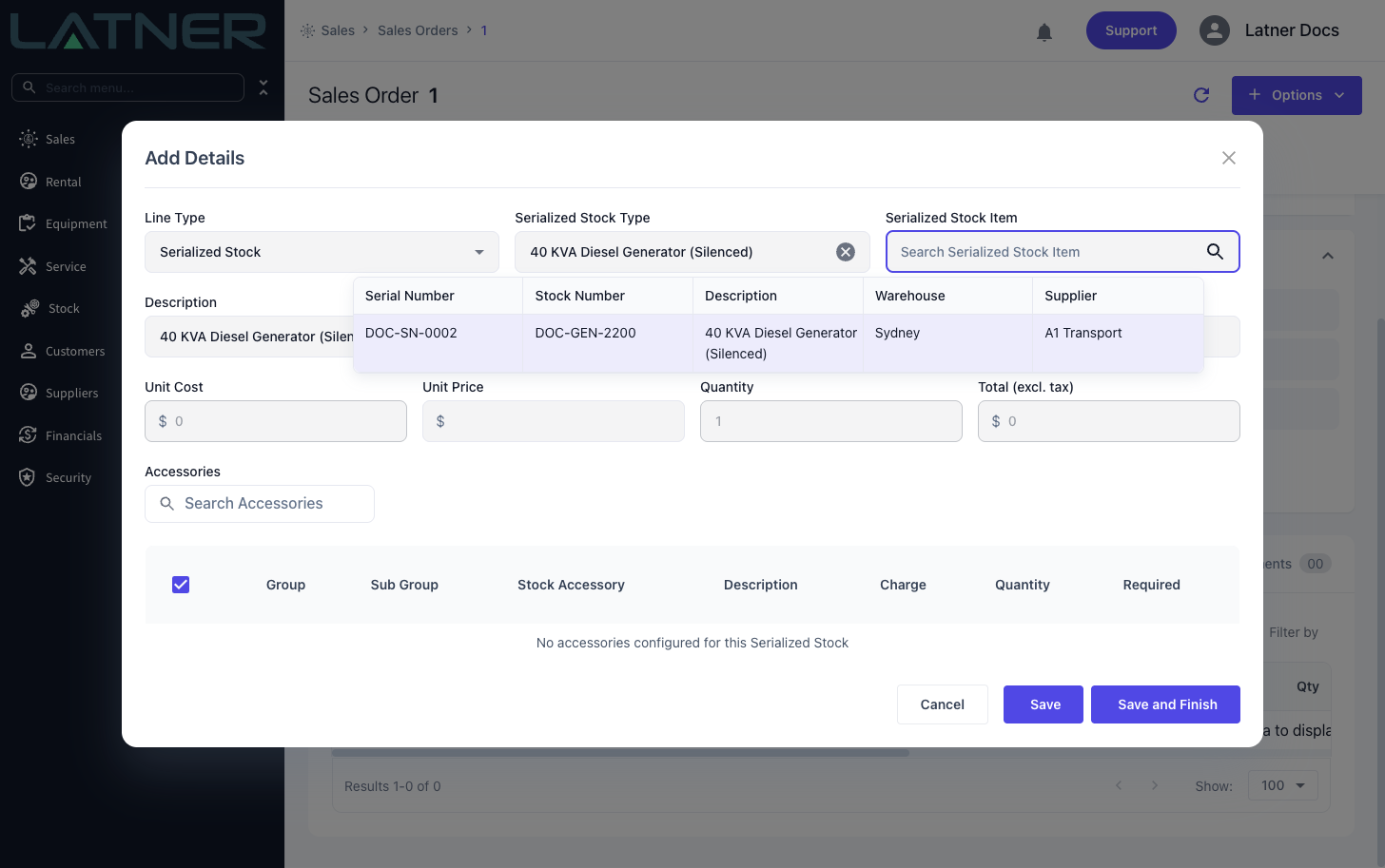
If the Create Pre Sale Inspection after adding Serialized Stock to Sales Order setting is on (and the product is set up for pre-sale inspections), adding the item here raises a pre-sale inspection automatically.
Step 2 - Invoice the Sales Order
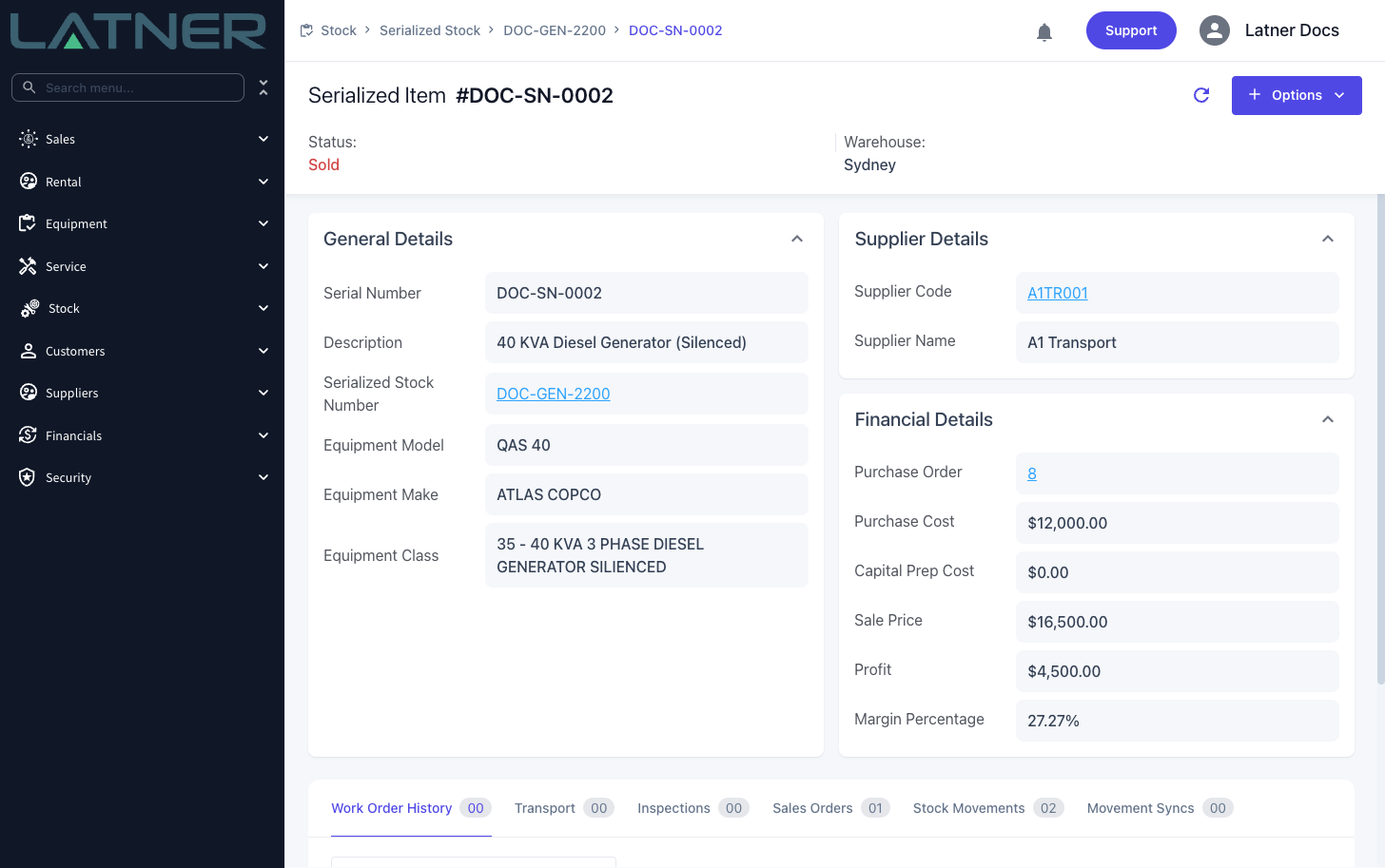
Convert the Sales Order to an invoice and complete it. The serial number must be present on the line before it can be invoiced. On completion, the item moves to Sold, and an Invoice stock movement is recorded, dated to the invoice date.
Step 3 - Review the sale
Open the item. Its Financial Details now show the Sale Price, and calculate Profit and Margin Percentage from the sale price against the purchase cost and capital prep cost. The Stock Movements tab shows the Invoice movement.
Converting an Item to Rental Equipment
Converting keeps the machine in your business as a fleet asset you can hire out.
Step 1 - Open the item and choose Convert to Equipment
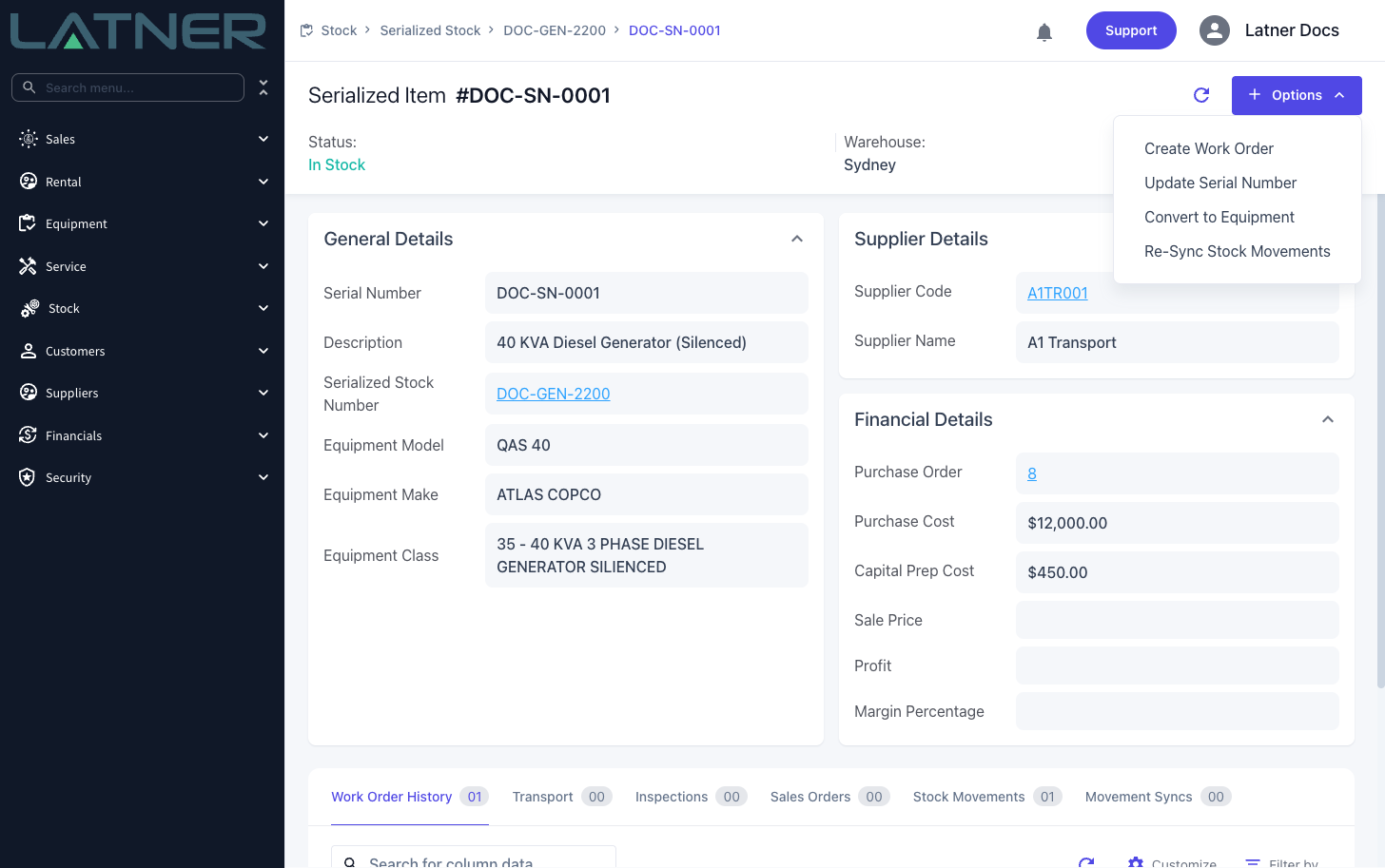
Open the Serialized Stock Item (it must be In Stock) and choose Options › Convert to Equipment. If the action is greyed out, the item is not In Stock; if it is missing entirely, you do not have an Equipment create permission.
Step 2 - Complete the Create Equipment form
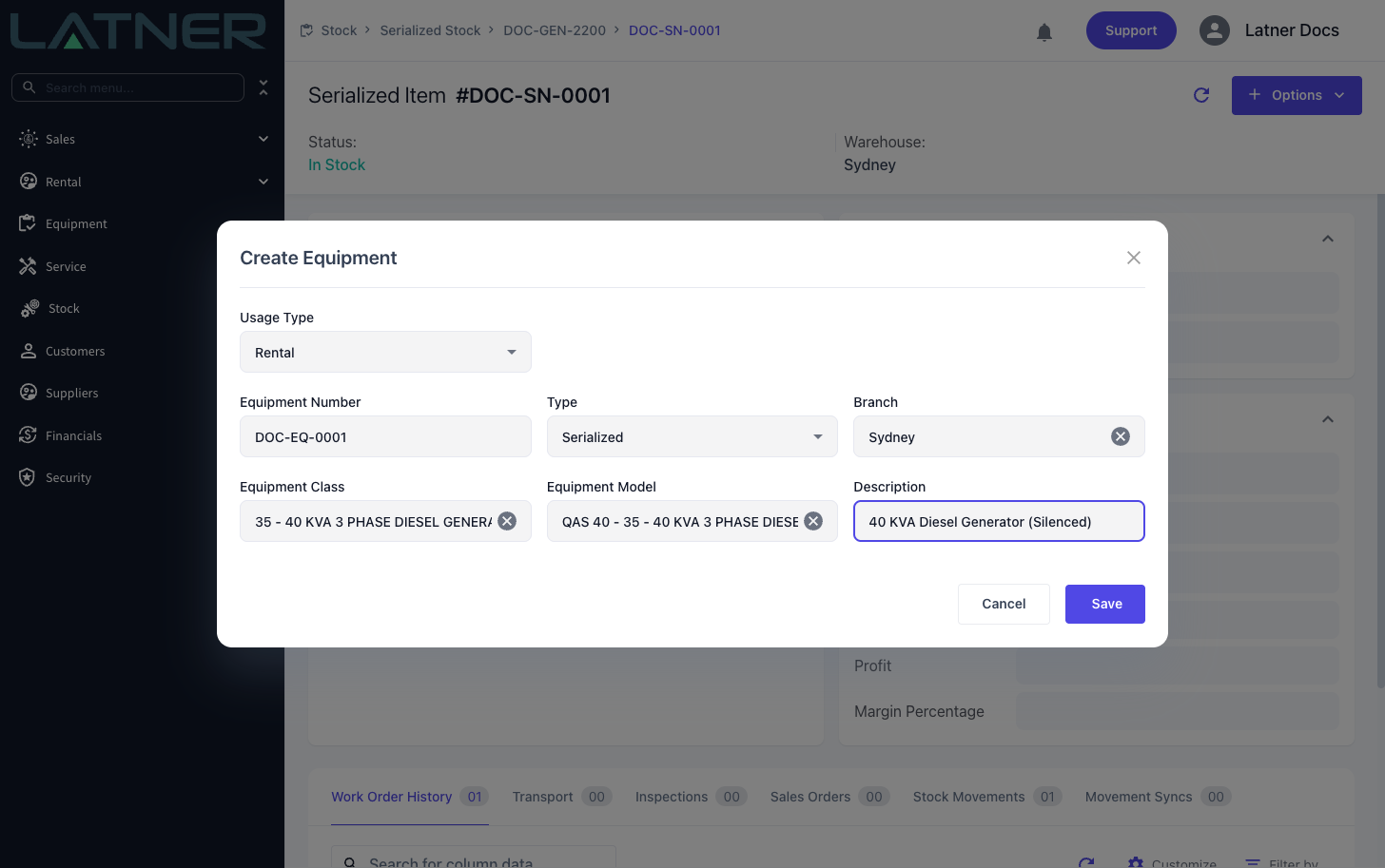
The Create Equipment form opens, pre-filled with the item's equipment class and model, and linked back to the serialized item behind the scenes. Complete the remaining equipment details and save.
Latner creates the Equipment record (with its service schedules and asset), and marks the Serialized Stock Item as Converted. You are taken to the new Equipment record.
After Selling or Converting
-
After selling: the item is Sold, its profit and margin are visible, and the Invoice movement is queued to sync to your accounting package (posting cost of goods against inventory on hand).
-
After converting: the item is Converted and the machine now lives as an Equipment/Asset record. From here on, manage it as Equipment; the Serialized Stock Item remains as a read-only record of its origin (serial number, purchase cost, and Purchase Order).
Selling and converting are one-way. A sold item is released only if the invoice is later credited or cancelled, which returns it to Allocated or In Stock. A converted item is managed as Equipment from then on and its Serialized Stock record cannot be deleted while the Equipment exists. Choose the right destination before you commit.