
Purchasing Serialized Stock is how individual, serial-numbered machines come into Latner: you create the product record, order the units on a Purchase Order, and receive them into a warehouse where they become available to prepare, sell, or convert.
Overview
Serialized Stock Items are never created by hand one at a time. They are born from a confirmed Purchase Order and become on-hand stock when that order is received.
-
First you create the Serialized Stock product record, linked to an Equipment Model.
-
Then you raise a Purchase Order with a line of type Serialized Stock, optionally typing the serial number for each unit.
-
Confirming the Purchase Order creates one item per unit, each in Ordered status.
-
Receiving the Purchase Order moves each item to In Stock and records a stock movement.
Before You Begin
You need permission to create Serialized Stock and to raise Purchase Orders.
|
Requirement |
Where to Find It |
|---|---|
|
Create Serialized Stock permission |
Security › Configuration › Permission Groups — Stock module. |
|
An Equipment Model for the product |
Equipment › Configuration — the model must exist before you can create the Serialized Stock record. |
|
Purchase Order permissions and a Supplier |
Standard purchasing setup — you raise the order against a supplier and warehouse. |
Step 1 - Create the Serialized Stock record
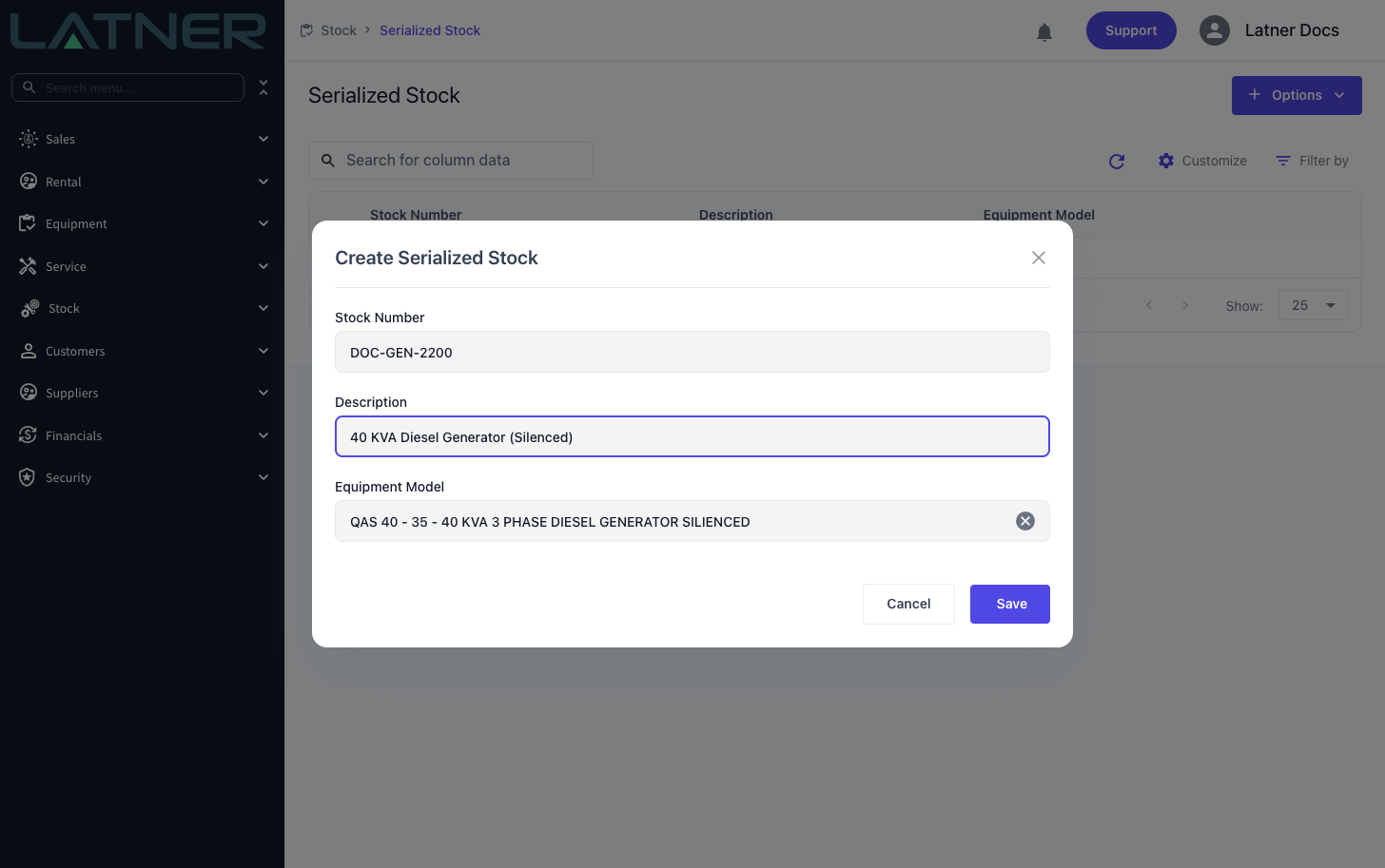
Go to Stock › Serialized Stock › Serialized Stock and choose Options › Create Serialized Stock. Complete the form:
-
Stock Number - a unique identifier for the product. Required.
-
Description - a friendly description. Optional.
-
Equipment Model - the model this product represents. Required. Equipment Models are configured in Equipment Configuration.
Save, and you are taken to the new record. Here you can set the Recommended Retail Price (RRP) and, if you use pre-sale inspections, tick Pre Sale Inspections and choose a Pre Sale Checklist.
Step 2 - Add a Serialized Stock line to a Purchase Order
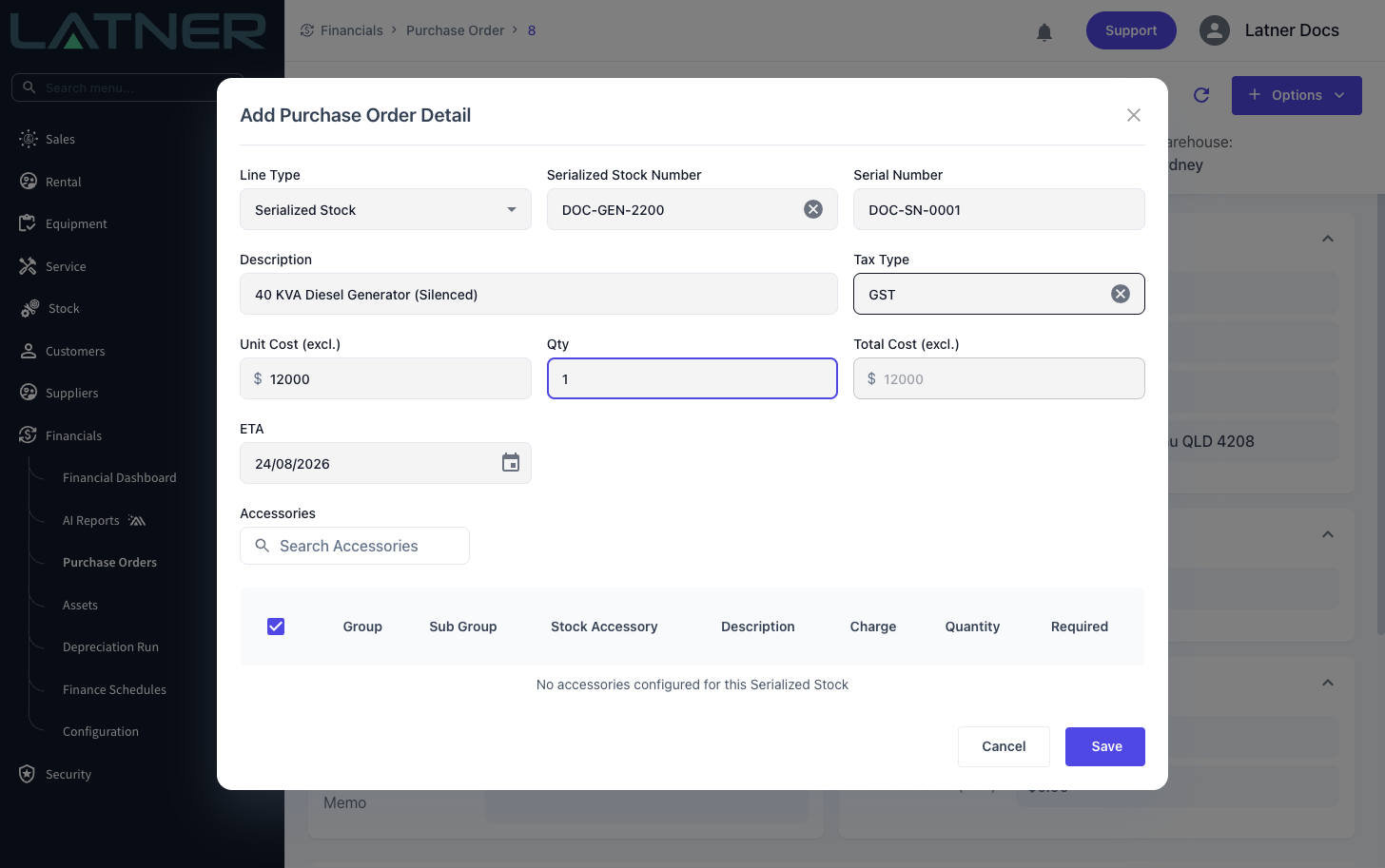
Raise a Purchase Order against your supplier, then add a line and set Line Type to Serialized Stock. Two extra fields appear:
-
Serialized Stock Number - the product record you created in Step 1. Required.
-
Serial Number - the unit's serial number. Optional at this stage. If you enter a serial number, the line Quantity must be 1, because a serial number identifies a single unit.
If you do not know the serial numbers yet, leave the field blank and set the quantity to the number of units you are ordering; Latner assigns a temporary placeholder to each unit that you can replace later.
Step 3 - Confirm the Purchase Order
Confirm the order. Latner creates one Serialized Stock Item per outstanding unit, each in Ordered status, carrying the supplier, warehouse, and unit cost from the order line. You can see these items on the Serialized Stock record's Ordered tab.
If you reopen a confirmed Purchase Order, only items still in Ordered status are removed. Items that have already been received are kept, because they hold stock and accounting history.
Step 4 - Receive the units into stock
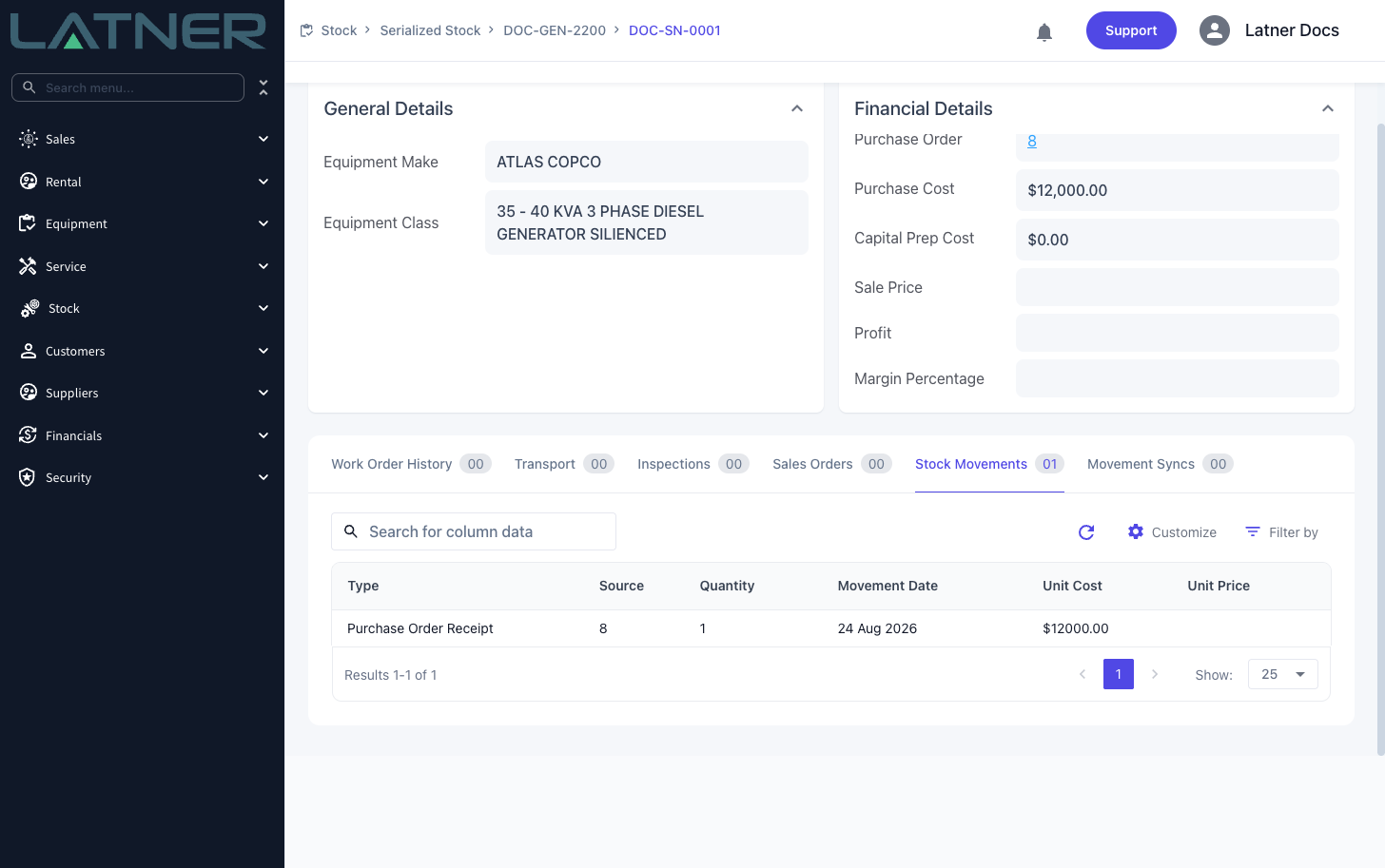
When the goods arrive, receive the Purchase Order as usual. Each received item moves from Ordered to In Stock, and a Purchase Order Receipt stock movement is recorded against it. The item is now on hand and ready to prepare, sell, or convert.
After Creation
-
Each item appears on its product's detail page under the matching status tab, and in the flat Serial Numbers list.
-
The item detail page shows its supplier, purchase cost, linked Purchase Order, and (later) any capital prep cost and sale details.
-
If you receive against a line that was linked to a Sales Order, the received serial number is assigned to that Sales Order line automatically.
Once a unit has been received, its serial number can no longer be changed on the Purchase Order. If you need to correct it, use Update Serial Number on the Serialized Stock Item itself (this needs the Edit Serial Number permission).