
The audit trail on a rental contract is a dated record of who changed what, so you can explain how a contract ended up the way it is without having to ask around.
Overview
Rental contracts rarely sit still. Dates get extended, equipment gets swapped, someone off hires a line, someone else raises the invoice. Latner records those changes as they happen and keeps them on the contract itself, in a panel called Audit History.
-
Every rental contract keeps its own audit trail, covering both the contract and its detail lines.
-
Each entry names what happened, who did it, and the date and time it happened.
-
Updates list every field that changed, with its old and new value side by side.
-
Changes made together as part of one action are grouped into a single entry.
-
Entries are added automatically. Nothing in Latner lets you write, edit or delete one, so the trail stays trustworthy.
Before You Begin
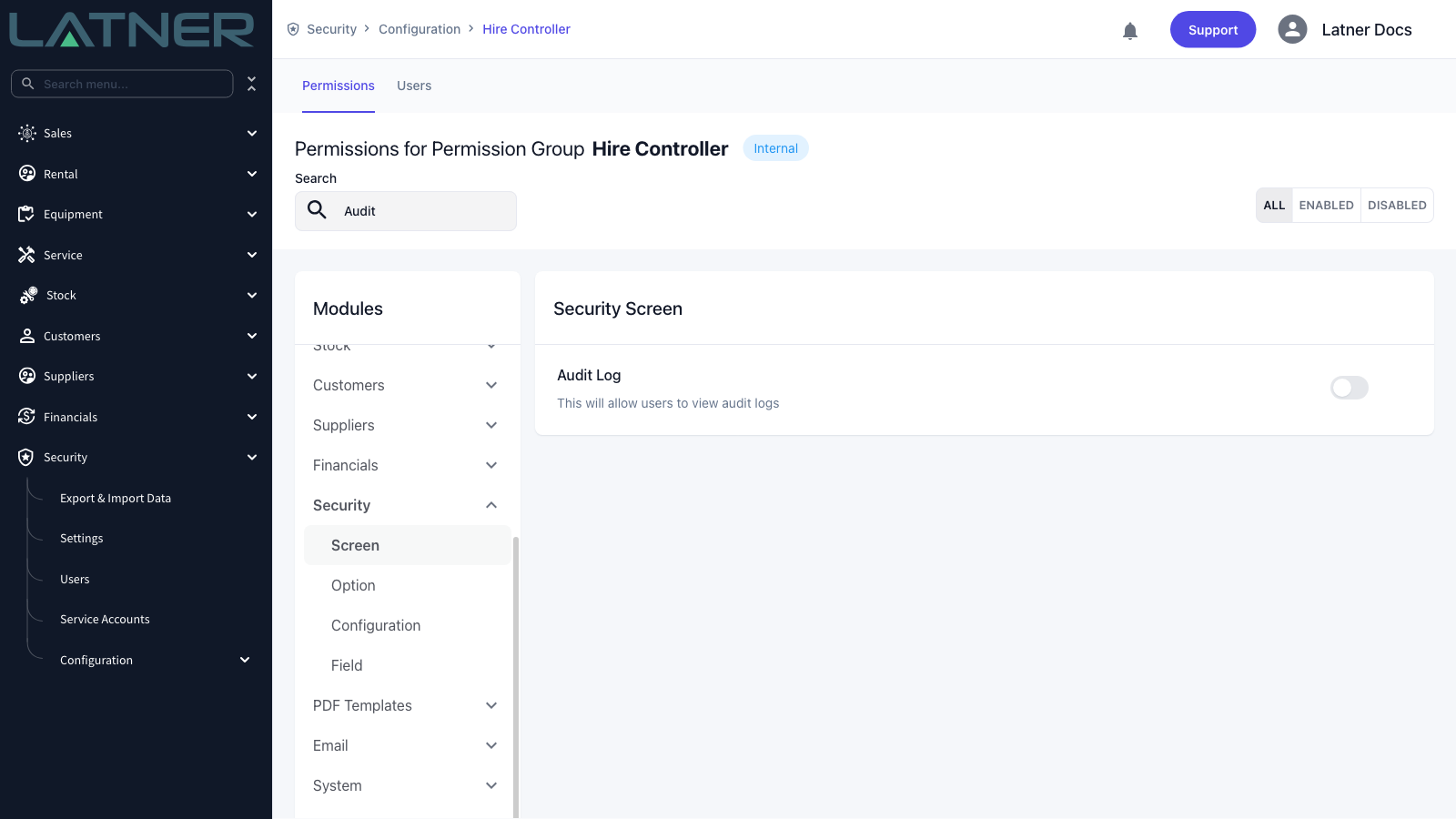
You need one permission and a saved rental contract.
|
Requirement |
Where to Find It |
|---|---|
|
Audit Log permission |
Security › Configuration › Permission Groups, open the group, then Modules › Security › Screen |
|
A saved rental contract |
Rental › Rental Contracts |
No settings need to be switched on. Auditing runs all the time in the background; the Audit Log permission only decides who is allowed to read it.
Viewing the Audit Trail
Step 1 - Open the rental contract
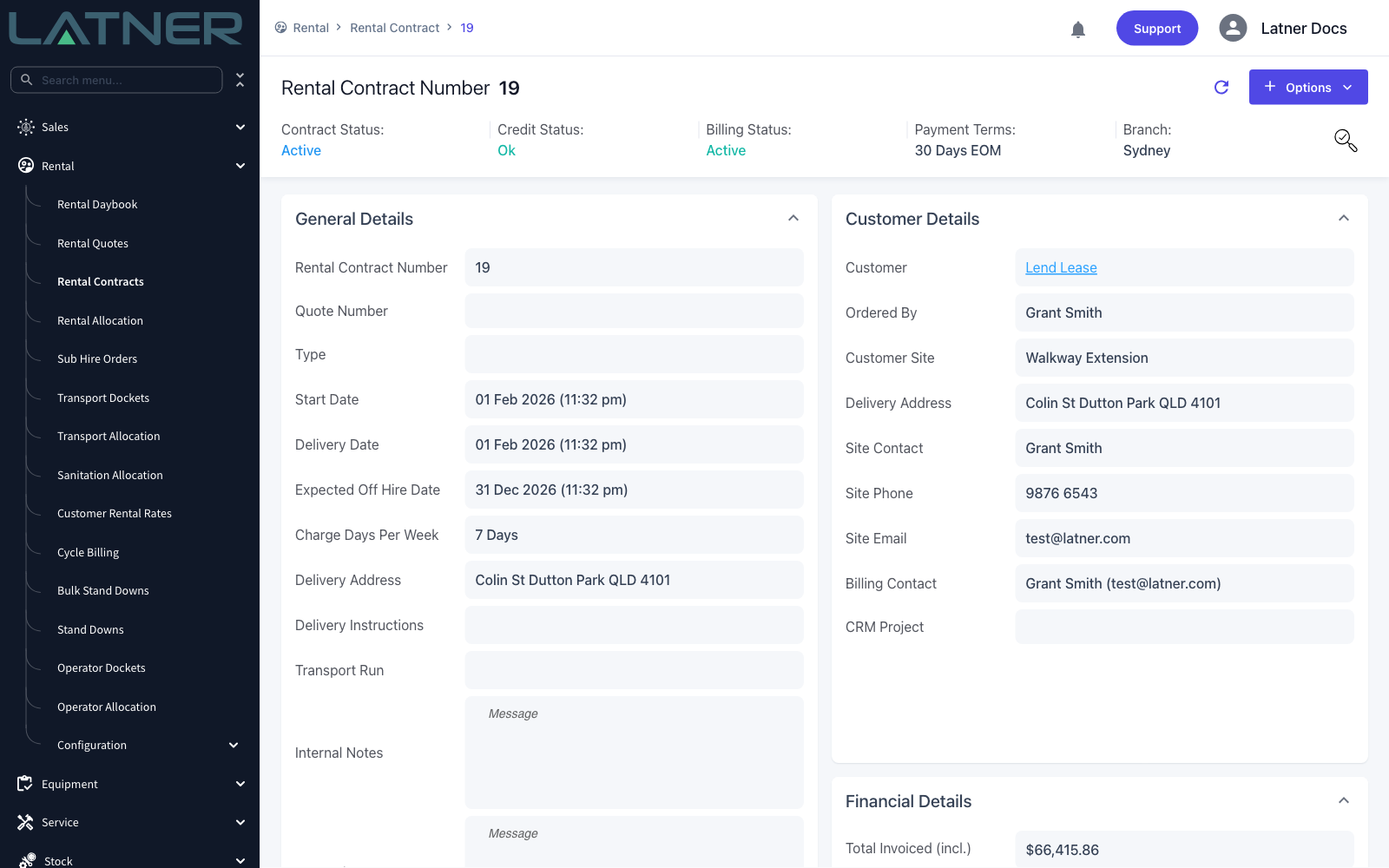
Go to Rental › Rental Contracts and open the contract you want to look into. The audit trail lives on the contract's details page and follows the contract for its whole life, so it's still there once the contract is completed or cancelled.
Step 2 - Open the Audit History
Click the magnifying glass icon at the right-hand end of the status strip, level with Contract Status and Branch. The Audit History panel slides in from the right.

Step 3 - Read the timeline
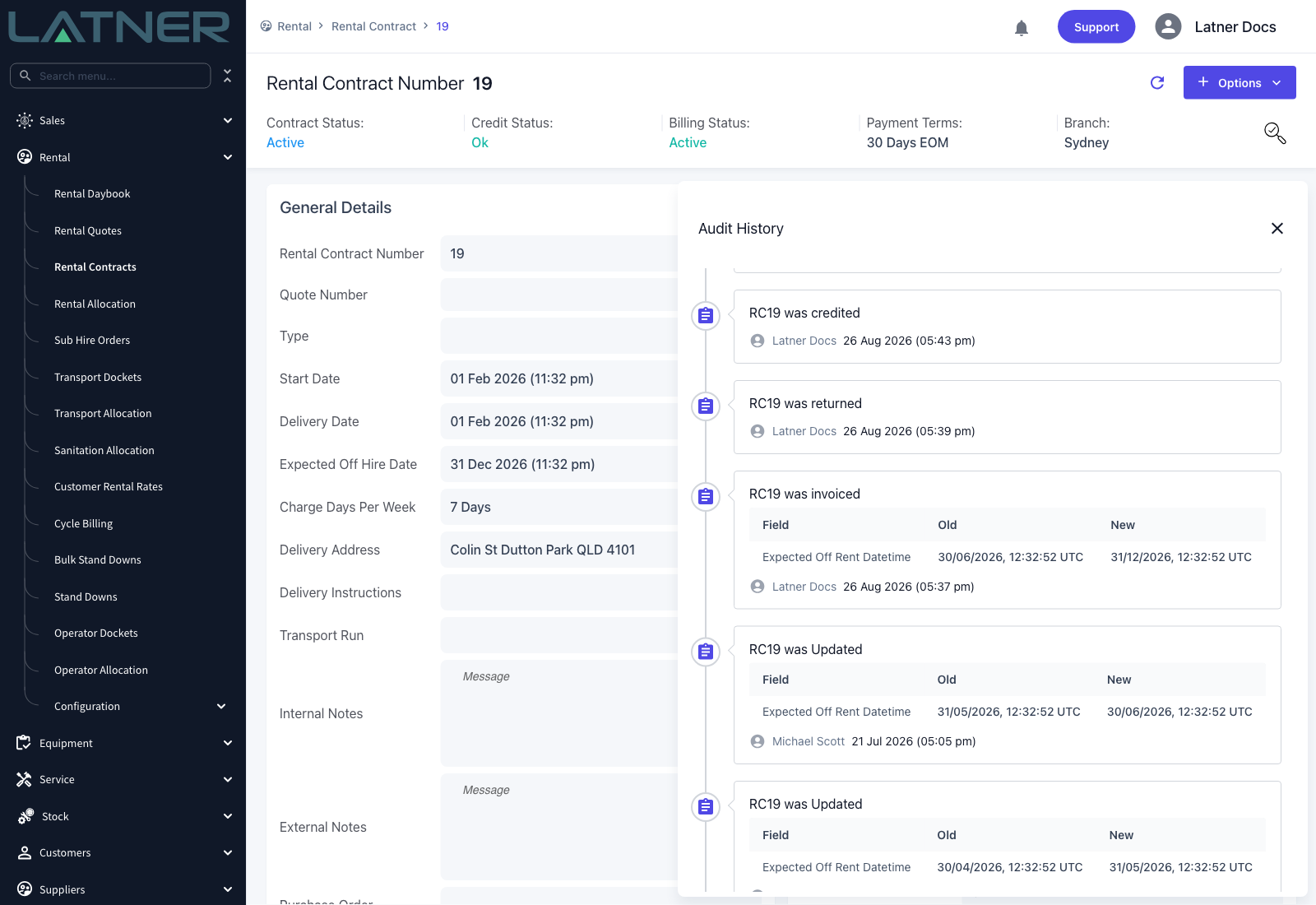
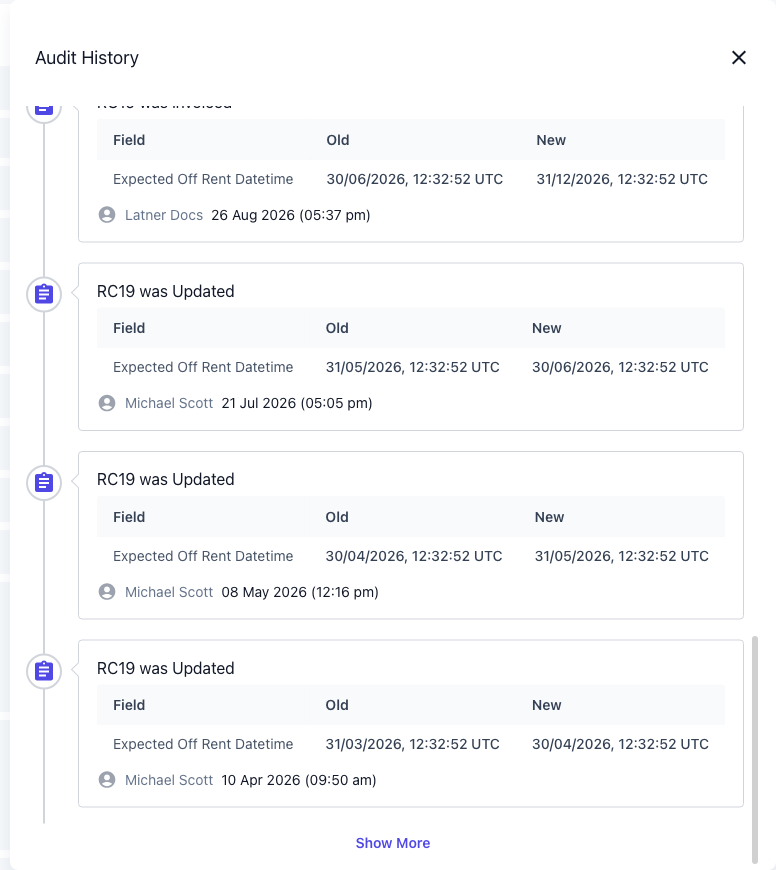
Entries are listed newest first, ten at a time. Each one is a card on a timeline, and each card tells you three things:
-
What happened - the heading, for example "RC19 was invoiced" or "Line 2 - Equipment was Updated".
-
What changed - a table of the fields affected, if the action changed any.
-
Who and when - the user who was signed in at the time, and the date and time, at the bottom of the card.
If the contract has no recorded activity yet, the panel simply reads No Audit History.
Step 4 - Check what changed
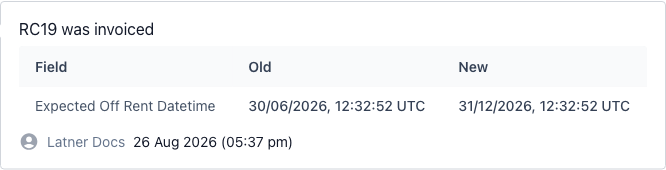
Where an action changed field values, the card lists them under Field, Old and New. Entries for a record being created show Field and Value instead, since there is no earlier value to compare against.
Step 5 - Follow related changes
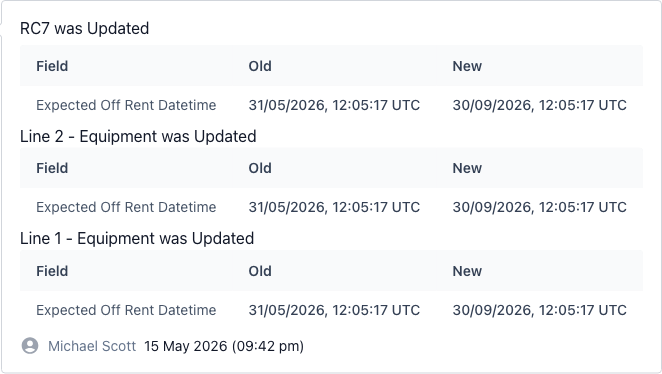
One action often touches several records at once. Extending the expected off hire date on the contract, for example, extends the equipment lines with it. Latner groups those changes into a single entry, with the contract's change first and each affected line beneath it, so you can see the full effect of one action instead of three unrelated entries.
Step 6 - Load older activity
Scroll to the bottom of the panel and click Show More to load the next ten entries. Keep clicking until the button disappears, which means you've reached the beginning of the contract's history. To close the panel, click the X in its top corner or click anywhere outside it.
What Gets Recorded
The audit trail covers the rental contract and its detail lines, and recognises the actions you run from the contract, not just plain edits. Entries you'll see include:
-
Created, Updated and Deleted - for the contract, its lines and their rates.
-
Equipment was manually put On Hire and On Hire was reversed.
-
off hired, returned and equipment on rent changed.
-
invoiced and credited.
-
completed, reopened, postponed and cancelled.
-
sent, emailed, duplicated and E-Signature Requested.
-
Branch was Updated, Customer was Updated and Rental Rate Adjustment Added.
-
Discount Requested and Discount Request Resolved.
An entry is only written when something actually changes. Opening a contract, or saving it again with the same values, leaves no trace - which is why the trail stays readable on contracts that have been open for months.
FAQs
Watch the Demo
Prefer to watch it? Step through the same flow here.