
The Revenue Forecast tab on the Dashboard shows what you've invoiced this month alongside what your active rental contracts are expected to bill, so you can see where the month - or the year ahead - is heading.
Overview
Revenue Forecast sits next to Revenue on the Dashboard home screen. Revenue tells you what you've billed; the forecast tells you what's still coming.
-
Monthly Forecast (the default) shows the current calendar month: revenue already invoiced plus the rental revenue forecast to month end.
-
Long Range Forecast projects rental revenue month by month from now up to 24 months ahead.
-
Forecasts are worked out from your rental contracts, not quotes, by running the same invoicing calculation the system uses for real invoices. They're refreshed overnight, not live.
-
All amounts exclude GST.
Before You Begin
Here's what you need to see this tab.
|
Requirement |
Where to Find It |
|---|---|
|
Customer Revenue Dashboards permission (the same permission as the Revenue tab) |
Security › Configuration › Permission Groups |
|
Long Range Forecast Months setting - how far ahead the long range forecast runs (default 12, maximum 24) |
Security › Settings › Rental |
|
Calculate Revenue Forecast for Active Contract Details Using the Expected Off Hire Date setting (optional) |
Security › Settings › Rental |
Using the Revenue Forecast Tab
Step 1 - Open the tab
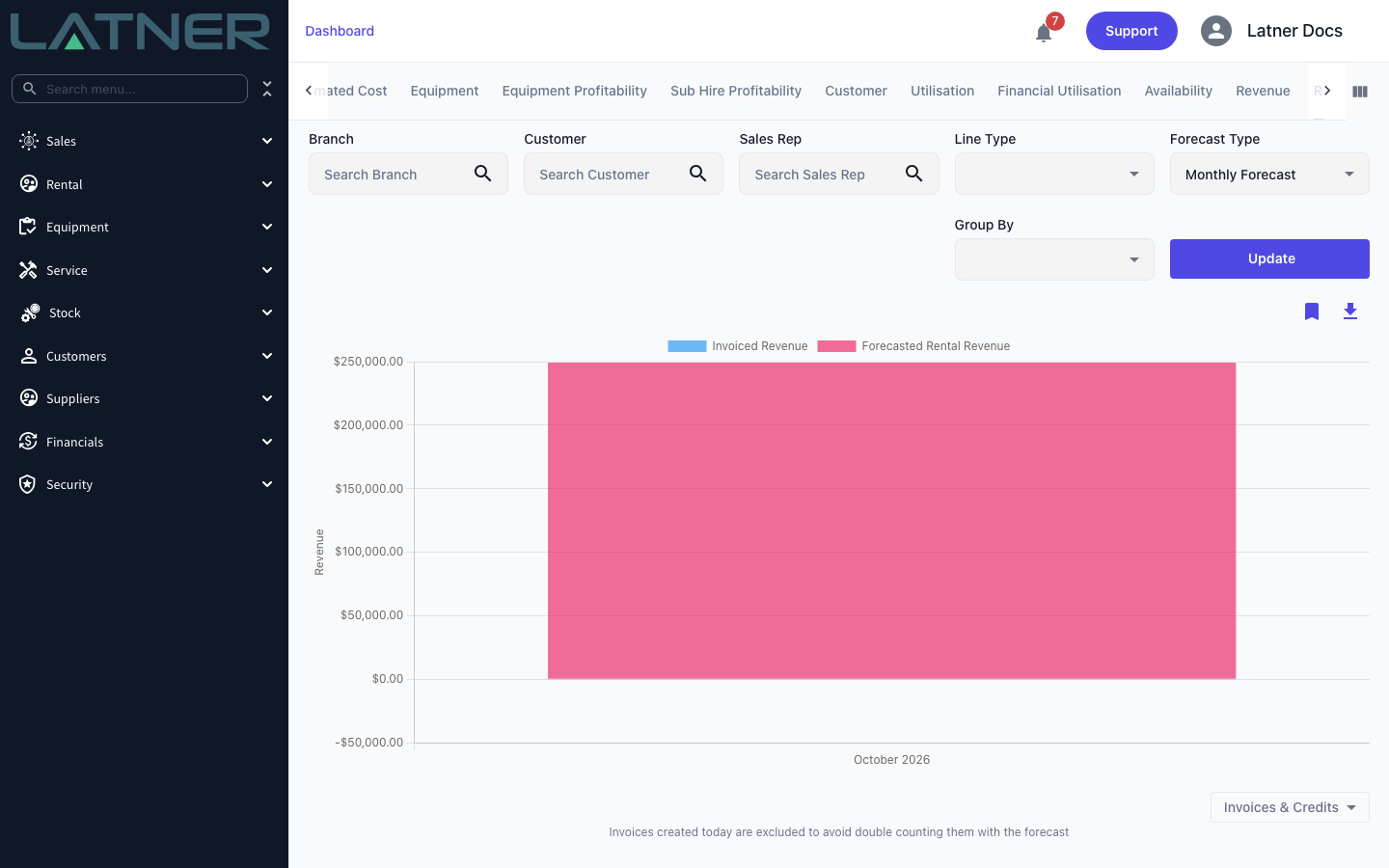
Open Dashboard and select the Revenue Forecast tab. It loads the Monthly Forecast for the current month.
Step 2 - Set the filters
-
Branch, Customer, Sales Rep and Line Type - work as they do on the Revenue tab and apply to both the invoiced and forecast figures.
-
Forecast Type - Monthly Forecast or Long Range Forecast.
-
Group By - optional. Branch, Company, Customer, Industry, Division, Equipment Category, Class or Model (Rental), Package, Invoice Source, Line Type, and the charge-type groupings (Transport, Admin Charge, Fuel, Sanitation, Labour Type), which need the matching single Line Type selected.
There's no date range: the Monthly Forecast is always the current month, and the Long Range Forecast always runs from this month forward. Click Update to redraw.
Step 3 - Read the figures
Monthly Forecast
-
Invoiced Revenue - Completed and Paid invoices dated this month, less credits, excluding invoices created today.
-
Forecasted Rental Revenue - what your Active rental contracts with active billing would bill from now to the end of the month, using the same rules as a real invoice run (lines not yet on rent, non-chargeable lines and lines already billed to date are skipped).
-
With a Group By selected, each group shows an Invoiced and a Forecast column side by side.
Invoices created today are excluded from the invoiced figure because the forecast was calculated overnight and already includes them - counting both would double up. The note under the chart says the same thing.
Long Range Forecast
-
Covers Active and Reserved rental contracts with active billing, as if each were billed in advance up to the end of the forecast horizon.
-
Each line's amount is spread across the months it covers by day, so a line running from mid-October to mid-November is split between the two months.
-
Damage waiver and environmental levy are recalculated for each month from the contract's percentages.
-
The first column, labelled with the current month and (Invoiced), holds this month's invoiced revenue; the following columns hold the forecast.
Quotes aren't forecast, and neither are contracts whose billing is on hold or that are cancelled, lost or completed.
Step 4 - Download the data
Click Download Chart Data to save Revenue Forecast.csv - one row per series and one column per chart column, matching what's on screen.
How the Settings Change the Forecast
-
Calculate Revenue Forecast for Active Contract Details Using the Expected Off Hire Date (Monthly Forecast only) - when on, active equipment lines are forecast up to their expected off hire date (no earlier than today and no later than month end) instead of to the end of the month.
-
Long Range Forecast Months (Long Range only) - how many months ahead the forecast runs, from 1 to 24. A change shows up after the next overnight refresh.
FAQs
Watch the Demo
Prefer to watch it? Step through the same screen here.