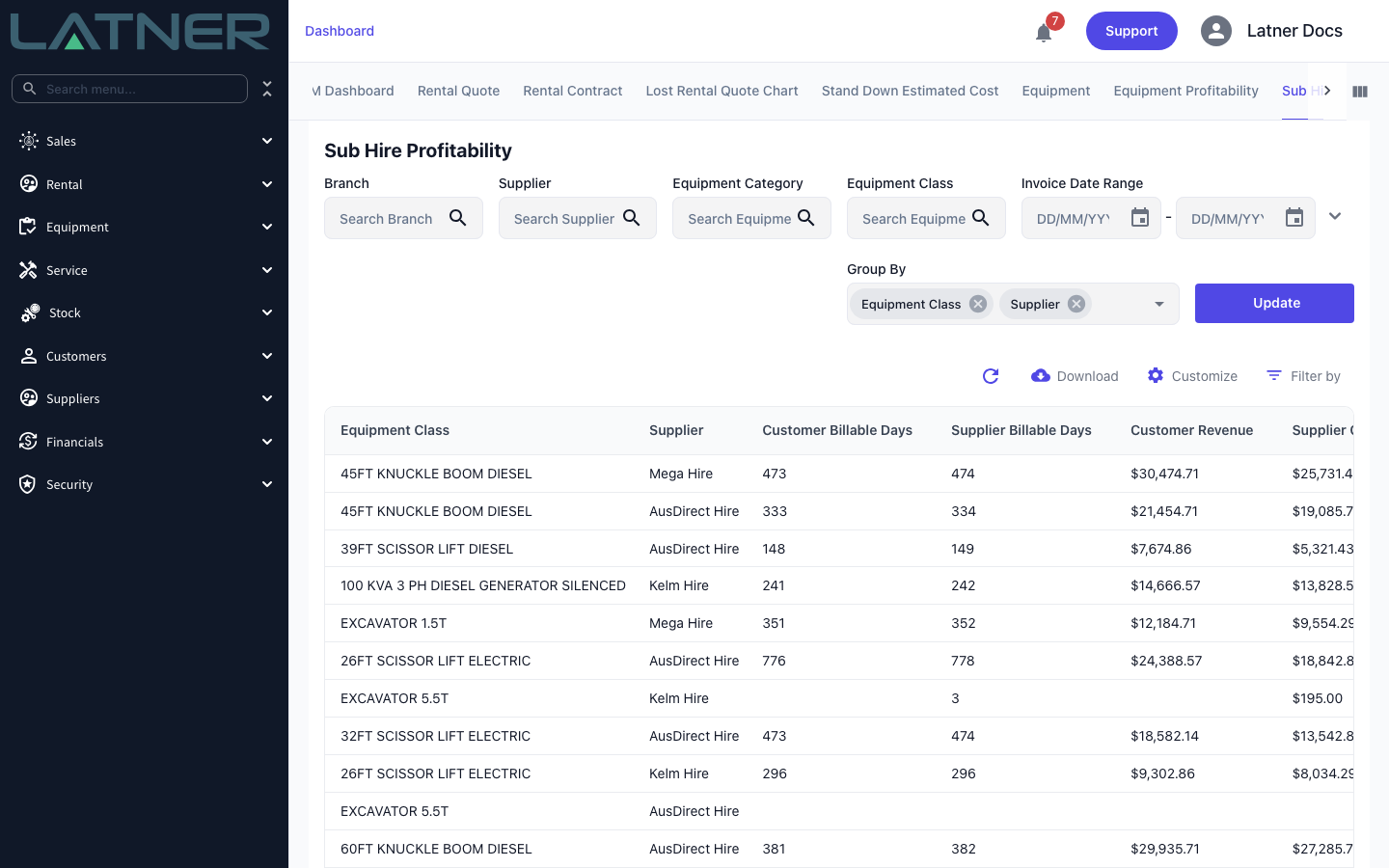
Sub Hire Profitability compares what you have billed your customers for sub hired equipment against what your suppliers have billed you, so you can see at a glance which hires are earning their keep and which are not.
Overview
Sub hire is the part of your fleet you don't own, and it's the easiest place for margin to quietly disappear. This report sits on your Dashboard and puts the two sides of every sub hire next to each other: the days and dollars you invoiced the customer, and the days and dollars the supplier invoiced you. Over time it also tells you which classes you sub hire so often, and so profitably, that they're worth buying outright.
-
It's a tab on the Dashboard rather than a screen of its own, and it has its own permission.
-
Every row is a total, not a single hire. You choose what those totals are grouped by: any combination of Equipment Category, Equipment Class, Branch and Supplier.
-
Revenue comes from the customer invoices raised against the sub hire line on the rental contract. Cost comes from the supplier invoices raised against the matching sub hire order line.
-
Only sub hire equipment lines are counted. Transport and expense lines added to a sub hire order are left out, because they aren't hire days.
-
Cancelled invoices are ignored, and credit notes are subtracted from whichever side they belong to.
-
Results can be filtered by branch, supplier, equipment category, equipment class and invoice date range, and downloaded as a CSV.
Before You Begin
The report reads data you already have, so there's nothing to configure beyond access and the invoices themselves.
|
Requirement |
Where to Find It |
|---|---|
|
The Sub Hire Profitability Dashboard permission |
Security › Configuration › Permission Groups, then the Rental › Screen module |
|
Rental contracts with sub hired equipment on them |
Rental › Rental Contracts - see How to Add Sub Hire Equipment to a Rental Contract |
|
Customer invoices raised against those contracts |
Raised from the rental contract as usual - progress, return and final invoices all count |
|
Supplier invoices raised against the sub hire orders |
Rental › Sub Hire Orders › Options › Invoice Sub Hire Order, or generated for you by the Auto Create Sub Hire Order Invoices setting |
Both sides of the comparison have to exist before a sub hire shows up. If you'd rather not remember to invoice each sub hire order by hand, turn on Auto Create Sub Hire Order Invoices under Security › Settings › Rental and Latner raises the supplier invoice for the same period whenever you invoice the customer.
The permission is branch aware. If it's granted for particular branches rather than all of them, the report only includes sub hire orders raised at those branches, so your totals will differ from a colleague's. Someone with the permission but no branches at all can't open the tab.
Running the Report
Step 1 - Open the Sub Hire Profitability tab
Go to your Dashboard (the home screen) and select the Sub Hire Profitability tab. The dashboard carries a lot of tabs, so use the arrows at either end of the tab strip to scroll along to it. The report runs as soon as you open it, grouped by Equipment Class and Supplier.
Step 2 - Choose how to group the results
Group By decides what a row represents, and you can tick more than one. The choices are Equipment Category, Equipment Class, Branch and Supplier. The report shows one column per grouping you pick, hides the ones you don't, and sorts the results by them.
-
Supplier on its own answers "which of my suppliers am I making money with?".
-
Equipment Class on its own answers "which machines am I sub hiring at a decent margin?".
-
Equipment Class and Supplier together, the default, answers "who gives me the best rate on this machine?".
At least one grouping is always required. Clear them all and select Update, and the report answers with Sub Hire Profitability data must be grouped by a valid field(s).
Step 3 - Narrow the results with the filters
Each filter across the top is optional, and the first four accept several values at a time.
-
Branch - the branch the sub hire order was raised at.
-
Supplier - the supplier you hired from.
-
Equipment Category - the category of the equipment class on the rental contract line.
-
Equipment Class - the class itself, for a single machine type.
-
Invoice Date Range - limits the report to invoices dated inside the range. Customer invoice dates drive the revenue columns, supplier invoice dates drive the cost columns.
Step 4 - Select Update
Nothing changes on screen until you select Update, which reruns the report with the filters and grouping you've set. Selecting a column heading sorts by that column, so you can put your worst margins at the top and start there.
A grouping only appears while it has invoices on both sides of the range you've chosen. If you bill the customer in one month and the supplier's invoice arrives in the next, a tight Invoice Date Range can hide the row completely rather than showing it with a missing cost. If a sub hire you expect to see isn't there, widen the range before you go looking for the data.
Step 5 - Download the results
Select Download above the results to export what you're looking at to CSV. The export covers every row the report returned, not just the page on screen, and includes the columns you can currently see - so hide what you don't need with Customize first.
What the Columns Mean
Every figure is a total for the grouping on that row, and all amounts exclude tax.
-
Customer Billable Days - billable days less stand down days on the customer invoice lines, multiplied by the quantity on each line.
-
Supplier Billable Days - the same calculation on the supplier invoice lines. It often differs from the customer figure by a day or two, which is exactly the sort of leak the report is there to show you.
-
Customer Revenue - what you invoiced the customer for those lines, with credit notes subtracted.
-
Supplier Cost - what the supplier invoiced you, with supplier credit notes subtracted.
-
Profit - Customer Revenue less Supplier Cost.
-
Avg. Daily Customer Rate - Customer Revenue divided by Customer Billable Days.
-
Avg. Daily Supplier Rate - Supplier Cost divided by Supplier Billable Days.
-
Avg. Daily Markup $ - the gap between those two daily rates.
-
Avg. Daily Markup % - that gap as a percentage of the daily supplier rate.
Avg. Daily Markup % is markup on cost, not margin on revenue. A machine you hire at $100 a day and rent out at $125 shows as 25% markup, which is a 20% margin. Compare it against the markup you expect from your suppliers, not against your gross margin targets.
FAQs
Watch the Demo
Prefer to watch it? Step through the same flow here.