
Take 5 stays switched off until you point Latner at a checklist you have written yourself, and this article covers every setting that controls it - what the checklist contains, which jobs need one, and who is allowed past it.
Overview
There is no single Take 5 switch. You write one checklist template, then decide separately whether drivers need it, whether technicians need it, and which technicians. That separation is deliberate: plenty of businesses want a Take 5 on field service work and nothing else.
-
One template, two switches. The same Take 5 template can serve Transport and Service, or you can write one for each.
-
Both settings hold a template, not a toggle. An empty setting means Take 5 is off for that side of the business.
-
Work Orders are scoped by Location Type. Out of the box only field service jobs require one.
-
Transport is scoped by fulfilment. Only internally fulfilled dockets are ever affected.
Before You Begin
Take 5 is driven entirely by settings and one permission, so it is worth knowing where each piece lives before you start.
|
Requirement |
Where to Find It |
|---|---|
|
Checklist Templates permission - to write the Take 5 itself |
Security › Configuration › Permission Groups, then Equipment › Configuration |
|
A checklist template of type Take 5 |
Equipment › Configuration › Checklist Templates |
|
Work Order Take 5 Checklist - switches Take 5 on for Work Orders |
Security › Settings › Service |
|
Take 5 Work Order Location Types - which Work Orders need one |
Security › Settings › Service |
|
Transport Docket Take 5 Checklist - switches Take 5 on for Transport |
Security › Settings › Transport |
|
Take 5 Checklist PDF Template ID (optional) - for the printable record |
Security › Settings › PDF Templates |
|
Complete Work Order without Take 5 and Complete Transport without Take 5 (optional) - supervisor overrides |
Security › Configuration › Permission Groups, then Field under Service and Transport |
The quickest way to see where you stand today is to open Security › Settings, leave the module on All, and search for Take 5.
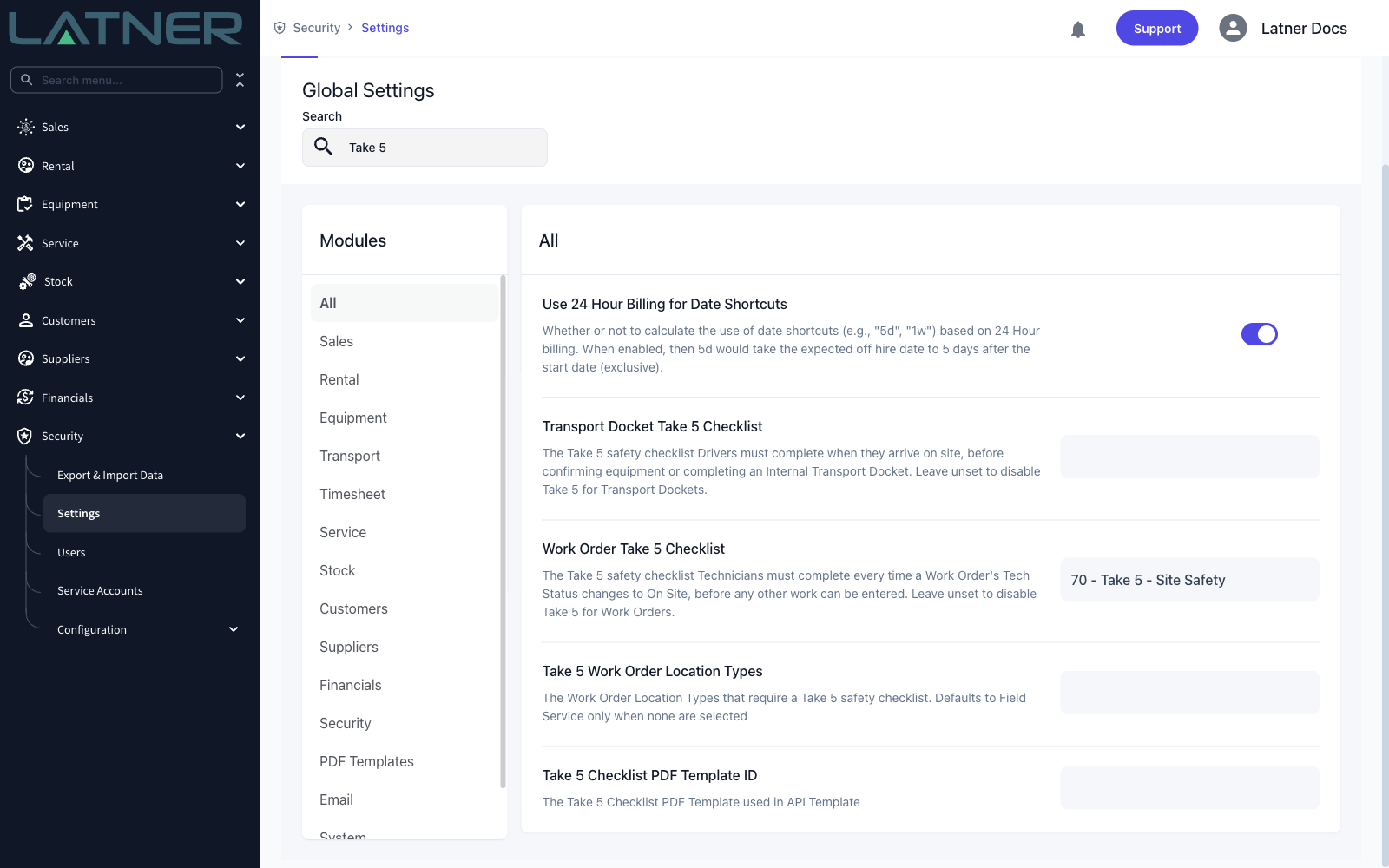
Both checklist settings hold a template, not a switch. An empty setting means Take 5 is off for that side of the business - there is no separate on/off toggle to find.
Setting Up Take 5
Step 1 - Write the Take 5 checklist template
Go to Equipment › Configuration › Checklist Templates and choose Options › Create New Checklist. Expanding any row in this list shows the tasks that belong to that template, which is the fastest way to review a Take 5 you already have.
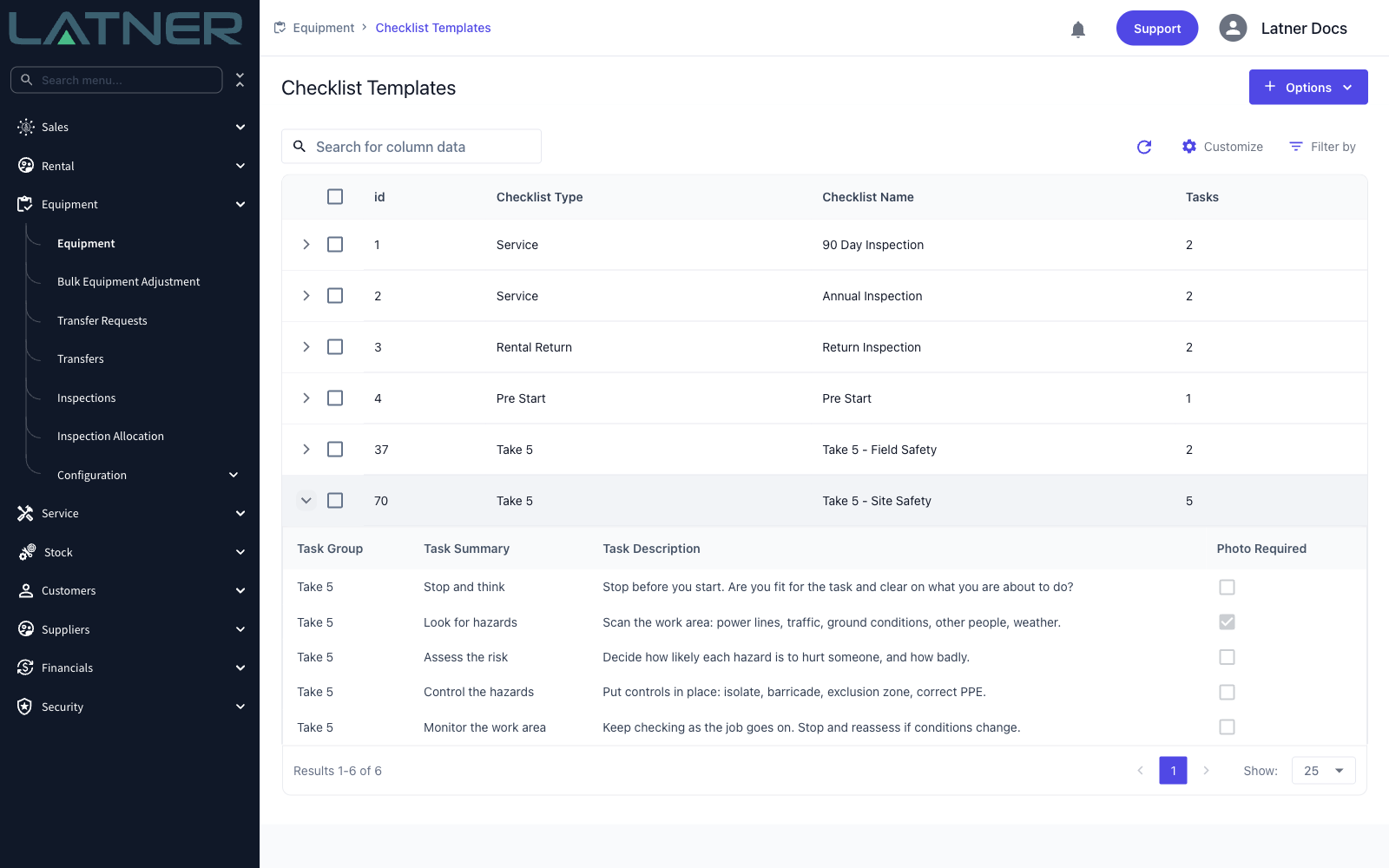
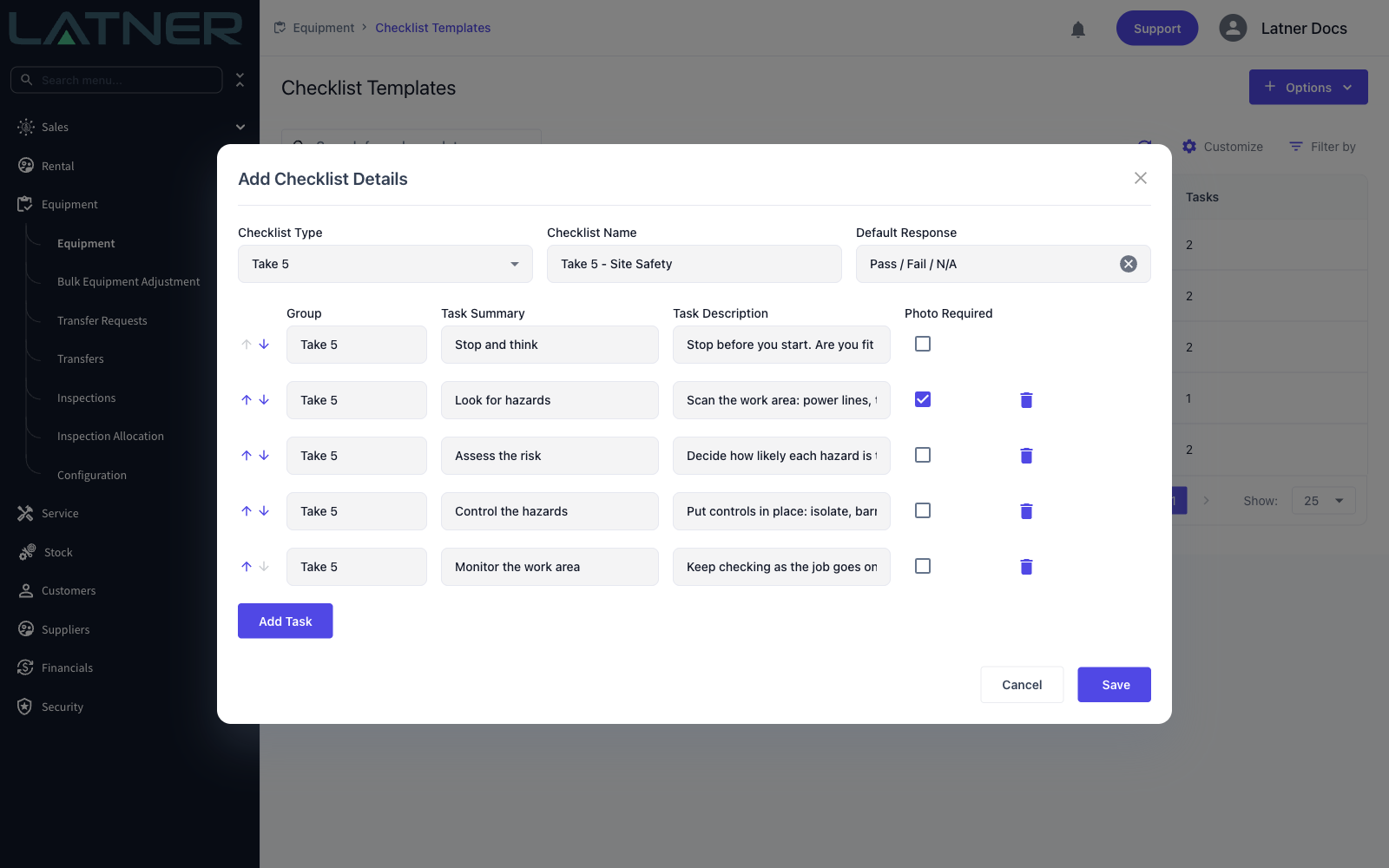
In the dialog, these are the fields that matter:
-
Checklist Type - required. Choose Take 5. This is what makes the template selectable in the Take 5 settings later; a template of any other type will not appear there.
-
Checklist Name - required, and must be unique for the Take 5 type. If you reuse a name you will be told "Checklist Name must be unique for each Checklist Type combination".
-
Default Response - the set of buttons your people tap on each task. Leave it blank and Latner uses the standard Pass / Fail / N/A set. Pass / Fair / Fail / N/A is also supplied, and you can build your own under Equipment › Configuration › Checklist Responses.
-
Group, Task Summary and Task Description - all three are required on every task row. The summary is the heading the worker sees; the description is the guidance underneath it.
-
Photo Required - tick this and the task cannot be answered until a photo is attached. This is the one setting that turns a Take 5 from a tick-box into evidence.
Use Add Task for each step, and the up and down arrows to put them in the order you want people to work through them.
Step 2 - Switch Take 5 on for Transport Dockets
Go to Security › Settings › Transport and set Transport Docket Take 5 Checklist to the template you just wrote. Click the field, type part of the name, and pick it from the list.
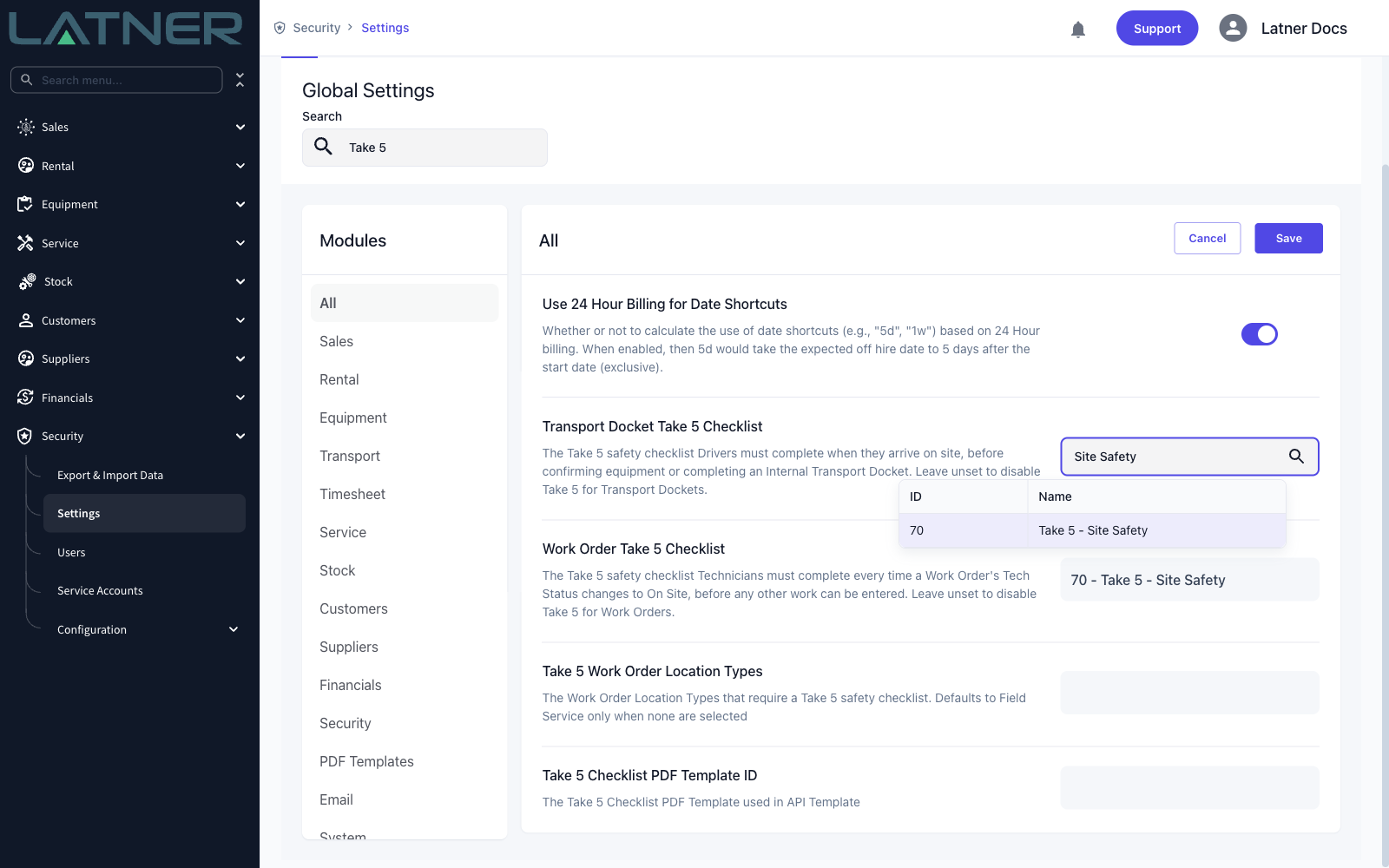
From the moment you save, every Internal Transport Docket that is still Open requires a Take 5. Externally fulfilled dockets - the ones a subcontractor is running - are never affected, so subcontracted transport is never held up by a checklist your own crew was meant to complete.
Step 3 - Switch Take 5 on for Work Orders, and choose which ones
Go to Security › Settings › Service and set Work Order Take 5 Checklist the same way. Then decide the scope with Take 5 Work Order Location Types.
This is the setting people most often get wrong, so it is worth being precise:
-
Leave it empty and only Field Service Work Orders require a Take 5. That is the default, and it is what most businesses want.
-
Tick Workshop as well and workshop jobs start requiring one too.
-
Tick only Workshop and field service jobs stop requiring one.
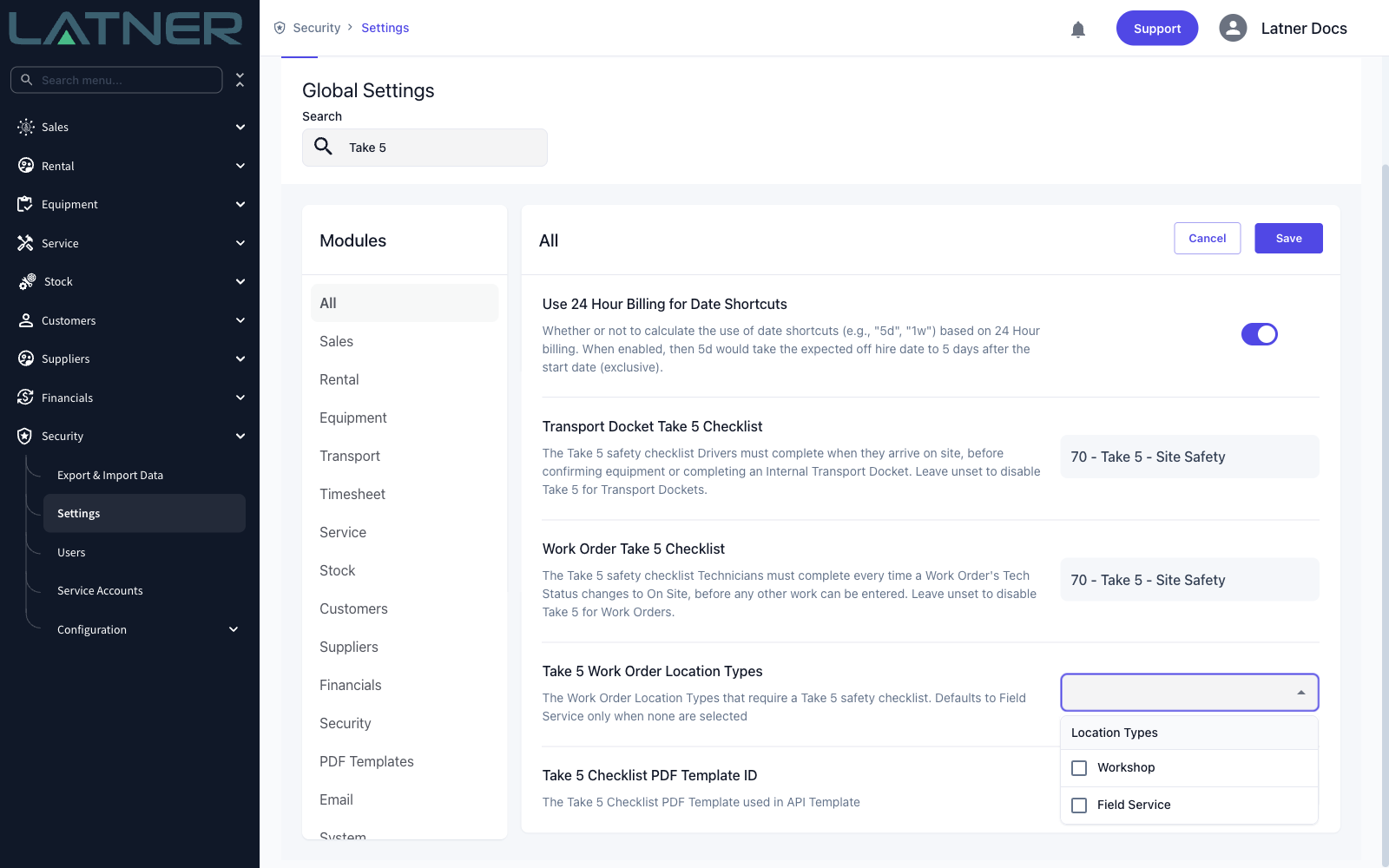
Clearing every location type is treated exactly the same as never setting it: Latner falls back to Field Service only. If you genuinely want Take 5 on workshop jobs and nothing else, tick Workshop on its own rather than clearing the field.
Step 4 - Decide who can override it (optional)
Two permissions let a person past the block, and both sit under Field in a permission group:
-
Complete Work Order without Take 5 - lets the holder set Tech Status to Completed, and complete the Work Order from the office, with the Take 5 still outstanding.
-
Complete Transport without Take 5 - lets the holder confirm equipment and complete a Transport Docket with the Take 5 still outstanding.
Search a group's permission list for Take 5 and both appear together. Of the standard groups Latner supplies, only Administrator, Branch Manager, Senior Hire Controller and Transport Manager hold them - Service Manager and Mechanic deliberately do not. They also apply per branch, so a supervisor granted the override at one branch cannot use it at another.
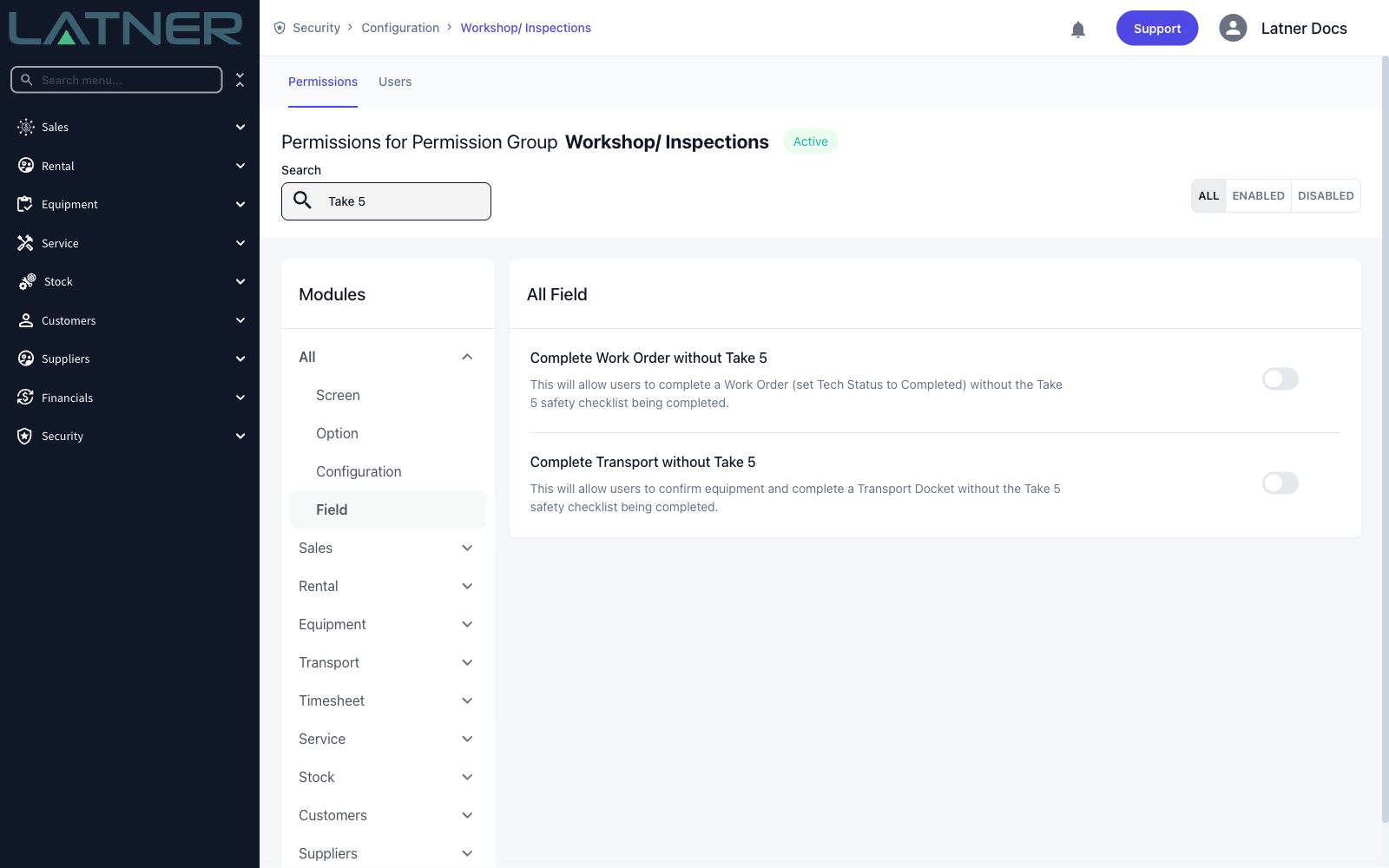
These overrides skip the safety step, not just the software block. Grant them to the handful of supervisors who genuinely need to close a job someone left unfinished, and leave them off everywhere else.
How Far the Requirement Reaches
Once configured, Take 5 is enforced by Latner itself rather than by the app on the phone. Using the desktop instead of the mobile app changes nothing.
What is never blocked, whatever you configure:
-
Workshop Work Orders, unless you have added Workshop to the location types.
-
Externally fulfilled Transport Dockets, in every case.
-
Dockets and Work Orders that are already completed or cancelled - the requirement only applies while the record is open.
-
Anything at all, if no Take 5 template is selected in the settings.
Two details catch people out. The check asks whether a completed Take 5 exists, so a job where nobody ever started one is blocked just as firmly as one where a Take 5 was left half finished. And if the template named in the settings is later deleted, Take 5 quietly switches off for that side of the business rather than locking every record forever.
Deleting a checklist template that is still named in a Take 5 setting removes the requirement without any warning, and the setting will look as though it is still configured. If you are replacing a Take 5, point the setting at the new template first, then retire the old one.
For what this looks like to the people on site, see How to Complete a Take 5 on a Work Order and How to Complete a Take 5 on a Transport Docket.