
On an internally fulfilled Transport Docket, the driver cannot confirm equipment or complete the delivery until they have completed a Take 5 on arrival.
Overview
The driver's side works much like the technician's, but it guards a different pair of actions - and the one that surprises people is Confirm.
-
It all happens on the phone, in Mobile Transport.
-
Both Confirm on each equipment line and Complete Delivery / Complete Pick Up are disabled until a Take 5 is completed.
-
Only Internal dockets are affected. Subcontracted transport is never held up.
-
The Take 5 is created on demand - nothing appears on the docket until the driver taps Add Take 5.
Before You Begin
A Take 5 only appears on a Transport Docket when all of this is true:
|
Requirement |
Detail |
|---|---|
|
A Take 5 template is selected |
Security › Settings › Transport › Transport Docket Take 5 Checklist. See How to Set Up Take 5 Safety Checklists. |
|
The docket is Internal |
Externally fulfilled dockets never require a Take 5. |
|
The docket is still Open |
Completed, attempted and cancelled dockets are never asked for one. |
Unlike Work Orders, there is no location or docket-type scoping on the Transport side. Once the setting holds a template, every open internal delivery, pick up and site move requires a Take 5.
Completing the Take 5
Step 1 - Open the docket on site
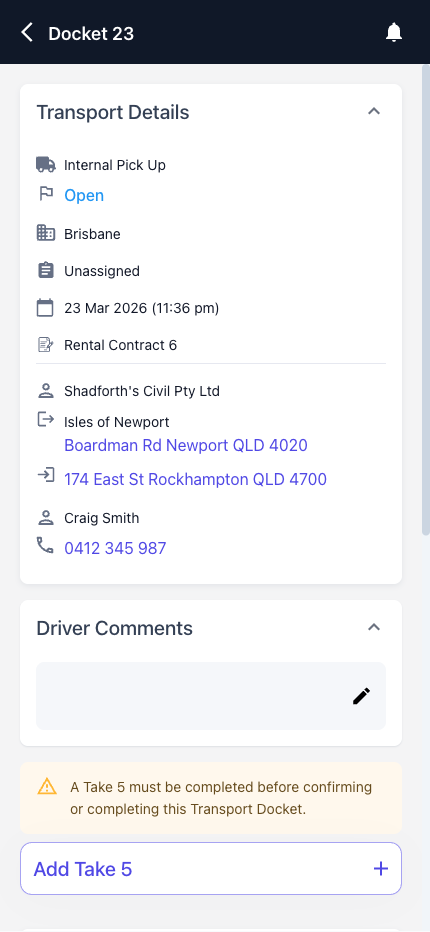
The driver opens the docket from their list on arrival. An internally fulfilled docket that is still open shows the Take 5 section, with a warning that a Take 5 must be completed before confirming or completing it.
Step 2 - Notice what is locked
Two things are disabled until the Take 5 is done: Confirm on each equipment line, and Complete Pick Up (or Complete Delivery) at the bottom. Confirming equipment is blocked as well as completing the docket, because confirming is the point at which the driver commits to what is actually on the truck.
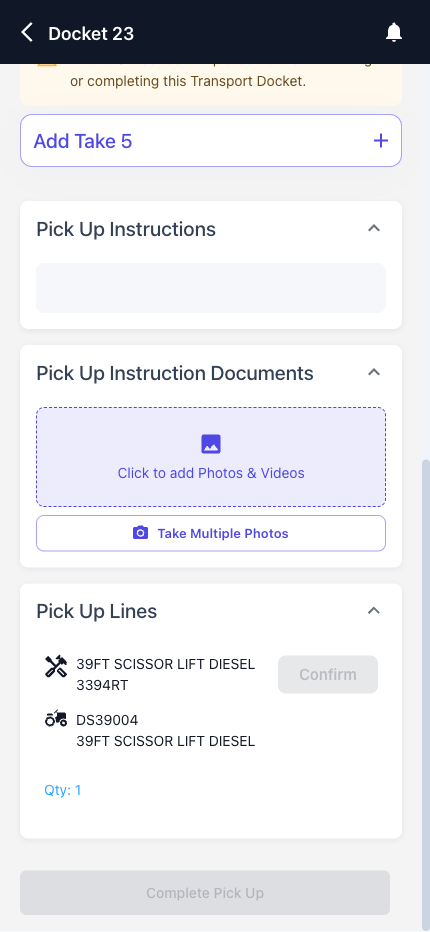
Both buttons also stay disabled for a moment while the docket first loads, before Latner knows whether a Take 5 is outstanding. That is deliberate - it fails safe rather than briefly offering an action it is about to withdraw.
Step 3 - Complete the Take 5, then confirm
The driver taps Add Take 5 and works through the tasks one at a time, tapping a response to move to the next. The response buttons come from the template's Default Response, notes are optional, and any task marked Photo Required will not accept a response until a photo is attached.
Answering the last task completes the Take 5 automatically. The warning disappears, Confirm comes to life, and once the equipment is confirmed the docket can be completed.
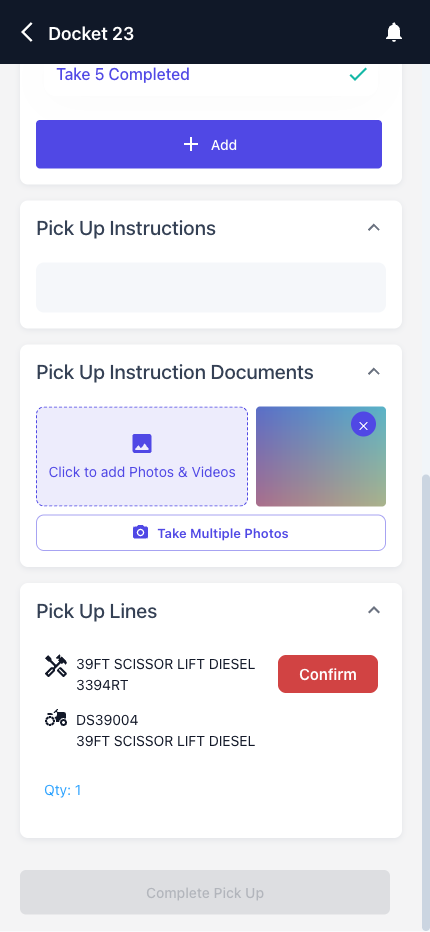
If Complete Pick Up is still greyed out after the Take 5, that is the ordinary confirmation rule rather than Take 5: the equipment lines have to be confirmed first. Manual dockets are the exception and can be completed without confirming lines.
What an Outstanding Take 5 Blocks
On an internal docket that is still open, until a Take 5 has been completed:
-
Confirming equipment on any line is refused with "A Take 5 must be completed before confirming equipment on this Transport Docket".
-
Completing the docket is refused with "A Take 5 must be completed before completing this Transport Docket".
Both rules are enforced by Latner itself, not by the app, so working from the desktop is not a way around them. And the check is for a completed Take 5, not for the absence of an unfinished one - a docket where nobody ever started a Take 5 is blocked just as firmly as one where a Take 5 was left half done.
A supervisor holding Complete Transport without Take 5 can confirm and complete anyway. That permission is off in most standard groups - see How to Set Up Take 5 Safety Checklists.
After Completion
The completed Take 5 stays on the docket as a permanent record:
-
It appears on the docket's Checklists tab, with type Take 5, a Pass and Fail tally, and who completed it and when.
-
Expanding the row lists every task with the response given, any notes, and any photos attached.
-
Selecting the row offers Generate Take 5 PDF, for a printable record. The action only works once the Take 5 is completed.
Back on the phone, once a Take 5 is completed the Add button returns, so a driver doing several drops can run a fresh Take 5 at each site.