
A Credit Note from a Rental Contract lets you refund a customer who was billed past the point they actually kept the equipment, so an over-charged contract can be corrected without editing the original invoice.
Overview
Sometimes the billing runs ahead of the equipment. A machine is invoiced in advance to the end of the month, then it comes back early - and now the customer has paid for time they never used. Rather than unpick the original invoice, Latner raises a credit note against the contract for the over-billed period.
-
A credit note is created from the same Options › Invoice action you use to invoice a contract - there is no separate "credit note" button.
-
Latner decides whether you are invoicing or crediting from the preview total: when the preview comes back negative, the action becomes Create Credit Note.
-
Crediting only happens on a Returned/Completed Items or Final Invoice, and only for equipment that has been returned earlier than it was billed to.
-
The finished credit note is a customer credit note linked back to the contract. Its balance can then be allocated against the customer's outstanding invoices.
Before You Begin
Crediting a rental contract has to be switched on, and you need the same permission that lets you invoice a contract.
|
Requirement |
Where to Find It |
|---|---|
|
Enables Crediting of a Rental Contract setting turned on |
Security › Settings › Rental |
|
Invoice Rental Contract permission |
Security › Configuration - Rental › Options |
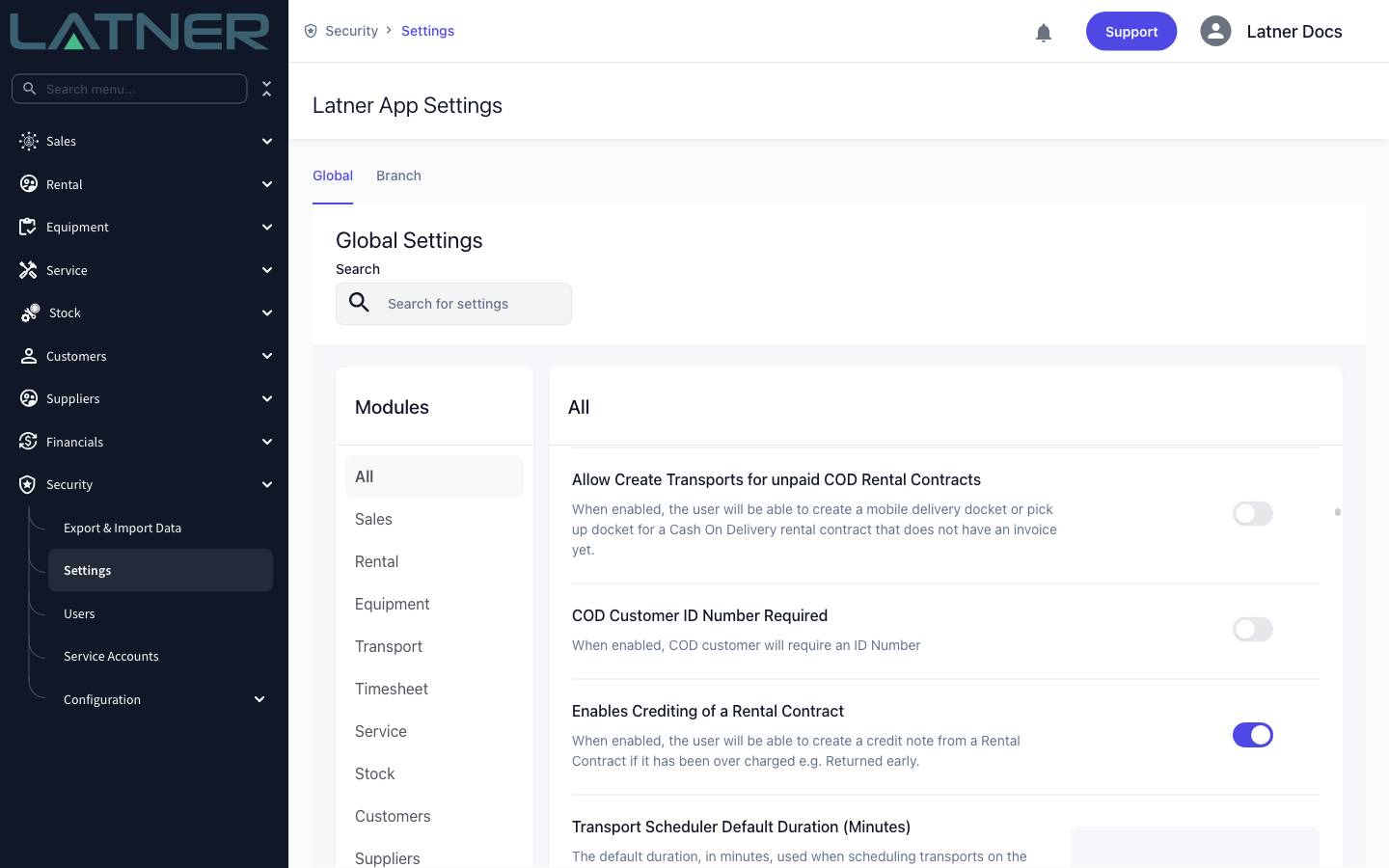
If this setting is off, the credit never appears: a Returned or Final invoice simply skips the over-billed lines, and trying to force one returns "Rental Contract Crediting is not enabled". Turn the setting on before you start.
Creating the Credit Note
The example below credits a contract that was invoiced to the end of December but whose equipment was returned at the end of August.
Step 1 - Make sure the equipment has been returned early
A credit only arises when equipment has been billed past the point it came back. Before you credit, process the Off Hire and Return for the equipment with the real return date, so the contract knows it was billed too far ahead. If the equipment is still on rent, there is nothing to credit and the preview stays empty.
Step 2 - Open the Invoice action
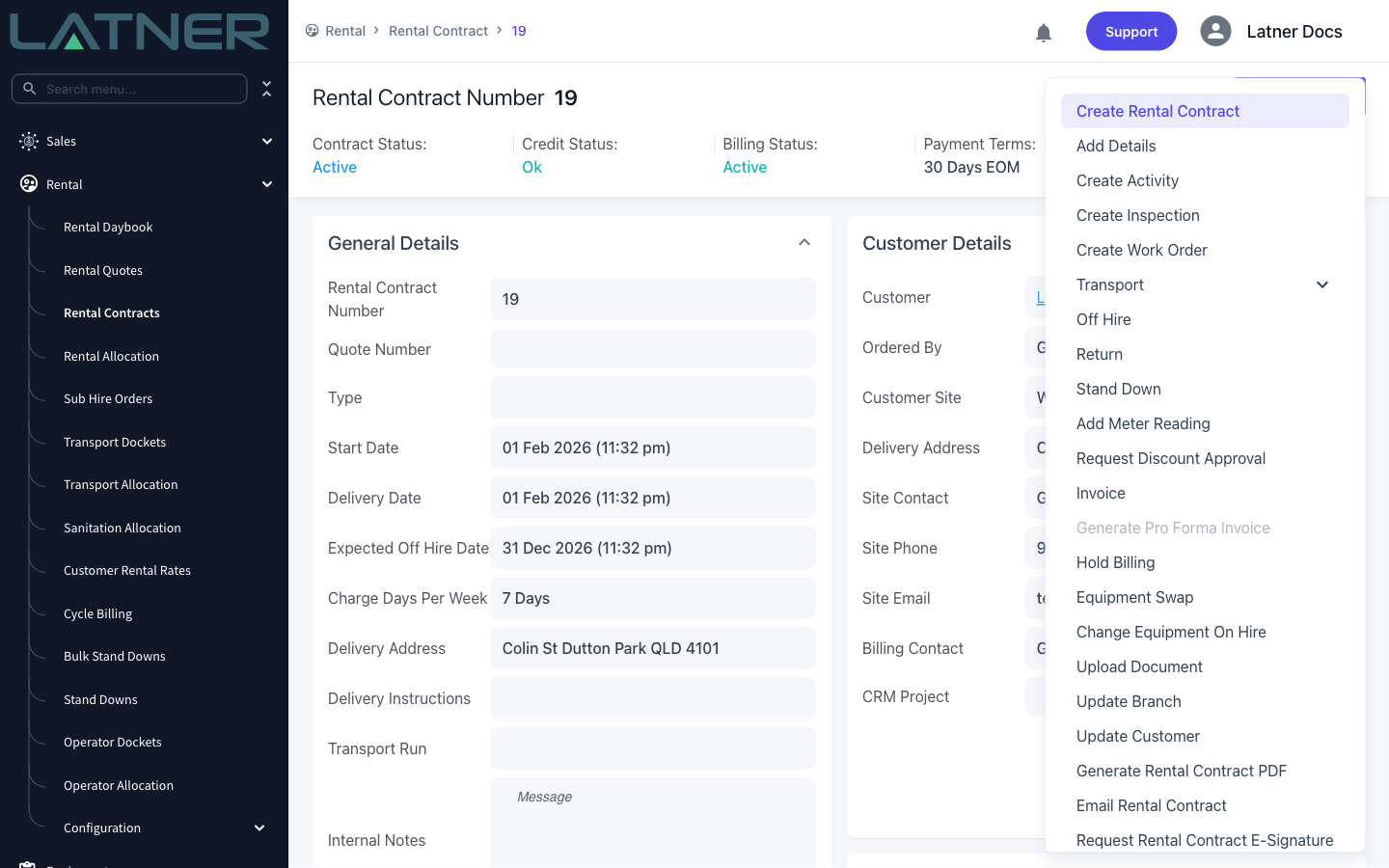
Open the rental contract, then choose Options › Invoice. This is the same action you use for a normal invoice - the credit is decided later, from the figures. The action is unavailable once a contract is closed.
Step 3 - Choose the invoice type and bill-to date
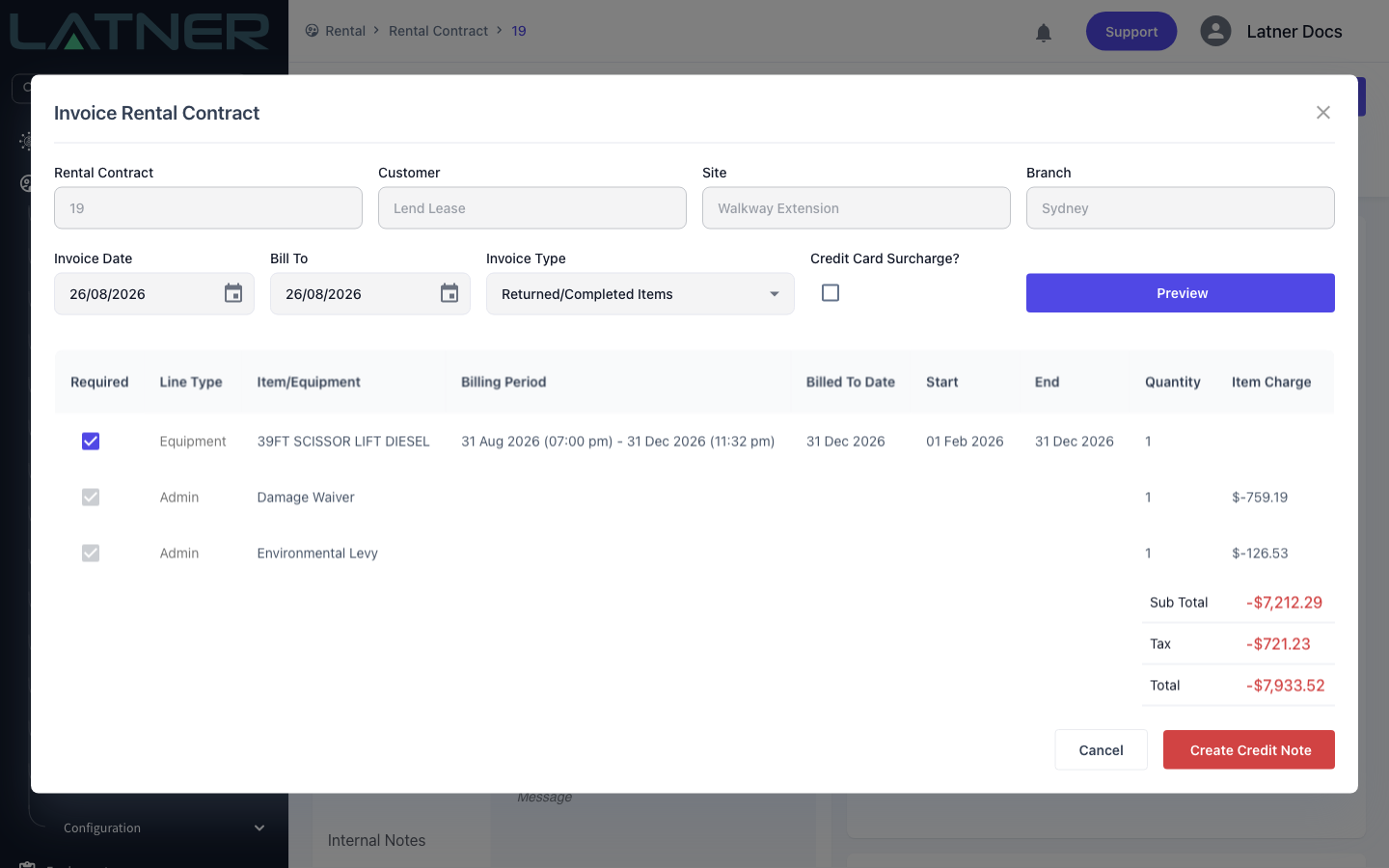
In the Invoice Rental Contract window, set:
-
Invoice Type - choose Returned/Completed Items (or Final Invoice). Only these two types credit an over-billed period; Progress Invoice and Invoice in Advance never produce a credit.
-
Bill To - the date to bill the contract up to. The returned equipment is credited back from its return date to the date it had already been billed to.
-
Invoice Date - the date shown on the credit note.
Then click Preview.
Step 4 - Review the credit and create it
The preview lists the lines being credited, with their amounts and totals shown in red as negative figures. Because the total is negative, the button at the bottom now reads Create Credit Note instead of Create Invoice. Untick any Required line you do not want to credit, then click Create Credit Note.
Step 5 - The finished credit note
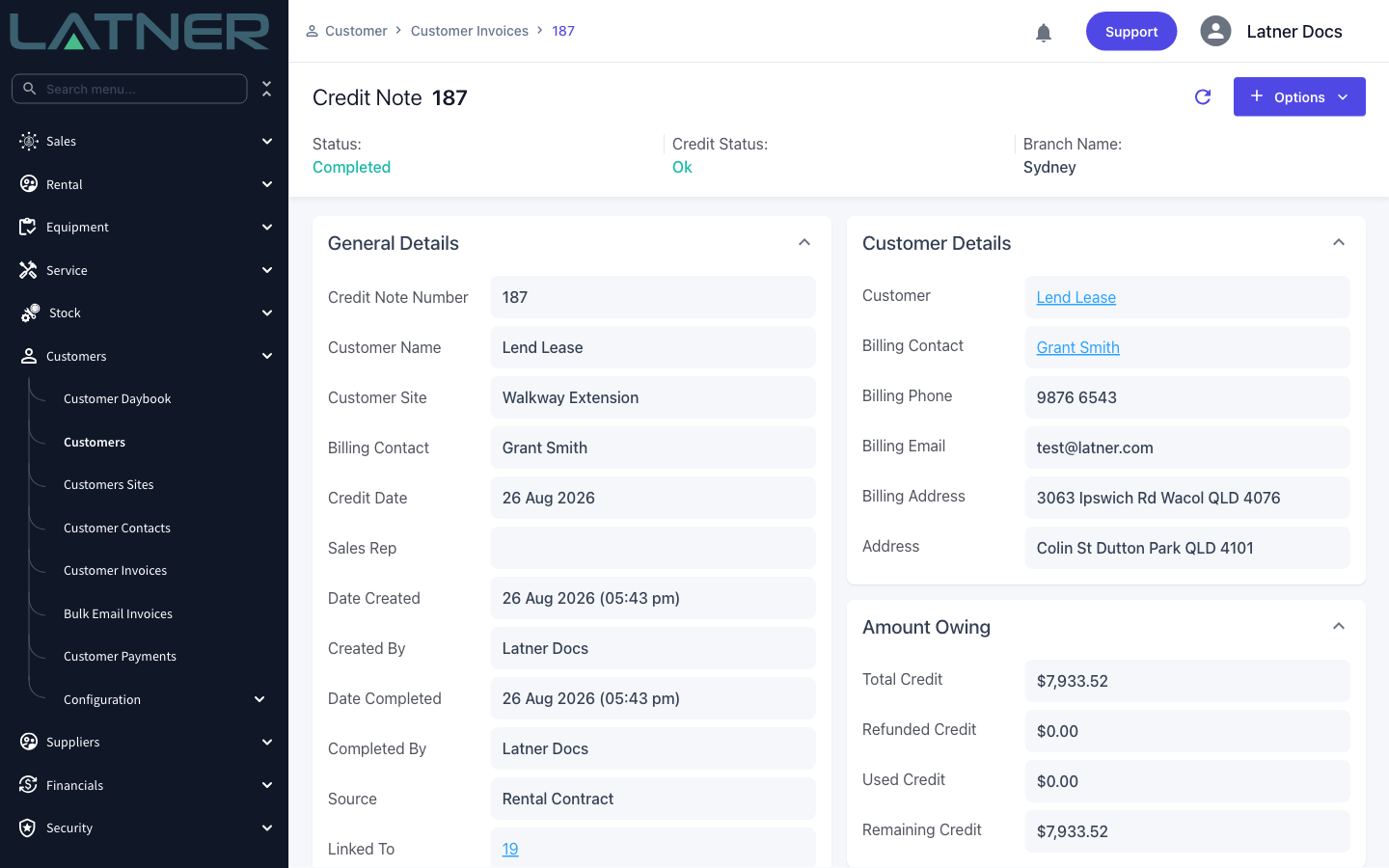
Latner opens the new credit note. It records the customer, the credited amount, and a Source of Rental Contract with Linked To pointing back at the contract it came from. The Remaining Credit is the balance available to allocate against the customer's invoices.
After Creation
-
The credit note appears under Customers › Customer Invoices (credit notes list) and against the contract's own credit totals.
-
With Latner's standard settings the credit note is created as Completed straight away and pushed to your connected accounting system (Xero or MYOB).
-
The contract's Credit Balance increases by the credited amount. That balance is then available to allocate to the customer's outstanding invoices.
A completed credit note has already been sent to your accounting system, so it is not something to raise by accident. Credit only the lines you mean to - untick the rest in the preview - and check the return date is right before you create it, because the credited period is measured from that date.