Companies
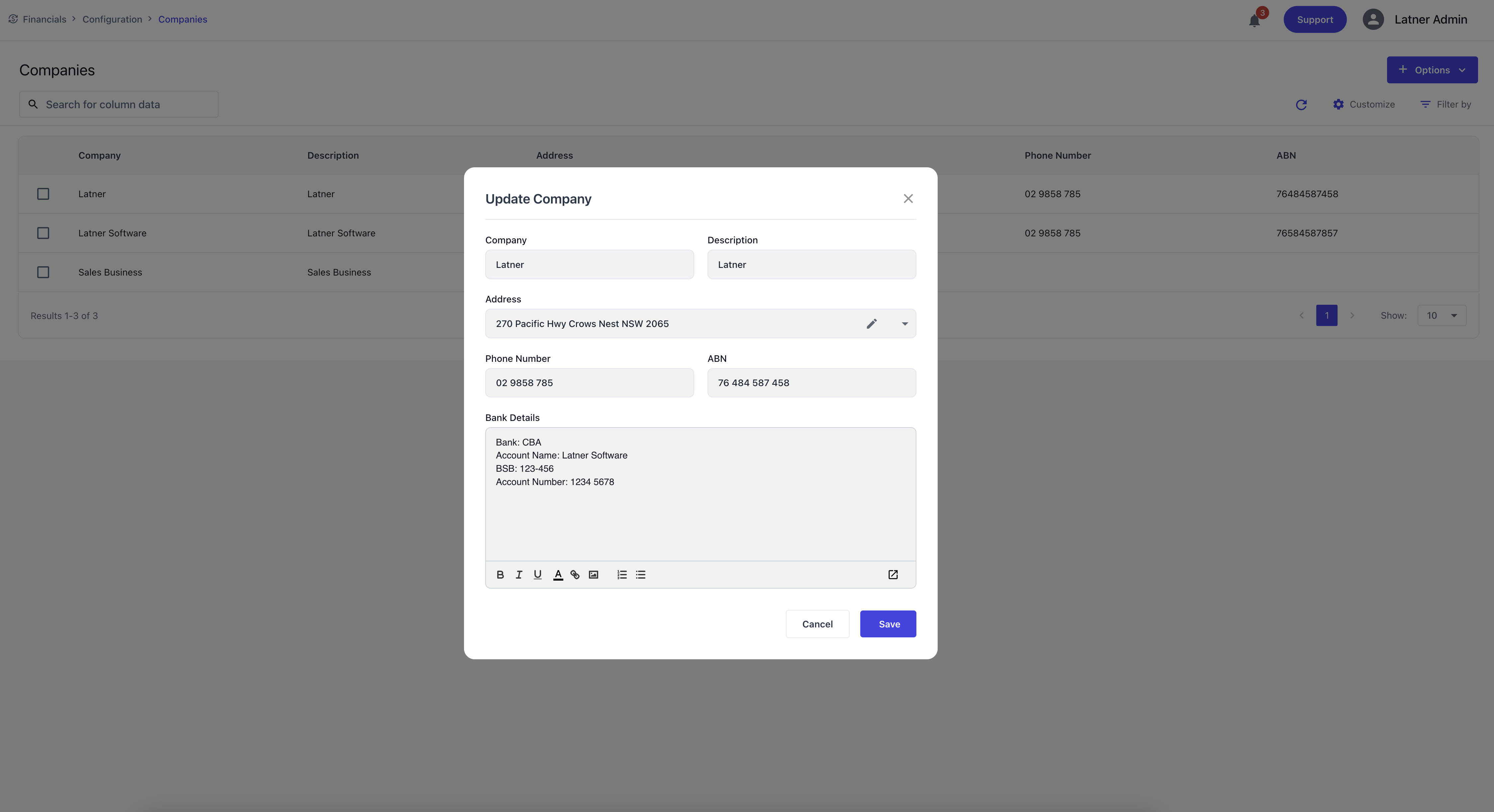
Companies represent the top‑level financial entities within the system and are primarily used for accounting integration and financial reporting. They define the organisational structure and financial identity of your business.
When creating a Company, you specify:
-
Company Name: the legal or operational name of the company.
-
Description: additional context or internal notes.
-
Address: the company’s physical or mailing address.
-
Phone Number: the company’s primary contact number.
-
ABN: the Australian Business Number for compliance.
-
Bank Details: the banking information used for financial transactions.
Companies form the foundation for divisions, branches, and financial configuration.
Changing the Company Address or Details
If your business has moved or your company details have changed (a change of address, a new phone number, ABN or bank details), update the company record:
-
Go to Financials › Configuration › Companies.
-
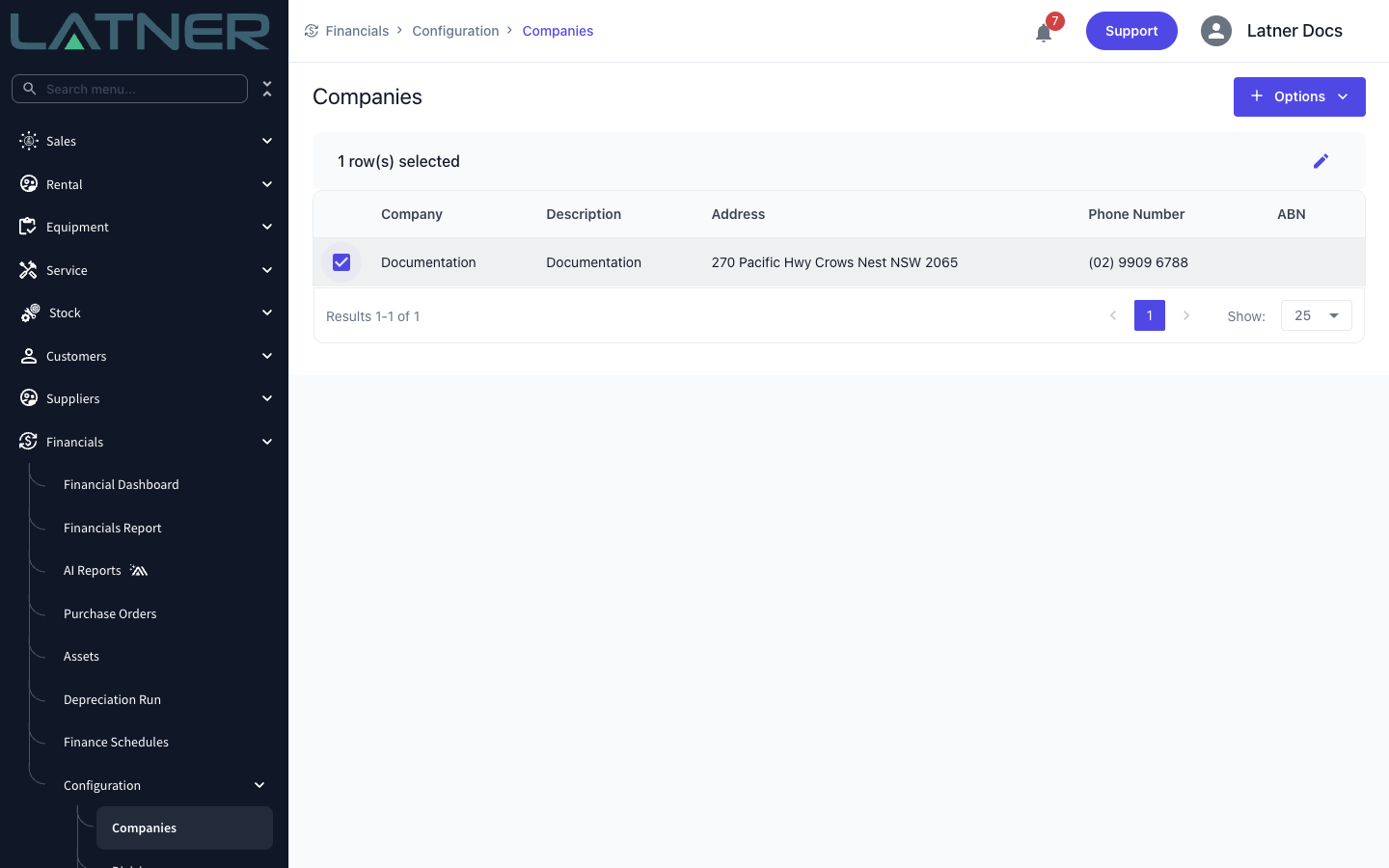
Tick the checkbox on your company's row. The table header changes to 1 row(s) selected and a pencil (Edit) icon appears on the right.
-
Click the pencil to open Update Company. (Double-clicking the row opens it too.)
-
Update the Address and any other details that have changed.
-
Click Save.
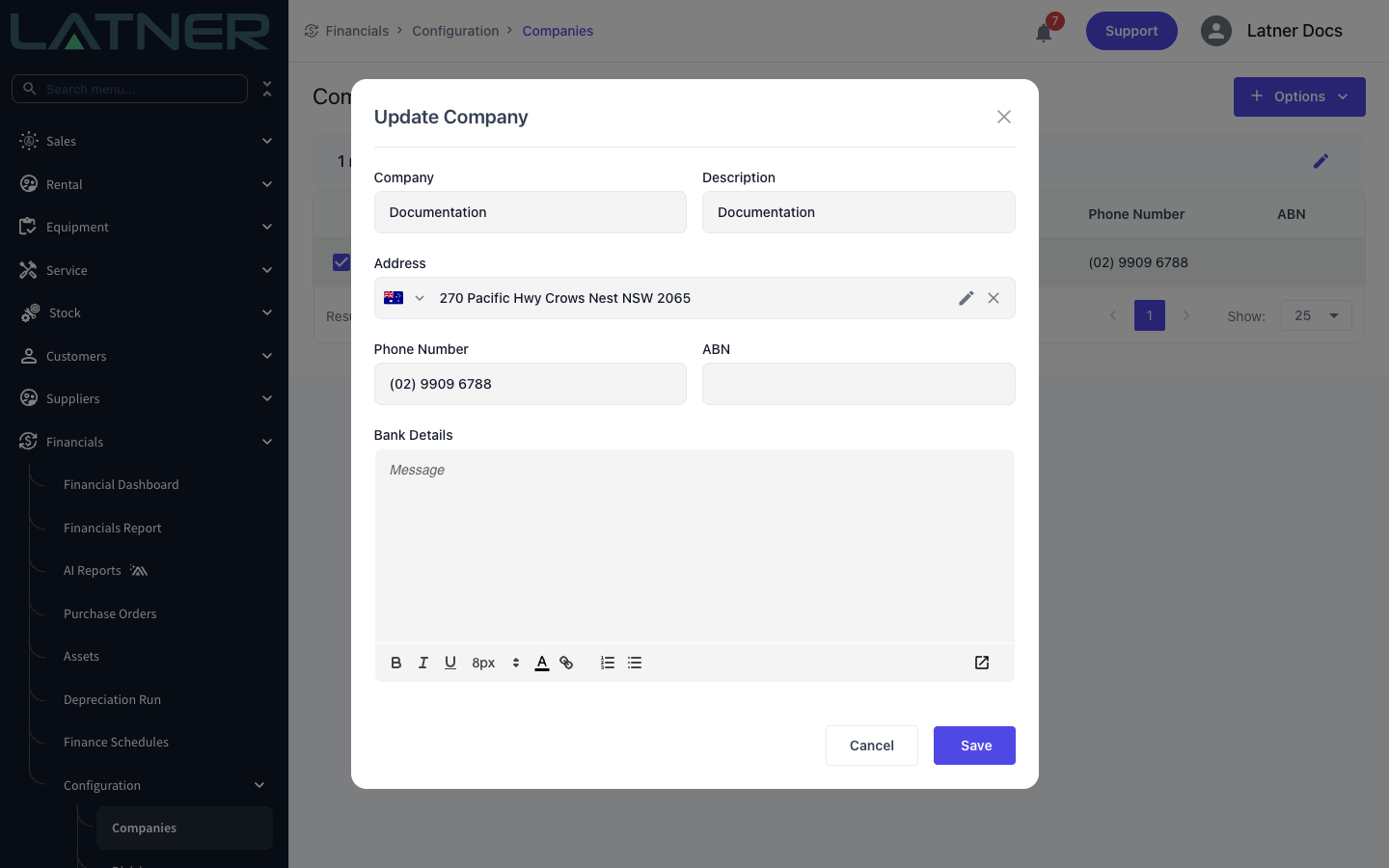
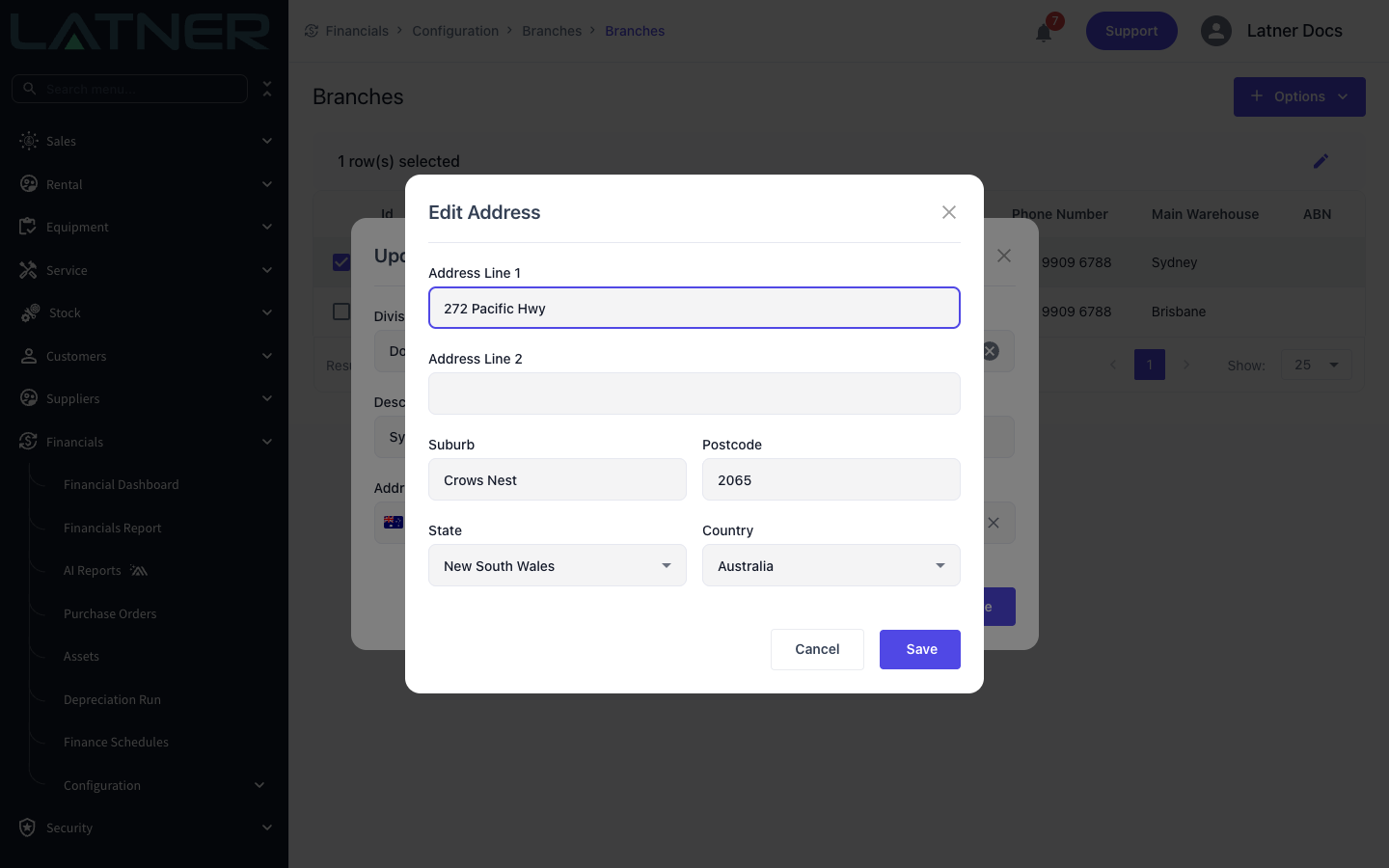
In the Address field you can either start typing the new address and pick it from the suggestions, or click the pencil inside the field to open Edit Address and change Address Line 1, Address Line 2, Suburb, Postcode, State and Country one by one. The cross clears the field so you can search from scratch.
The company address is your head-office address. Most documents print the address of the branch they belong to, so if a branch has moved as well, update the branch too (below).
Divisions
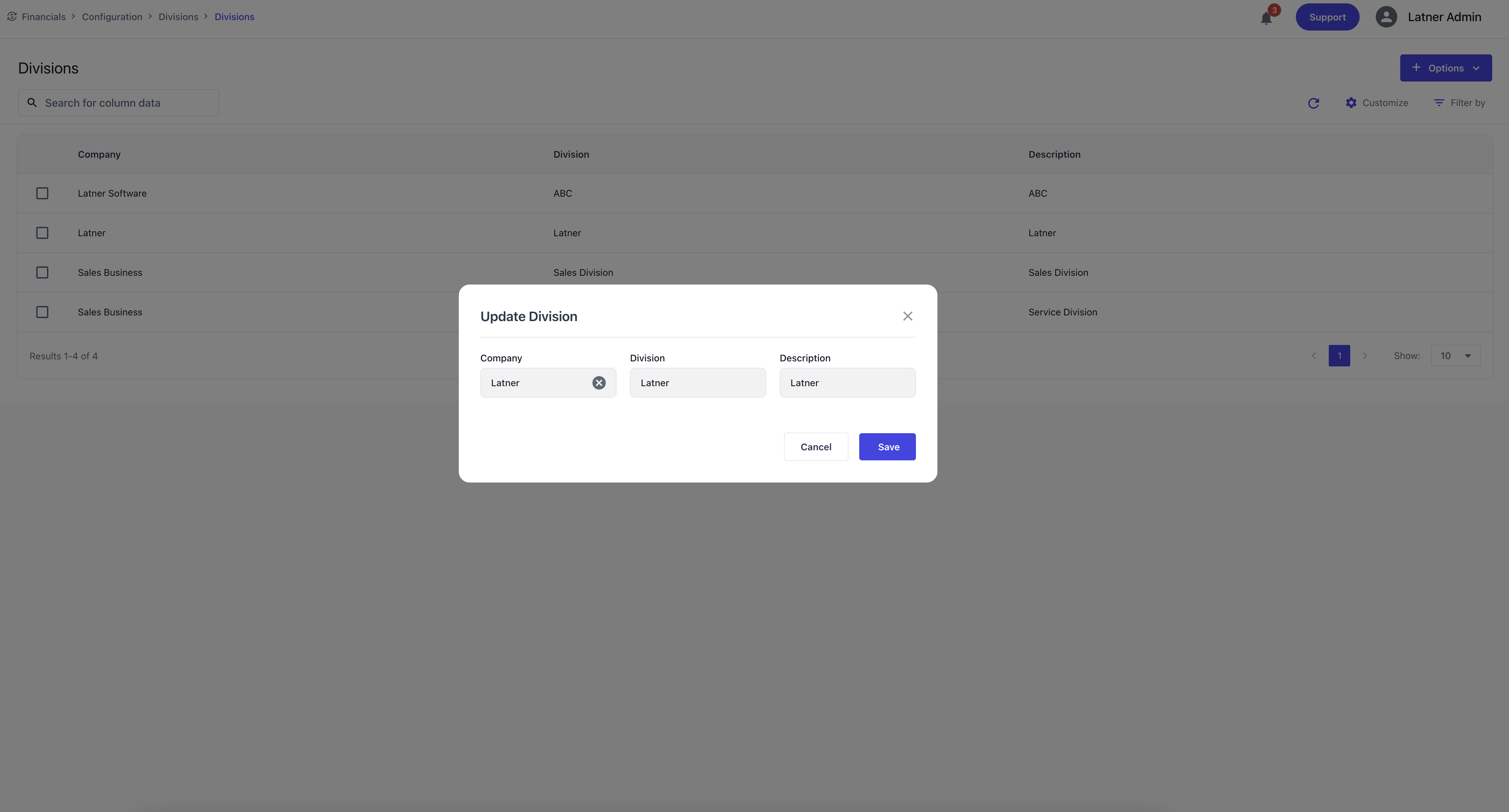
Divisions sit under Companies and are used to segment the organisation for CRM and operational purposes. They help structure customer management and internal reporting.
When creating a Division, you specify:
-
Company: the parent company the division belongs to.
-
Division Name: the identifier for the division.
-
Description: additional context or purpose.
Branches
Branches sit under Divisions and represent operational locations used throughout service, rental, and logistics workflows. They define where work is performed and where resources are managed.
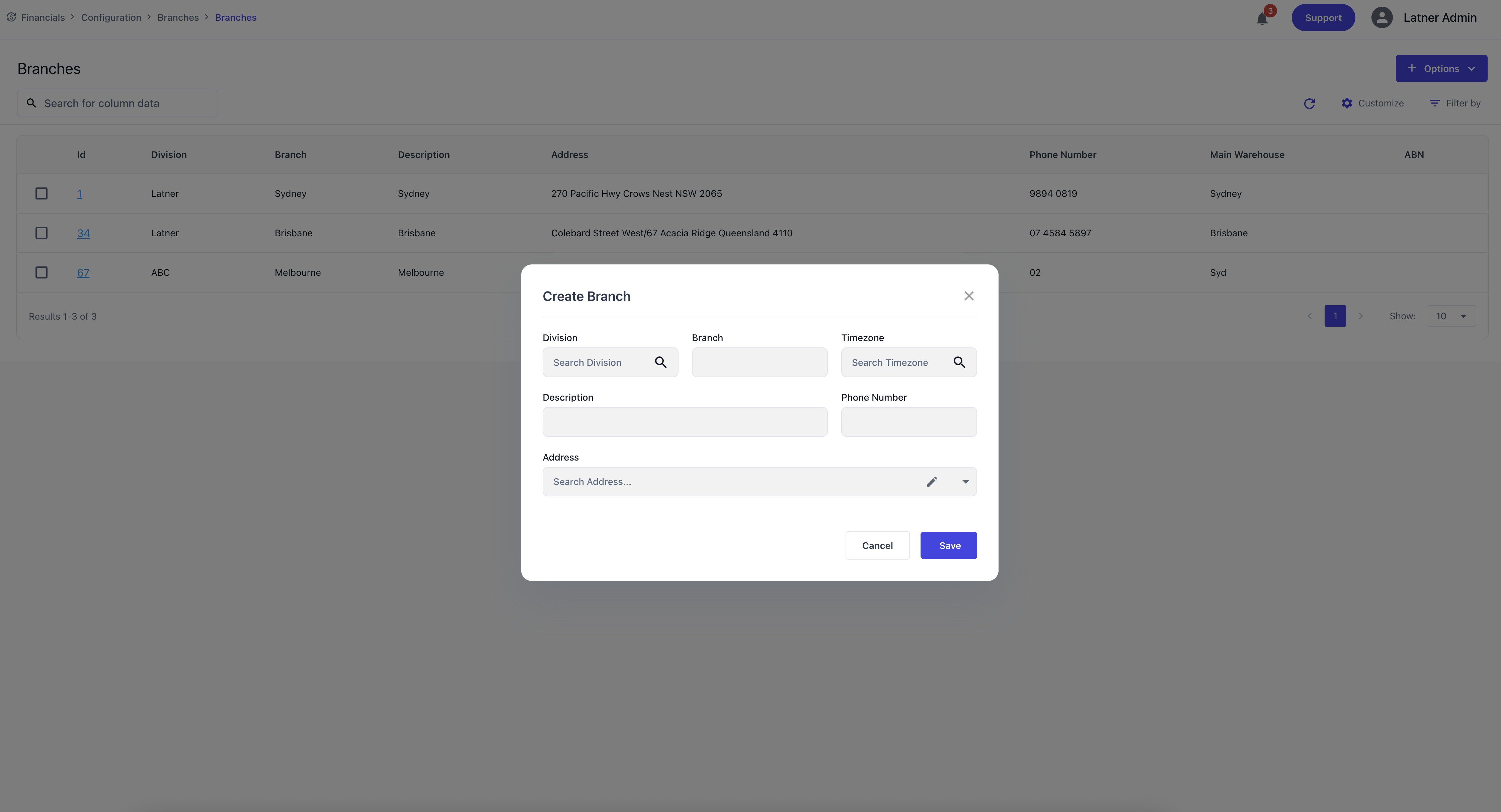
When creating a Branch, you specify:
-
Division: the parent division.
-
Branch Name: the identifier for the branch.
-
Timezone: the timezone the branch operates in.
-
Description: additional context or purpose.
-
Phone Number: the branch’s contact number.
-
Address: the physical location of the branch.
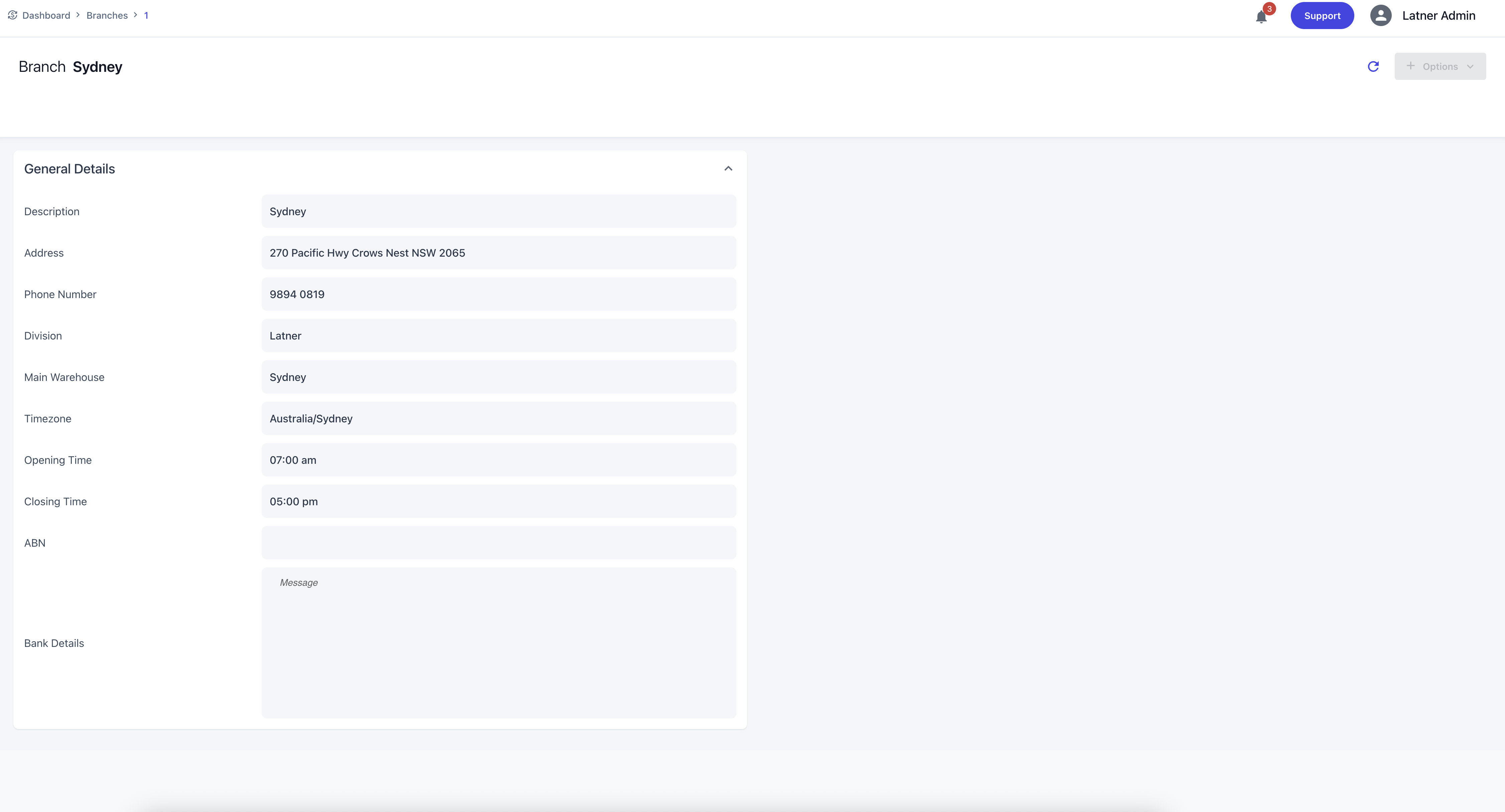
Once created, branches allow configuration of:
-
Opening and Closing Times
-
ABN and Bank Details (if different from the company)
Changing a Branch Address
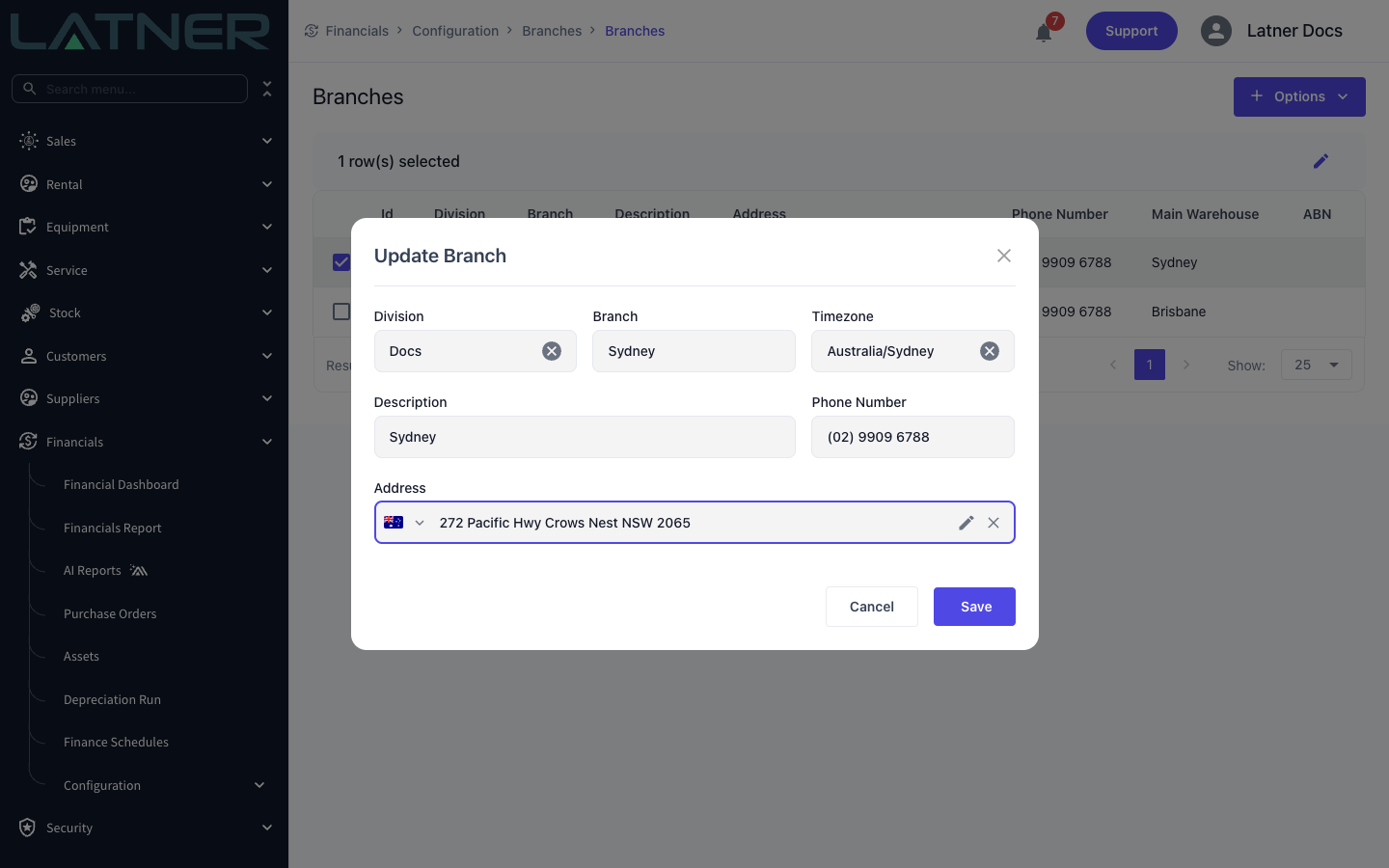
Each branch has its own address, and it's the one your customers and suppliers see: it prints on the rental contracts, invoices and transport dockets raised from that branch, and it becomes the Shipping Address on new purchase orders. To update it:
-
Go to Financials › Configuration › Branches.
-
Tick the checkbox on the branch's row, then click the pencil (Edit) icon to open Update Branch.
-
Choose the branch's Timezone again. It shows blank in this dialog and is required, so Save shows Required until you pick it.
-
Update the Address.
-
Click Save. A Branch Updated message confirms the change and the new address shows in the list.
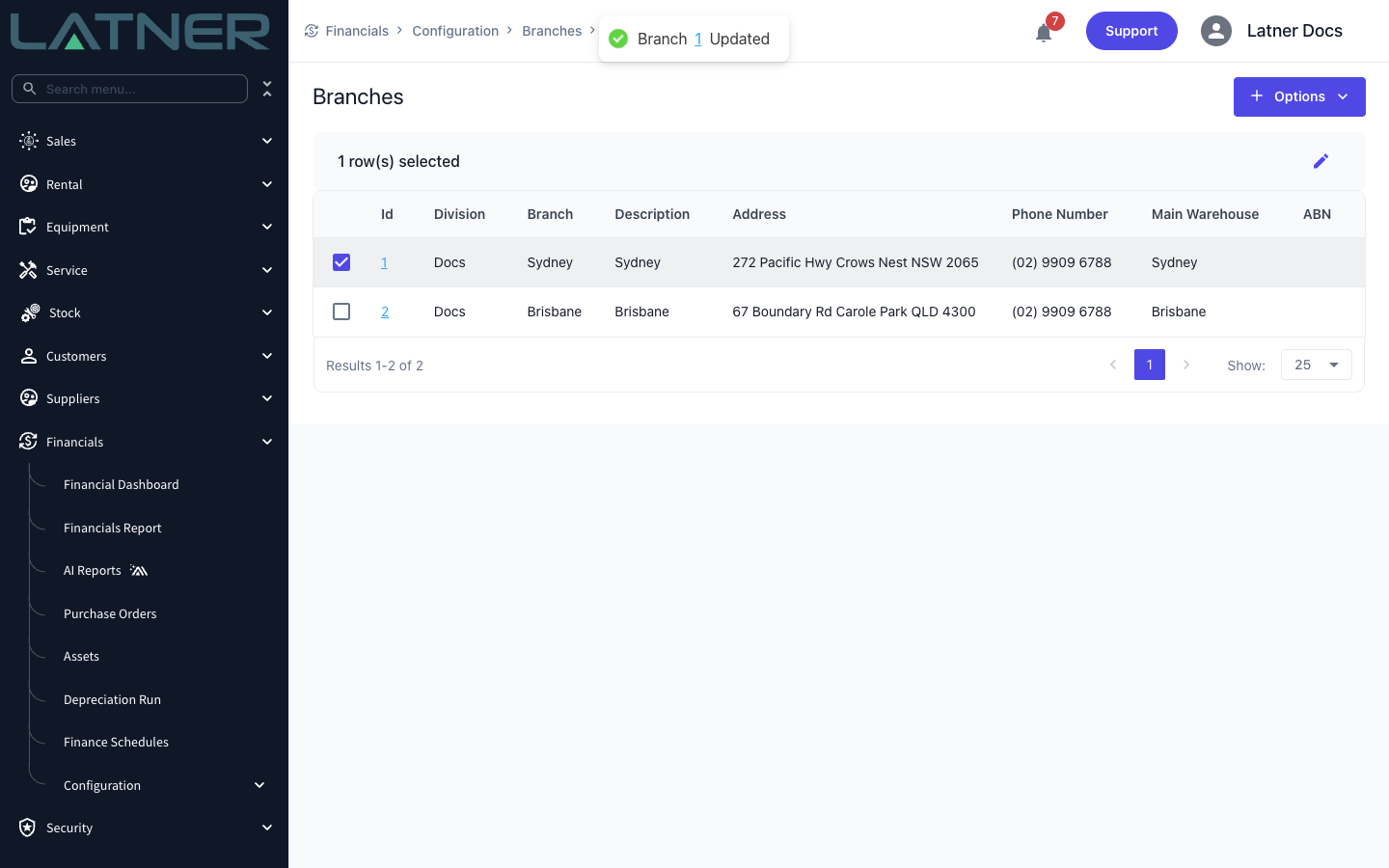
Purchase orders that already exist keep the shipping address they were created with. See the FAQ below for how to update an open purchase order.
Warehouse
Warehouses sit under Branches and represent stock‑holding locations used for inventory management. They ensure stock items are organised and traceable across the business.
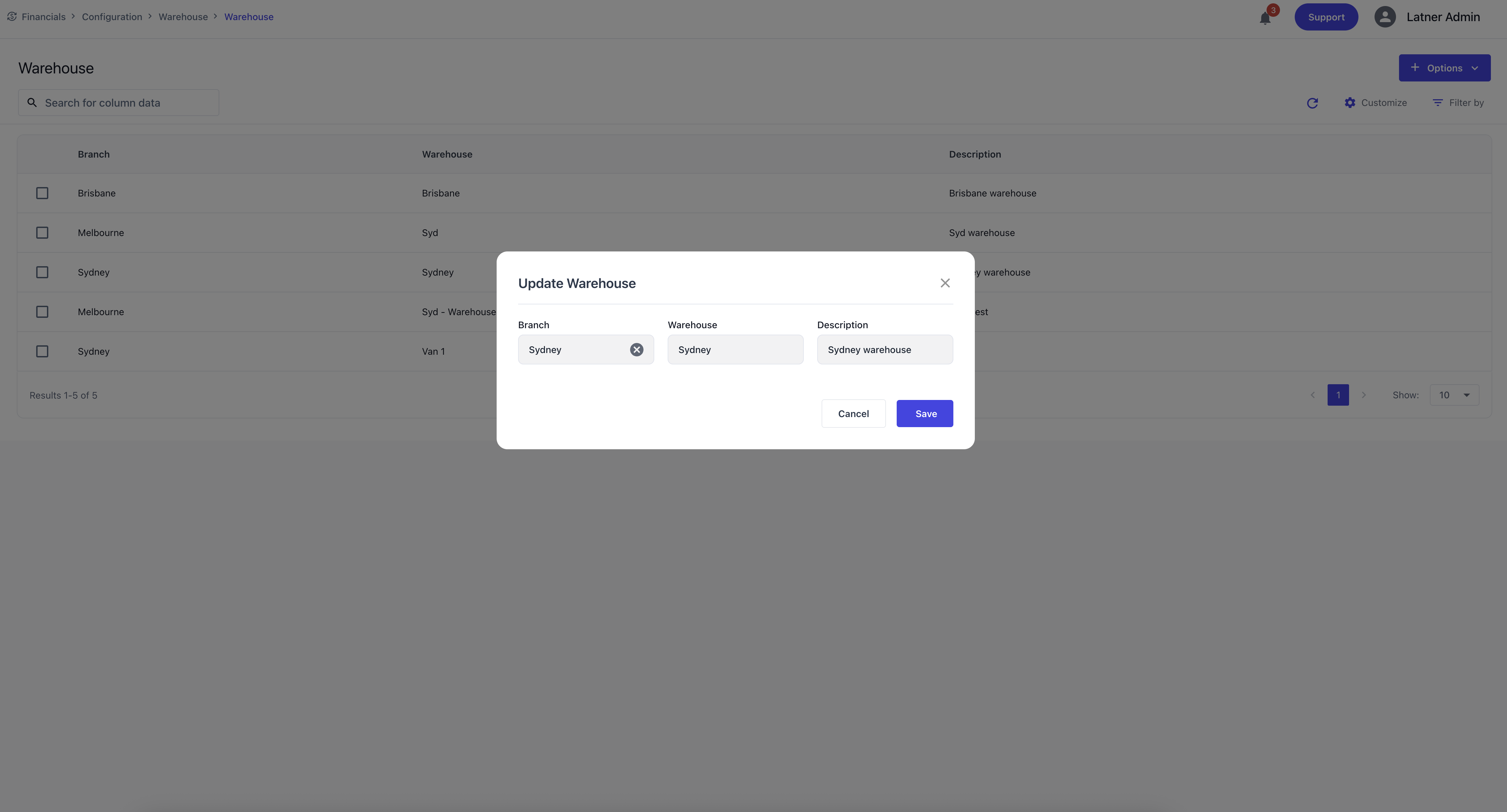
When creating a Warehouse, you specify:
-
Branch: the parent branch.
-
Warehouse Name: the identifier for the warehouse.
-
Description: additional context or purpose.
Sales Tax
Sales Tax entries define the tax rates applied to sales transactions. They ensure that invoices are calculated correctly and comply with tax requirements.
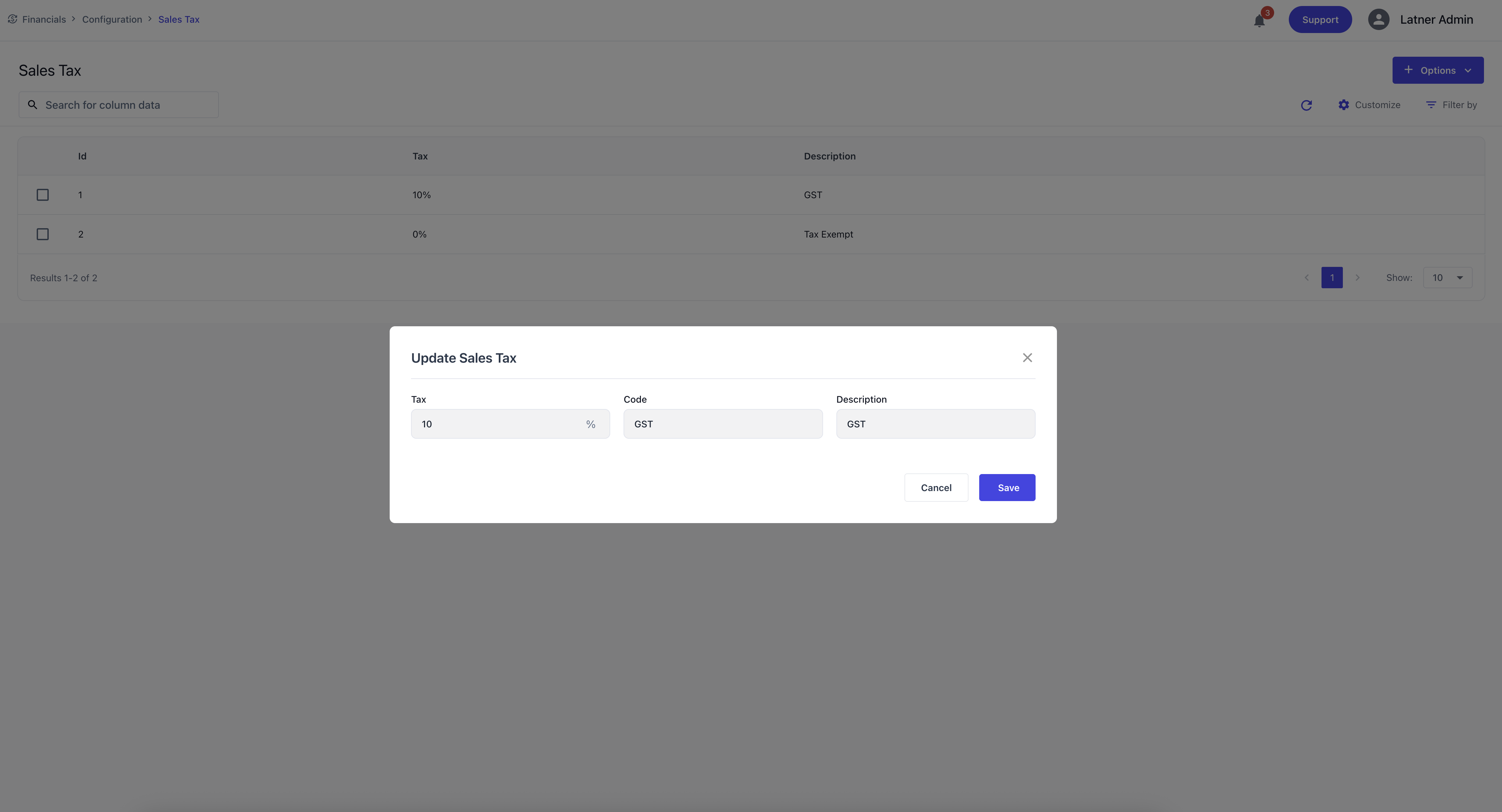
When creating a Sales Tax entry, you specify:
-
Tax Percentage: the rate applied (e.g., 10%).
-
Code: the tax code (e.g., GST, TAXEXEMPT).
-
Description: the purpose or context of the tax.
Purchase Tax
Purchase Tax entries define the tax rates applied to supplier invoices. They ensure that purchasing transactions are recorded accurately and comply with tax rules.
When creating a Purchase Tax entry, you specify:
-
Tax Percentage: the rate applied (e.g., 10%).
-
Code: the tax code (e.g., GST, TAXEXEMPT).
-
Description: the purpose or context of the tax.
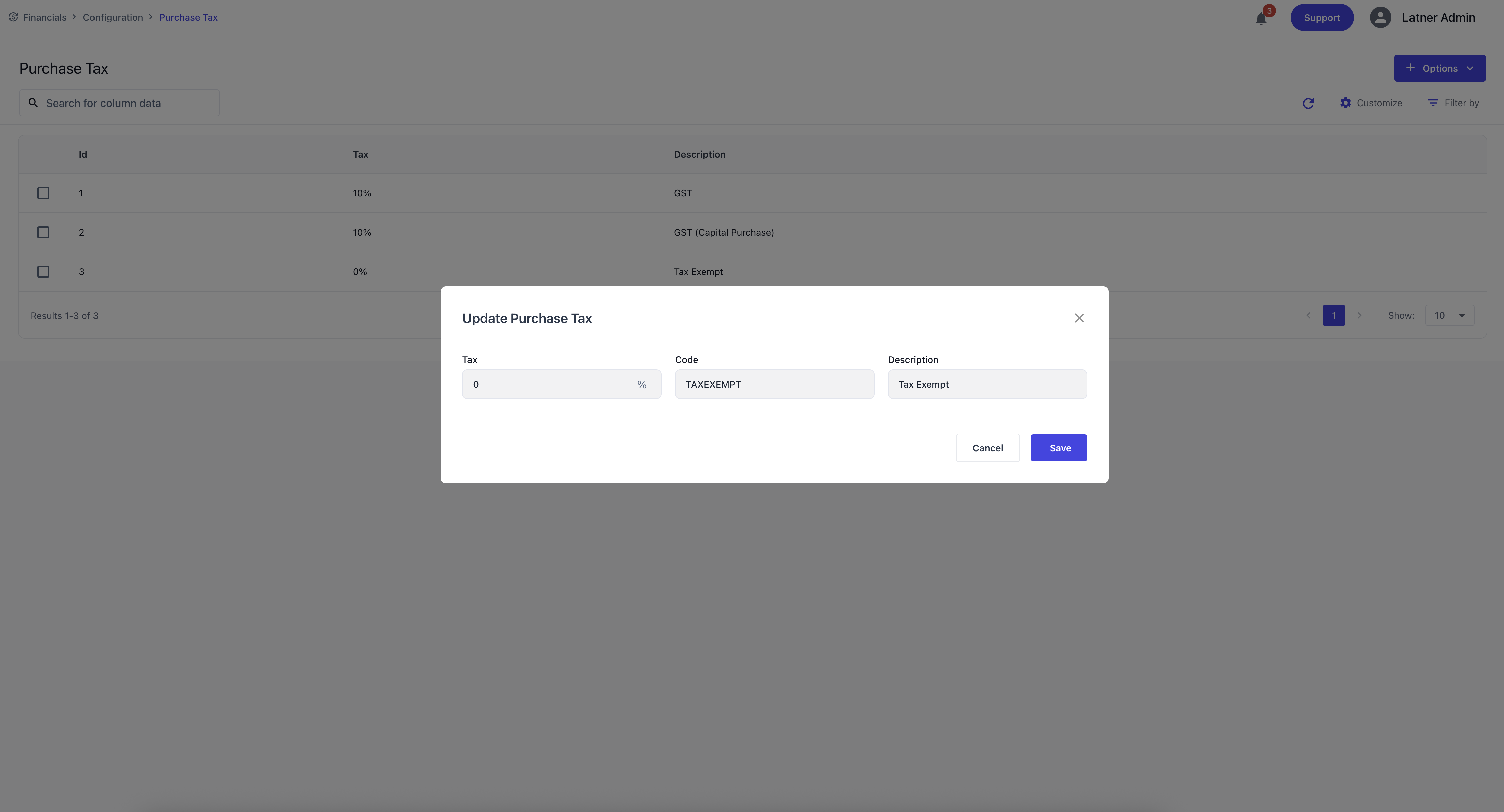
Asset Groups
Asset Groups are used to categorise assets for depreciation and reporting. They ensure that assets are grouped logically for financial and operational analysis. When creating an Asset Group, you specify the name and description.
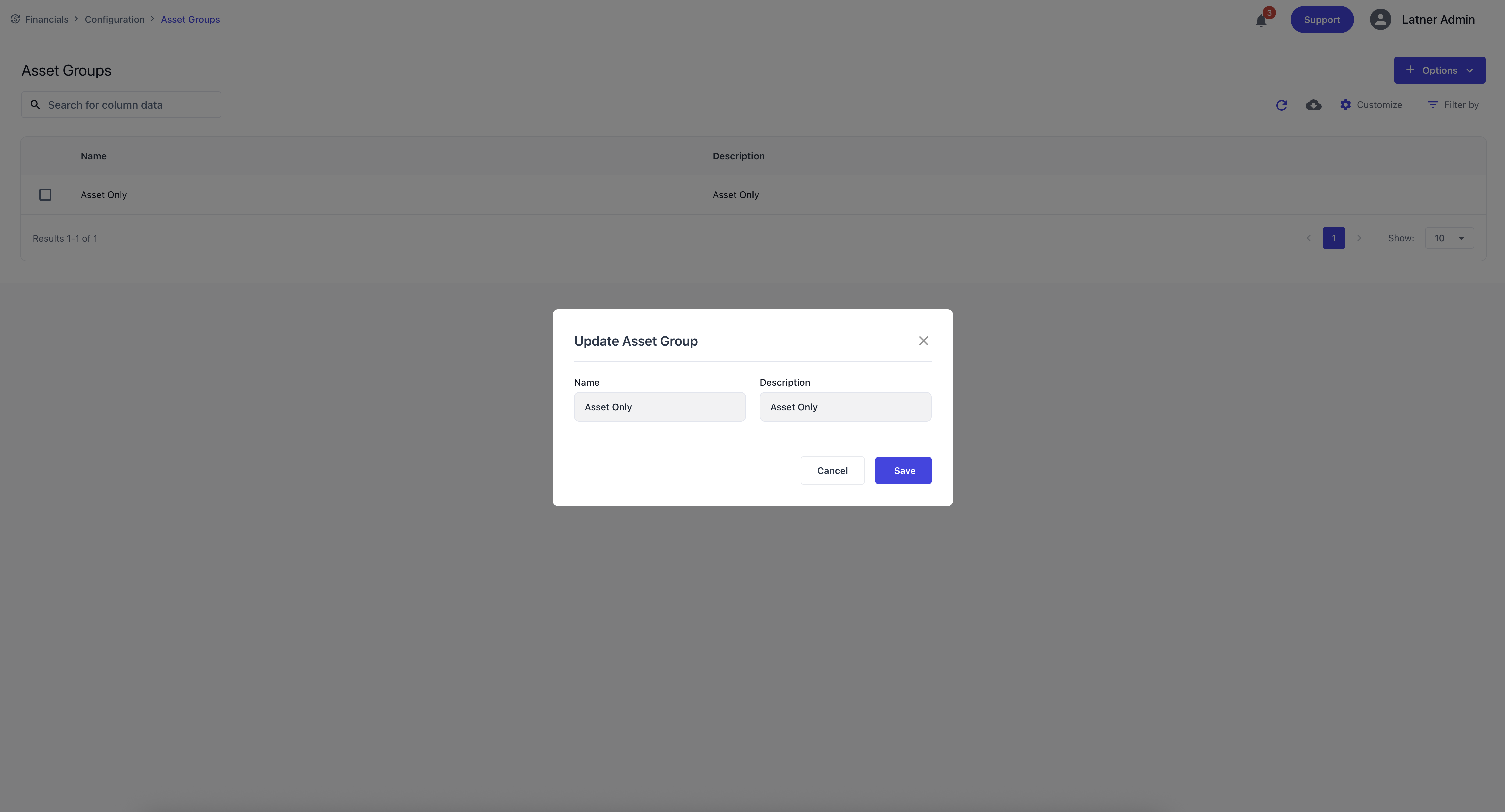
Depreciation Types
Depreciation Types define how assets depreciate over time. They ensure that depreciation is calculated consistently and in accordance with financial policy.
When creating a Depreciation Type, you specify:
-
Name: the identifier for the depreciation method.
-
Description: the purpose or context.
-
Method: the depreciation approach (straight line, diminishing, write‑off).
-
Rate Percentage: the rate applied to the asset value.
Accounting Integration
An Integration Screen that …
Payment Gateway Integration
An Integration Screen that …
Rouse Integration
An Integration Screen that …
Purchase Order Approval Groups
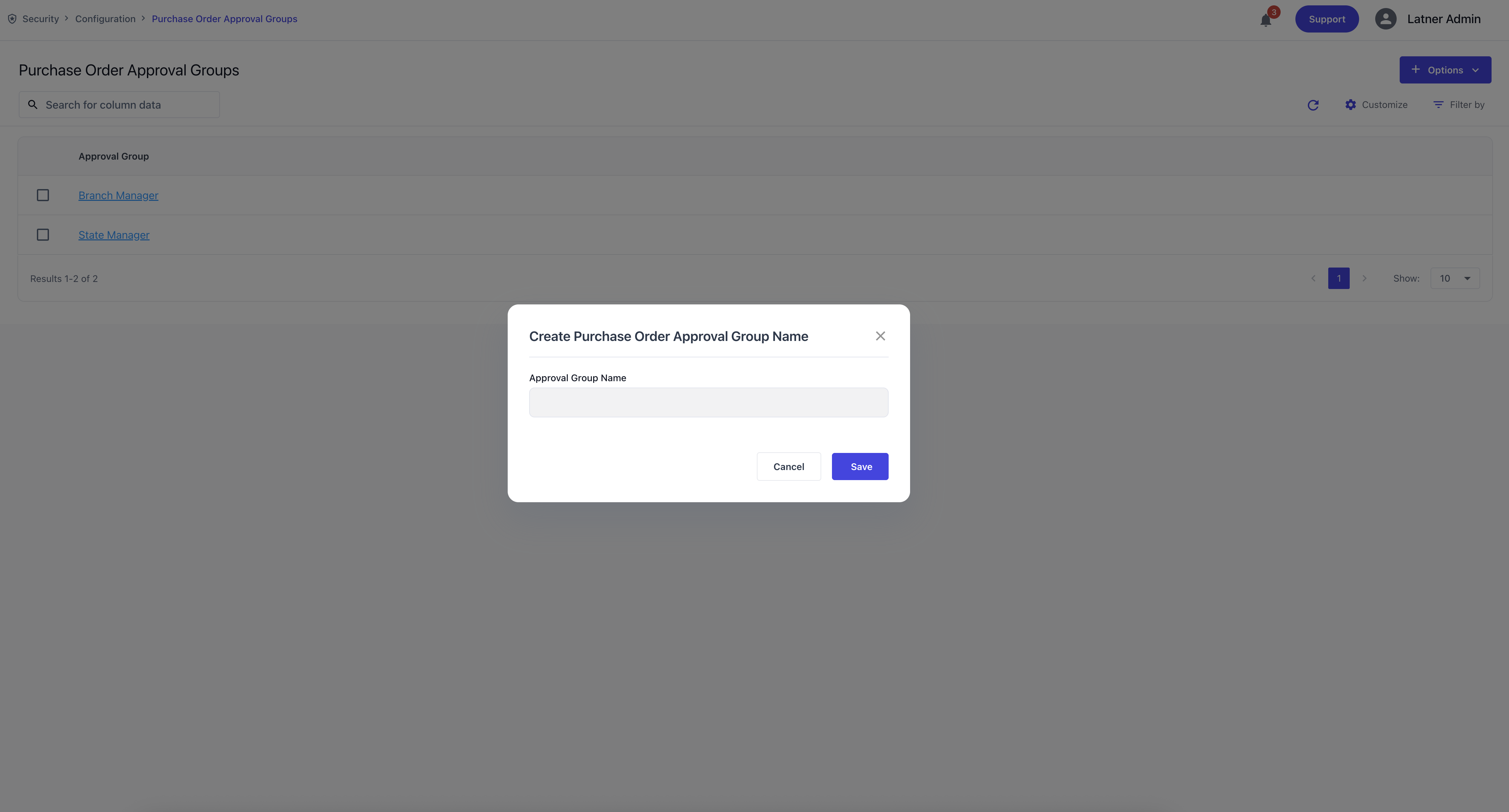
Purchase Order Approval Groups are used to control who can authorise purchase orders and up to what value. These groups ensure purchasing is governed by clear financial controls.
Approval groups are enforced when the global setting Enforce Purchase Order Approval Limits is enabled.

When creating a Purchase Order Approval Group, you specify:
-
Approval Group Name: the identifier for the group.
-
Description (if applicable): the purpose or context.
Once created, you can add one or more approval limits. Each approval limit defines:
-
Scope: either a configurable expense or an system-set line type.
-
Line/Expense Type: the type of item being purchased.
-
Approval Limit (excl. GST): the maximum amount the user can approve for that line type.
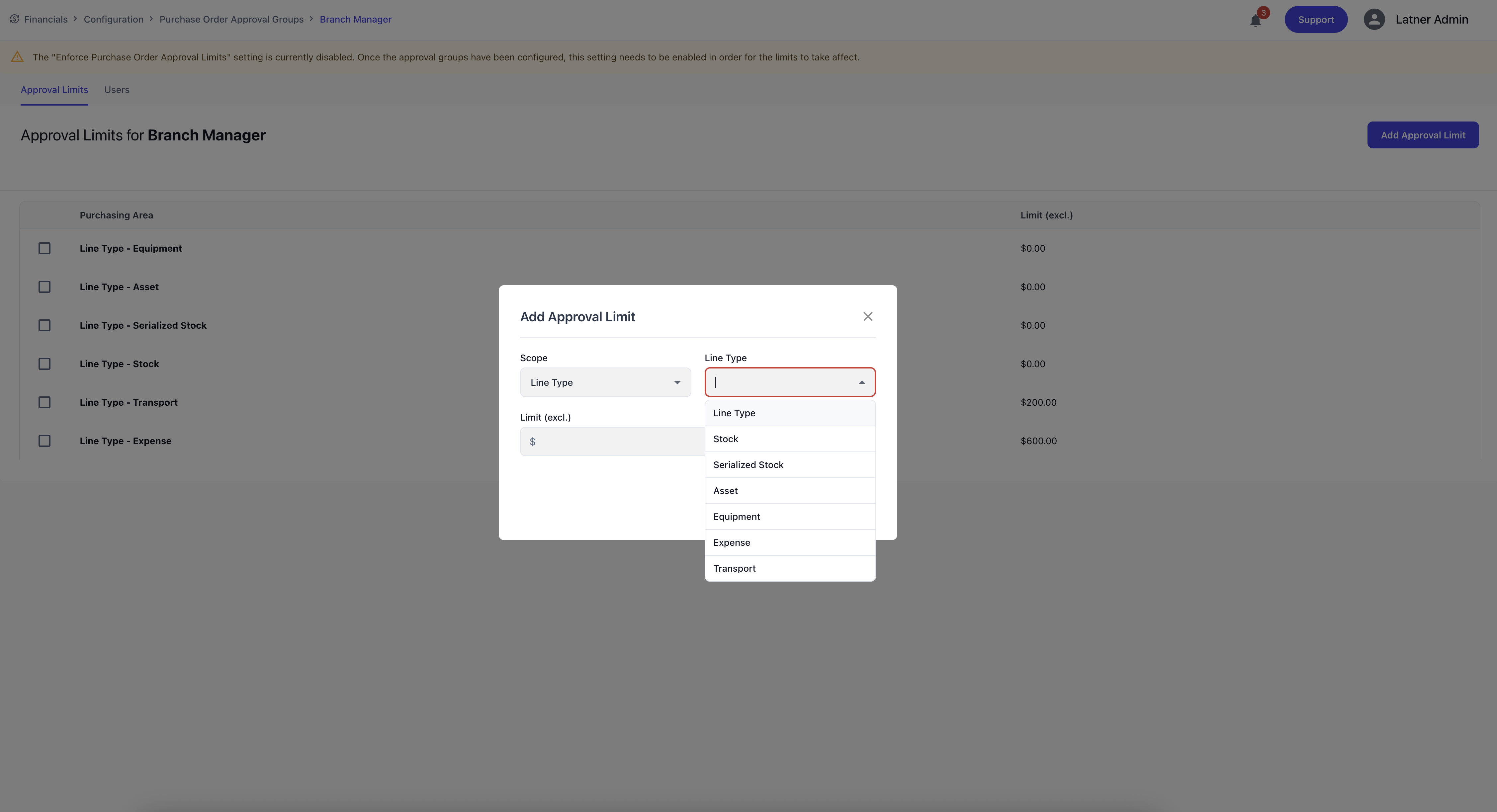
Approval groups are later assigned to Users through their user settings, determining the credit limits they are authorised to approve. See this section on Users on how to assign Approval Groups. You could also see the Users that are currently assigned on this group on the top tab.