Sales Reps
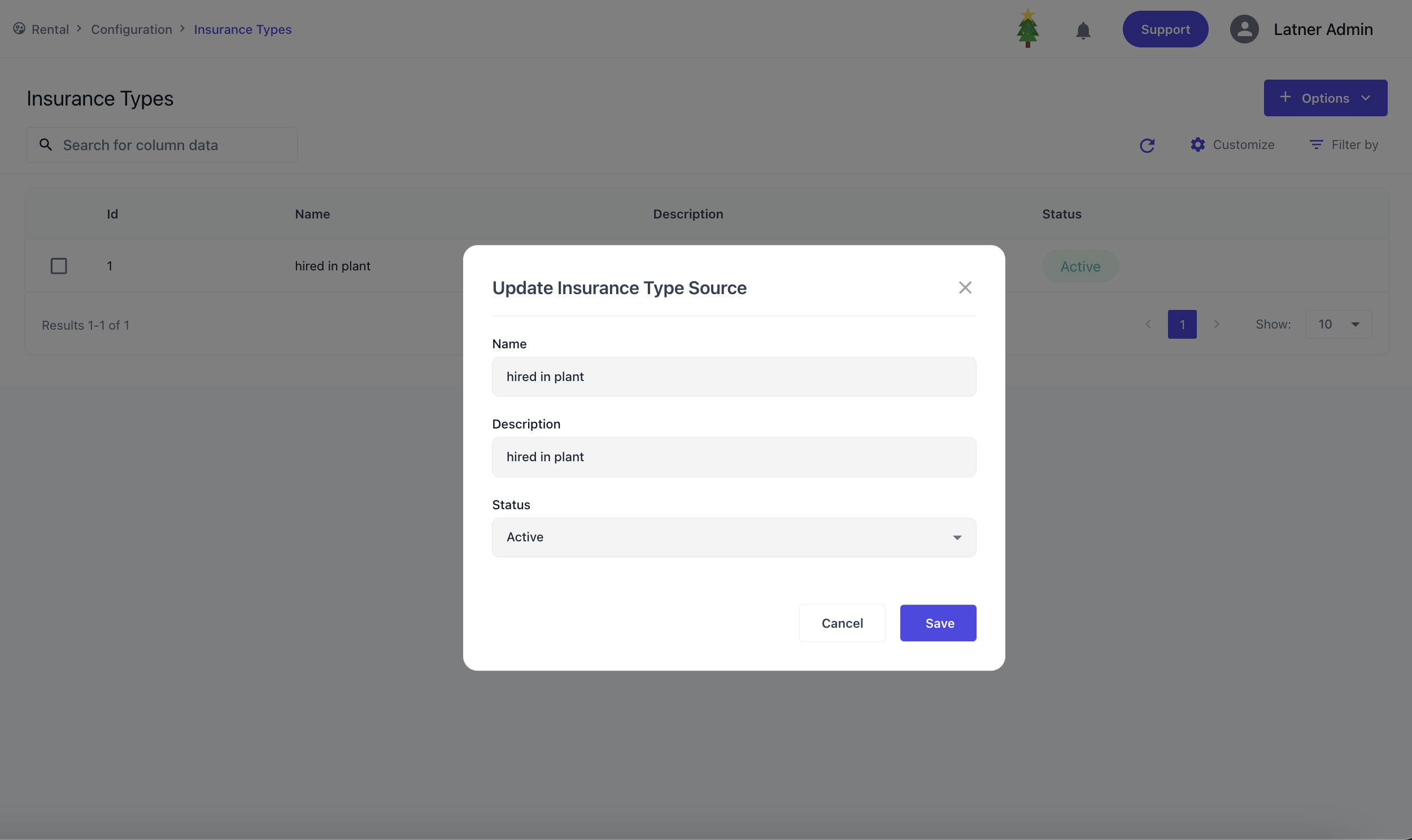
Sales Reps are users configured in the system who represent the sales workforce. They can be assigned to customers, opportunities, or CRM, and their activity is tracked for reporting and performance analysis.
When creating a Sales Rep, you specify:
-
User: the system user account that the sales rep is tied to.
-
Status: whether the sales rep is active or inactive.
Payment Terms
Payment Terms decide when an invoice is due. Each term is a rule - "14 days after the invoice date", "45 days after the end of the month" - and Latner uses it to work out the due date automatically every time an invoice is created.
There is one list of payment terms, shared by customers and suppliers. You build it once on the Customers › Configuration › Payment Terms screen, and every customer and every supplier picks its term from that same list. Payment terms are not created under Security › Settings or Security › Configuration; the only payment term options in Settings are the defaults described below.
-
A customer's term sets the due date on its customer invoices. A supplier's term sets the due date on its supplier invoices.
-
If a customer has no term, invoices use the Default Payment Term setting (Security › Settings › Customer). If a supplier has no term, supplier invoices use Default Supplier Payment Term (Security › Settings › Supplier). Both settings pick from the same list.
-
The due date is worked out when the invoice is created. Changing a customer's or supplier's term later applies to new invoices; invoices that already exist keep their due dates.
Before You Begin
|
Requirement |
Where to Find It |
|---|---|
|
Payment Terms permission - shows the Payment Terms screen |
Security › Configuration › Permission Groups, under the Customer module's Configuration permissions |
|
Create Payment Term permission - adds the Create Payment Terms option and lets you edit an existing term |
Security › Configuration › Permission Groups, under the Customer module's Option permissions |
Creating a Payment Term
Step 1 - Open the Payment Terms screen
Go to Customers › Configuration › Payment Terms. The list shows every term your customers and suppliers can use, with its Type and Day(s).
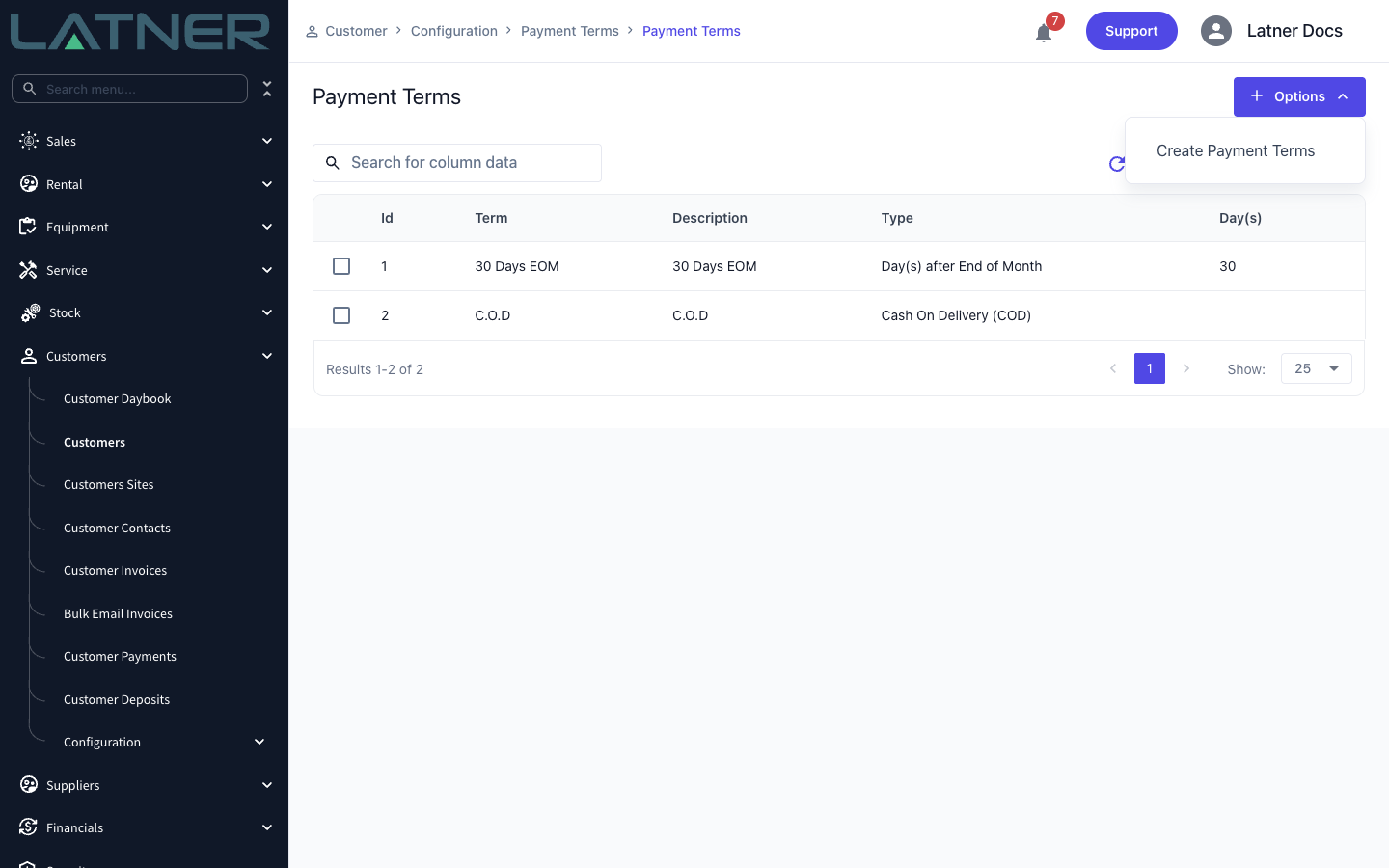
Step 2 - Choose Options › Create Payment Terms
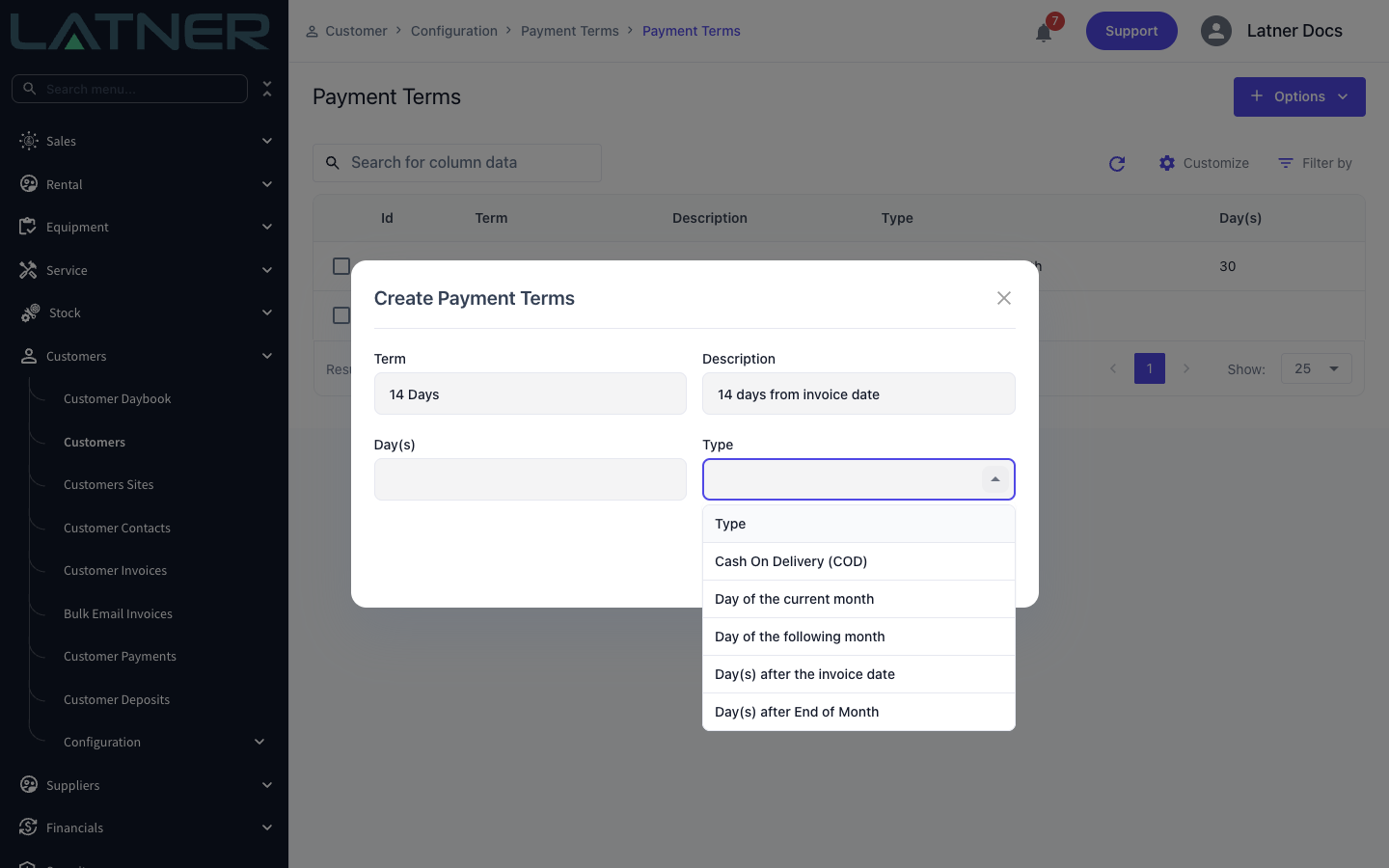
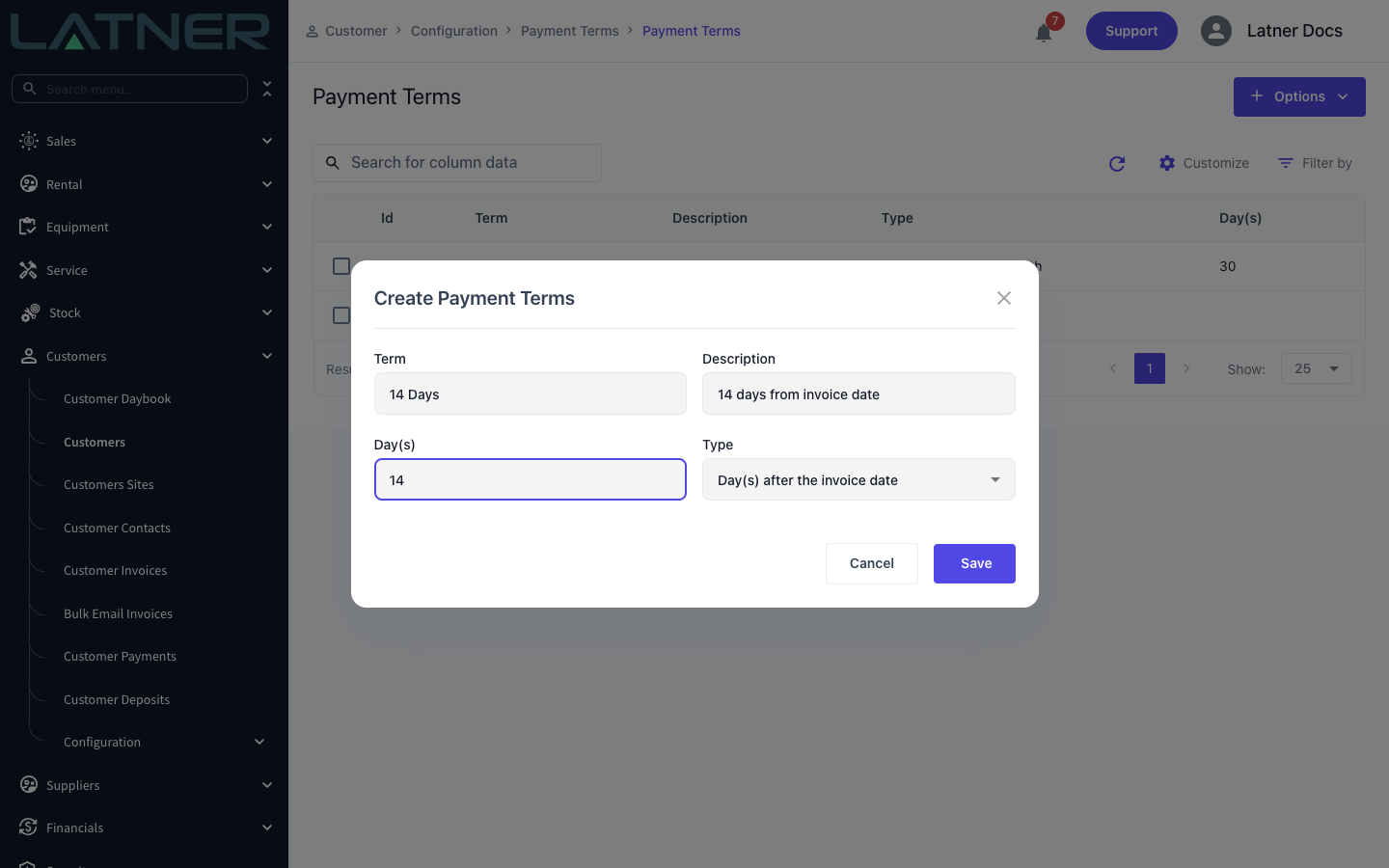
Click Options › Create Payment Terms and fill in the dialog. All fields are required:
-
Term - the name people pick from on a customer or supplier, such as "14 Days" or "45 Days EOM". Each term name must be unique.
-
Description - a short explanation of the term.
-
Type - how the due date is calculated:
-
Cash On Delivery (COD) - due on the invoice date. On a rental contract, an invoice raised before the contract starts is due on the contract's start date.
-
Day of the current month - due on the day of the invoice's month given in Day(s), for example the 20th.
-
Day of the following month - due on the day of the next month given in Day(s).
-
Day(s) after the invoice date - due the number of days in Day(s) after the invoice date.
-
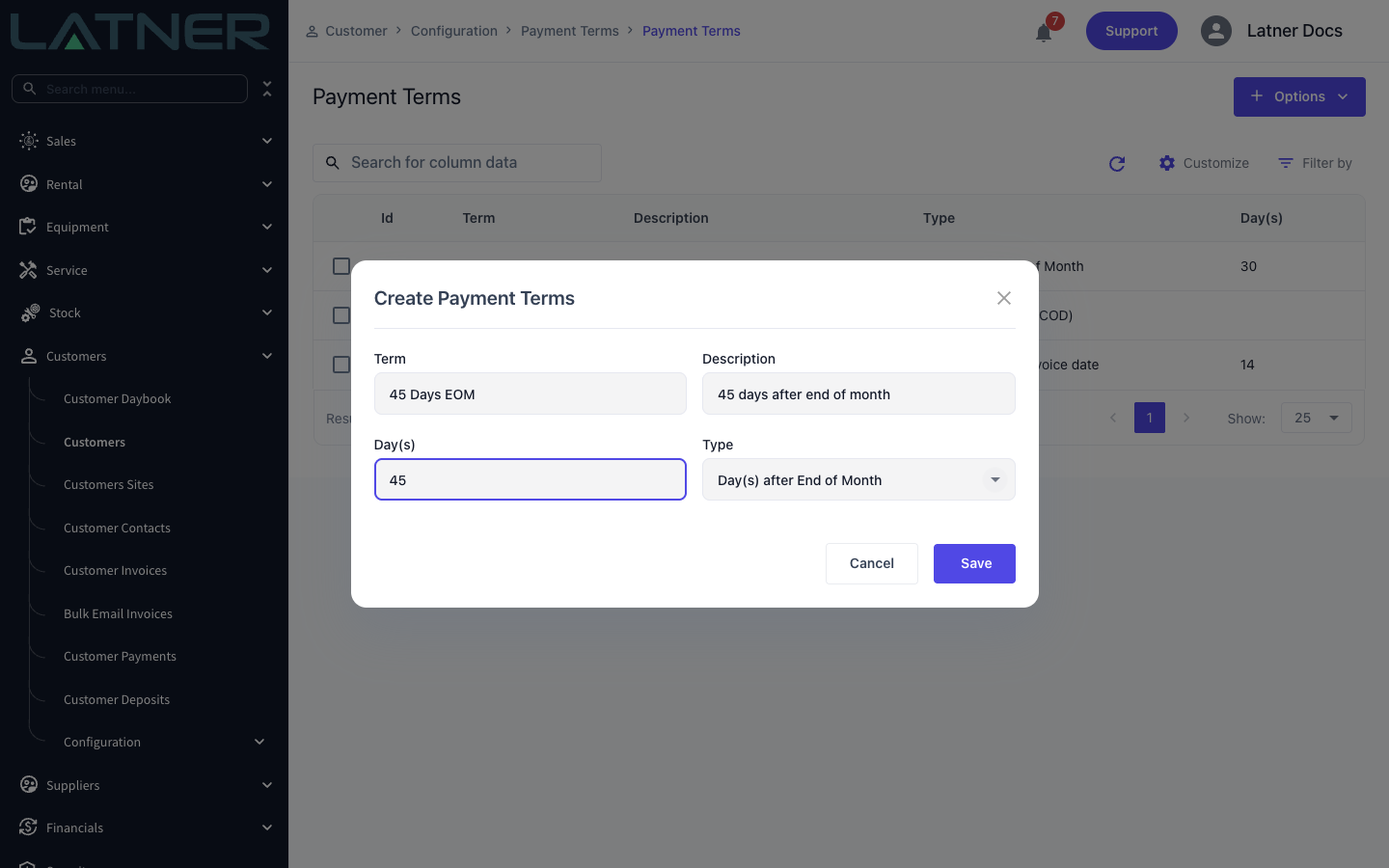
Day(s) after End of Month - due the number of days in Day(s) after the last day of the invoice's month.
-
-
Day(s) - the number of days, or the day of the month, the type uses. It is hidden for Cash On Delivery (COD). For the two "day of the month" types, a day past the end of a short month falls on that month's last day.
Step 3 - Save
Click Save. The term is added to the list straight away and can be selected on any customer or supplier. To change a term later, double-click its row to open Update Payment Terms.
Worked Examples
7 or 14 days from the invoice date. Set Type to Day(s) after the invoice date and Day(s) to 7 or 14. An invoice dated 10 March is due on 17 March with 7 days, or on 24 March with 14 days.
45 days EOM. Set Type to Day(s) after End of Month and Day(s) to 45. The count starts on the last day of the invoice's month, so an invoice dated anywhere in March (end of month 31 March) is due on 15 May.
Changing a Customer's or Supplier's Payment Term
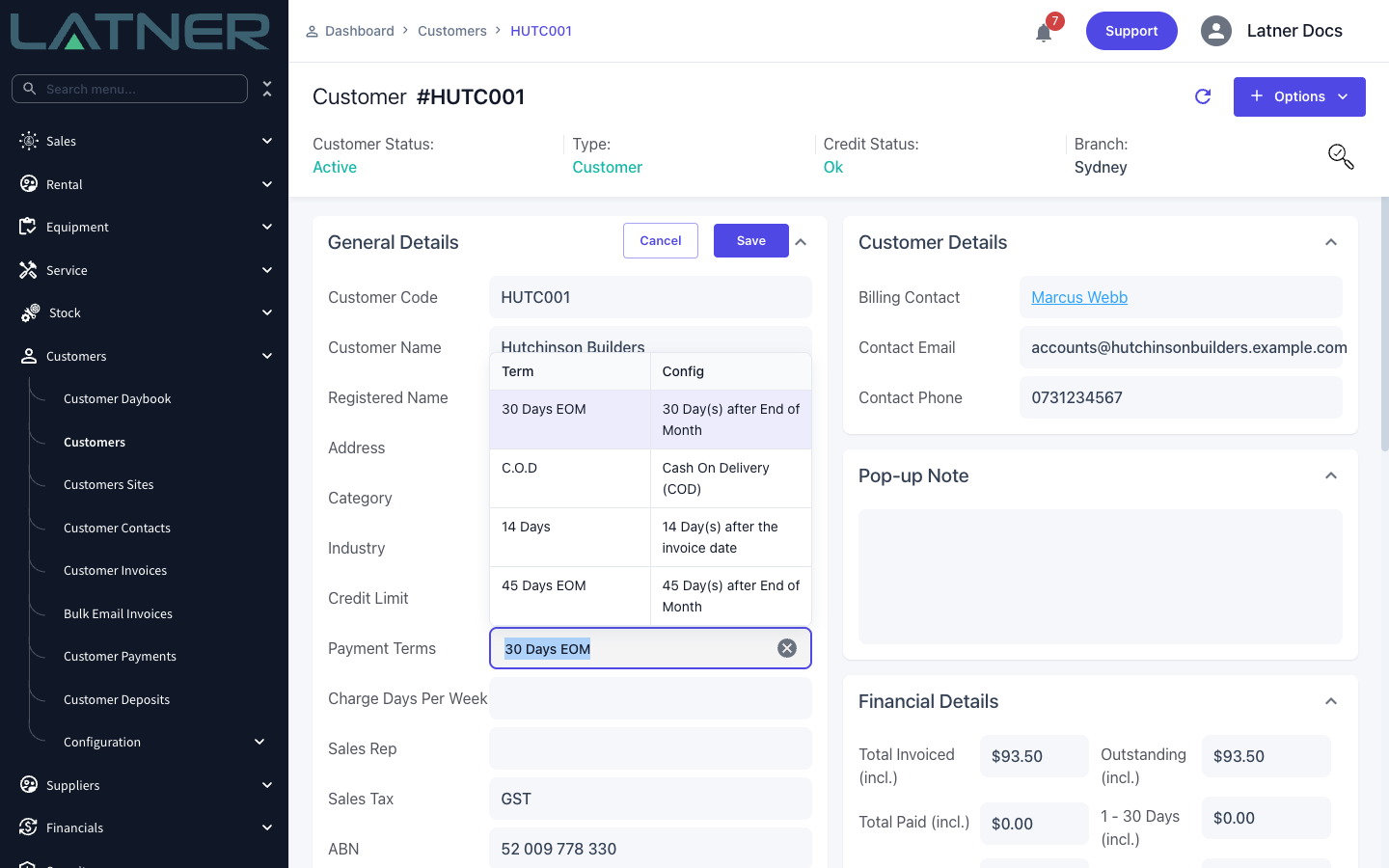
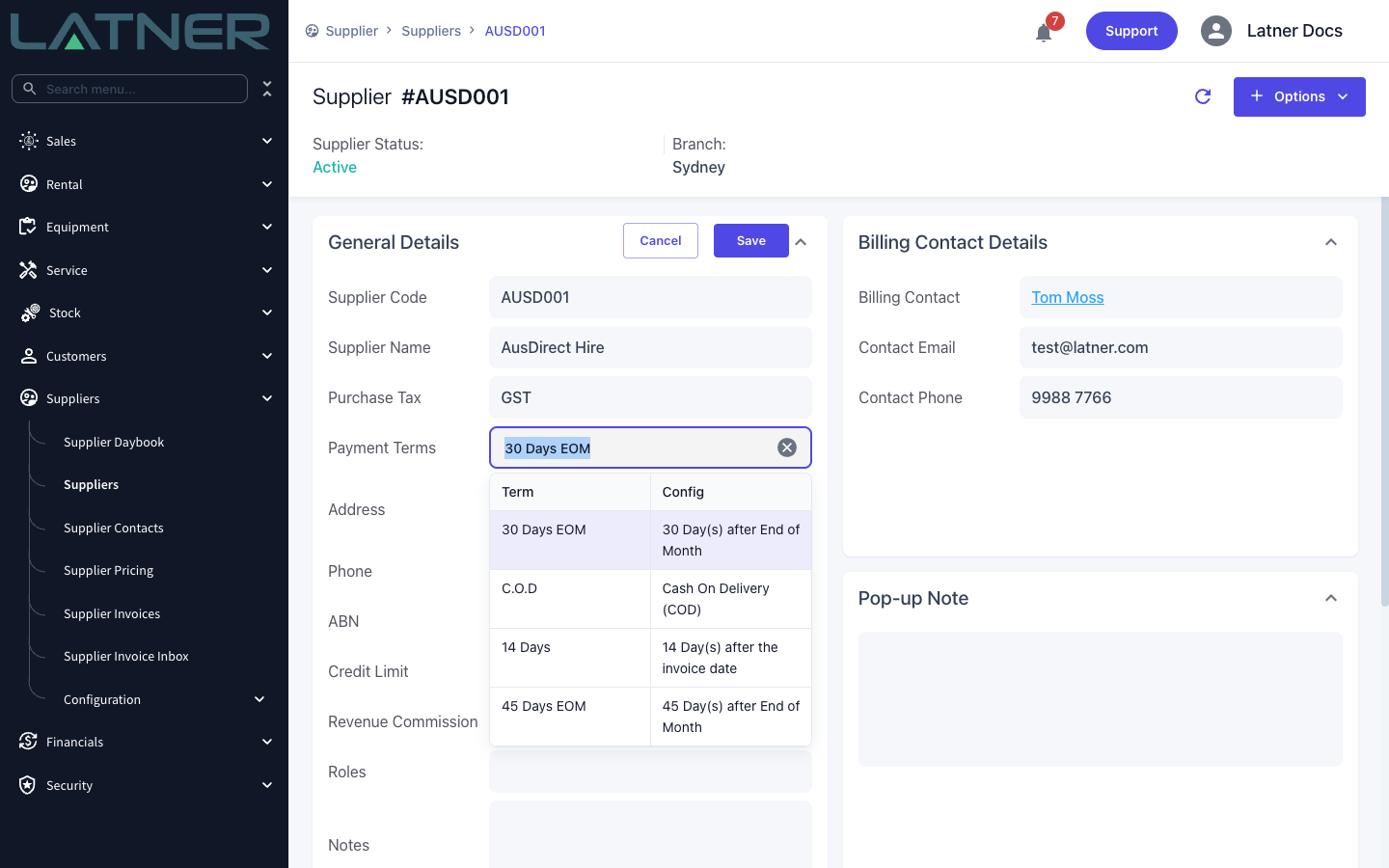
A customer's or supplier's term is changed on its own details screen, not on the Payment Terms screen. Open the customer (Customers › Customers) or supplier (Suppliers › Suppliers), click the Payment Terms field in General Details, pick a term from the list and click Save. You need the Edit Customer or Edit Supplier permission (Edit Cash Customer is enough to change the term on a COD customer).
Moving a customer onto a Cash On Delivery (COD) term sets its credit limit to 0 and its credit status to Immediate Payment. Moving a COD customer onto any other term turns it into an account customer, so it needs the Edit Customer permission - Edit Cash Customer alone isn't enough.
Editing a term on the Payment Terms screen changes it for every customer and supplier that uses it. If only some of them should change, create a new term and move those customers or suppliers onto it instead.
Payment Terms and Xero or MYOB
Your list of payment terms is not synced to Xero or MYOB - each system keeps its own terms, and creating or editing a term in Latner doesn't create or change one there.
-
Xero - each invoice is sent with the due date Latner calculated from the term.
-
MYOB - each invoice, and the customer or supplier card, is sent with the term's type and number of days, and MYOB works out the due date from those.
Customer Categories
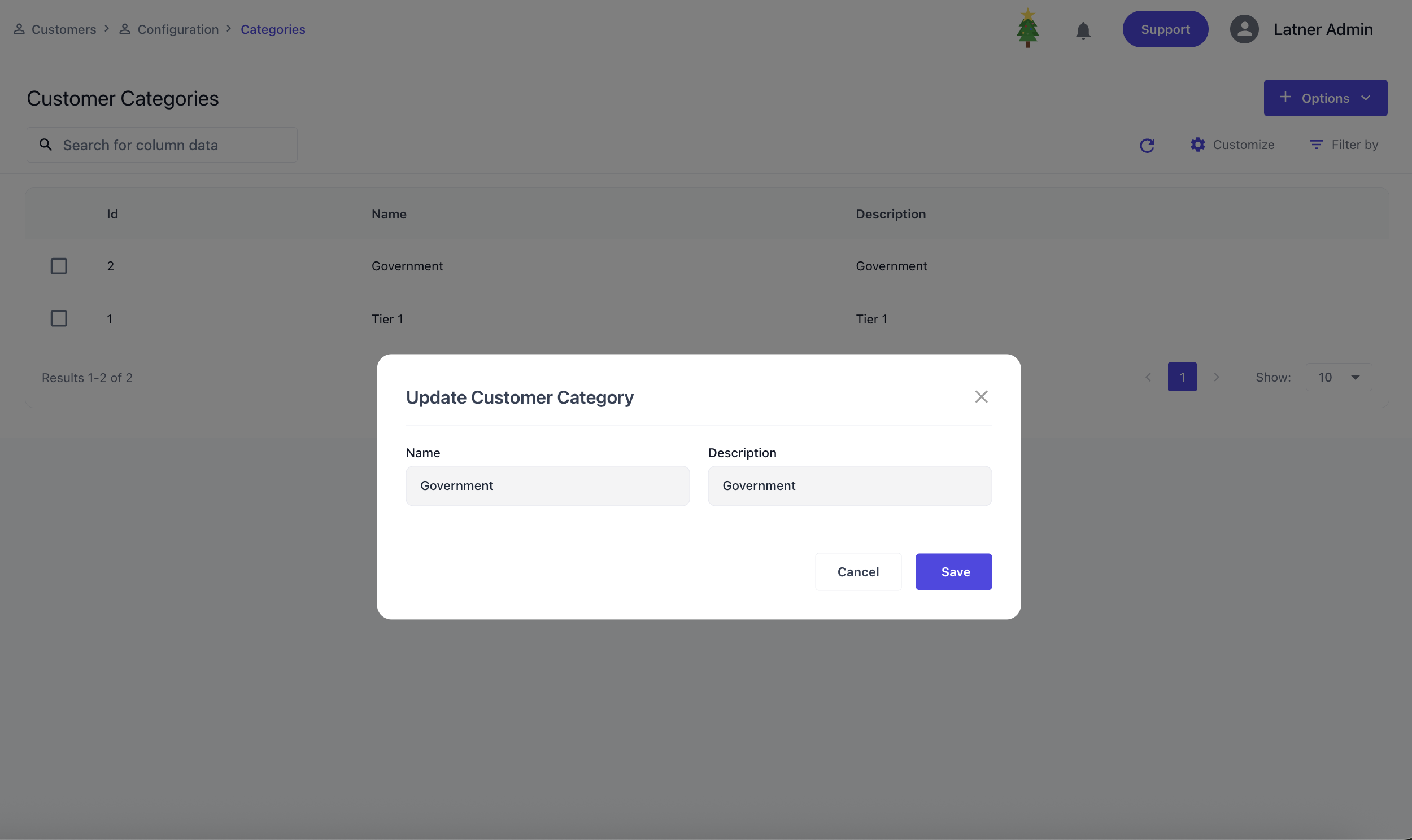
Customer Categories are used to configure classifications for customers. When setting up a customer category, you define the name and description.
Credit Note Approval Groups
Credit Note Approval Groups are used to manage approval rules that control who can authorise credit notes and up to what value. These groups ensure that credit processing is consistent, auditable, and aligned with internal financial controls.
A global setting Enforce Credit Note Approval Limits needs to be turned on for the limits to take affect.

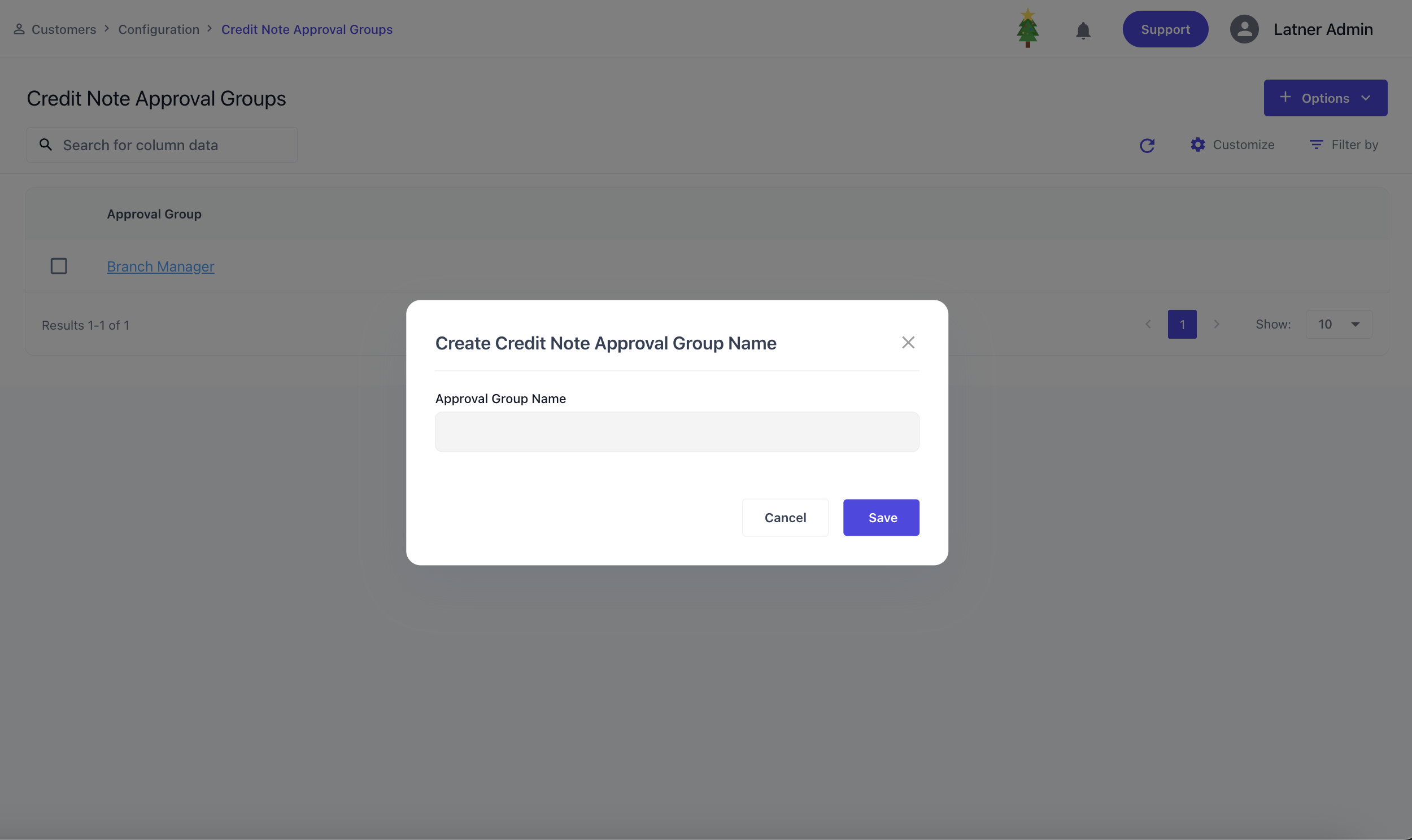
When creating a Credit Note Approval Group, you specify the name which commonly would be the department that has limits on the approval.
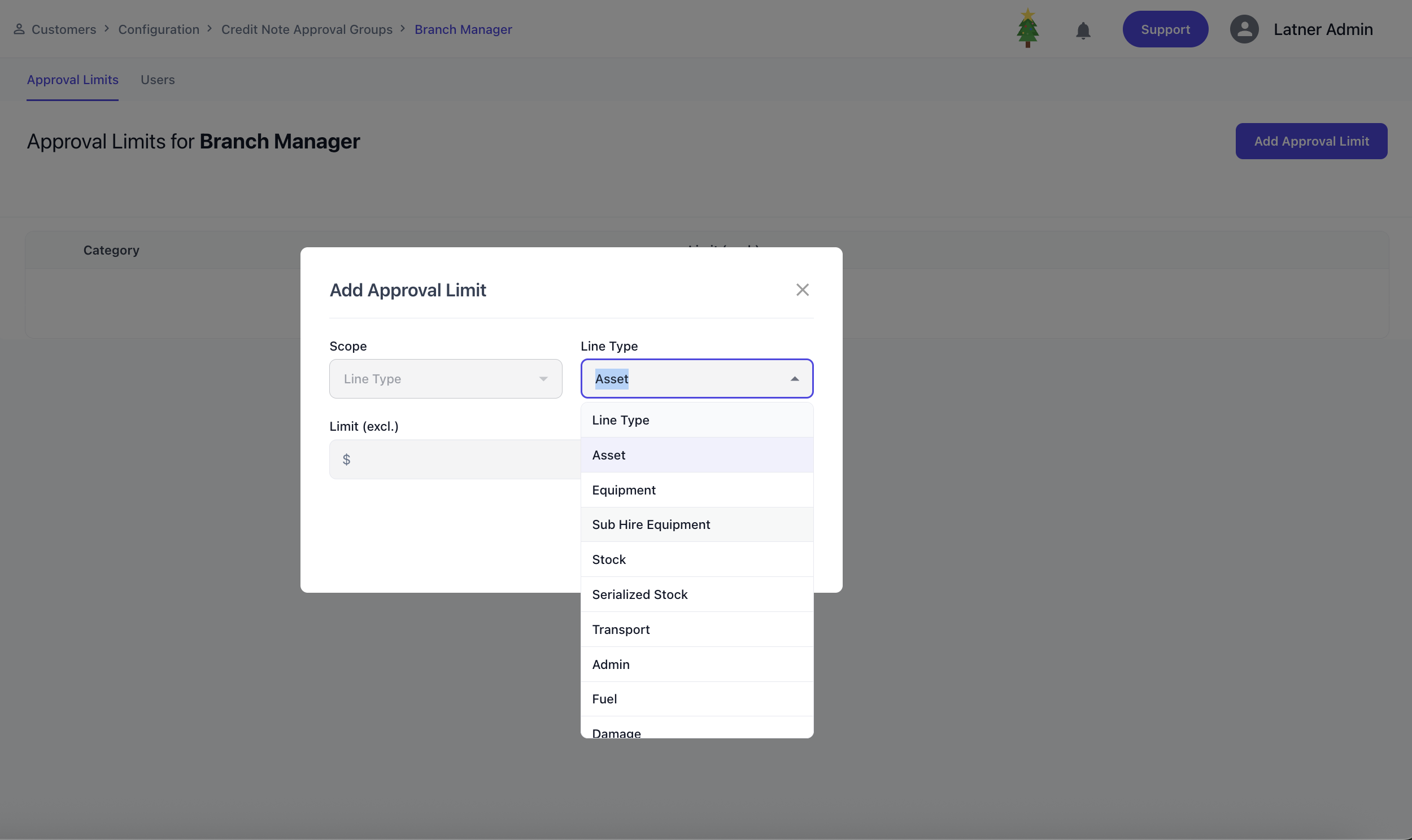
Once the approval group is created, the system allows you to add one or more approval limits. Each approval limit defines:
-
Line Type: the type of item being credited (e.g., equipment, transport, damage).
-
Approval Limit (excl. GST): the maximum credit amount the user can approve for that line type.
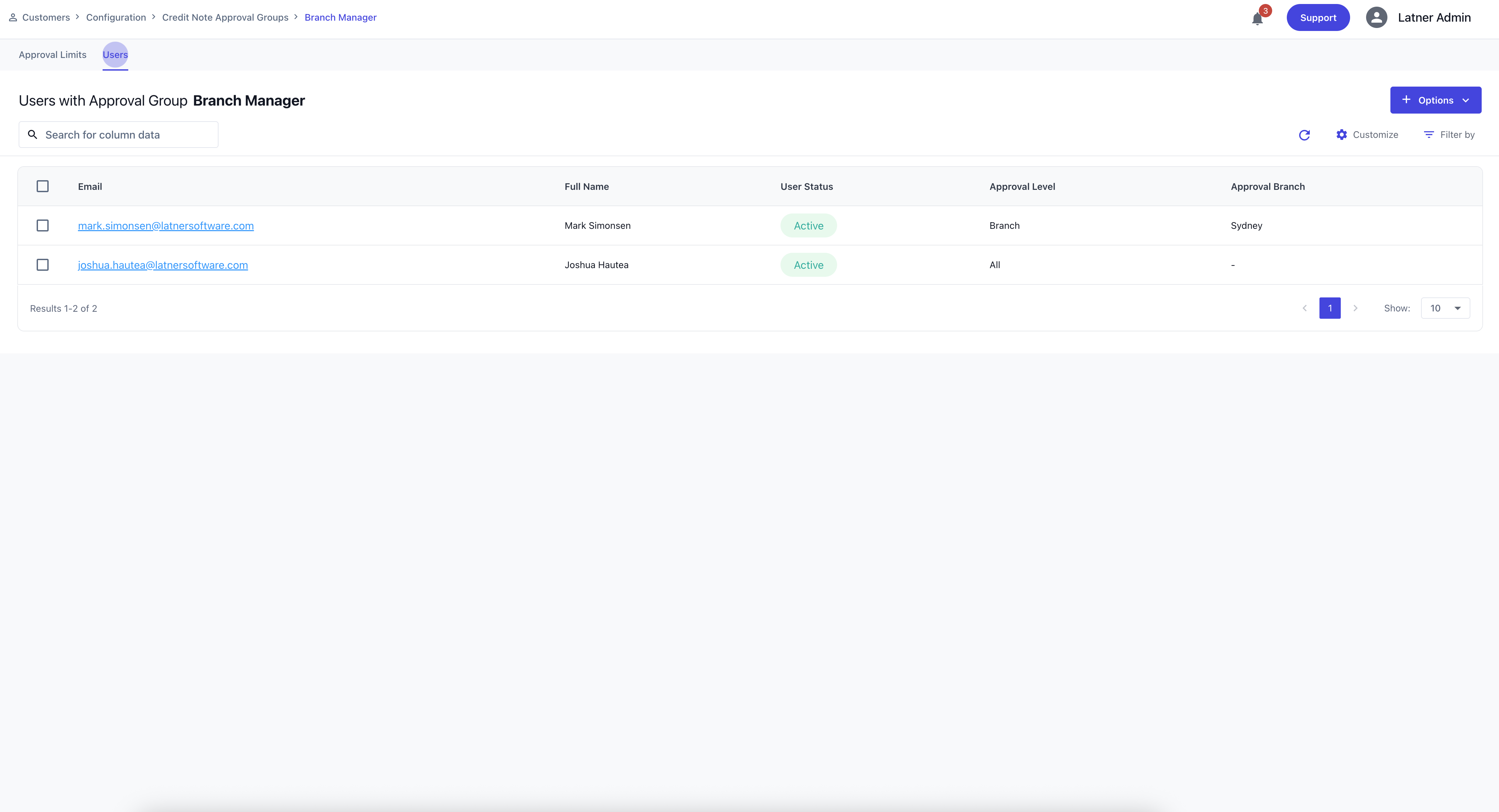
Approval groups are later assigned to Users through their user settings, determining the credit limits they are authorised to approve. See this section on Users on how to assign Approval Groups. You could also see the Users that are currently assigned on this group on the top tab.
Insurance Companies
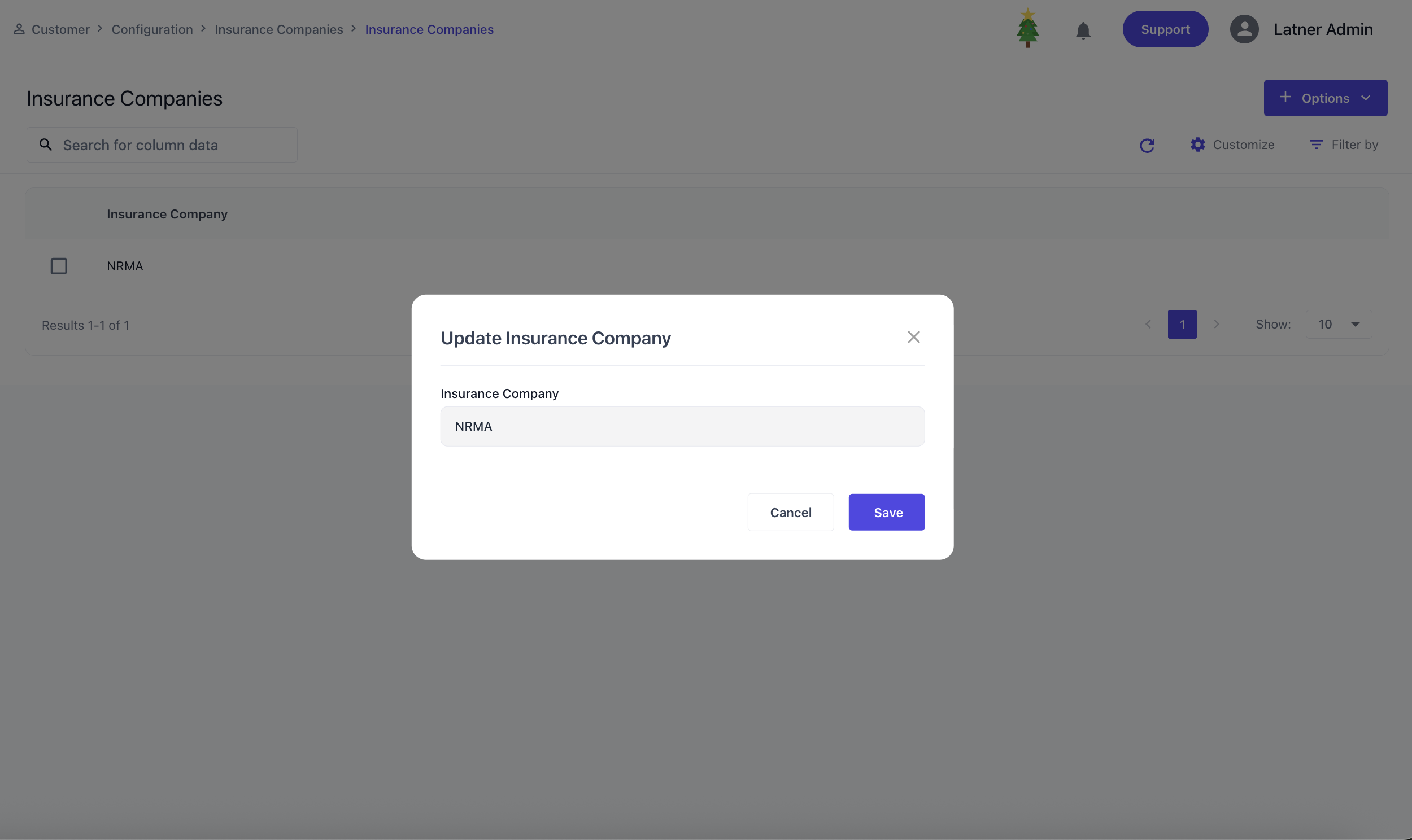
Insurance Companies are used to store and manage insurer records that can be linked to customer insurance details. When creating an Insurance Company, you specify the name.
Insurance Types
Insurance Types are used to categorise the different kinds of insurance that may apply to customers or equipment. When creating an Insurance Type, you specify the name, description and status.