
Webhooks let Latner push customer and account changes out to another system the moment they are saved, so your CRM, portal or data warehouse stays in step without anyone re-keying anything.
Overview
Not every system your business runs on lives inside Latner. A webhook integration is a standing instruction to tell one external system, at one URL, every time a record it cares about is created or changed.
-
Latner can push six record types: Account, Account Contact, Customer, Customer Contact, Customer Site and Payment Term.
-
Each integration is one destination URL with its own list of ticked record types. You can set up as many integrations as you need.
-
Latner sends an HTTP POST when a record is created and a PATCH when one is updated. Deletions are never sent.
-
The call goes out synchronously, as part of the save itself. If your endpoint does not accept it, the save fails and nothing is written in Latner.
-
There is no retry queue, no delivery report and no way to replay a call from Latner.
-
Authentication is optional. Latner can send the call anonymously or with a token you supply.
Before You Begin
You need one permission and one destination before you can set a webhook up.
|
Requirement |
Where to Find It |
|---|---|
|
Webhook Integration permission |
Security › Configuration › Permission Groups, under the Configuration module |
|
A destination URL that accepts JSON over HTTPS |
The system you are pushing to |
|
An authentication token, if your destination needs one |
The system you are pushing to |
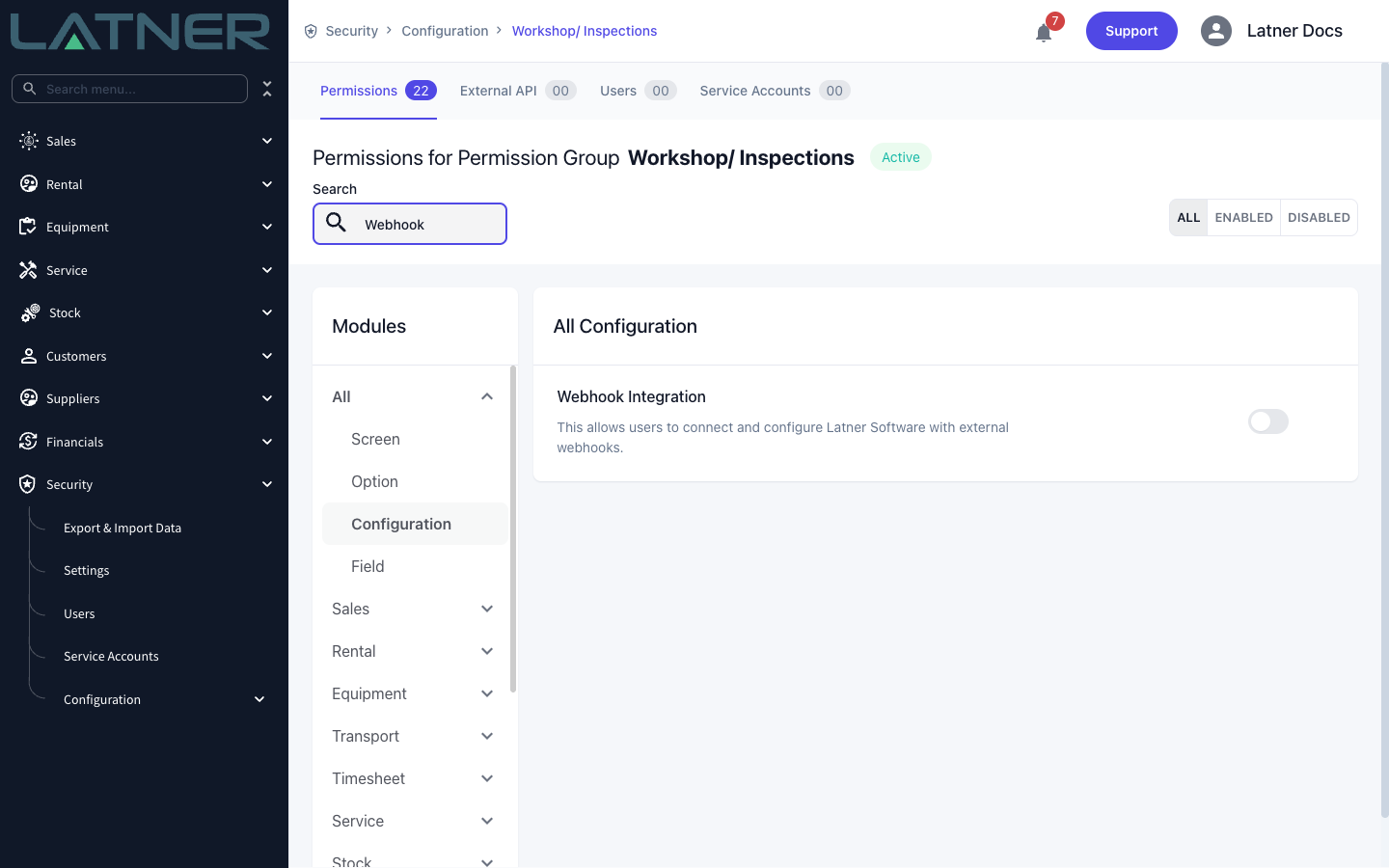
There is no system setting to switch webhooks on or off. An integration starts sending the instant you save it with a record type ticked, so have your endpoint built and listening before you create it.
What Latner Can Push
Each ticked record type sends a fixed JSON payload. Every payload identifies the record by its uuid, and related records are referenced by their uuid too, so your system can match them up on later calls.
-
Customer and Account - uuid, code, name, registered name, type, status, credit status, ABN, entity type, the billing address, the billing contact, the main site and the payment terms uuid.
-
Customer Contact and Account Contact - uuid, first name, last name, status, email, phone, job title, and the uuid and name of the customer they belong to.
-
Customer Site - uuid, code, name, status, address, phone, delivery instructions, and the uuids of the customer, delivery contact and billing contact.
-
Payment Term - uuid, term, description, type and day configuration.
Accounts and Customers are the same underlying record seen through two screens, and the same is true of Account Contacts and Customer Contacts. The pairs exist so you can push CRM activity and customer-management activity to different places, or label them differently at your end. If you tick both halves of a pair for the same integration, a record saved on the CRM screen arrives as an Account and the same record saved on the Customer screen arrives as a Customer.
The call itself is a JSON request with a Content-Type of application/json. If you chose Token Authentication, Latner adds an Authorization: Token <your token> header. Latner also adds a Webhook-Origin header naming the systems the change has already passed through, which is what stops two systems pushing the same change back and forth at each other forever.
By default every call goes to exactly the URL you entered. Tick Use API Endpoint and Latner instead appends a path for the record type, matching its own API: accounts, account-contacts, customers, customer-contacts, sites or payment-terms, with the record's uuid on the end for updates. Use it when your destination is another Latner tenant or a service that copies Latner's URL scheme. Leave it off when you have built a single endpoint of your own.
Setting Up a Webhook
Step 1 - Open the Webhook Integrations screen
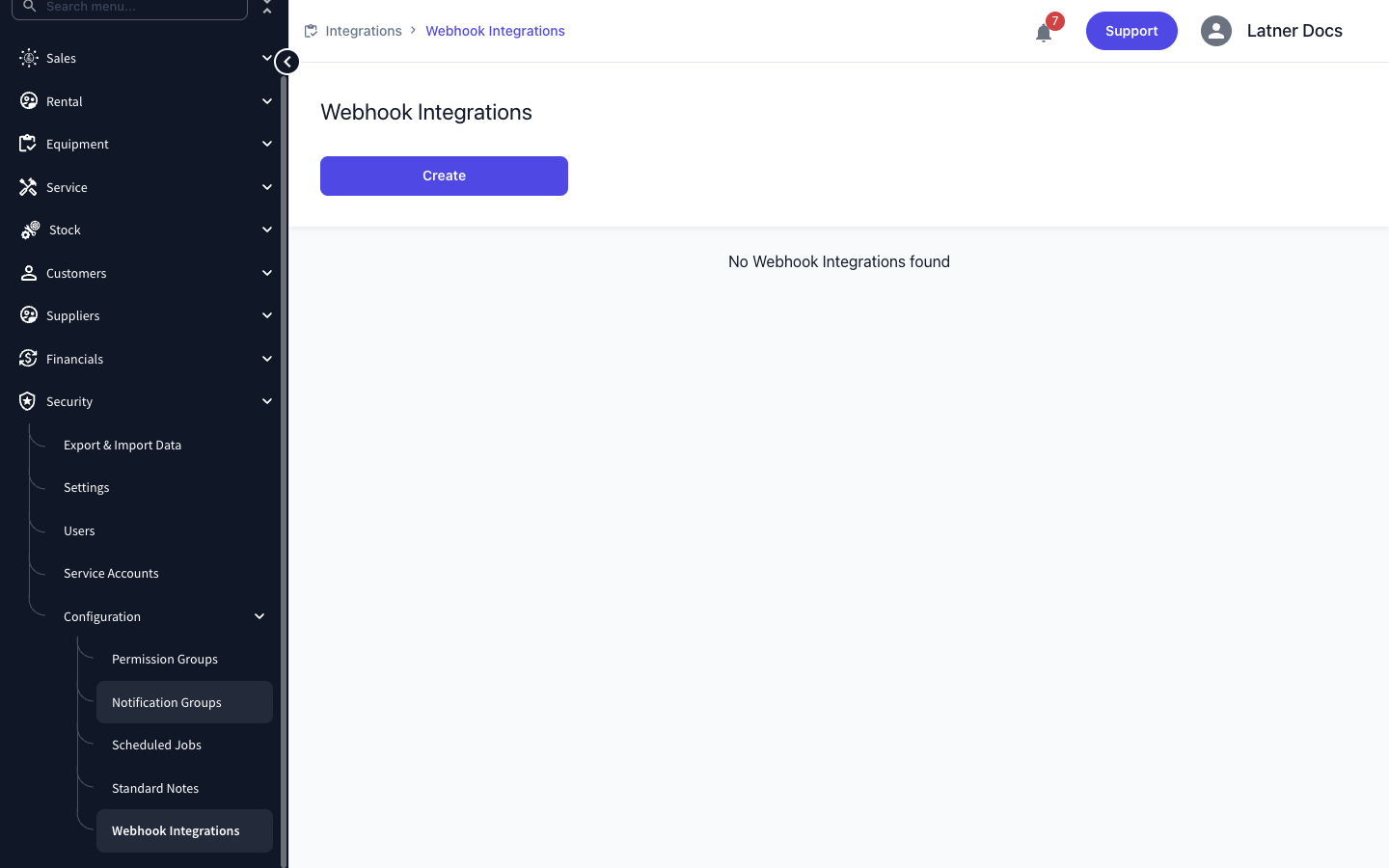
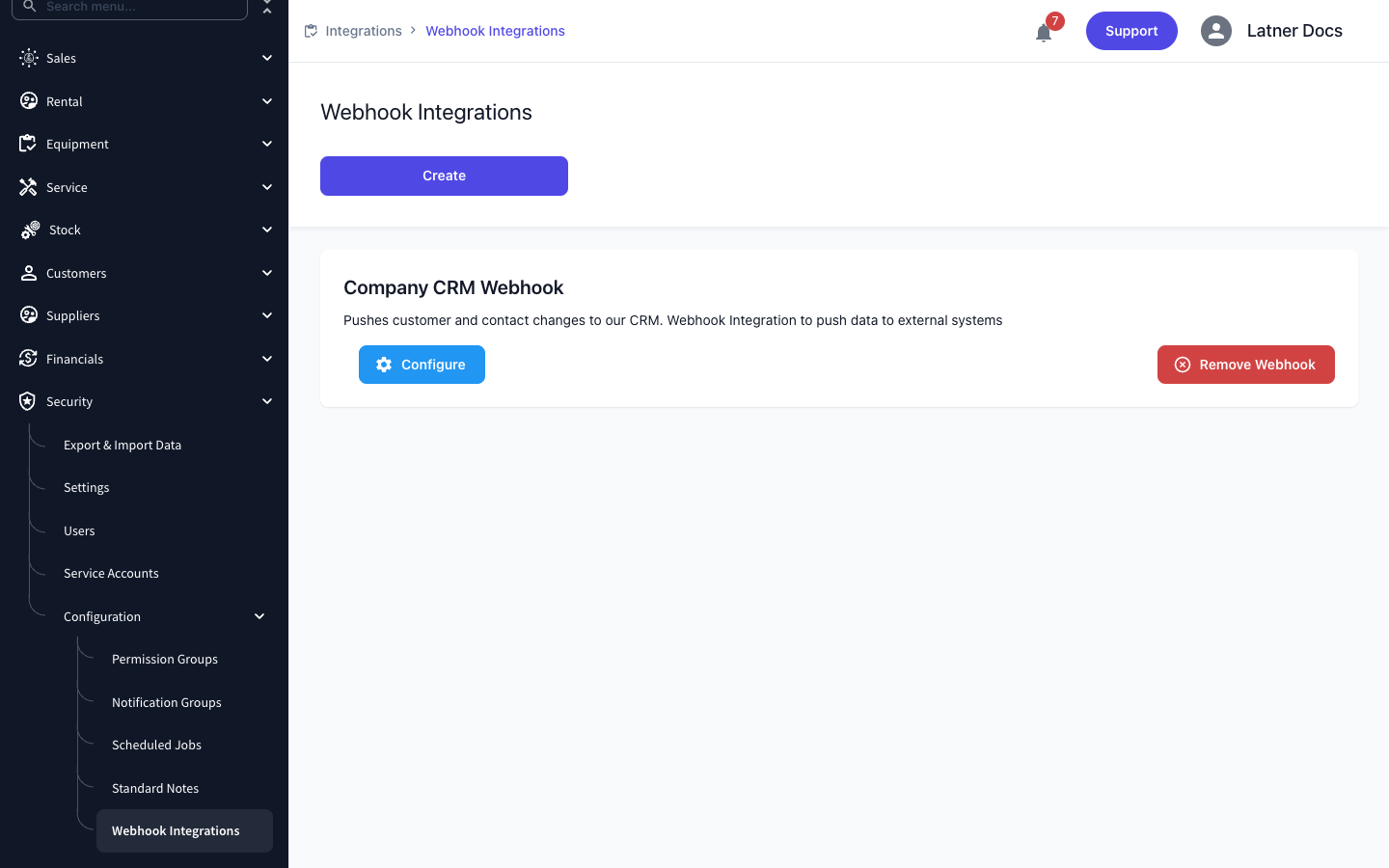
Go to Security › Configuration › Webhook Integrations. Every integration you have set up is listed here as a card.
Step 2 - Start a new connection
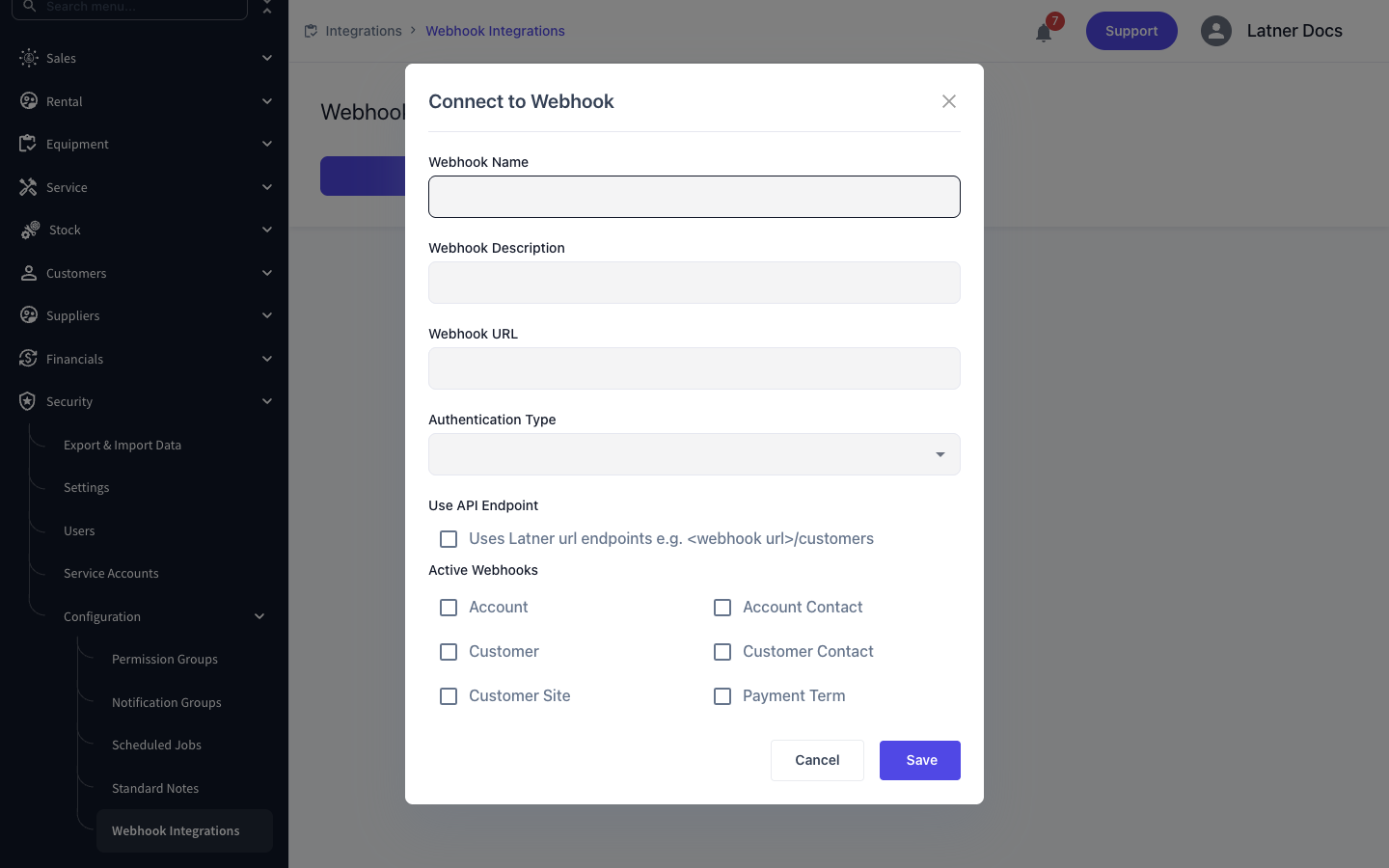
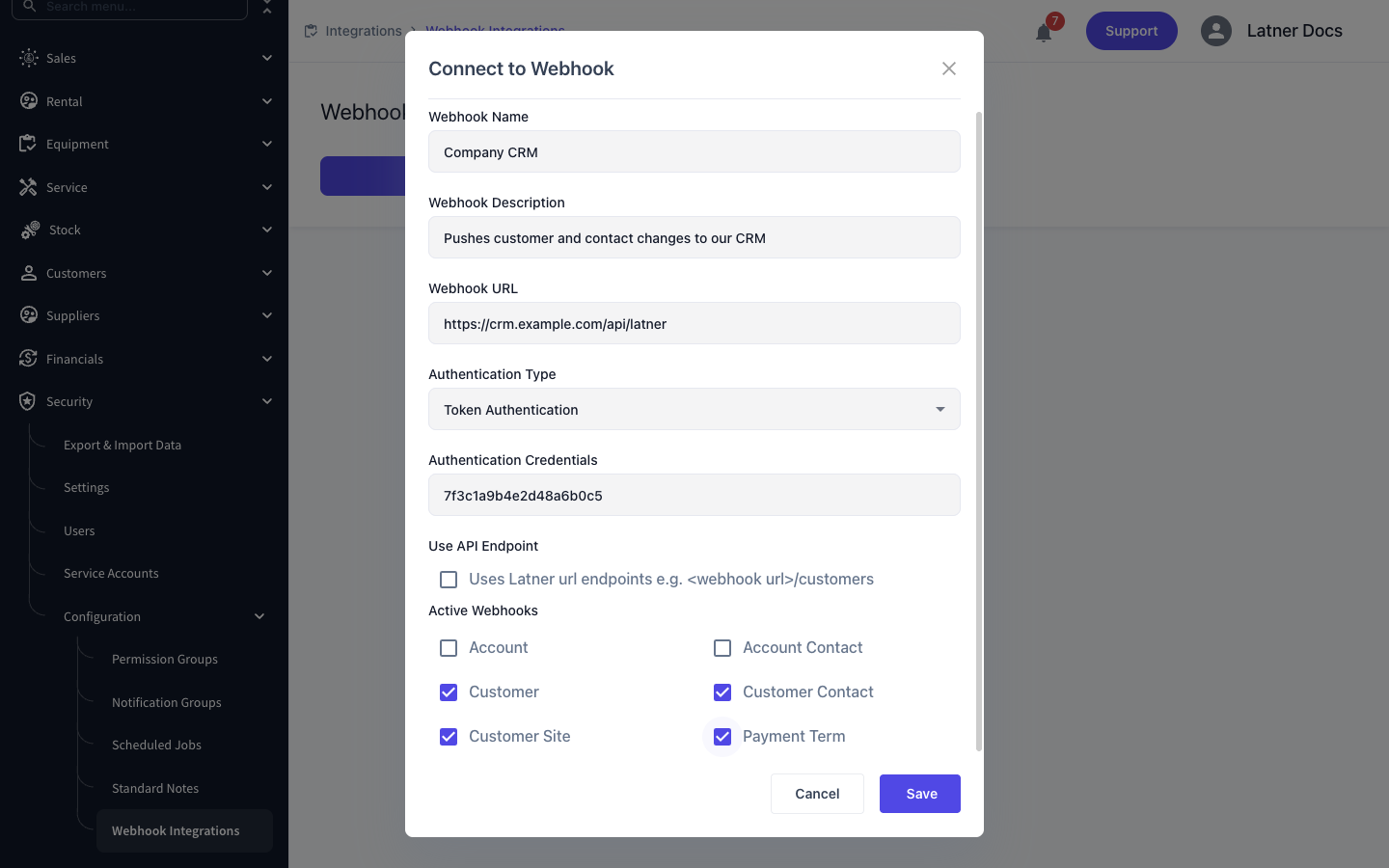
Select Create to open the Connect to Webhook dialog, then fill in the destination.
-
Webhook Name - required, and it must be unique. It is only a label for your team, but you cannot reuse it later, so keep it descriptive.
-
Webhook Description - required. It shows on the card, so say what the destination is for.
-
Webhook URL - required. The full address Latner sends to.
Step 3 - Choose how Latner authenticates
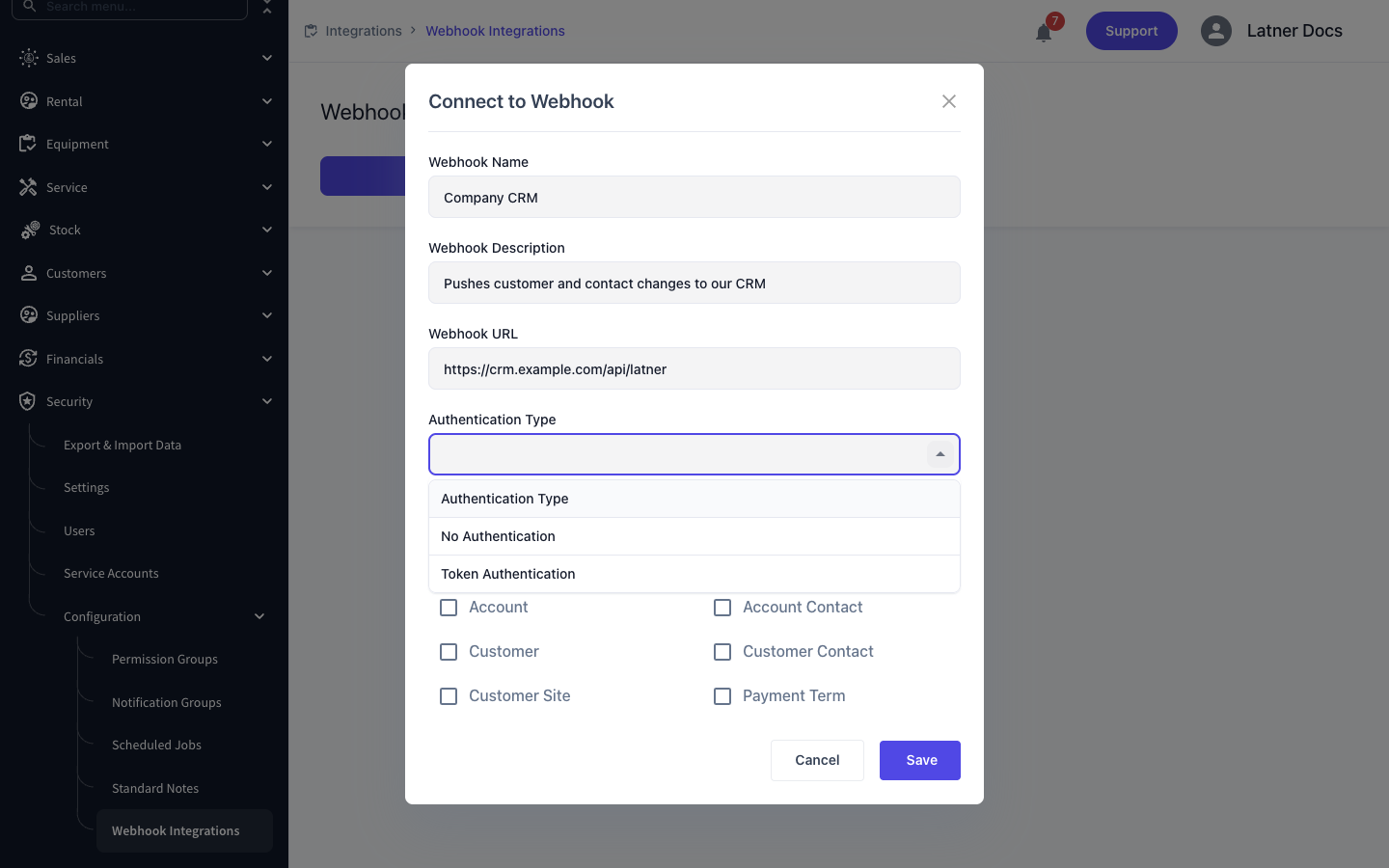
Authentication Type is required and offers two choices. Pick No Authentication if your endpoint is open or is secured some other way, or Token Authentication to have Latner send a token with every call.
Step 4 - Enter the token and tick the records to push
Choosing Token Authentication reveals the Authentication Credentials field, which is then required. Paste in the token your destination expects. Latner stores it encrypted and never shows it again.
Then tick the record types you want pushed under Active Webhooks. Anything left unticked is simply not sent. If you need Latner's own URL paths appended, tick Use API Endpoint as well.
Step 5 - Save
Select Save. The integration appears as a card on the list and is live immediately, so the very next matching save in Latner will call your endpoint.
After You Save
-
Latner calls your endpoint on every create and update of a ticked record type, whoever makes the change and wherever they make it, including the mobile app and the API.
-
Creating a customer sends one Customer call. The main site and billing contact that Latner creates alongside it are included in that payload rather than sent as separate calls.
-
A customer site that Latner creates for you while importing rental contracts does not send its own Customer Site call.
-
Deleting a record sends nothing at all. Your destination will not hear about it.
The call is part of the save, not a background job. If your endpoint answers with an error, or is unreachable, or is slow enough to time out, the user's change is rolled back and they see an error instead of a saved record. A destination that goes down will stop your team saving customers until you remove the integration, so only point a webhook at something you are confident stays up.
Changing or Removing a Webhook
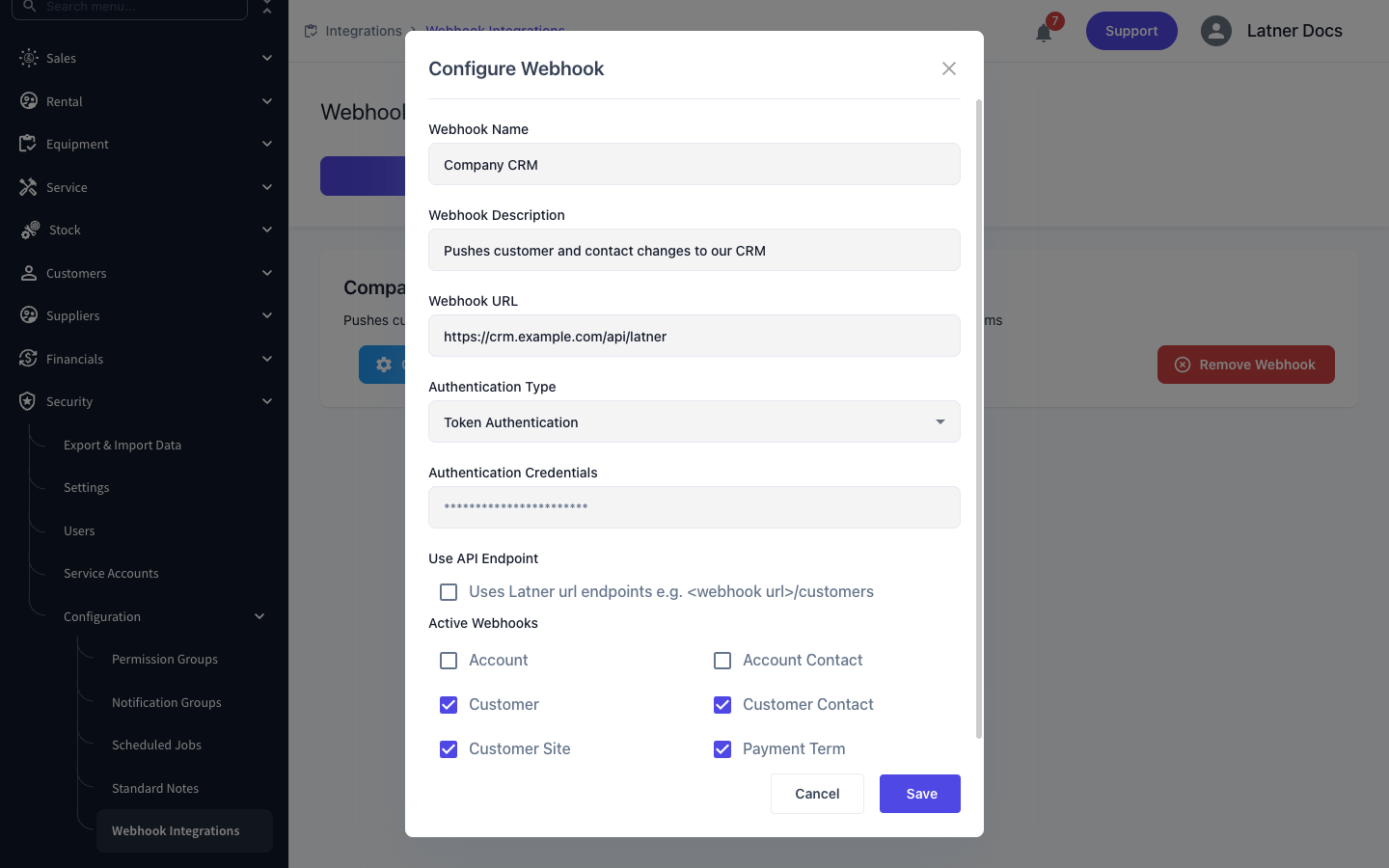
Select Configure on a card to reopen the same dialog as Configure Webhook. Every field can be changed, including which record types are ticked. The Authentication Credentials field shows asterisks rather than the stored token; leave it alone to keep the existing token, or type a new one to replace it.
To stop an integration, select Remove Webhook and confirm. It stops sending straight away and disappears from the list. This is the quickest way to unblock your team if a destination has gone down.
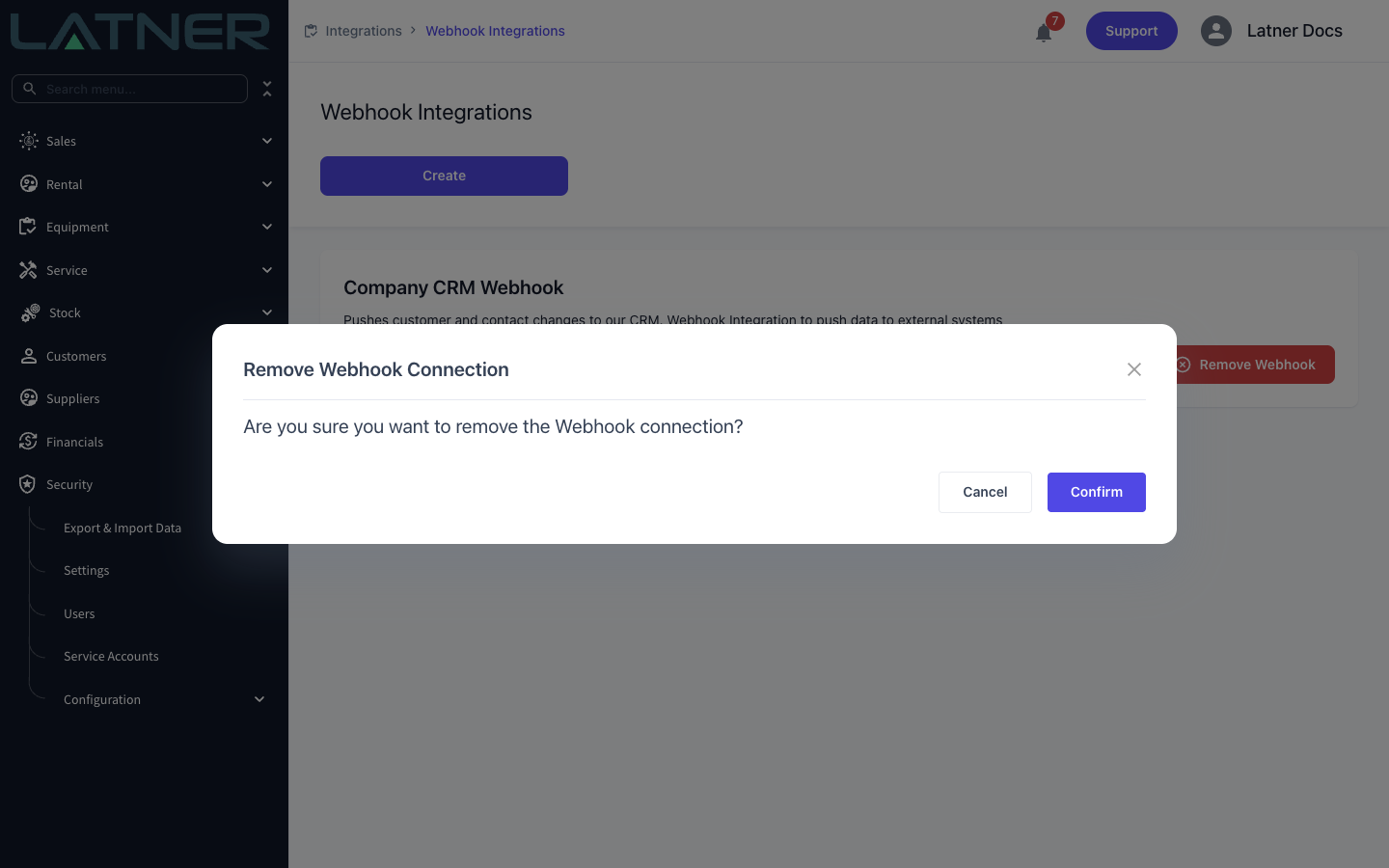
A removed webhook cannot be brought back from this screen, and its name stays reserved. If you want the same destination again you will have to create a new integration under a different name, so if you only need to pause it, use Configure to untick every record type instead of removing it.